
Guides
Learn NextAnalyzer step by step.
One guide for each task in the dashboard, the app and the device: what you need before you start, short steps with the result you should see, real screenshots and what to do if something goes wrong.
Searches the titles, steps and common problems of every guide.
What do you want to do?
The most searched tasks, one click away.
Getting started
Get started
Understand how it works, create your account, install the agent on Windows, macOS or Linux, enroll your devices and solve agent problems.
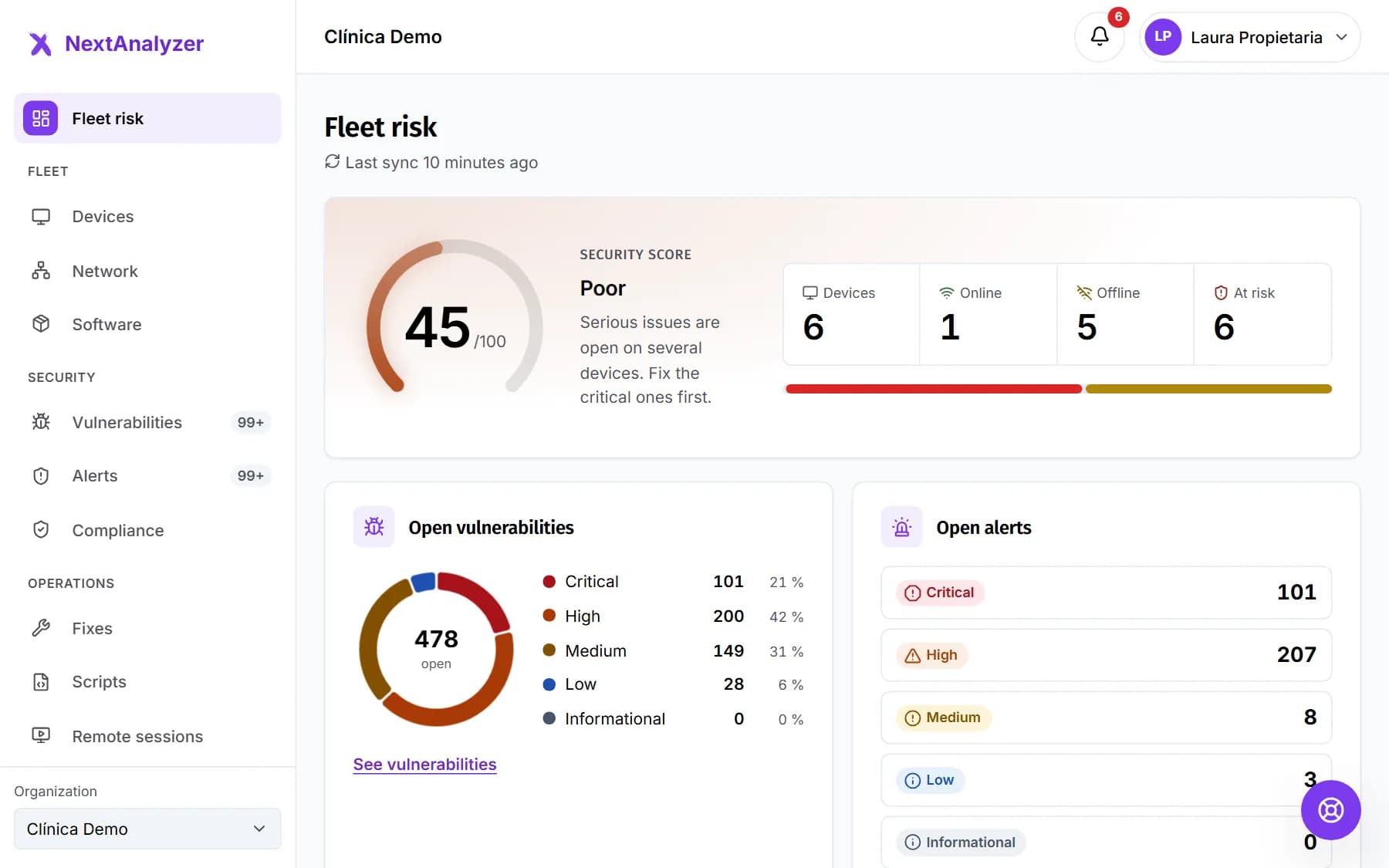 How NextAnalyzer worksNextAnalyzer's building blocks, what data it collects and never collects, what it does alone, what needs your approval and what it is not. For IT leads.Read the guide
- Get started with NextAnalyzerCreate your account, confirm your email, protect your first device and invite your team. From zero to your first detected vulnerability in ten minutes.Read the guide
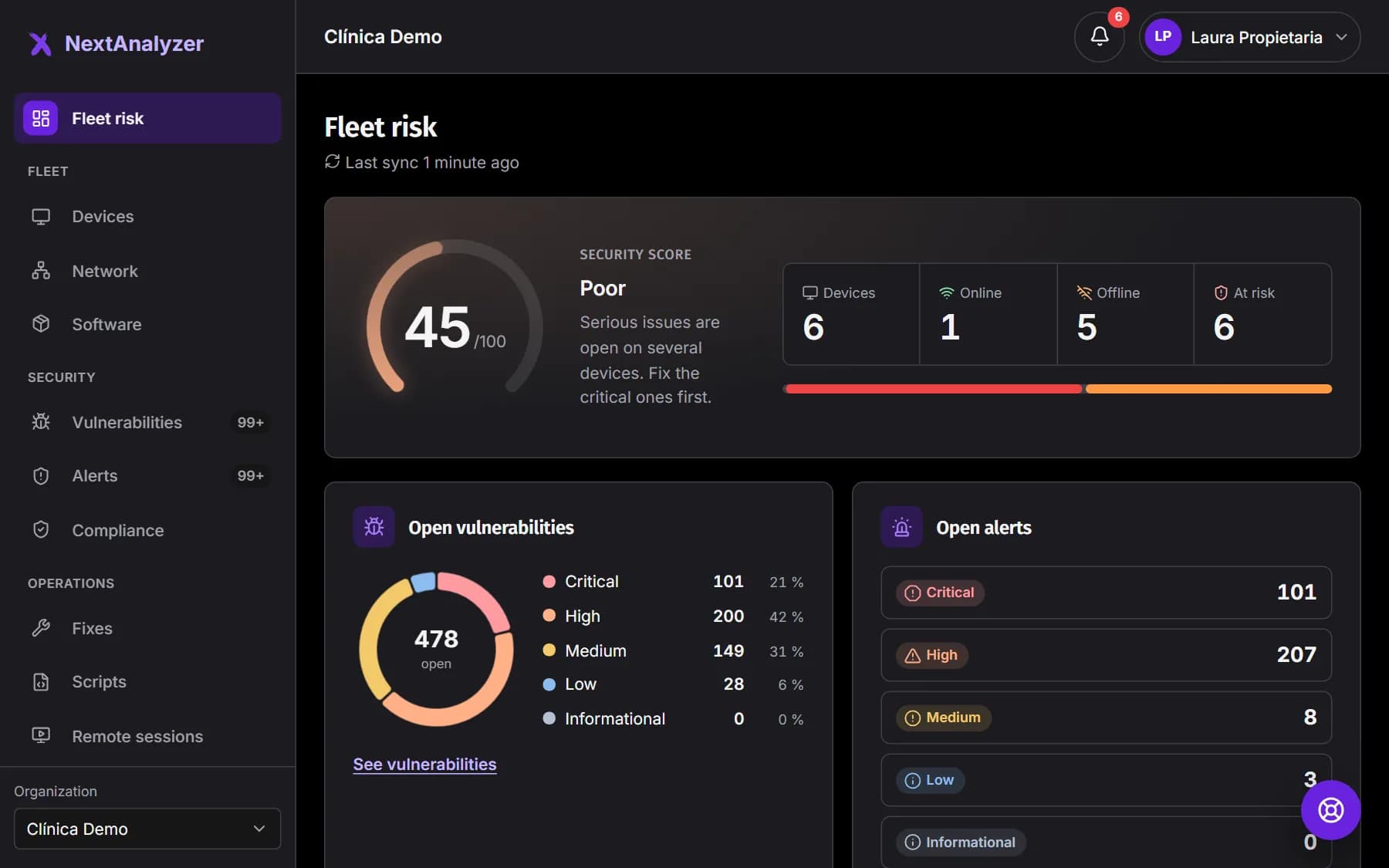
- Read your fleet riskUnderstand the dashboard home: the security score, devices at risk, alerts, the most widespread CVEs and what to fix this week.Read the guide
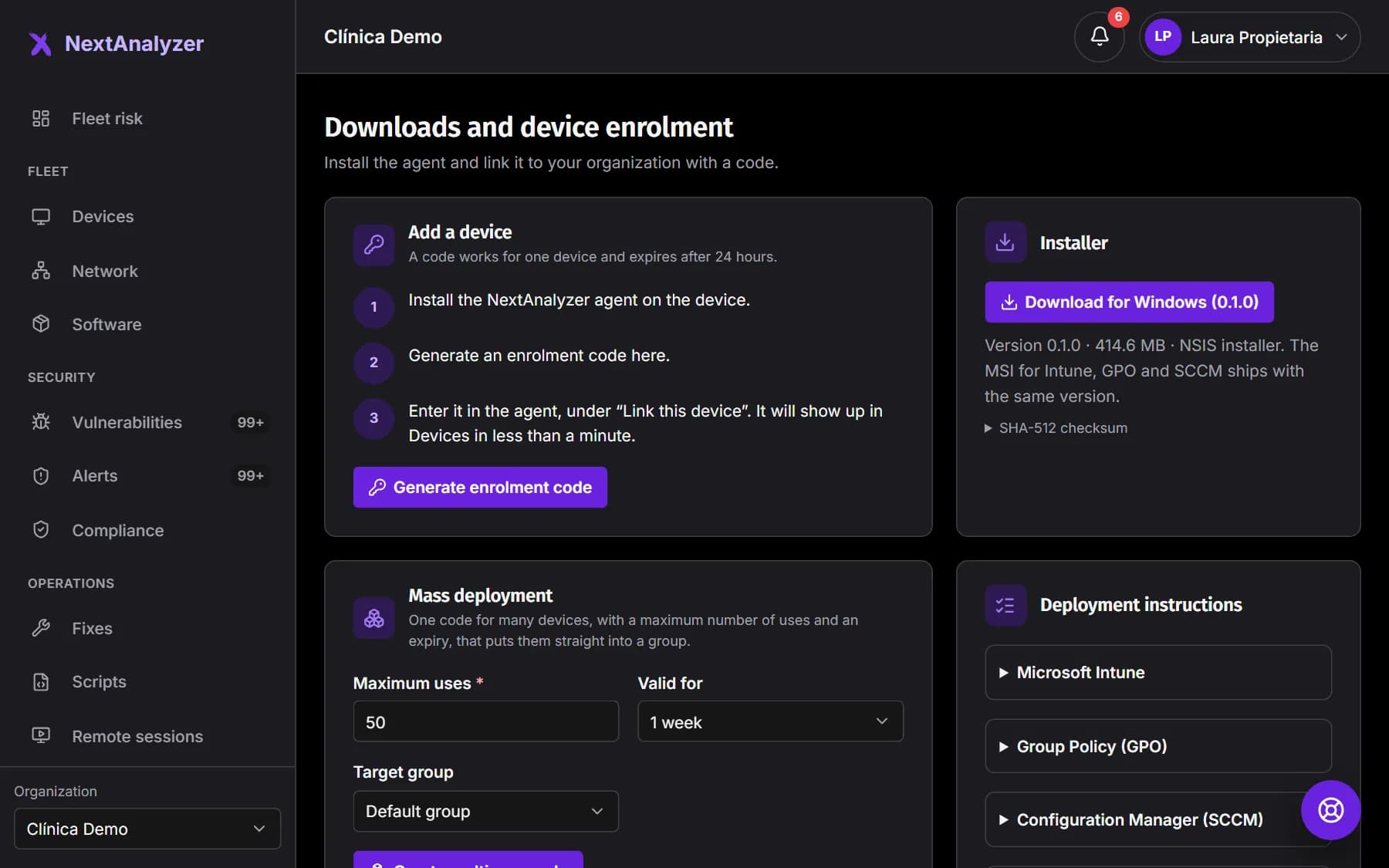
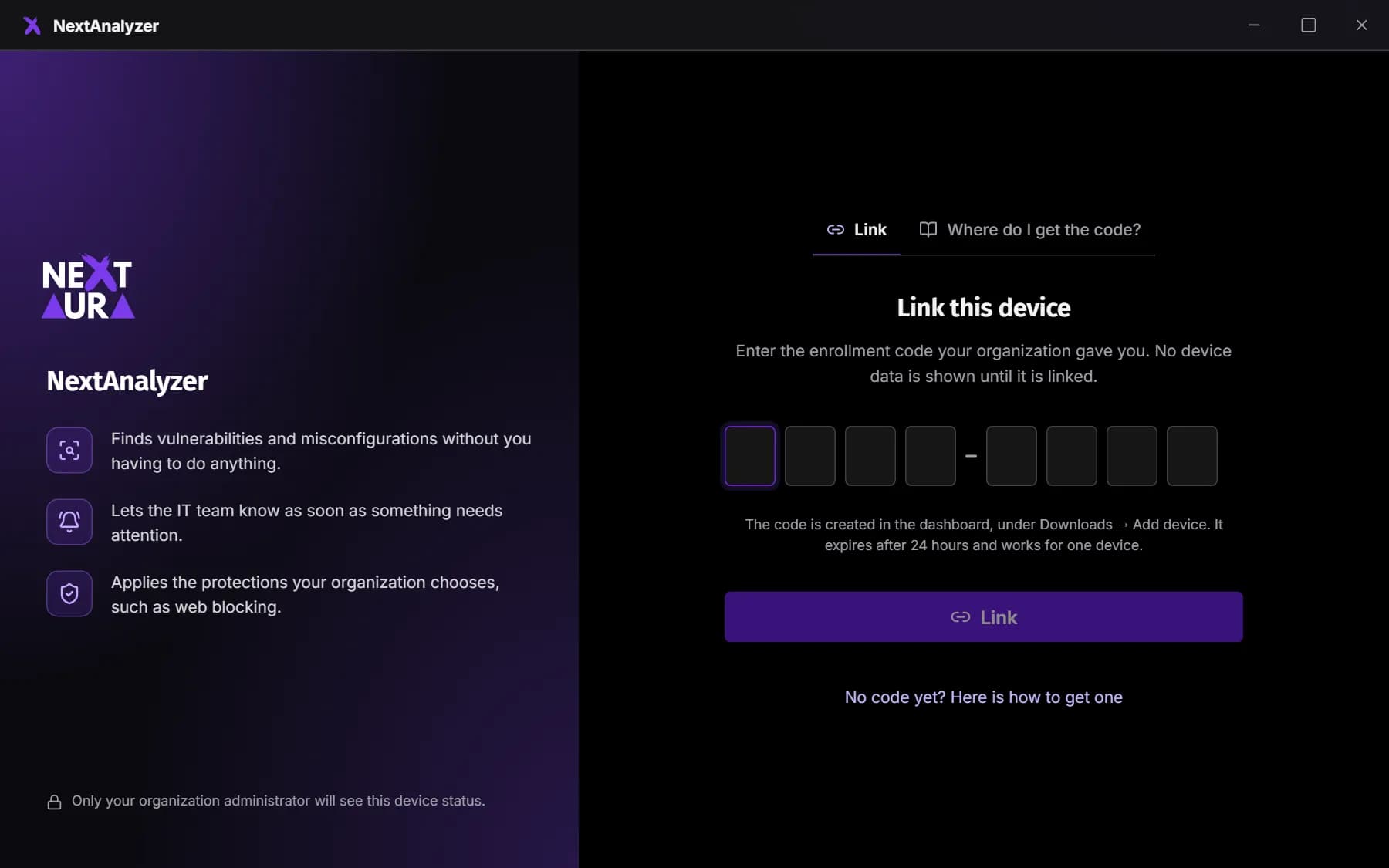
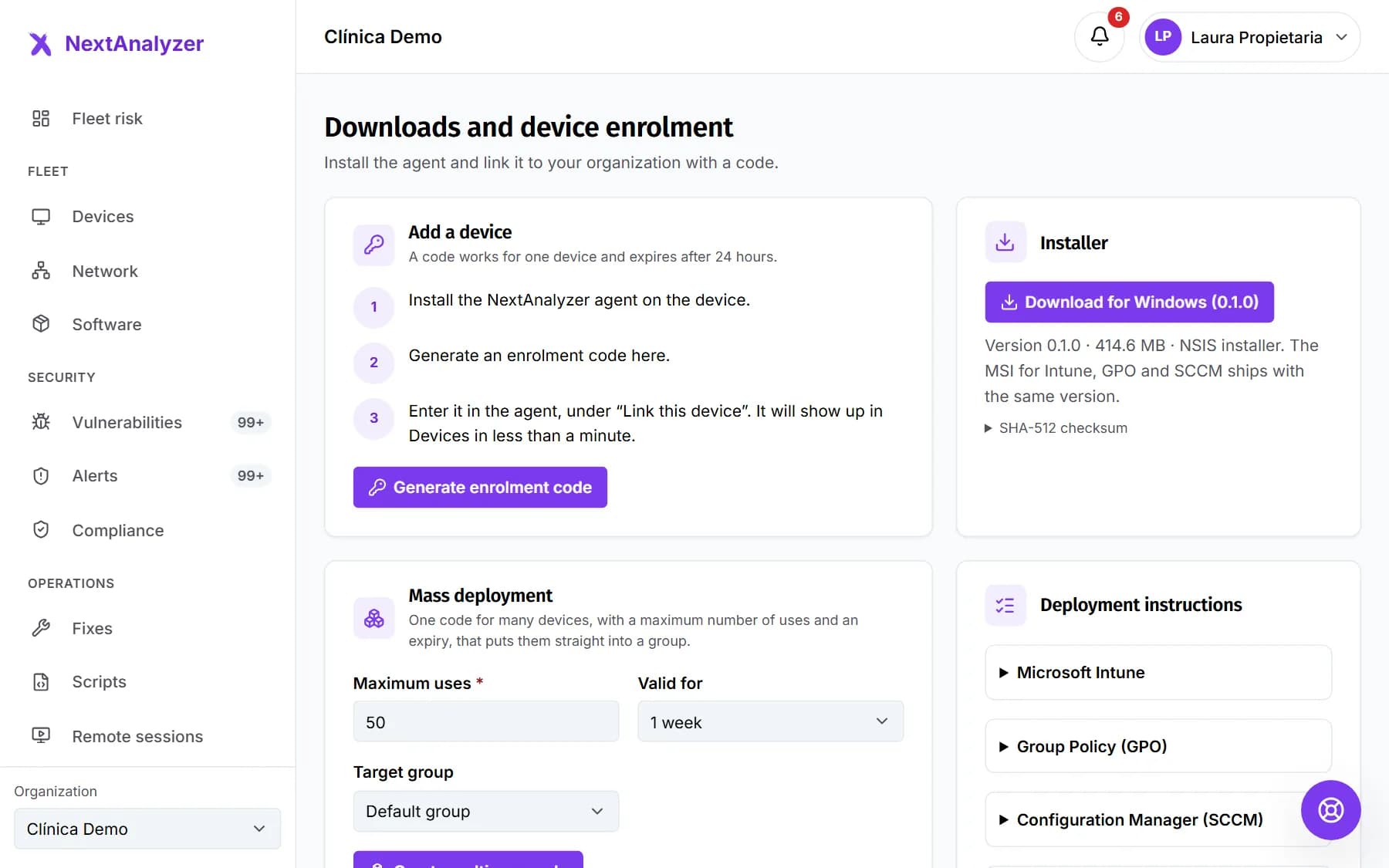 Install the agent and link a deviceDownload the installer from the dashboard, generate an enrollment code, install the agent and check that the device shows up online with active detection.Read the guide
- Install on Windows with the wizardThe Windows installer screen by screen: terms, privacy, enrollment code, components and summary. Plus how to install silently and uninstall.Read the guide
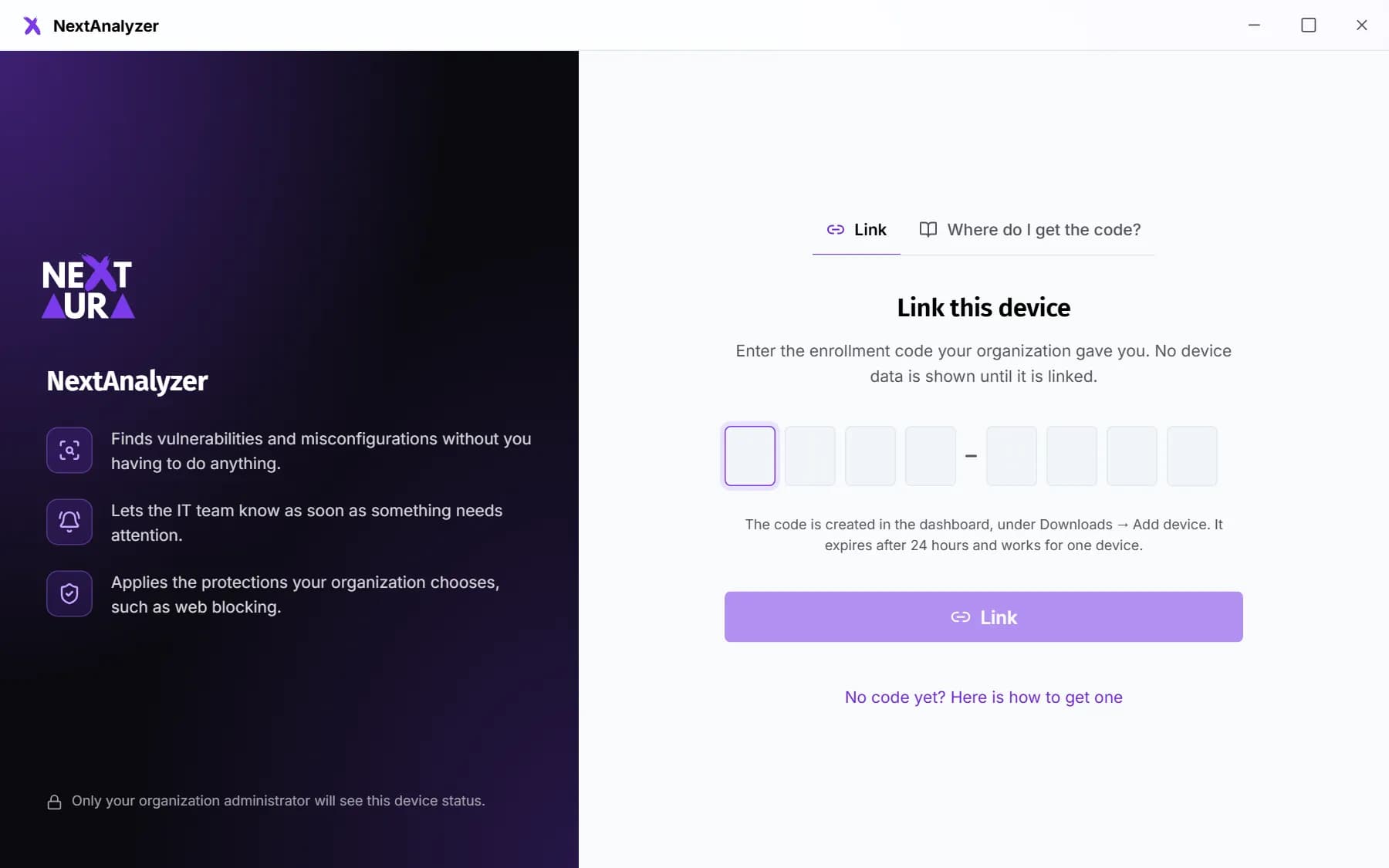 Install on macOS and LinuxInstall the agent on a Mac (Intel or Apple Silicon) or on Linux with .deb, .rpm or .pacman, link it with the code and grant the permissions it needs.Read the guide
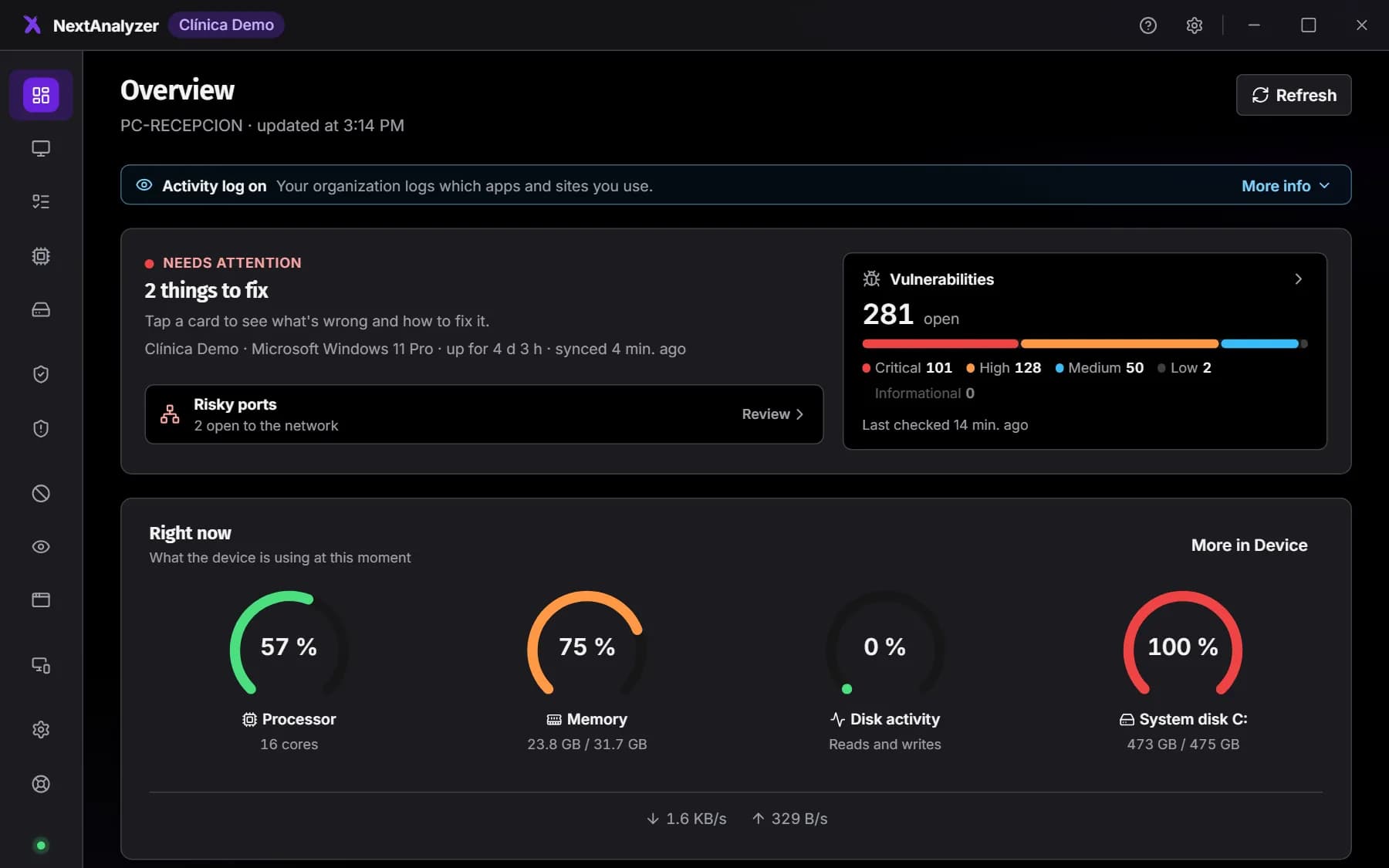
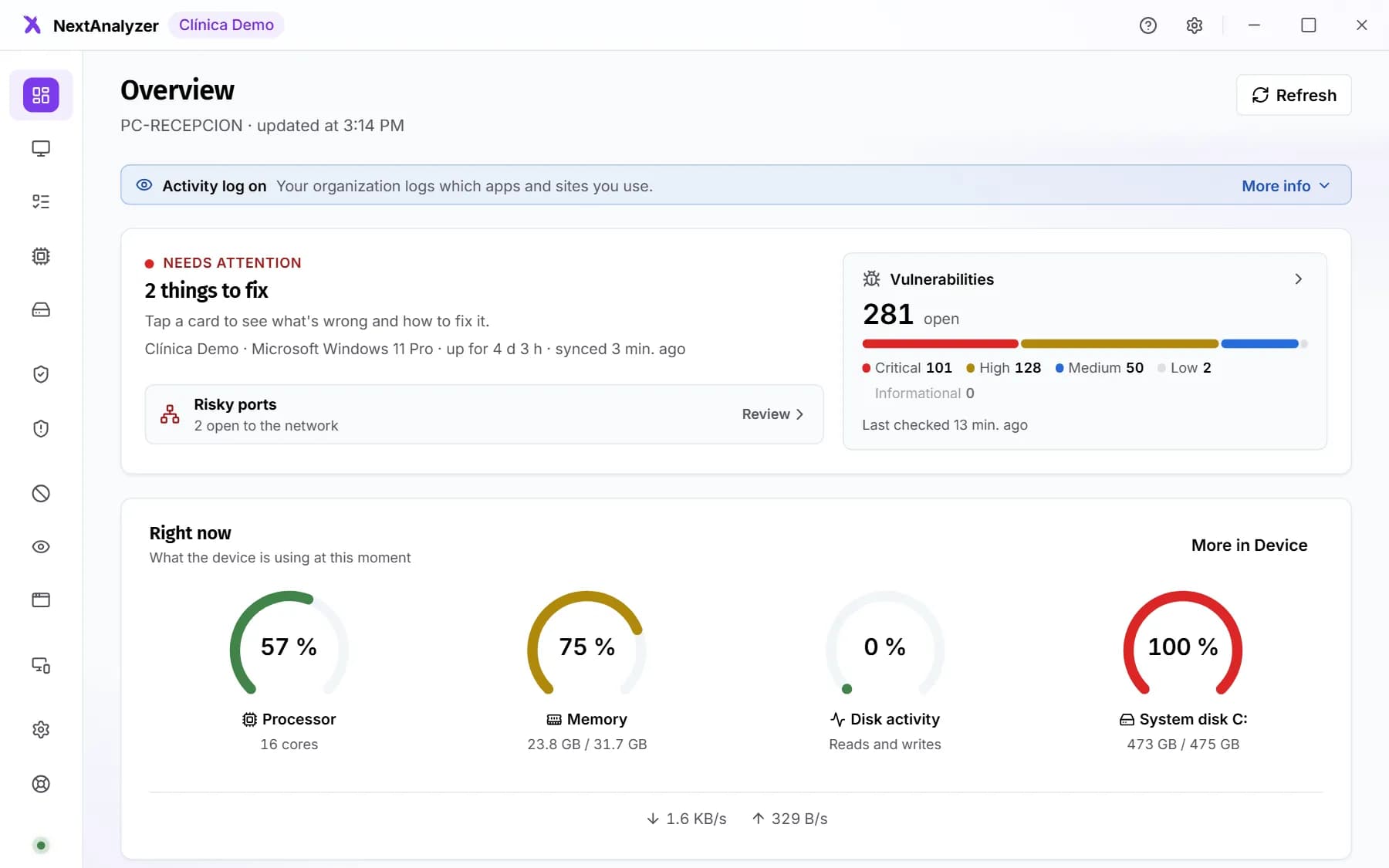 The desktop app in depthWhat each page of the NextAnalyzer app shows, from the overview to remote access, what the device user can do and what their organization decides.Read the guide
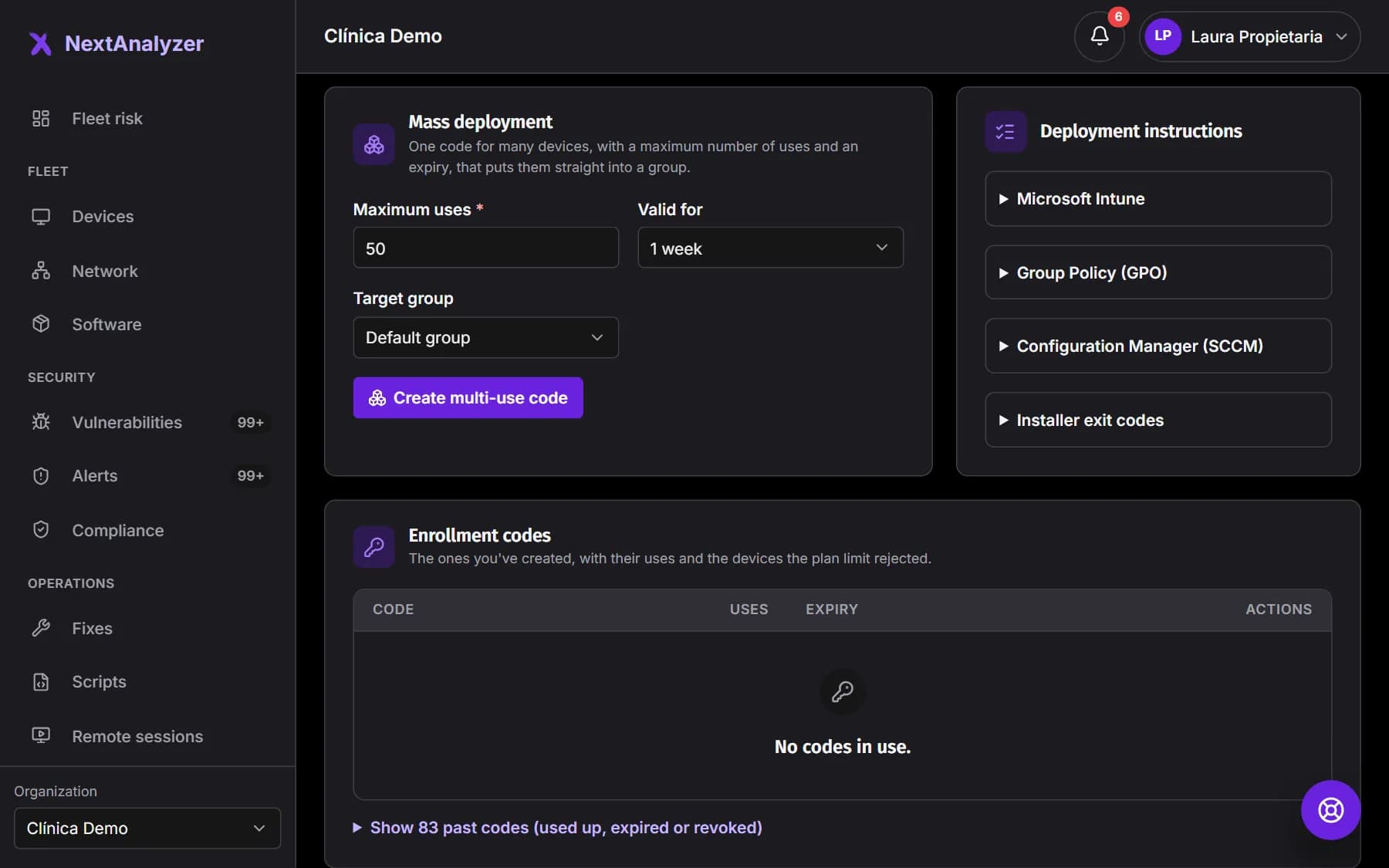
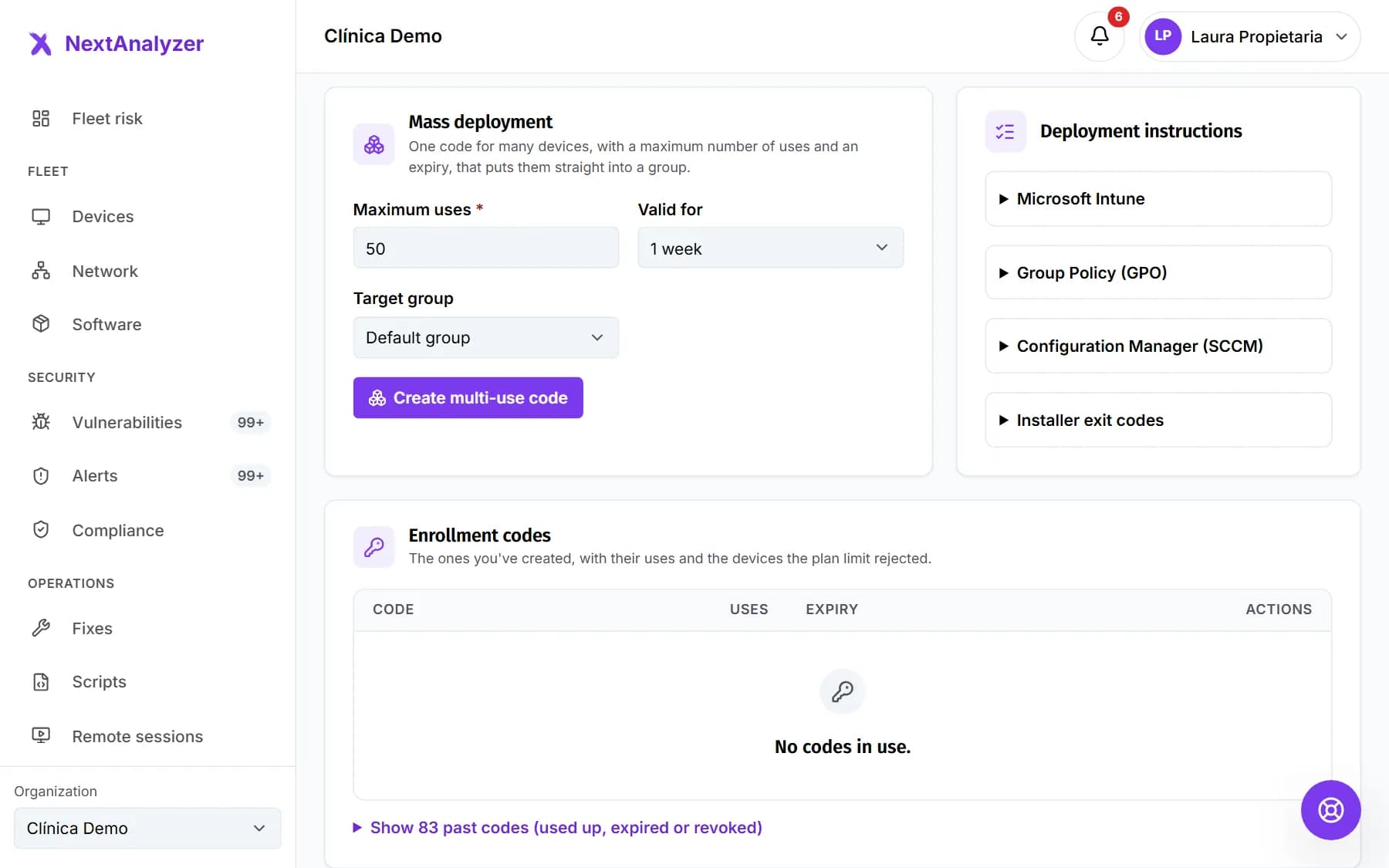 Mass deploy with Intune, GPO, SCCM, Jamf or LinuxCreate a multi-use code and silently install the agent on dozens of Windows, Mac or Linux devices at once, straight into their group.Read the guide
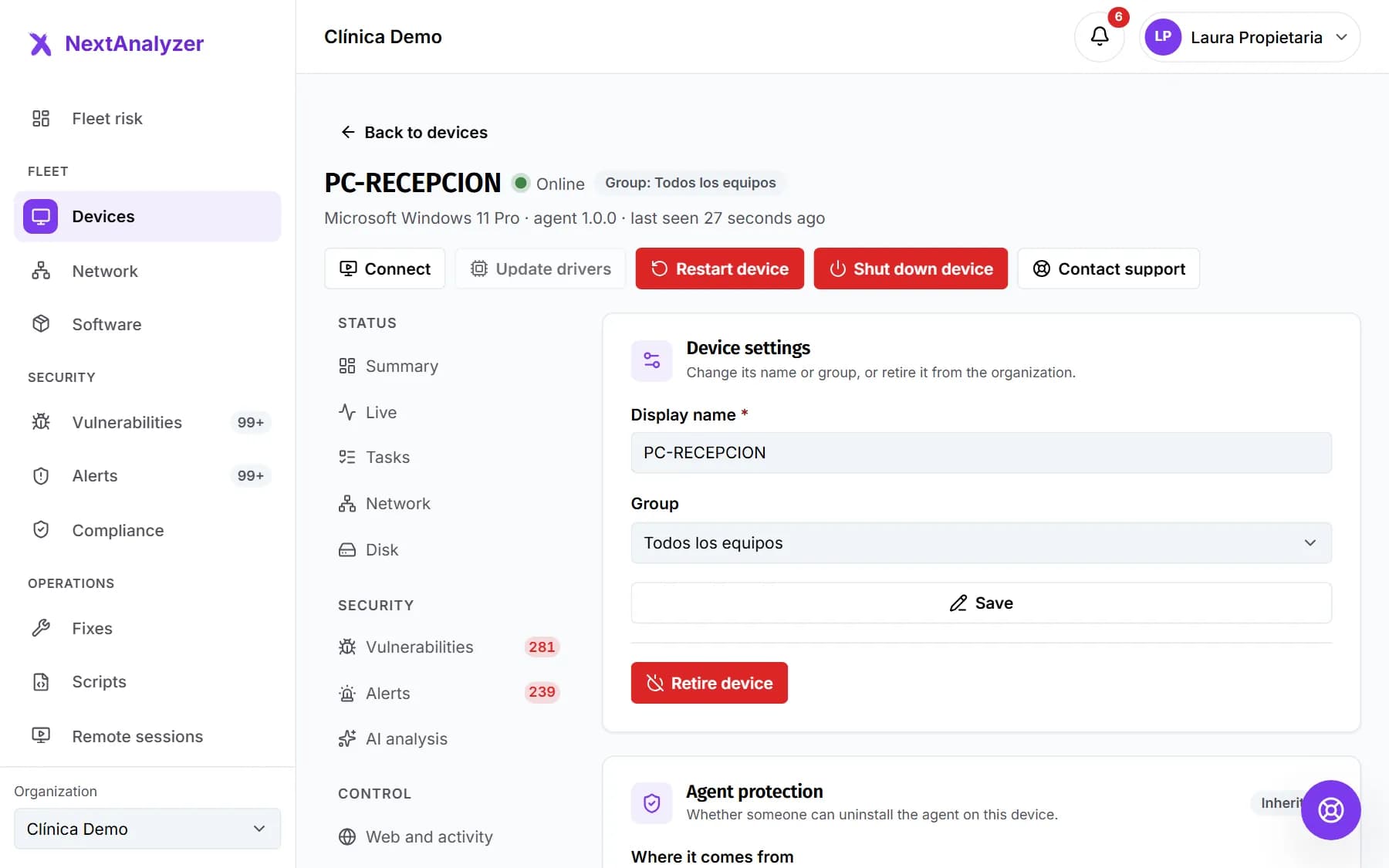 Retire or uninstall the agentRetire a device from the dashboard so the agent uninstalls itself, or uninstall it by hand on Windows, macOS or Linux, even when it's protected.Read the guide
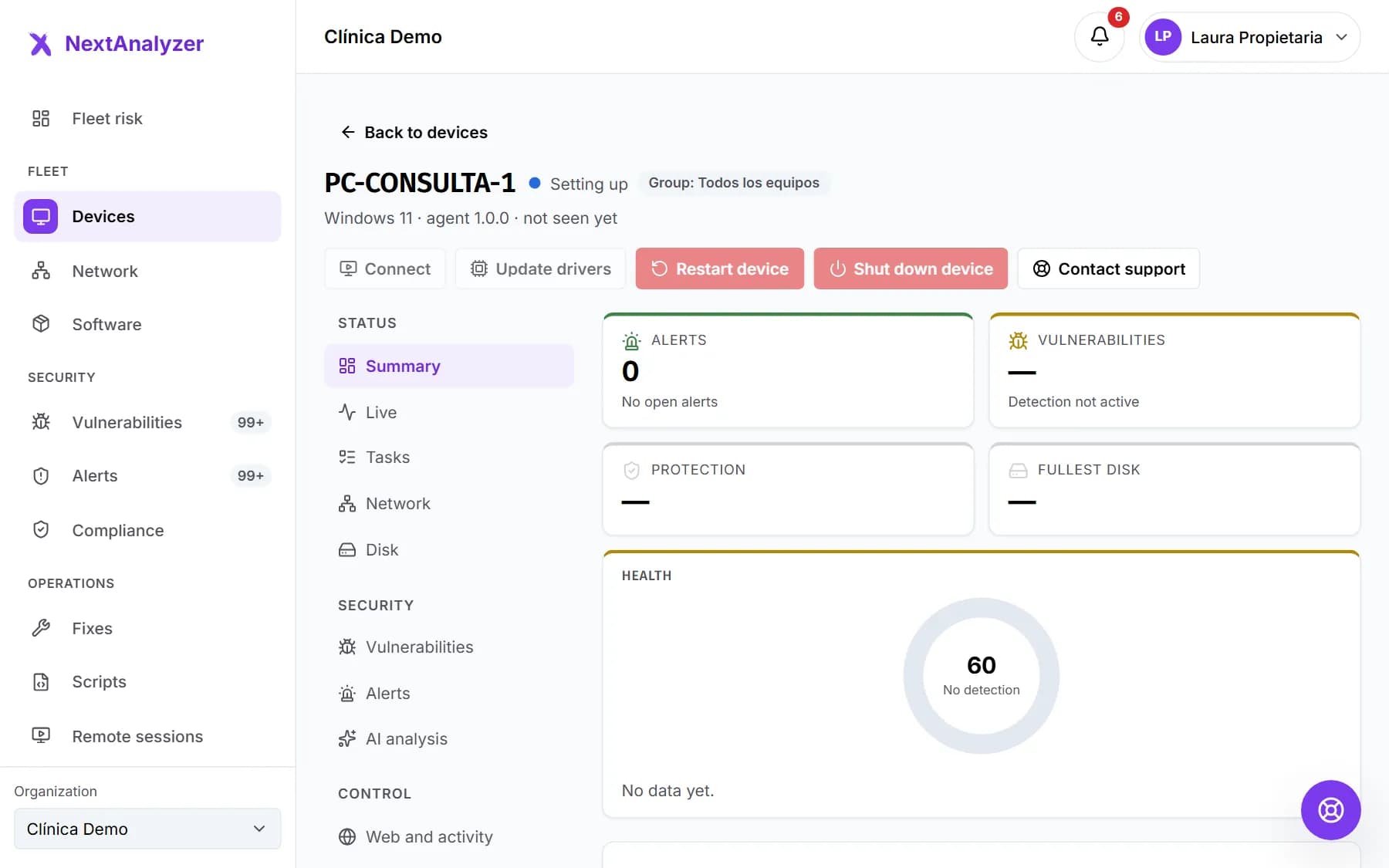 Troubleshoot the agentWhat to do if a device doesn't show up after installing, appears offline or without detection, or loses Internet access, where the logs are and when to get help.Read the guide
Devices
Look after your devices
Device page, live view, inventory, tasks, disk, drivers, network, AI analysis and remote commands.
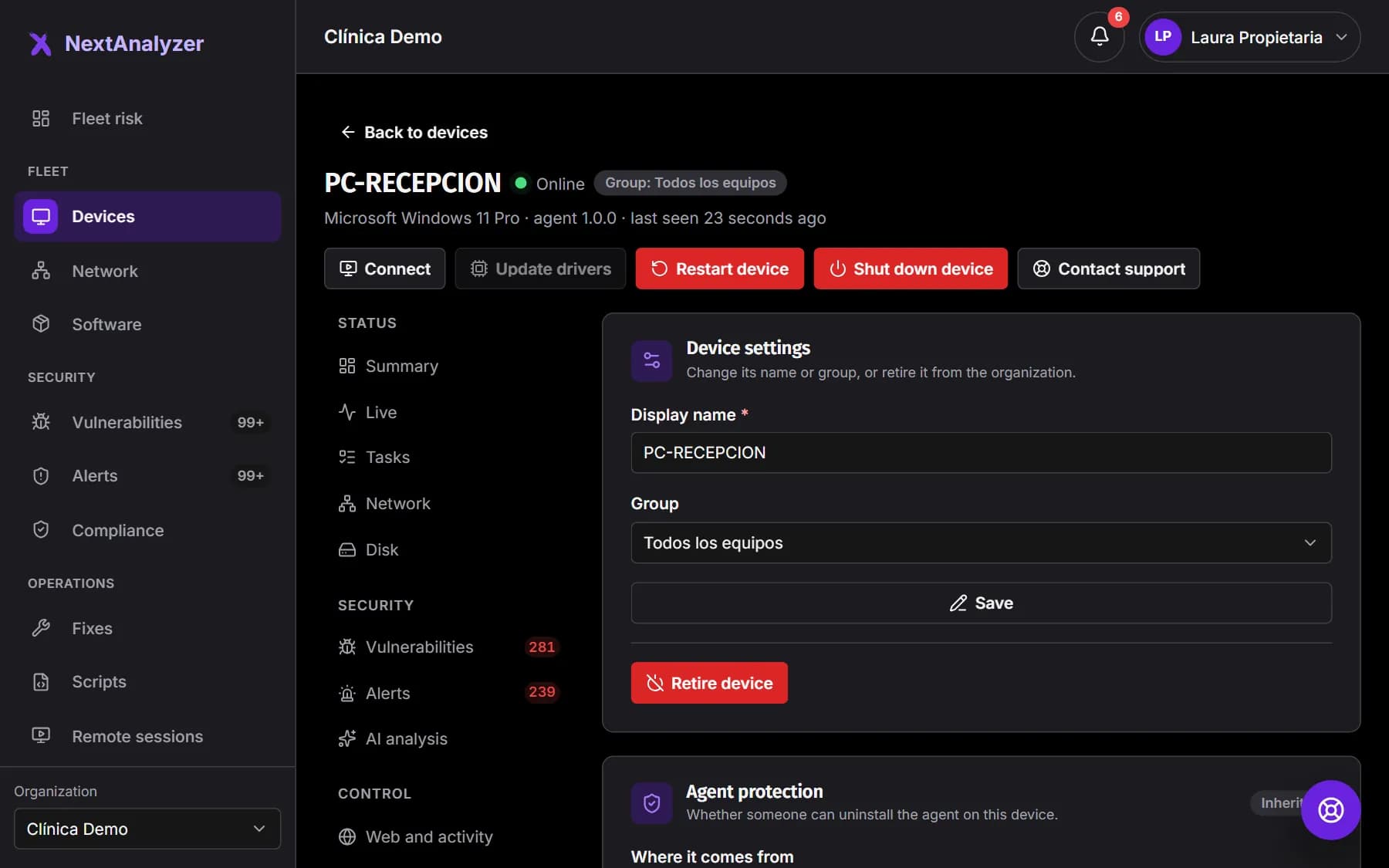
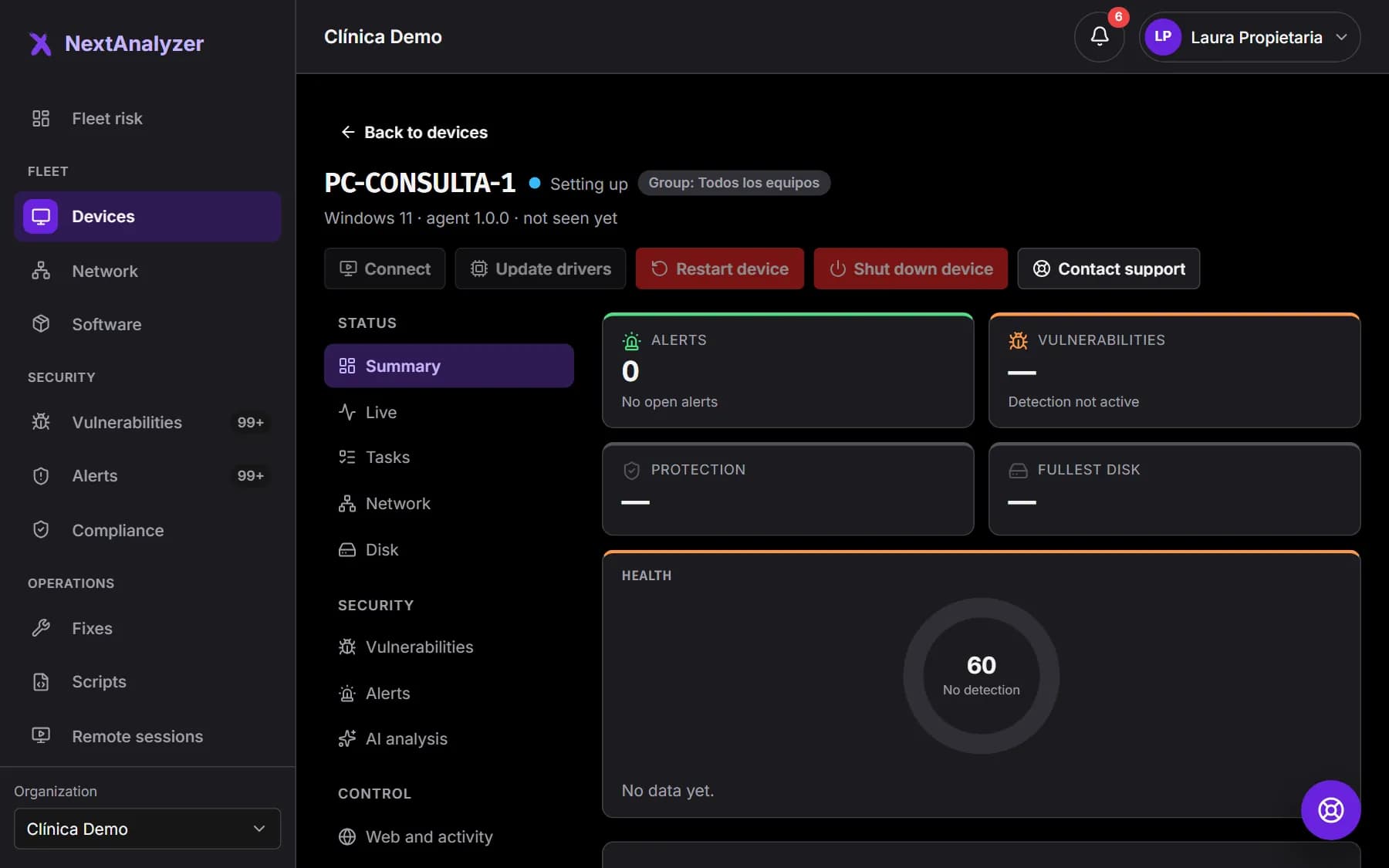
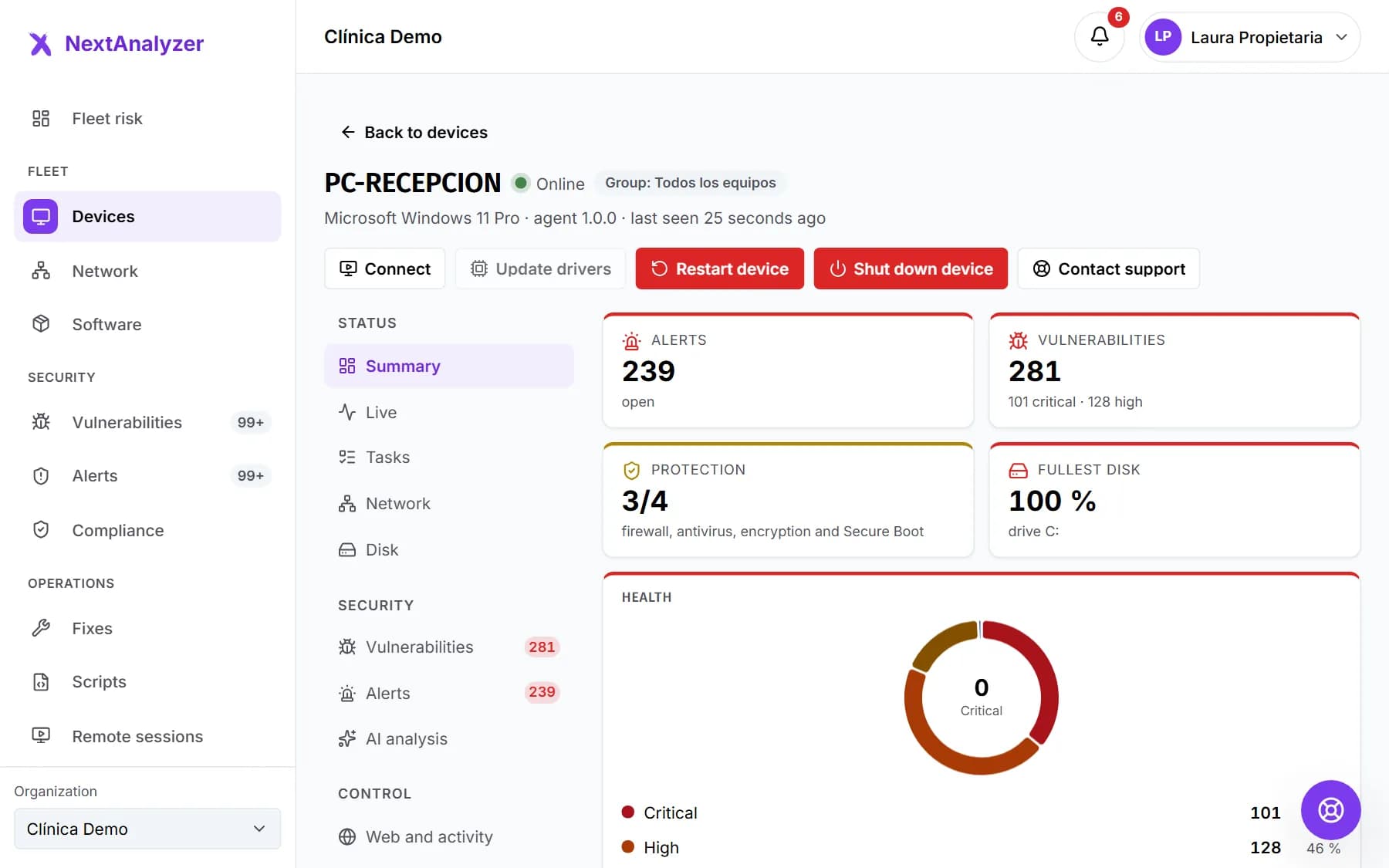 Manage devices and groupsFind any device, understand its status and its page, sort devices into groups with their own rules and decide who sees each group.Read the guide
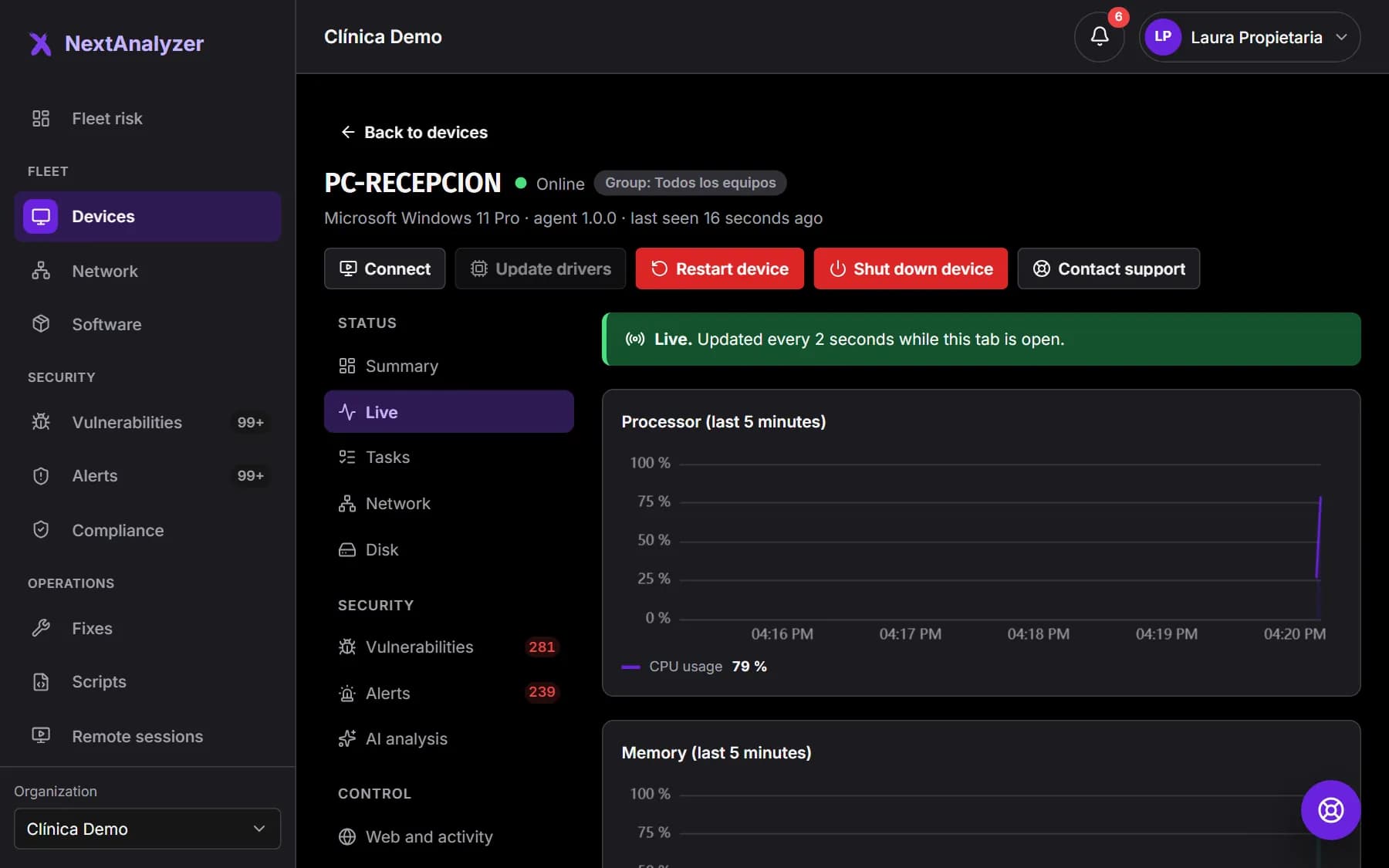
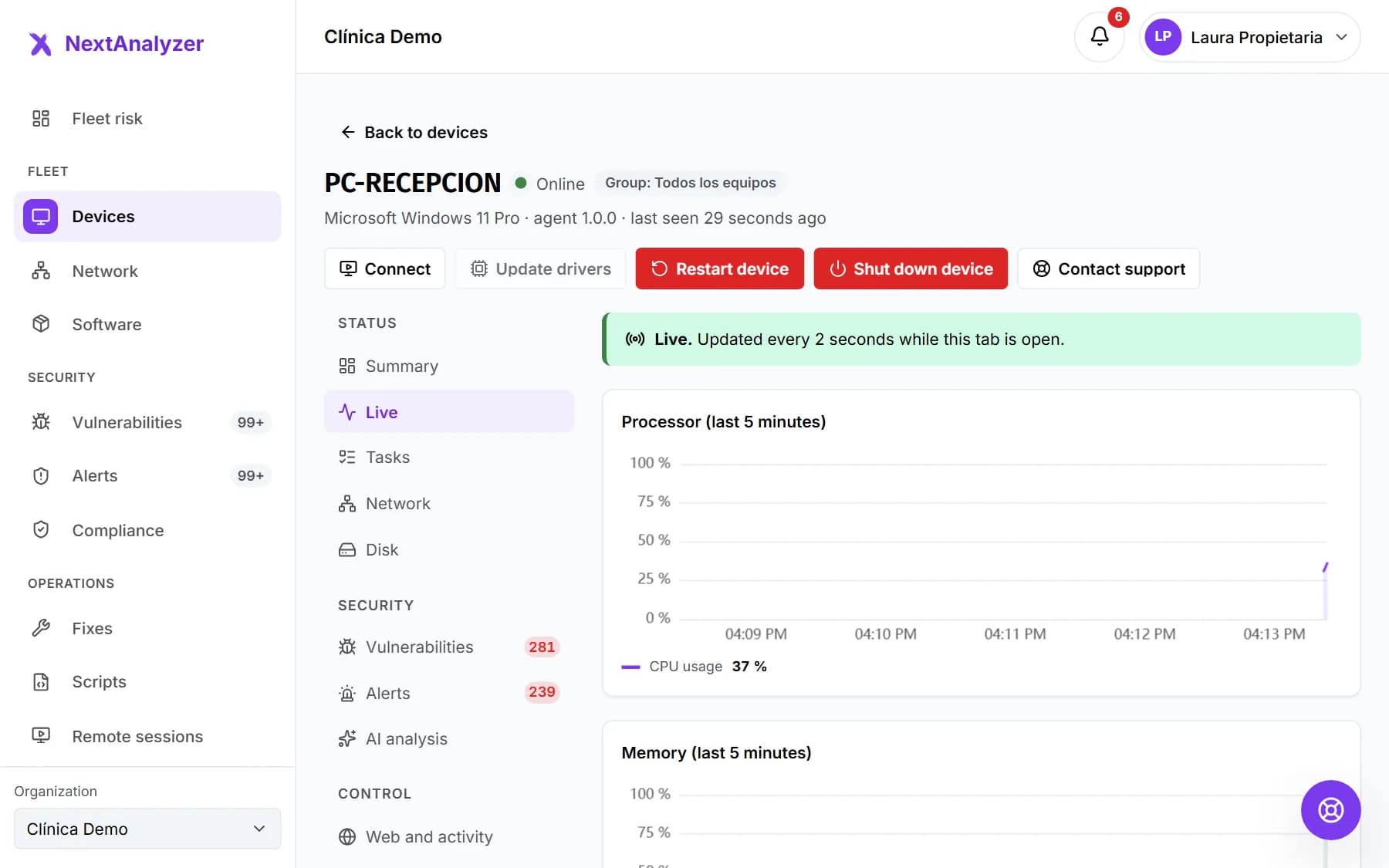 Live view and history of a deviceSee a device's processor, memory, network and disk every 2 seconds, its processes and logs, and compare with its history over days or weeks.Read the guide
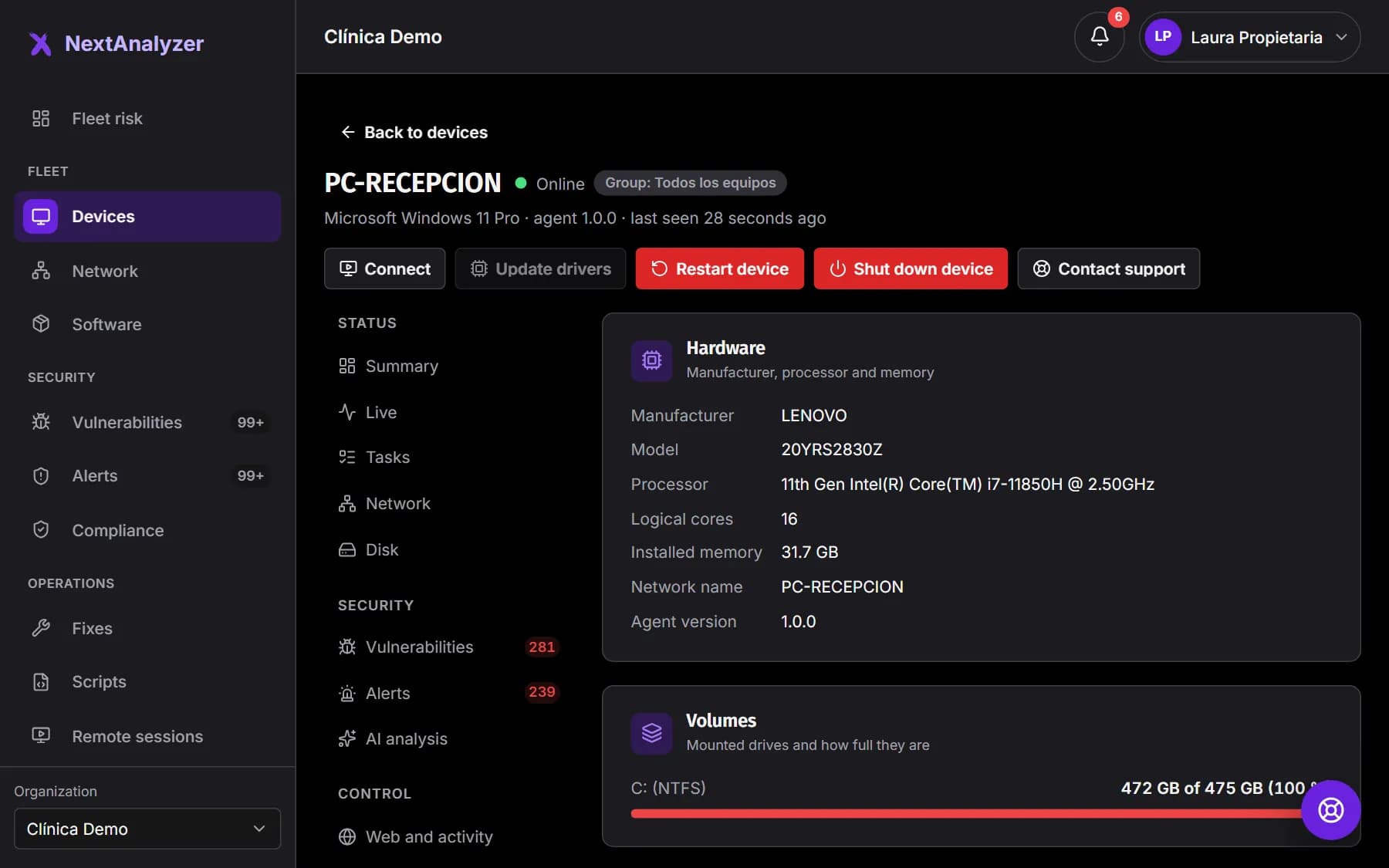
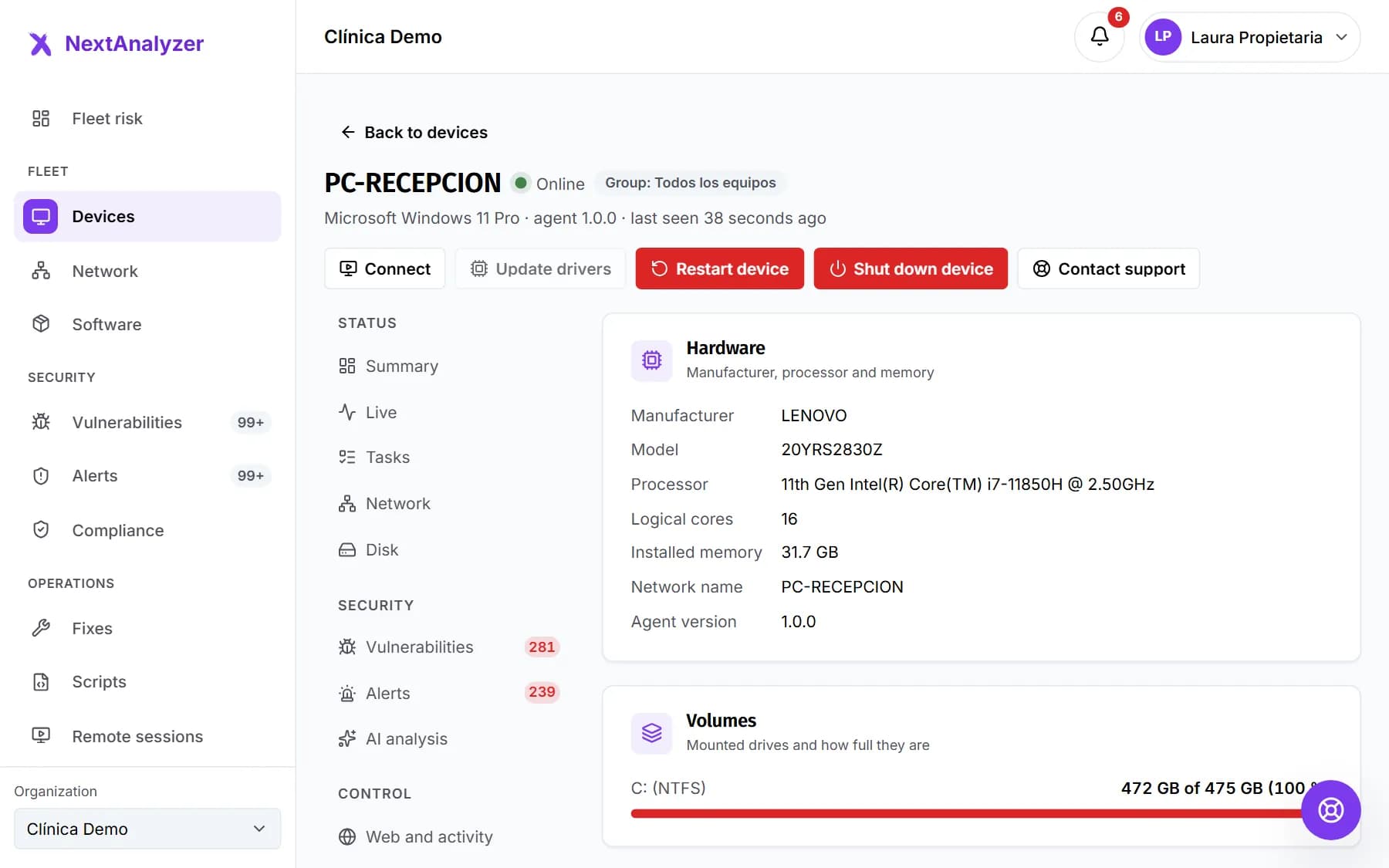 Inventory: hardware, network, users and softwareCheck each device's hardware, IP and MAC addresses, system accounts, disks, open ports and installed programs.Read the guide
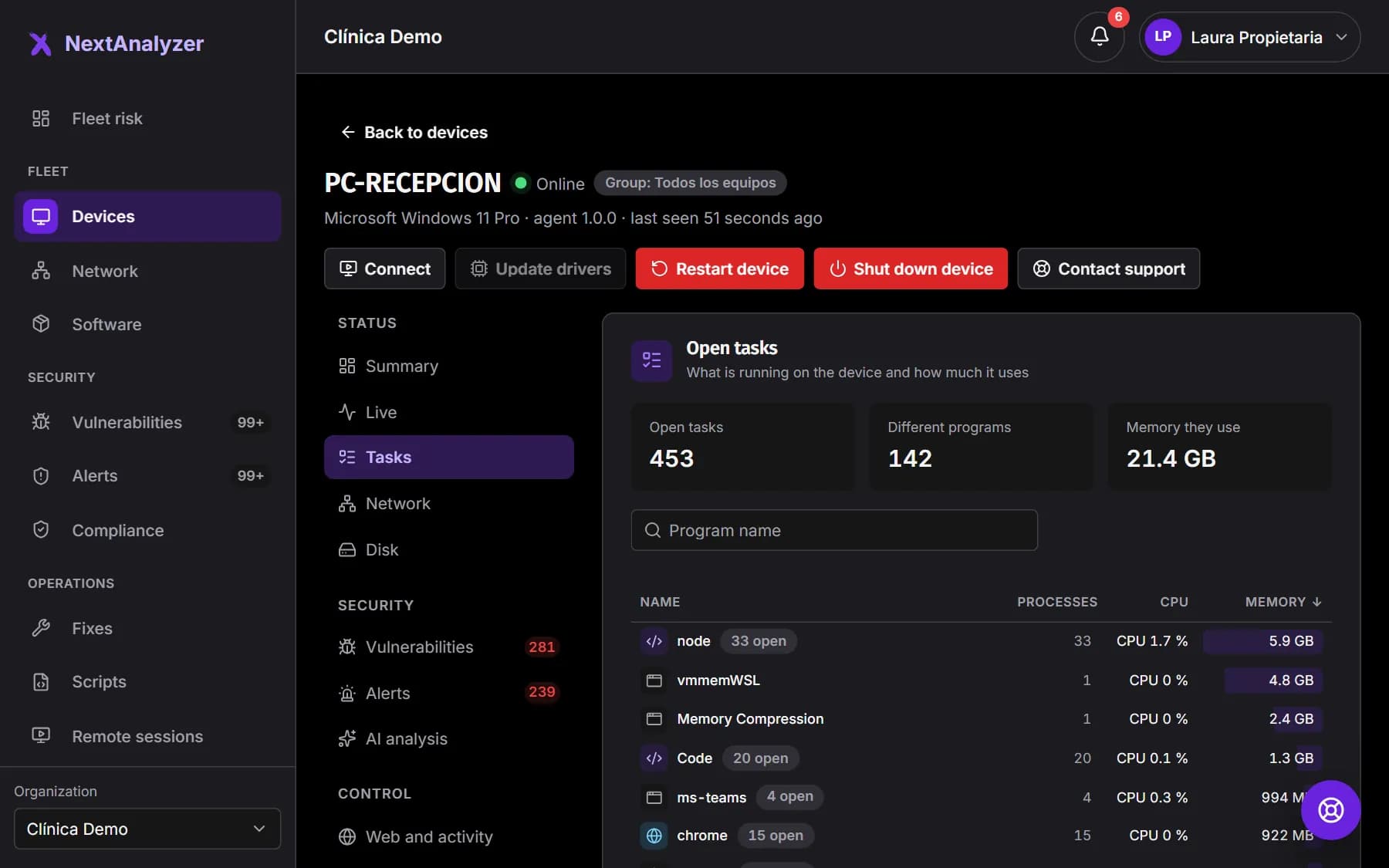
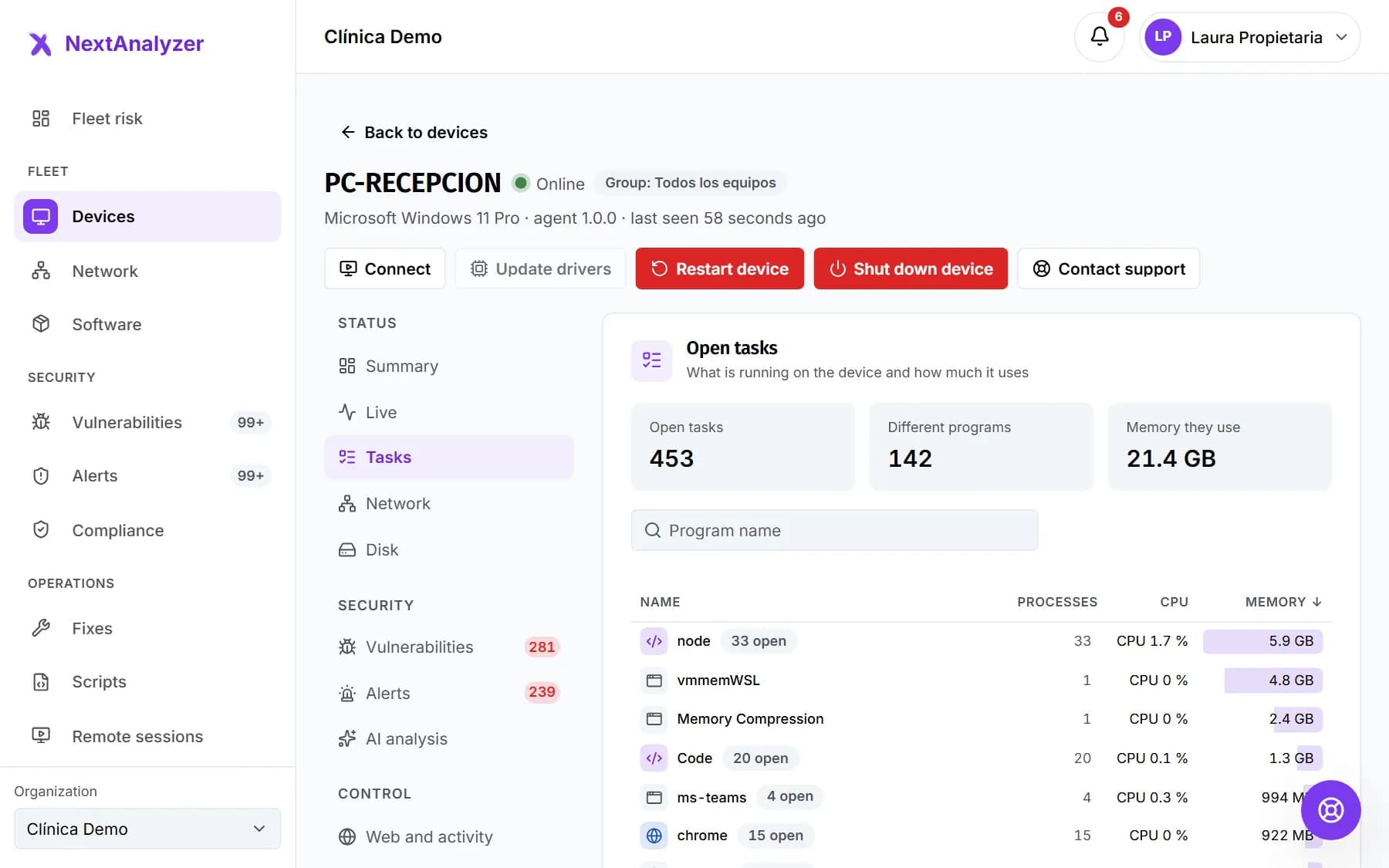 Open tasks and processesSee which programs a device has open and how much they use from the dashboard, and end the ones that are stuck from the app.Read the guide
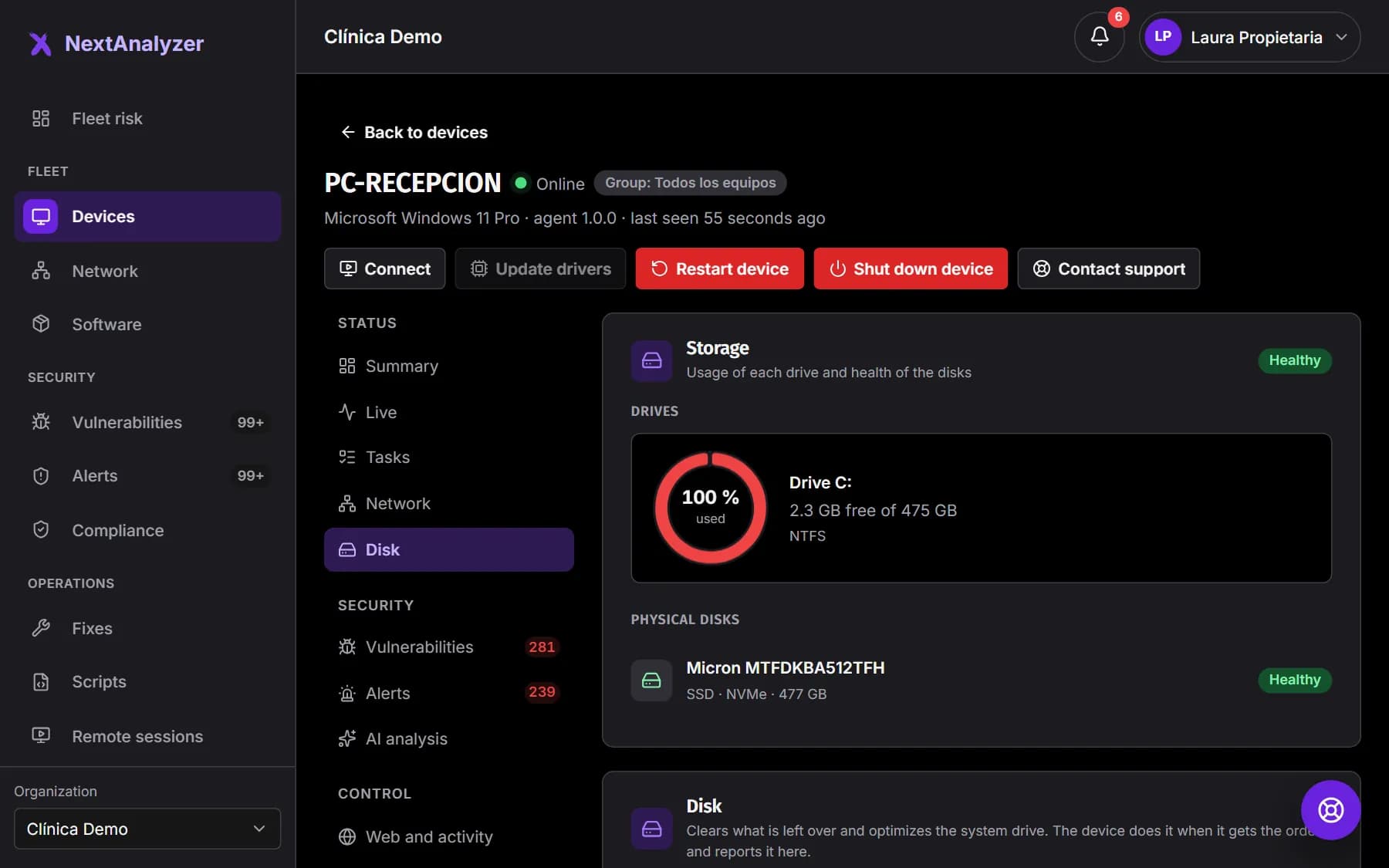
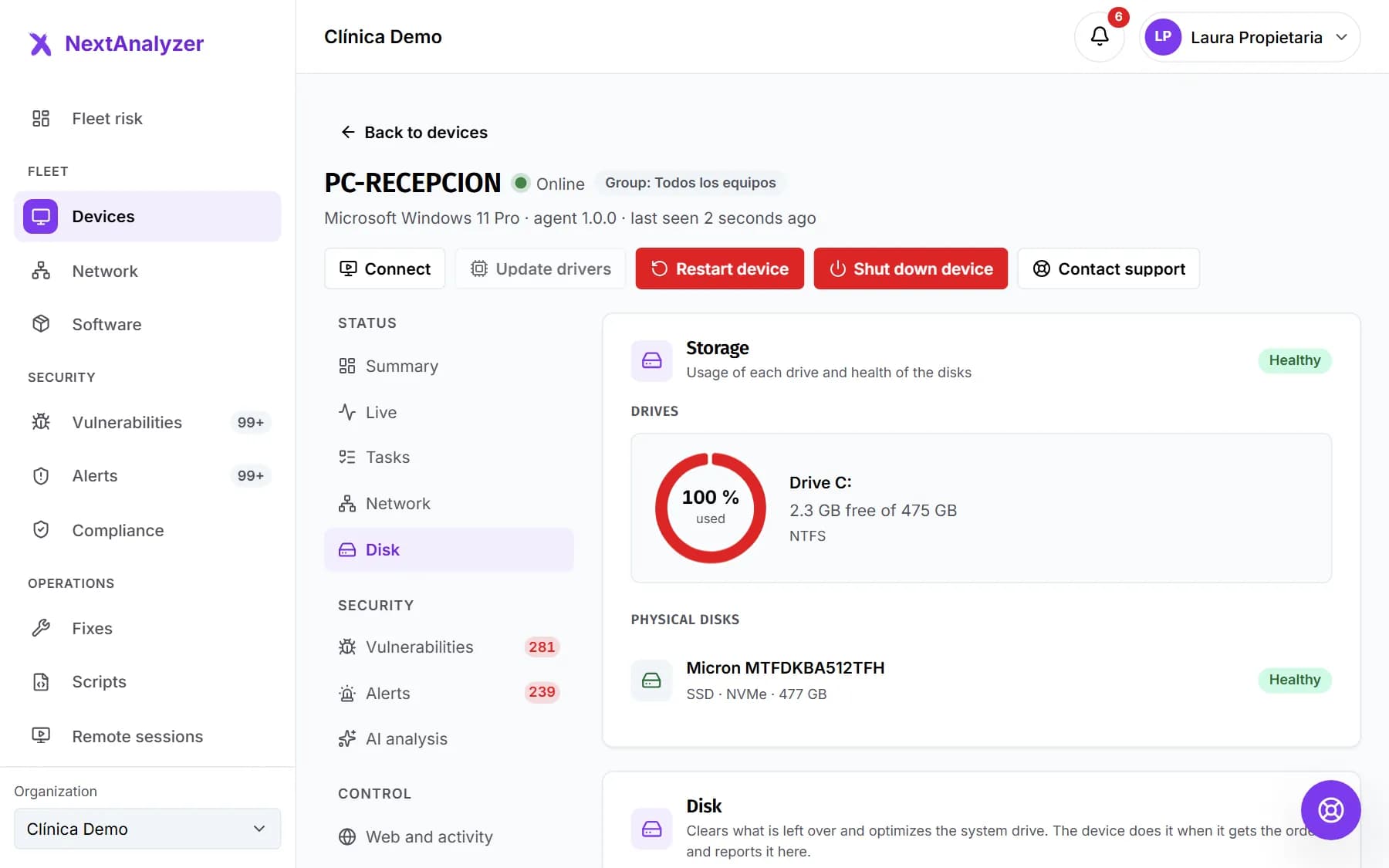 Disk maintenance and optimizationFree up space with a safe cleanup, optimize the disk and improve a device's performance, from the dashboard, automatically or from the app.Read the guide
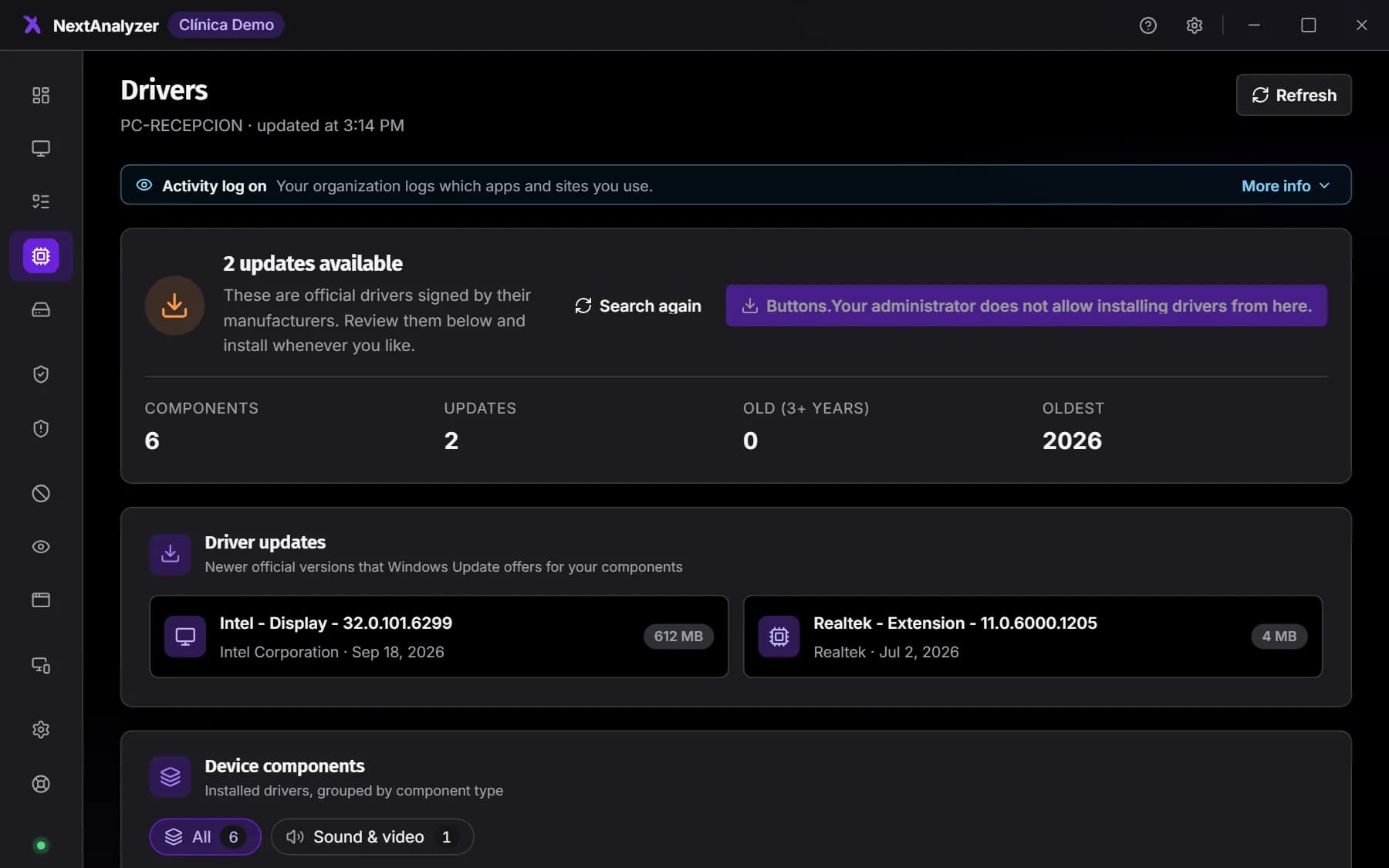
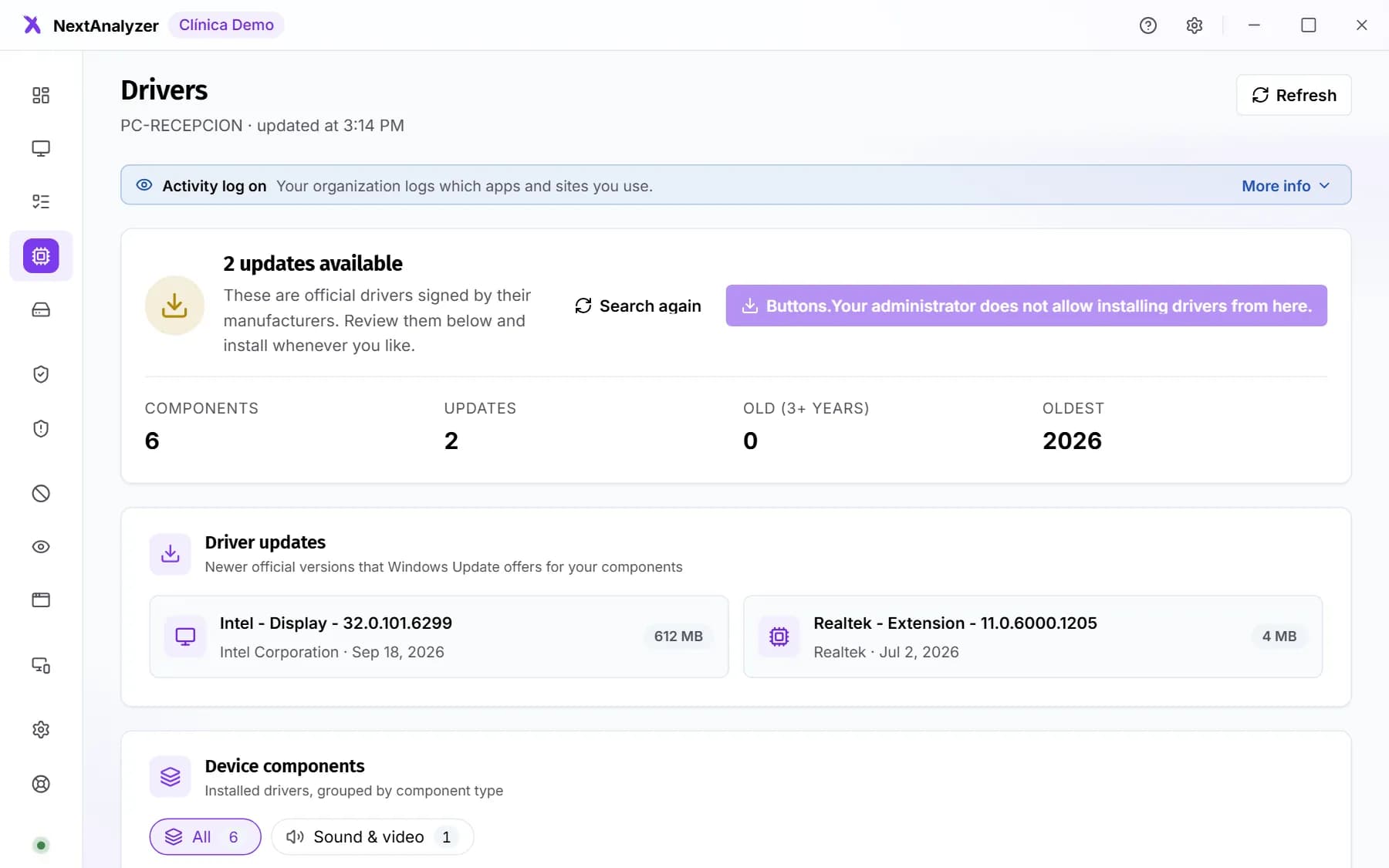 Drivers and updatesKeep drivers up to date and update vulnerable programs, from the device app or remotely from the panel, always from official sources.Read the guide
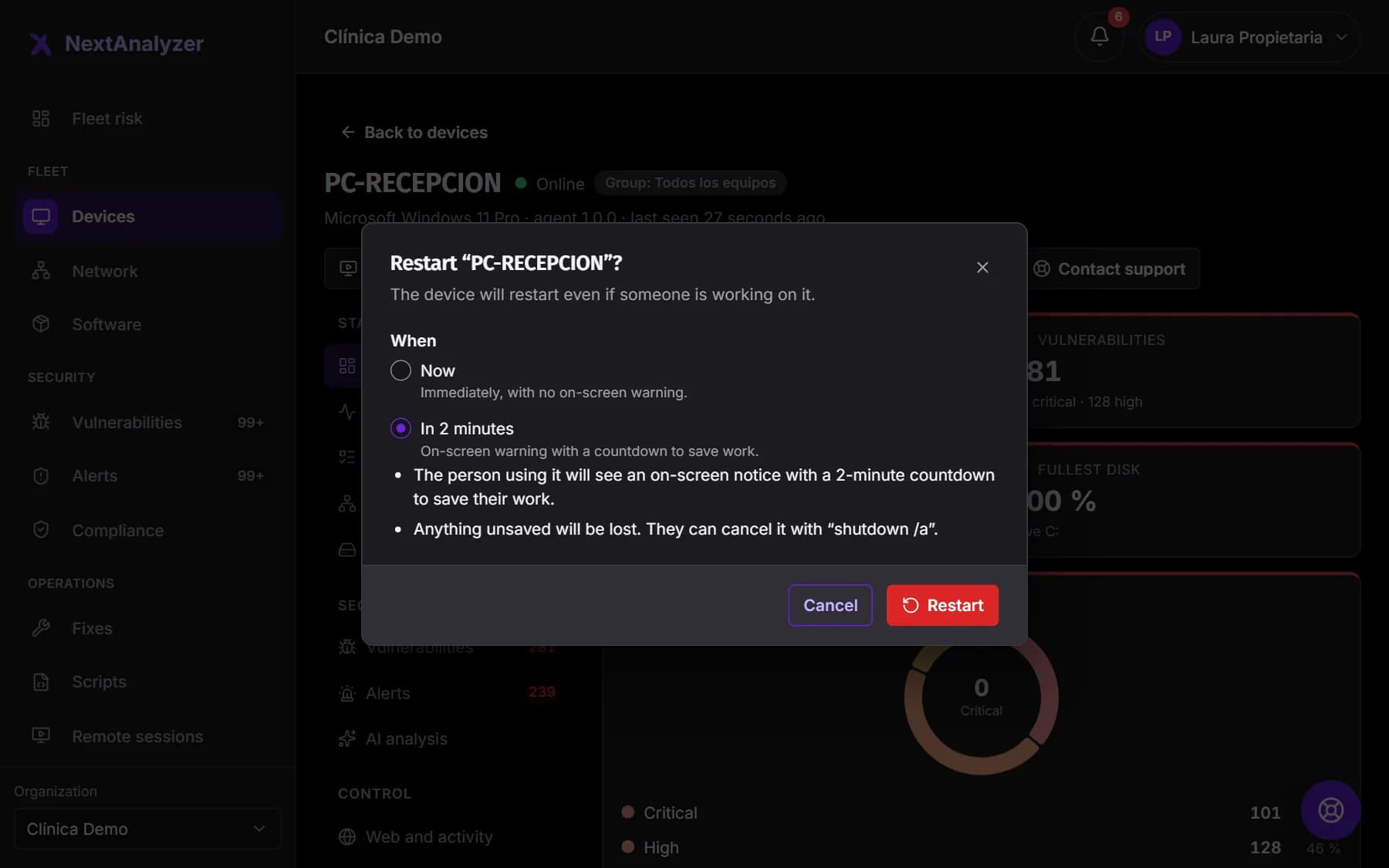
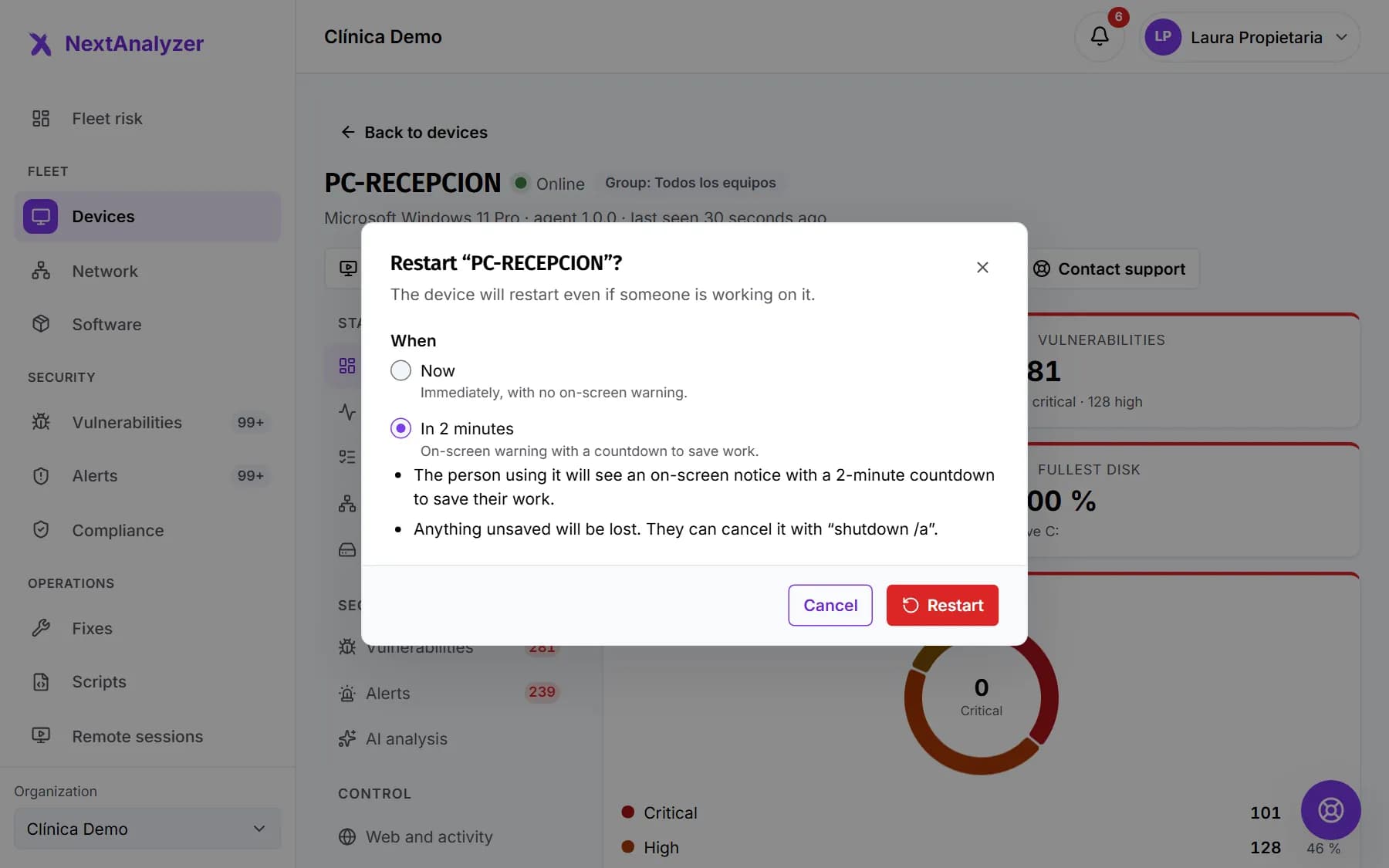 Remote commands: restart, shut down, update and cleanRestart, shut down, update drivers or a program and clean or optimize the disk of a Windows device from the panel, with confirmation and audit.Read the guide
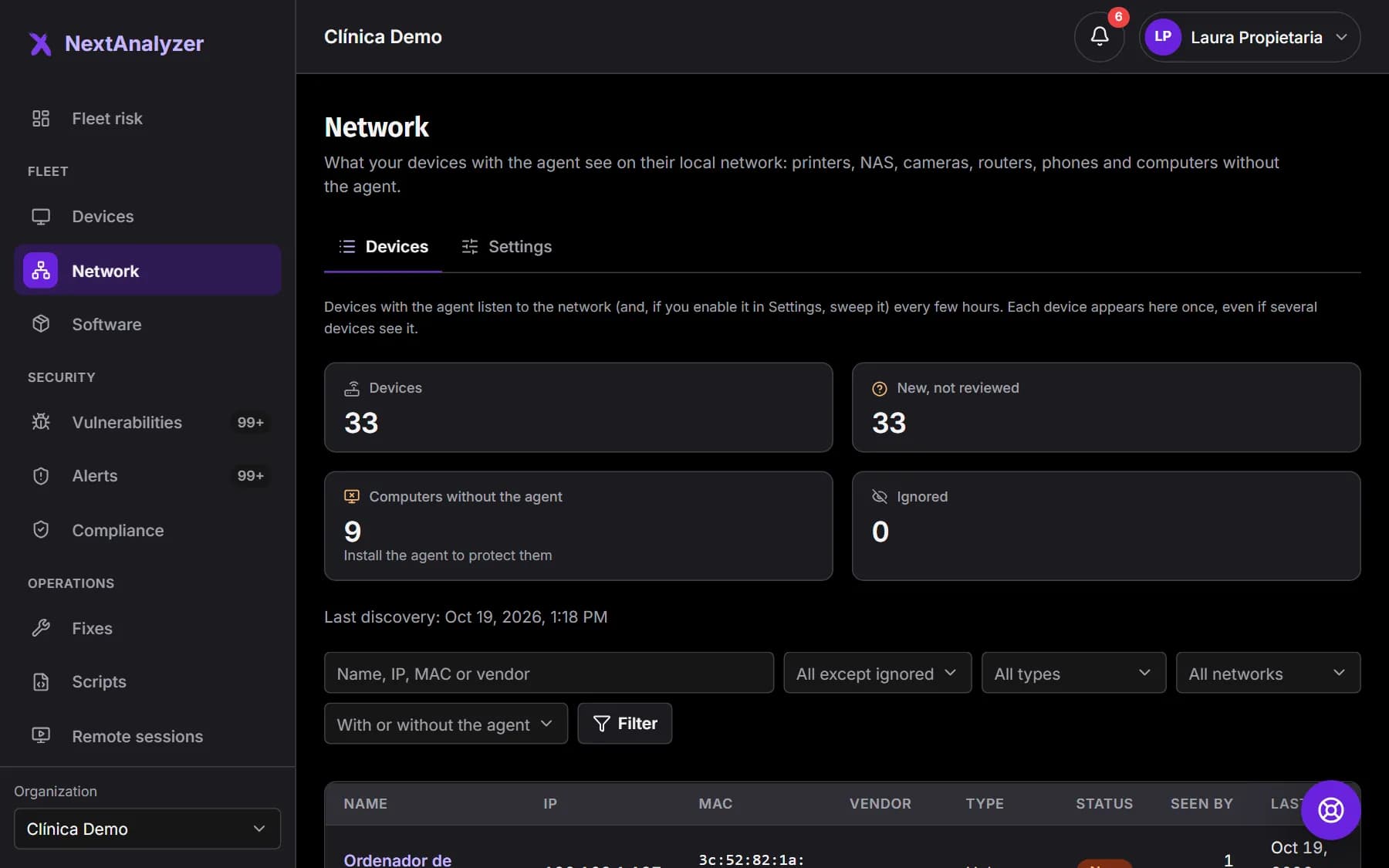
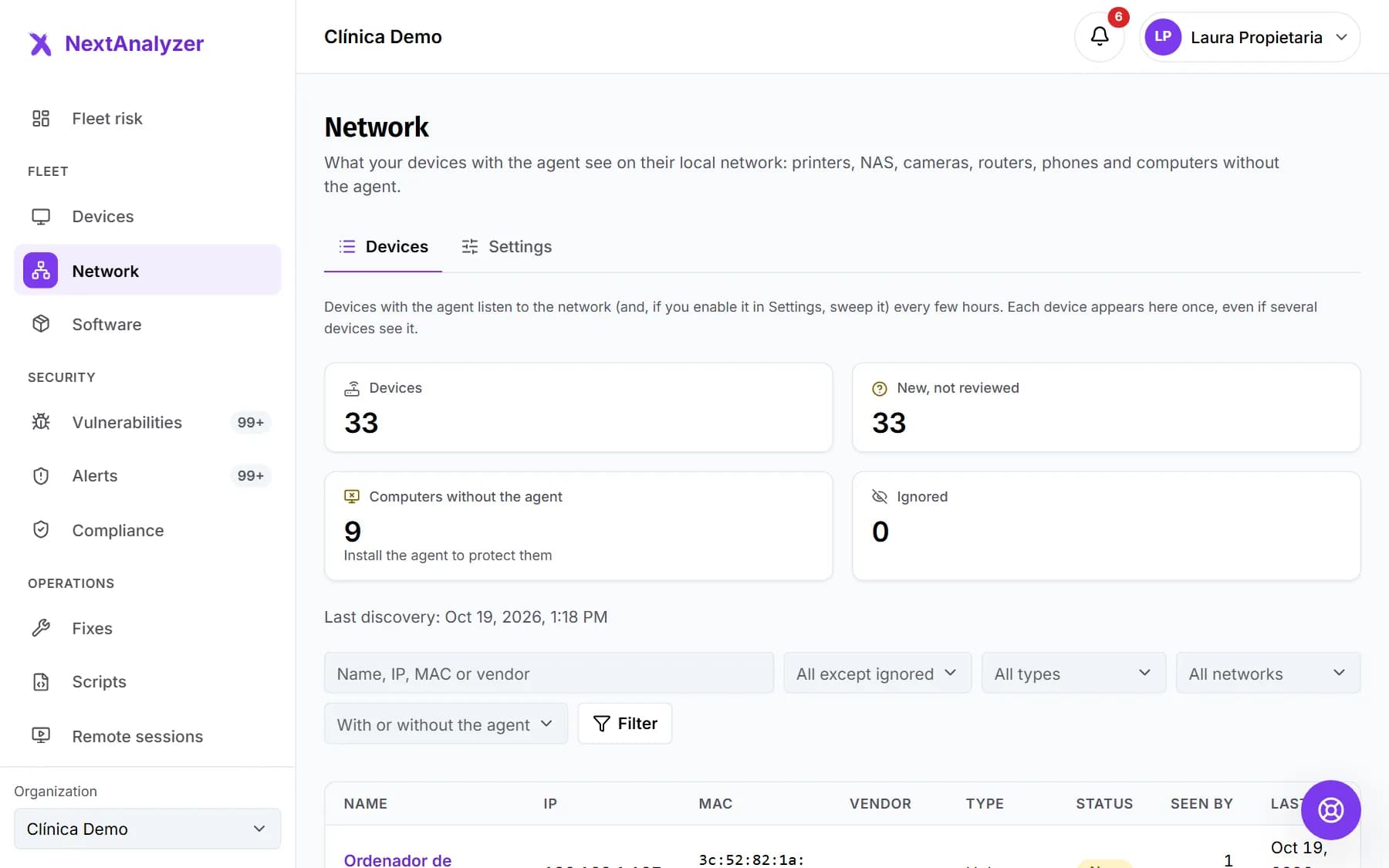 Discover what is on your networkFind printers, NAS units, cameras, routers and computers without the agent on your devices’ network, review them and install the agent where it is missing.Read the guide
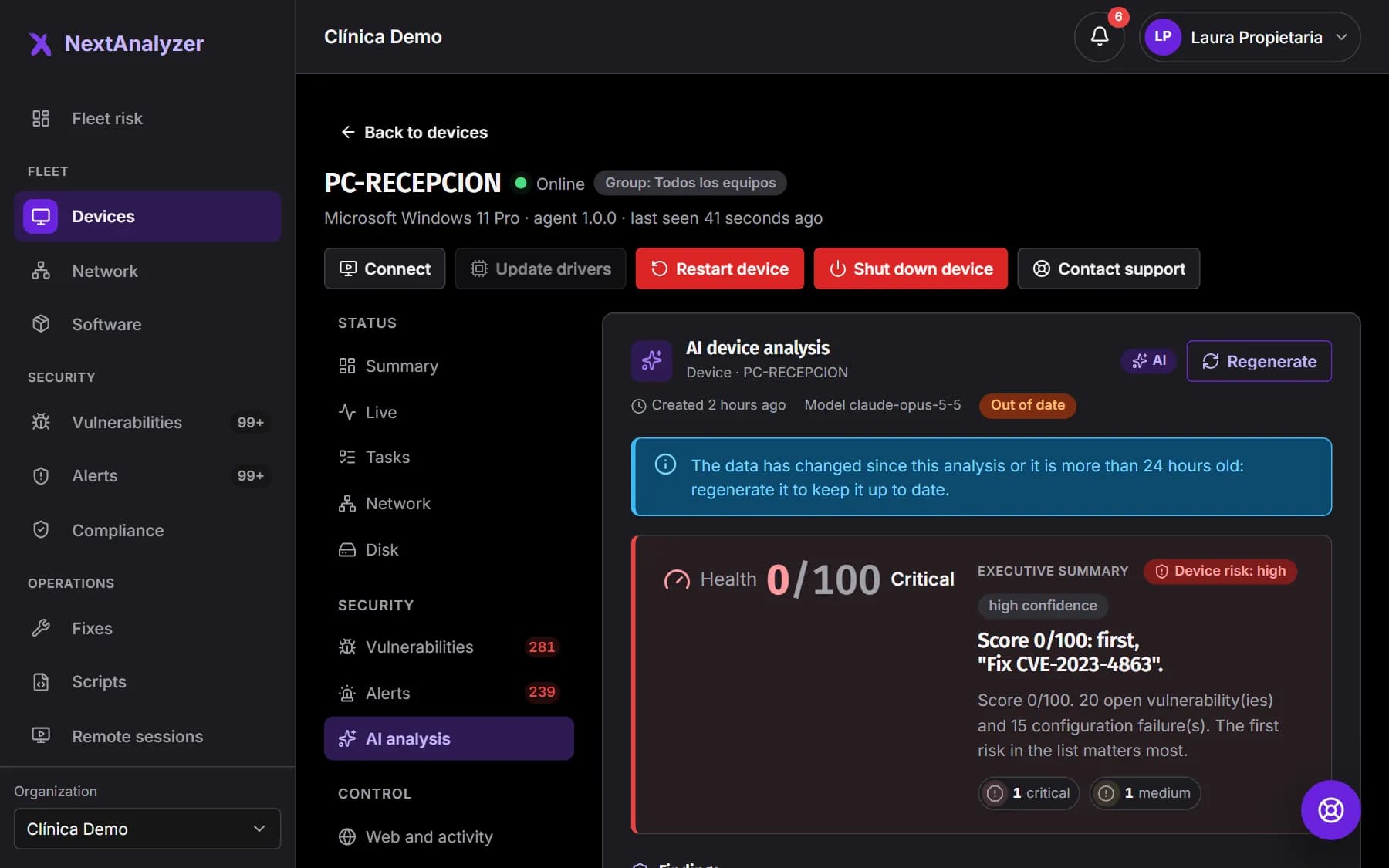
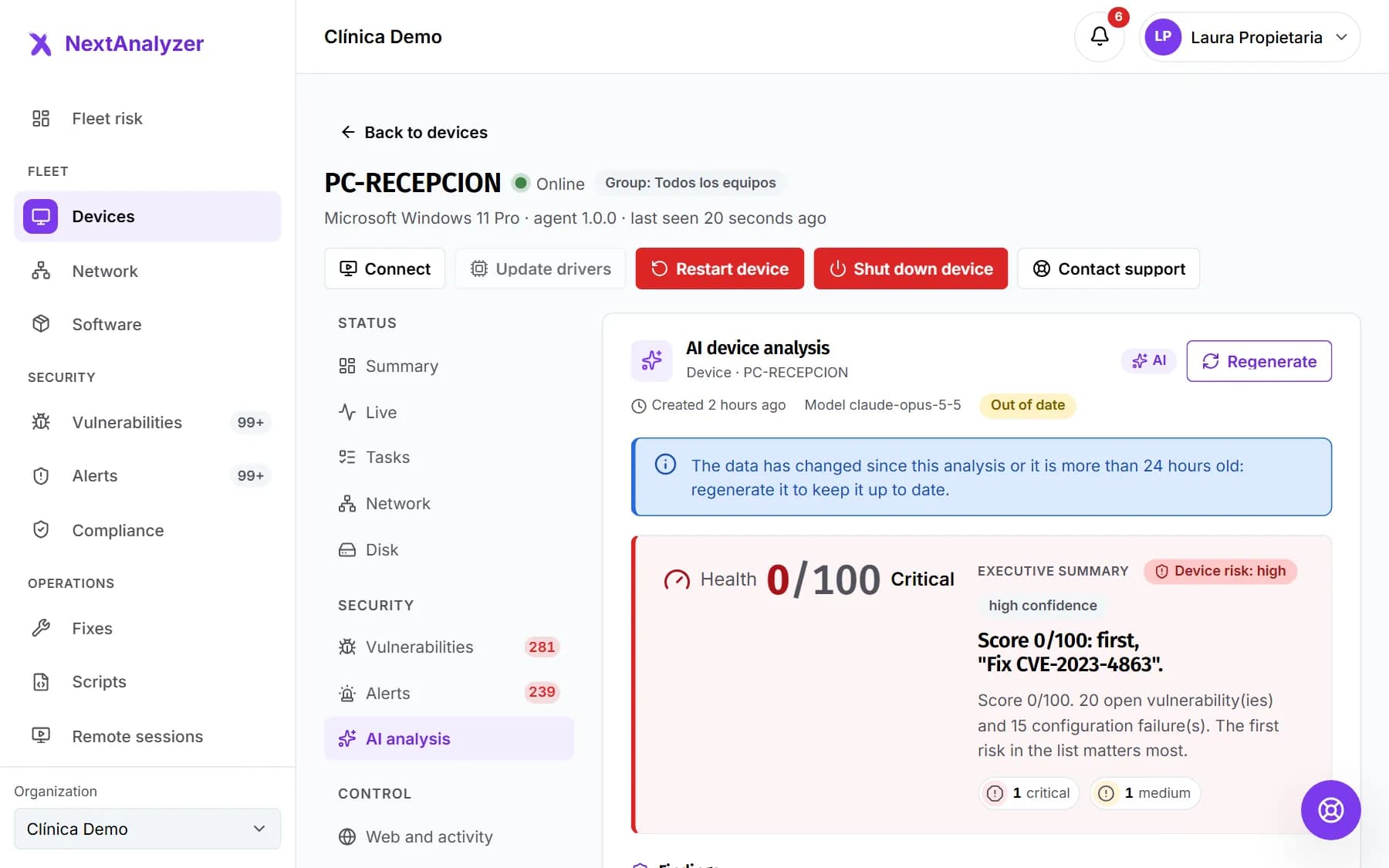 NextAnalyzer AI: priorities, CVEs and devicesUse AI to know what to fix this week, explain a CVE, analyze a device and summarize the report, with minimized data and a monthly allowance.Read the guide
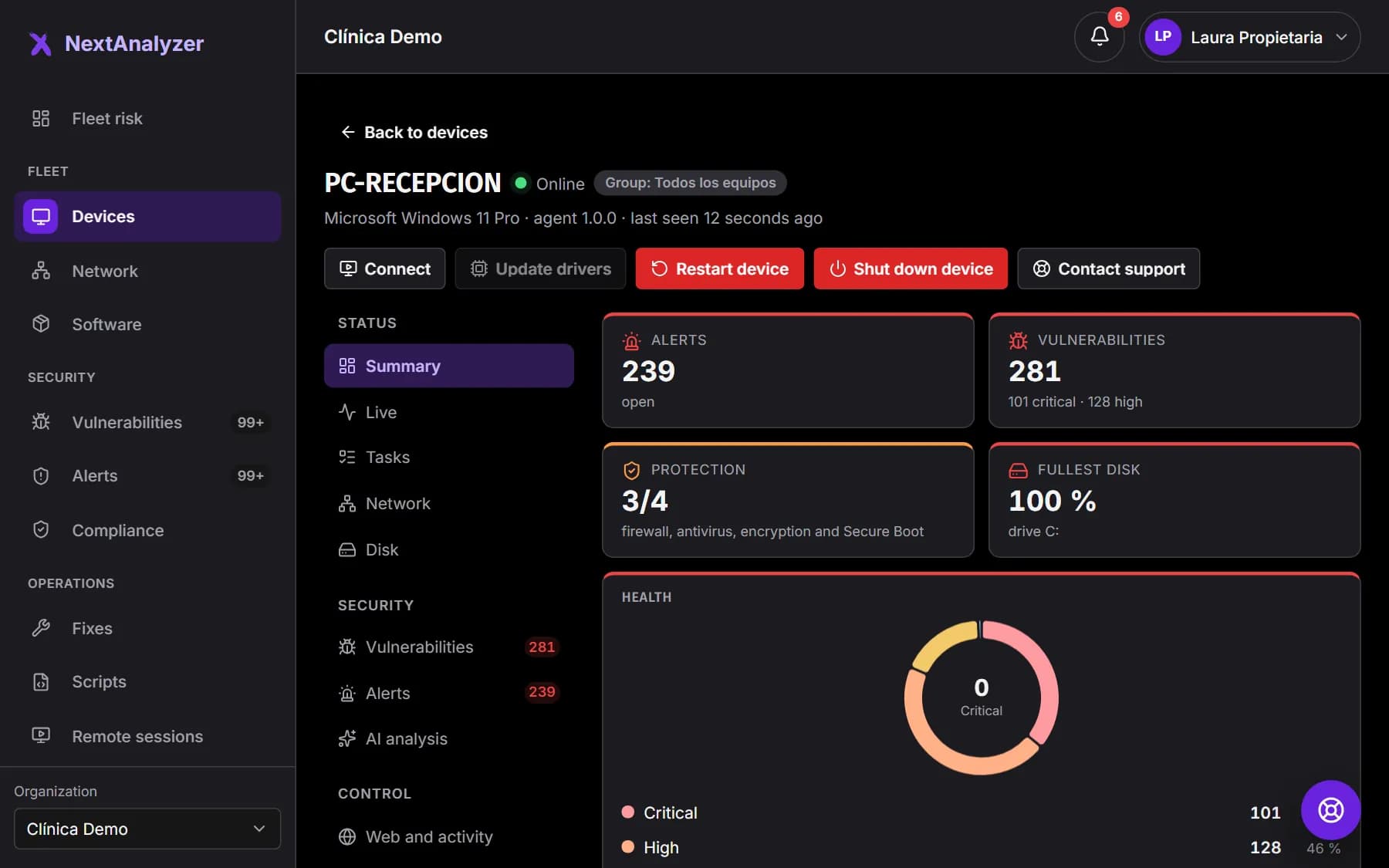
Remote access
Help from anywhere
Connect to a device from the dashboard or from another device, always with the user's permission and with everything logged.
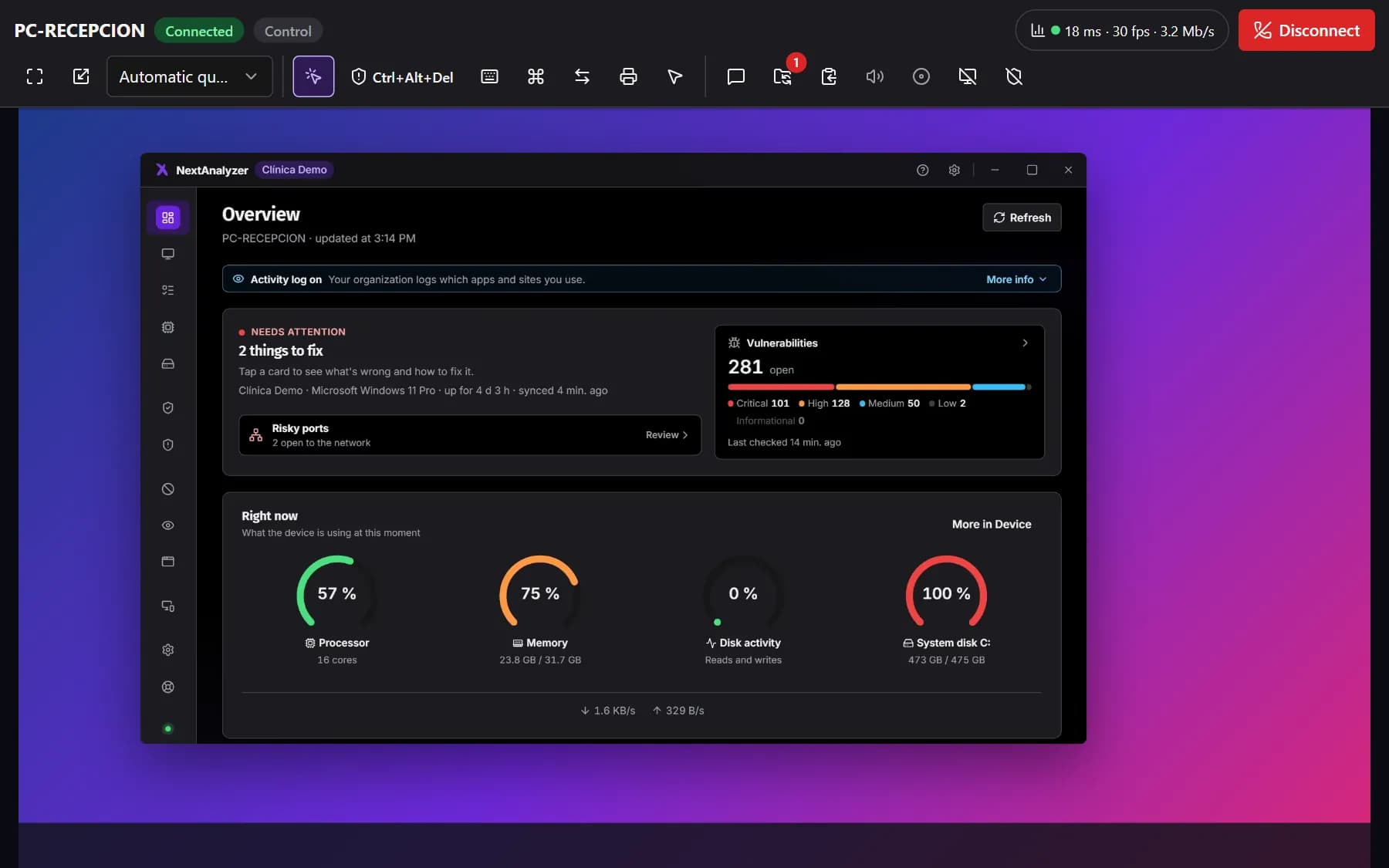
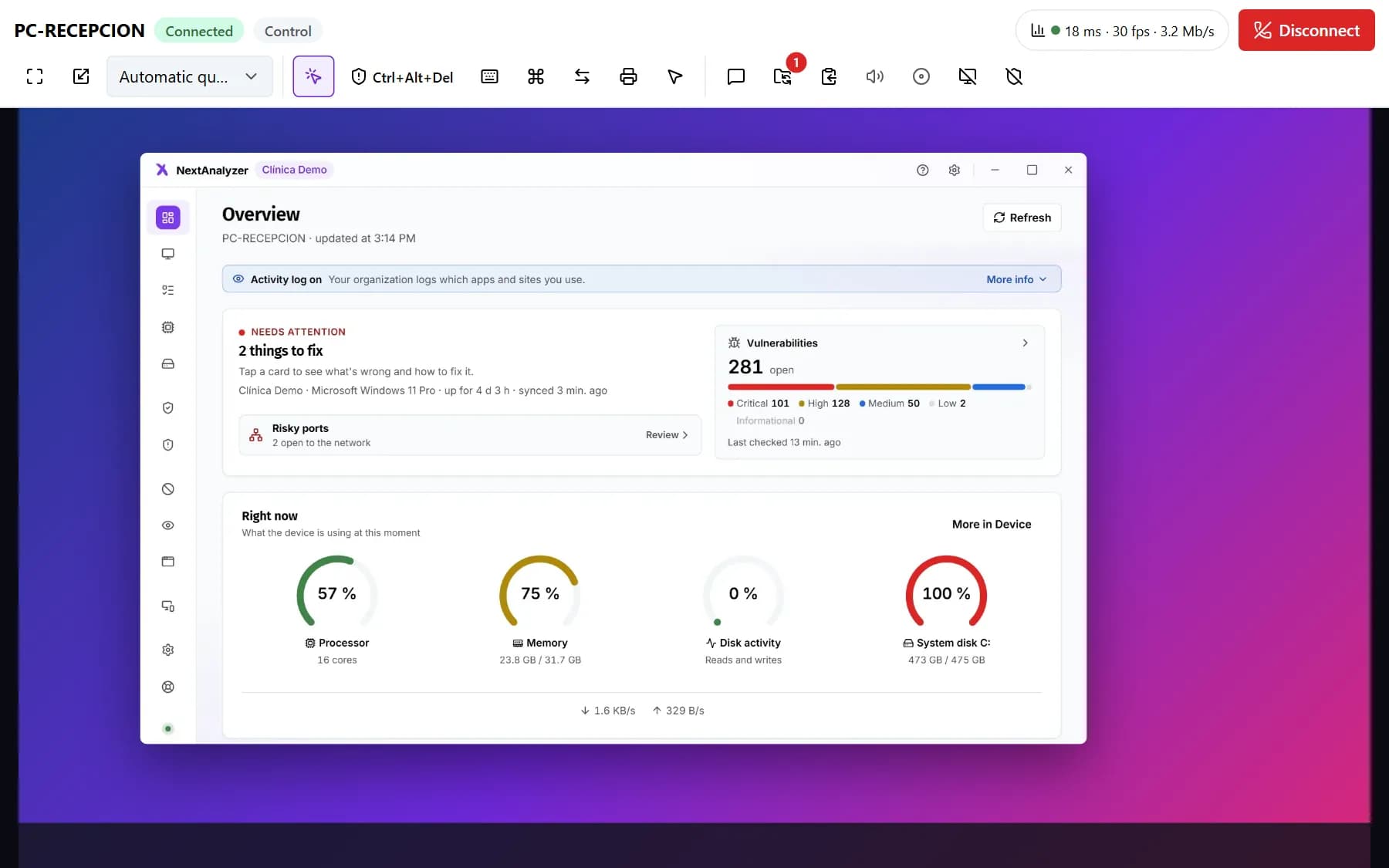 Connect to a device from the dashboardOpen a remote session from your browser to view or control a device, and help with chat, clipboard, files, keyboard shortcuts and recording.Read the guide
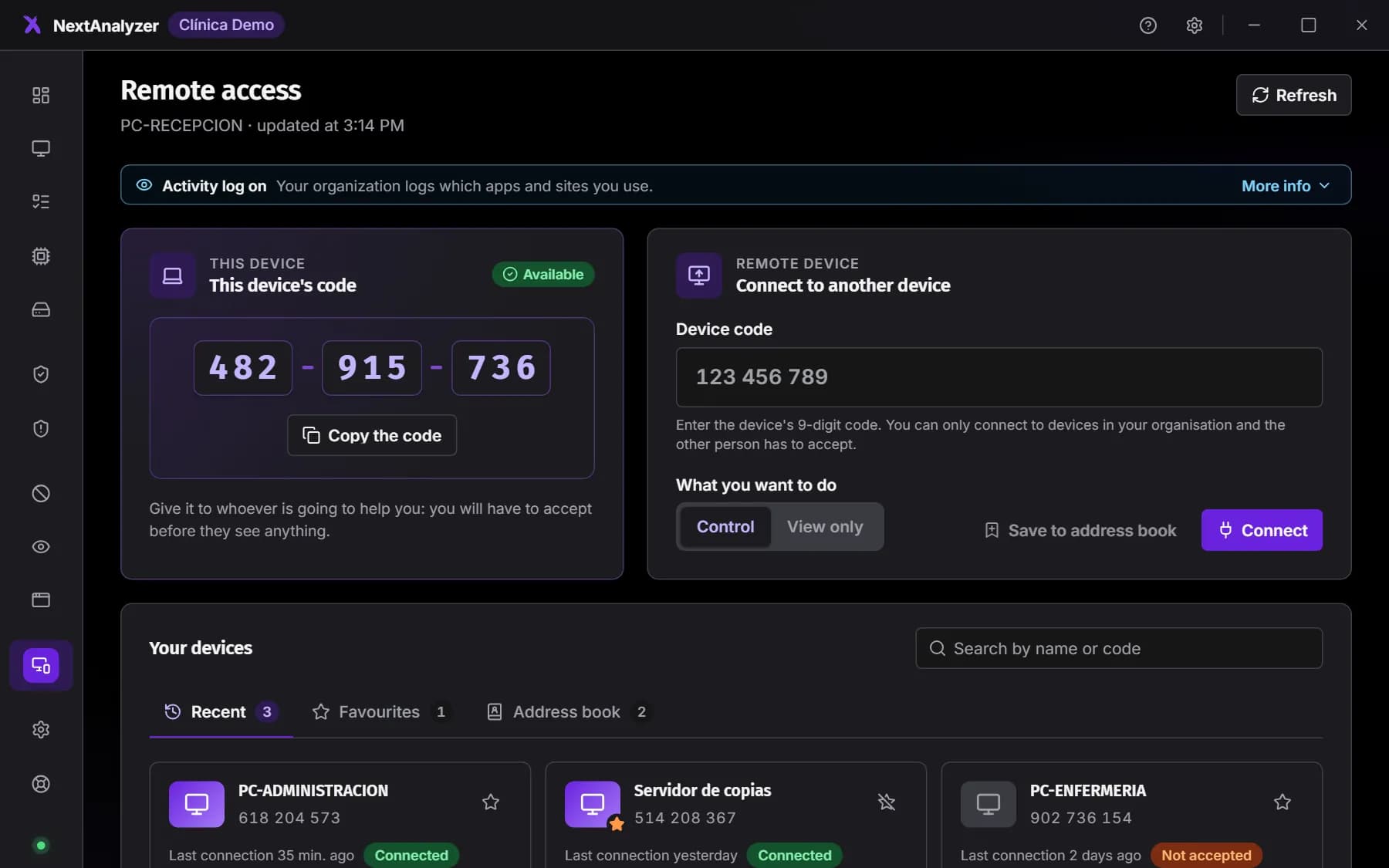
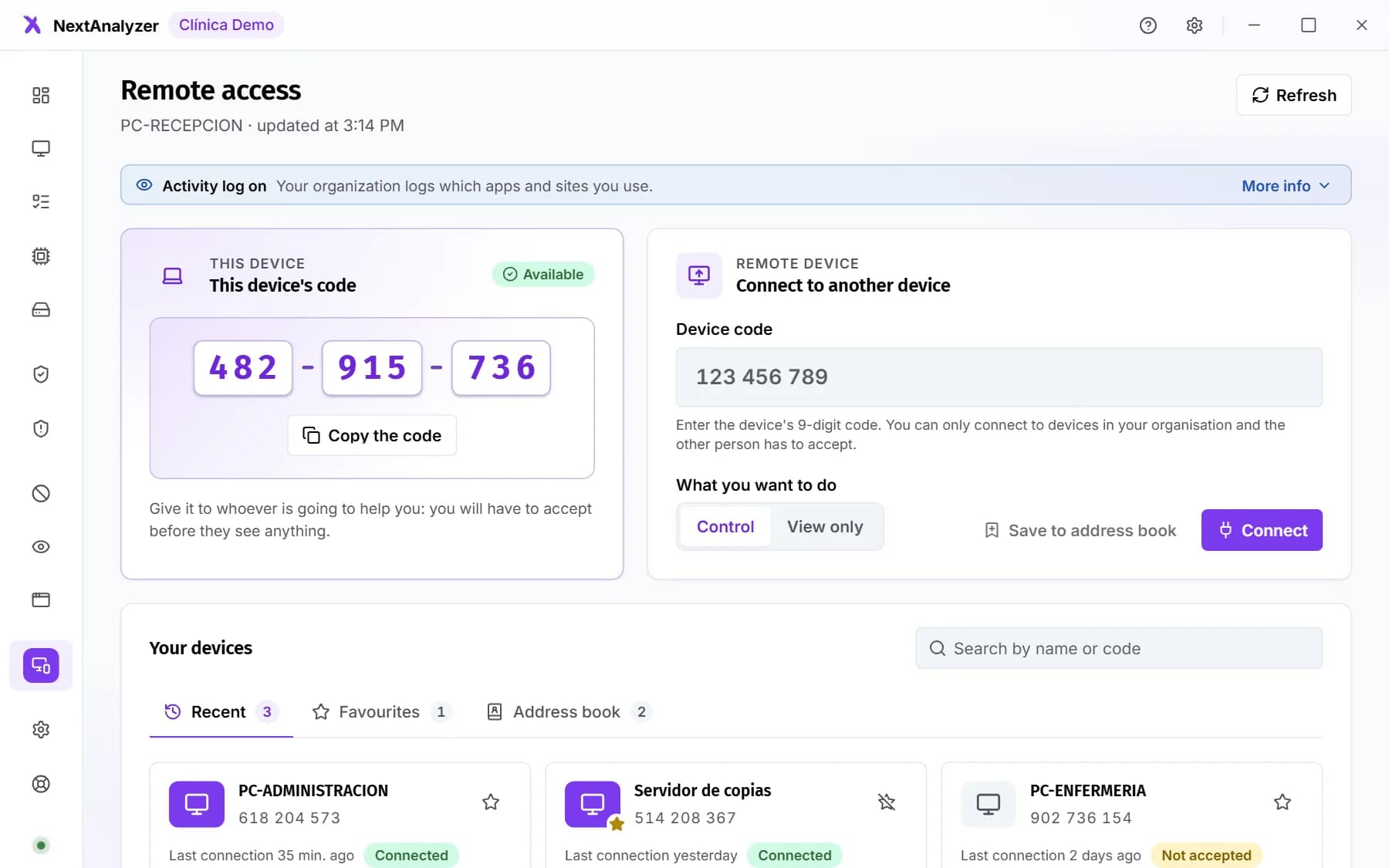 Connect from the app with the 9-digit codeUse the app's “Remote access” page to share your device's code or connect to another one in your organisation, with an address book, favourites and recents.Read the guide
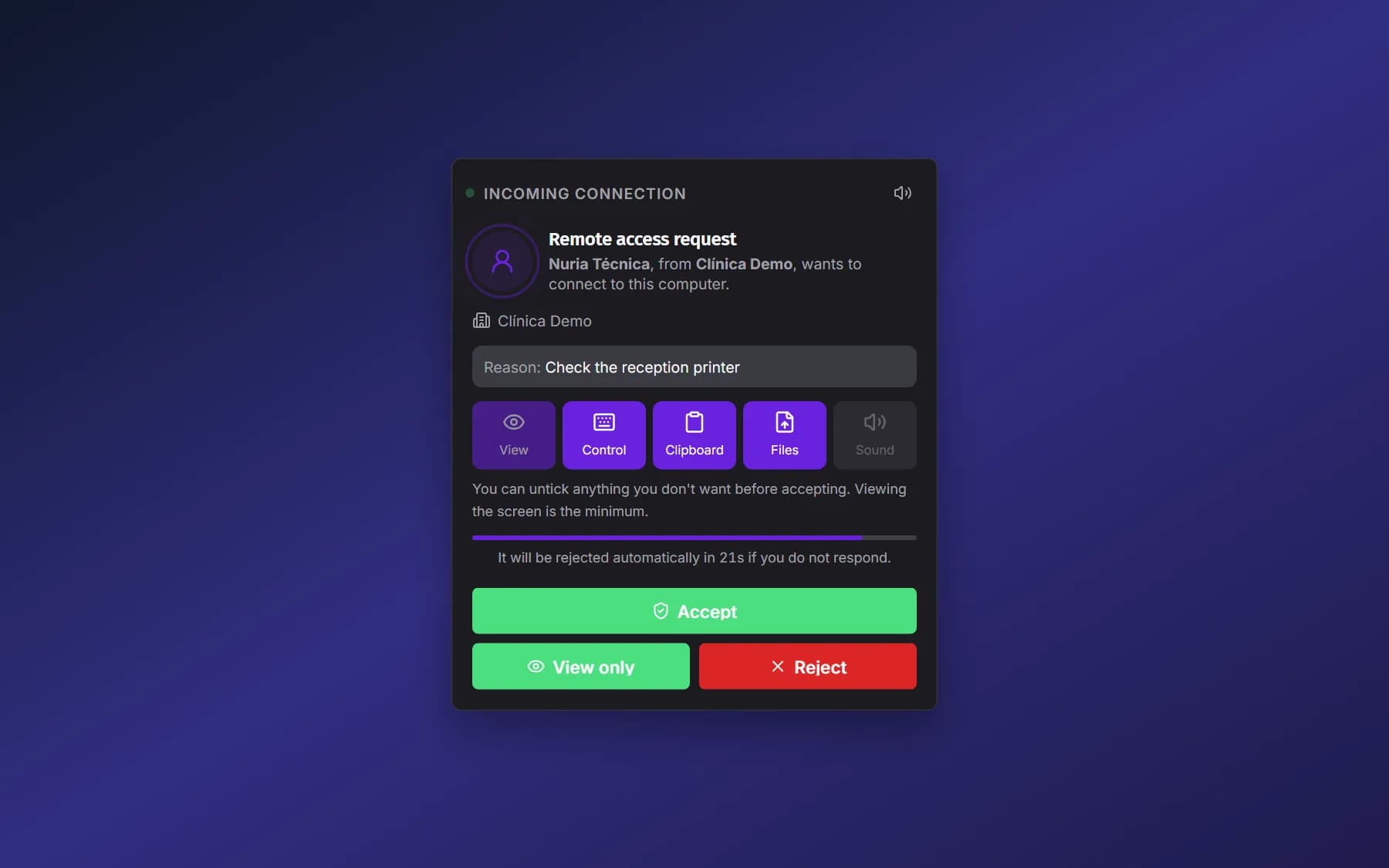
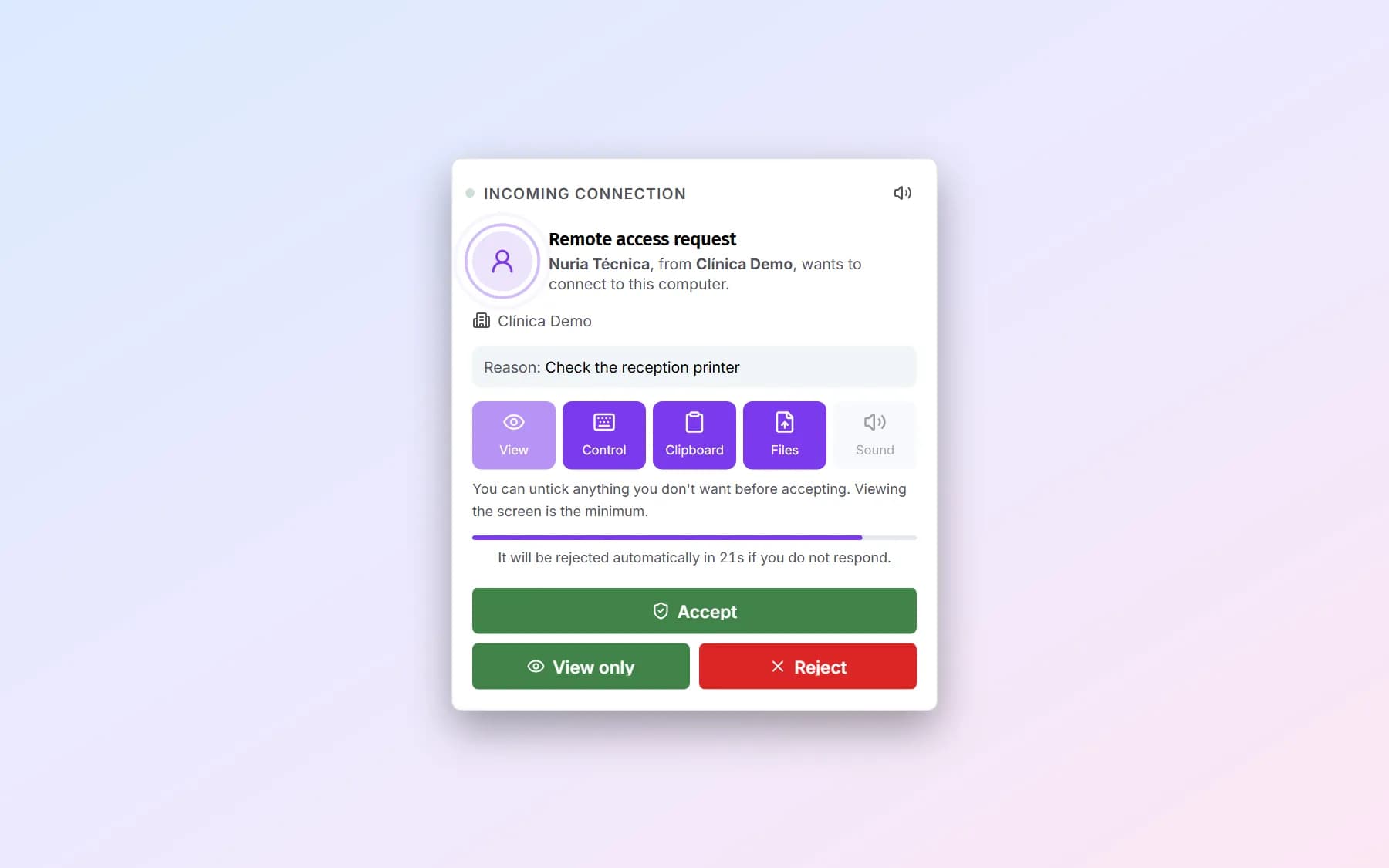 What the person using the device sees in a remote sessionThe window to accept, what can be allowed, the floating notice with chat and files and the final notice: what the person at the device sees.Read the guide
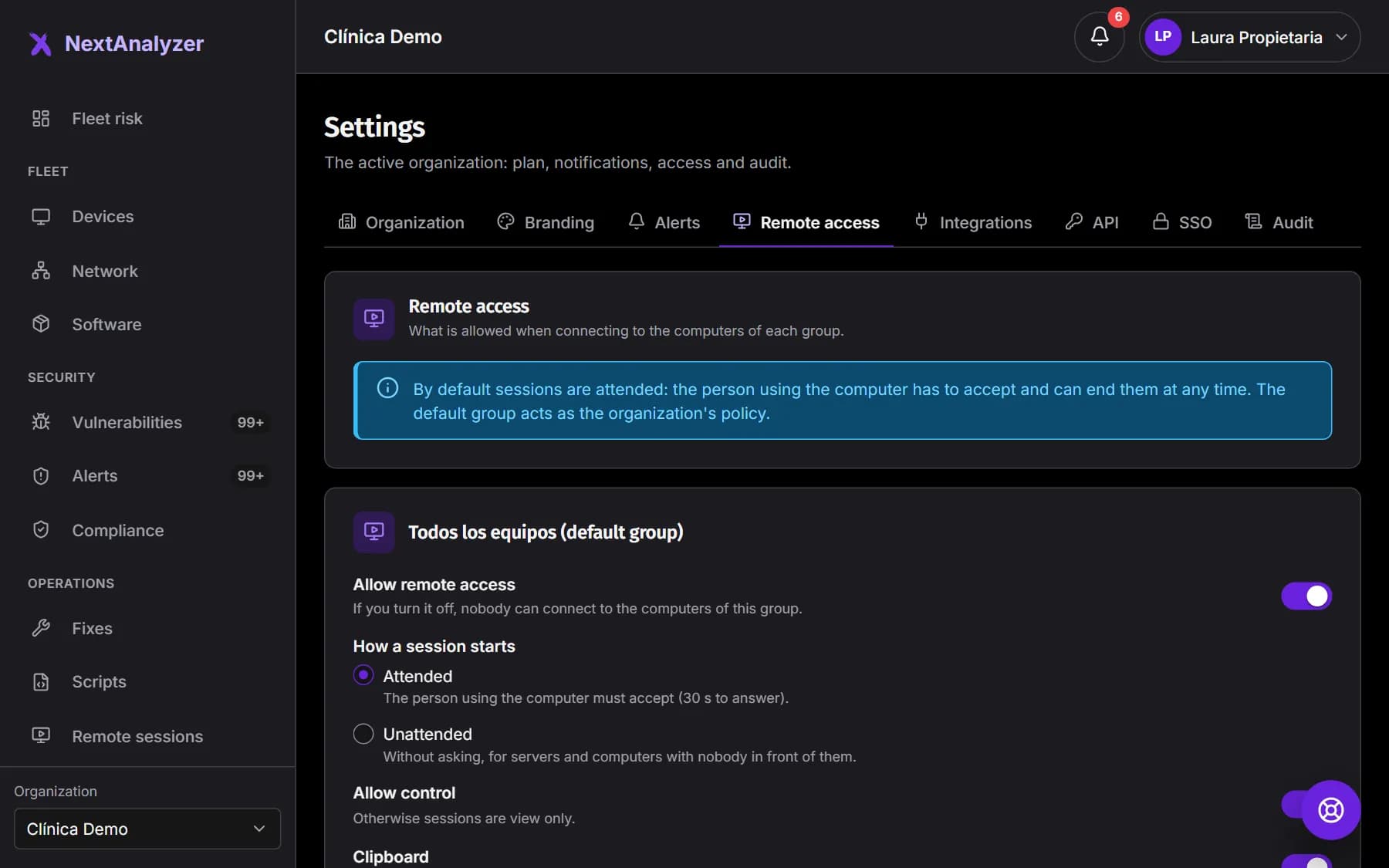
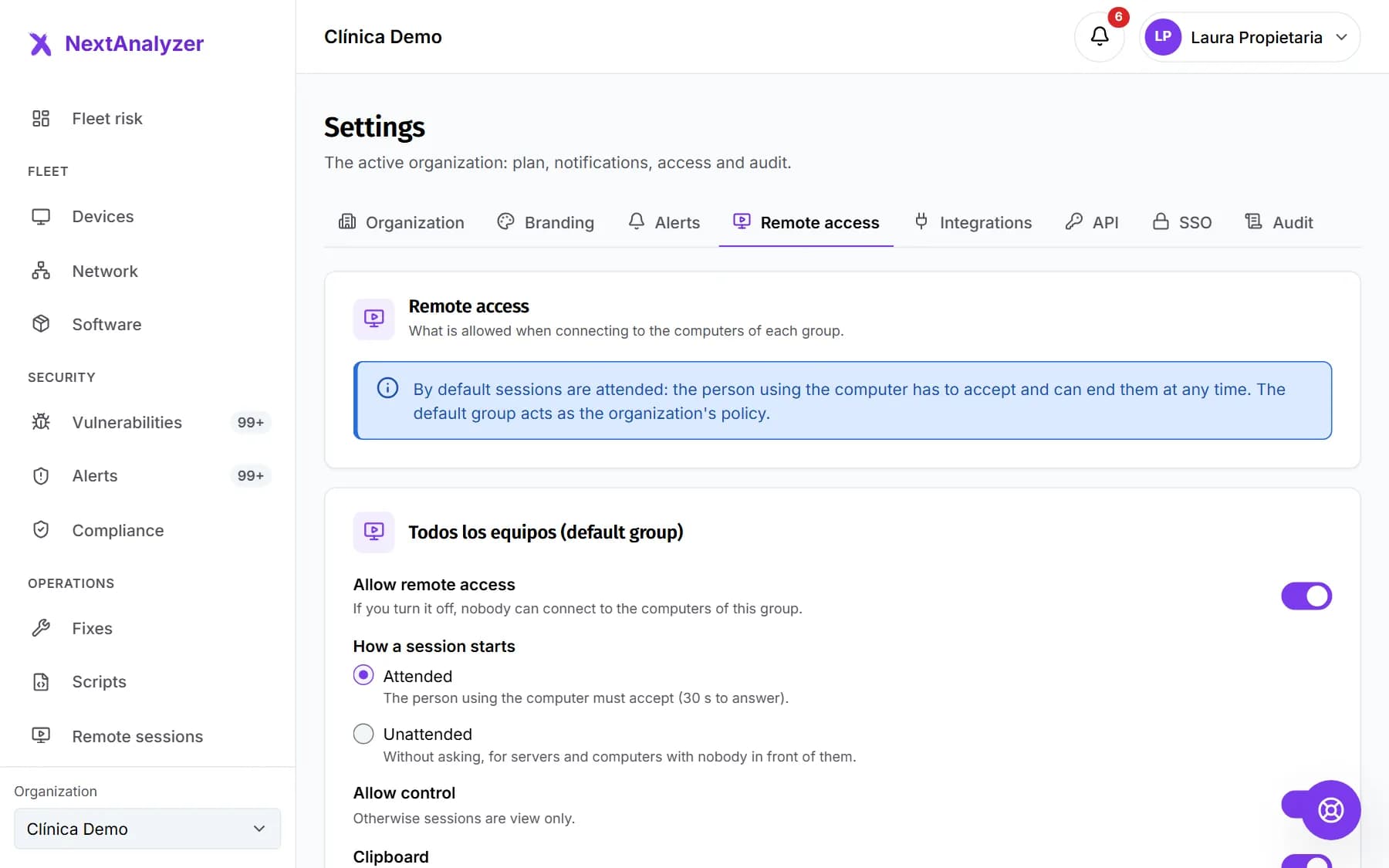 Set up remote access policiesDecide per group or per device whether sessions ask for permission, what is allowed, whether they are recorded, how long they last and who else can connect.Read the guide
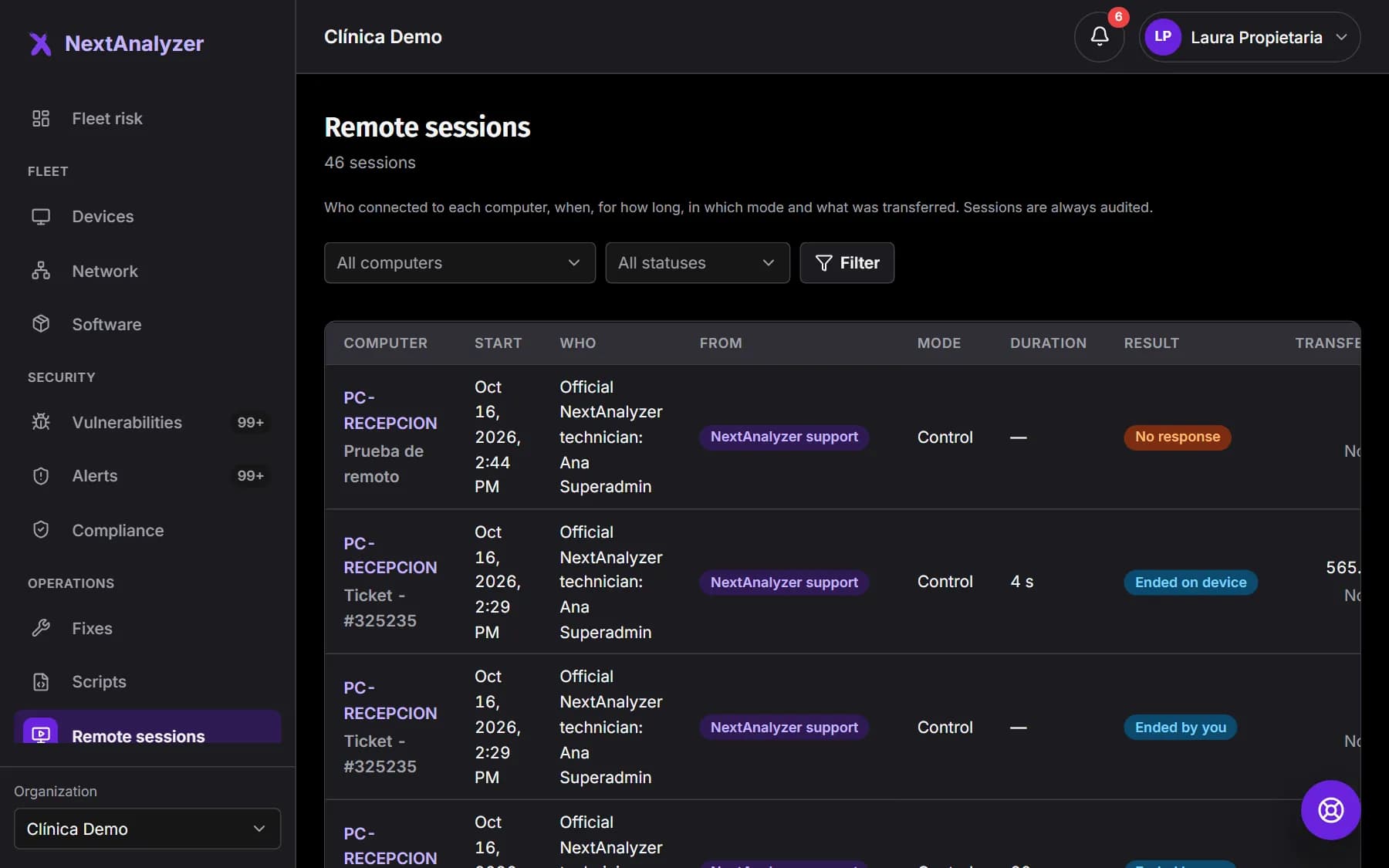
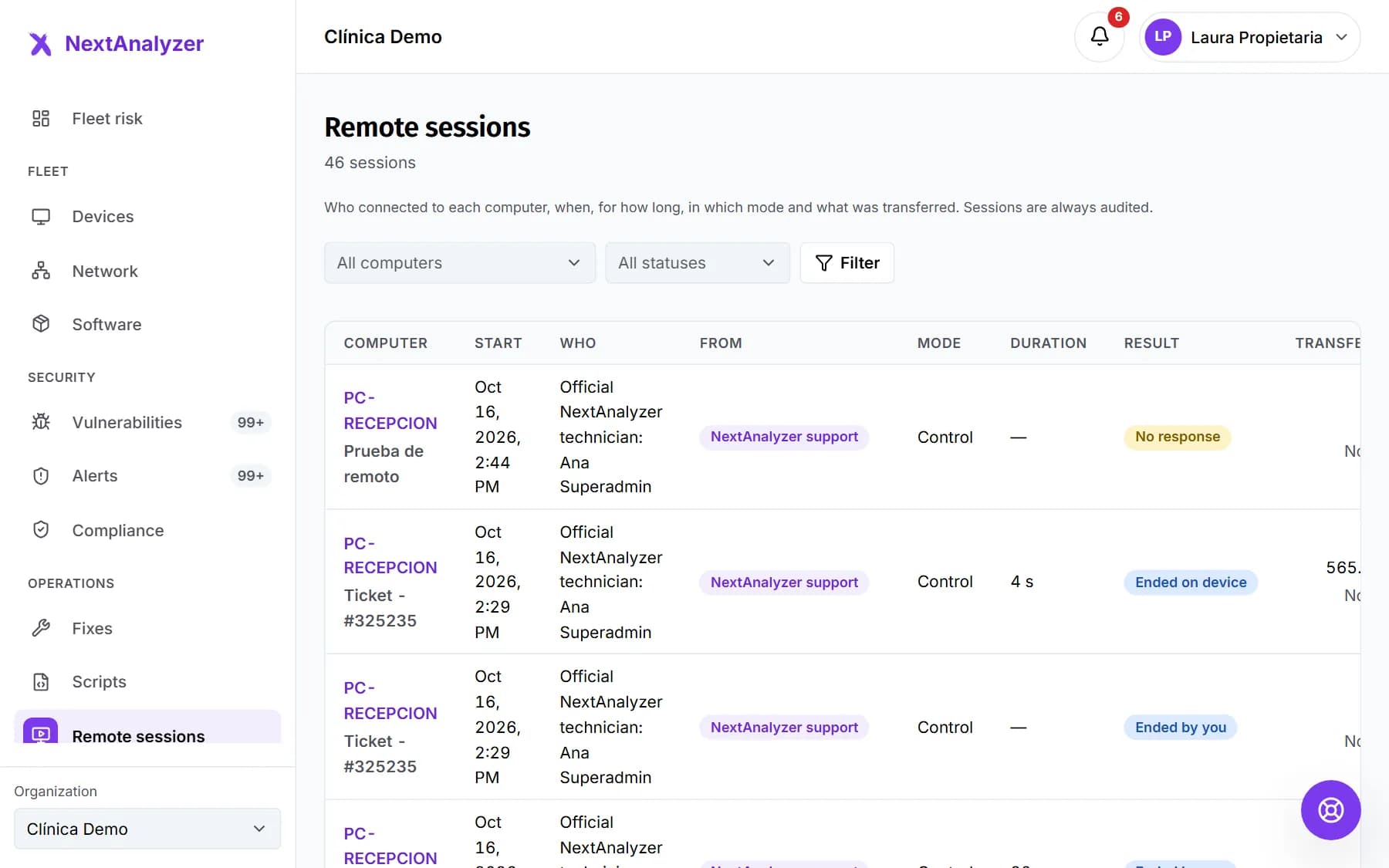 Review the remote session historyWho connected to each device, from where, when, for how long, in which mode, what was transferred and how each session ended.Read the guide
Operations
Automate
Signed scripts, bulk software, self-service apps, fixes and group policies.
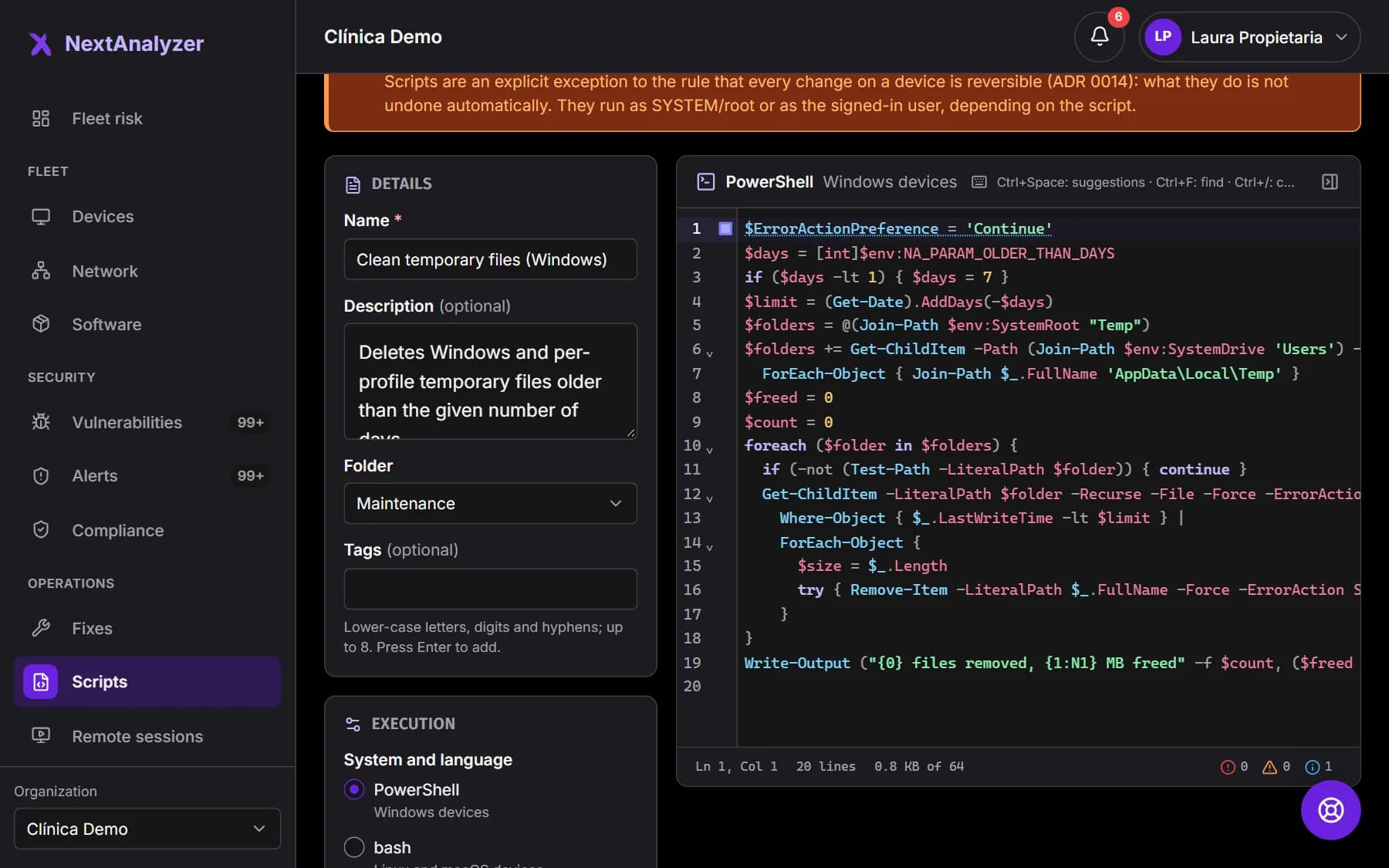
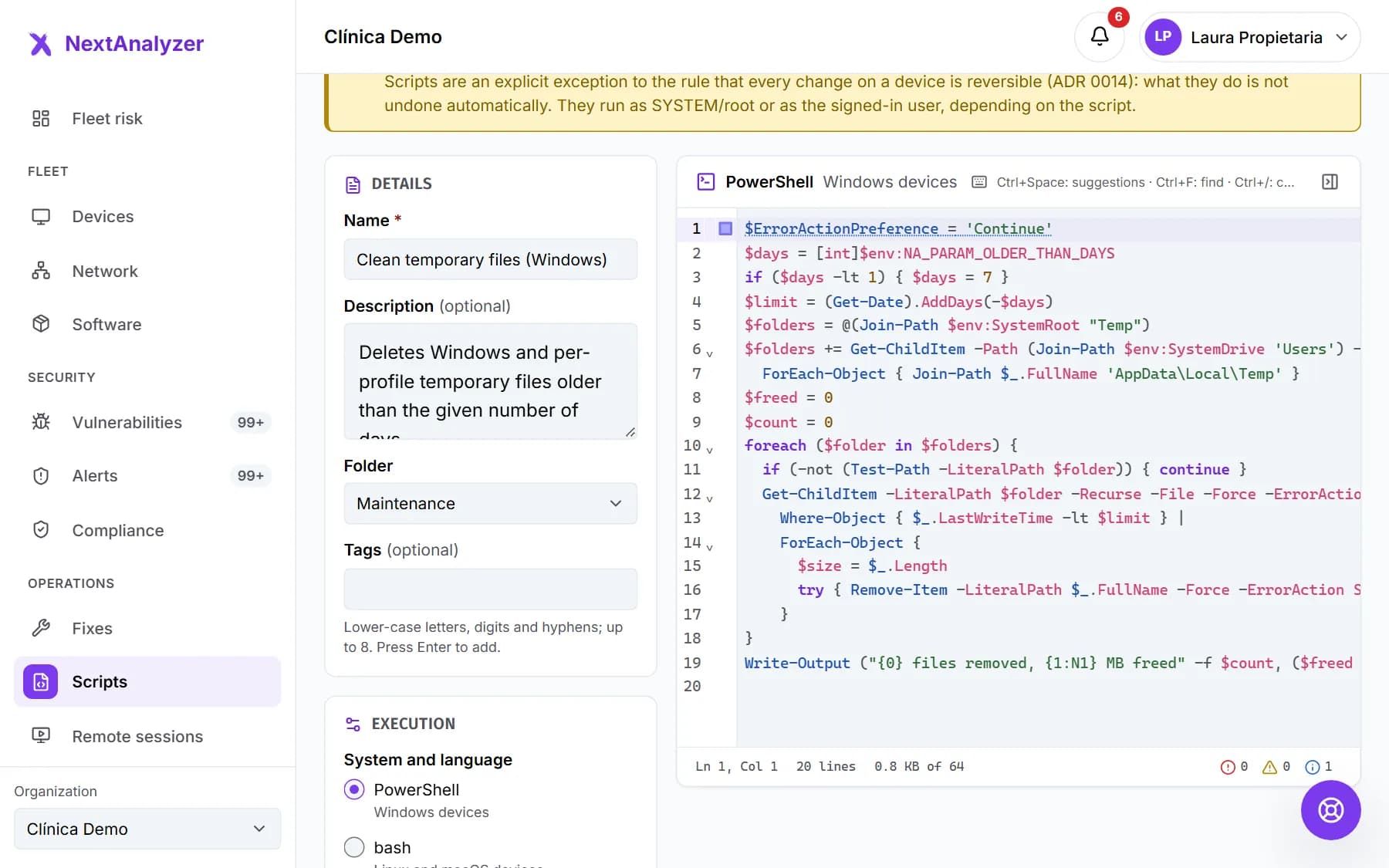 Create and run signed scriptsWrite PowerShell, bash or sh scripts with help and warnings, have an administrator approve them and run them on your devices with a result per device.Read the guide
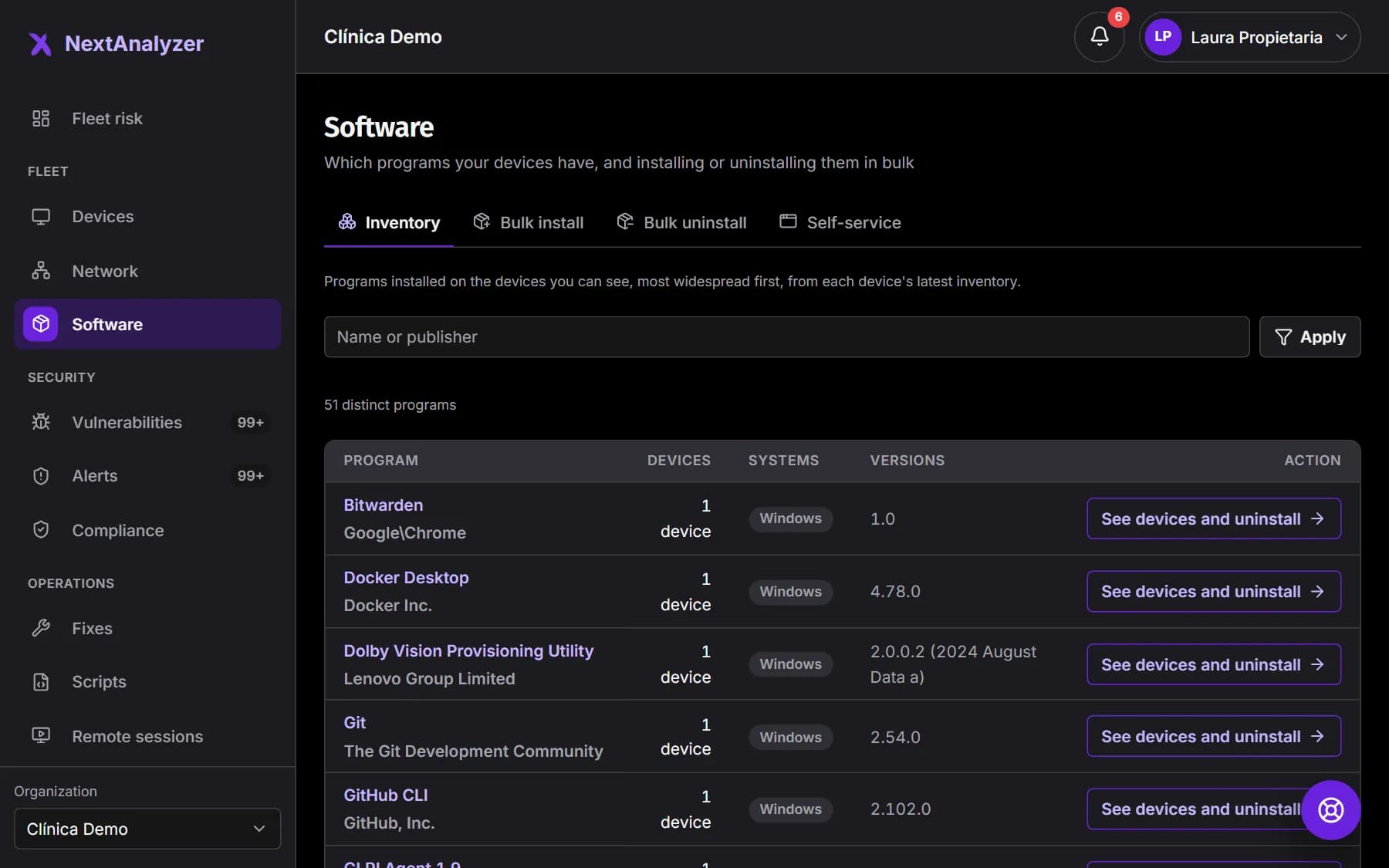
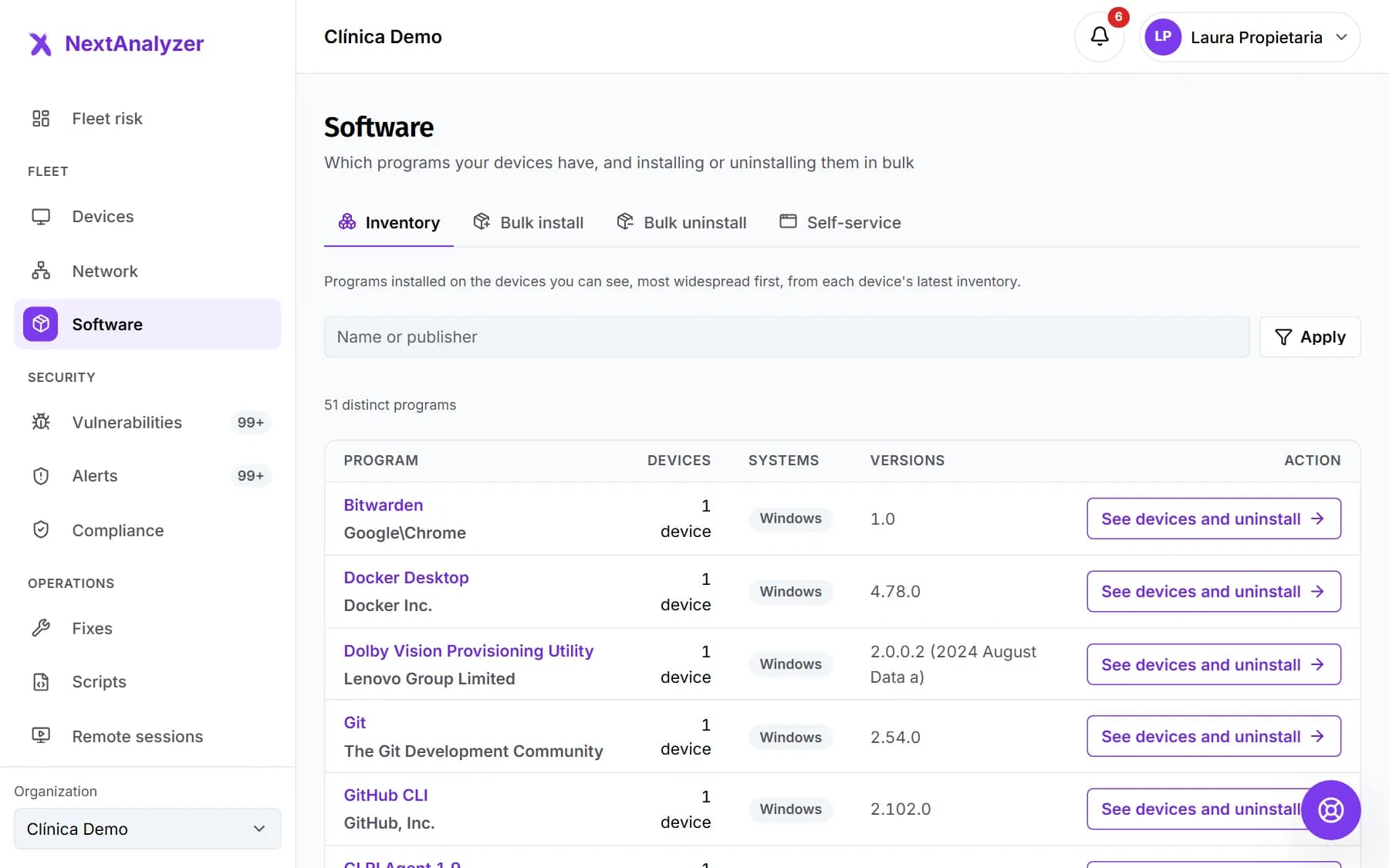 Install and uninstall software in bulkSee which programs your devices have, open each program's page and install or uninstall on many devices at once, with approval and a result per device.Read the guide
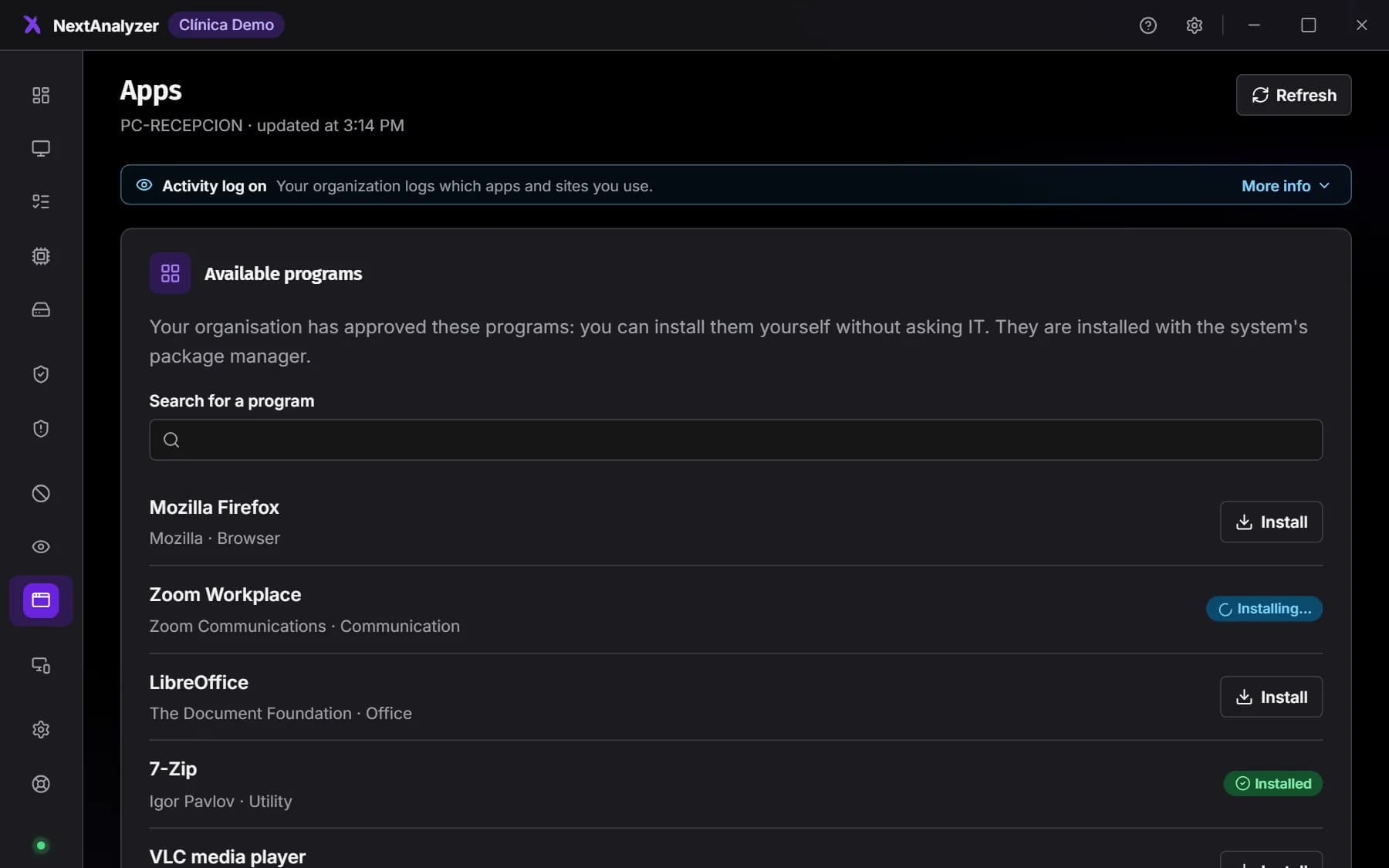
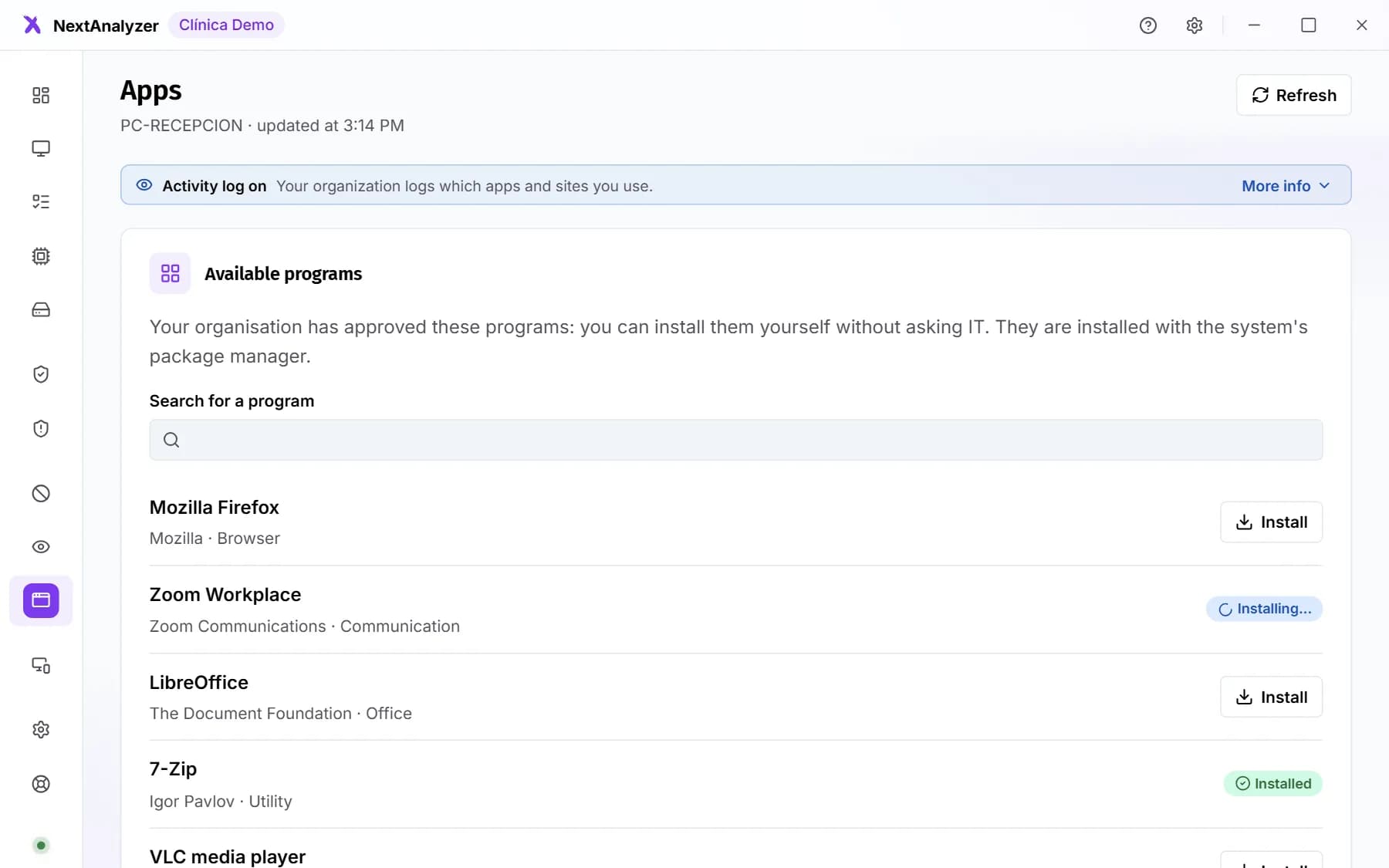 Self-service apps in the appLet each person install the programs you approve on their own, and request missing ones, from the Apps page of the device app.Read the guide
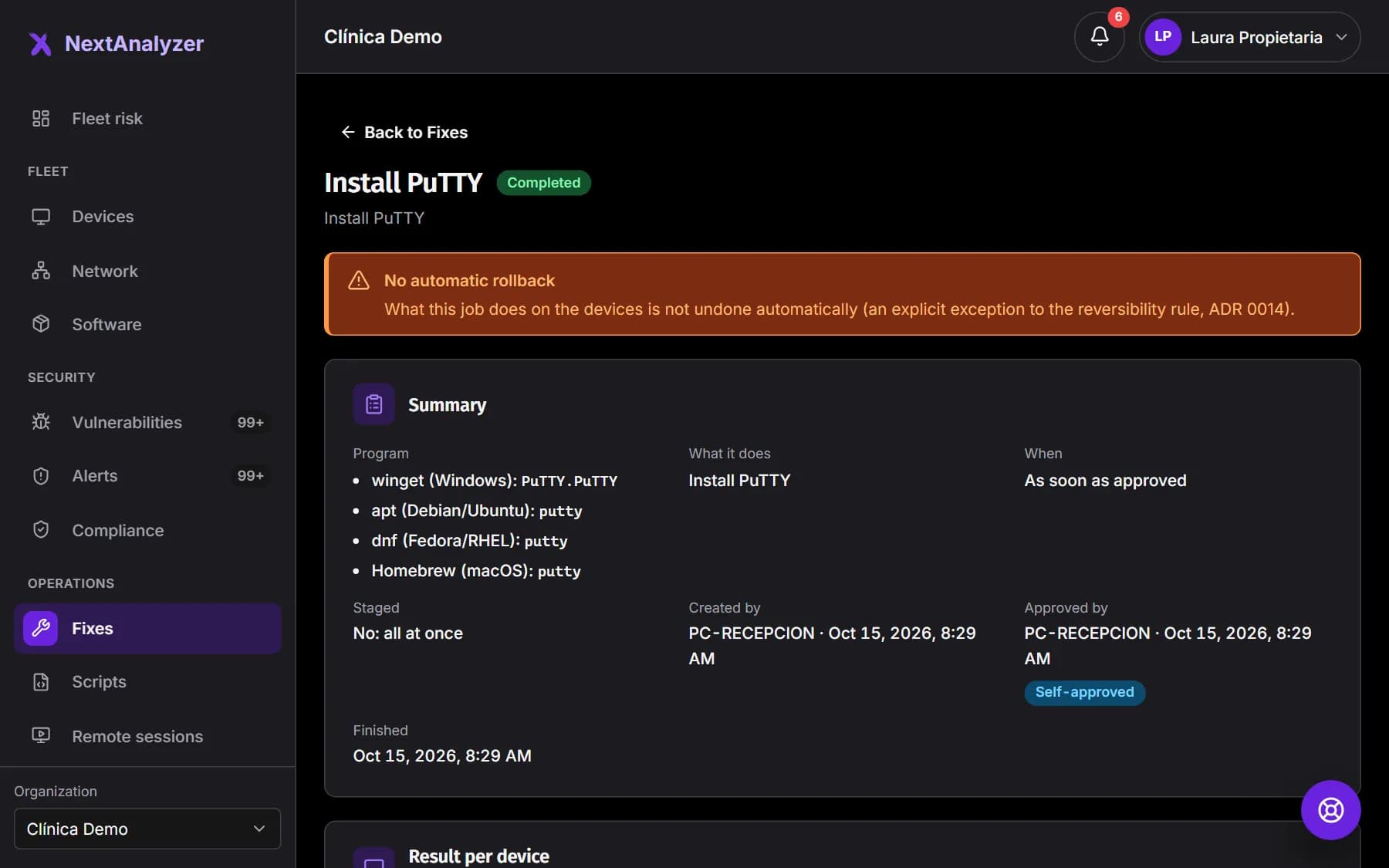
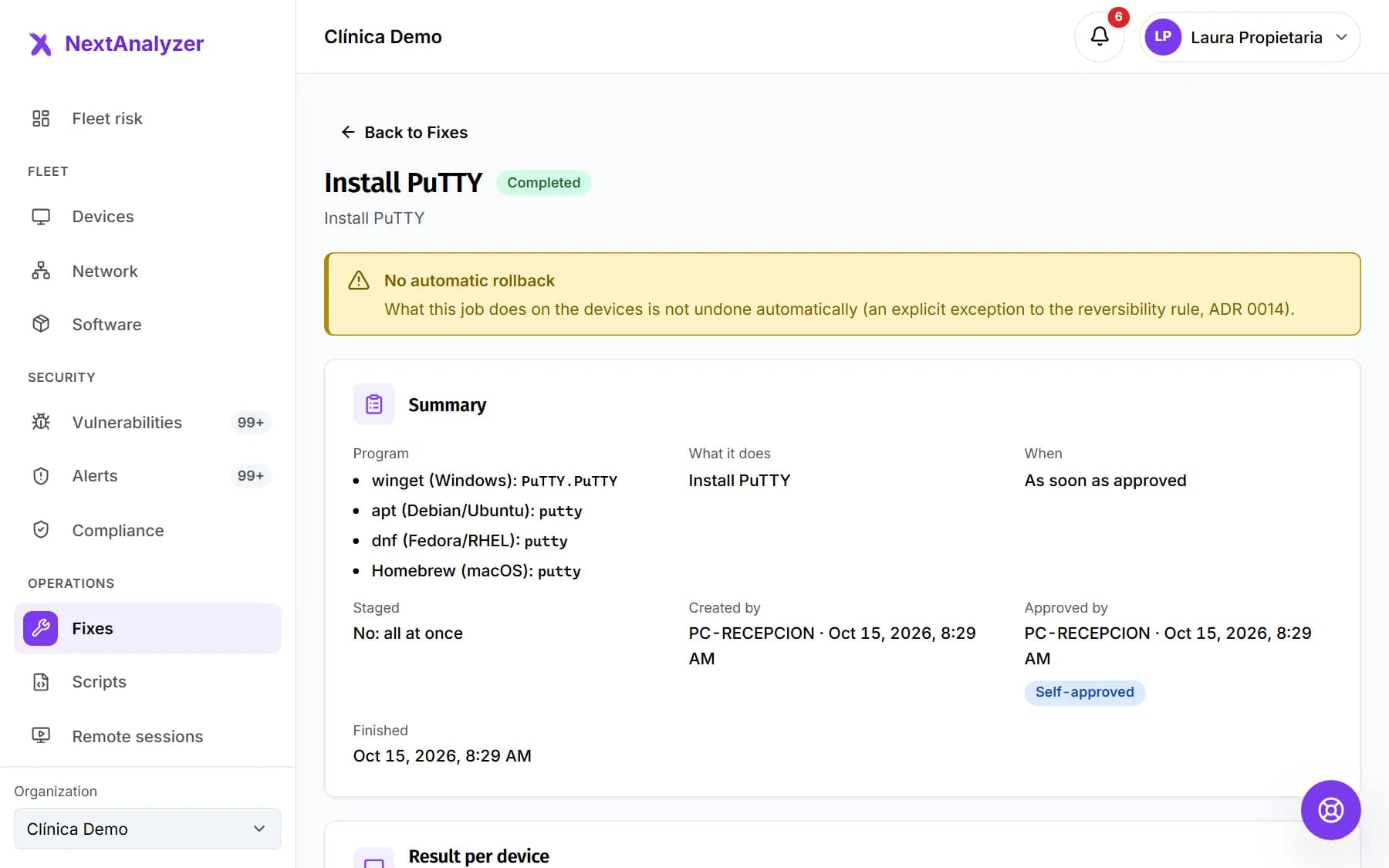 Apply fixes and follow their resultFix vulnerabilities remotely by updating the program or installing patches, with pilot devices, a maintenance window, approval and a result per device.Read the guide
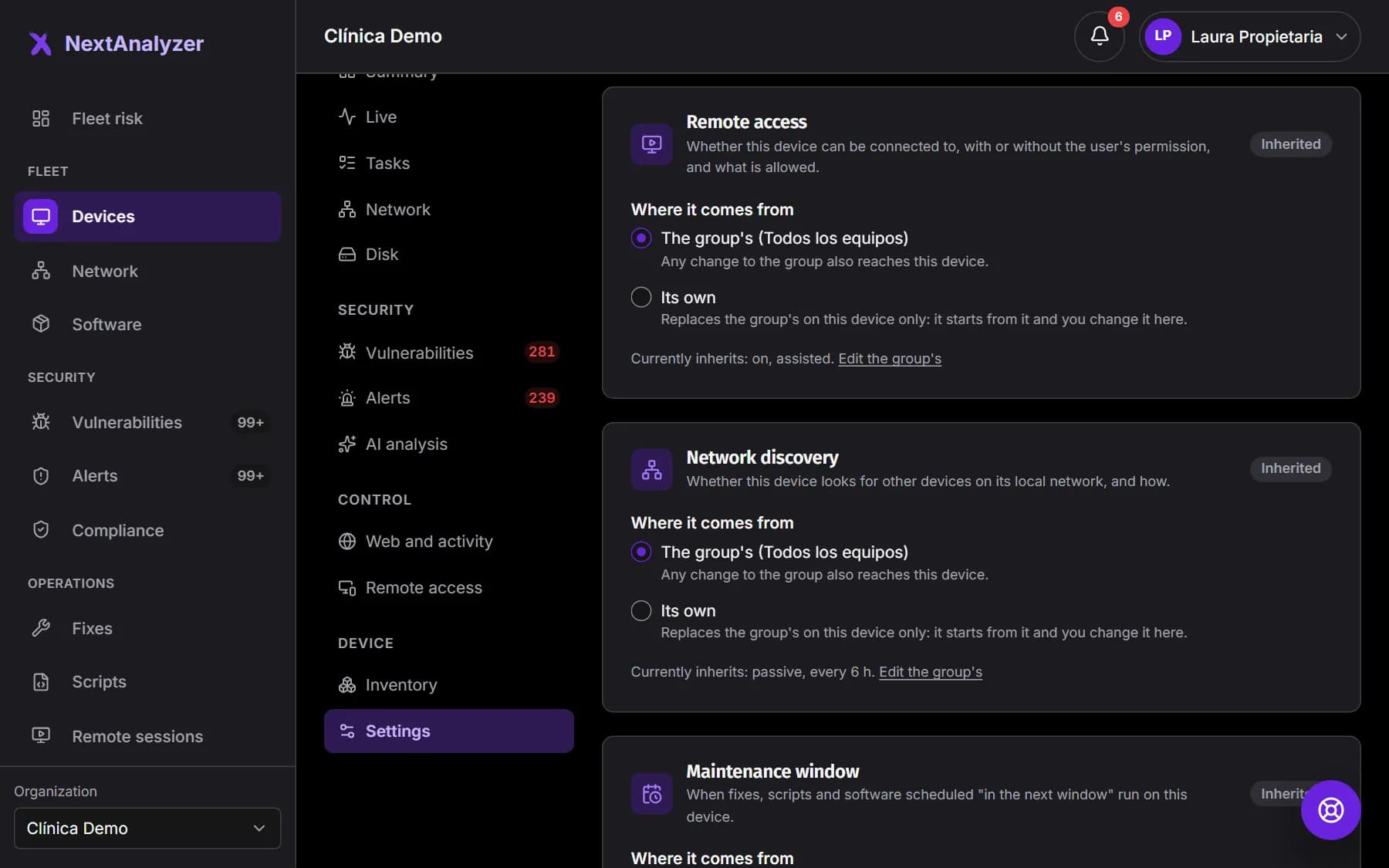
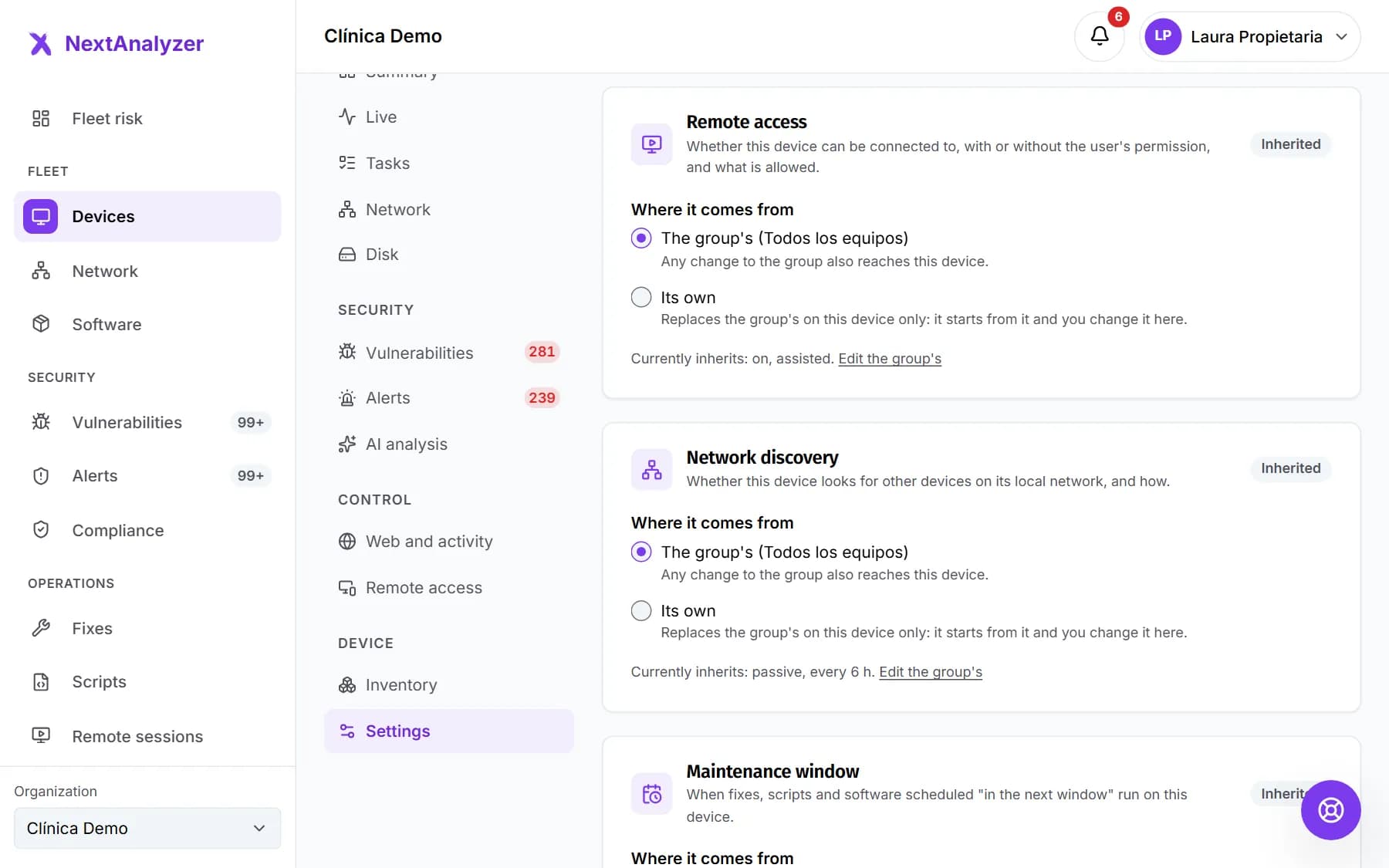 Group policies and per-device exceptionsDecide in each group how its devices behave and, when needed, give a device its own policy that replaces the group's.Read the guide
Protection
Protect
Understand your risk, fix vulnerabilities, produce reports and compliance evidence, and get the alerts that matter.
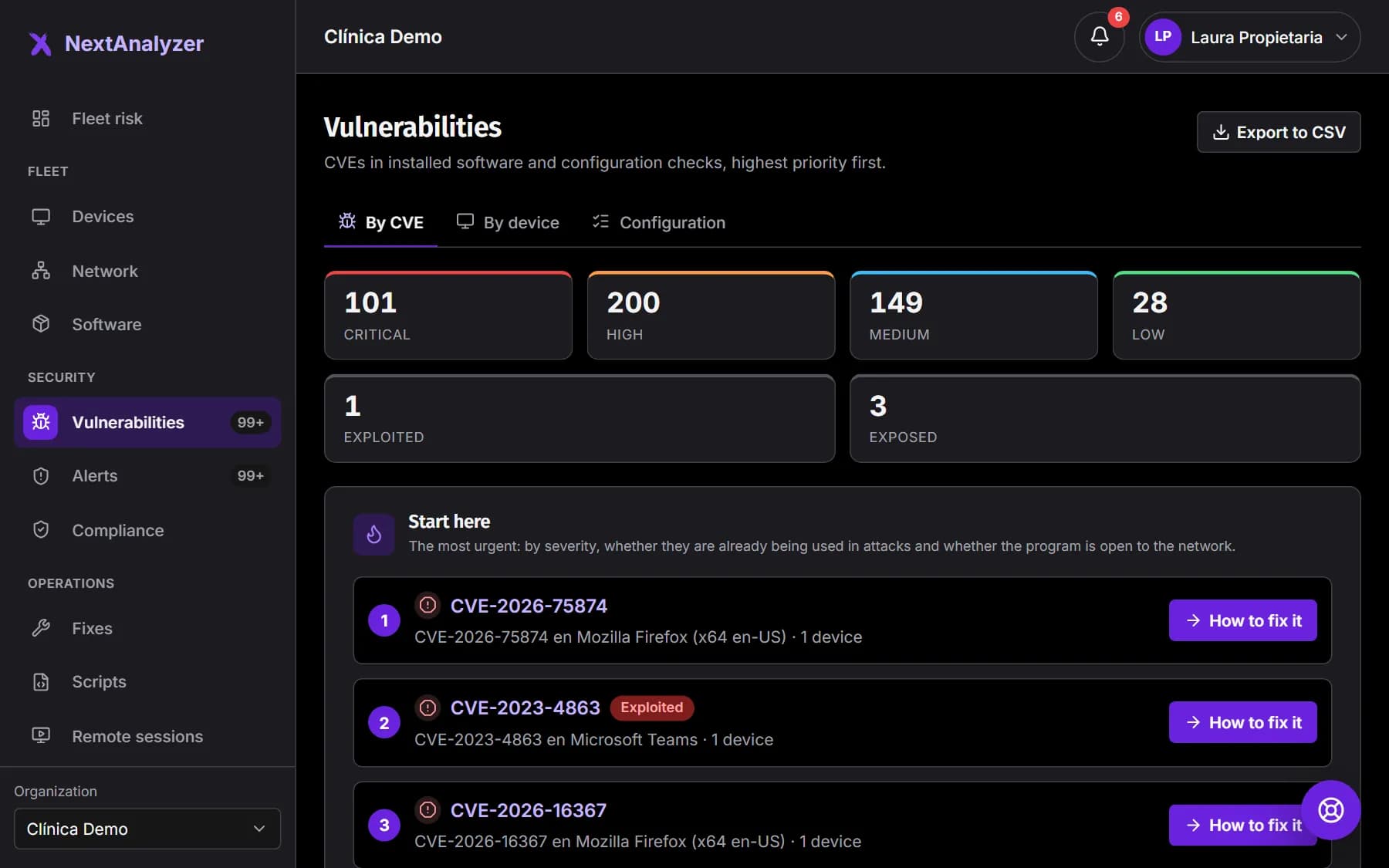
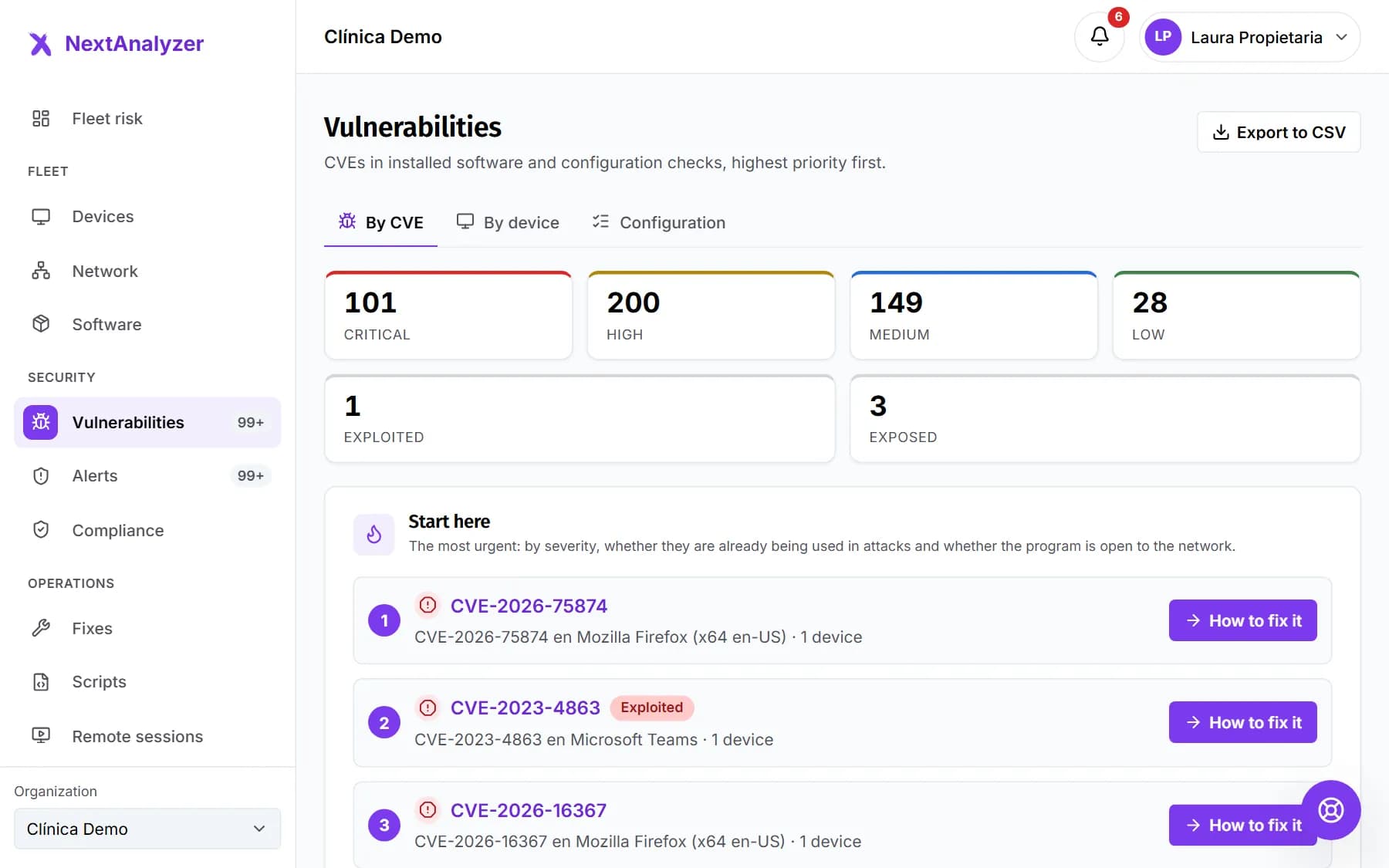 Understand and fix vulnerabilitiesRead the risk, prioritise what is exploited and exposed, read each CVE page with what it means and how to fix it, and apply the fix.Read the guide
- Check that vulnerability detection worksWhat “No detection” means, why a device with no vulnerabilities isn't always safe and what to do in each case to turn detection on.Read the guide
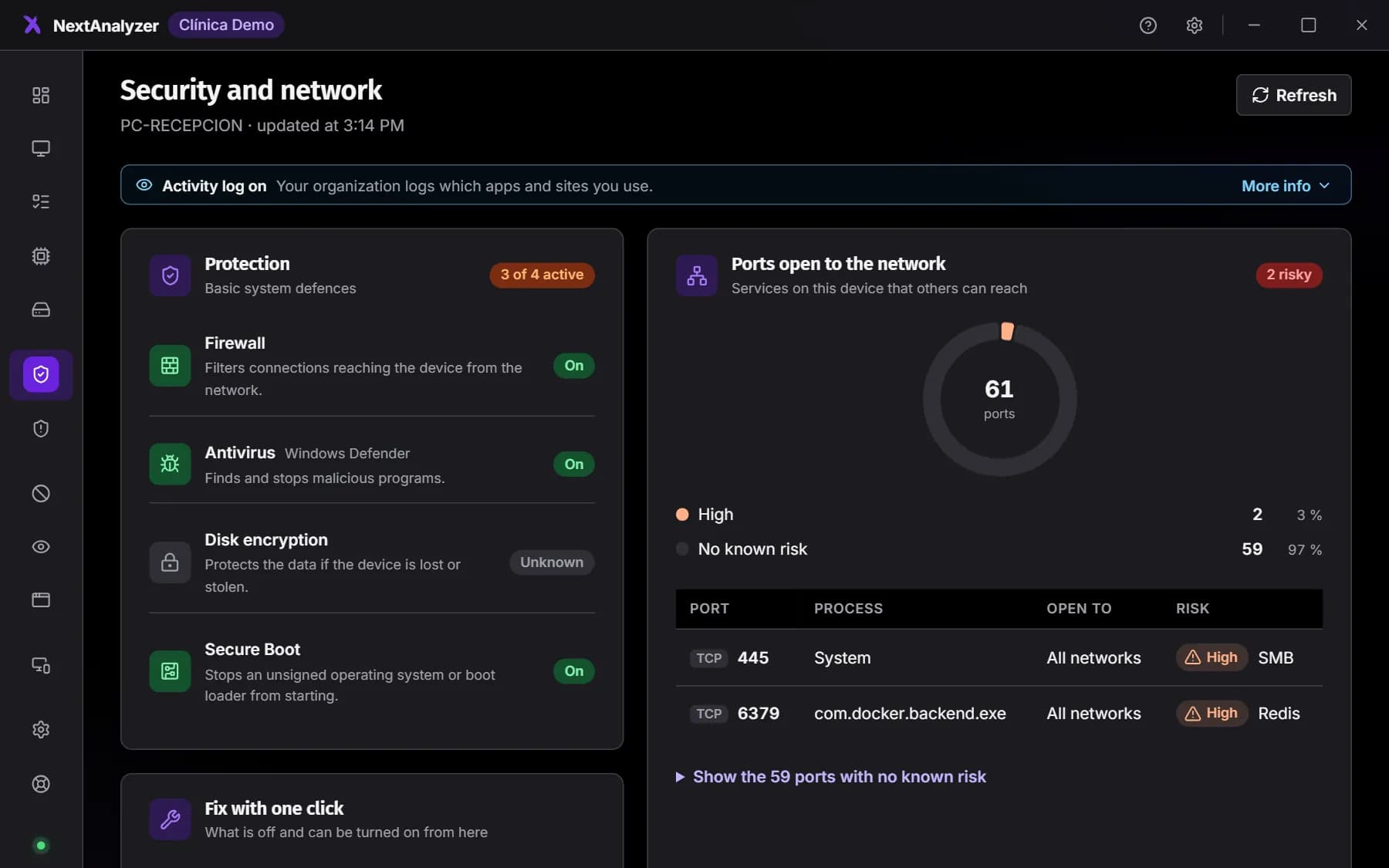
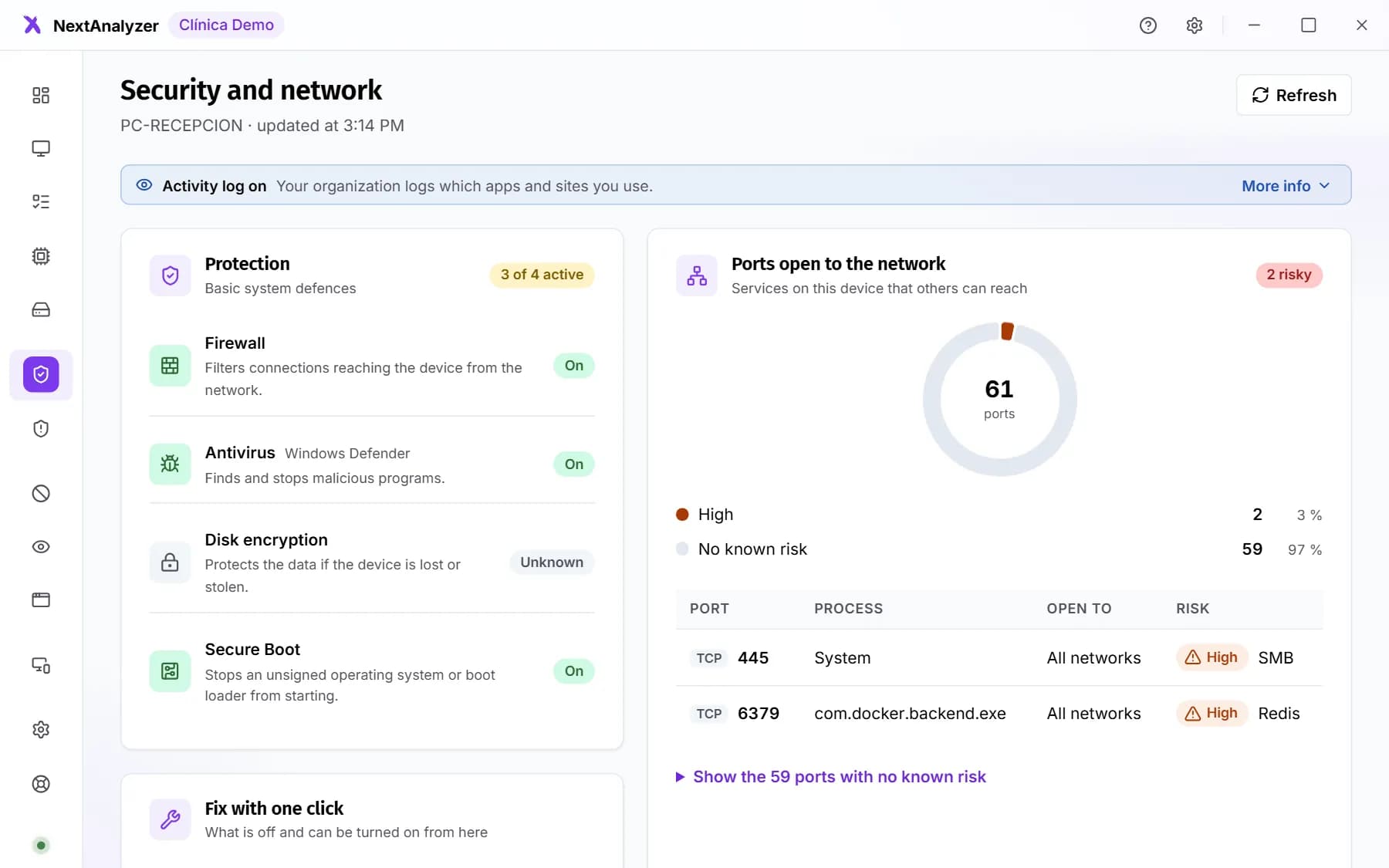 Device security and one-click fixesCheck each device's firewall, antivirus, encryption and open ports, get alerts when something turns off and turn it back on with one click from the app.Read the guide
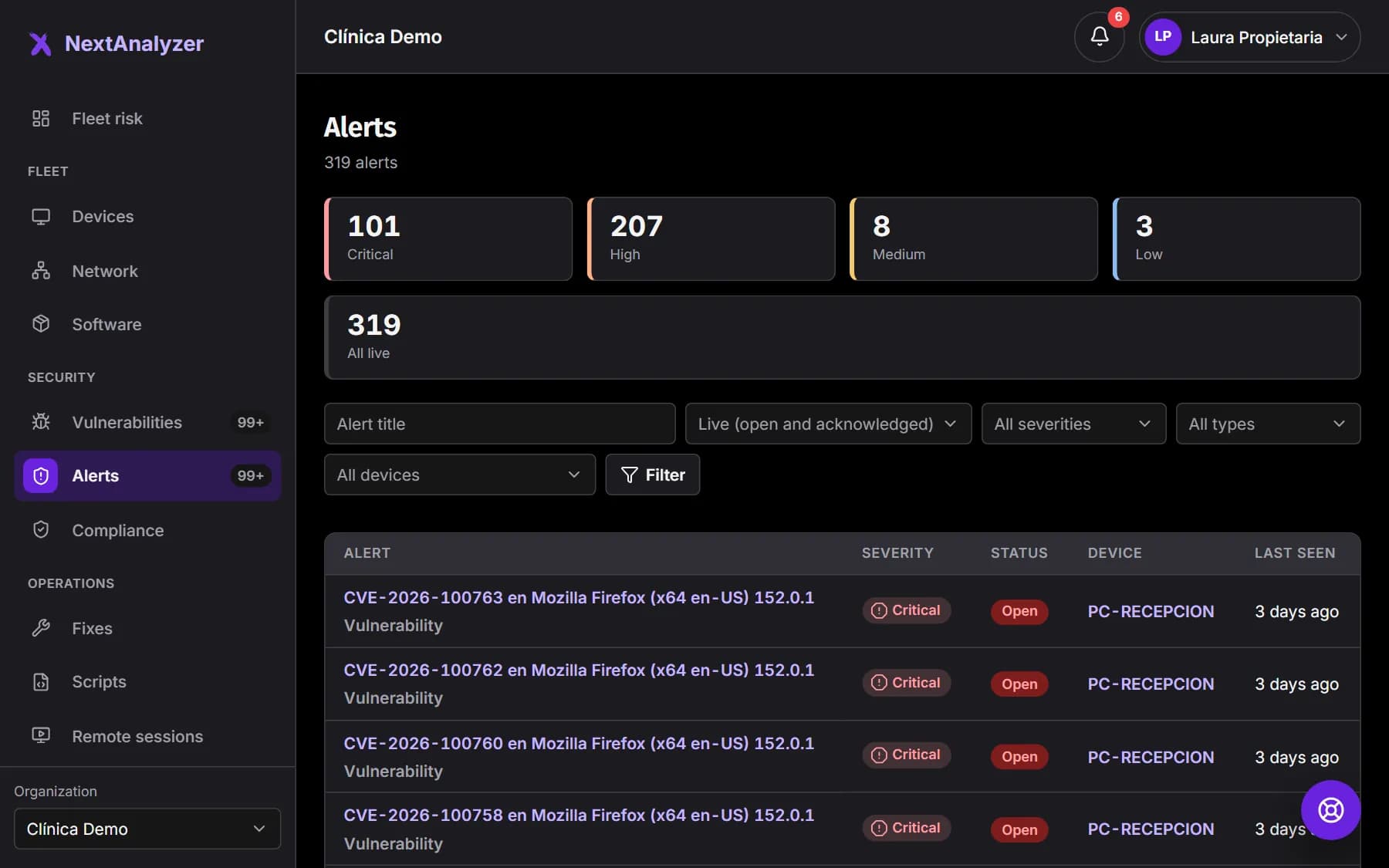
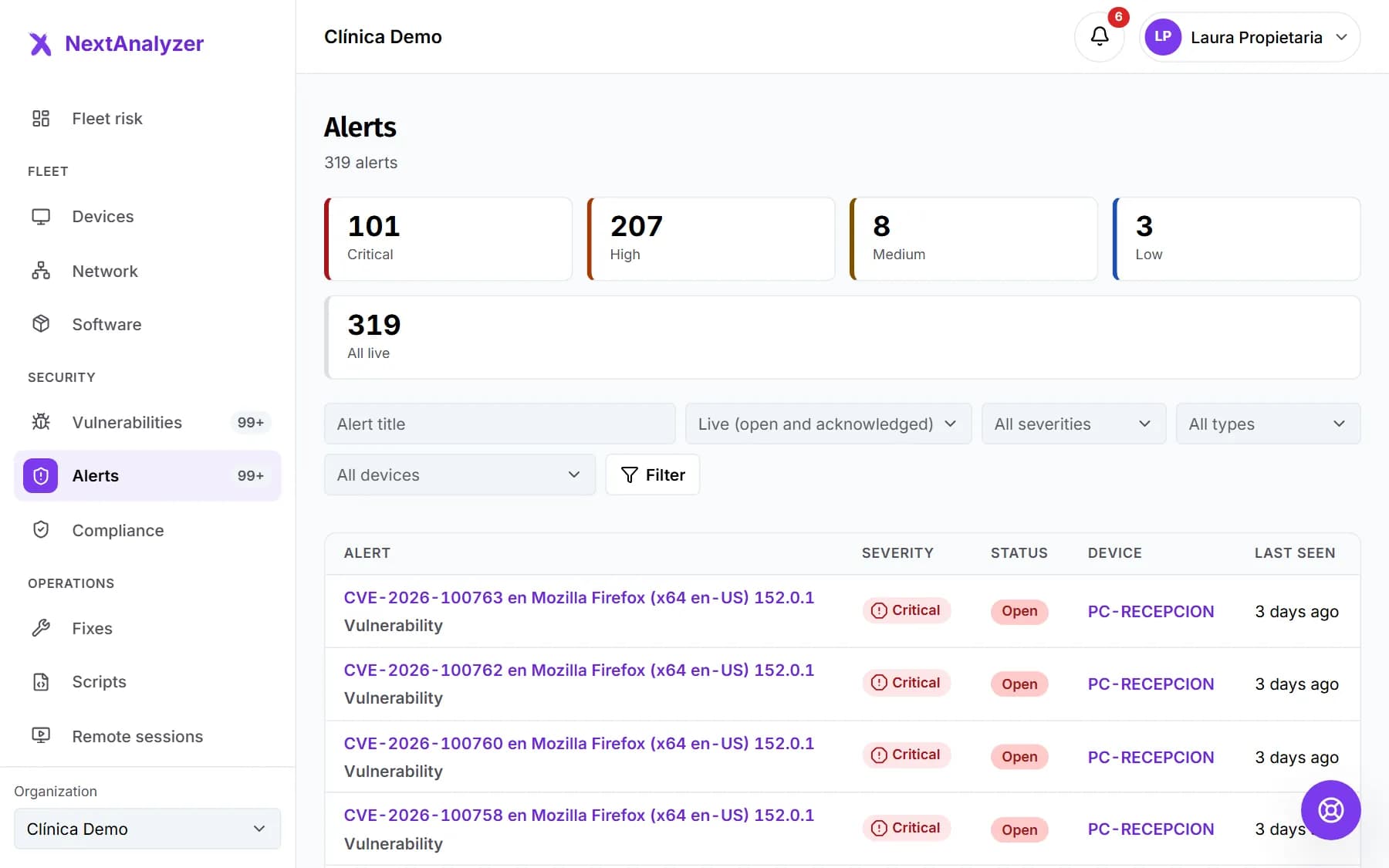 Set up alerts and notificationsManage alerts, decide what notifies the organization and you, and receive it by email, Teams, Slack or a signed webhook.Read the guide
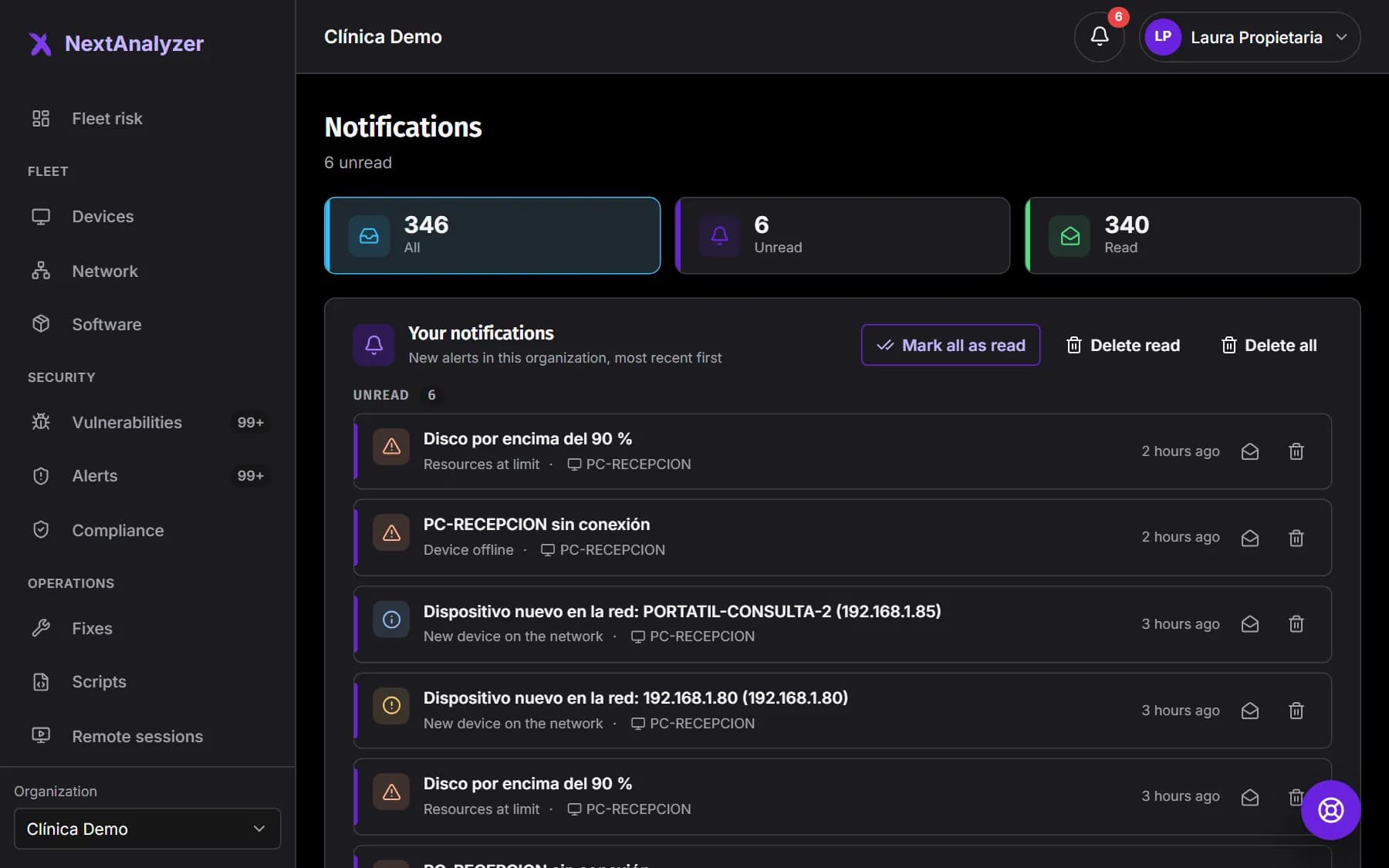
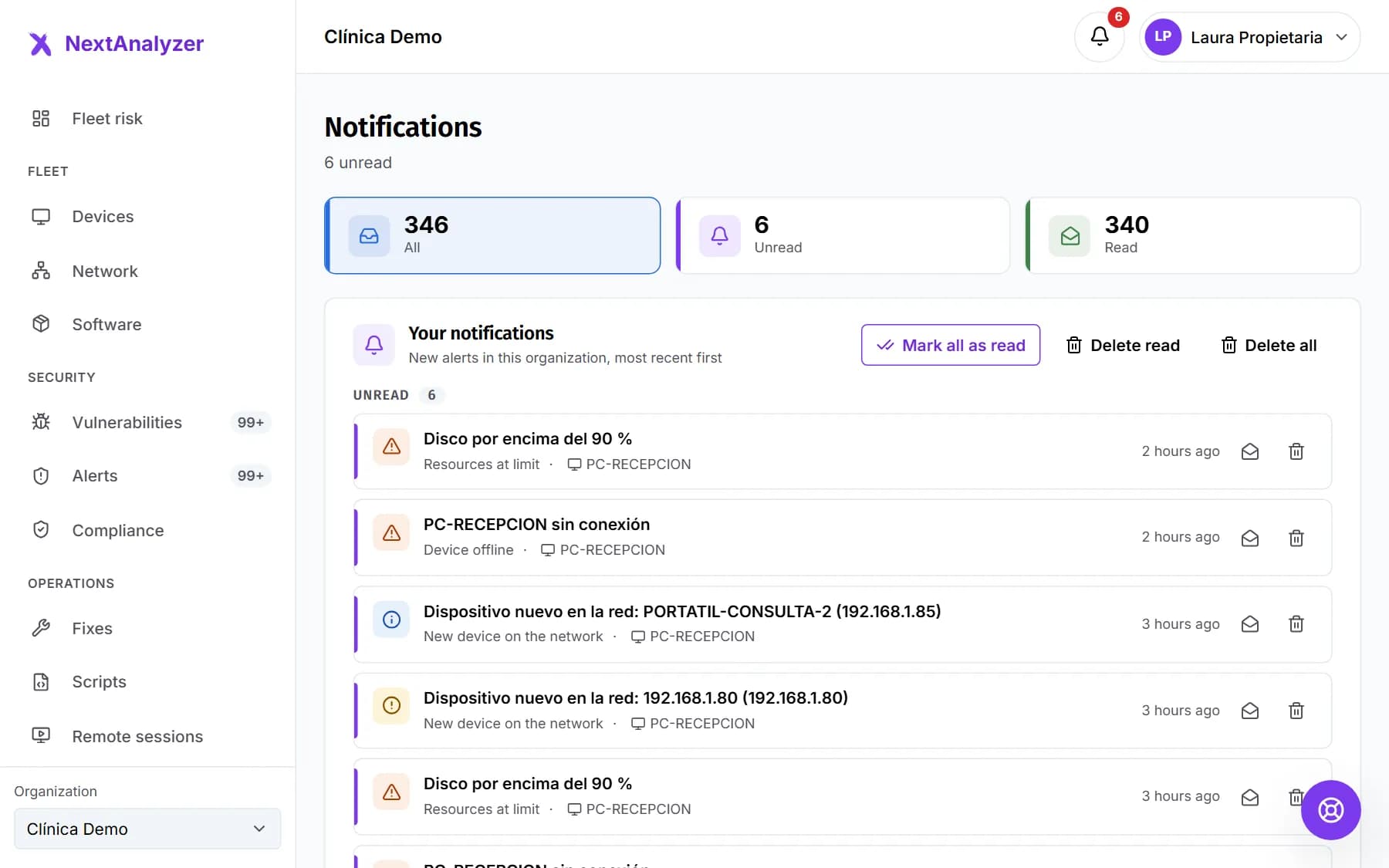 Notifications and inboxUse the bell and the notification inbox so you never miss a new alert, and keep it tidy by marking and deleting.Read the guide
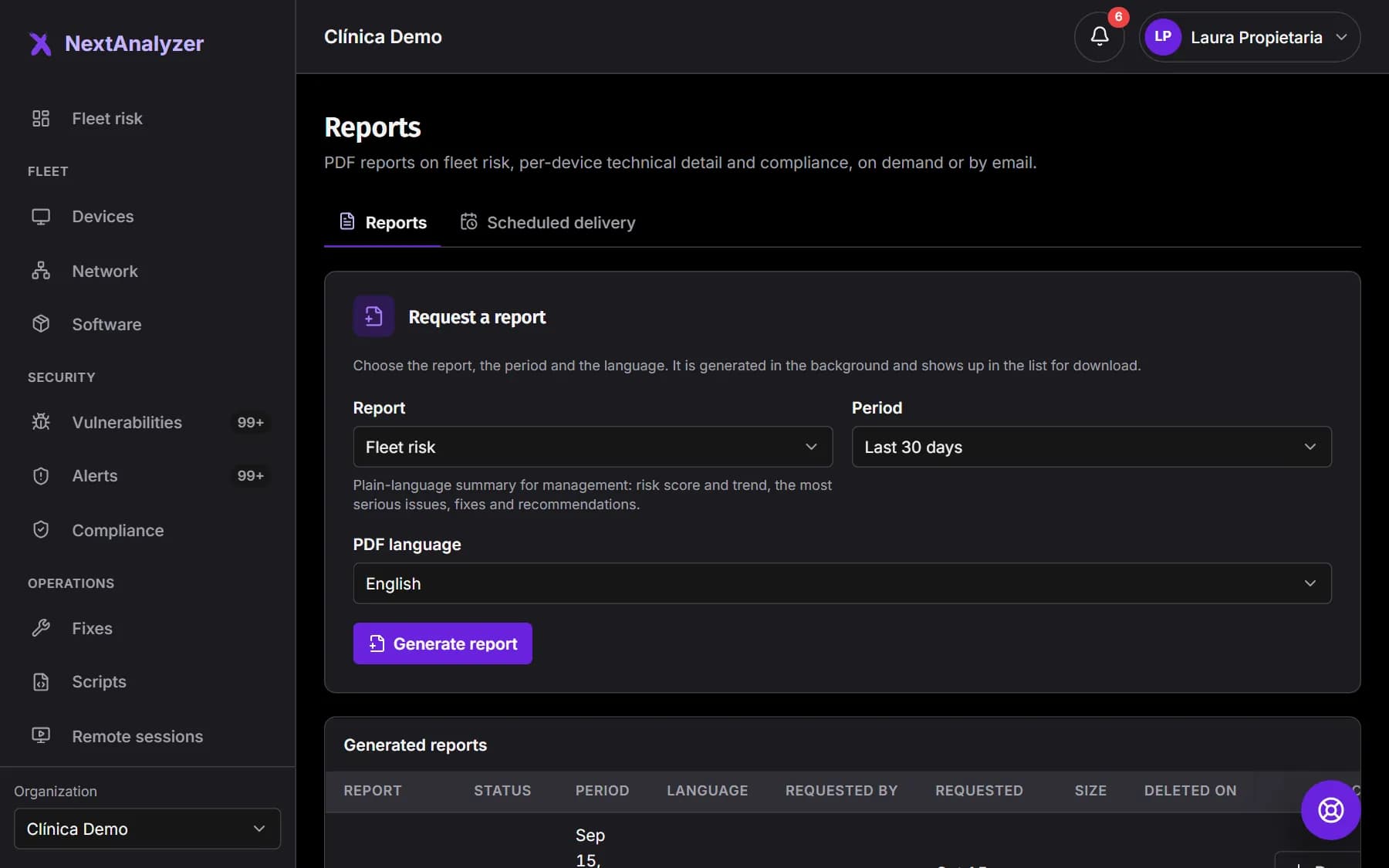
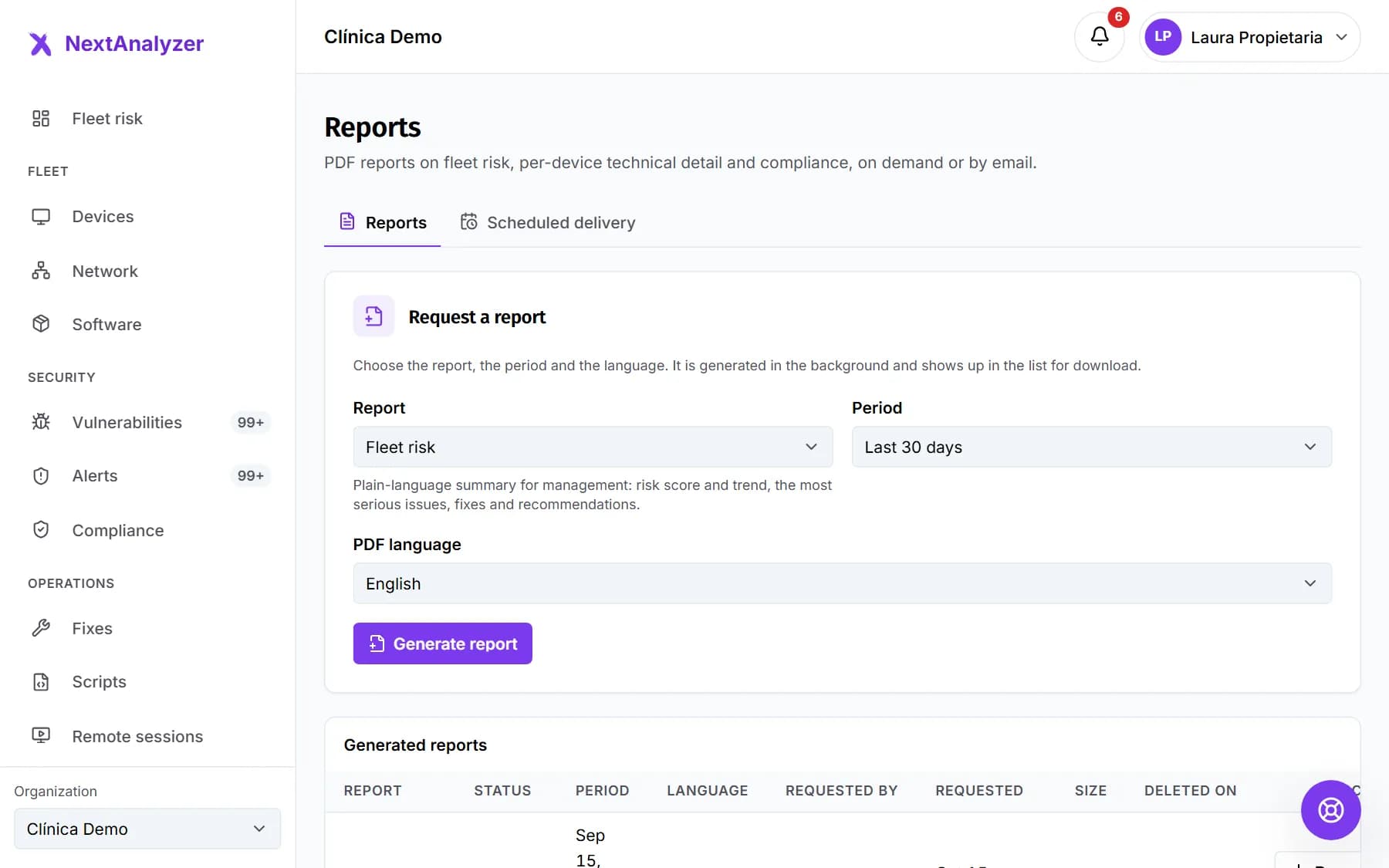 Create PDF reports and schedule them by emailGenerate PDF reports on fleet risk, technical detail and compliance, and receive them every week or month in your time zone.Read the guide
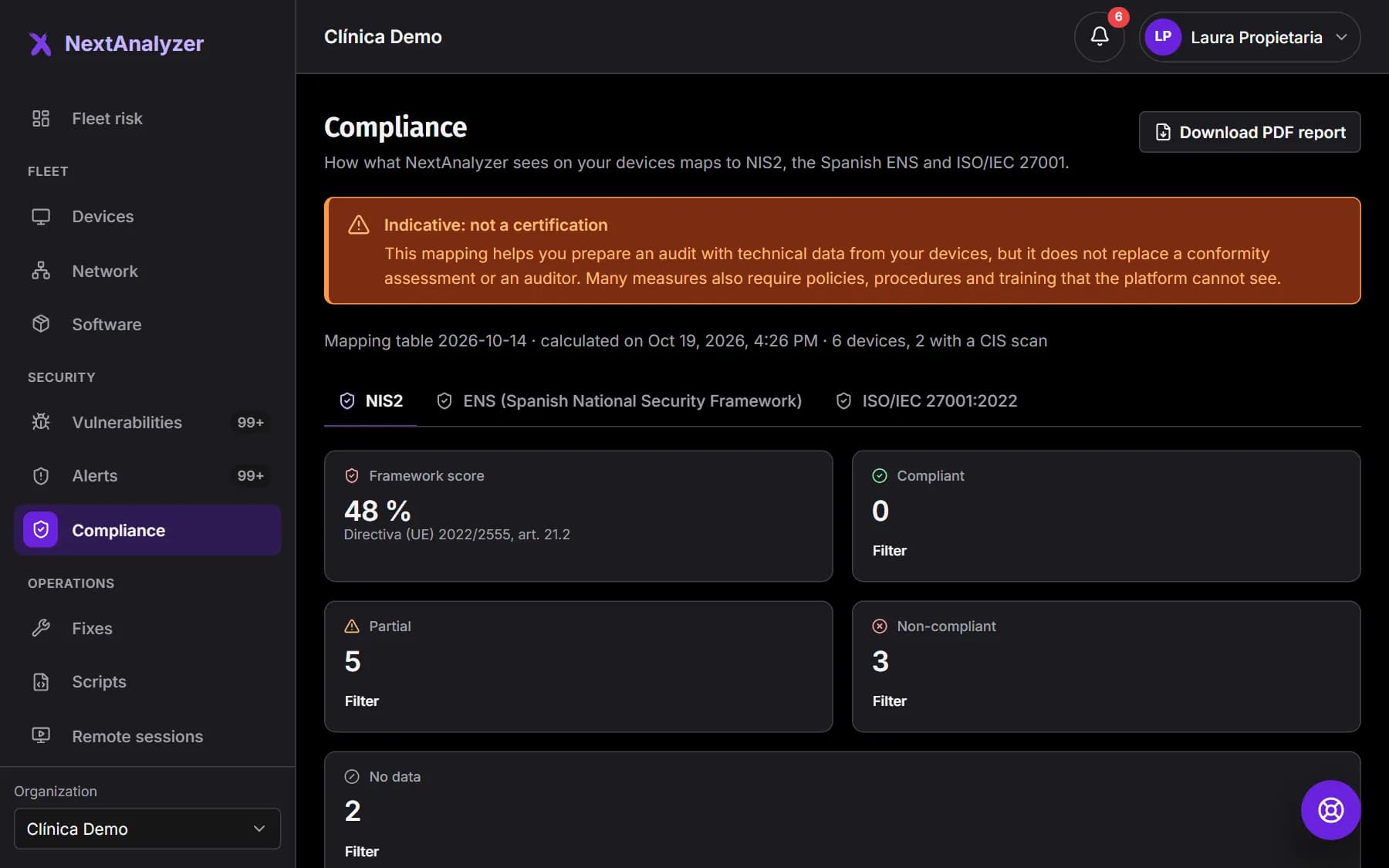
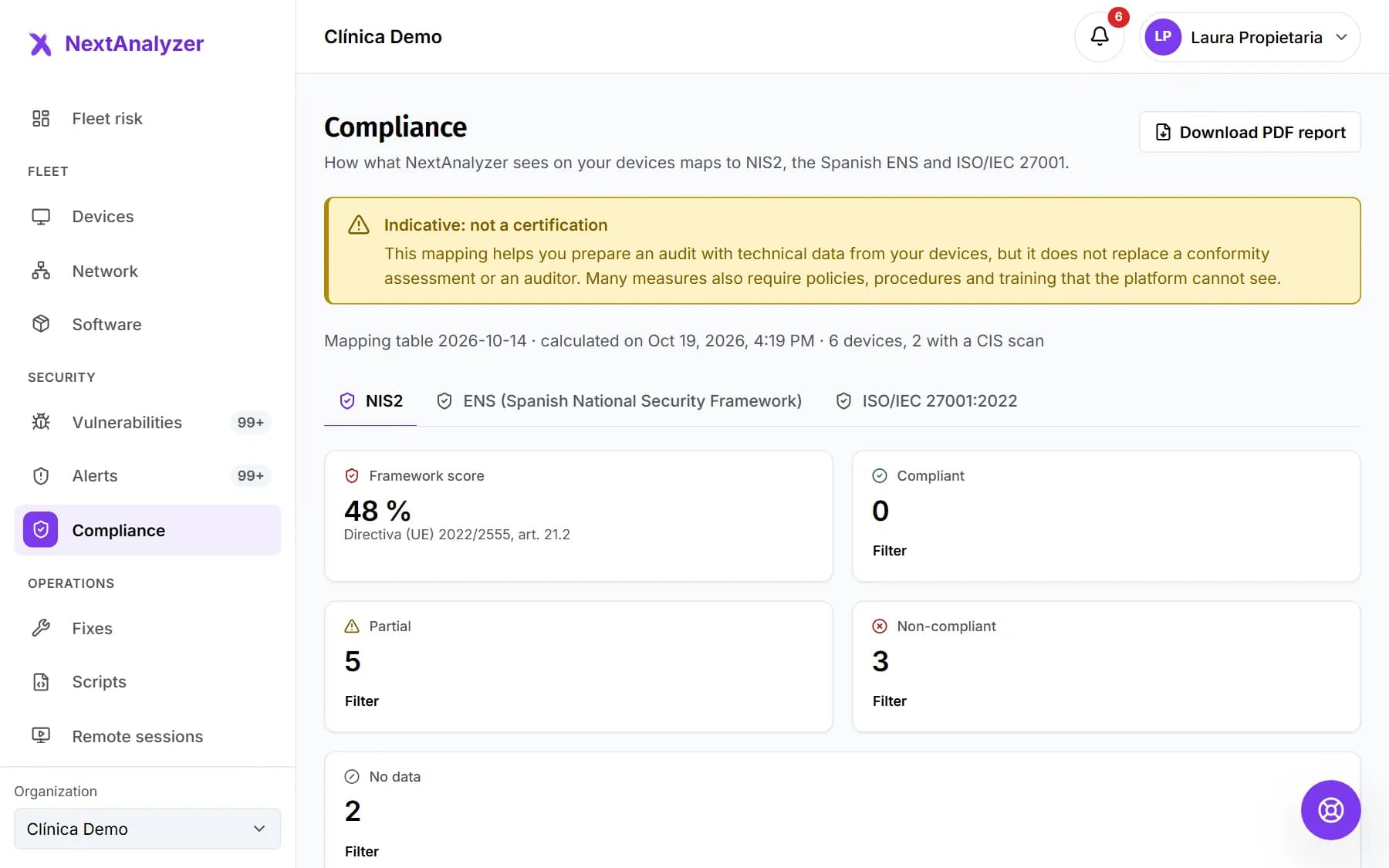 Measure your NIS2, ENS and ISO 27001 complianceSee how well your devices fit NIS2, the ENS and ISO 27001, control by control, with where it fails, what to do and a PDF with evidence.Read the guide
Web control
Control browsing
Block categories of websites and ads, explain to your users what they see and, if you need it, check the activity history.
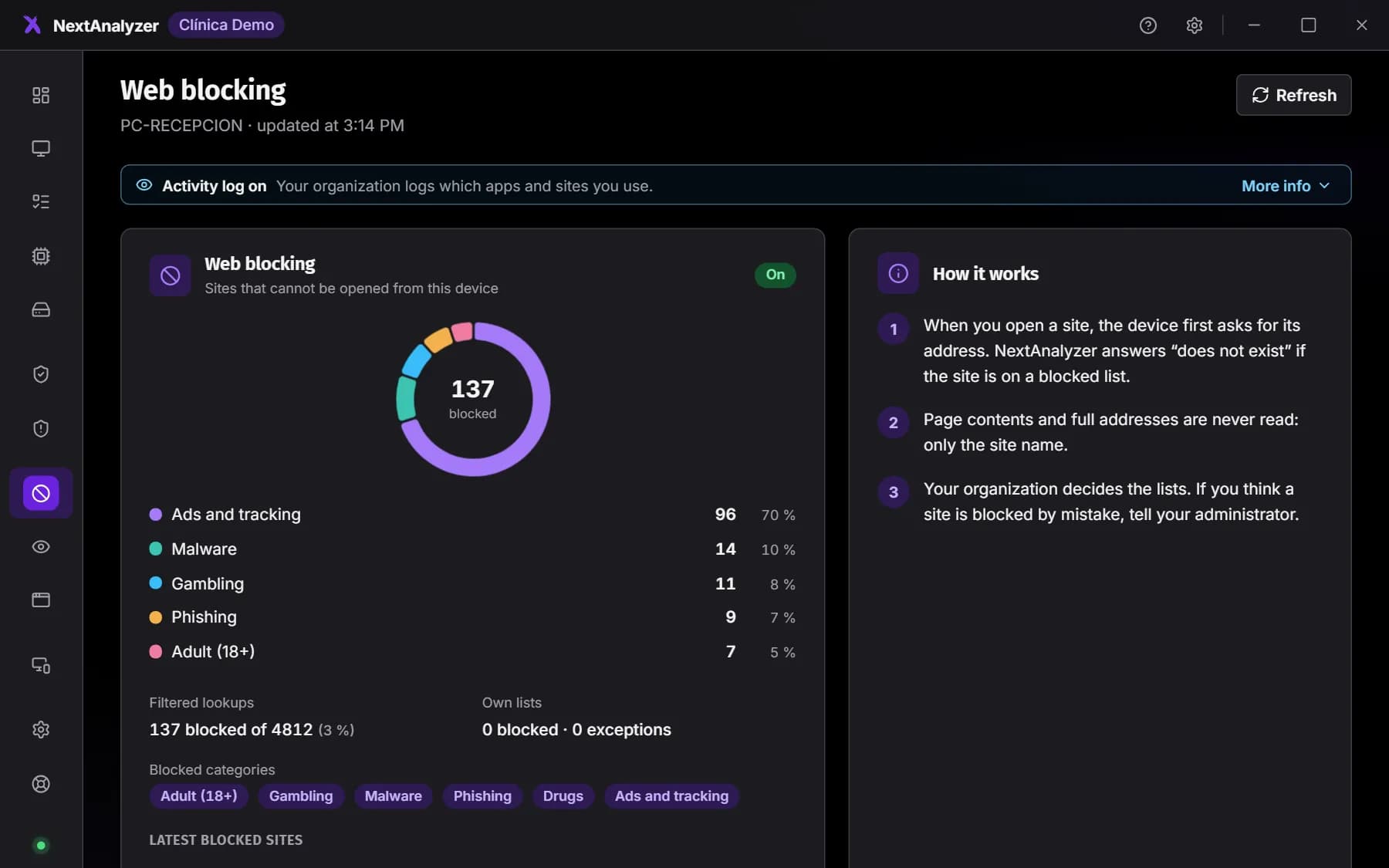
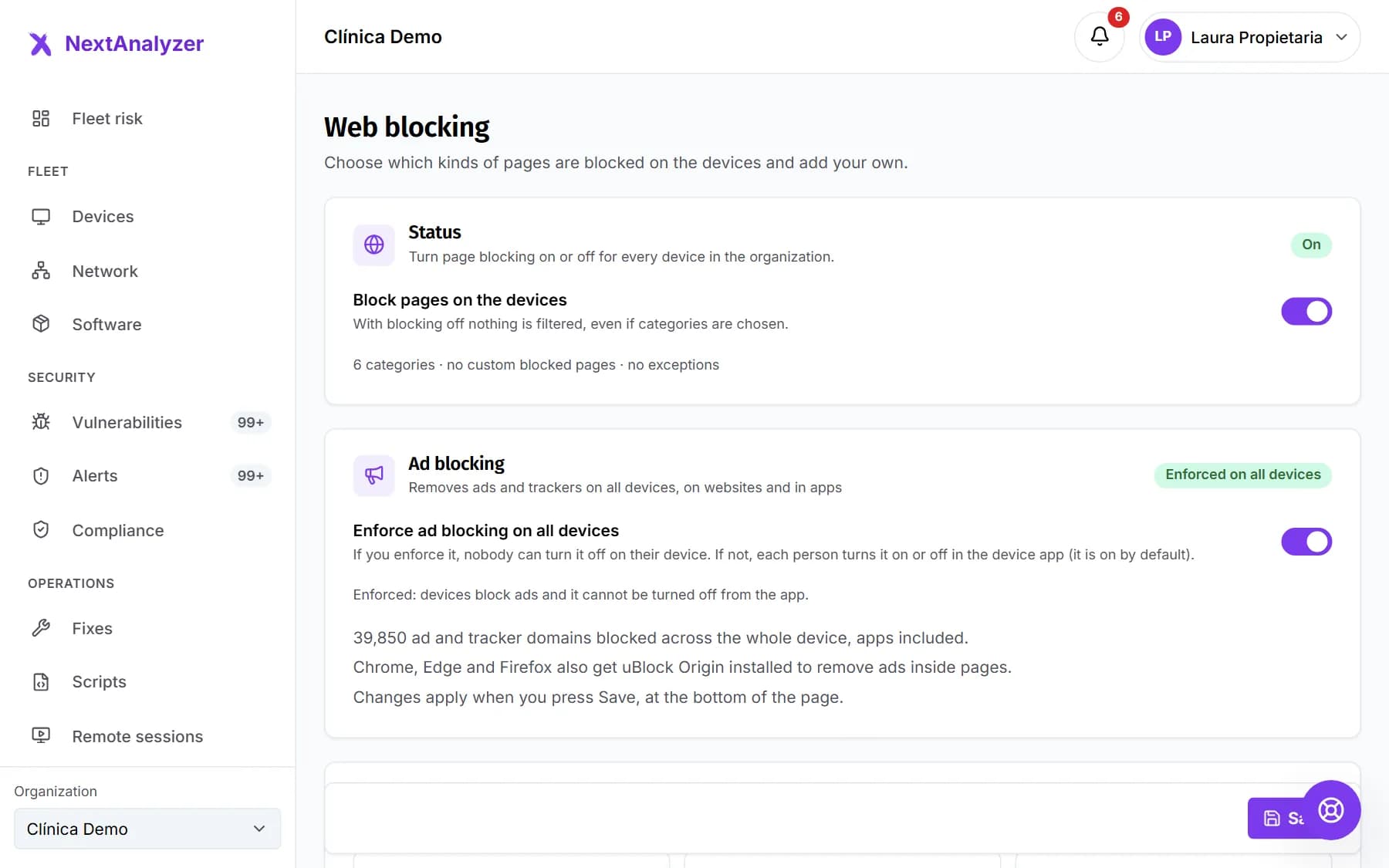 Block websites and ads on your devicesTurn on web blocking, start from a template, pick categories, add your own domains, decide on ads and check that each device is filtering.Read the guide
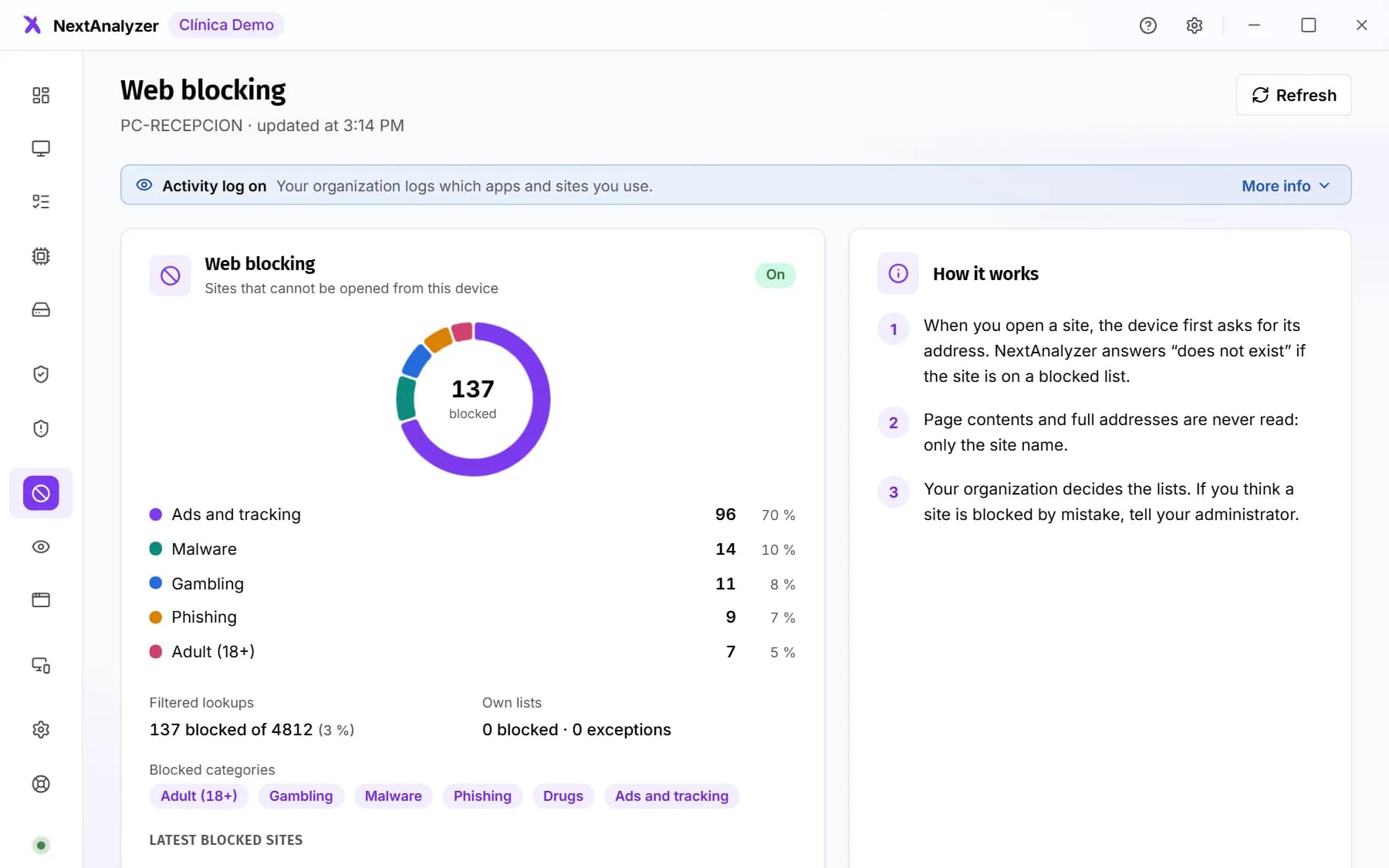 What to do if a website is blockedFor device users: what the “This website isn't allowed” page means, how ad blocking works and what to do if you need a website.Read the guide
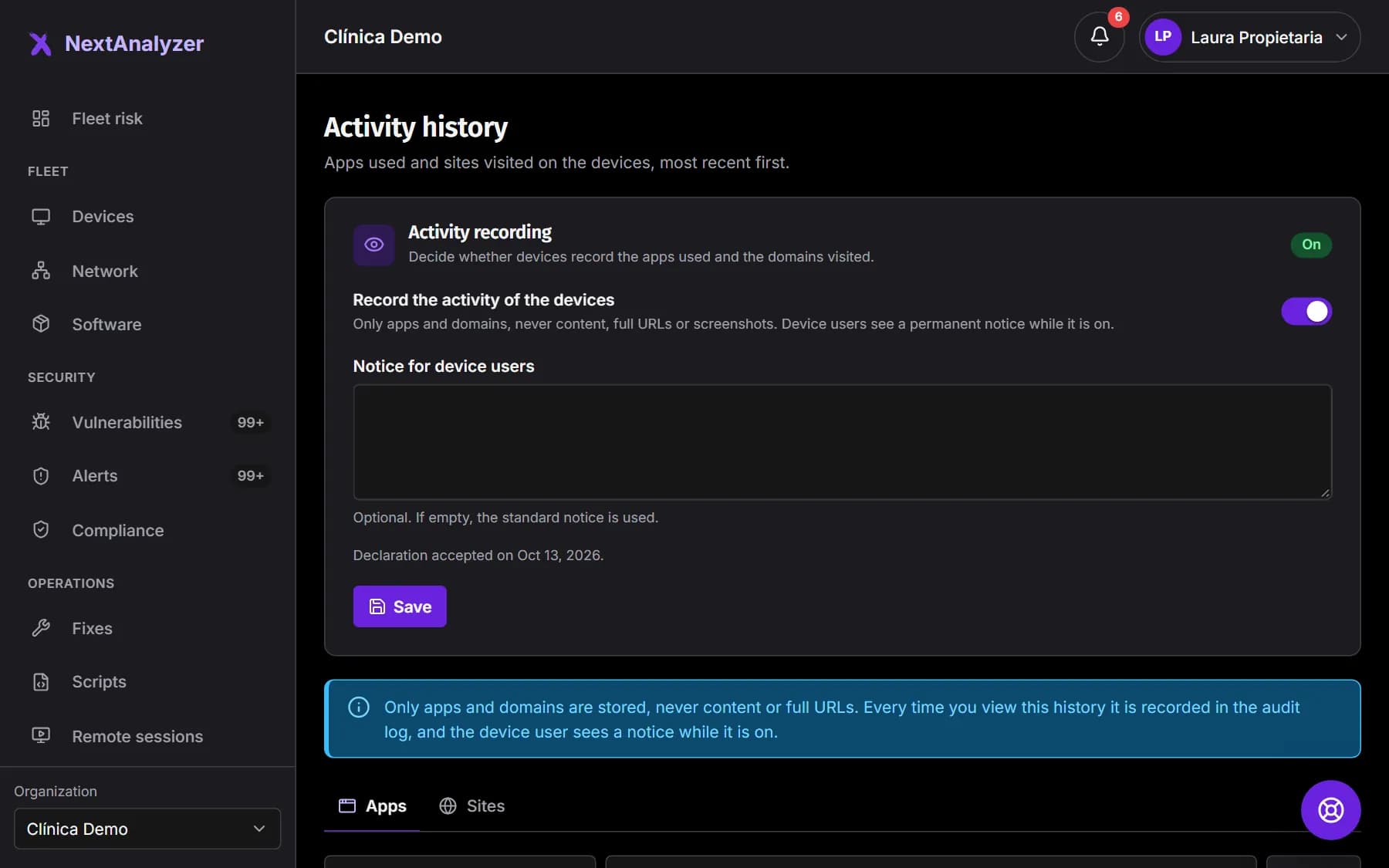
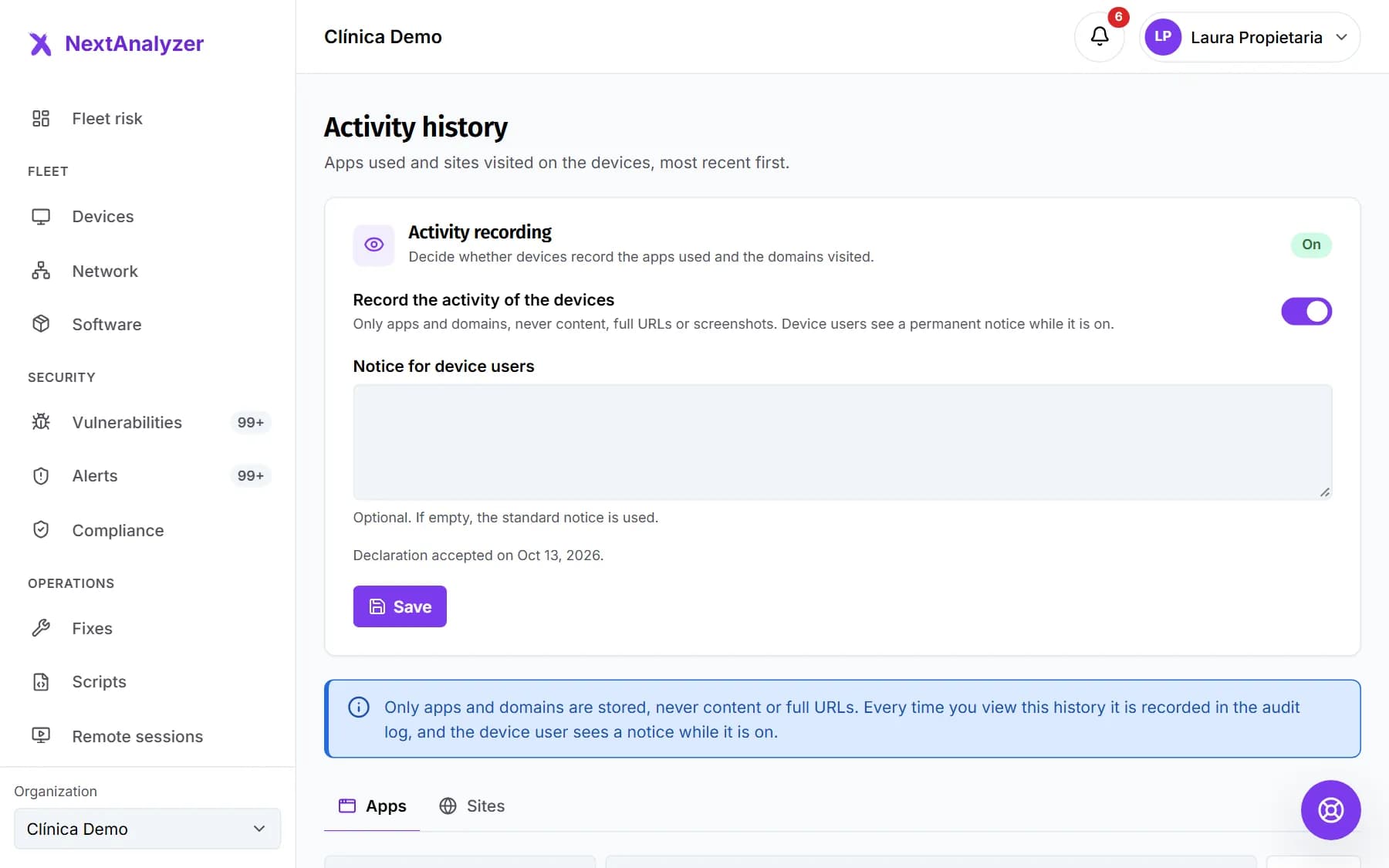 Turn on activity history with safeguardsRecord which apps and websites are used on your devices, with a permanent notice for device users, exclusions and every lookup in the audit log.Read the guide
Administration
Manage
People, single sign-on (SSO), your account, plans, billing, API, integrations, branding and support.
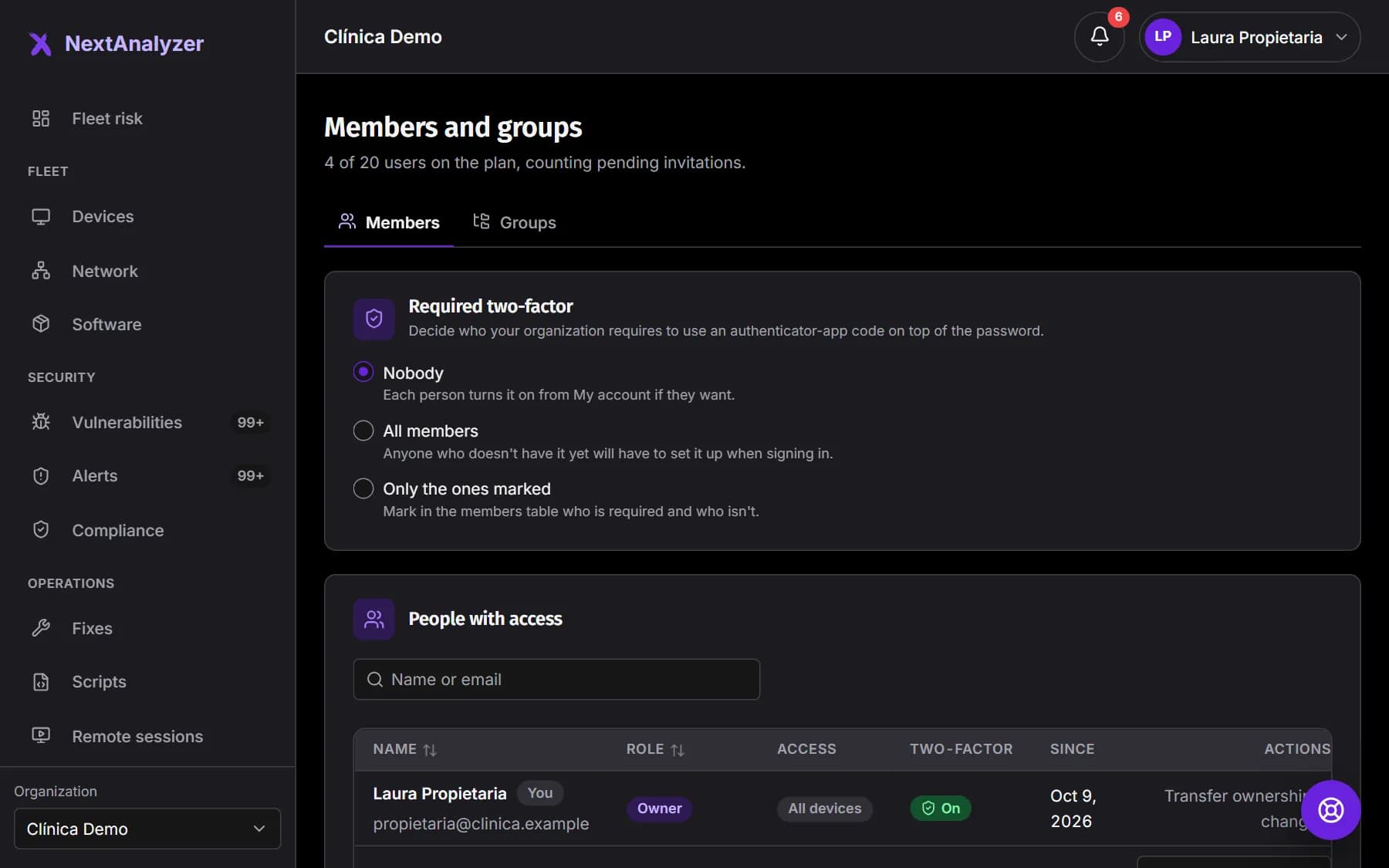
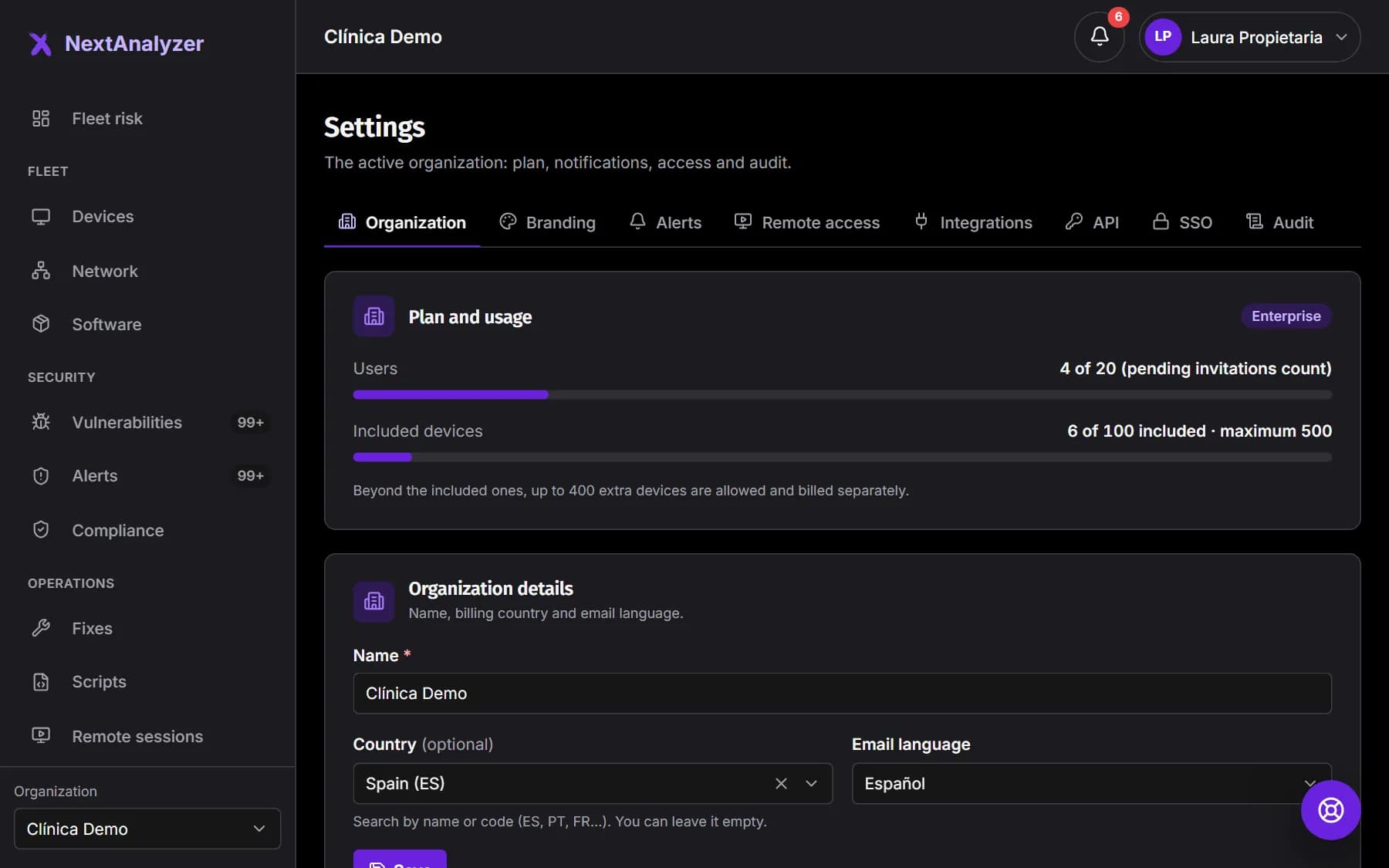
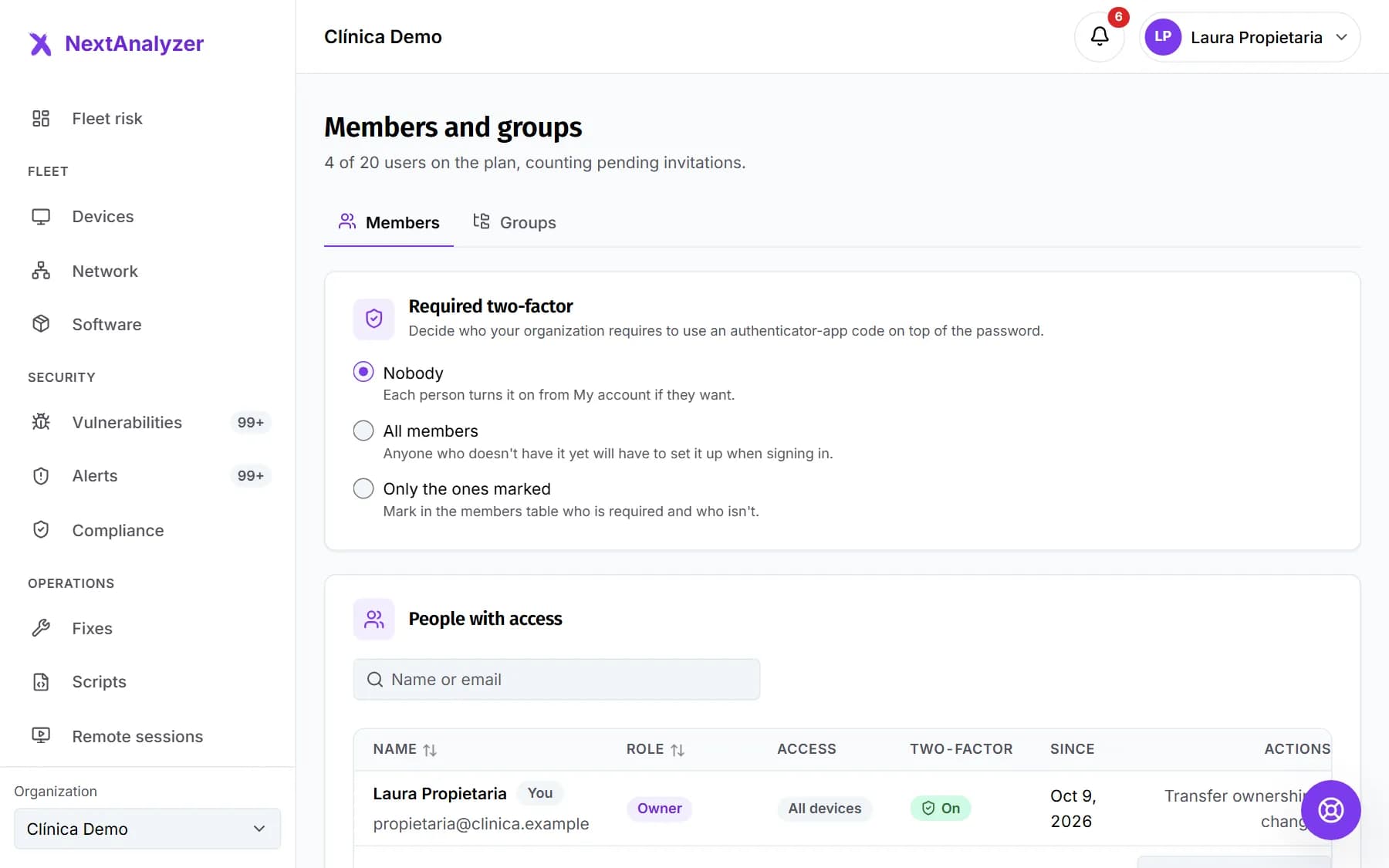 Invite your team and protect accessInvite people with the right role, limit which devices each one sees, require two-factor, set up the organization and review the audit log.Read the guide
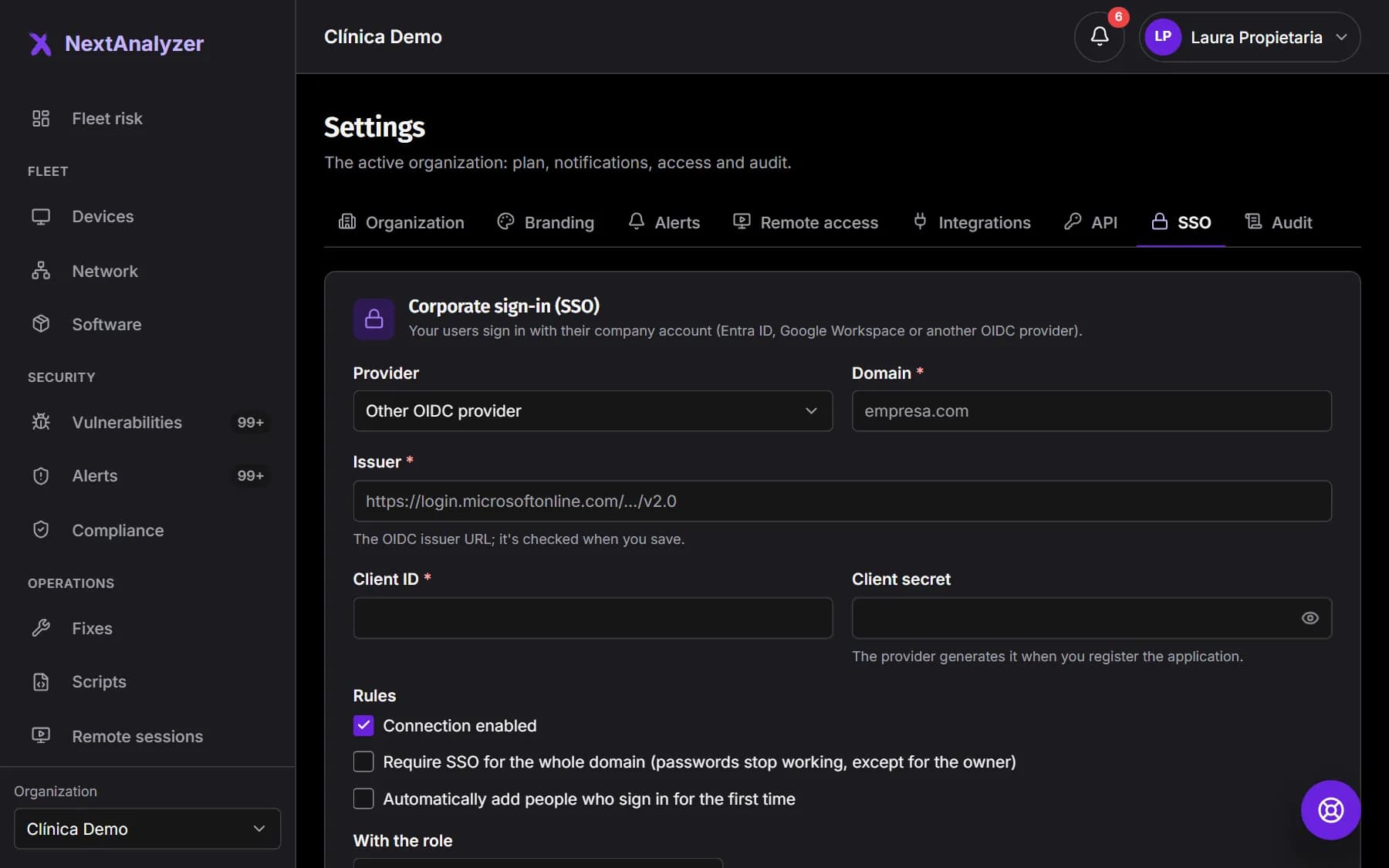
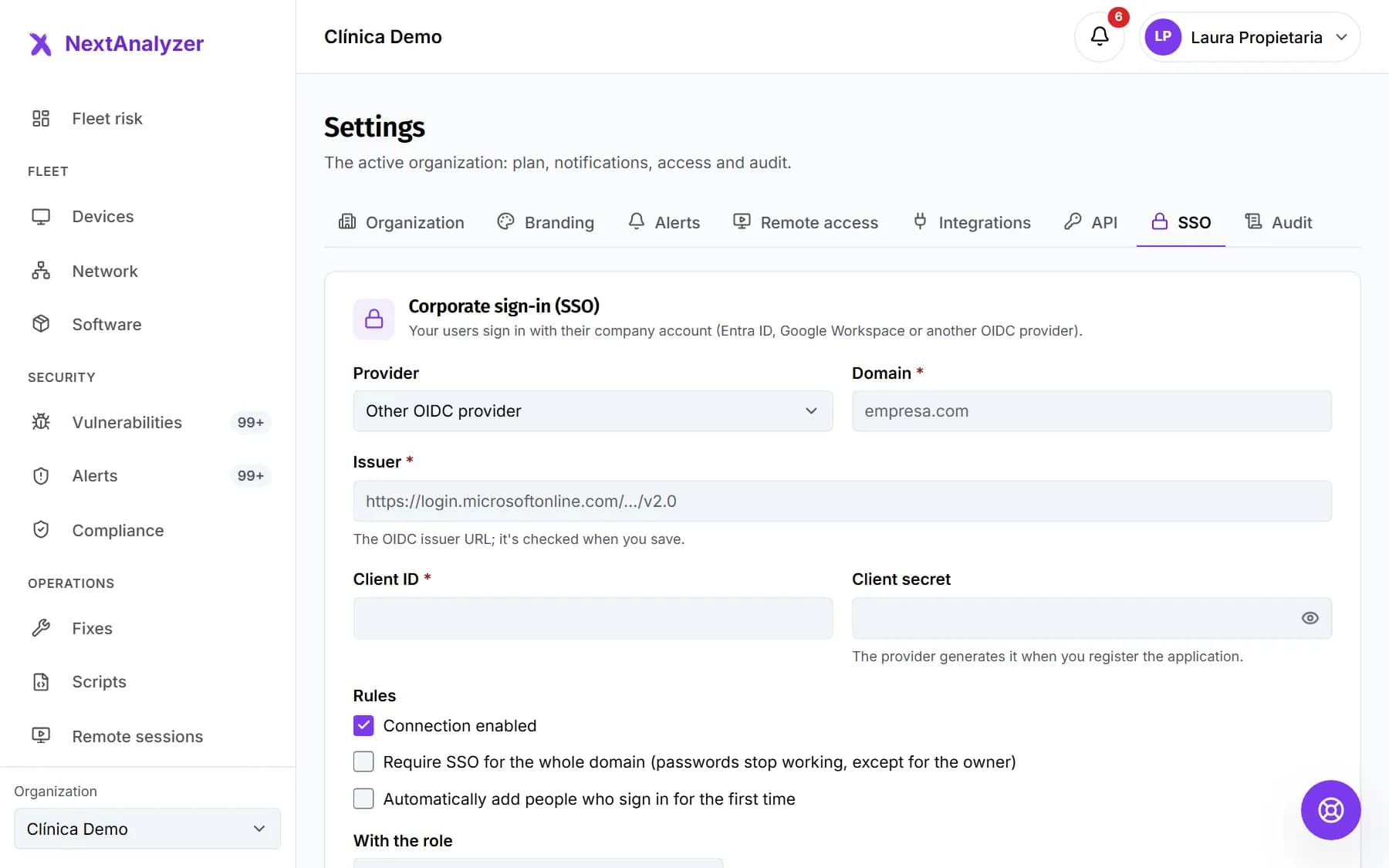 Set up corporate sign-in (SSO)Connect Microsoft Entra ID, Google Workspace or another OIDC provider, verify your domain, add people as they sign in and require SSO for the whole domain.Read the guide
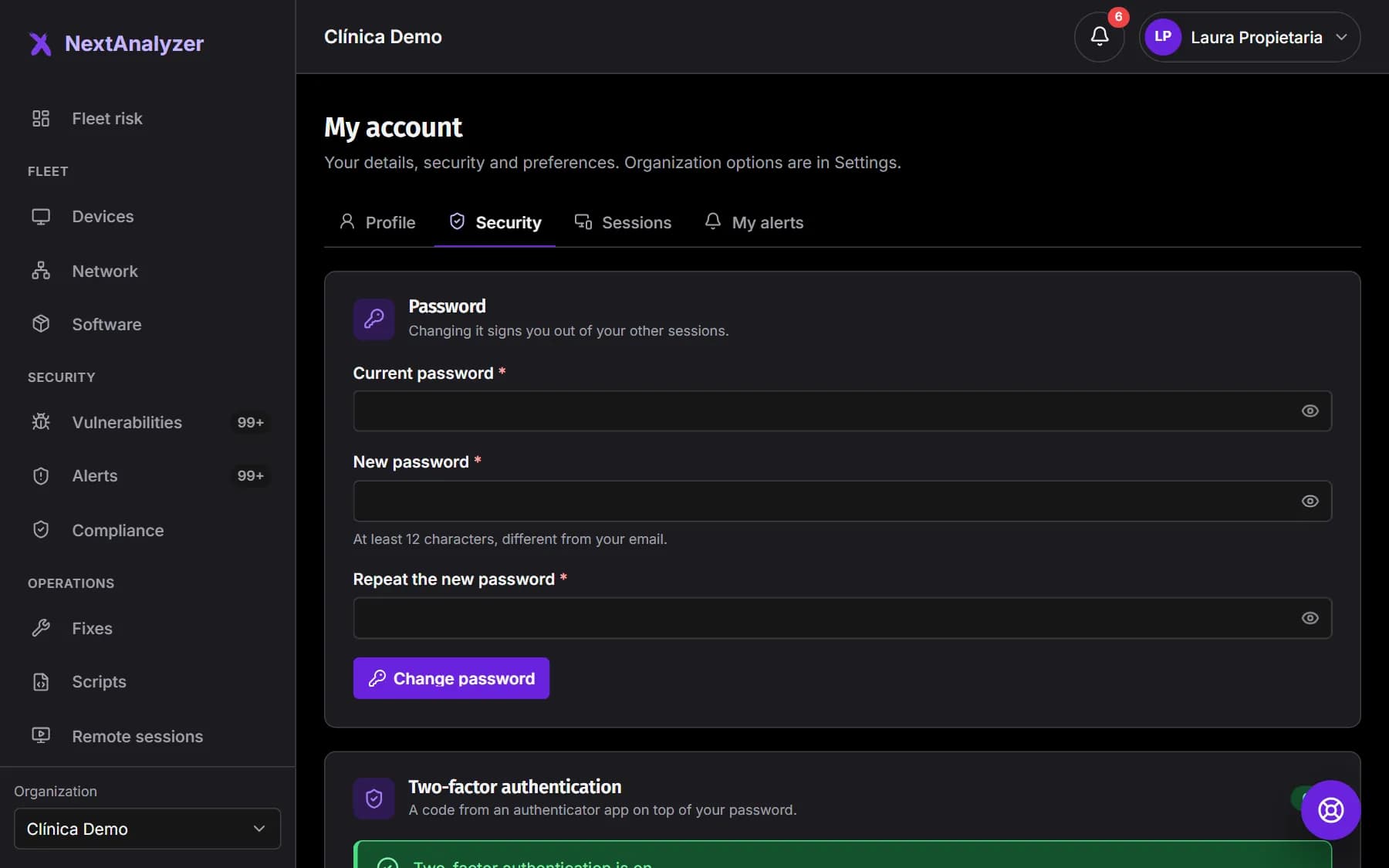
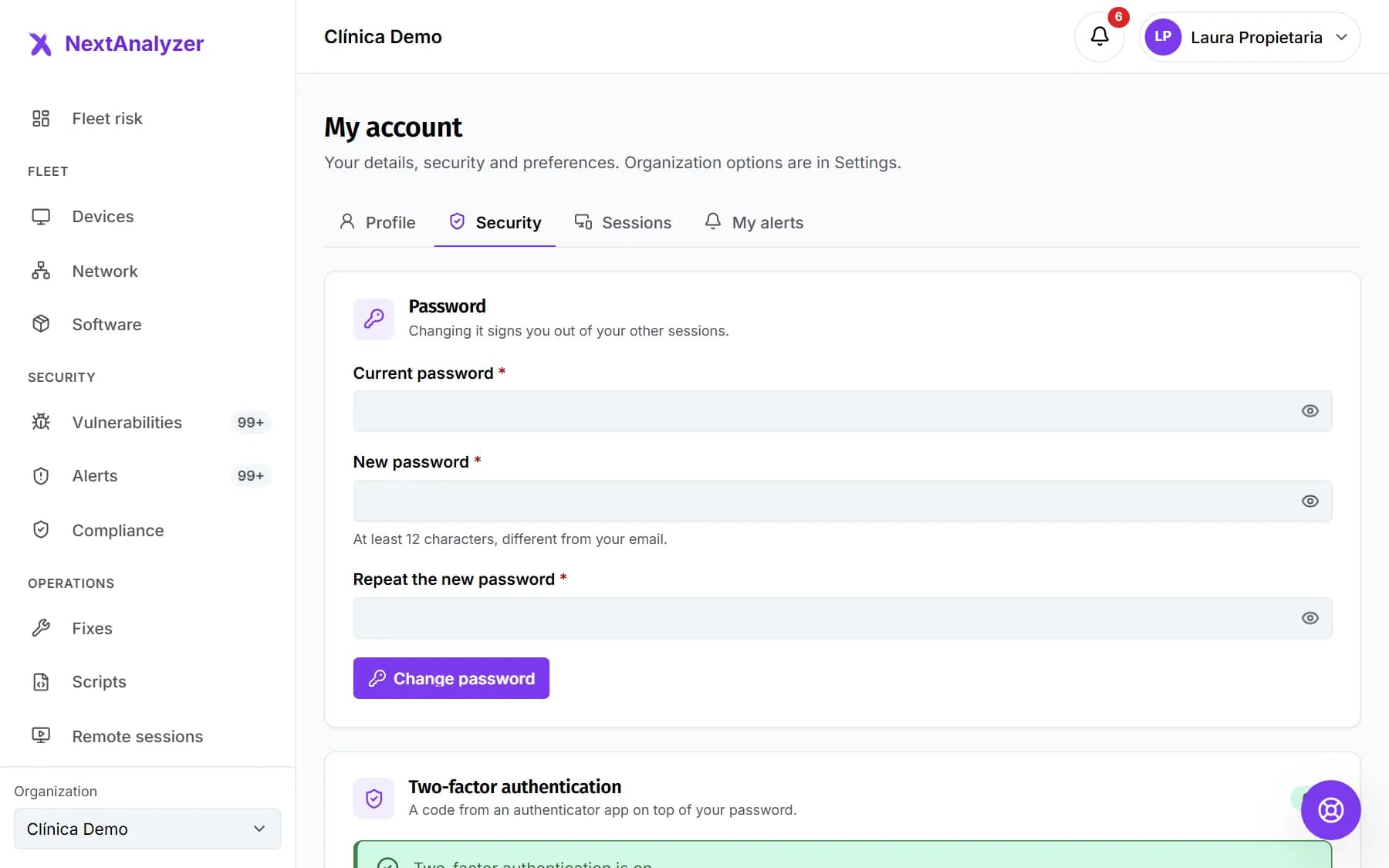 Your account and personal securityUpdate your profile and password, turn on two-factor, keep your recovery codes, sign out of sessions you don't recognize and choose your alerts.Read the guide
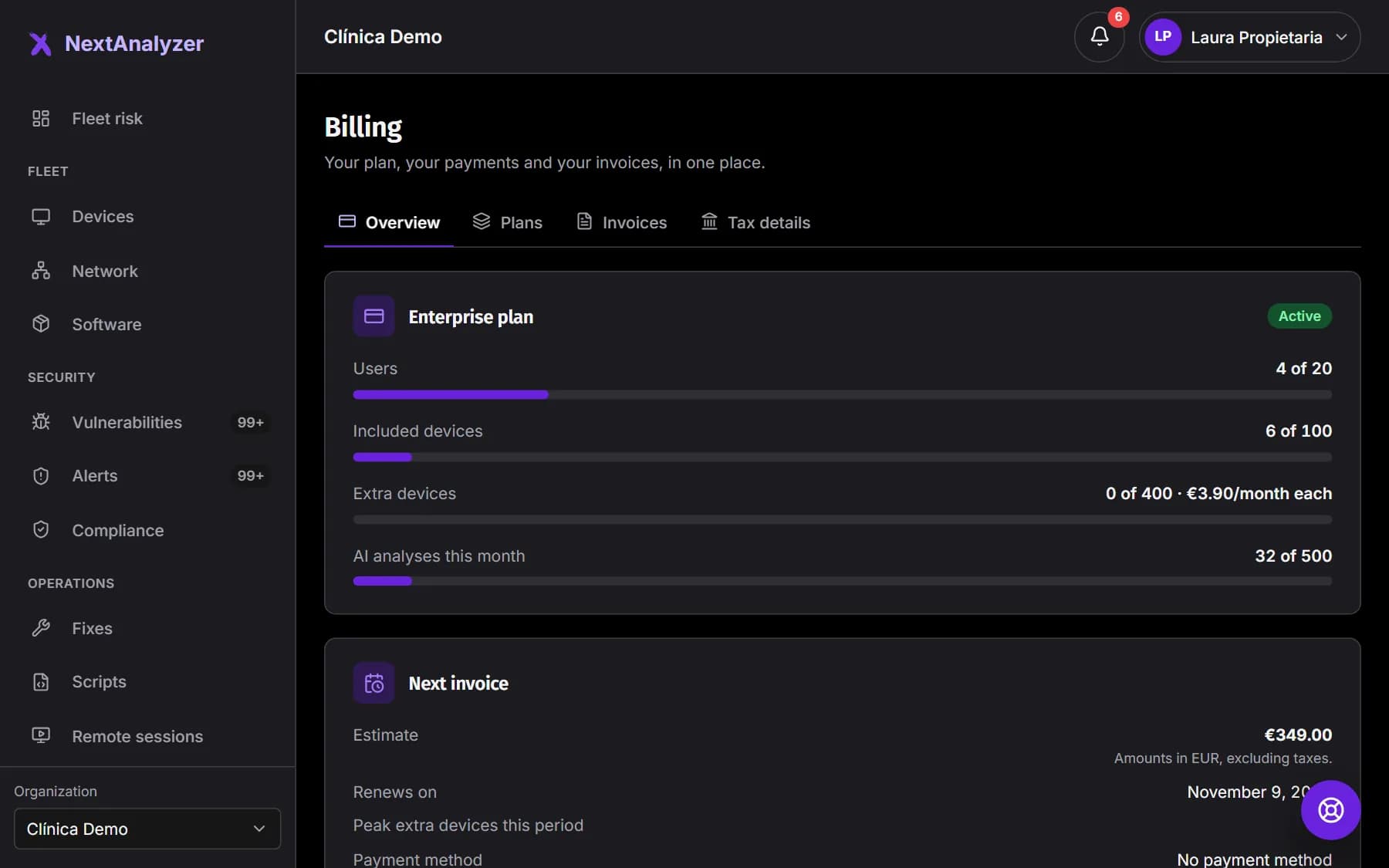
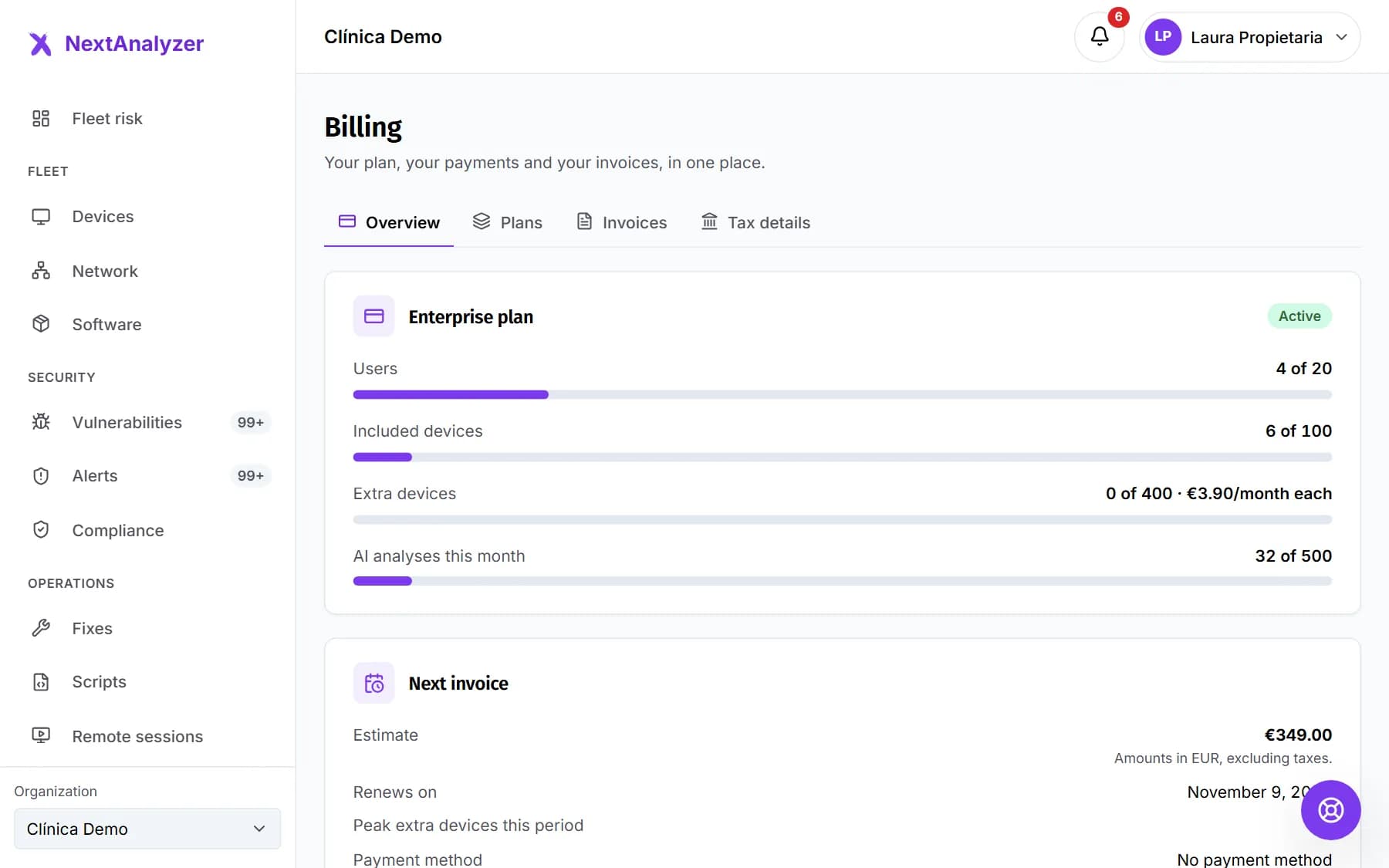 Plans, extra devices and billingCheck your usage, compare plans, understand the trial and extra devices, change plan or card, and know what happens if a payment fails.Read the guide
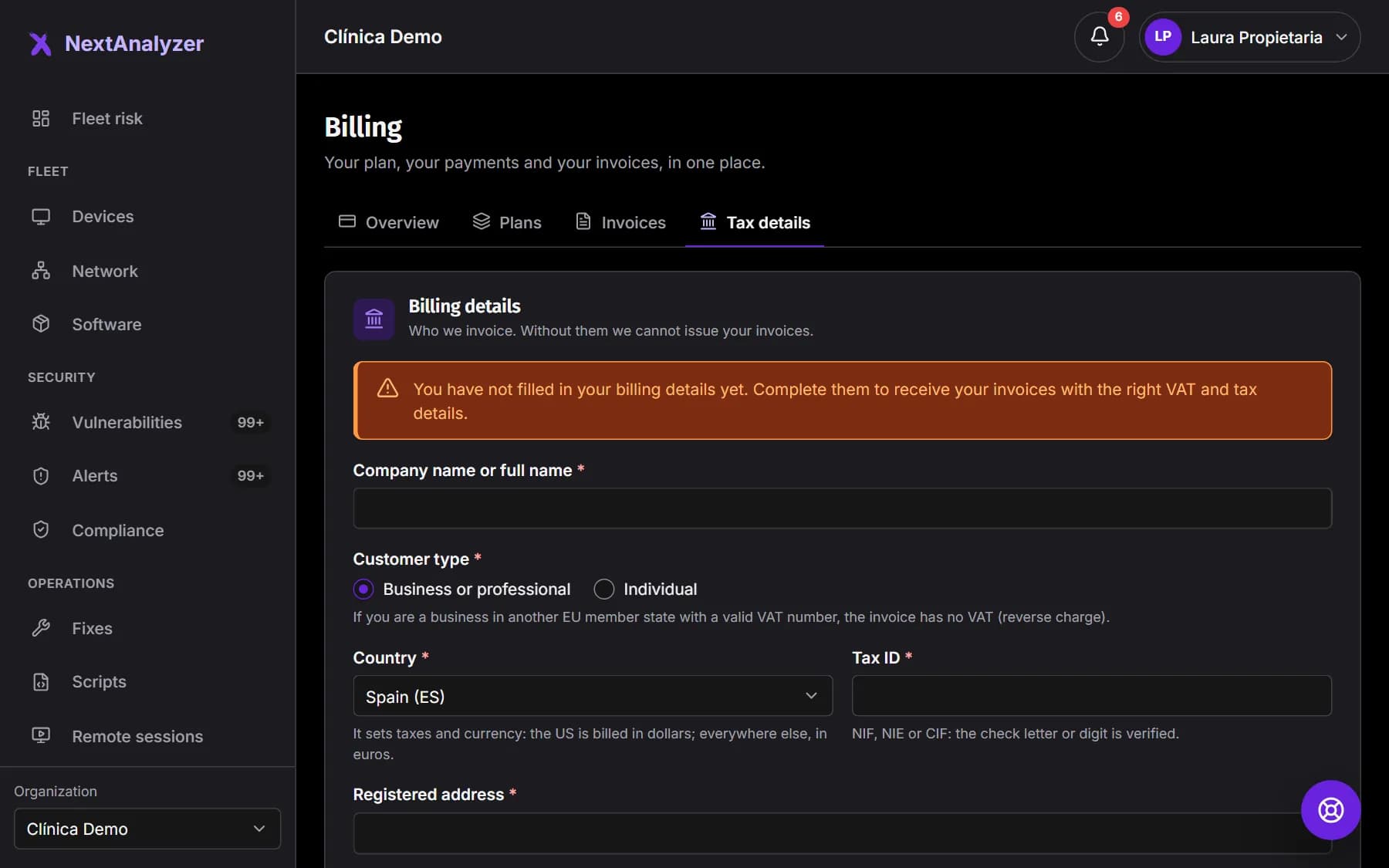
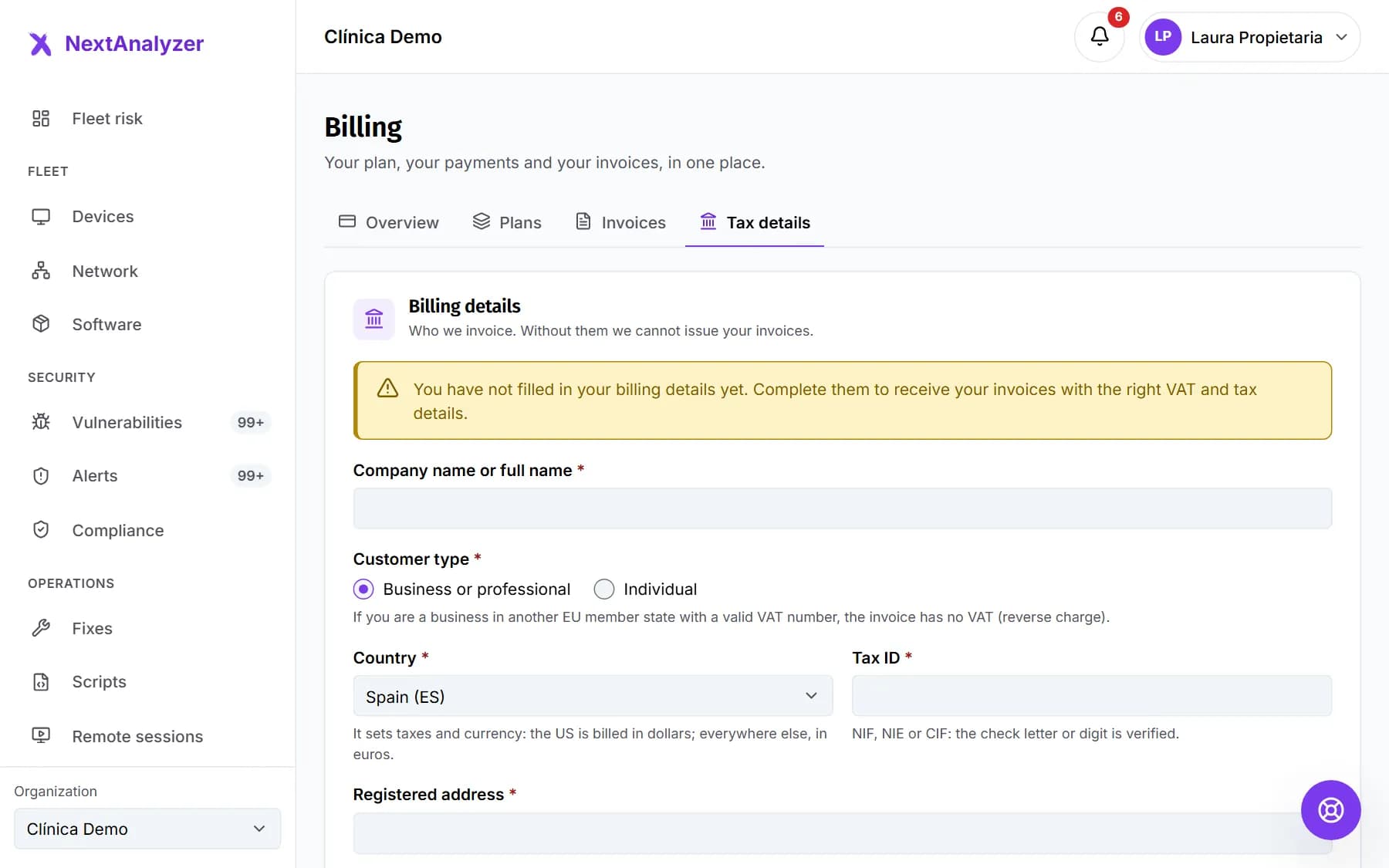 International billing: currency, taxes and invoicesFill in your tax details, understand the currency and taxes that apply in your country, and view and download your invoices.Read the guide
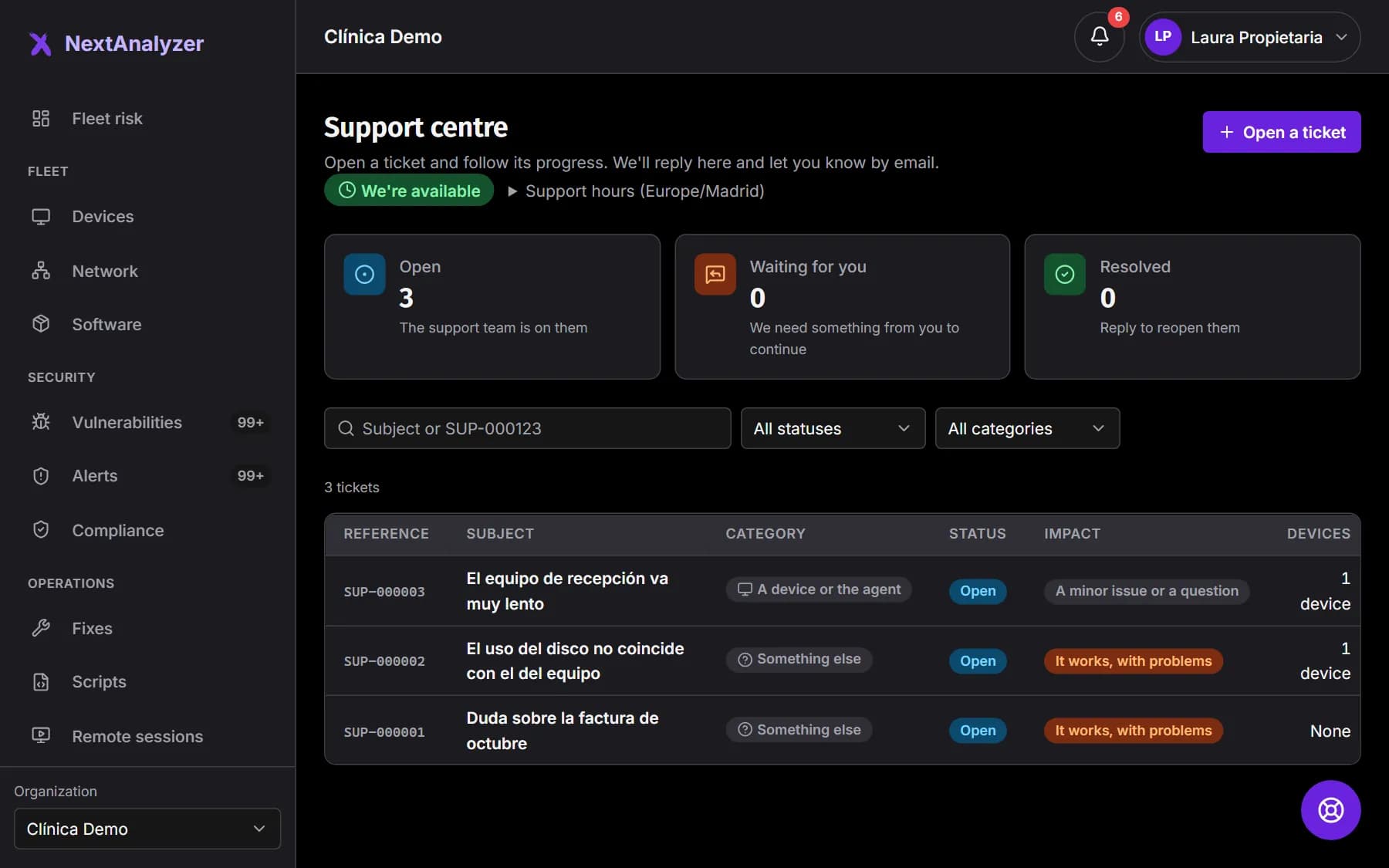
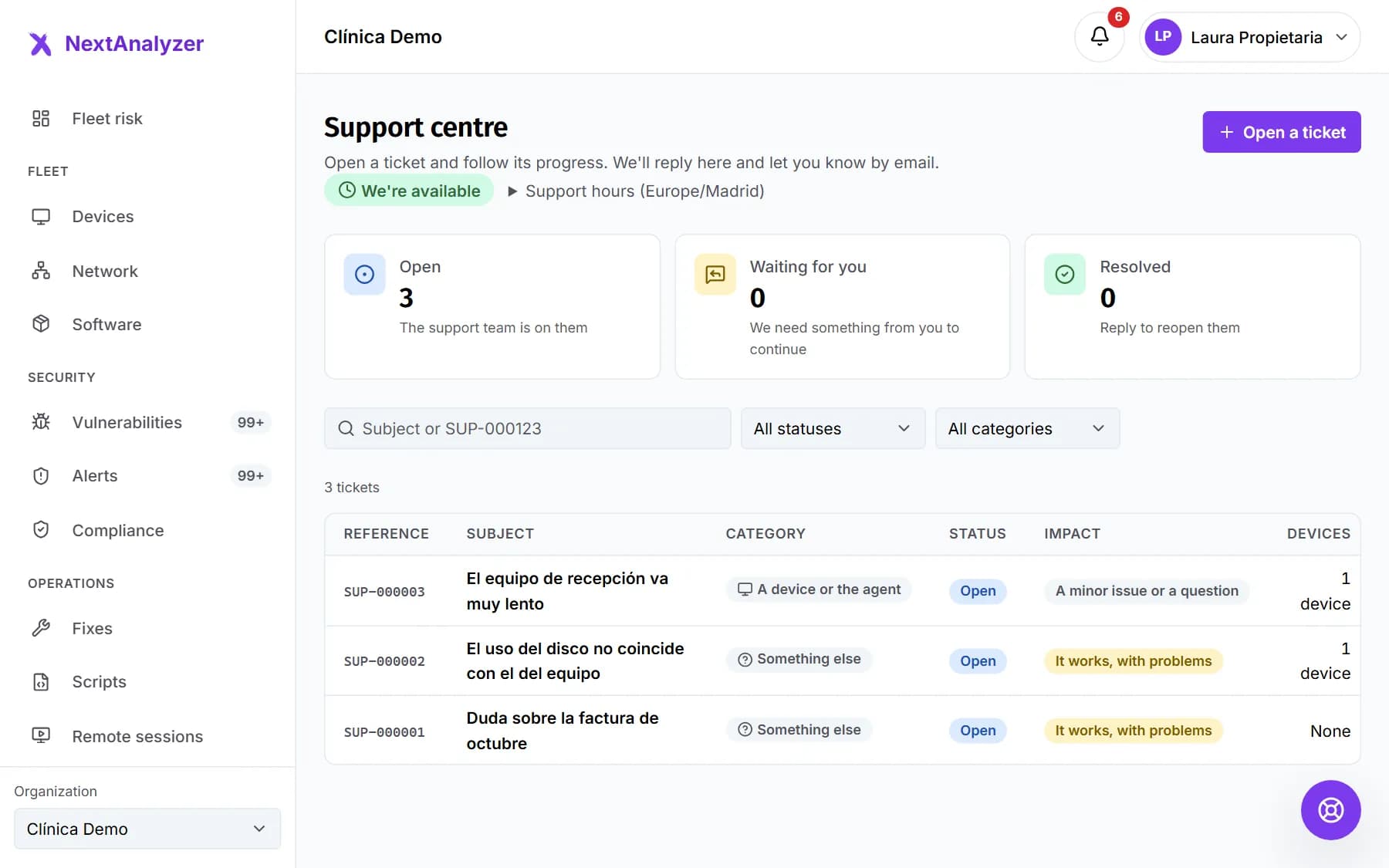 Get help from supportOpen a ticket in four steps, keep its SUP- reference, follow the conversation, rate the help and understand how support gets access if needed.Read the guide
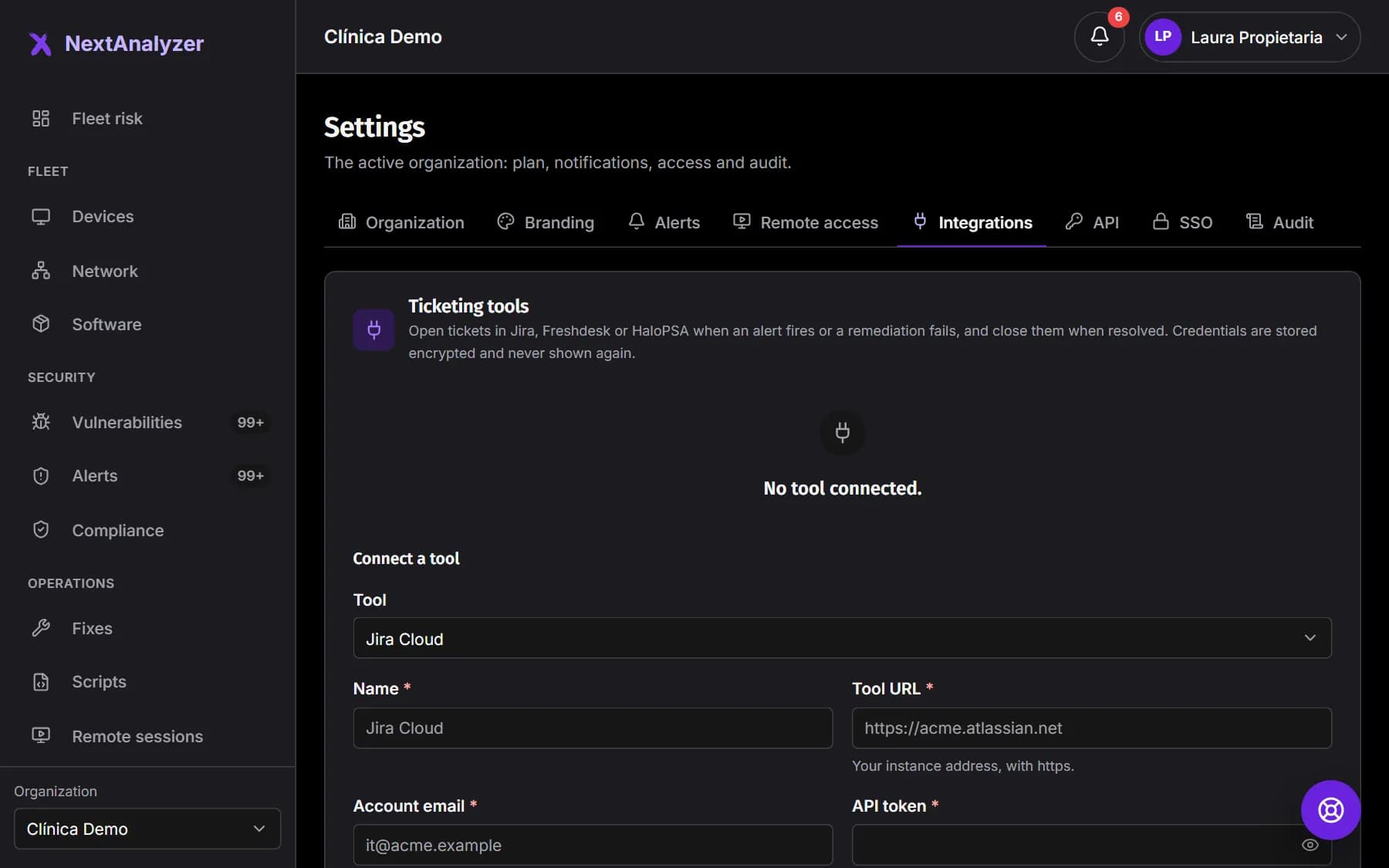
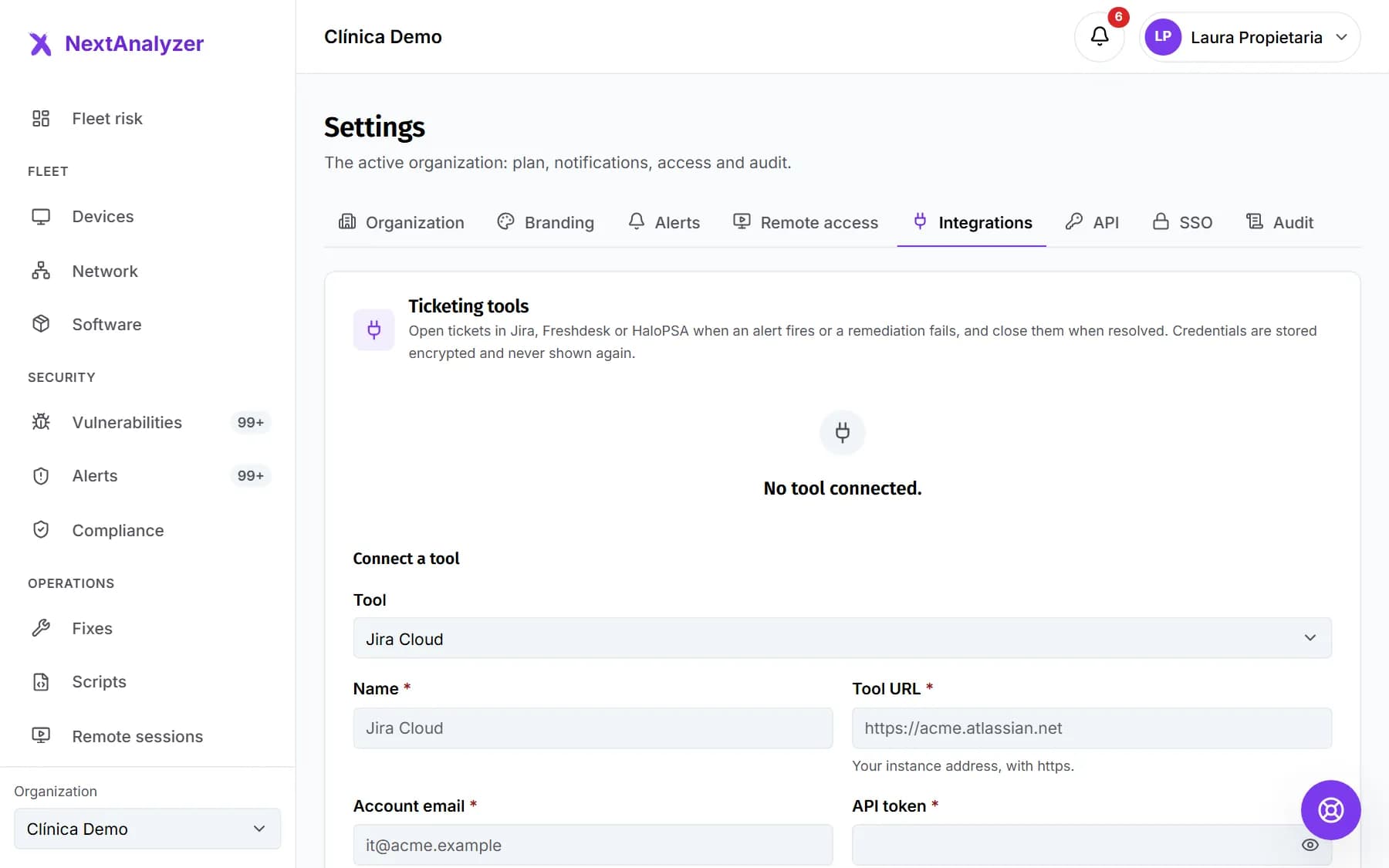 Connect the API and your ticketing toolsCreate API keys with just the scopes needed, rotate them without downtime and open tickets in Jira Cloud, Freshdesk or HaloPSA when an alert fires.Read the guide
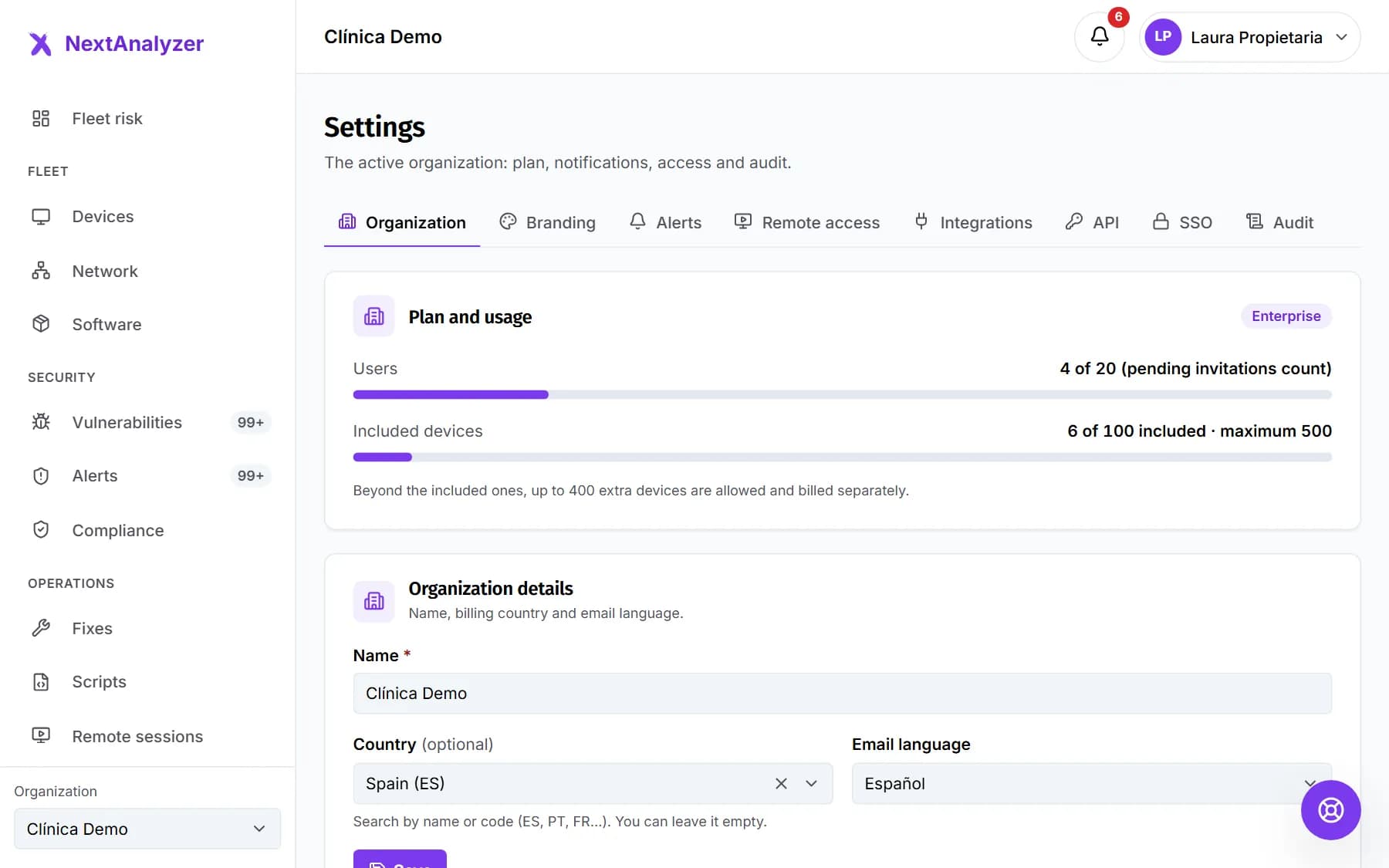 Customize your organization's brandingPut your company's color, logo and name on the dashboard and the device app, with accessible contrast in light and dark themes.Read the guide
Start protecting your devices today
14 days of the Business plan, up to 5 devices and no card needed. In a few minutes you will know how your fleet is doing.
No card needed. Set up in minutes.