
Inventory: hardware, network, users and software
The agent sends the inventory when it enrolls and then every 15 minutes, on Windows, macOS and Linux. You'll find it in each device's Inventory tab, without asking anything of the person using it.
Open the inventory
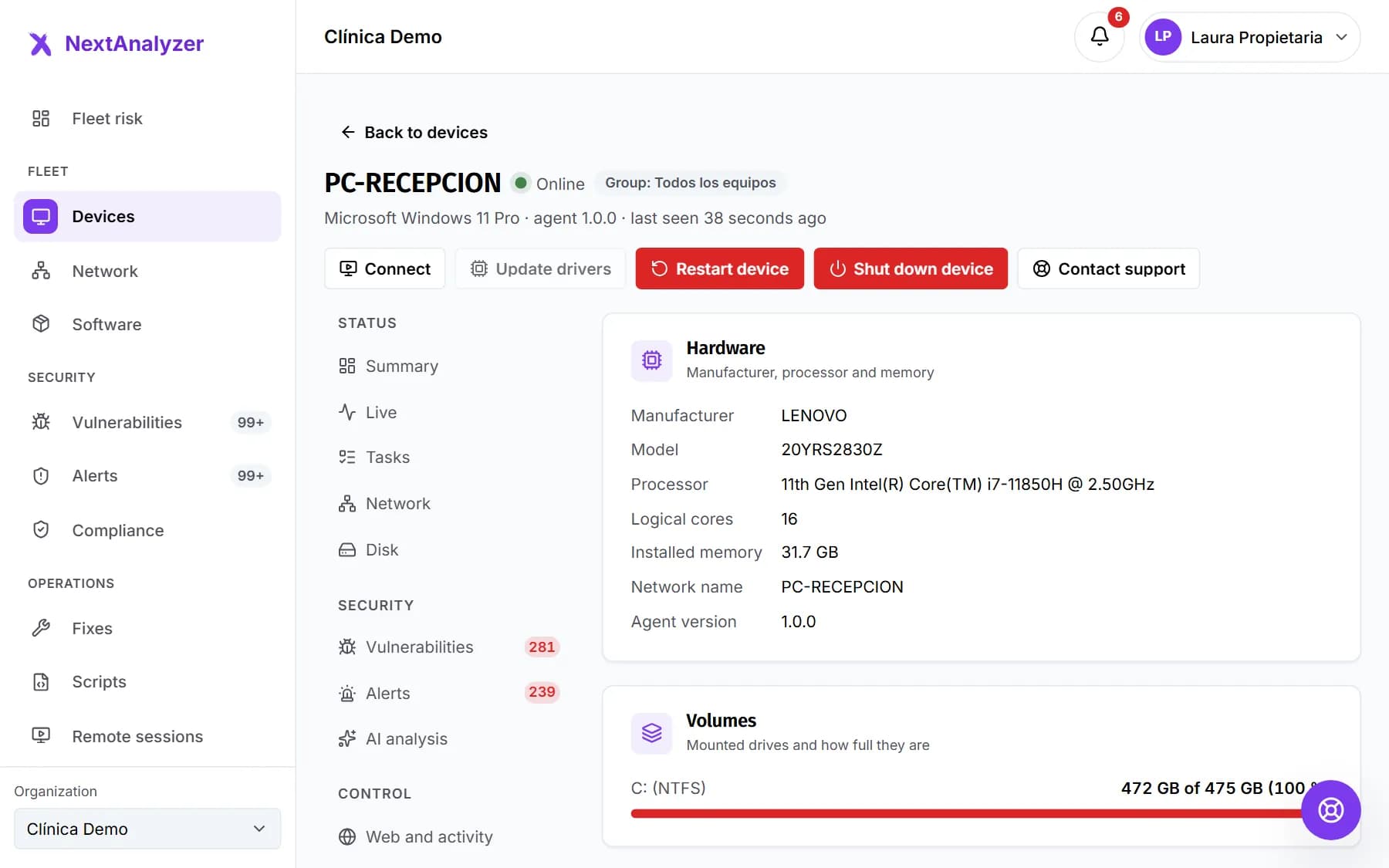
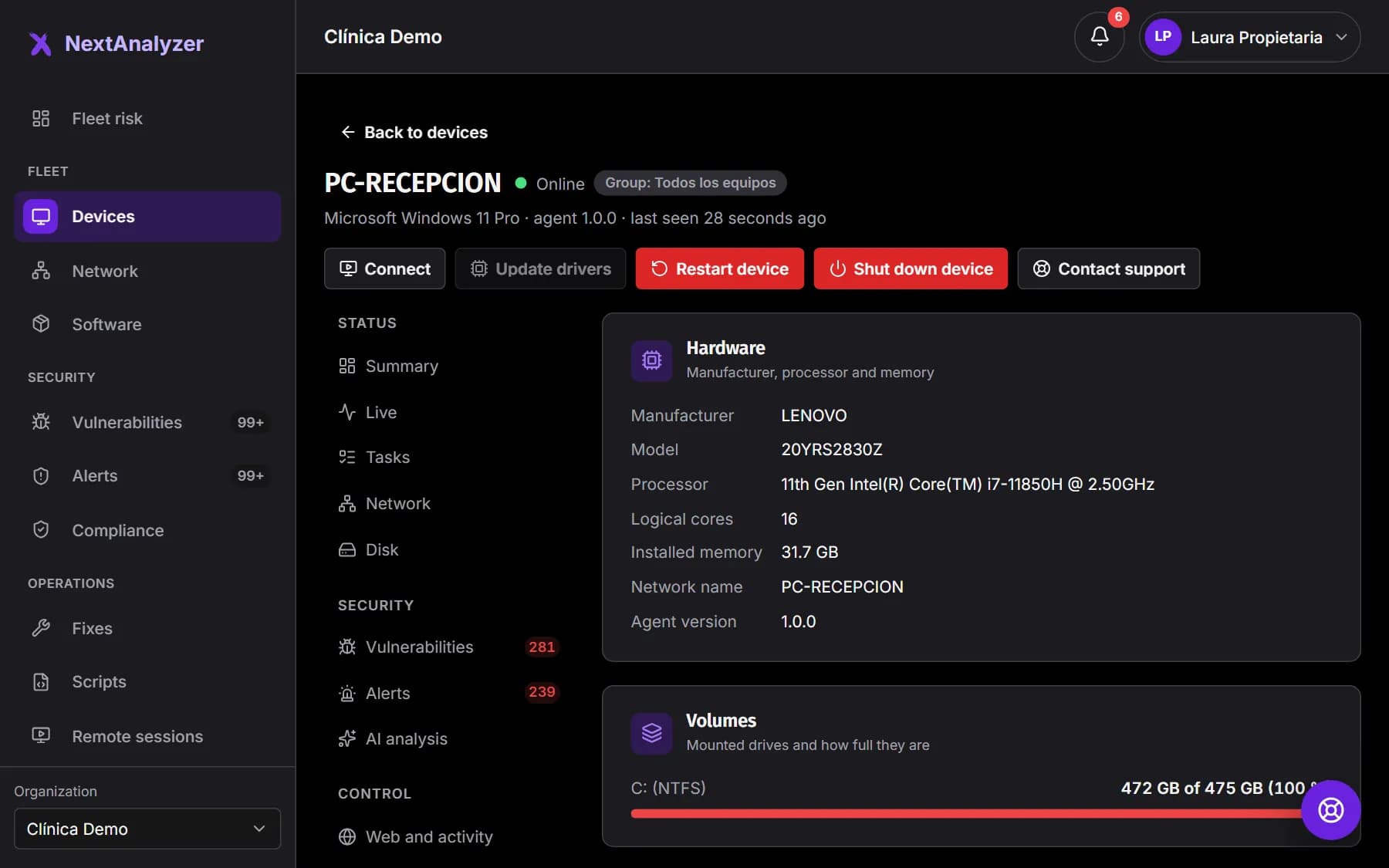
On the device page, Device › “Inventory”. Start with “Hardware”: manufacturer, model, processor, logical cores, installed memory, network name and agent version.
Expected result: You see the device's specs without having to ask anyone.
Check the volumes
“Volumes” shows each mounted drive, its file system and how full it is, with a usage bar.
Expected result: You know which drive is filling up.
Tip: If a drive goes over its group's disk threshold (90% by default), an alert opens.
Check the network: IP and MAC
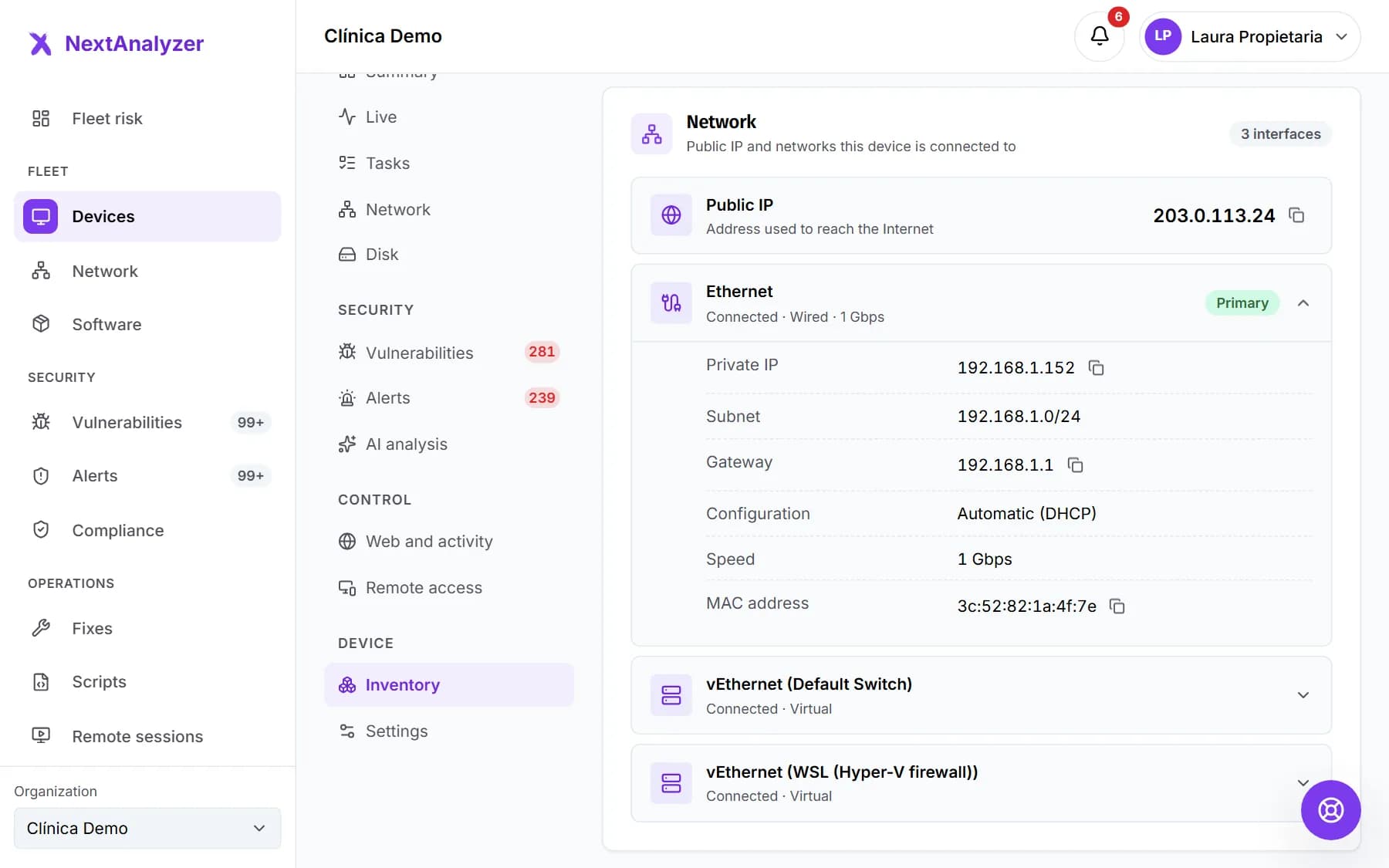
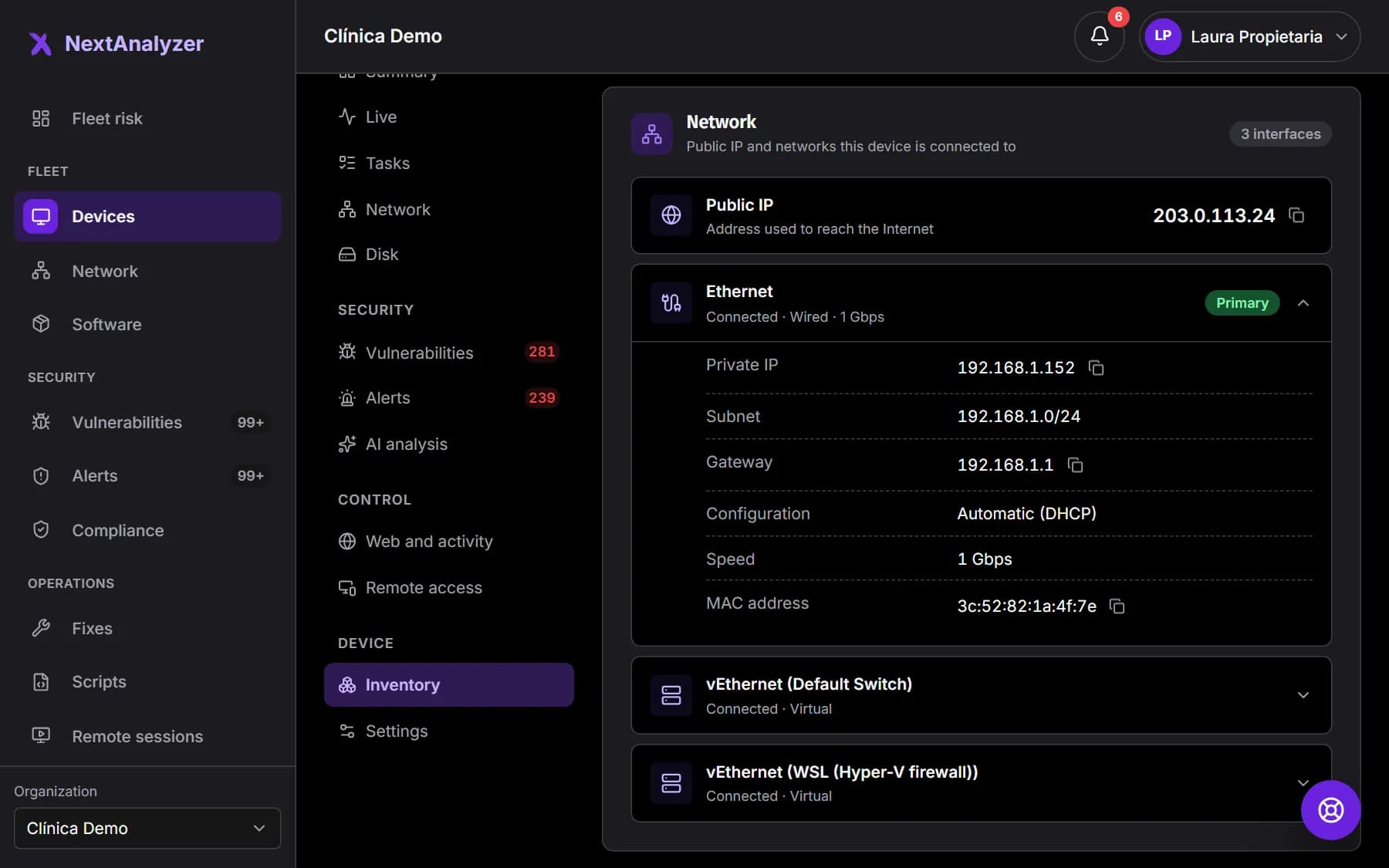
In “Network” you see the “Public IP” it uses to reach the internet and each interface: “Private IP”, “Subnet”, “Gateway”, “MAC address”, whether it's “Static” or “Automatic (DHCP)” and its speed.
Expected result: You have the network details ready to copy with one click.
Tip: The interface marked “Primary” is the one the device uses to reach the network.
Review the system accounts
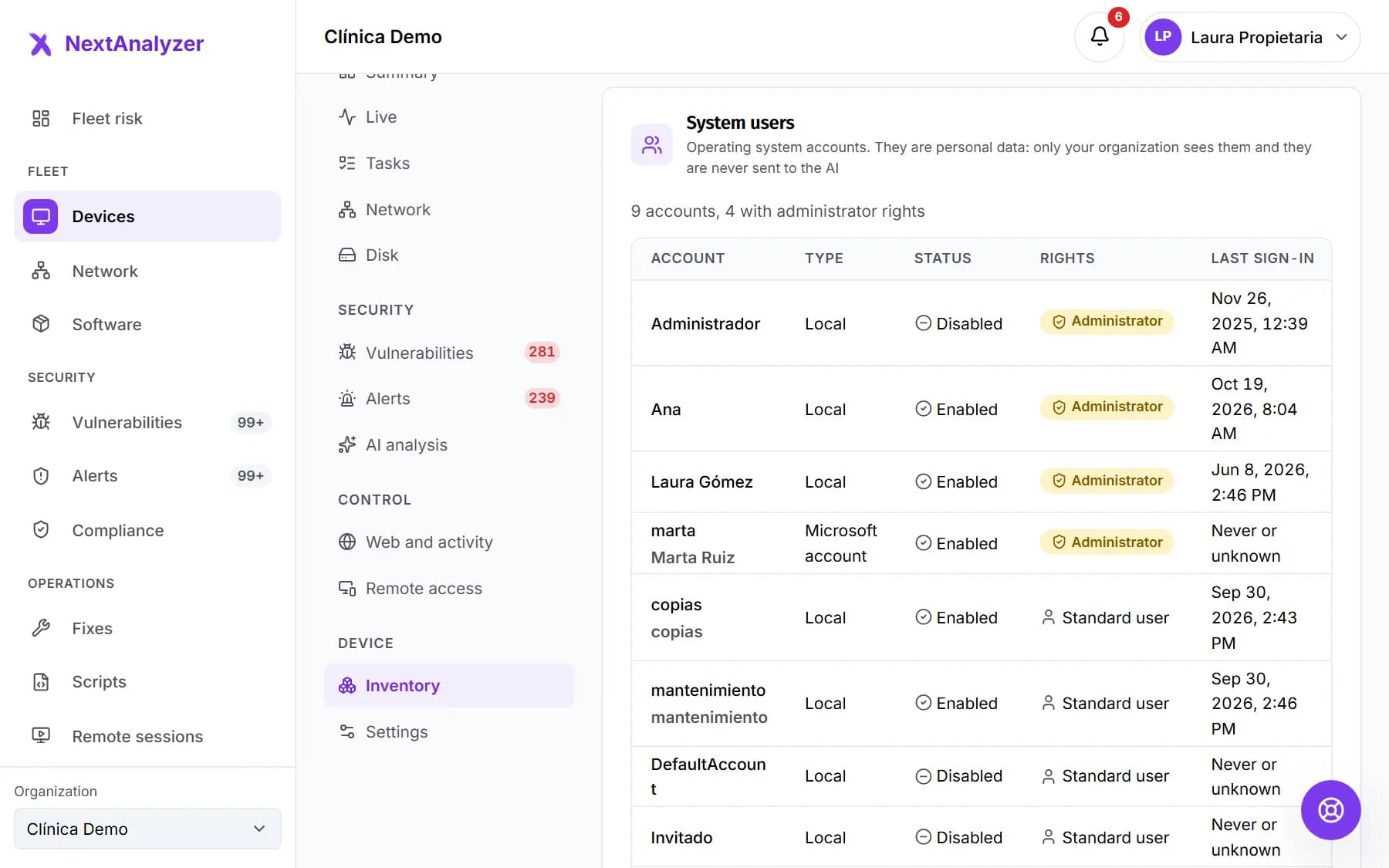
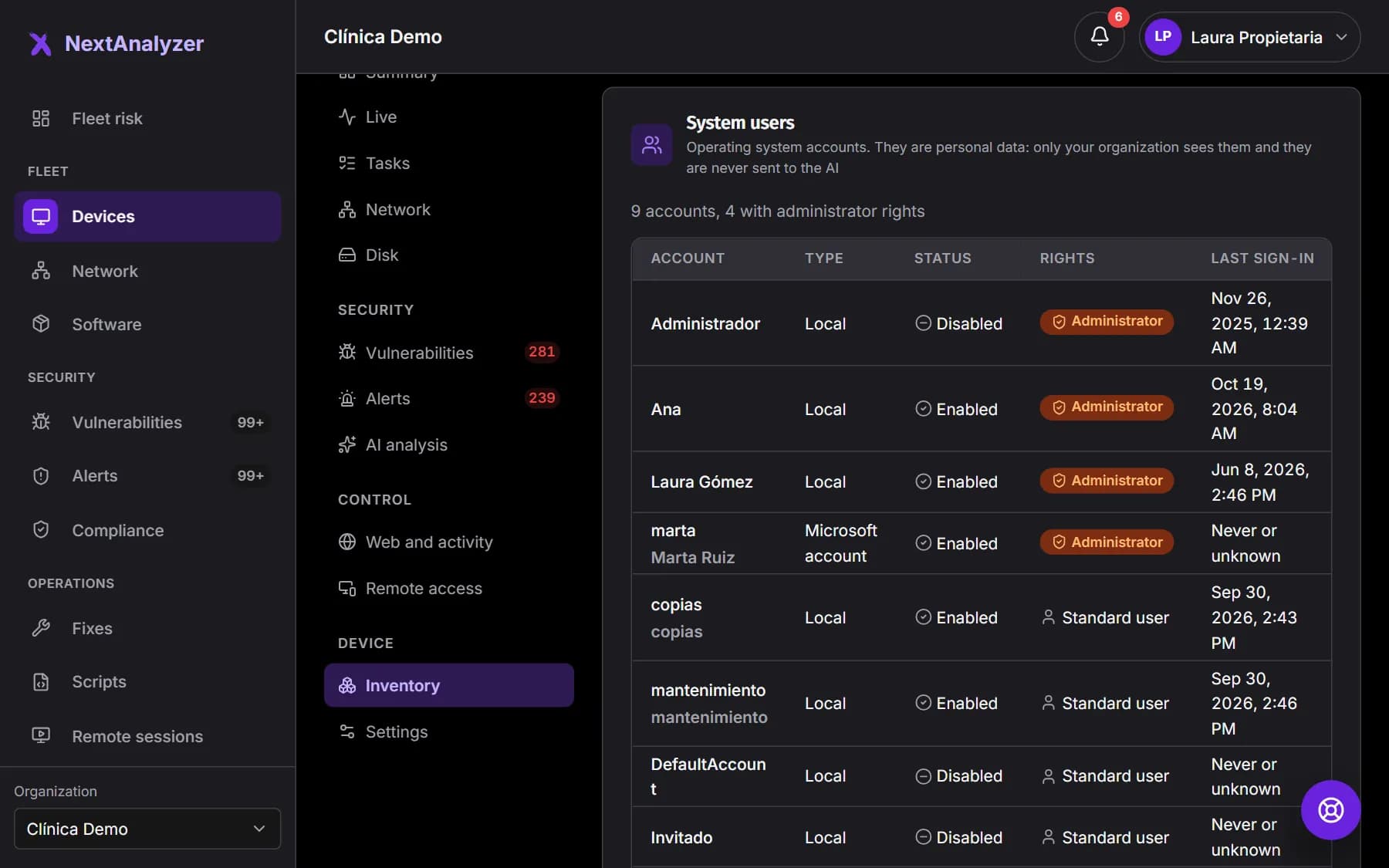
“System users” lists the operating system accounts: type (Local, Domain or Microsoft account), whether they are enabled, whether they are administrators and their last sign-in.
Expected result: You see how many accounts have administrator rights on the device.
Tip: Passwords are never collected. This is personal data: only your organization sees it and it's never sent to the AI.
Check the physical disks
“Physical disks” shows the model, type (SSD, NVMe or hard drive), capacity, serial number and health according to S.M.A.R.T. or what the system reports.
Expected result: You spot a disk that's starting to fail before data is lost.
Review the open ports
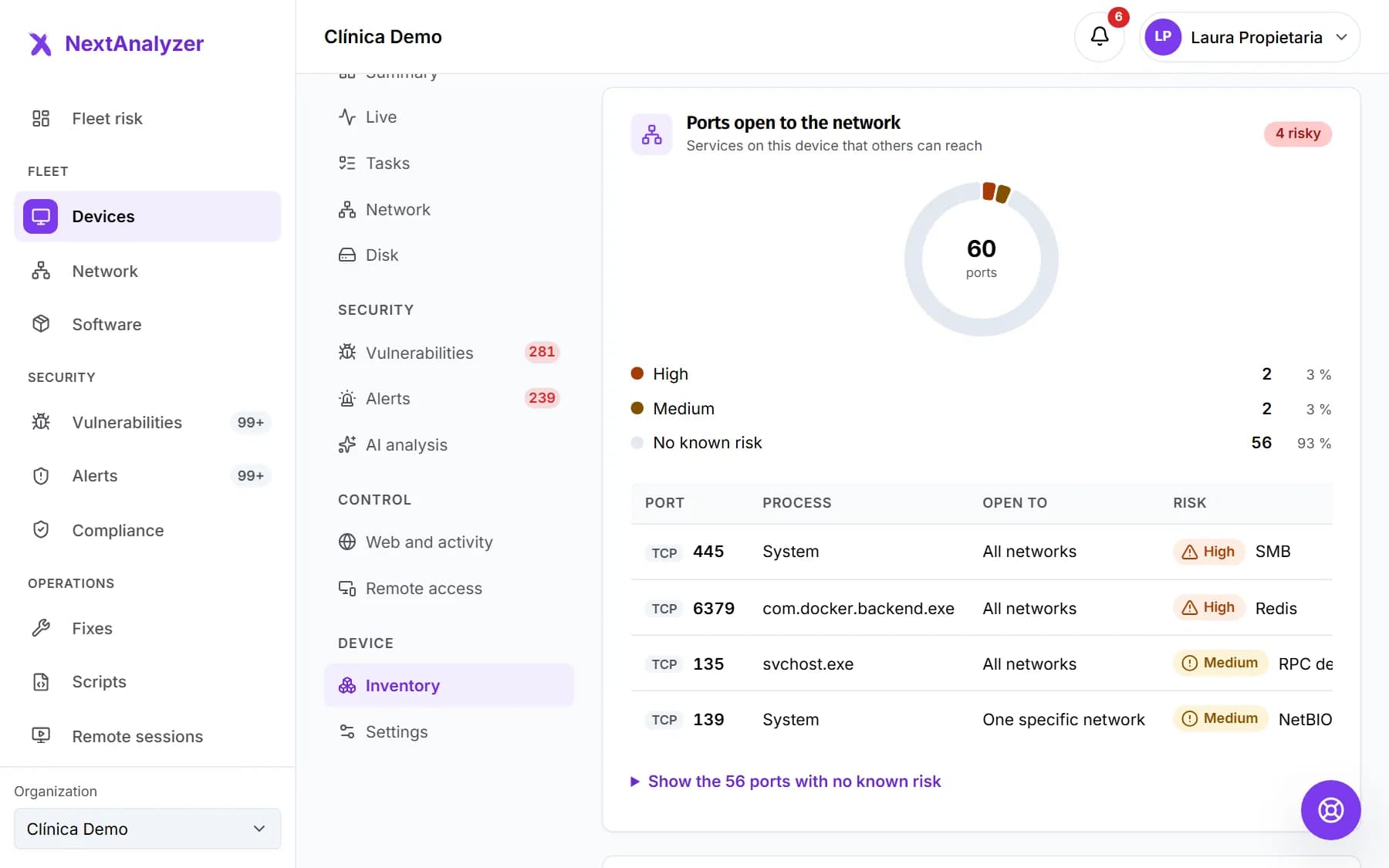
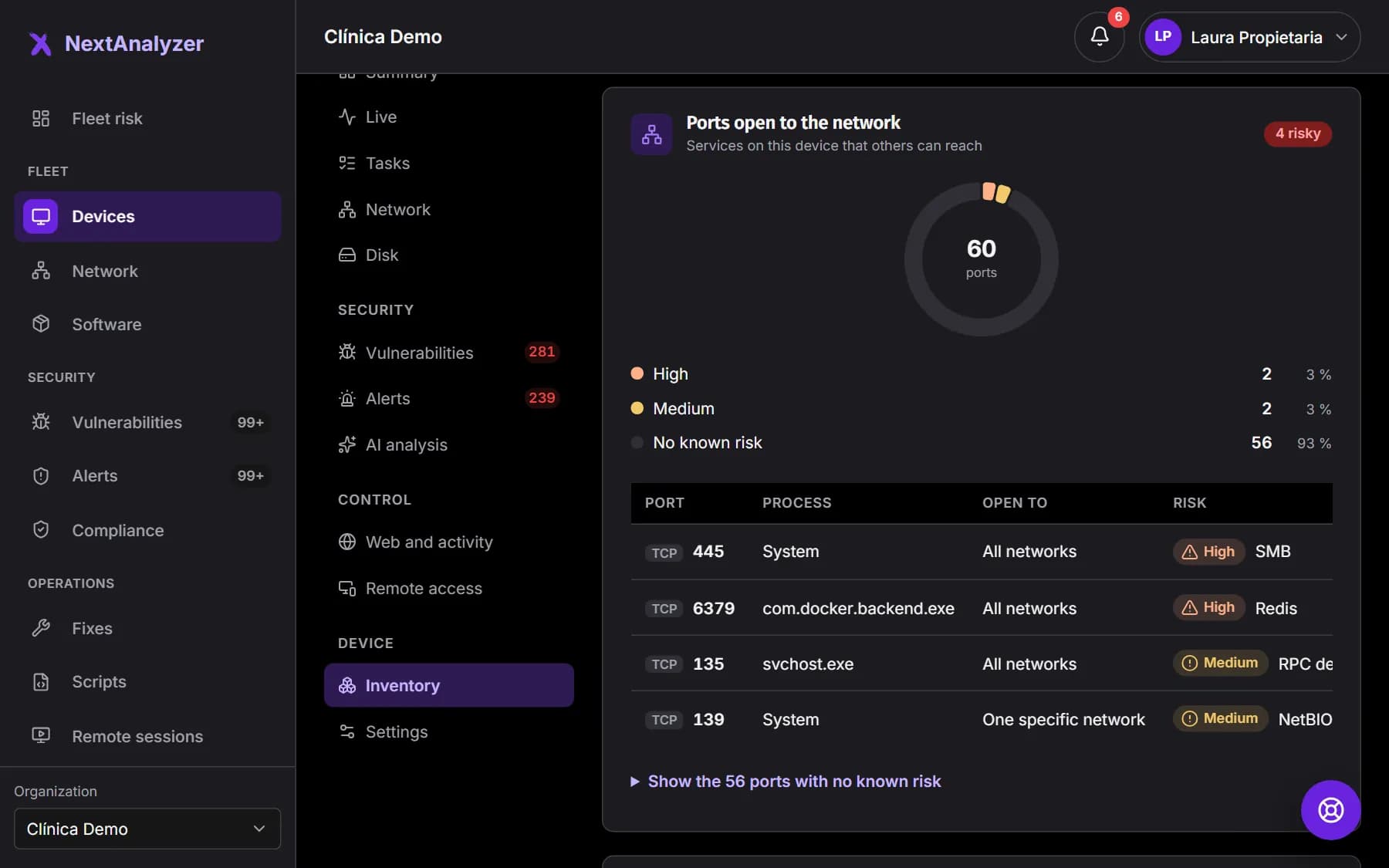
“Ports open to the network” lists the device's services that others can reach, with the process that opens them, what they're open to and their risk.
Expected result: You see whether any risky port is exposed, or “No risky port exposed.”
Tip: An open risky port, such as SMB or remote desktop, raises an alert.
Find an installed program
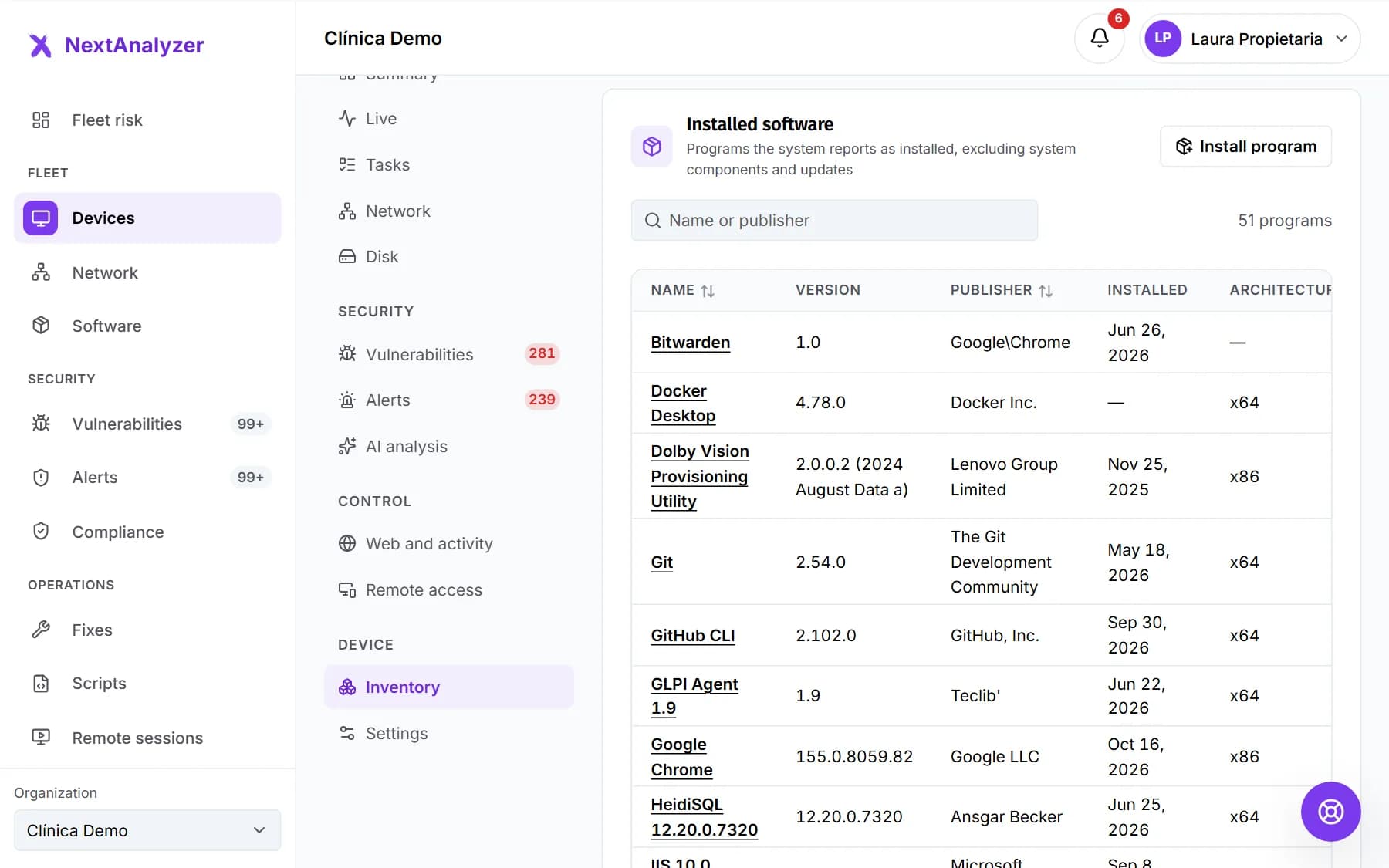
“Installed software” lists what the system reports as installed, without system components. Search by name or publisher and sort by version, publisher, date or architecture.
Expected result: You find in seconds which version of a program the device has.
Tip: With Business or Enterprise, technicians also see “Install program” and the option to uninstall on each row.
Check whether the data is up to date
At the bottom of the device Summary it says when the agent sent its system data. It is refreshed every 15 minutes while the device is online.
Expected result: You know what time the data you're looking at is from.
If something goes wrong
Installed software or users are empty
Older agent versions don't collect that data. It will appear once the device updates: it does so by itself in its update ring. If the device is out of date, reinstall it with the installer from Downloads.
The public IP says “Could not be determined”
The device couldn't look up its outgoing address, for example because a proxy or firewall blocks it. The rest of the network shows as usual. It will try again on the next update.
The inventory doesn't show a change I just made
The inventory is sent every 15 minutes. Wait for the next update. If the device is “Offline”, you'll see the data from its last contact until it comes back.
It says “No physical disk could be read.”
This happens mostly on virtual machines and with some RAID controllers, which don't let the real disk be read. Volumes and how full they are still show.
Still not working? Open a support ticket