
Understand and fix vulnerabilities
NextAnalyzer detects security flaws in the programs and system of your devices. It tells you where to start, what each one means and how to fix it, in plain language.
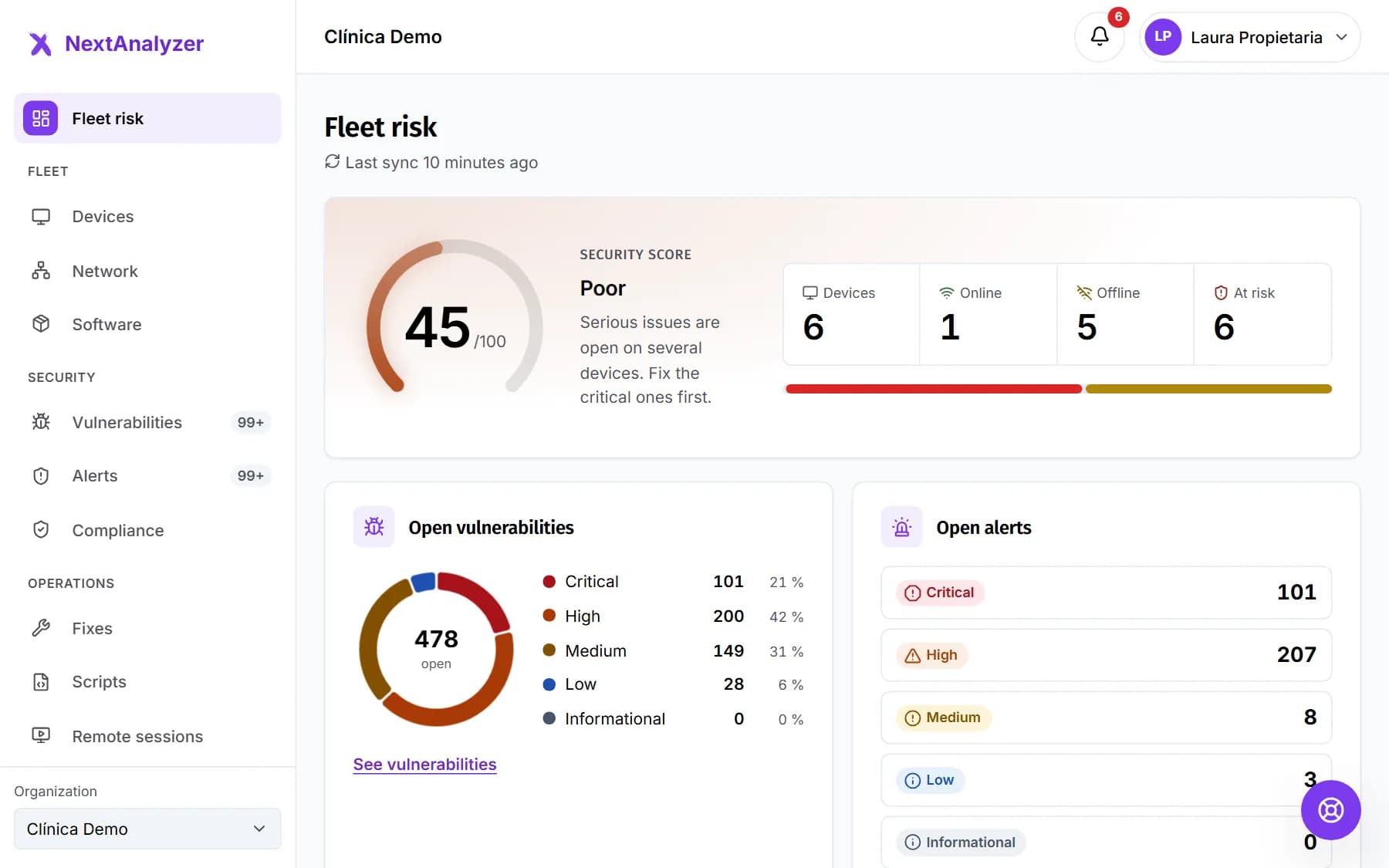
Check the fleet risk
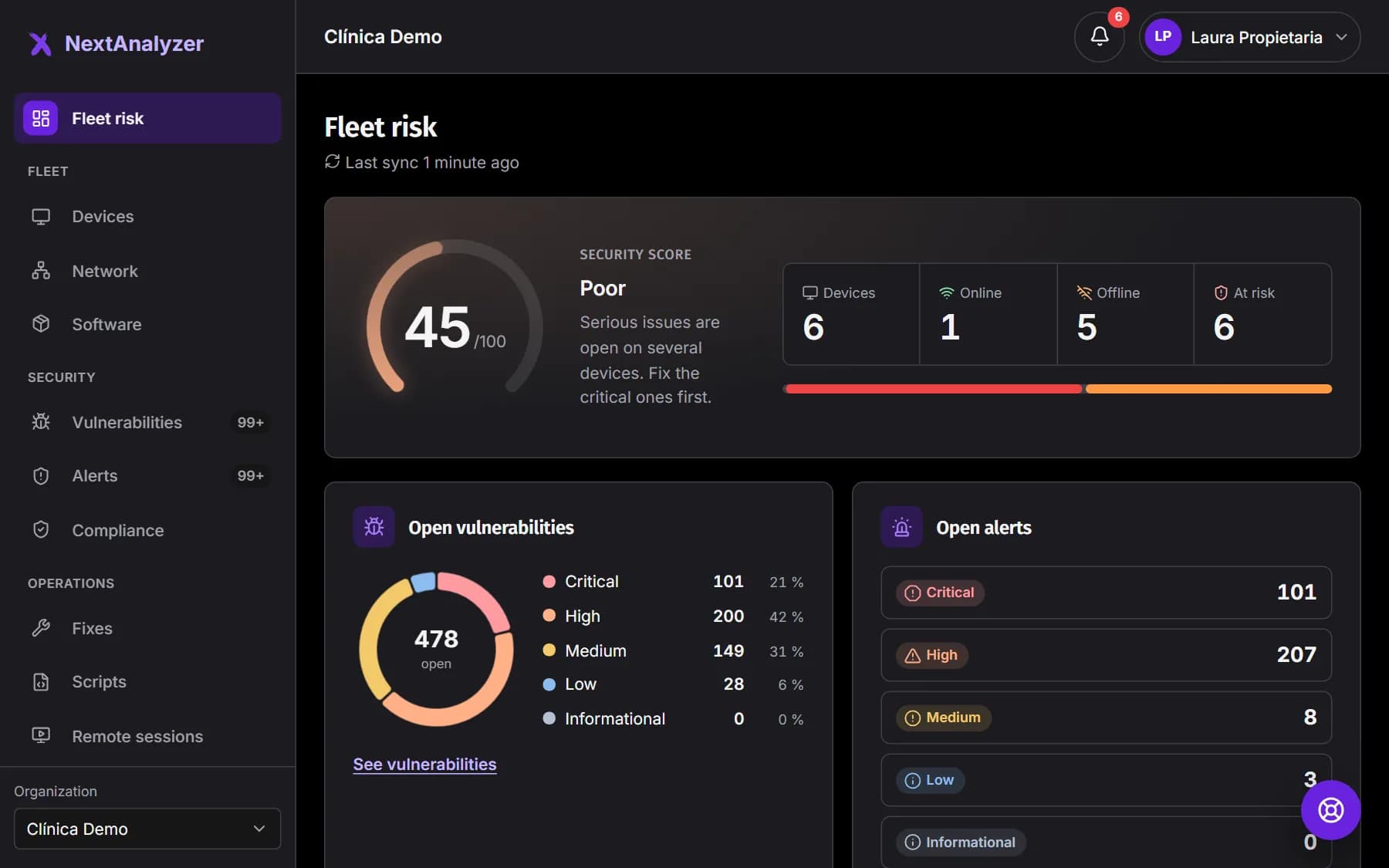
In the menu, Overview › “Fleet risk”. You see the security score, open vulnerabilities by severity, devices at risk and the most widespread CVEs.
Expected result: You know whether your fleet is good, could be better or is at risk, and which devices to handle first.
Start with what is urgent
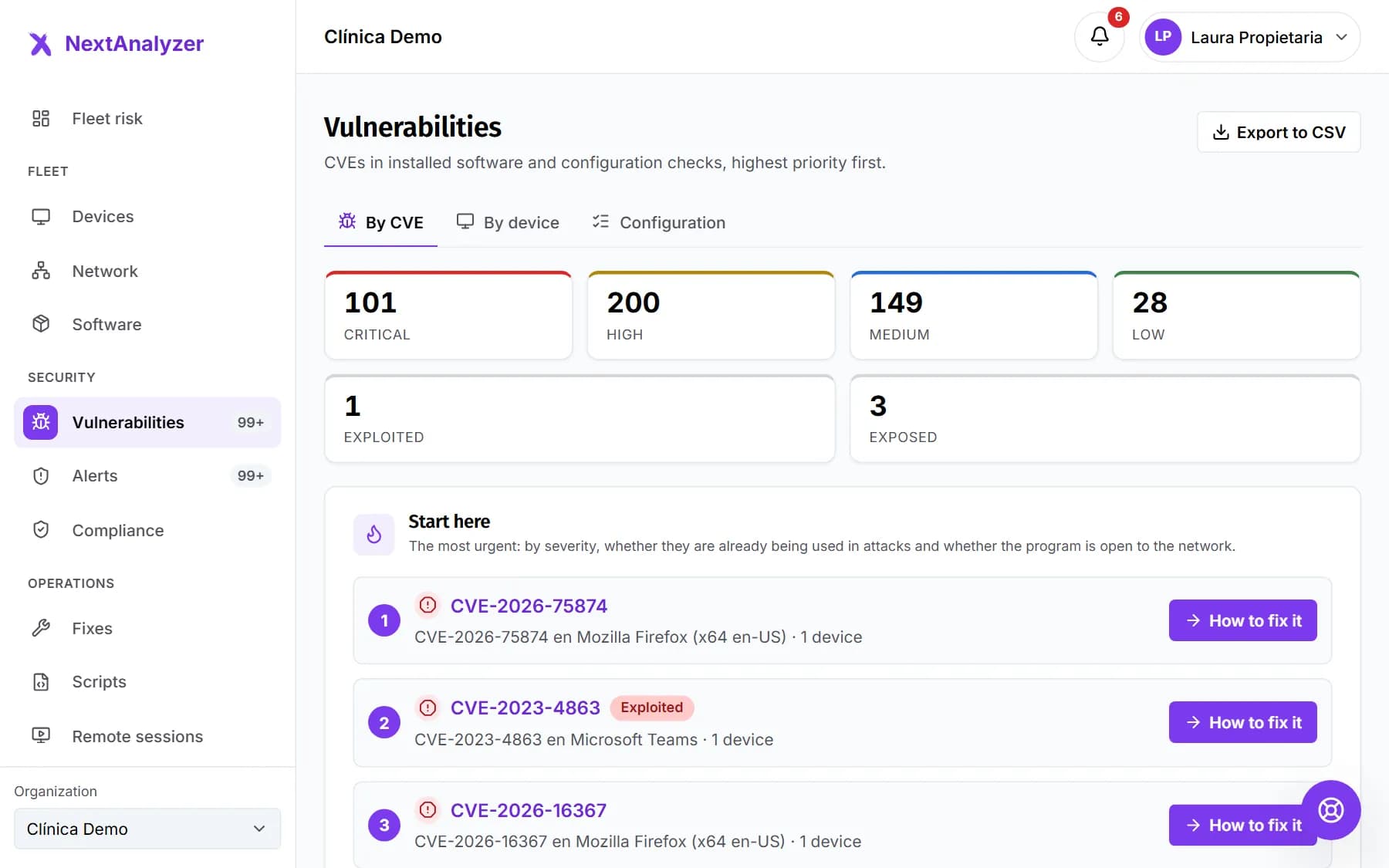
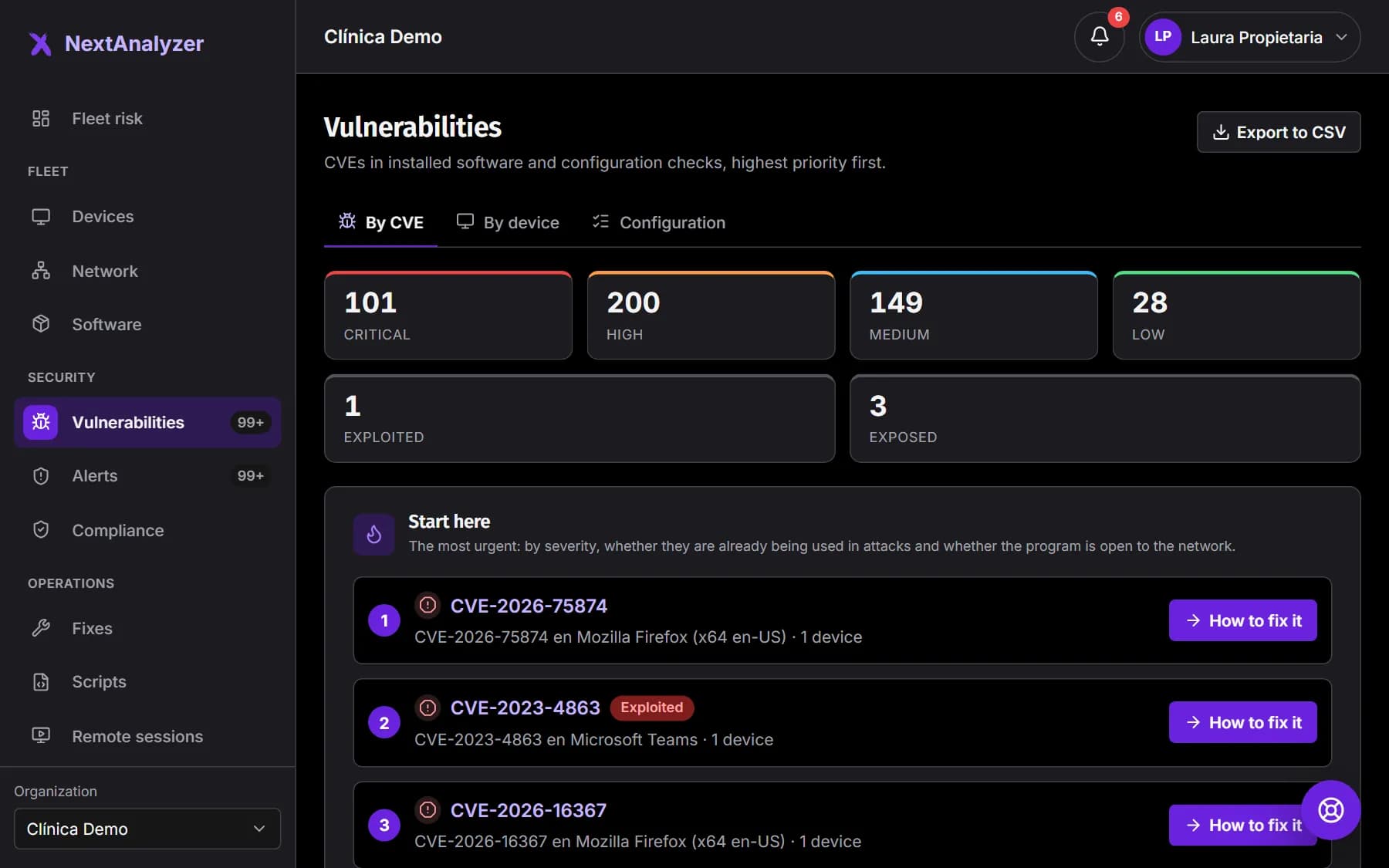
Open Security › “Vulnerabilities”. “Start here” shows the most urgent: what is exploited (already used in attacks) and what is exposed (open to the network). Use the quick filters for critical, high, exploited and exposed.
Expected result: In the “By CVE” tab you see each flaw with its severity, its priority and the affected devices.
Open the CVE page
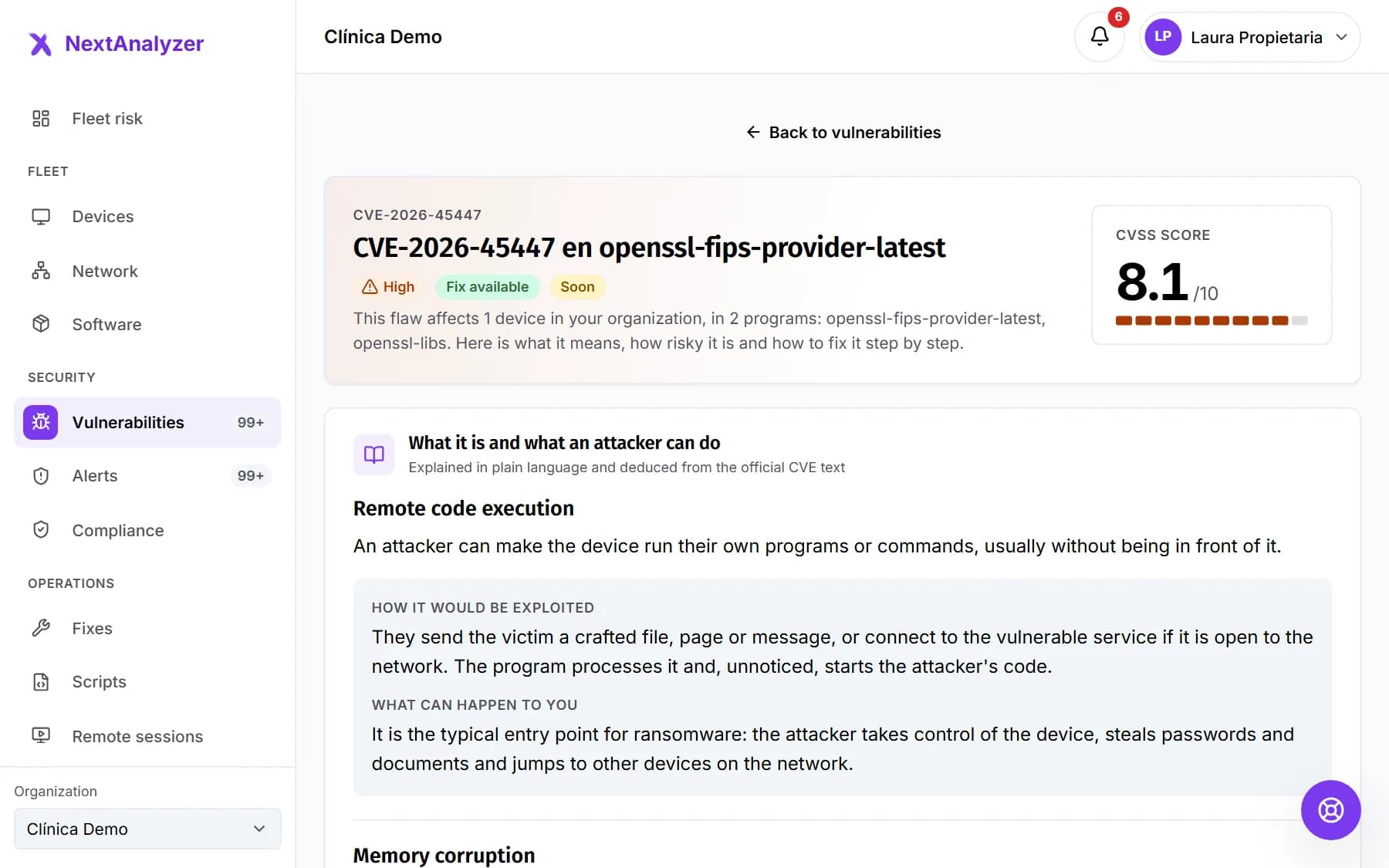
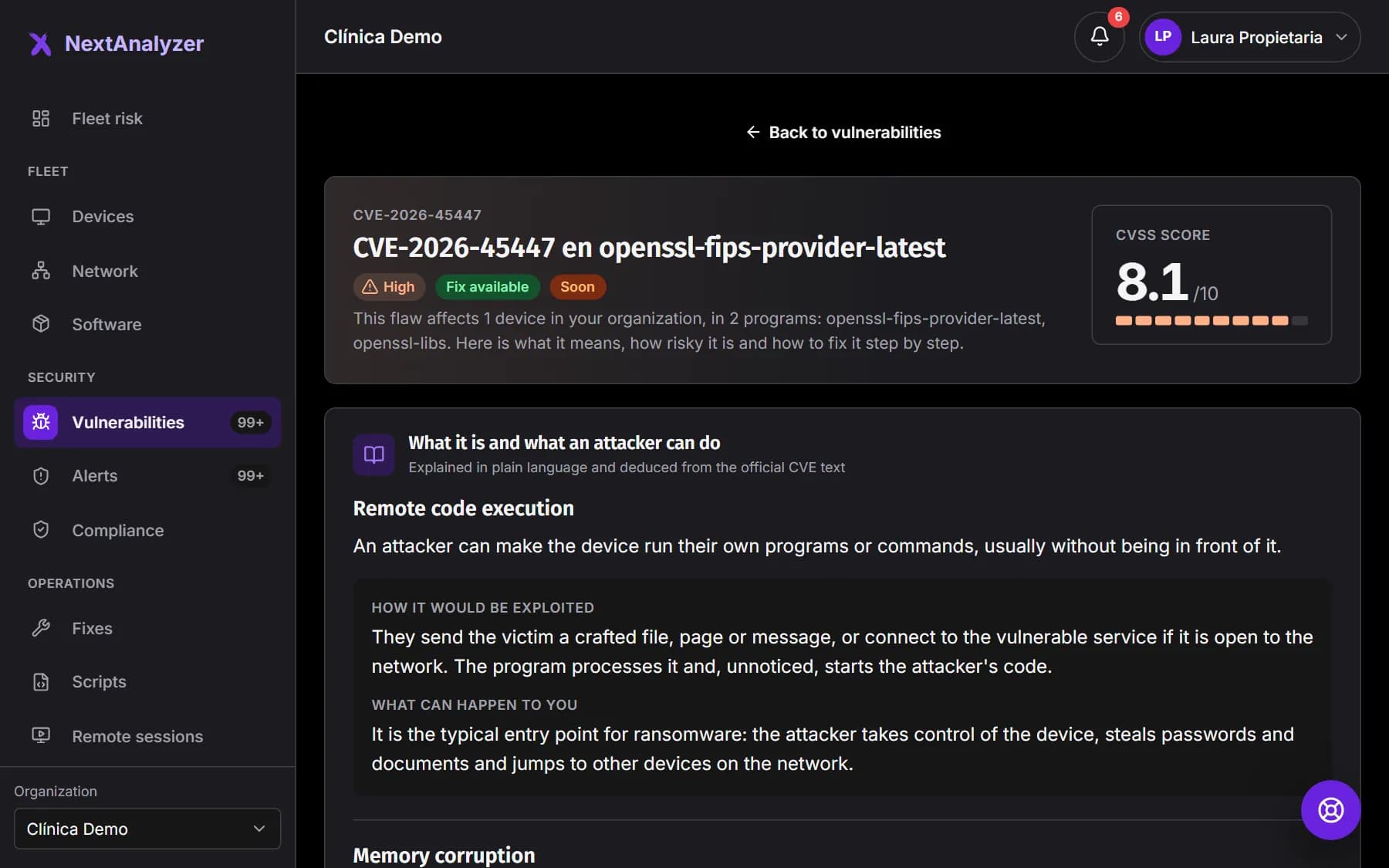
Click a CVE. Its page explains “What it is and what an attacker can do”, “How it would be exploited”, “What can happen to you” and “Why it matters in your case”. At the top you have its severity, the CVSS score and when to fix it.
Expected result: You see the urgency, such as fix it today or this week, and the “Affected devices”.
Tip: “More information” lists the sources: NVD, CVE.org, the CISA exploited catalog and the vendor advisory.
Read the fixed version
The “Fixed version” tells you what to update to. It can be a specific version, “Later than” a version (update to the latest) or “No patch available”. Hover over it to see the explanation.
Expected result: You know whether updating is enough or whether you need mitigations in the meantime.
Follow “How to fix it”
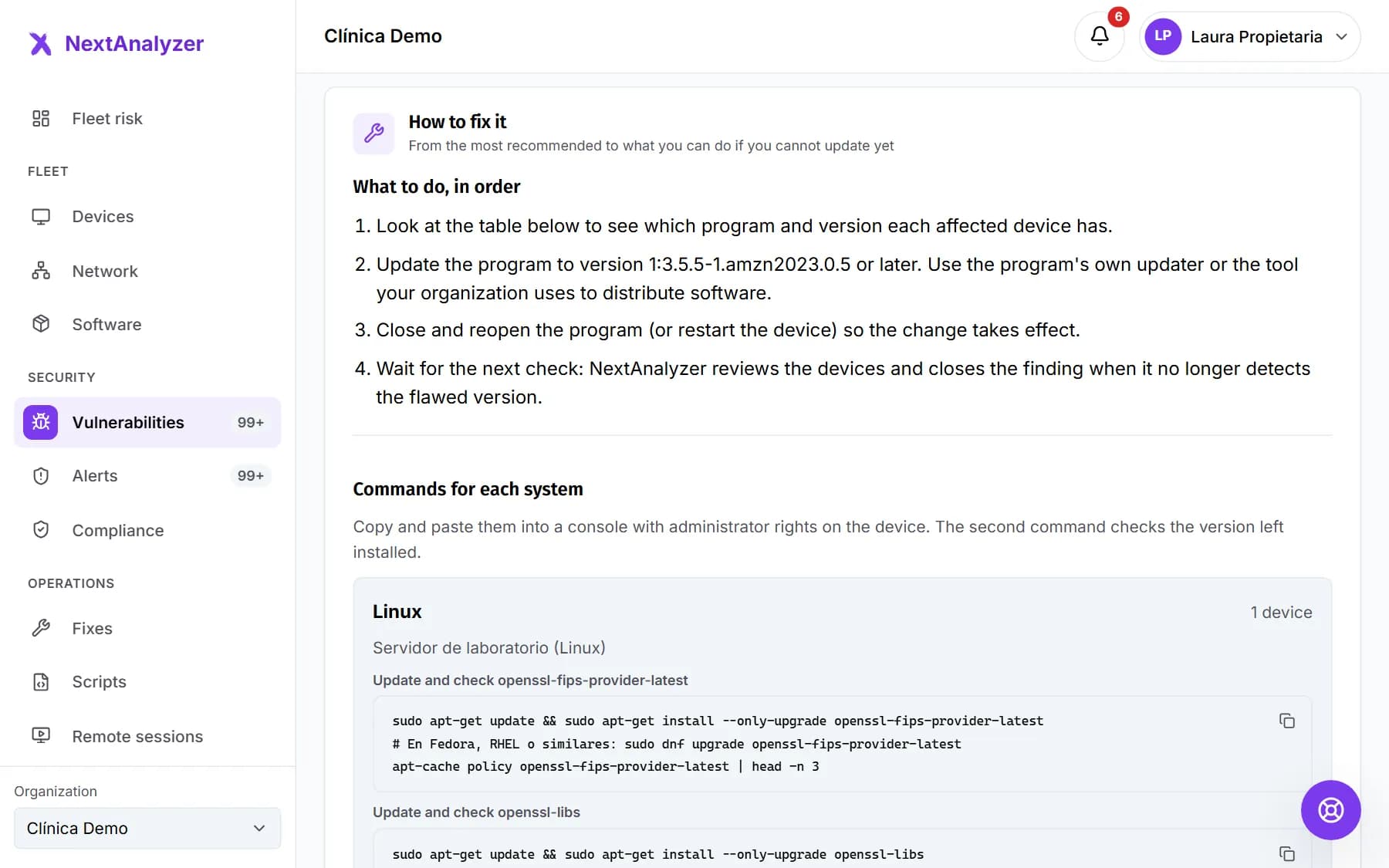
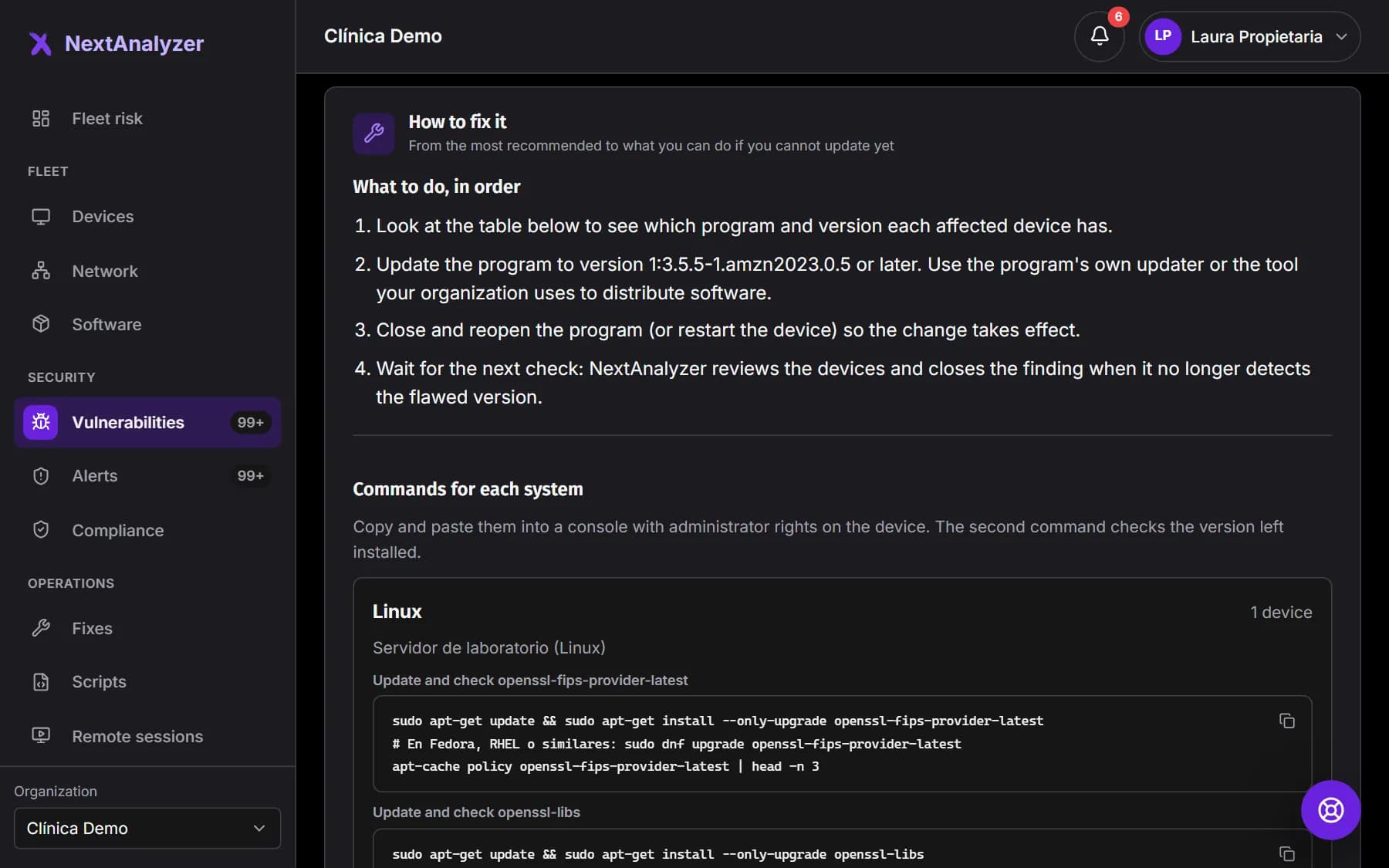
It gives you the “Recommended steps”, “What to update” and the “Commands for each system”. If you can't update yet, see “If you cannot update now”. At the end, “How to check it is fixed”.
Expected result: You have the steps and commands ready to copy into an administrator console.
If there is no fix, draft it with AI
If the CVE has no reviewed fix in the catalog, the page offers to draft one with AI. It generates the steps for your devices' operating system. The AI only receives minimised data, with no user names or public IPs.
Expected result: The steps are marked “Suggested by AI”, with the warning “Review it before applying it.”
Tip: Read and try the steps on one device before applying them to the rest.
Apply the fix
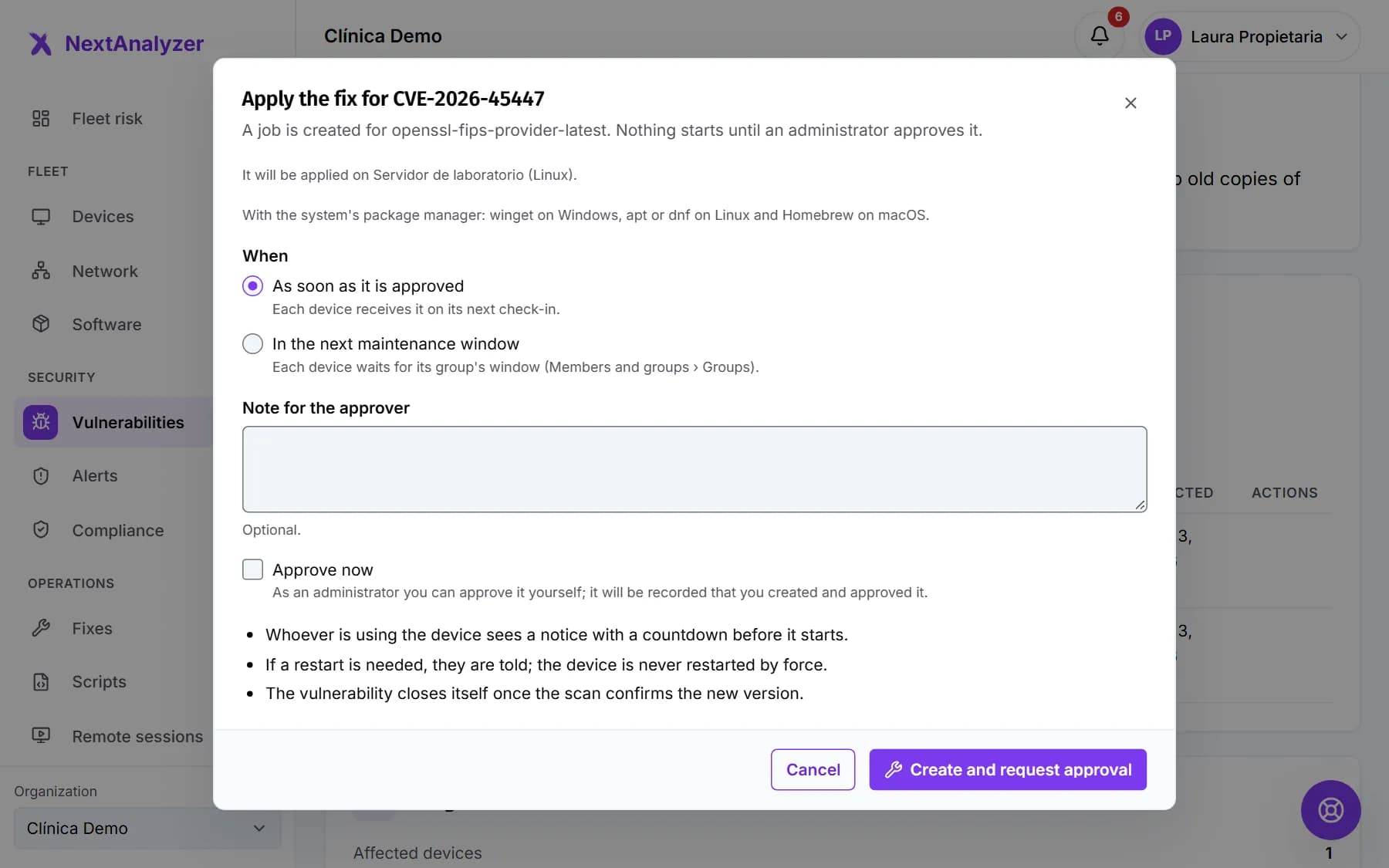
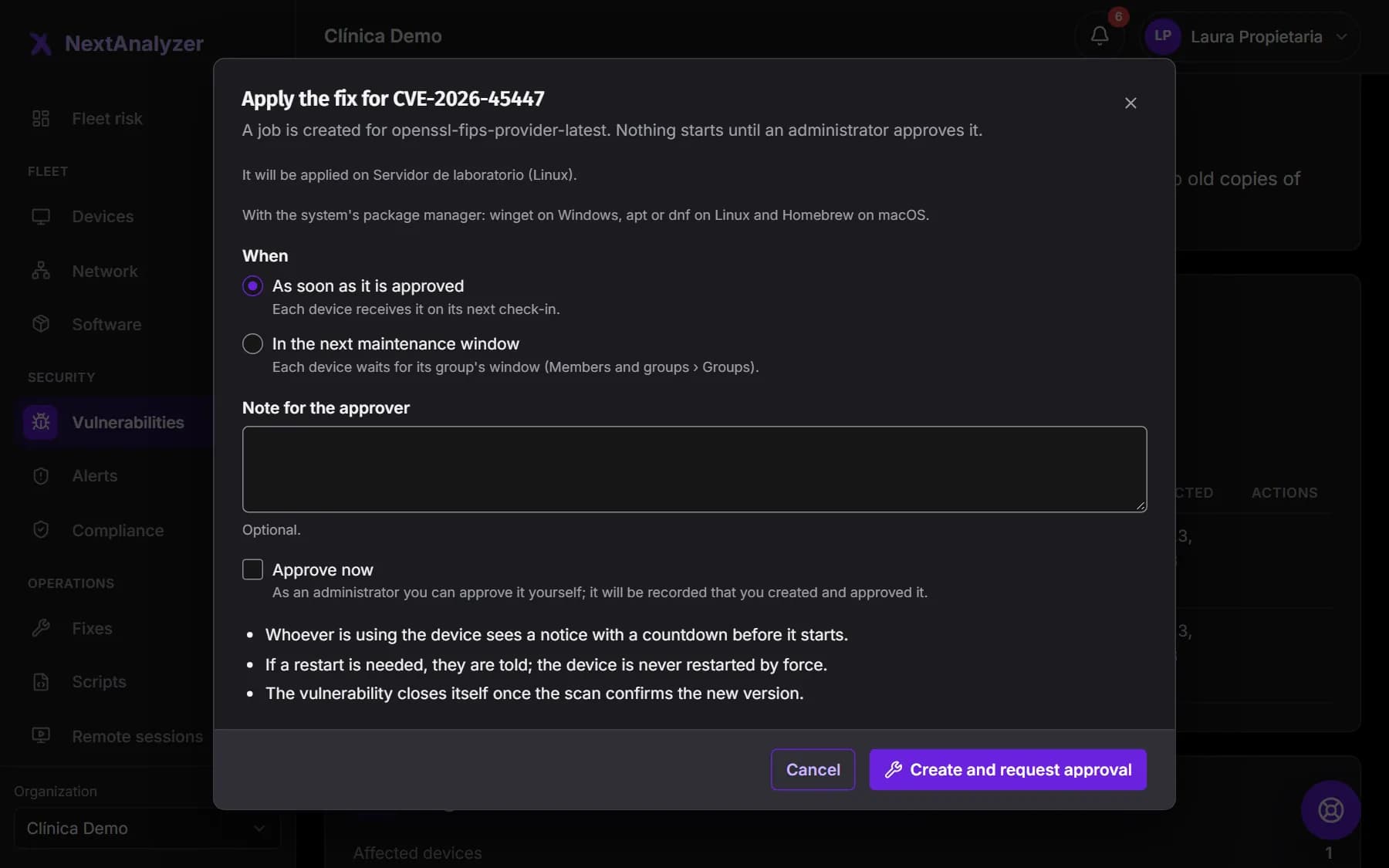
From Business, click “Apply fix” on the CVE page. Choose the devices, whether to update the program or install Windows Update patches, and when.
Expected result: A job is created that, once approved, fixes the devices and gives you each one's result.
Tip: The fixes guide explains the whole process, with pilot devices and a maintenance window.
Fix device by device
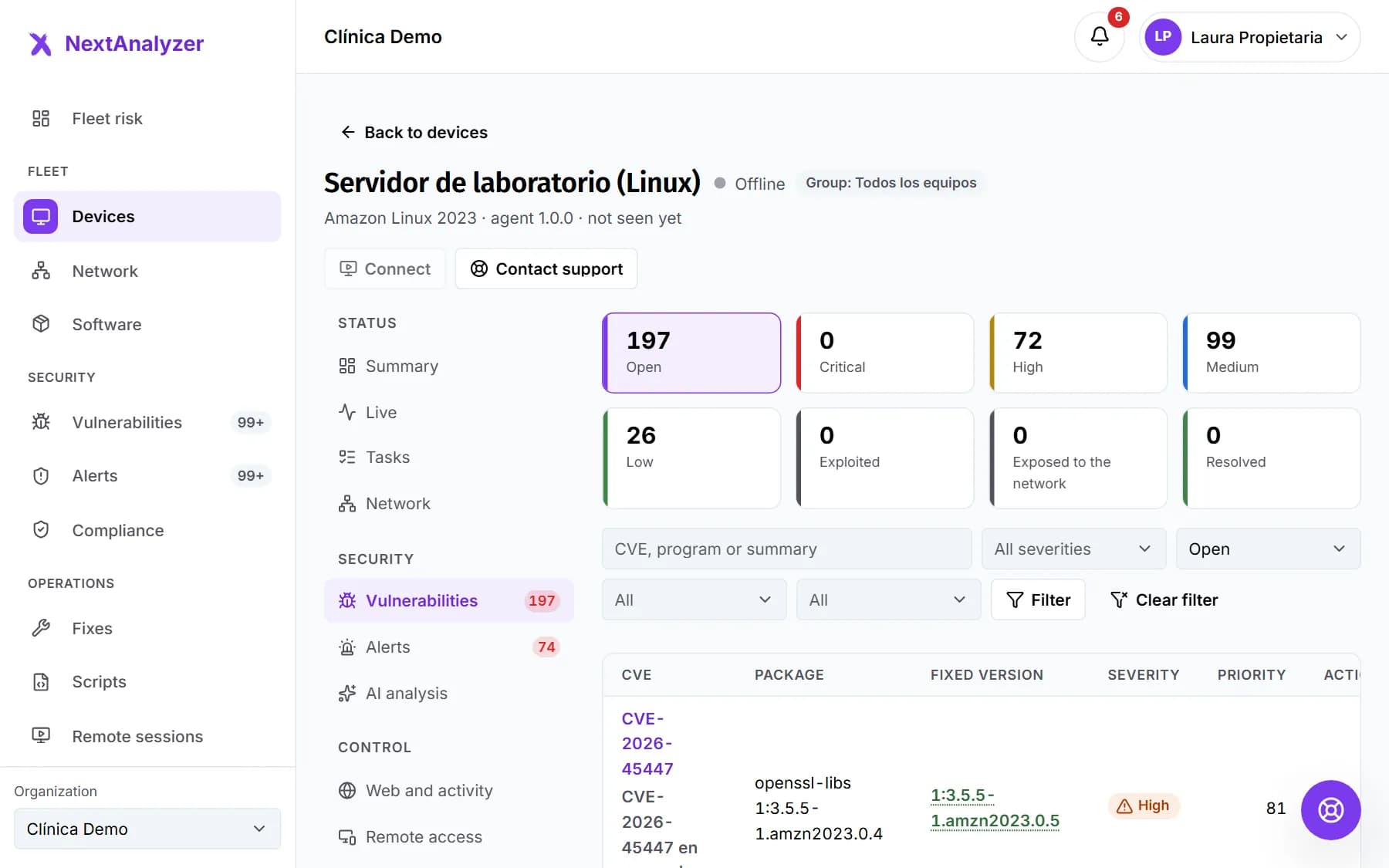
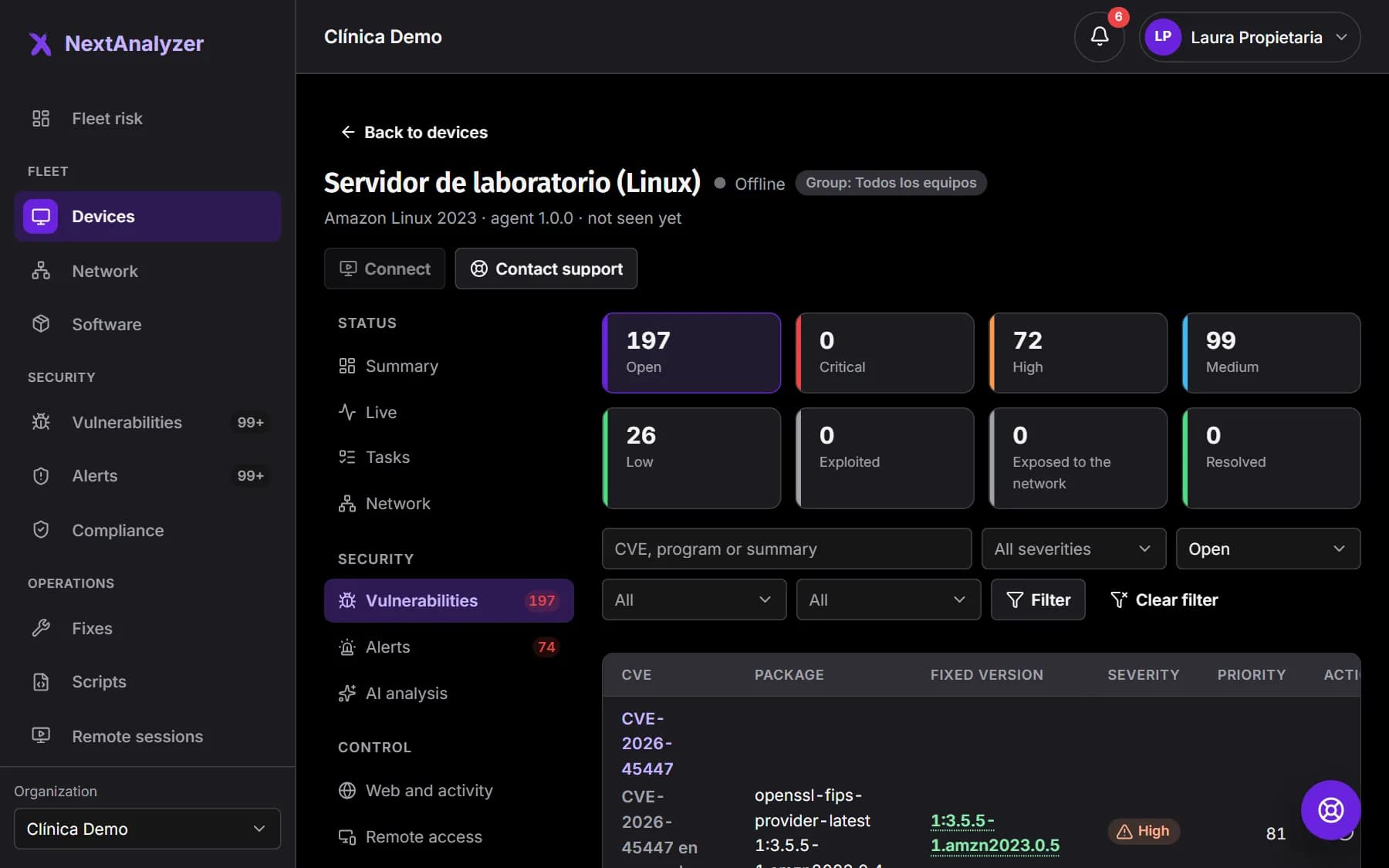
On a device page, “Vulnerabilities” tab, you see only its own, with the installed and fixed versions. “Apply fix” works the same as on the CVE page.
Expected result: You know what that device has pending and fix it without touching the others.
Check the configuration
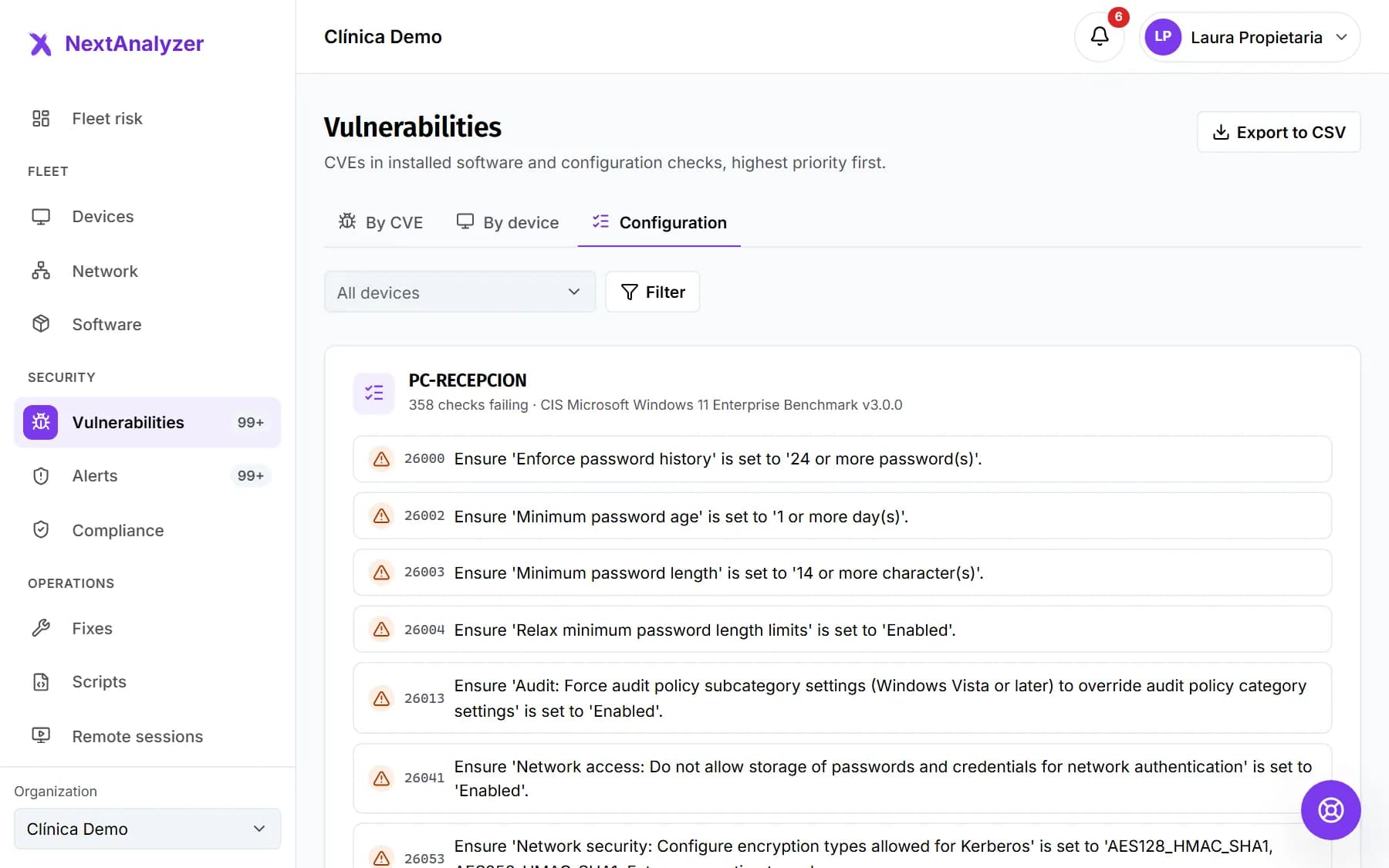
In the “Configuration” tab of Vulnerabilities, you see the security checks (CIS) that fail on each device. Each one says why it matters and how to fix it.
Expected result: You know which system settings to harden on each device.
Export the list
From Business, an administrator can click “Export to CSV” to download all vulnerabilities. It is useful for audits, insurers or your own tracking.
Expected result: You download a CSV with each finding, its device, its severity and its status.
Tip: Export it every month and keep it: it is the best proof that your risk is going down.
If something goes wrong
I think it is a false positive
Compare the device's installed version with the “Fixed version”. If it is already updated, wait for the next check (every 15 minutes). If it still shows, check that no old copy of the program is left. If it still shows after that, open a ticket in Support.
It says “No patch available”
The vendor hasn't released a fixed version yet. Limit access to the program, apply the measures in “If you cannot update now” and check back from time to time.
A device has no vulnerabilities at all
It may be clean, or nobody may be scanning it. If it has the “No detection” label, its figures don't count. Follow the guide to check that detection works.
It says I can't export
Exporting to CSV is for administrators and the owner, on the Business and Enterprise plans. Ask an administrator to download it or change plan.
Still not working? Open a support ticket