
Check that vulnerability detection works
Vulnerabilities are found by the Wazuh agent, which is installed alongside the NextAnalyzer agent. If it doesn't work on a device, NextAnalyzer doesn't show you a reassuring zero: it warns you and tells you how to fix it.
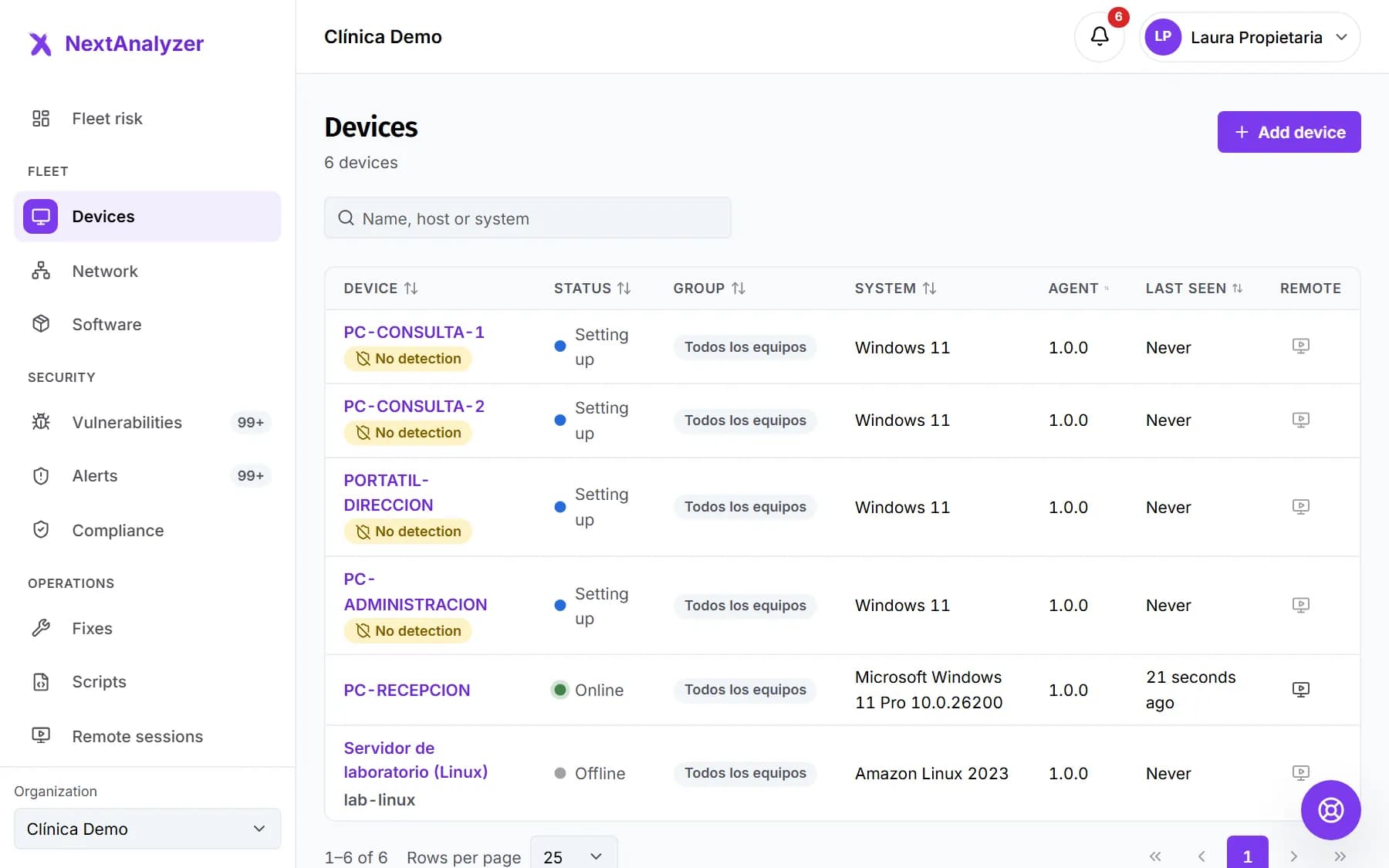
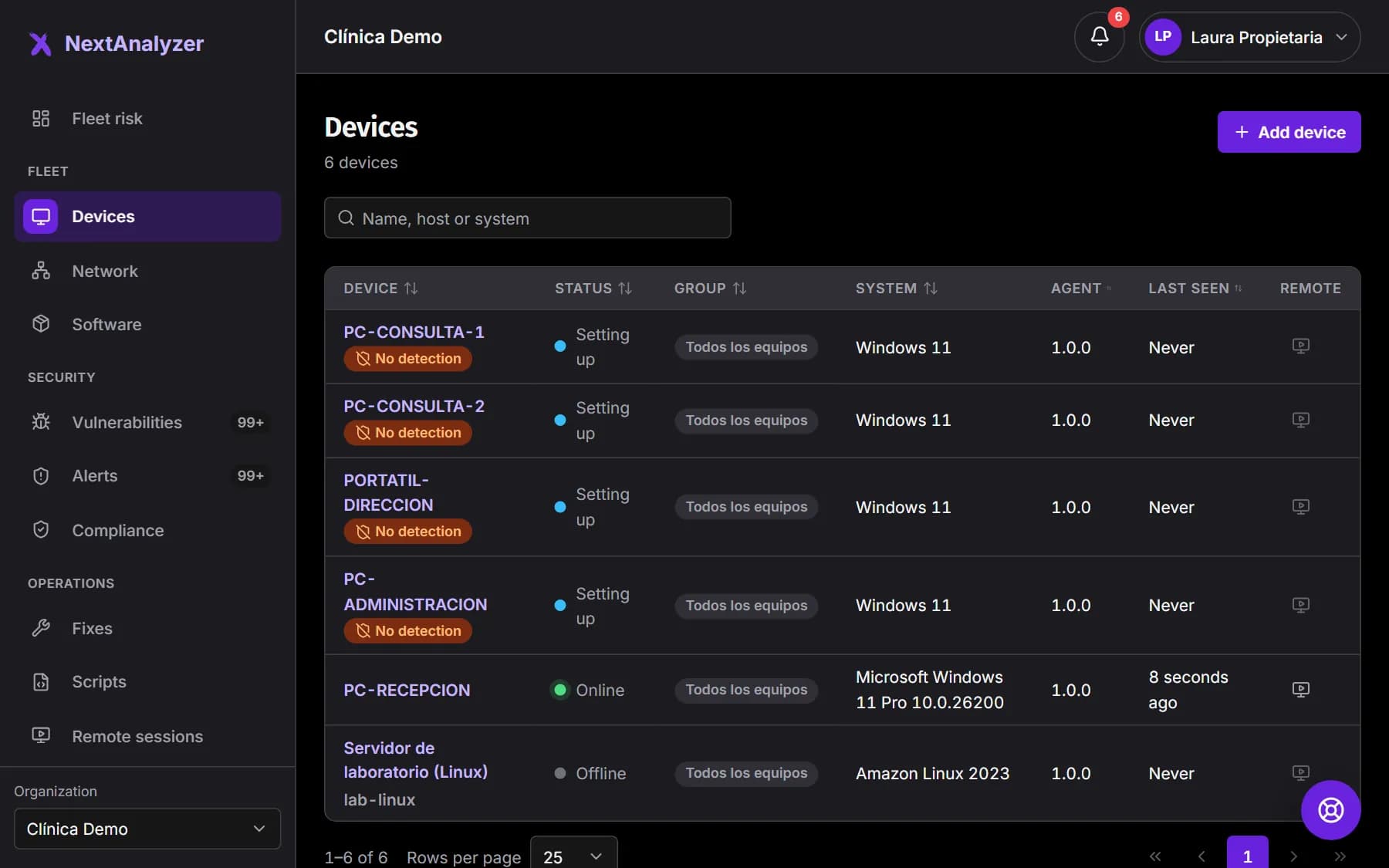
Look for “No detection” in the list
In the menu, Fleet › “Devices”. The “No detection” label next to the name marks devices where nobody is scanning for vulnerabilities. Hover over it to see why.
Expected result: You know which devices have questionable vulnerability figures.
Tip: Having no vulnerabilities is not a good sign if nobody is looking for them.
Check the device page
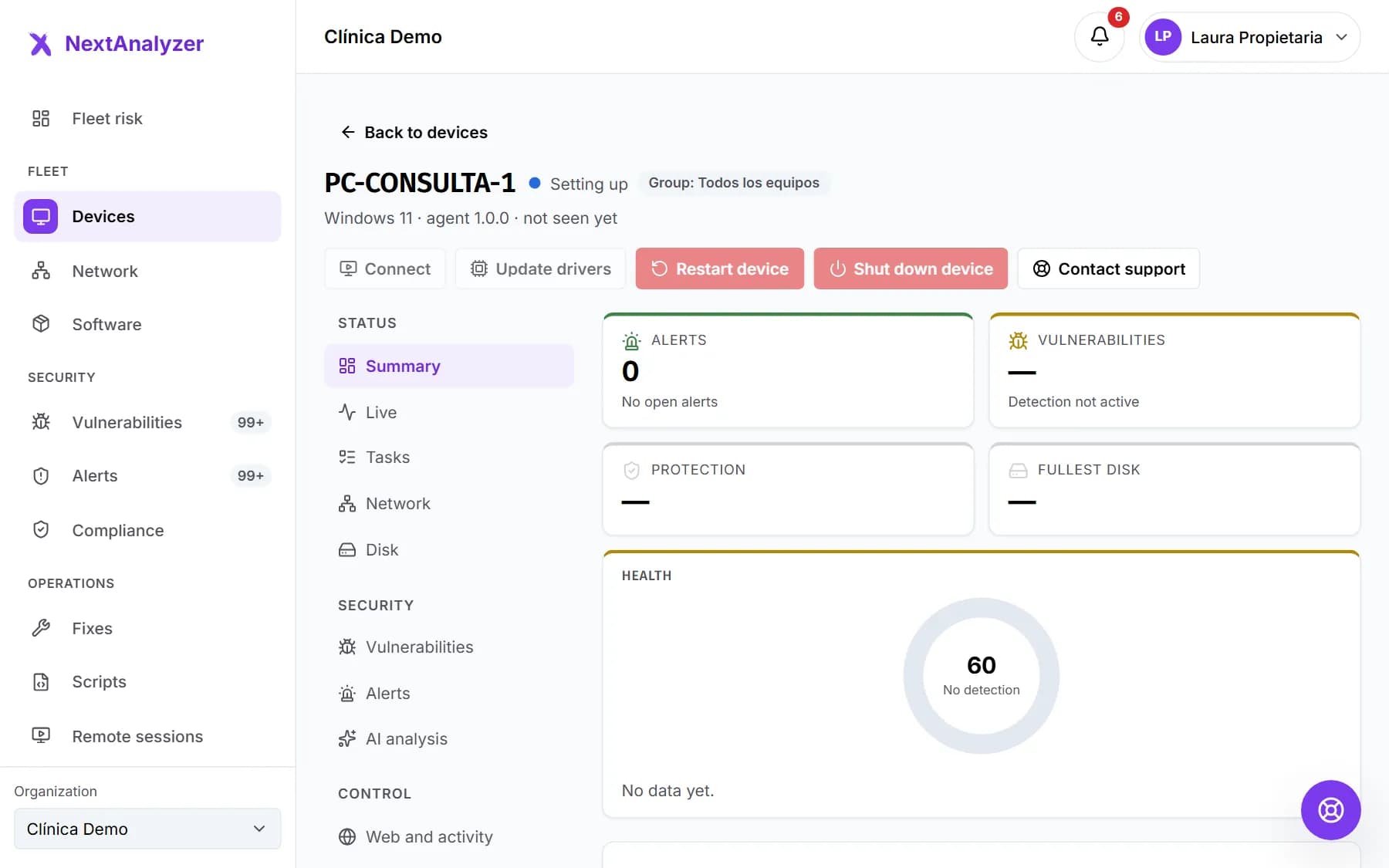
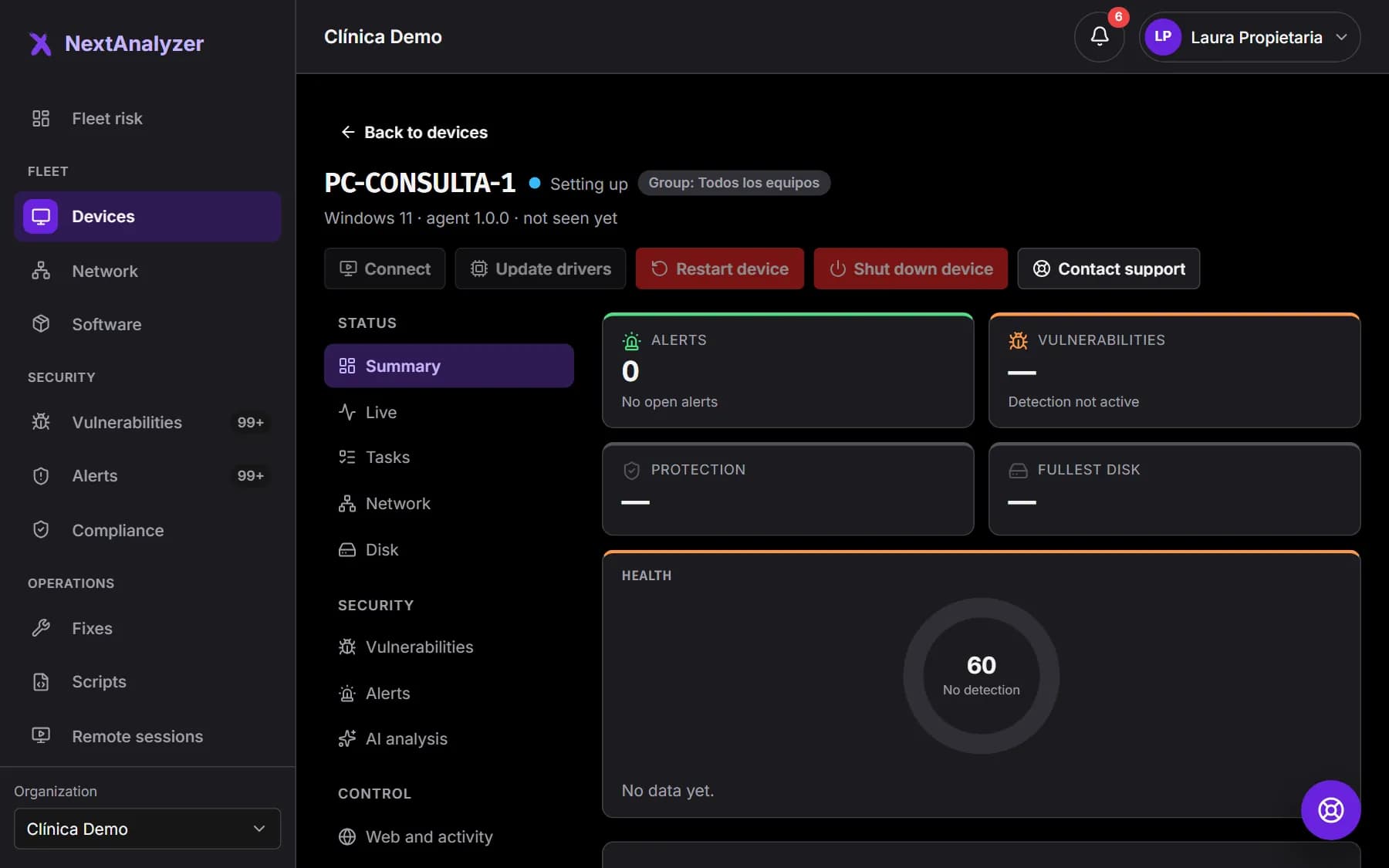
Open the device. In the “Summary” tab, the vulnerability figure shows “Detection not active” and health shows “No detection”, with a capped score. “Needs attention” and the “Vulnerabilities” tab explain the case.
Expected result: You see which of the three cases the device has and what to do.
Identify the case
Not active yet: the Wazuh agent has never connected. Stopped: it has disconnected, sometimes since a given date. No detection: there is no Wazuh agent registered for that device.
Expected result: You know whether to reinstall, check the network or contact support.
Check the service
On Windows, open Services and find WazuhSvc: it must be “Running”. On Linux, the service is wazuh-agent. If it is stopped, start it. If it doesn't exist, reinstall the NextAnalyzer agent with administrator permissions.
Expected result: The service is running and the device reconnects within a few minutes.
Check the network
Make sure the device is on and online. The Wazuh agent needs outbound access on TCP ports 1514 (reporting) and 1515 (enrollment). A firewall or a corporate proxy can block them.
Expected result: With the network working, the “No detection” label disappears after the next sync.
Check the device app
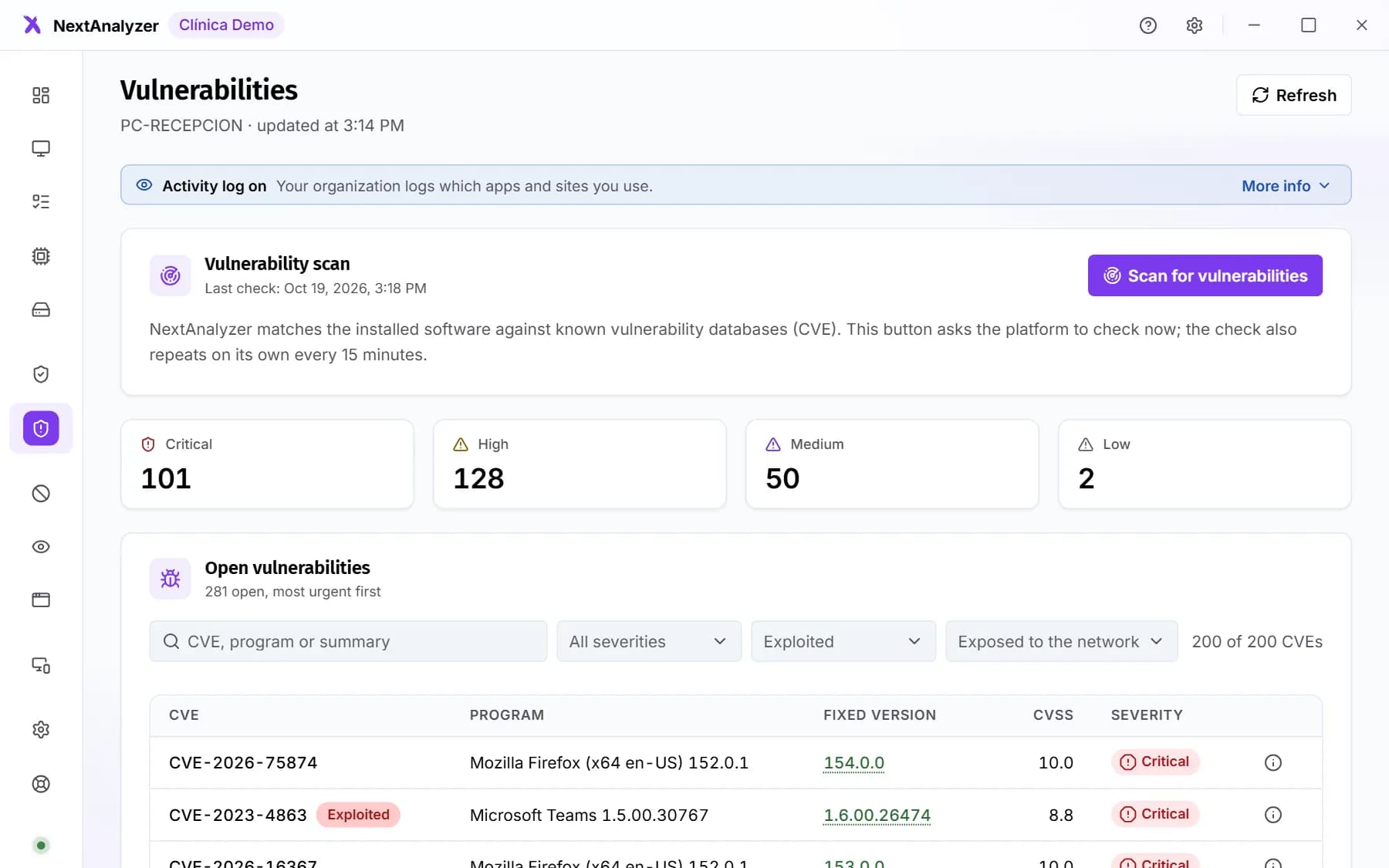
In the app, “Overview” and “Vulnerabilities” show the status: “Detection not active: the Wazuh agent is missing”, “…has never connected” or “Detection stopped”. Figures show as “—” until it works again.
Expected result: The person using the device also knows it is not being scanned.
Request a check
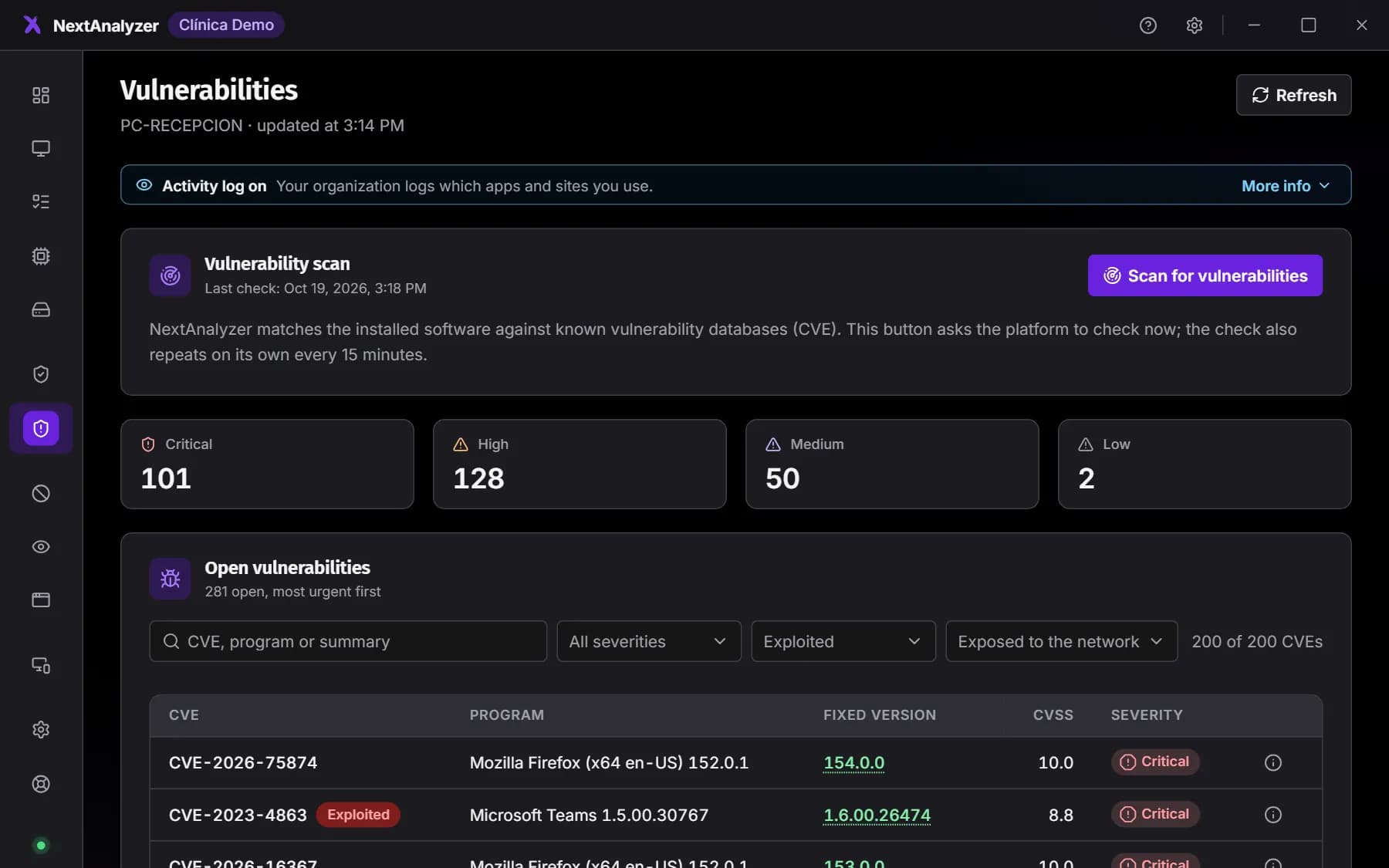
Once fixed, open “Vulnerabilities” in the app and click “Scan for vulnerabilities”. The check also repeats on its own every 15 minutes.
Expected result: The device's vulnerabilities appear, or a message that there are none open if it is clean.
If something goes wrong
The installer warned about an error with the Wazuh agent
The installer carries on with the rest and the service retries on its own. Code 1618 means another installation was in progress: wait and restart. Codes 1603 and 1925 usually mean missing administrator permissions: reinstall as administrator.
It is still not active after reinstalling
The Wazuh agent is installed but can't reach the server. Check that WazuhSvc is running and that the firewall or proxy allows outbound TCP ports 1514 and 1515.
It says detection has stopped since a date
It is usually a device that was off or offline for a long time. Turn it on and connect it. If it stays the same while online, check WazuhSvc and repair the agent with administrator permissions.
It says “This device has no vulnerability detection”
There is no Wazuh agent registered for that device. Reinstall the NextAnalyzer agent with administrator permissions. If it stays the same, open a ticket in Support.
Still not working? Open a support ticket