
Get started with NextAnalyzer
This guide takes you from a new account to your first protected device. The dashboard home helps you with a five-step checklist that ticks itself off.
Create your account
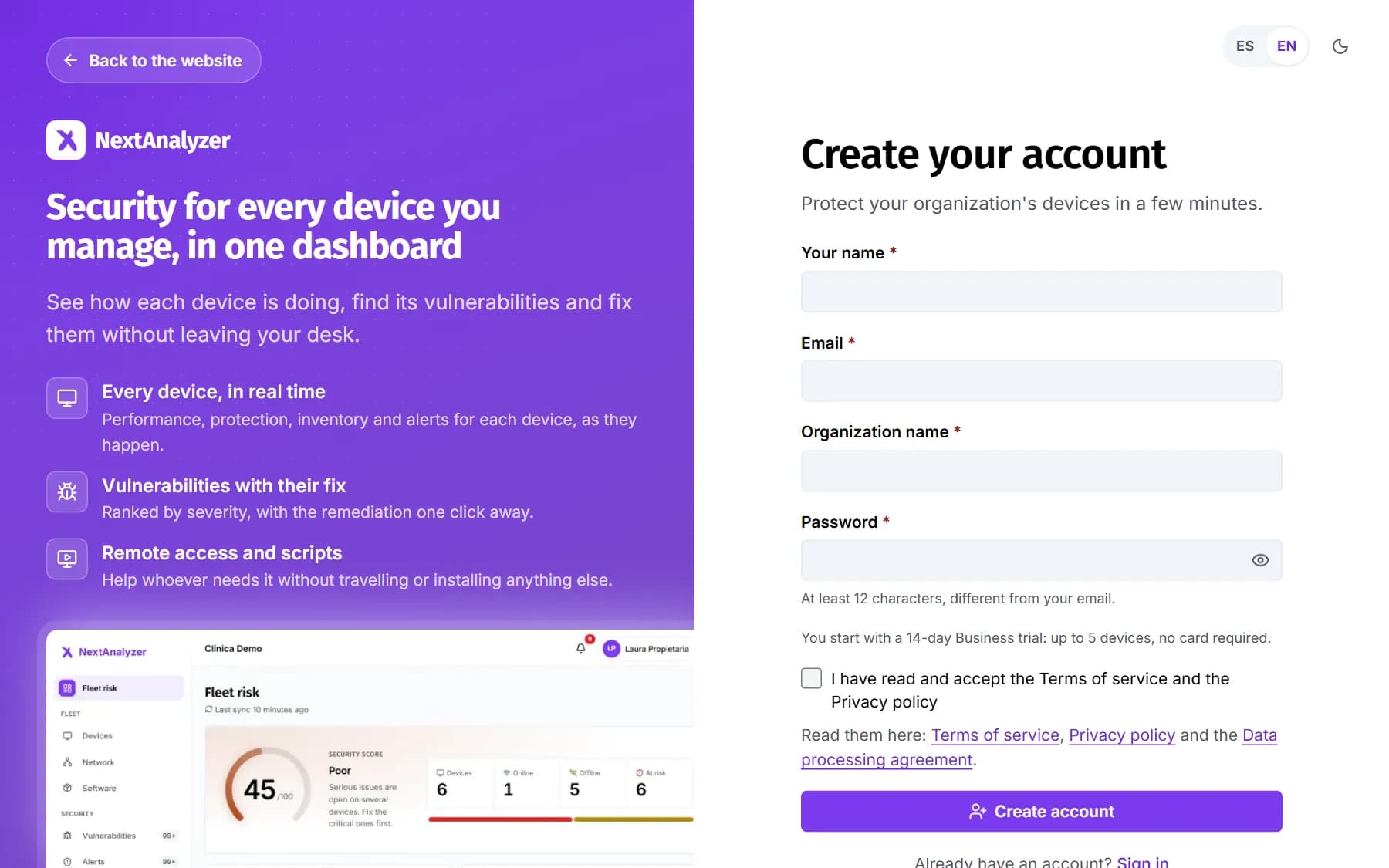
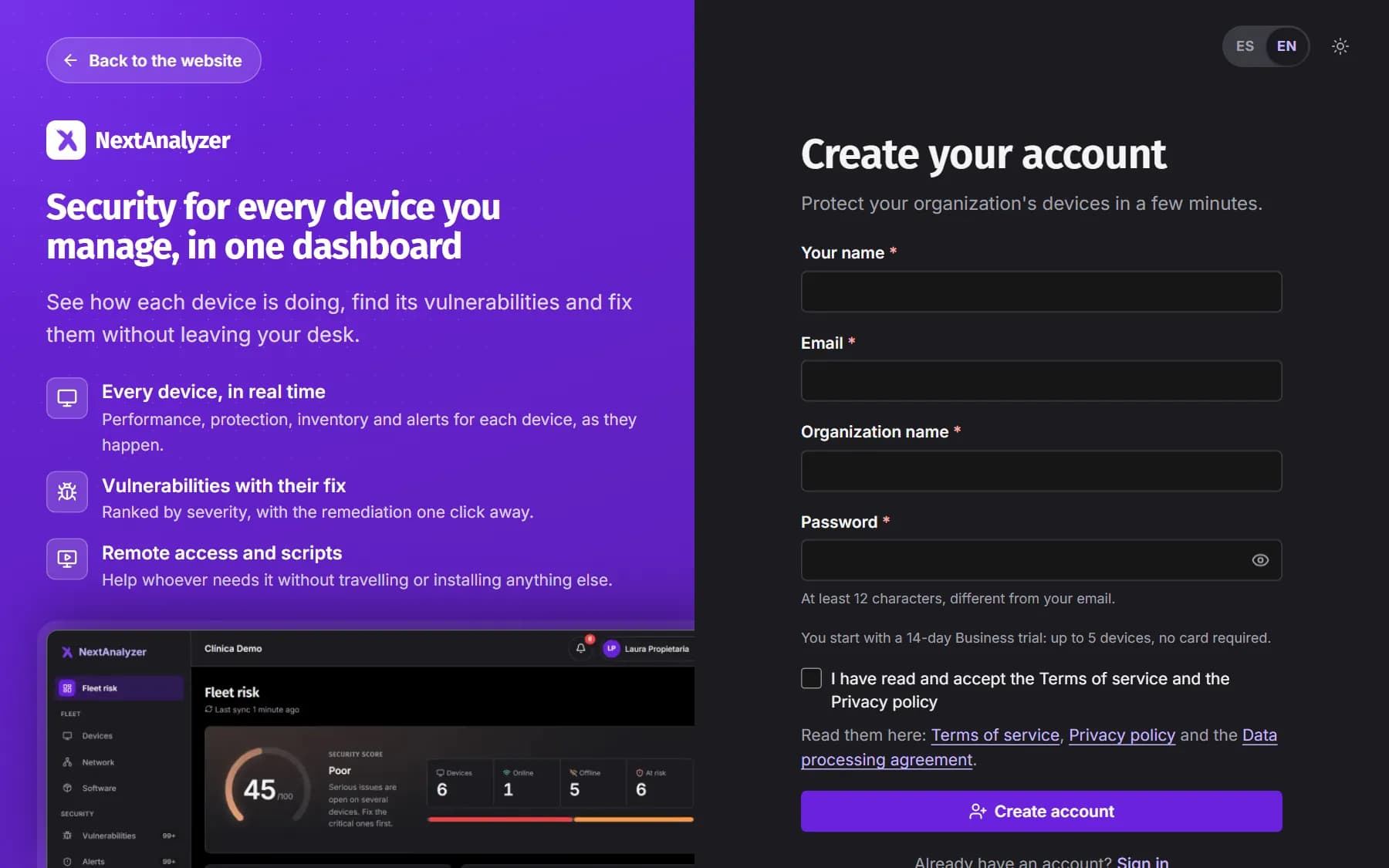
On the sign-up page, fill in “Your name”, “Organization name”, “Email” and “Password”. You start with a 14-day Business trial: up to 5 devices and no card required.
Expected result: You see “Check your email”: we've sent you a confirmation link.
Confirm your email
Open the link in the email. It expires in 48 hours. Until you confirm, the dashboard shows the “Unconfirmed email” notice and you can't enroll devices.
Expected result: You see “Email confirmed” and the notice disappears from the dashboard.
Tip: If you can't find it, check spam and click “Resend email” in the dashboard notice.
Follow the setup checklist
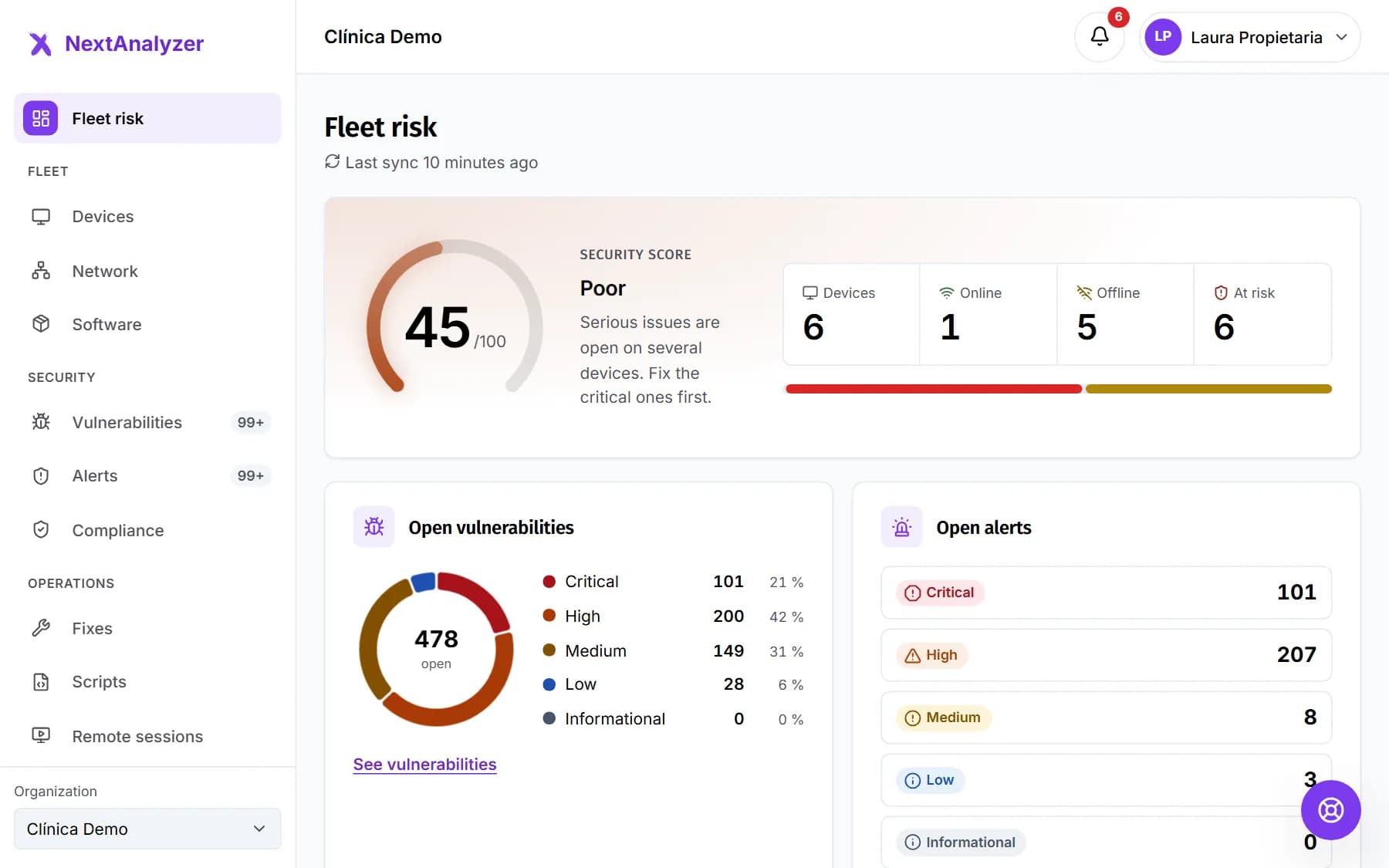
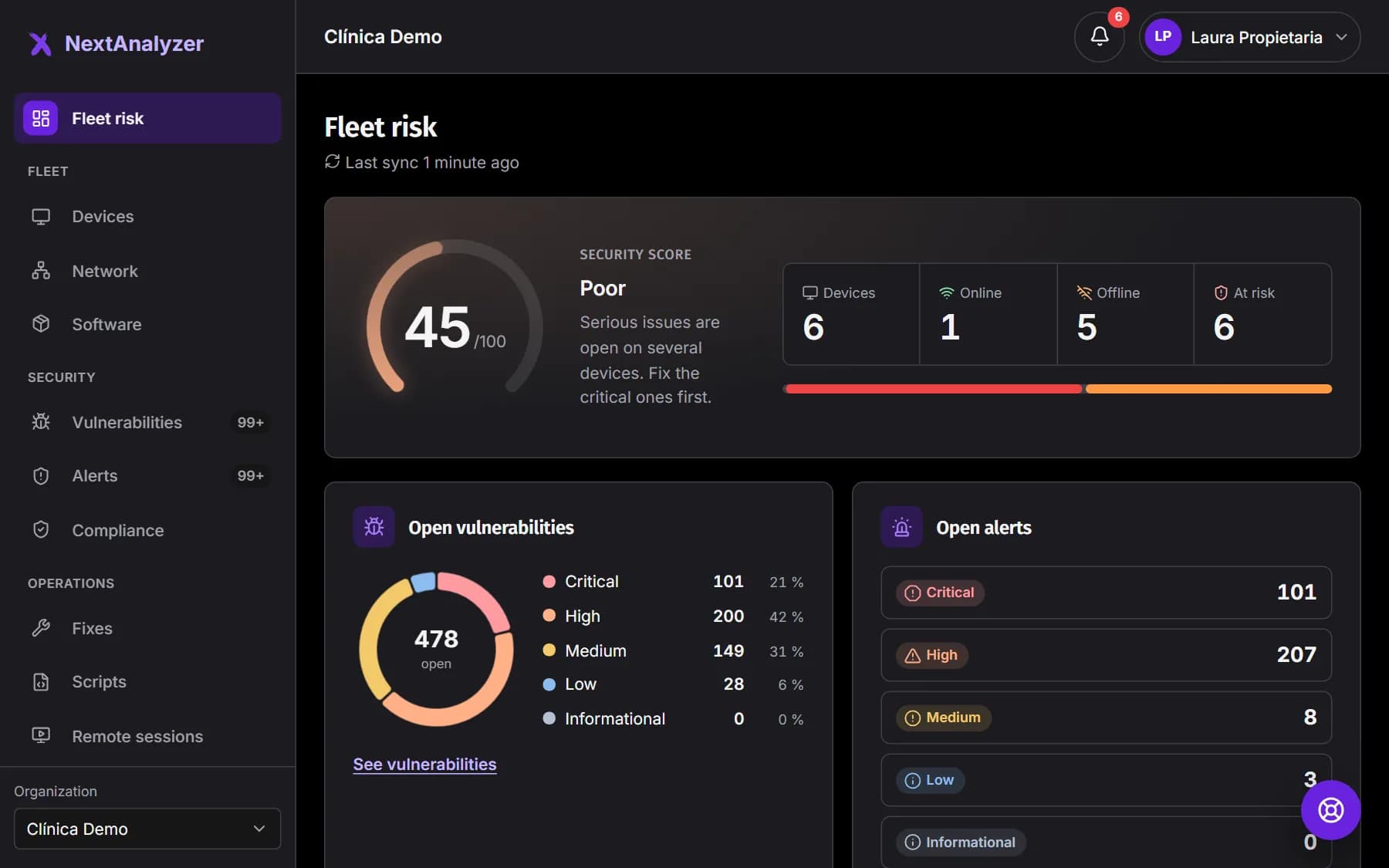
In “Fleet risk” you'll see “Get your organization up and running” with five steps: your organization, first device, first analysis, notifications and your team. Click “Go” on each one.
Expected result: Each step is marked as done when you complete it.
Complete your organization
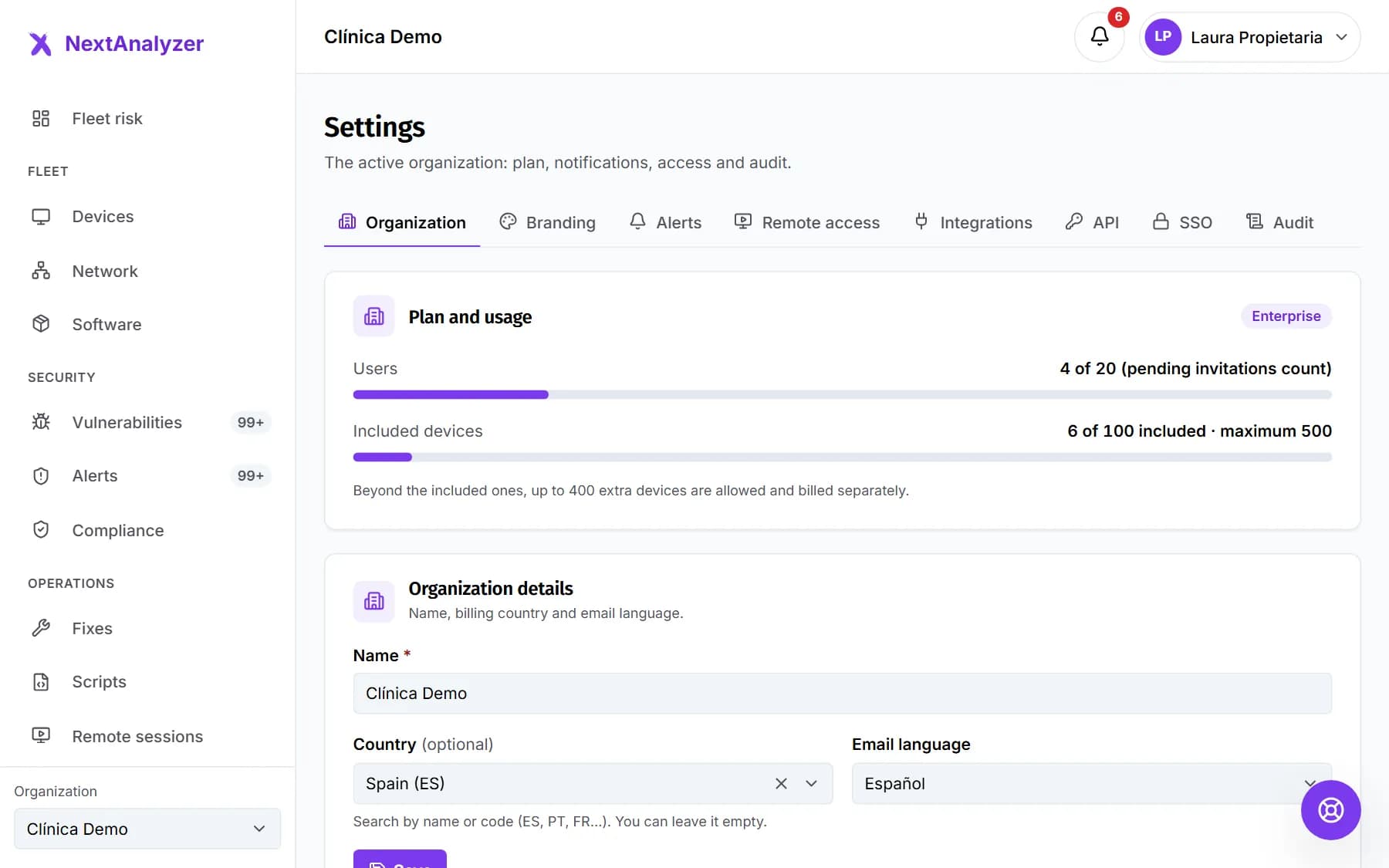
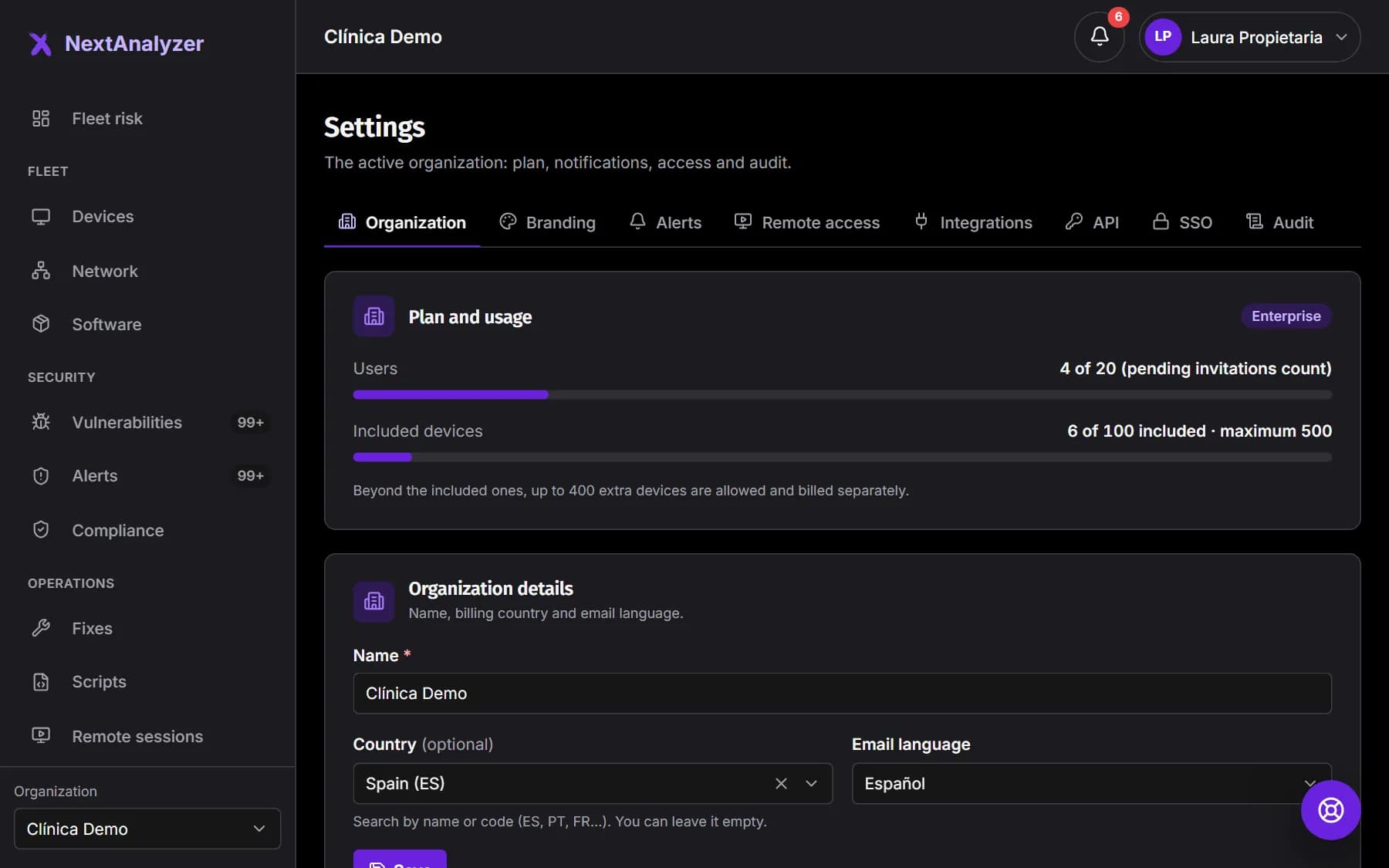
In “Your organization”, check the name, billing country and language. The country decides the taxes on your invoices.
Expected result: The first checklist step shows as done.
Prepare your first device
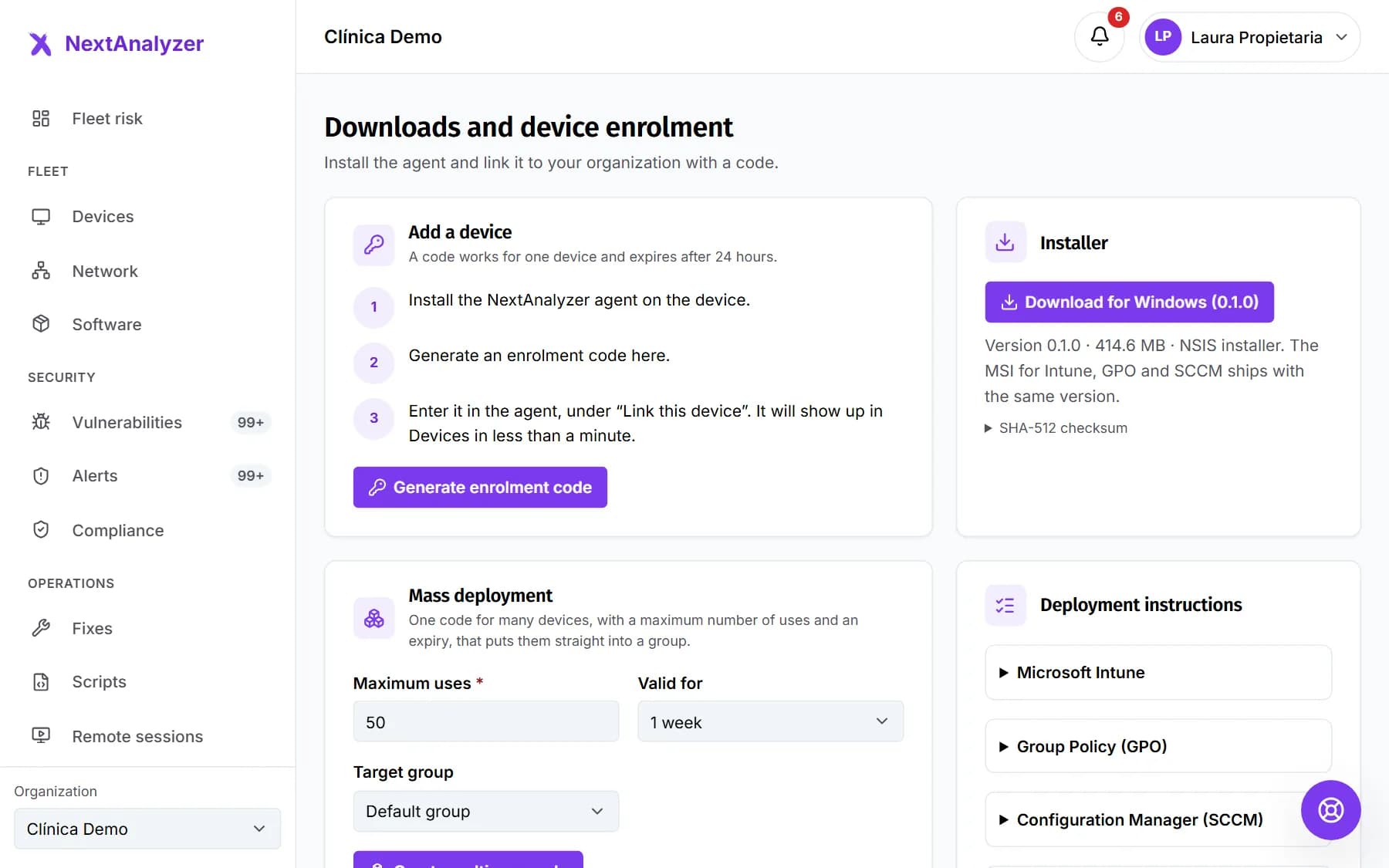
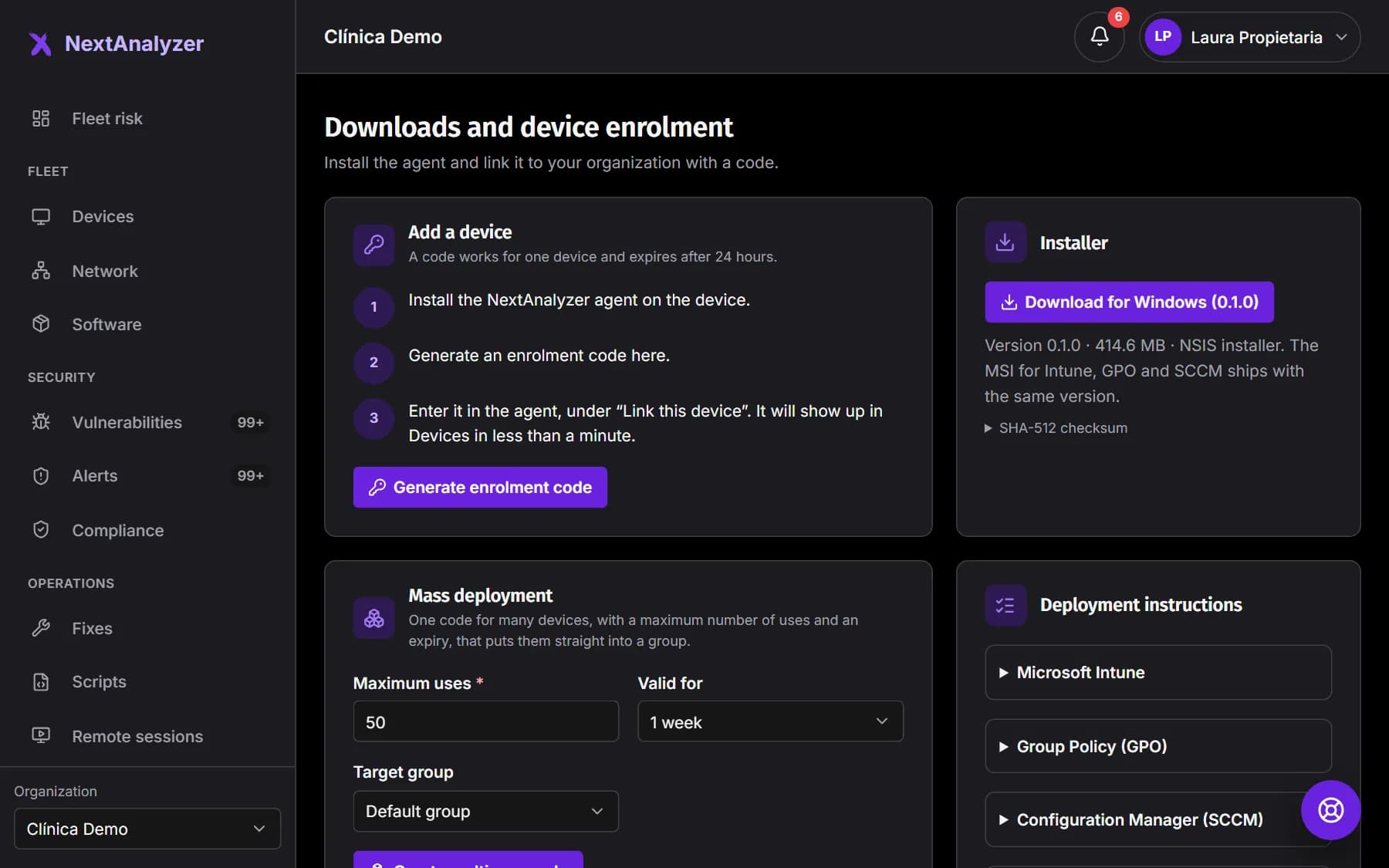
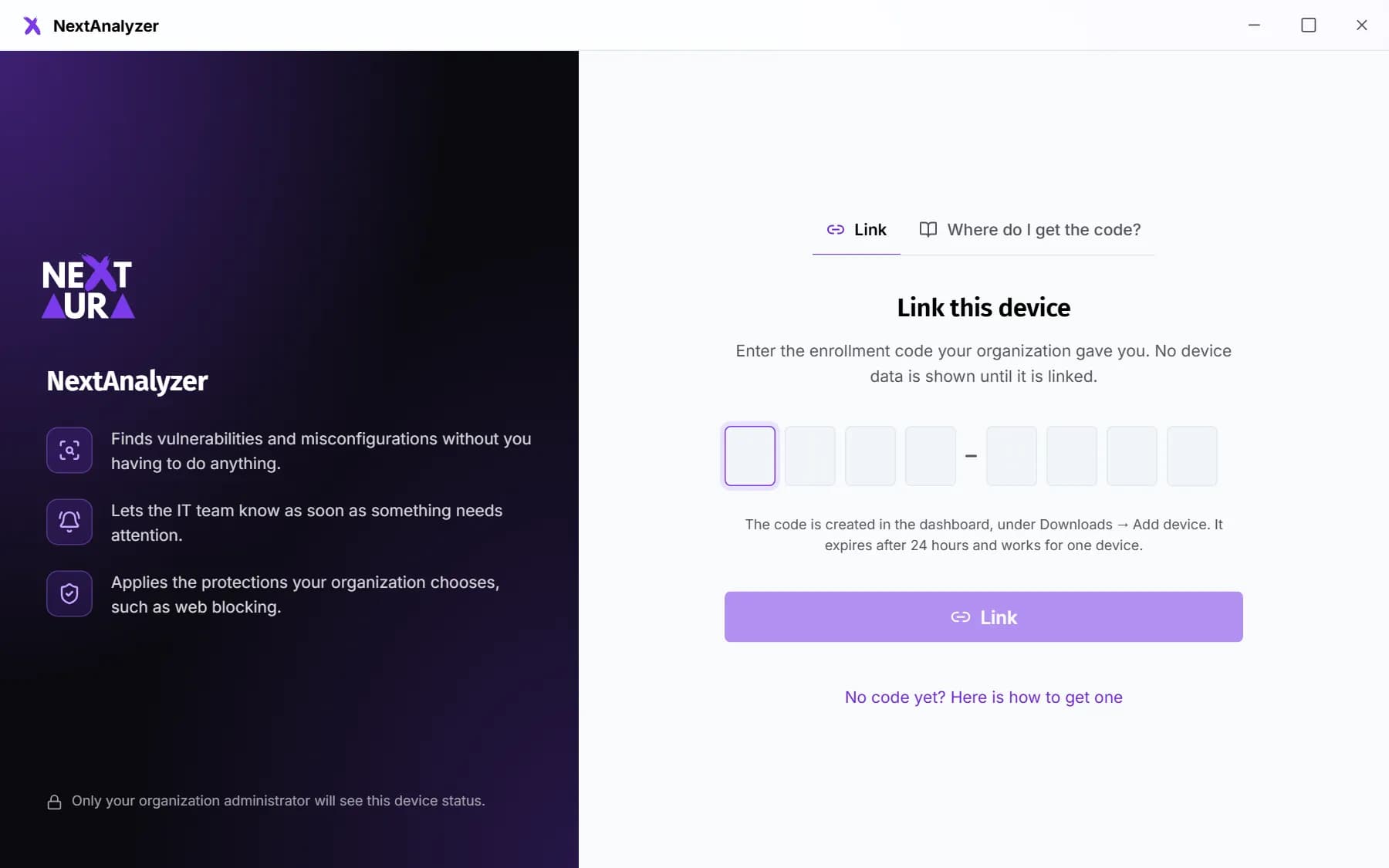
In the menu, Organization › Downloads. Click “Download for Windows” and then “Generate enrolment code”. The code has 8 characters, like ABCD-EFGH, and expires after 24 hours.
Expected result: You have the installer downloaded and an enrollment code on screen.
Tip: The macOS and Linux packages are in testing: request them in Support.
Install and link the device
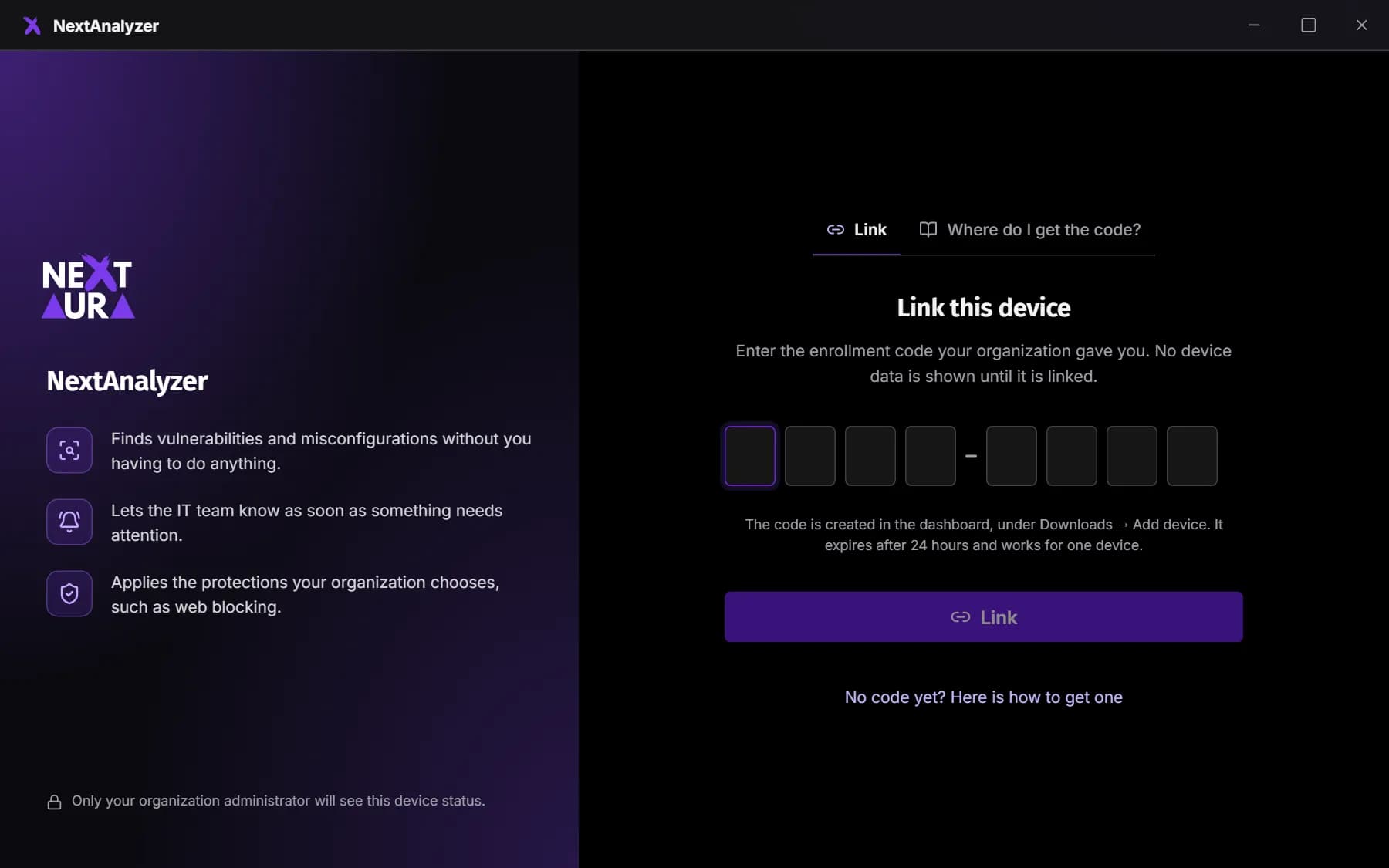
Run the installer on the device and accept the administrator prompt. Enter the code when the wizard asks for it, or later in the app, under “Link this device”.
Expected result: The device shows up in Devices, first as “Setting up” and within a minute as “Online”.
See what to fix
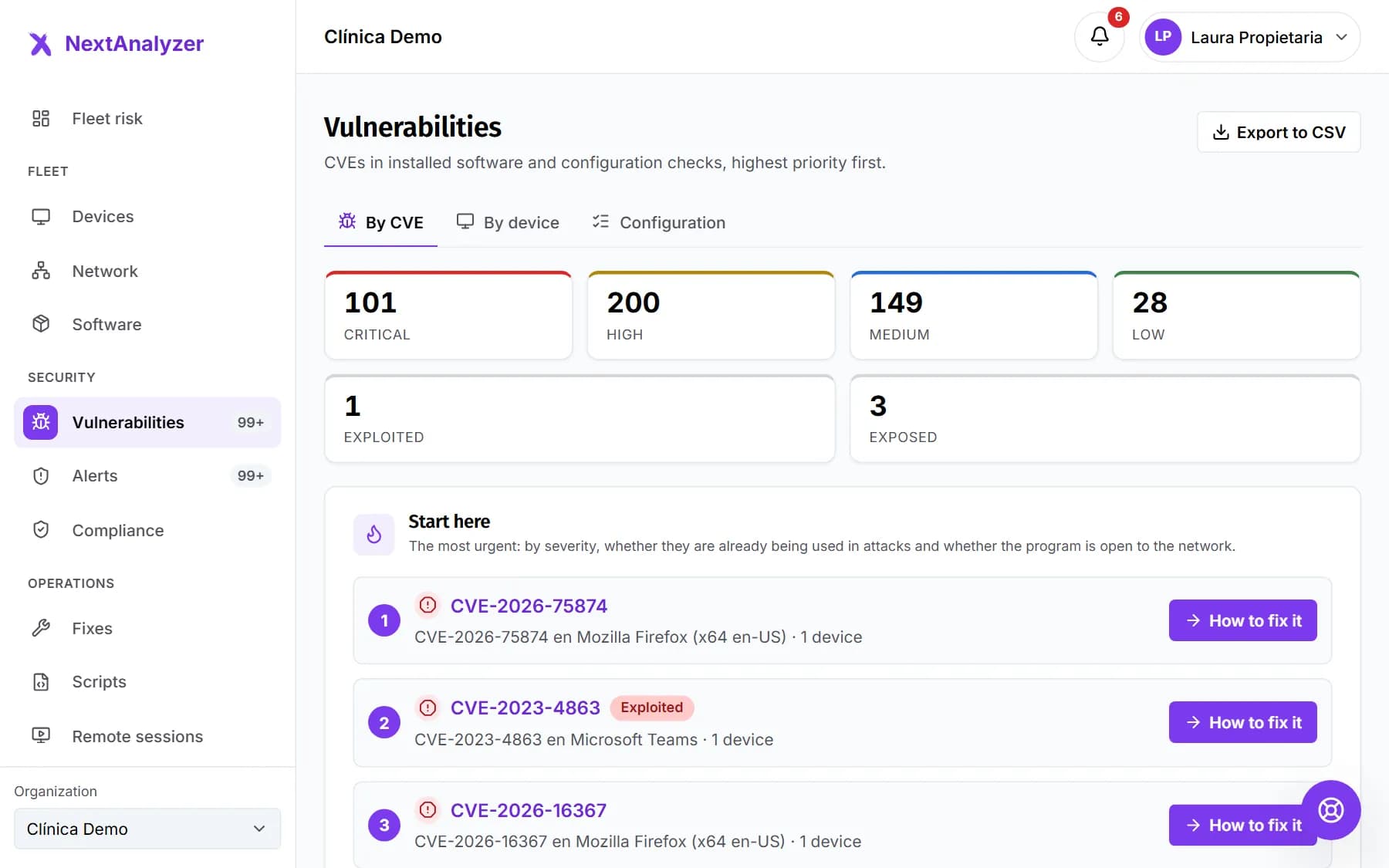
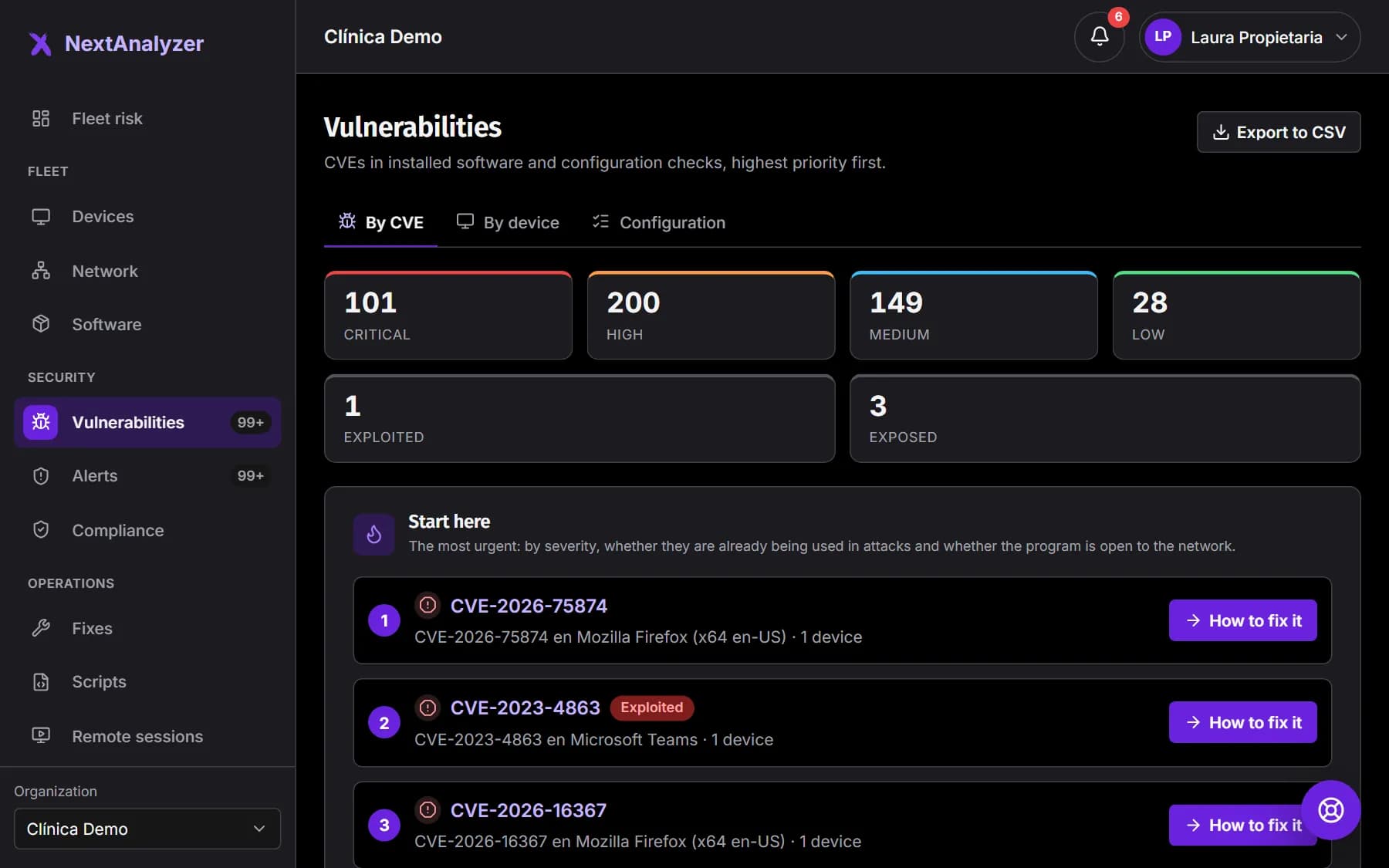
Wait a few minutes for the first scan. In Security › Vulnerabilities you'll see flaws sorted by priority: those used in real attacks come first. Each one explains how to fix it.
Expected result: You know which vulnerability to fix first.
Invite your team and turn on notifications
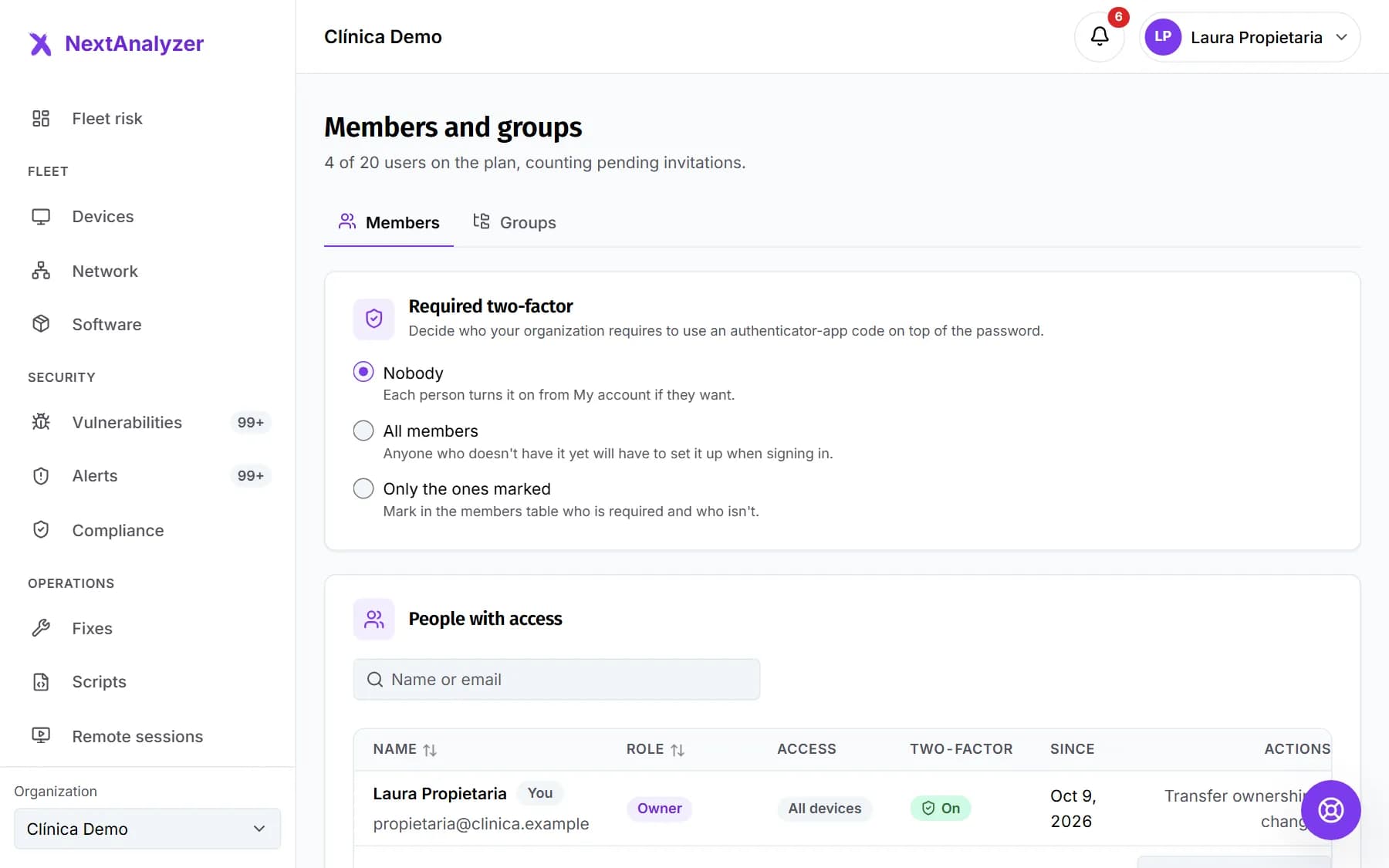
In Organization › Members and groups, invite your colleagues with the role they need. Then connect email, Teams or Slack to receive alerts.
Expected result: Your colleagues get the invitation and the setup checklist is complete.
Tip: During the trial you can have up to 5 users, as in Business.
If something goes wrong
The confirmation email doesn't arrive
Check spam and promotions. If it isn't there, click “Resend email” in the dashboard's “Unconfirmed email” notice. If the link has expired (48 hours), request another one the same way.
Generating a code says “Confirm your email before enrolling devices”
You haven't opened the confirmation link yet. Open it or request another with “Resend email”, then click “Generate enrolment code” again.
It says “You already have the trial's 5 devices”
The trial allows up to 5 devices. Retire one you don't use from its page › Settings, or subscribe from “See plans” to get your plan's full allowance.
My first device is a Mac or Linux machine
Downloads only has the Windows installer. The macOS and Linux packages are in testing: open a ticket in Support with “A device or the agent” › “Adding a device” and we'll send them to you.
What happens when the trial ends?
If you don't subscribe, the organization becomes read-only: you still see everything, but you can't enroll devices or change policies. After 30 days in read-only it's suspended.
Still not working? Open a support ticket