
Read your fleet risk
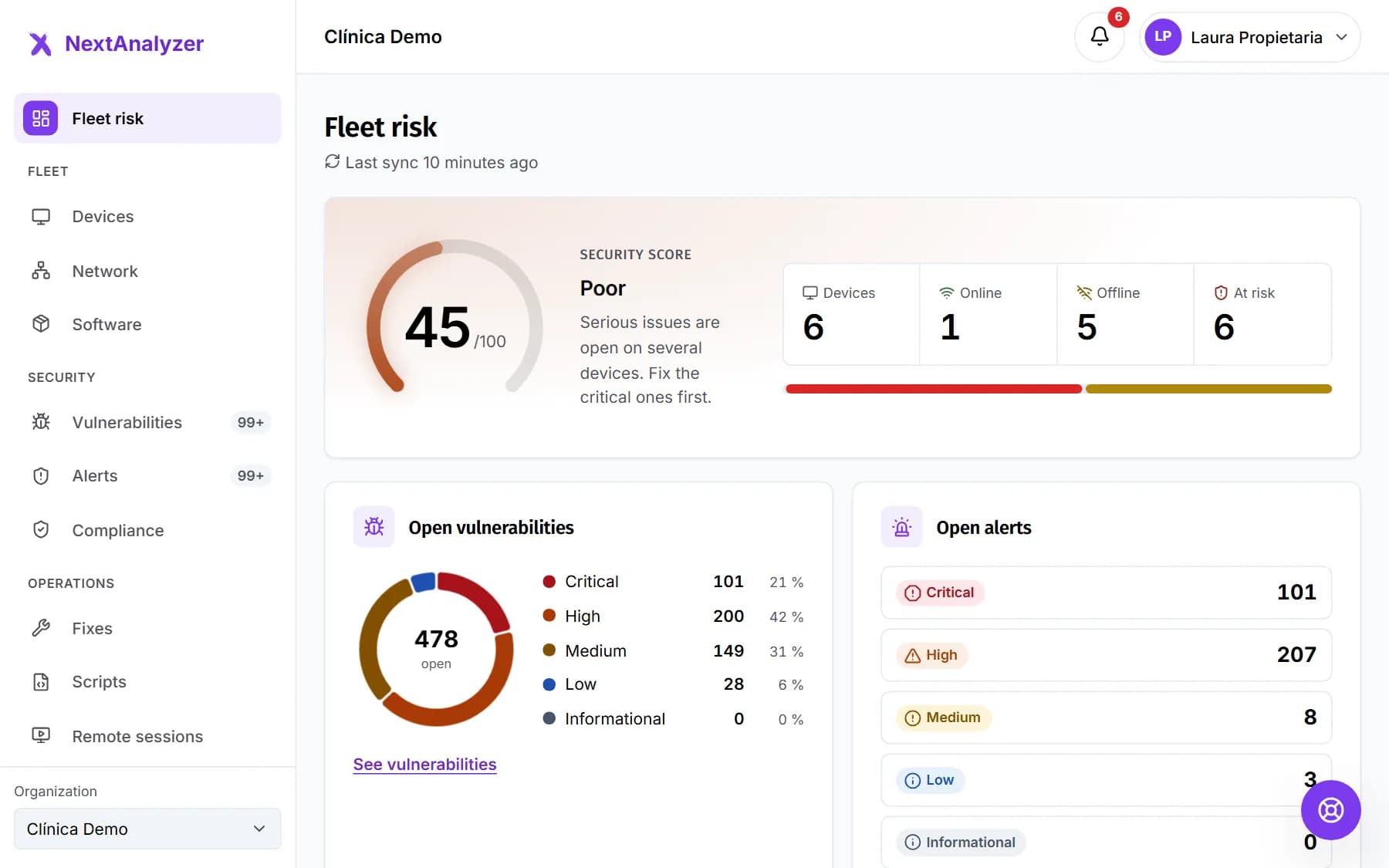
“Fleet risk” is the first thing you see when you sign in. It sums up on one screen how all your devices are doing and where to start. Here's how to read each block, top to bottom.
Finish the setup
Until you finish it, “Get your organization up and running” appears at the top with five steps: your organization, first device, first analysis, notifications and your team. Click “Go” on the next pending one.
Expected result: Progress goes up (for example, “3 of 5”) and the checklist disappears once complete.
Check the security score
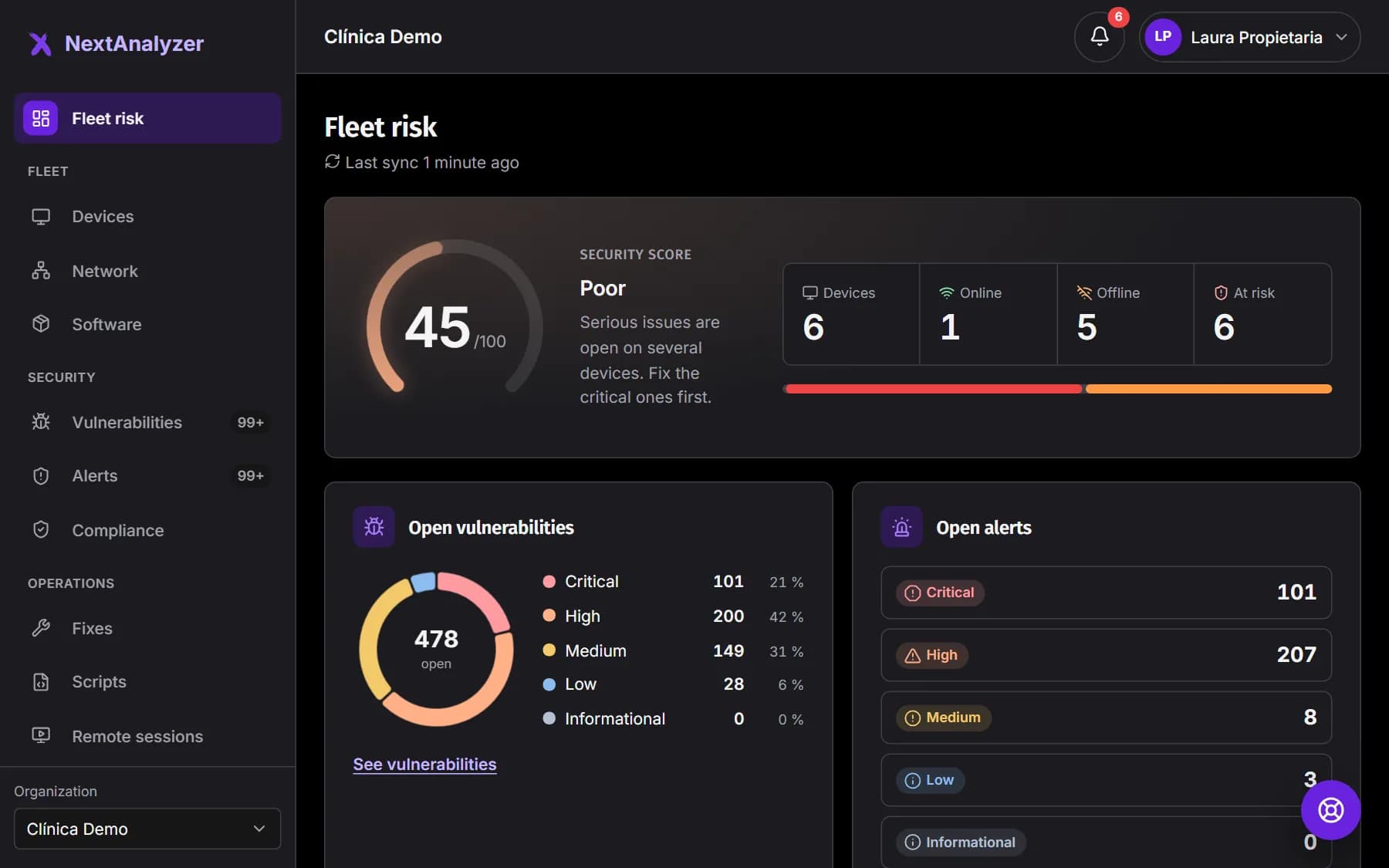
“Security score” is a grade from 0 to 100 with its band: Good, Fair, Poor or Critical. Below it, a sentence tells you what to do. The platform calculates it from the devices' vulnerabilities, alerts and protection.
Expected result: You can tell at a glance whether the fleet is fine or needs work.
Tip: AI plays no part in the score: it only explains it when you ask.
Count your devices
Next to it you'll see how many devices you have and how many are “Online”, “Offline” and “At risk”, with a bar showing the split.
Expected result: You know how many devices aren't being monitored right now.
Tip: A device becomes “Offline” after 5 minutes without a heartbeat. If it's been like that for days, check whether it's still in use.
Open vulnerabilities and alerts
“Open vulnerabilities” splits them by severity; “See vulnerabilities” opens the full list. Next to it, “Open alerts” and, below, “Critical alerts” one by one.
Expected result: You see how many issues there are of each severity and which are critical.
Start with the devices at risk
“Devices at risk” lists the worst first, with their health and their critical and high alerts. Click one to open its page and see what needs attention.
Expected result: The device page opens with what it has pending.
Tip: A device without vulnerability detection counts as at risk: we don't know what it's missing.
The most widespread CVEs
“Most widespread CVEs” lists the flaws that affect the most devices. The “Exploited” label means they're used in real attacks.
Expected result: You find the flaw whose fix lowers the risk the most in one go.
What to fix this week
At the bottom, the “What to fix this week” card suggests the actions that remove the most risk per hour of work, with the affected devices. Click “Generate with AI”: it uses one of the month's analyses.
Expected result: A prioritized list appears, marked as AI-generated, with links to act on it.
Tip: Review it before acting. On Business or Enterprise, each user can get a weekly email summary with the priorities, from My account › My alerts.
Check that detection is up to date
“Last sync” tells you when vulnerabilities were last checked.
Expected result: You see a recent date: the data is up to date.
Tip: If it says “Detection hasn't synced yet”, wait a few minutes after enrolling the first device.
If something goes wrong
The score is very good but I've only just started
With few devices or no active detection there's little to count. Check in Devices whether any has the “No detection” label: its vulnerabilities aren't being looked for. The detection guide explains how to turn it on.
It says “Detection hasn't synced yet”
The first check arrives a few minutes after you enroll the first device. If more than an hour goes by, check that the device is “Online” and doesn't have the “No detection” label.
It says detection isn't available for my devices' platform
Your devices run a system that doesn't have vulnerability detection yet (for example, Arch Linux). You'll see their alerts, but not their CVEs.
“Generate with AI” says I have no analyses left
You've used the month's allowance: 10 analyses on Standard, 100 on Business and 500 on Enterprise. It renews on the date shown on the card. If an analysis fails, no allowance is used.
Still not working? Open a support ticket