
Manage devices and groups
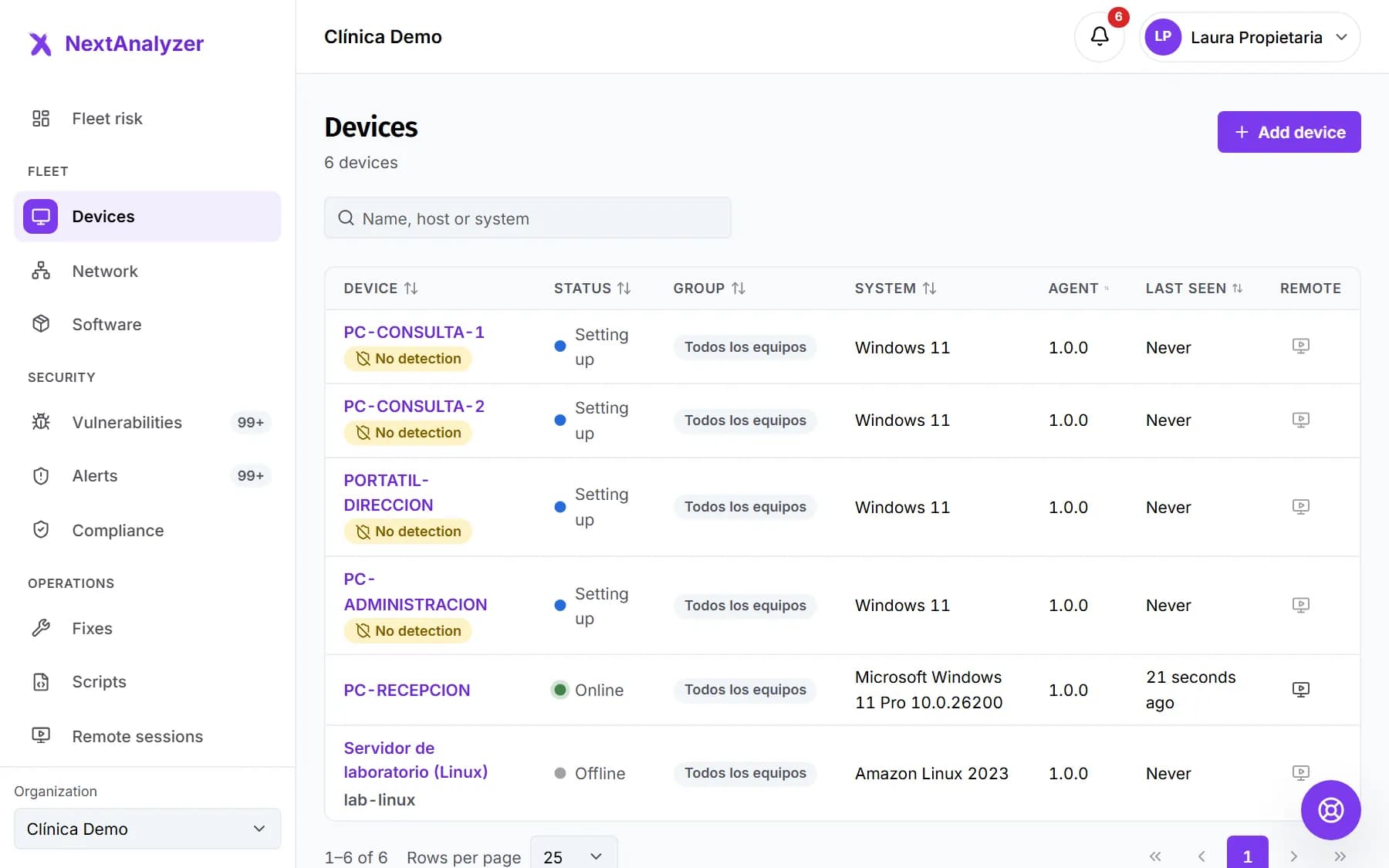
Every device with the agent shows up in Devices with its status. Its page brings together everything known about it, in tabs. Groups help you sort devices and give them the same rules.
Open the device list
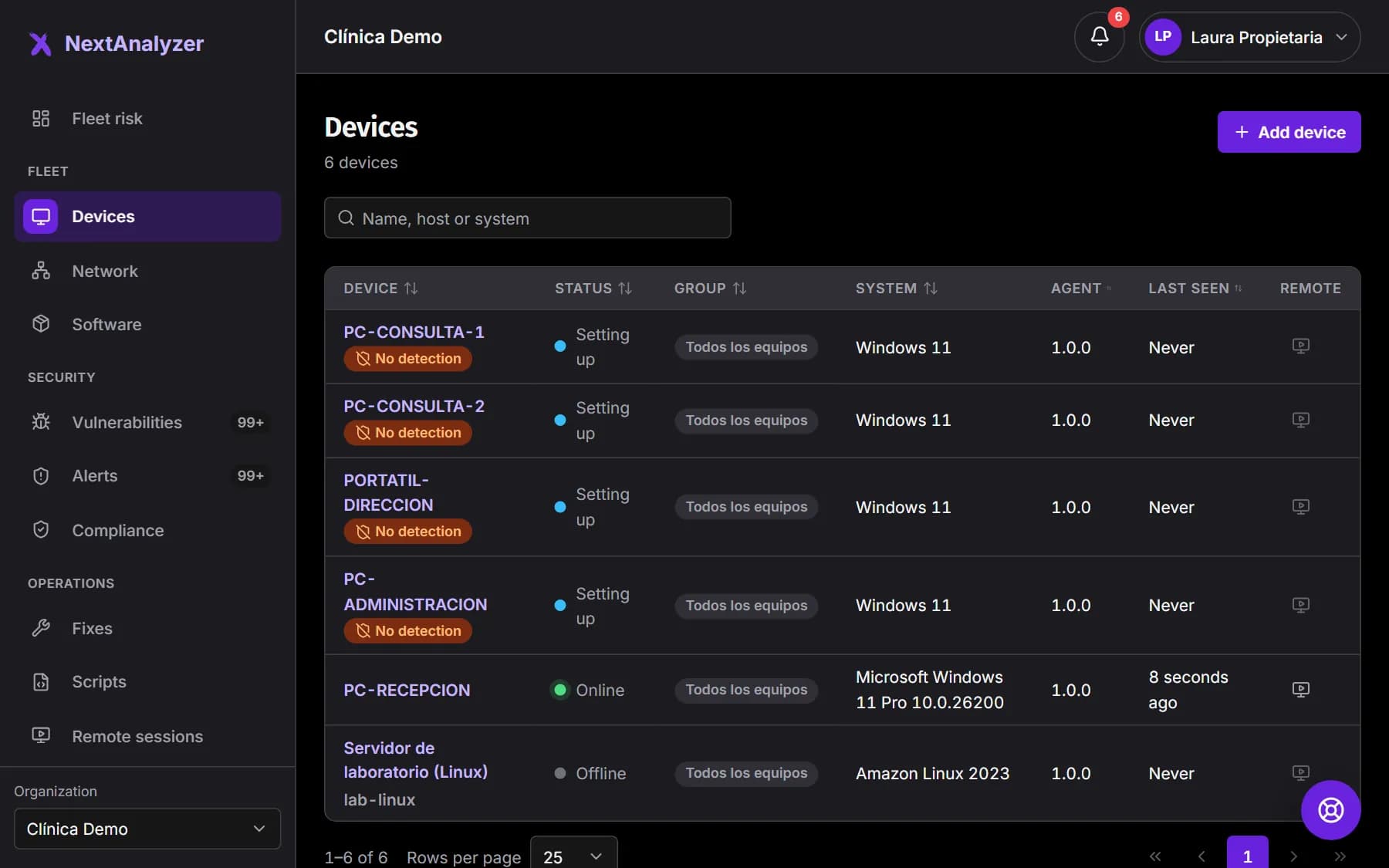
In the menu, Fleet › “Devices”. Type a name, host or system in “Search devices”. Filter with “All groups” and click a column to sort.
Expected result: You see each device with its status, group, system, agent version and last contact.
Understand the status
“Online” checks in normally. “Offline” has given no sign of life for more than 5 minutes. “Setting up” has just been enrolled. “Agent out of date” and “Agent uninstalled” need checking.
Expected result: You can tell at a glance which devices are working and which need attention.
Tip: When you open an out-of-date or uninstalled device, a notice at the top of its page explains what to do.
Read the device summary
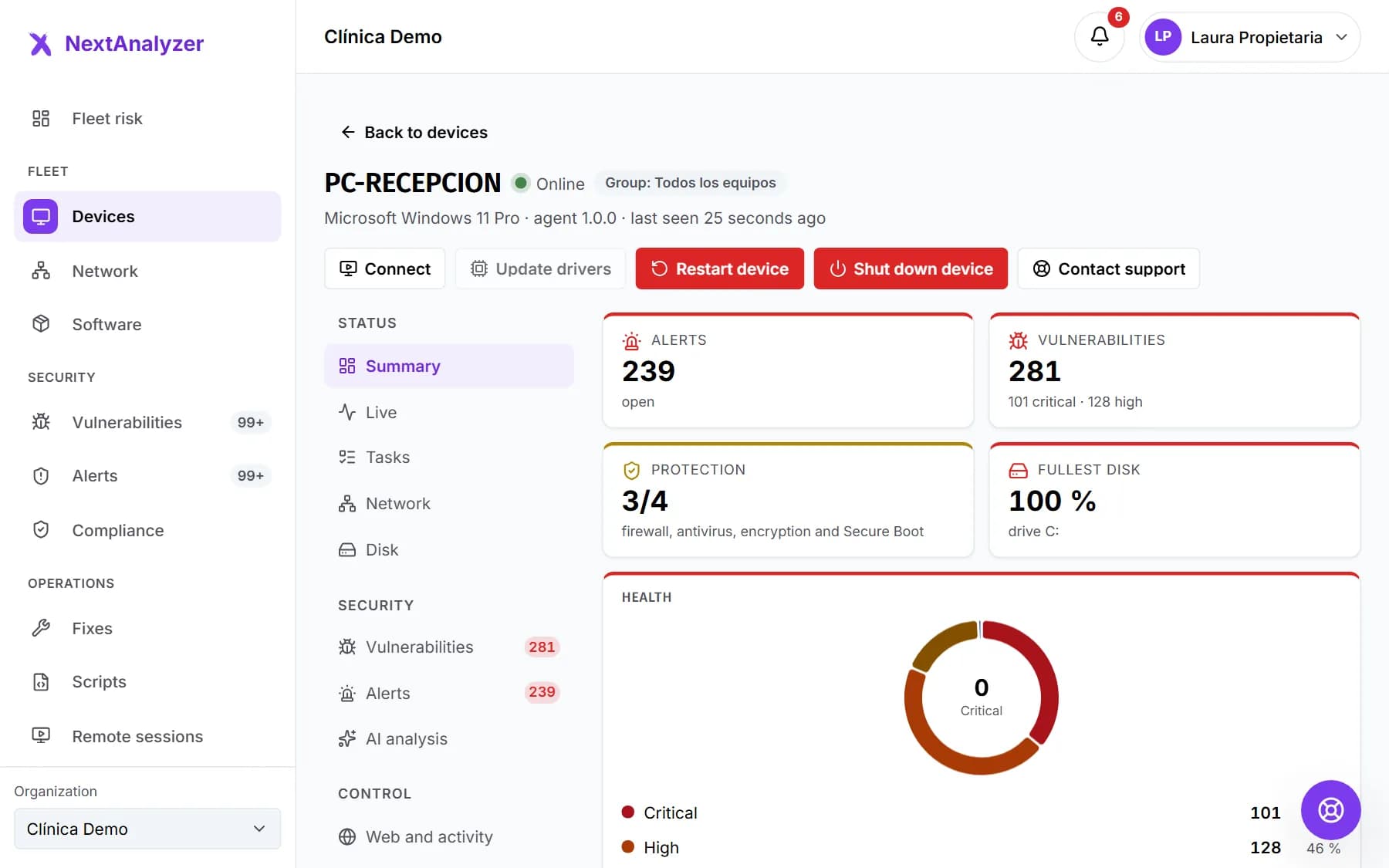
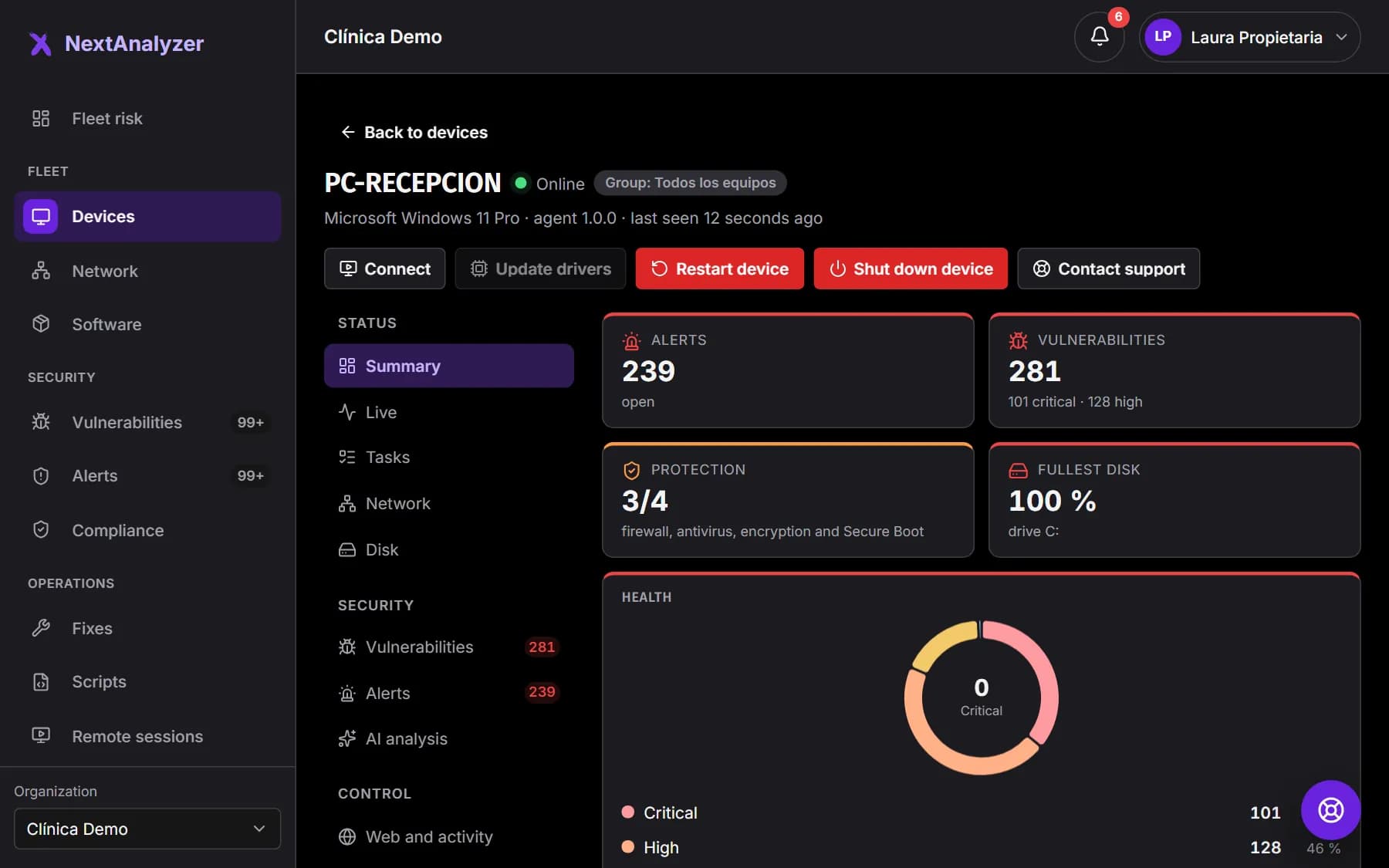
Click the device name. At the top you see “Health”, “Alerts”, “Vulnerabilities”, “Protection” and “Fullest disk”. Below, “Needs attention” with a link to each issue, and the system details.
Expected result: You see the device health and the list of things to fix, or “All good”.
Tip: The header has “Connect” for remote access and, on Windows, the commands to restart, shut down and update drivers.
Move between tabs
The sections are on the left: Status (Summary, Live, Tasks, Disk), Security (Vulnerabilities, Alerts, AI analysis), Control (Web and activity, Remote access) and Device (Inventory, Settings).
Expected result: Each tab opens its page inside the device page.
Tip: Disk only appears on Windows devices. Disk, Remote access and Settings are only visible to technicians and administrators.
Create a group
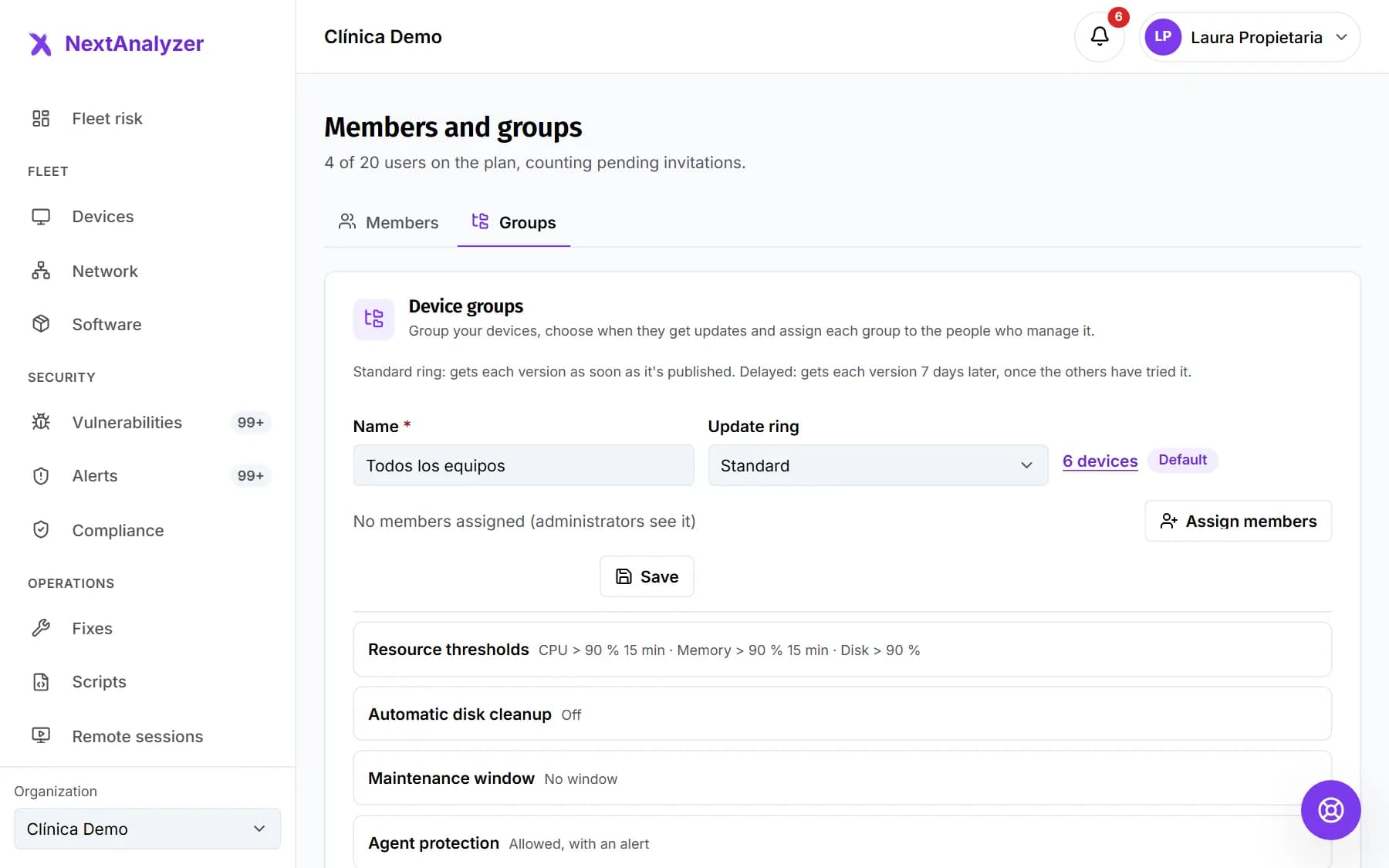
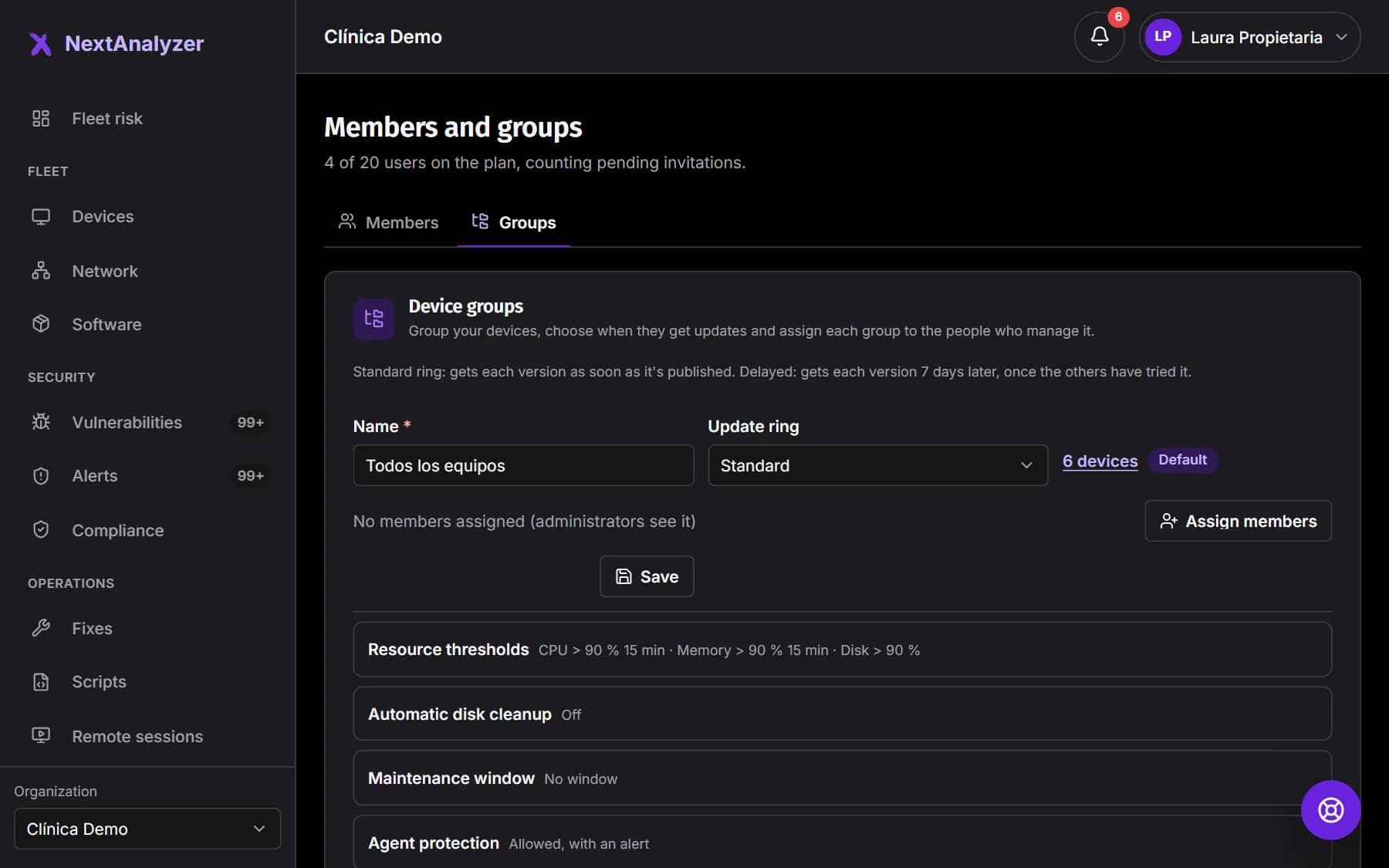
Open Organization › “Members and groups” › “Groups”. In “New group”, type a name (Accounting, Laptops…) and choose the “Update ring”.
Expected result: The message “Group created.” appears and the group shows in the list with its devices.
Tip: “Standard” gets each agent version as soon as it is released; “Delayed (one week later)” gets it once the others have tested it.
Set the group rules
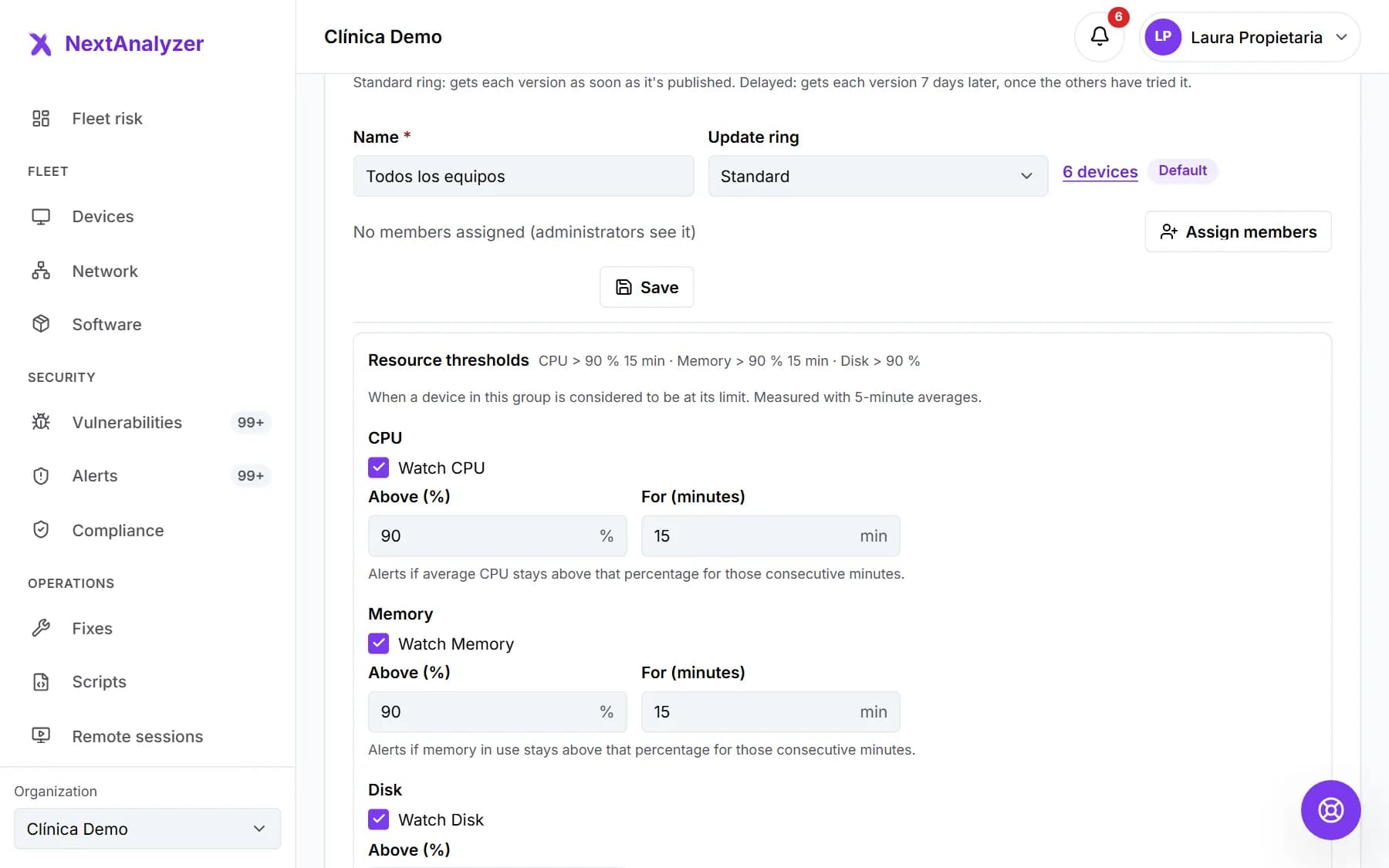
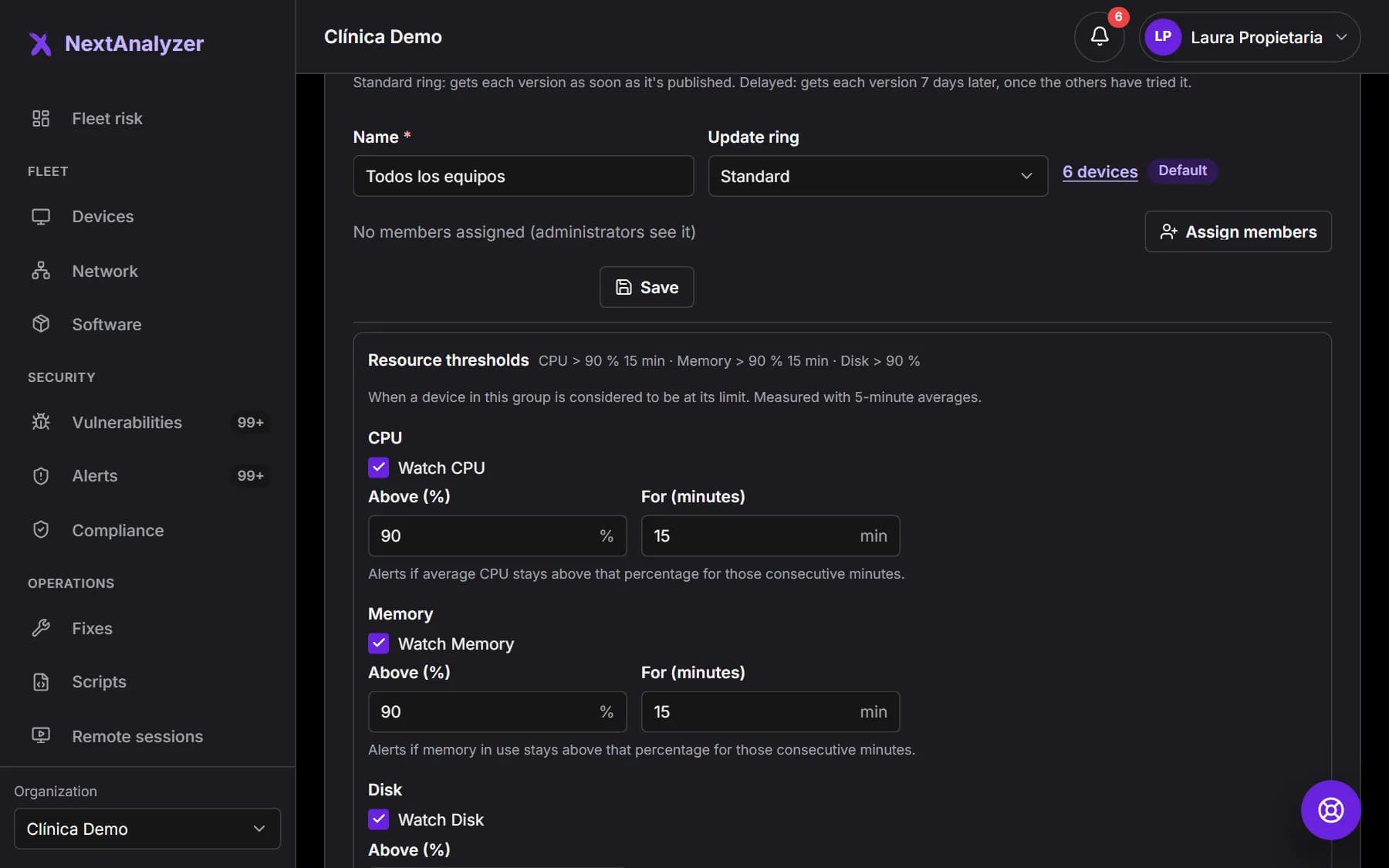
For each group you choose the “Resource thresholds” (by default, CPU and memory at 90% for 15 minutes and disk at 90%), “Automatic disk cleanup”, the “Maintenance window” and “Agent protection”.
Expected result: The group's devices, and any that join later, follow those rules.
Tip: Thresholds only raise alerts if you turn on the “Resources at limit” alert in Settings › Alerts › Rules: it is off by default.
Decide who sees each group
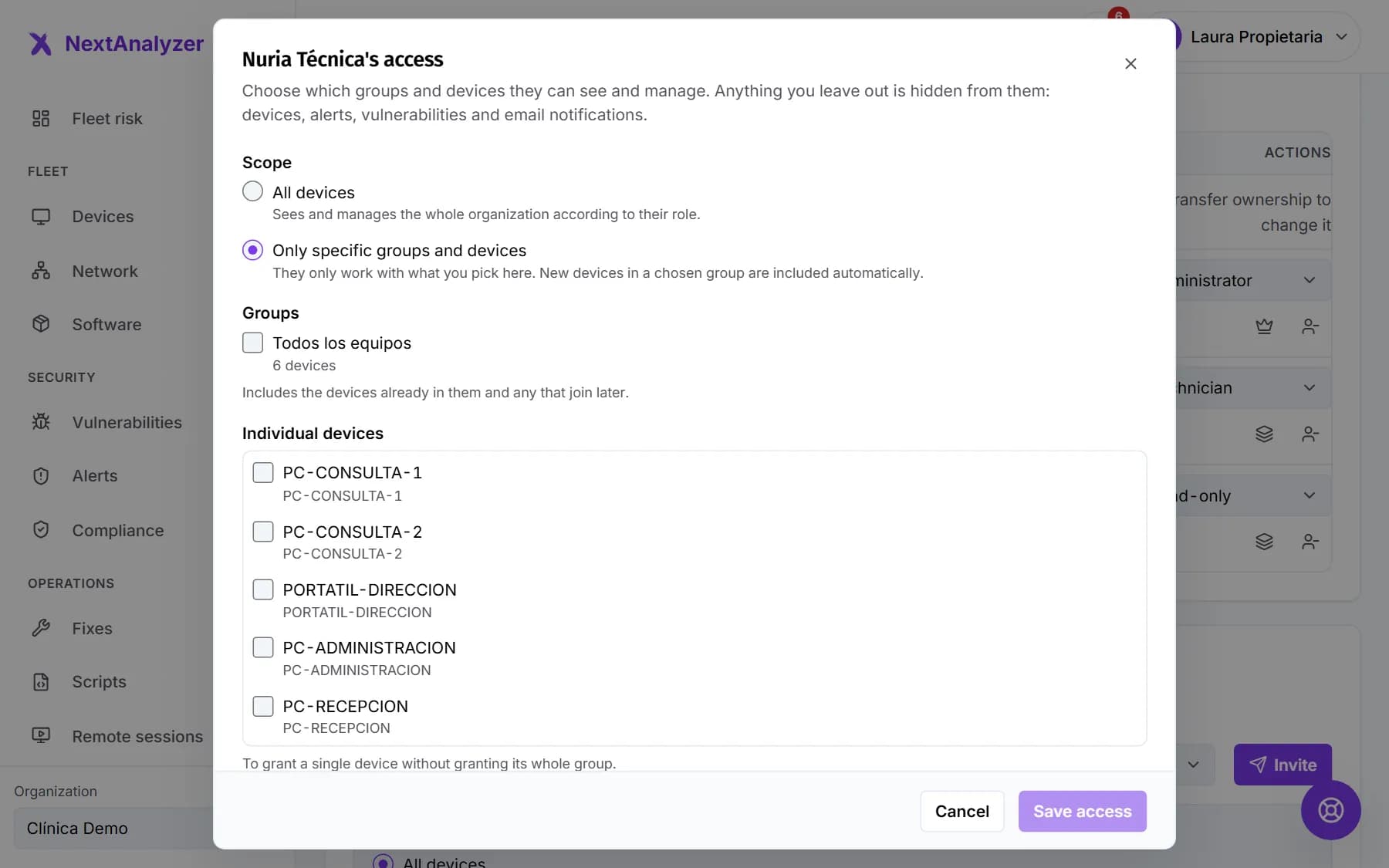
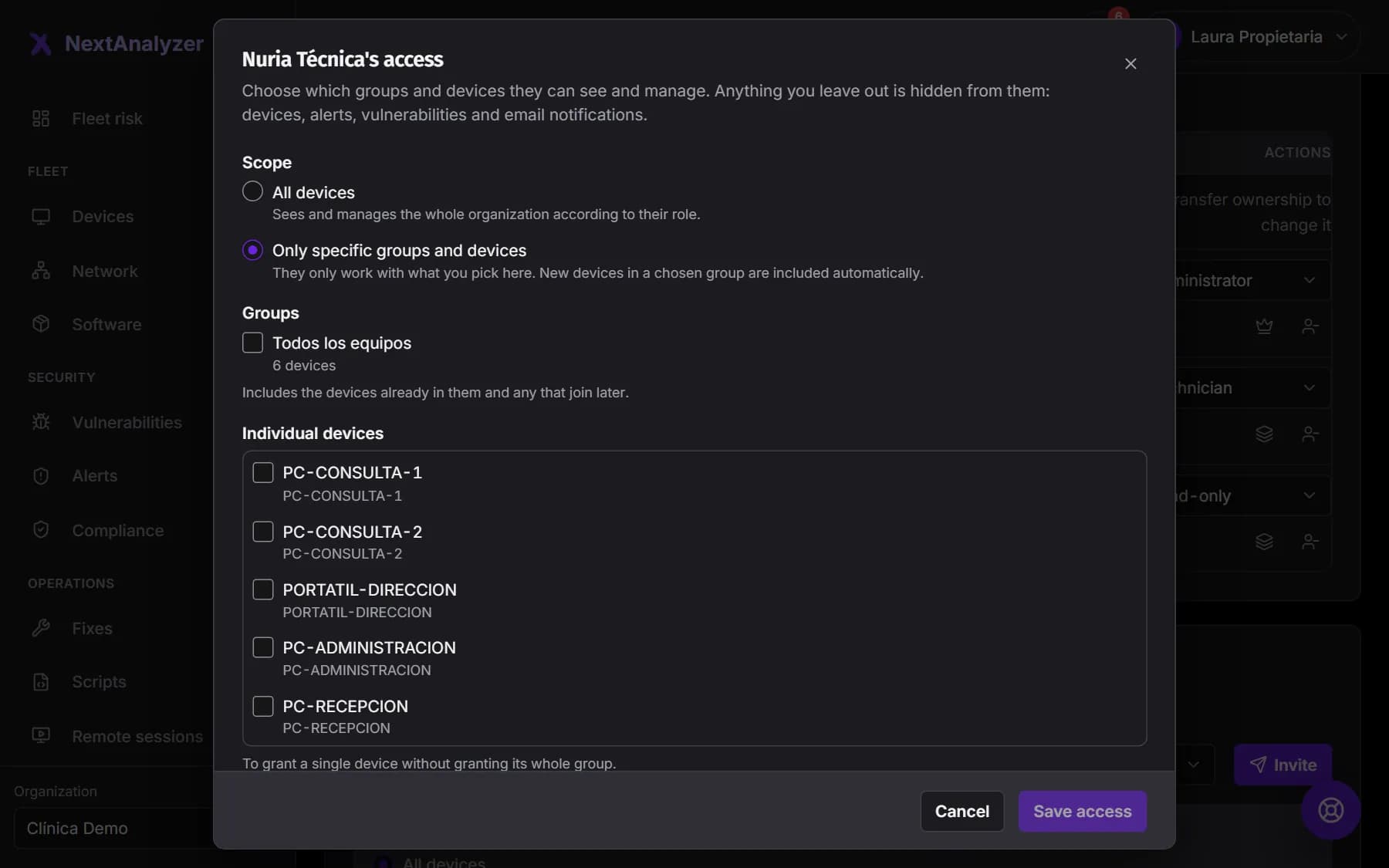
In the group, click “Assign members” and tick the technicians or Read-only members who manage it. You can also do it from the “Members” tab, in “Access”, with “Only specific groups and devices”.
Expected result: Those people only see the devices, alerts and vulnerabilities of their groups.
Tip: The owner and administrators always see every device.
Change a device's settings
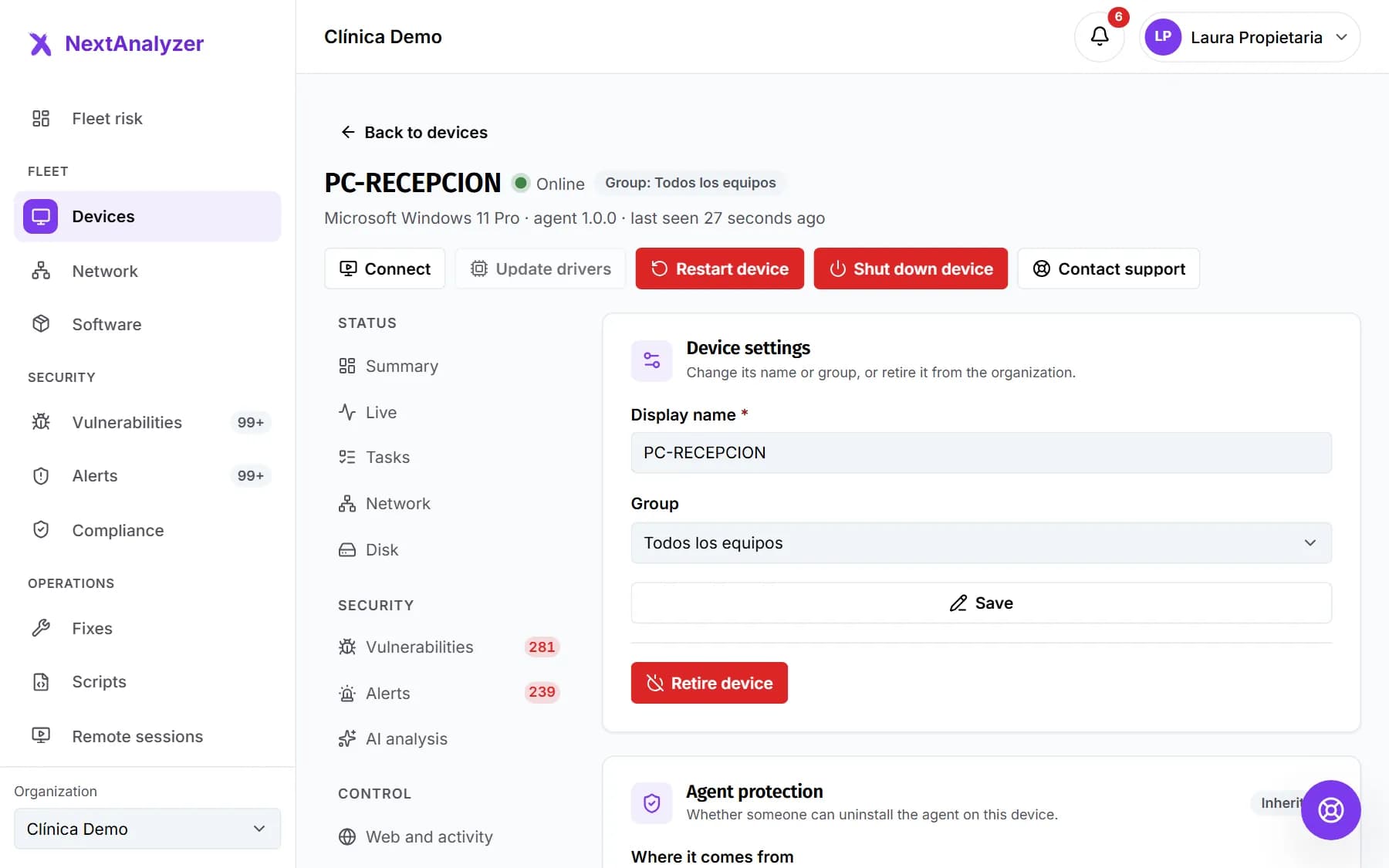
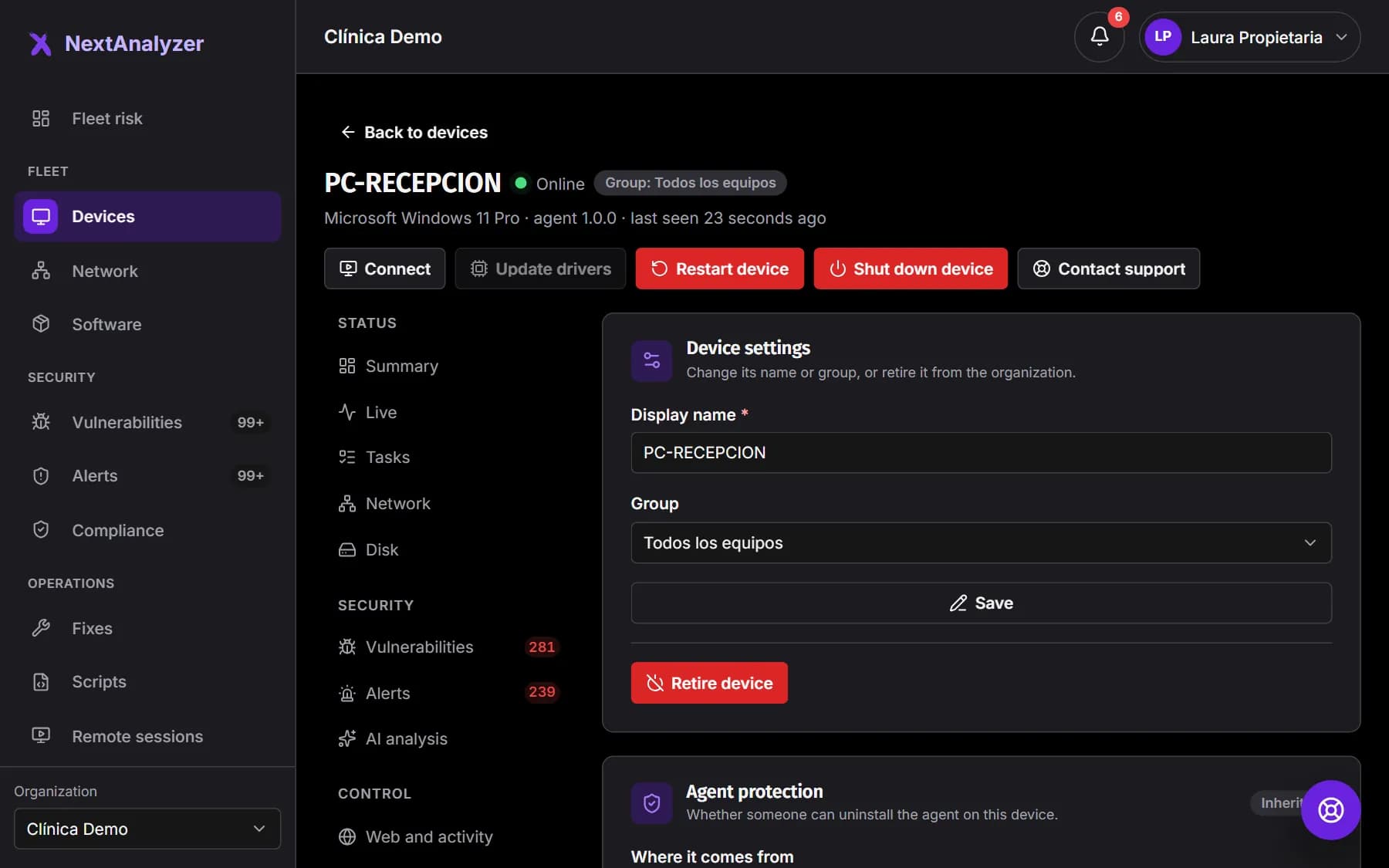
On the device page, Device › “Settings”. Change the “Display name” or the “Group”. For each policy choose “Inherited” (from the group or the organization) or “Own” (for this device only).
Expected result: “Device saved.” appears and the page header shows the new name and group.
Retire a device you no longer use
In “Settings”, an administrator can retire the device. Its plan seat is freed immediately and the agent uninstalls itself on its next heartbeat.
Expected result: The device disappears from the list and its seat is free for another one.
Tip: To protect it again you'll have to enroll it again with a new code.
If something goes wrong
A device shows “Offline”
It hasn't checked in for more than 5 minutes: it may be off, without network or with the NextAnalyzer service stopped. It catches up by itself when it comes back. If it should be on, check that the service is running and that the device can reach the internet.
A colleague can't see every device
If they are a technician or Read-only, their access may be limited to some groups. An administrator widens it in Members and groups › “Members” › “Access”, or assigns them the group with “Assign members”.
I can't create groups
On the Standard plan there is only the default group: creating more groups is part of Business and Enterprise (also during the trial). Also, only administrators and the owner can create or delete them.
A device shows “Agent uninstalled”
Someone removed the agent. The device keeps its seat for 7 days in case it is reinstalled; after that it is freed automatically. If you won't reinstall it, retire it in “Settings” to free the seat now. To prevent it, turn on “Agent protection” in its group.
I can't see the Disk or Settings tab
Disk only exists on Windows devices. Disk, Remote access and Settings are for technicians, administrators and the owner: with the Read-only role they don't appear.
Still not working? Open a support ticket