
Group policies and per-device exceptions
Almost everything you decide about a device you decide in its group. That way a change reaches all of them at once. If a device needs something else, you give that device its own policy.
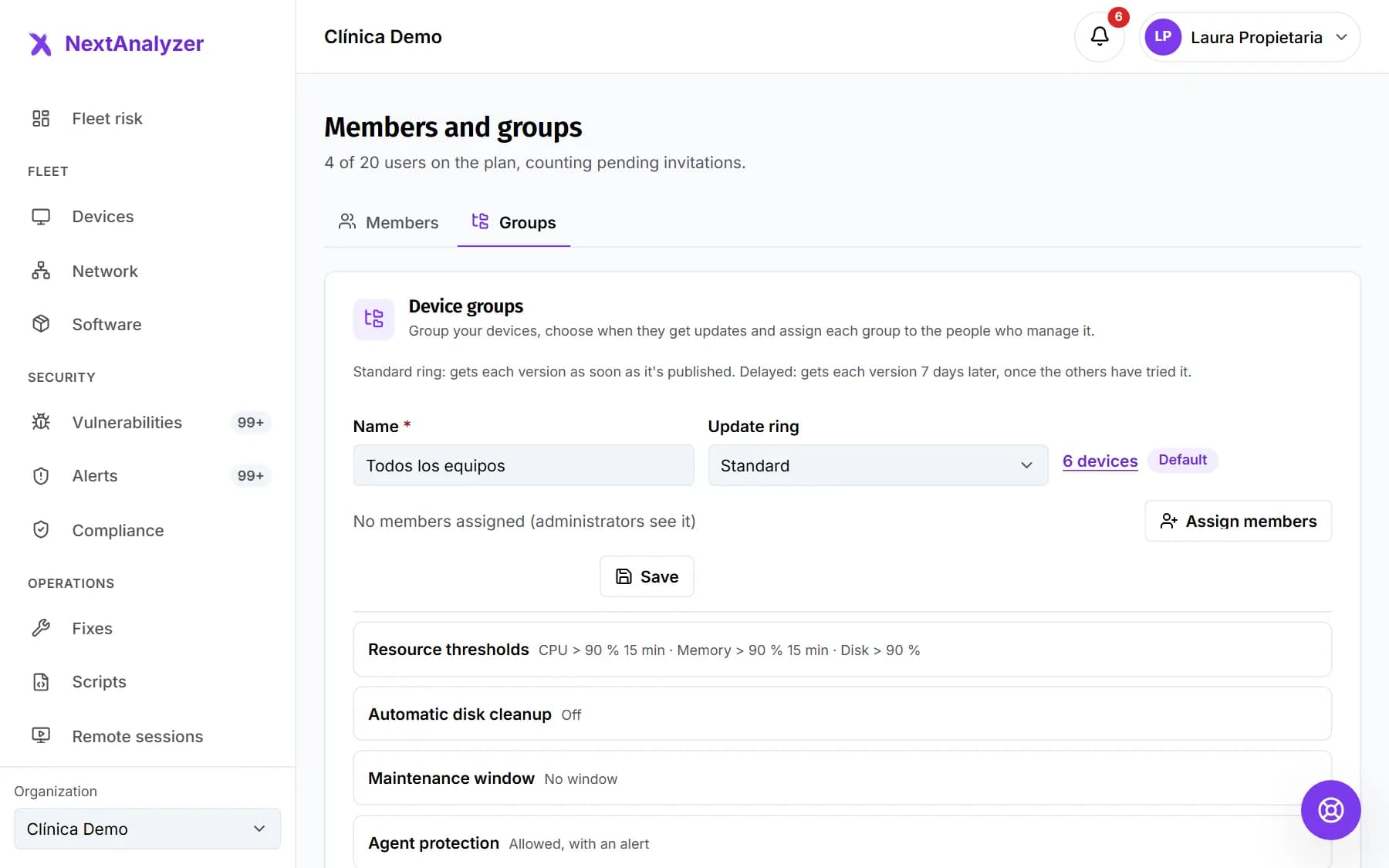
Open the groups
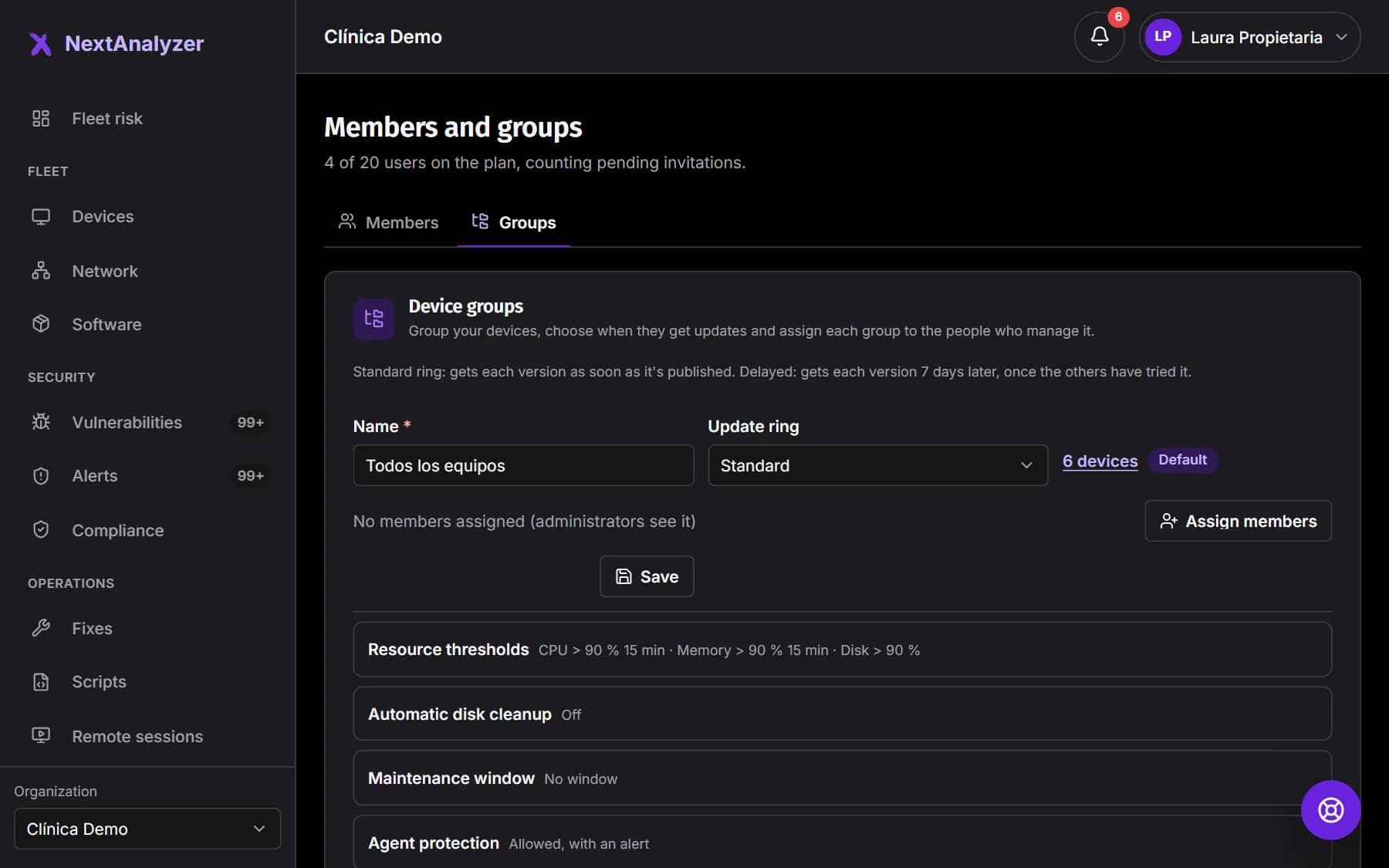
In the menu, Organization › “Members and groups”, “Groups” tab. Each group has its own settings. The “Default” group holds devices with no other group.
Expected result: You see each group with its devices and a summary of its settings.
Set the maintenance window
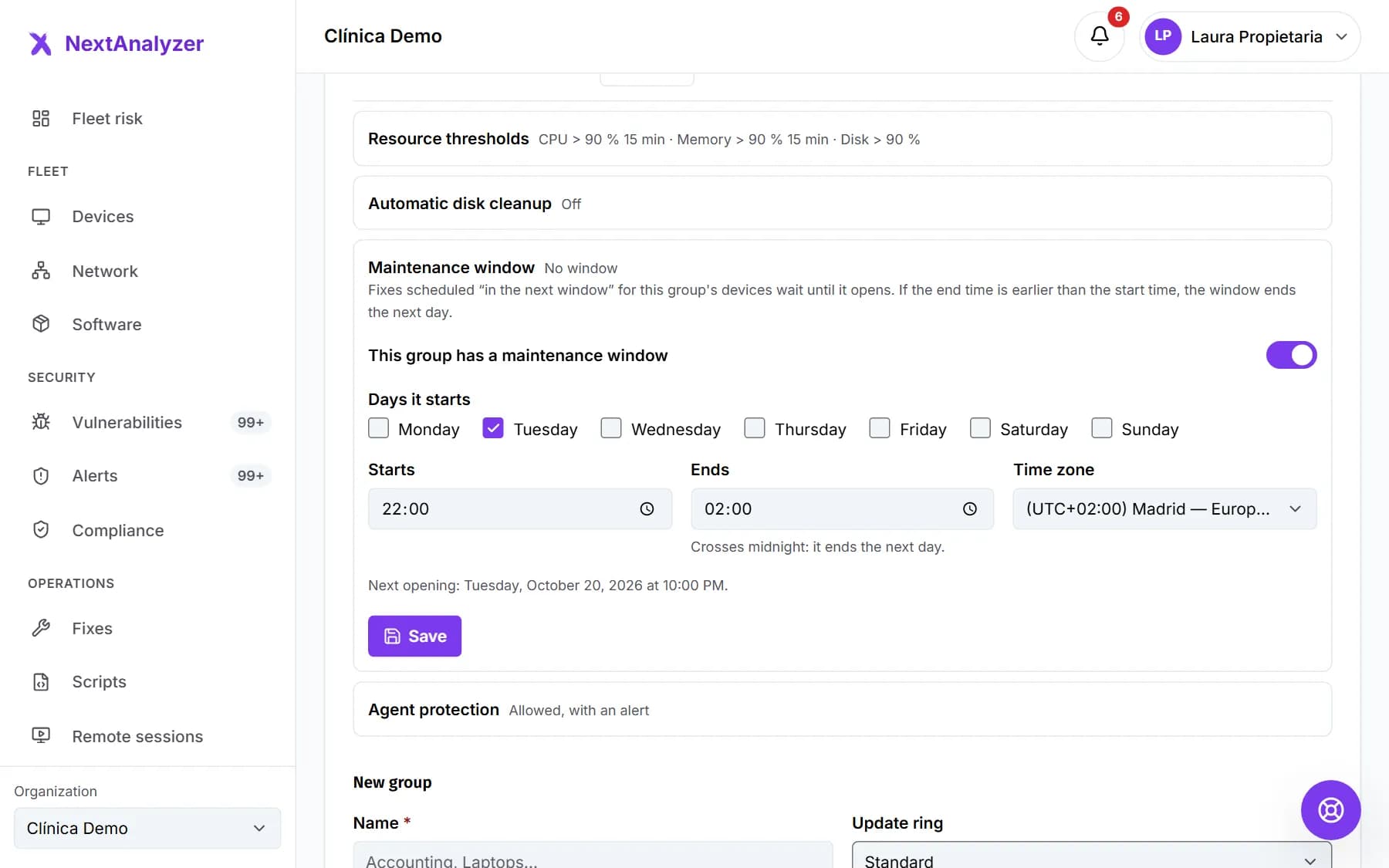
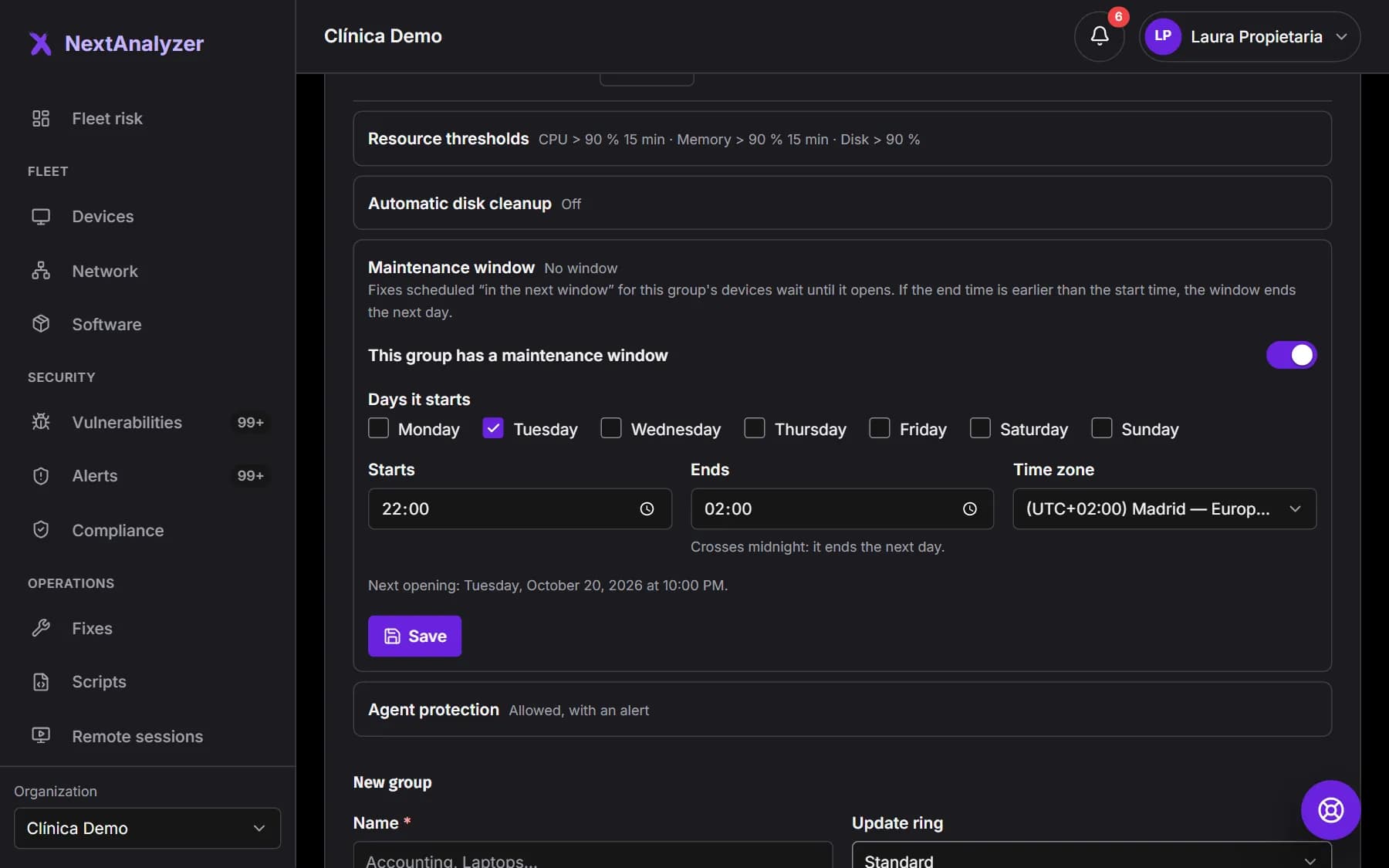
Under “Maintenance window”, tick “This group has a maintenance window”. Choose the days, the start and end time and the time zone. It can cross midnight.
Expected result: The next opening appears with its date and time.
Tip: Pick a slot when devices are on and nobody is working. That is when fixes, scripts and software scheduled for the next window are applied.
Protect uninstallation
Under “Agent protection”, choose “Allowed, with an alert” or “Protected”. Allowed: a device administrator can uninstall it and the “Agent uninstalled” alert opens. Protected: the device's uninstaller refuses.
Expected result: You get a confirmation and it applies to every device in the group.
Set resource thresholds
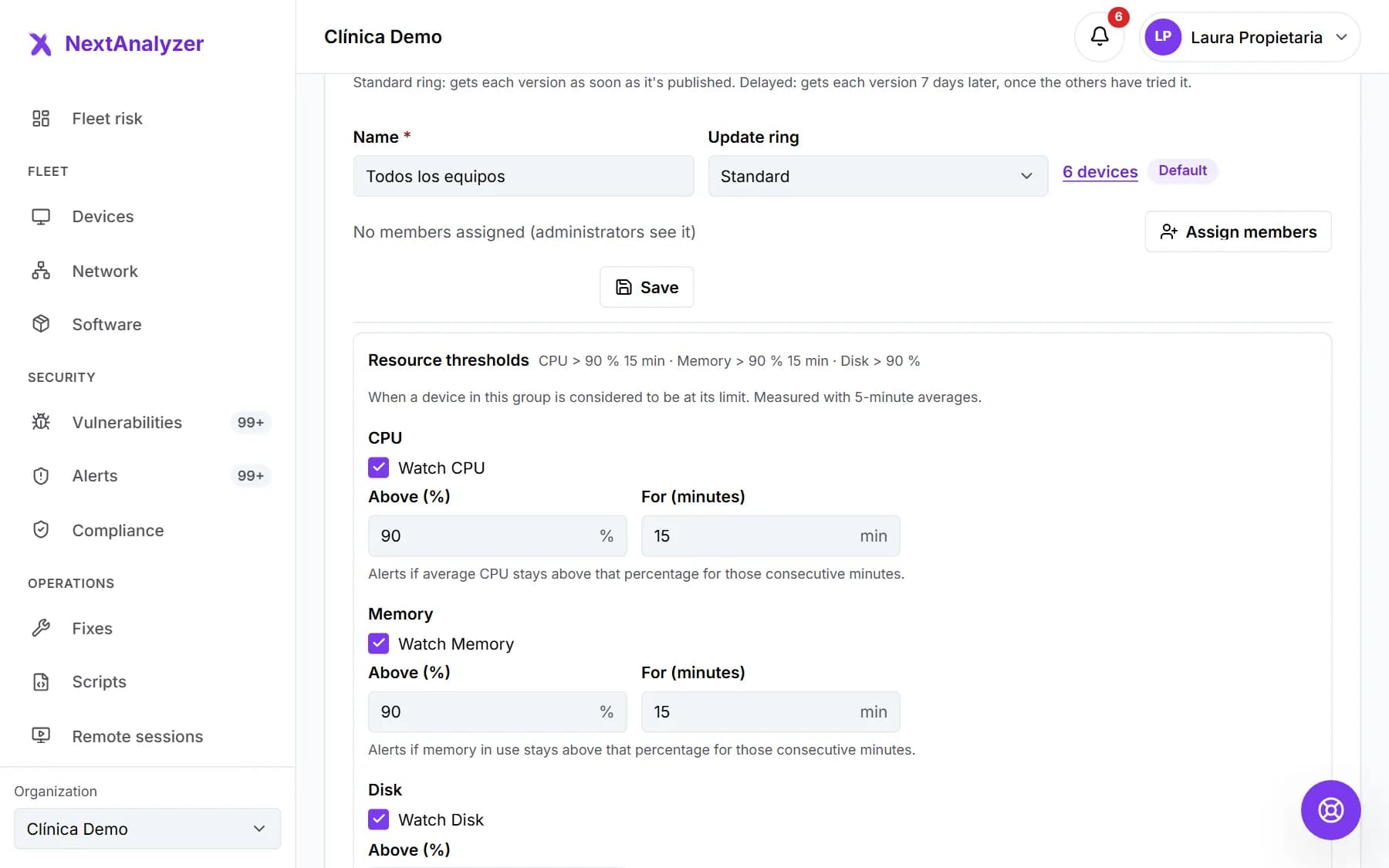
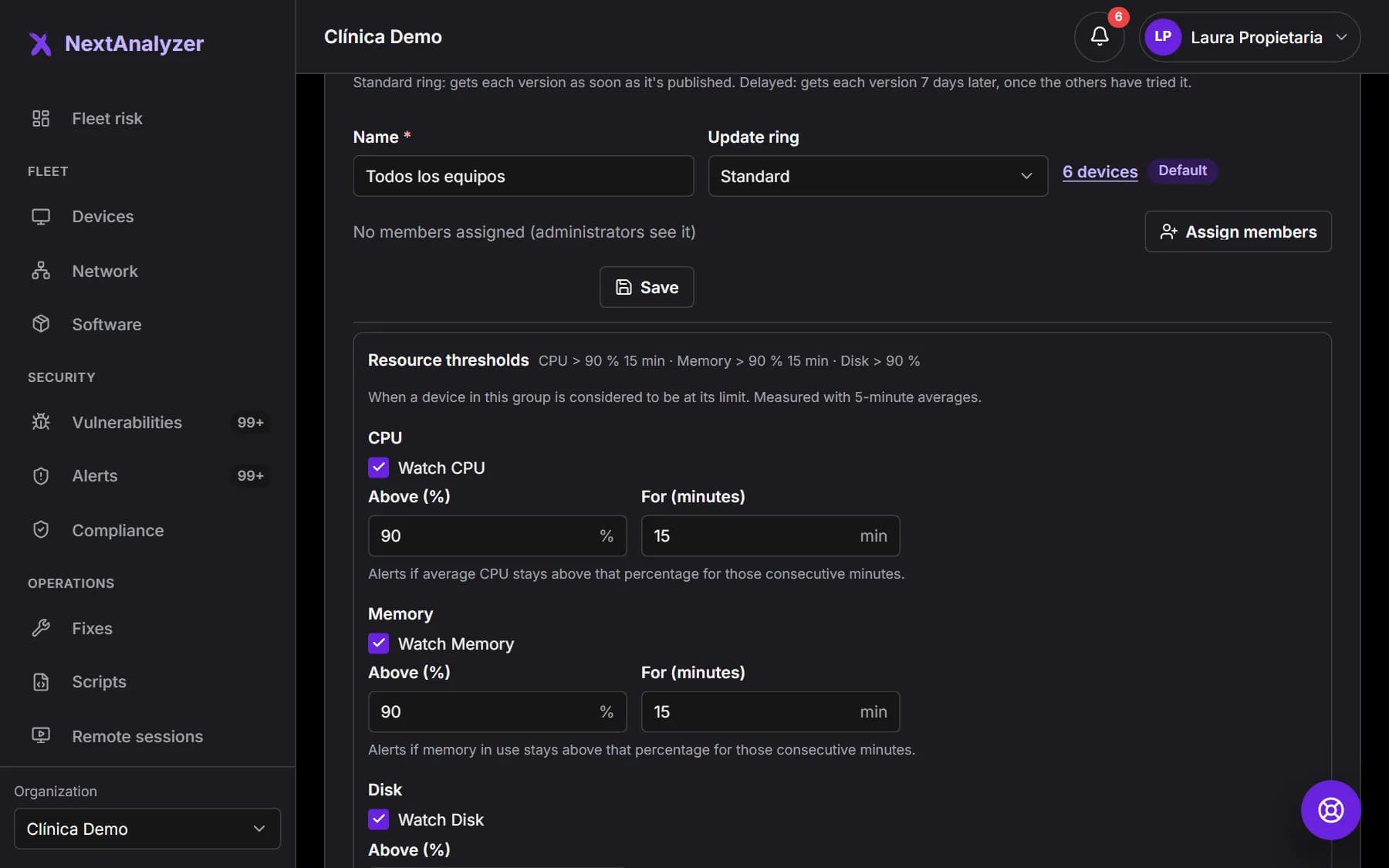
Under “Resource thresholds”, turn on monitoring for CPU, memory or disk. Enter the percentage and, for CPU and memory, the consecutive minutes. You can also turn on “Automatic disk cleanup”.
Expected result: The group shows a summary such as “CPU > 90 % 15 min”.
Where the rest is set
The remote access policy is in Settings › “Remote access”. Network discovery is in “Network” › Settings. Self-service apps are in Software › “Self-service”. All three are per group.
Expected result: You know where to change each policy for a whole group.
Make an exception on a device
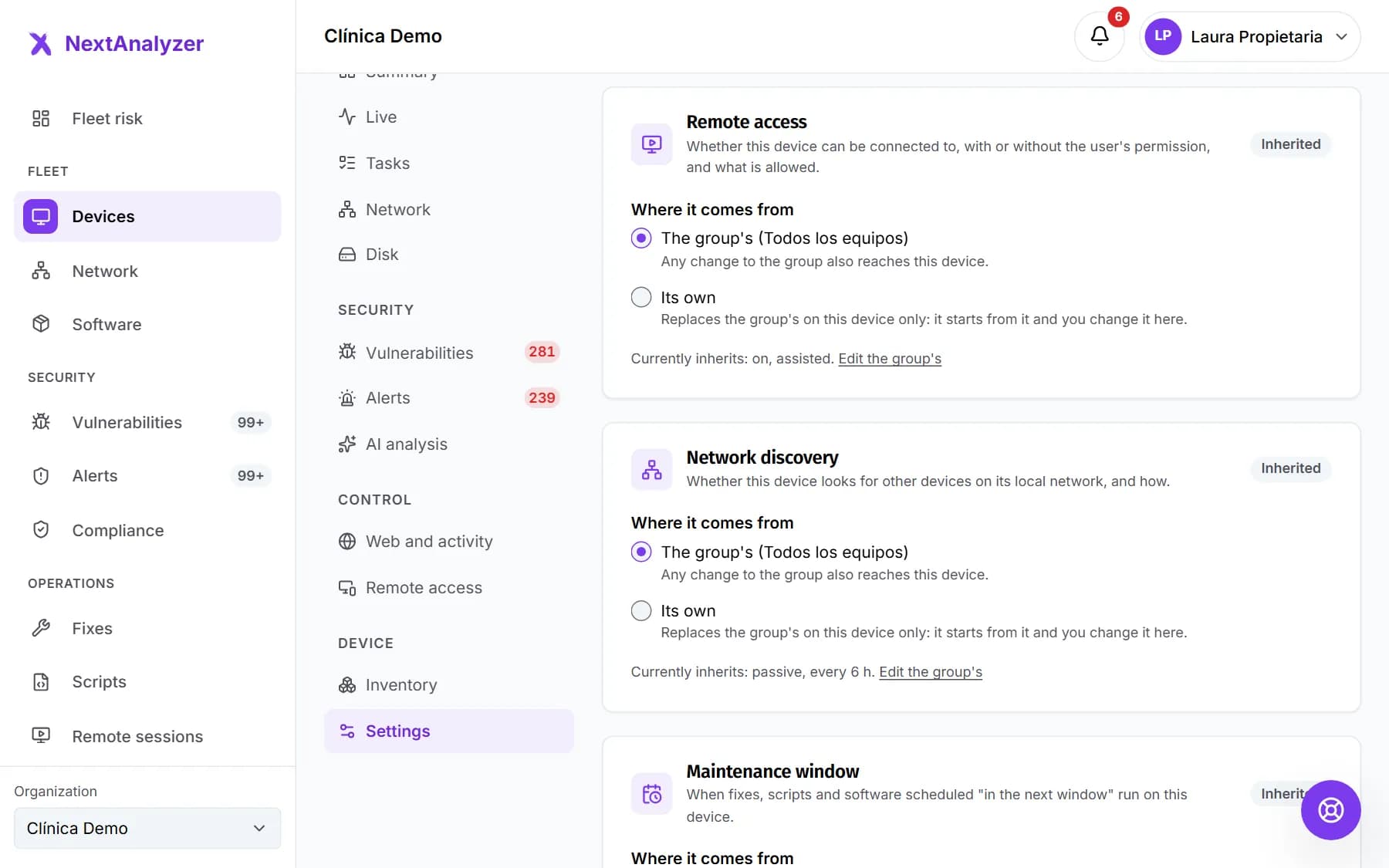
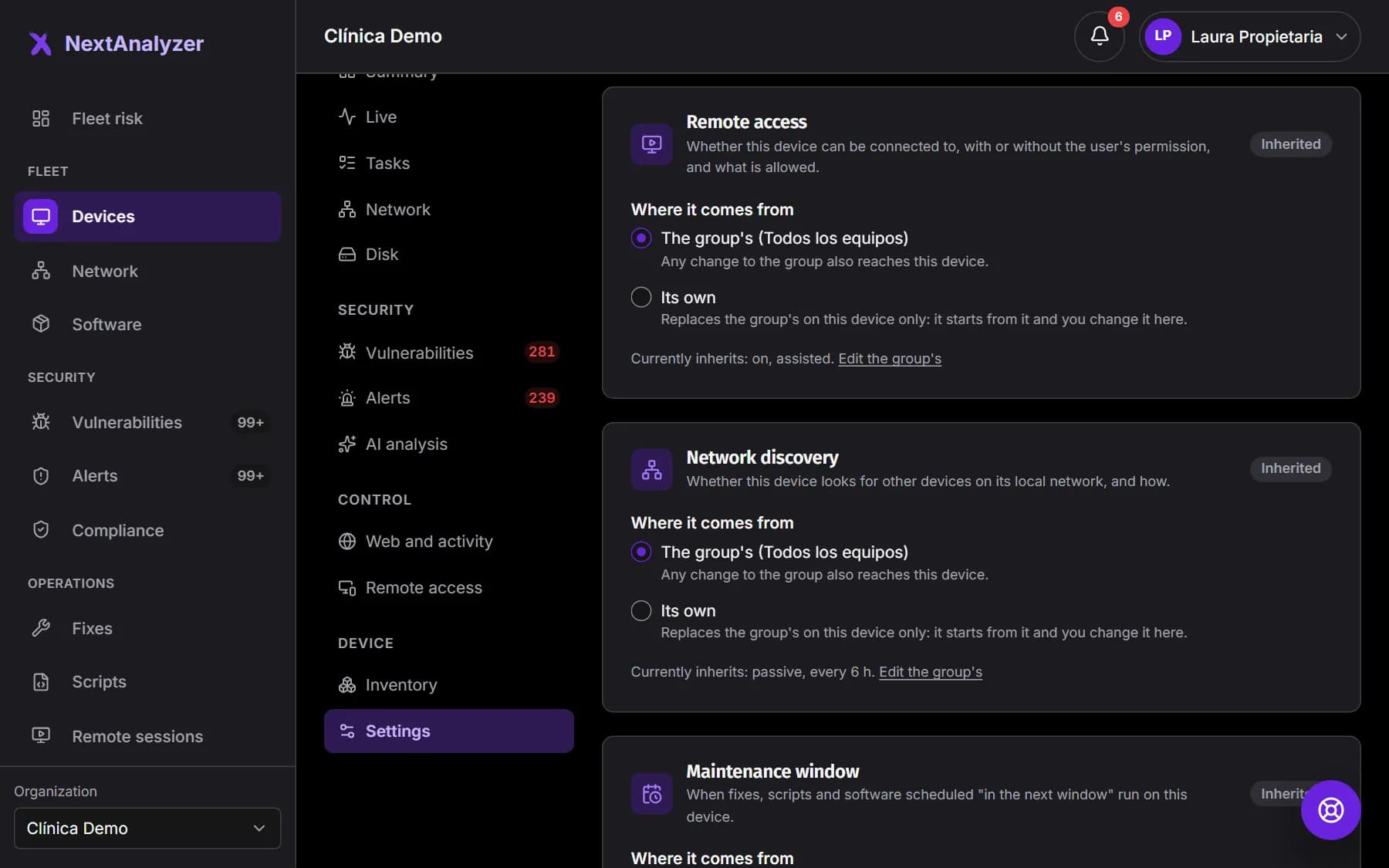
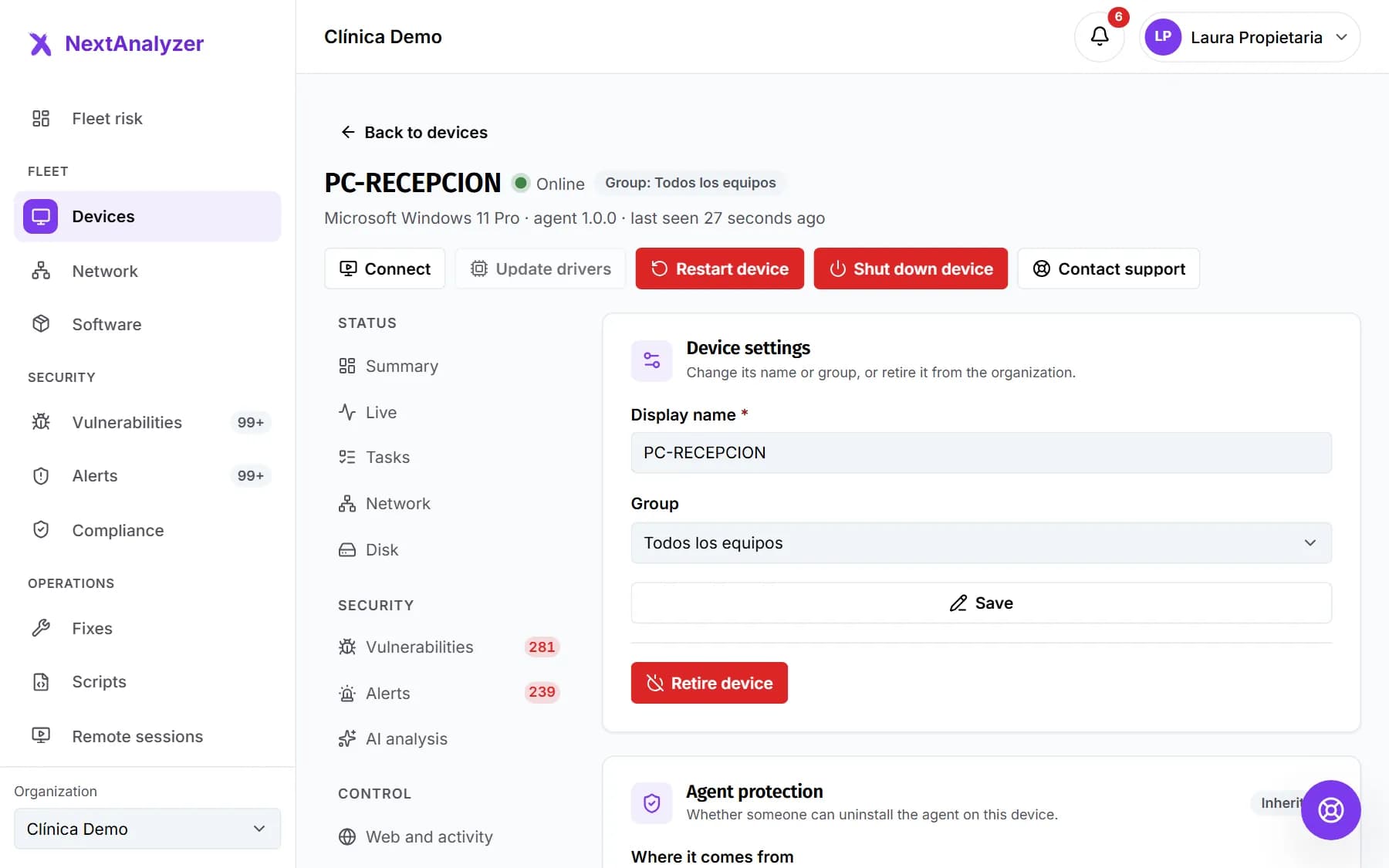
Open the device page › “Settings”. In each policy, change “Where it comes from” to the device's own policy. It works for agent protection, remote access, network discovery, the maintenance window and self-service.
Expected result: The policy shows “Own” and stops following the group's changes.
Web blocking and history
These two inherit from the organization, not the group. In the device settings, choose “The organization's” or “Its own” for blocking and for history.
Expected result: The device uses its own blocking or history and stops following the organization's.
Check what it inherits
For each inherited policy, the device shows what it inherits right now from the group. Click “Edit the group's” to change it for everyone.
Expected result: You know what really applies on that device and where it comes from.
If something goes wrong
I set thresholds and no alerts arrive
Thresholds only alert if the “Resources at limit” rule is on in Settings › “Alerts”. It is off by default. Turn it on and choose the minimum severity.
It says the window won't open in the next few days
The window has no days ticked or the times don't fit. Choose at least one day and two different times. Until it opens, anything scheduled for the next window waits.
I can't uninstall the agent from a device
Its protection is “Protected”, from the group or its own policy. Retire the device from the dashboard or set it back to “Allowed, with an alert”.
I changed the group and a device doesn't change
That device has its “Own” policy and doesn't follow the group. On its page › “Settings”, set “Where it comes from” back to the group's.
Still not working? Open a support ticket