
Set up remote access policies
Each group of devices has its own remote access policy and each device can have its own. That way you decide where permission is always asked and where, as on a server, there is nobody to give it.
Open Settings › Remote access
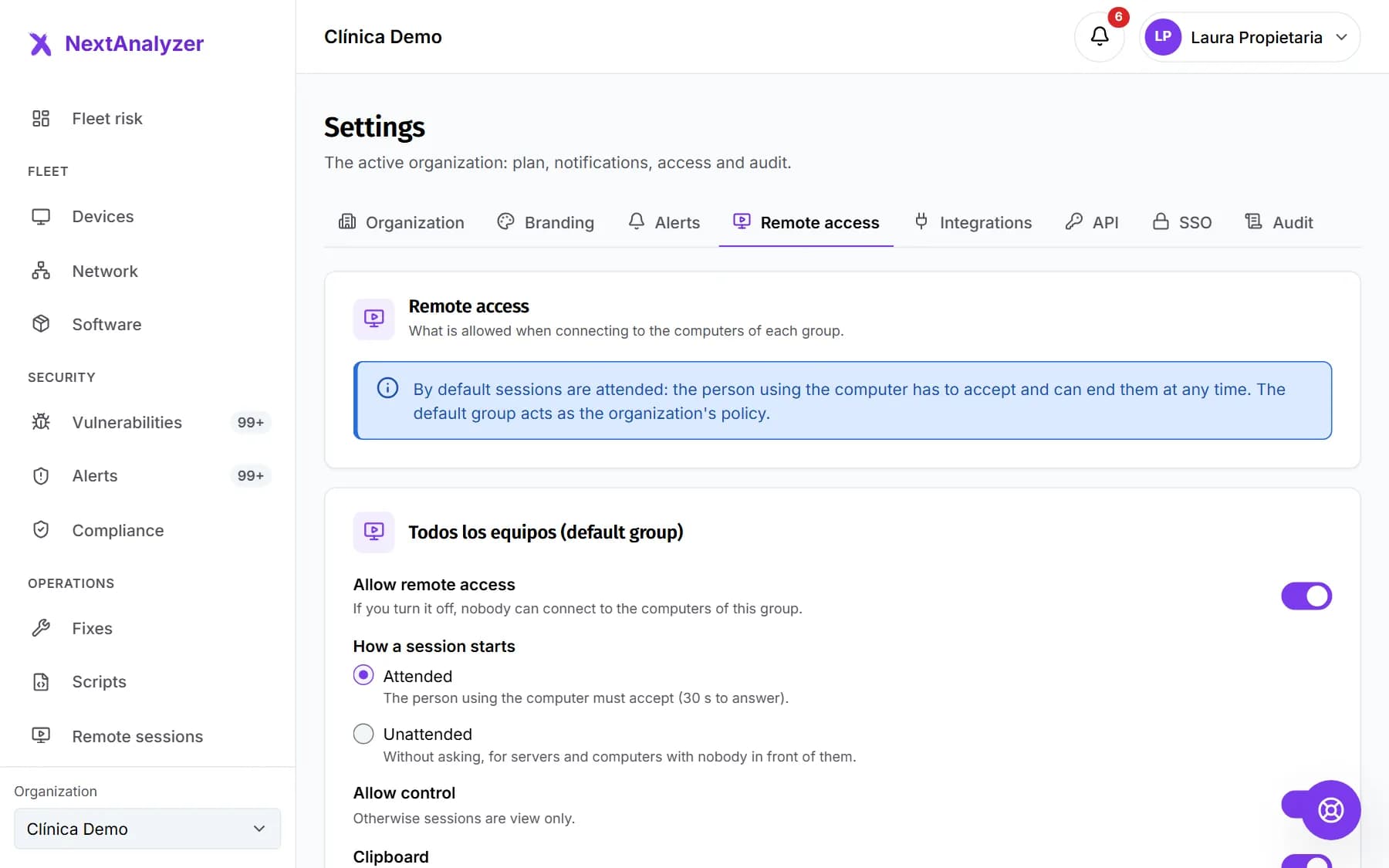
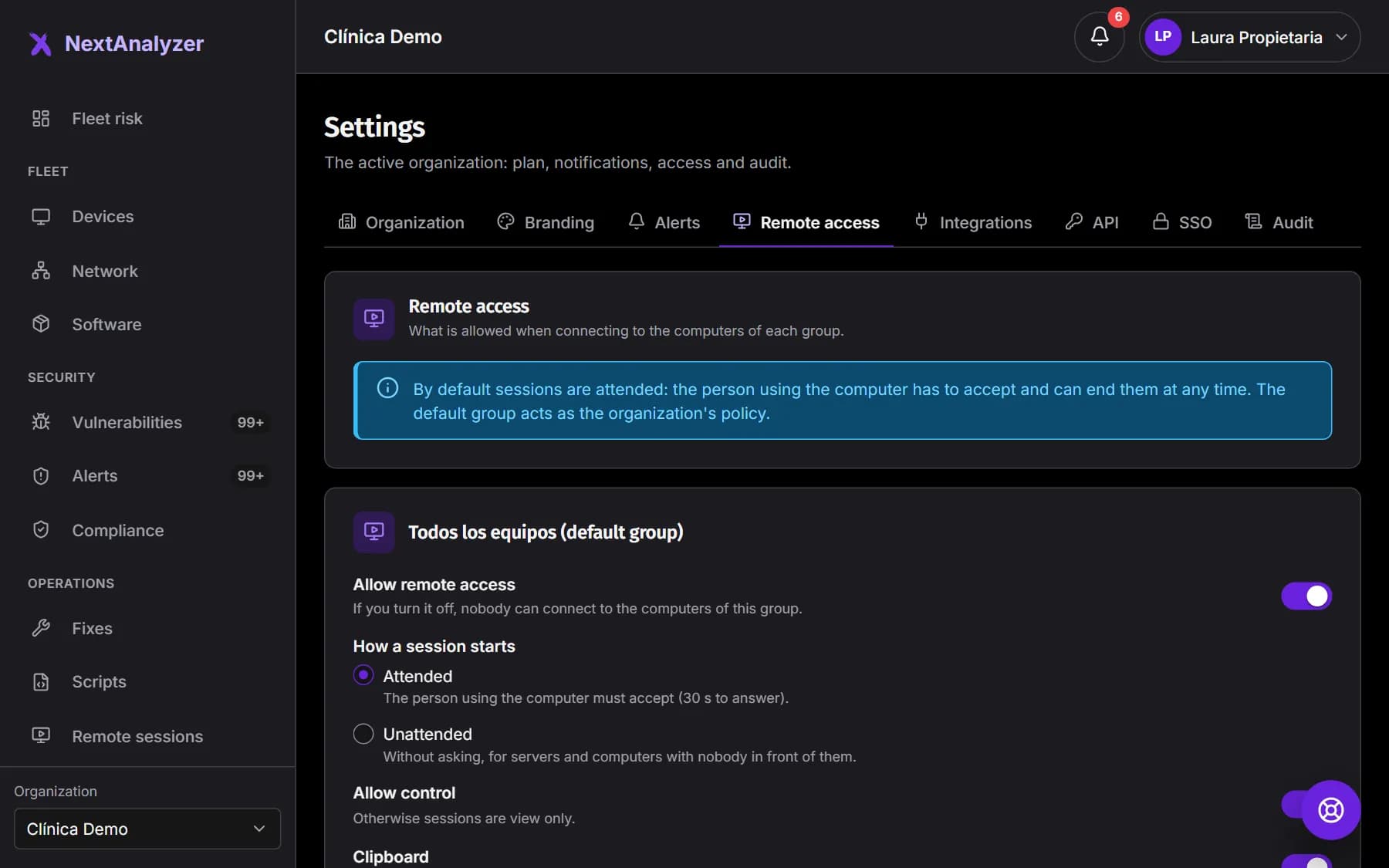
In the side menu, go to Settings and open the “Remote access” tab. There is one card per device group. The default group's card acts as the organization's policy.
Expected result: You see each group's policy with its switches and the “Save” button.
Turn access on or off
“Allow remote access” decides whether anyone can connect to the devices in that group. It is on by default.
Expected result: If you turn it off, the group's other options stop applying and nobody can connect.
Tip: Turn it off for groups with especially sensitive devices.
Choose how a session starts
Under “How a session starts”, “Attended” is the usual choice: the person using the device has 30 seconds to accept. “Unattended” starts without asking, for servers and devices with nobody in front of them.
Expected result: The dashboard's “Connect” dialog tells technicians whether the session will be attended or unattended.
Tip: In unattended mode any technician with access to the group connects without asking, but the device always shows a notice and everything is audited.
Decide whether control is allowed
With “Allow control” off, all sessions in the group are view only. With it on you can turn on “Clipboard” and “Files”; files are off by default.
Expected result: In the “Connect” dialog, “Control” is enabled or disabled depending on your choice.
Allow the black screen and input blocking
“Black screen” lets the technician hide what they do from whoever is at the device. “Block the computer's keyboard and mouse” stops the device being used while they work; Ctrl+Alt+Del unblocks it. Both are off by default.
Expected result: The matching viewer buttons become available on the group's Windows devices.
Recording and length
“Record sessions” records the video in the technician's browser and shows a notice on the device. In “Maximum length (minutes)” enter between 5 and 480; the default is 120. When reached, the session ends.
Expected result: The “Connect” dialog shows the maximum length and whether the session will be recorded.
Tip: Recordings are not stored on the platform: the technician downloads them at the end.
Who else can connect
“Device-to-device connection with the code” lets a device ask to connect to another from the app, with its 9-digit code. “Official NextAnalyzer support” lets our support team ask to connect to help you with an issue. Both are on by default and always ask the person using the device for permission.
Expected result: Each device's “Remote access” tab shows whether both are allowed.
Tip: Official support sessions are never recorded and carry a badge that the device itself verifies.
Save the policy
Click “Save” on the group's card. The change reaches the group's devices that inherit its policy.
Expected result: You see “Policy saved.” and the change is logged in Settings › Audit with the before and after.
Make an exception on a device
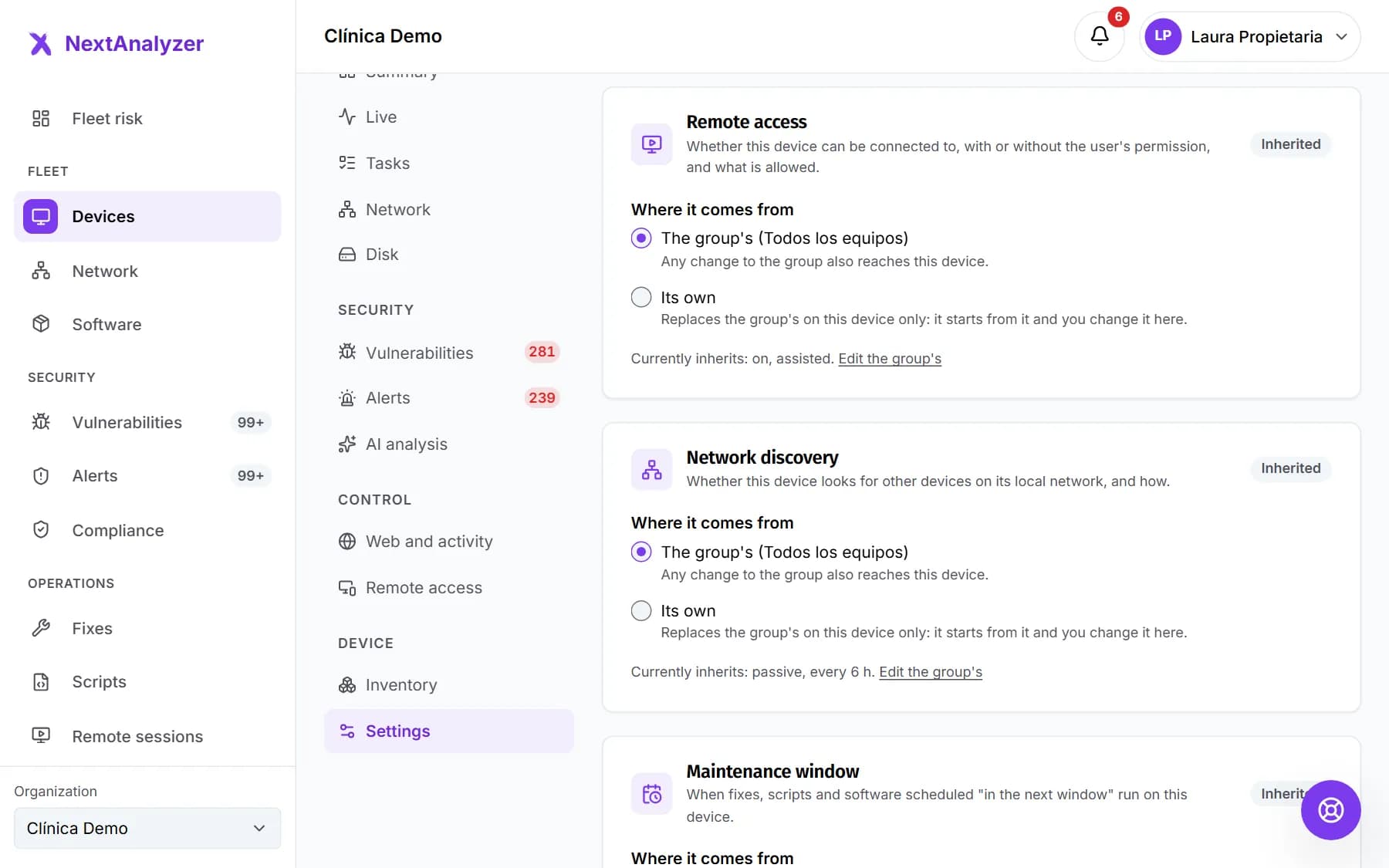
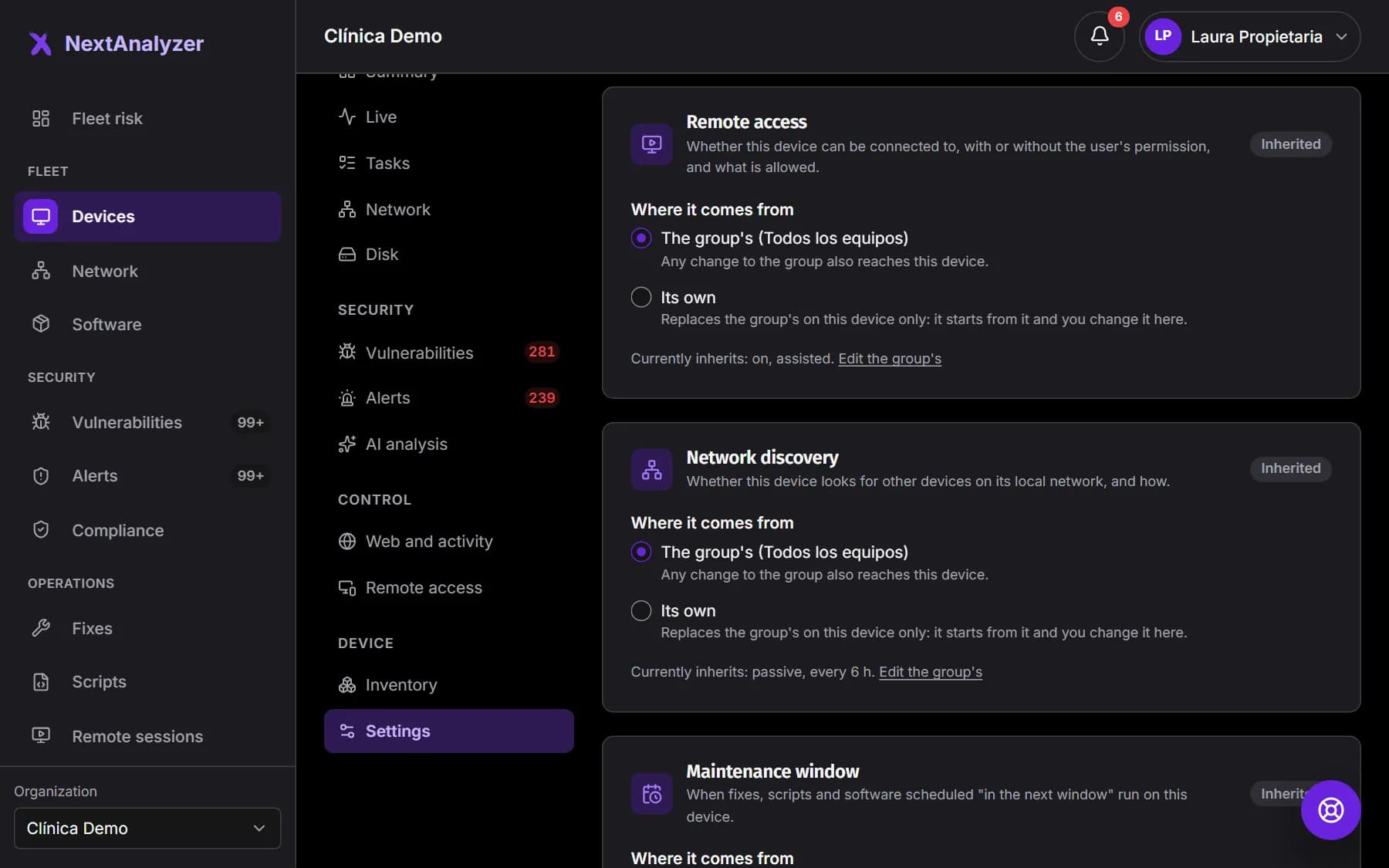
On the device page › Settings › Remote access, under “Where it comes from” choose “The group's” or “Its own”. Its own policy starts from the group's and you change it right there.
Expected result: You see “Currently inherits” with what applies, or the device's own policy with its options.
Tip: “Edit the group's” takes you to the group's policy without searching for it.
If something goes wrong
I changed the group policy and a device does not use it
That device has its own policy, so the group's does not affect it. Change it on its page › Settings › Remote access or switch back to “The group's”.
Technicians cannot connect to any device in the group
It says “The remote access policy of this device (or its group) has it disabled”. Turn on “Allow remote access” in the group or in the device's own policy and click “Save”.
I cannot turn on the clipboard or files
They depend on control: turn on “Allow control” first. “Device-to-device connection with the code” and “Official NextAnalyzer support” are also greyed out while remote access is off.
It will not let me save the length
It says “Enter a number of minutes within the range”: the length must be between 5 and 480 minutes. For longer work, the technician connects again when the session ends.
We do not want NextAnalyzer support to be able to connect
Turn off “Official NextAnalyzer support” in the group's or the device's policy and save. If a support session is open, it is cut within a minute.
Still not working? Open a support ticket