
Connect to a device from the dashboard
Remote access lets you view or control a device from your browser, without installing anything. The person using the device always sees who is connected and can end the session at any time. Everything is kept in the session history and the audit log.
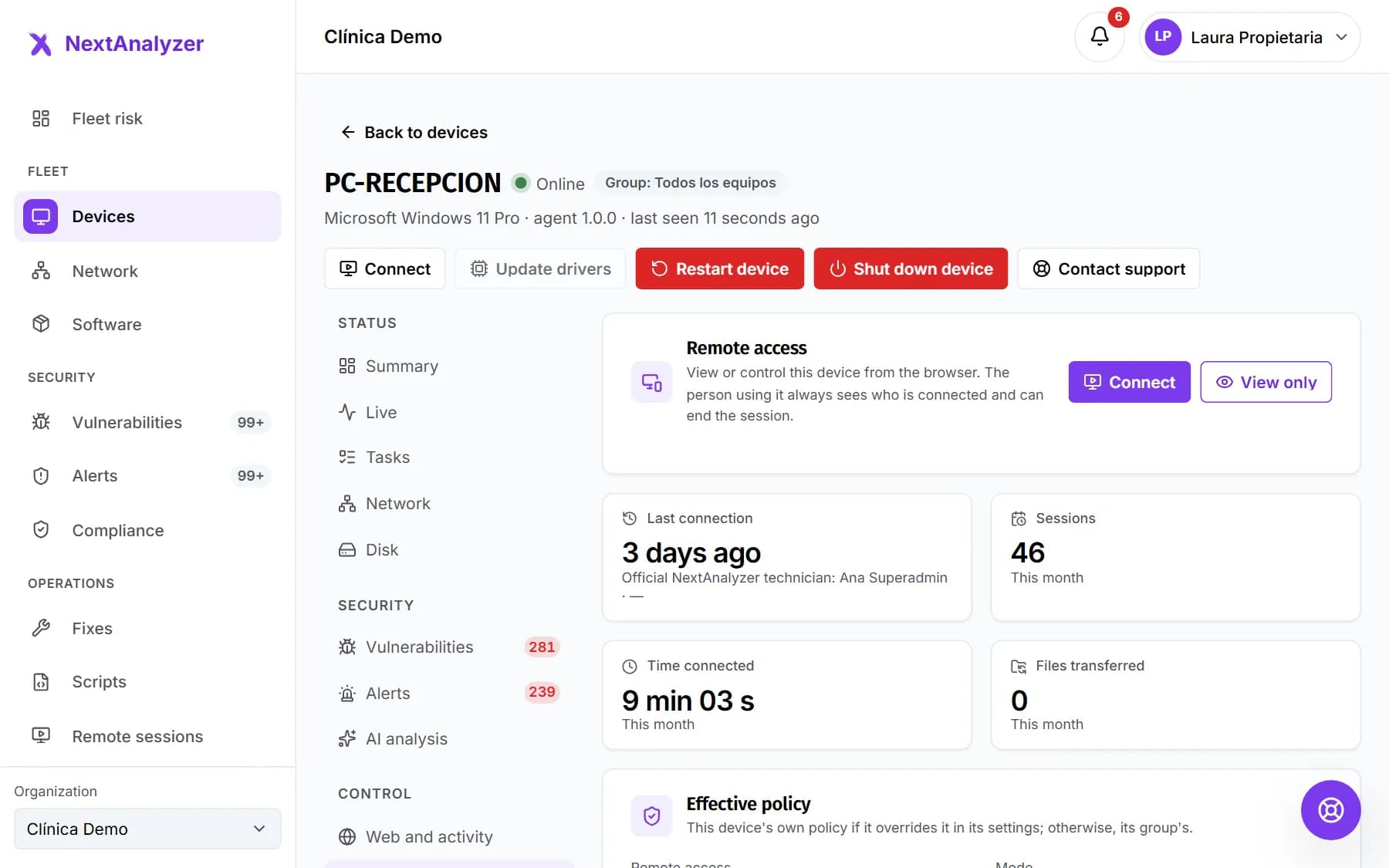
Open the device's remote access
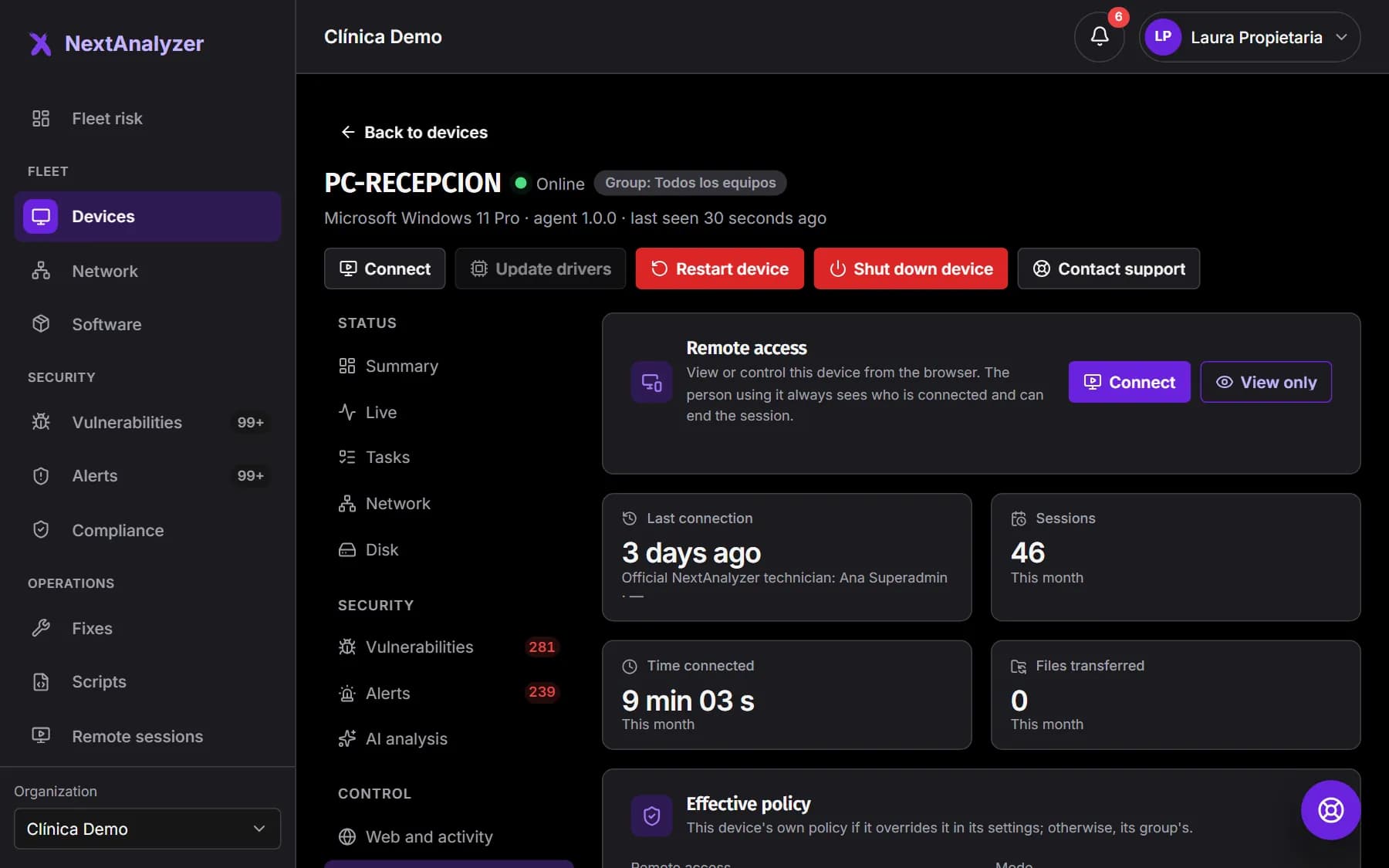
There are three ways: the “Connect” button in the device page header, the “Remote” column in Devices or the device's “Remote access” tab. The tab shows the last connection, this month's sessions and time, and the “Effective policy”.
Expected result: You see the “Connect” and “View only” buttons enabled. If they are disabled, a notice explains why.
Tip: If it says “The device is not connected right now”, wait until it is back online.
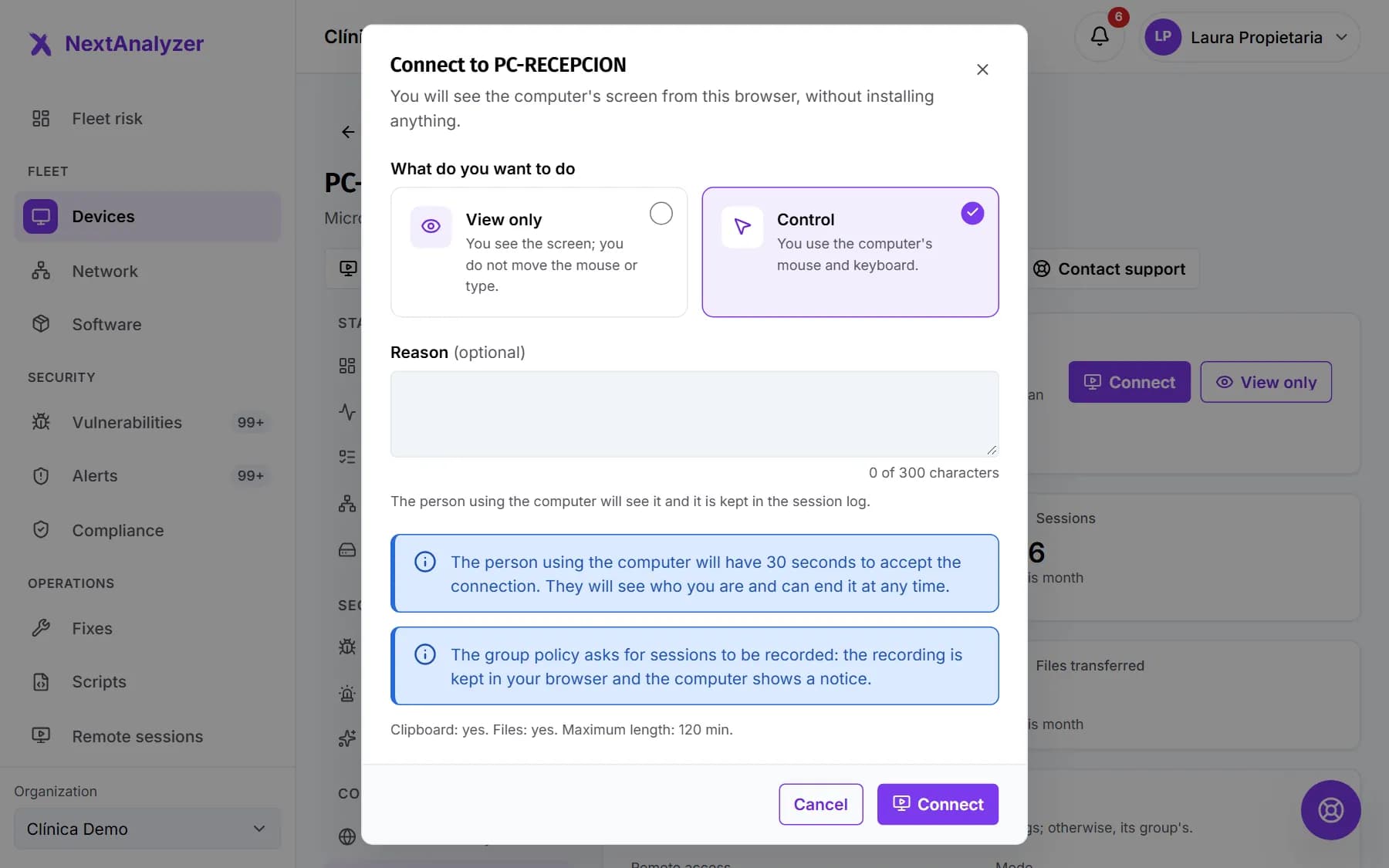
Choose view or control
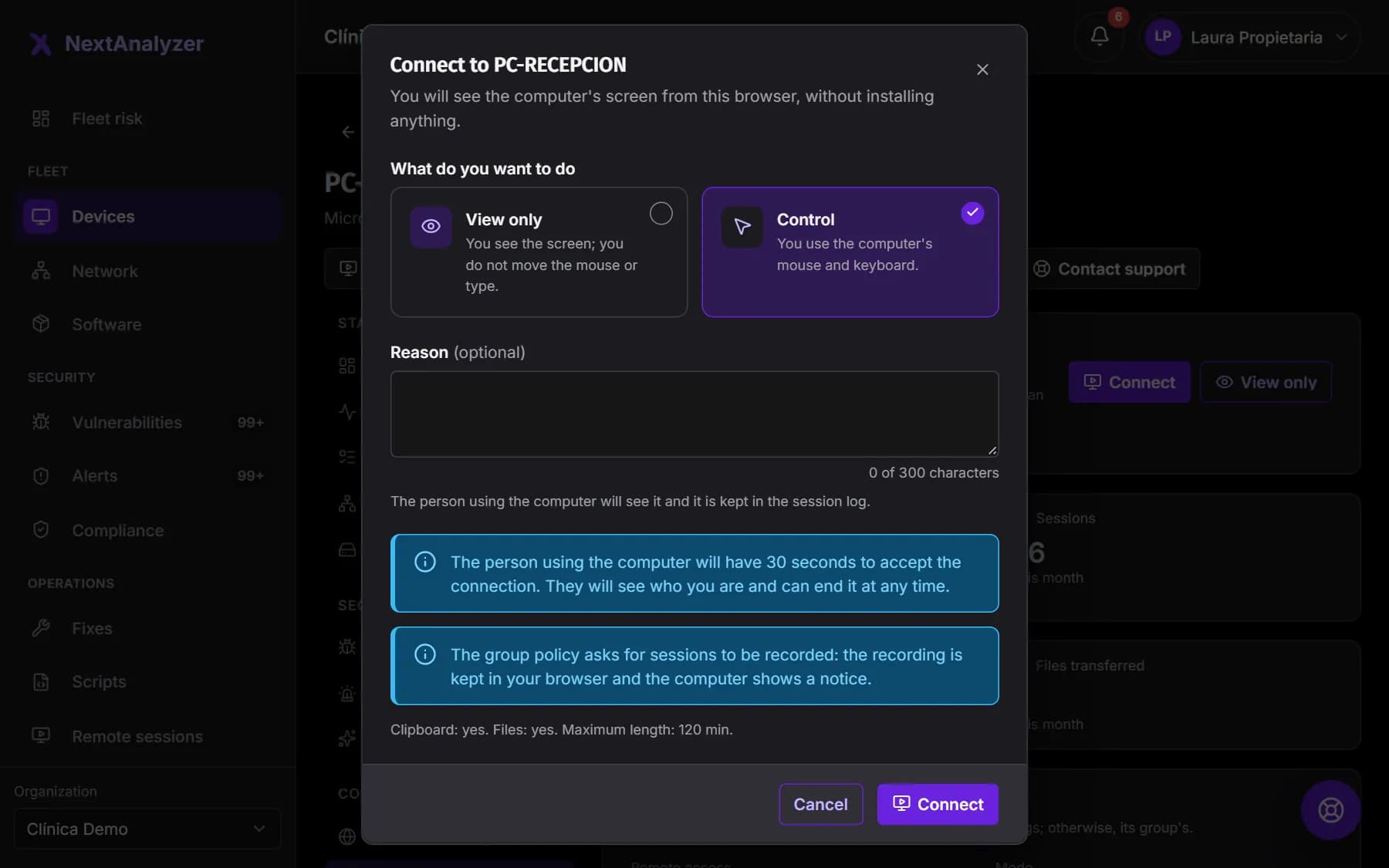
Under “What do you want to do” choose “View only” (you see the screen, no mouse or keyboard) or “Control” (you use its mouse and keyboard). Type a “Reason” if you like: the person sees it and it is logged. Below is a summary of whether it will be attended, unattended or recorded, and the maximum length. Click “Connect”.
Expected result: The viewer opens in full screen in a new dashboard page.
Tip: If “Control” is disabled, the group policy only allows viewing.
Wait for them to accept
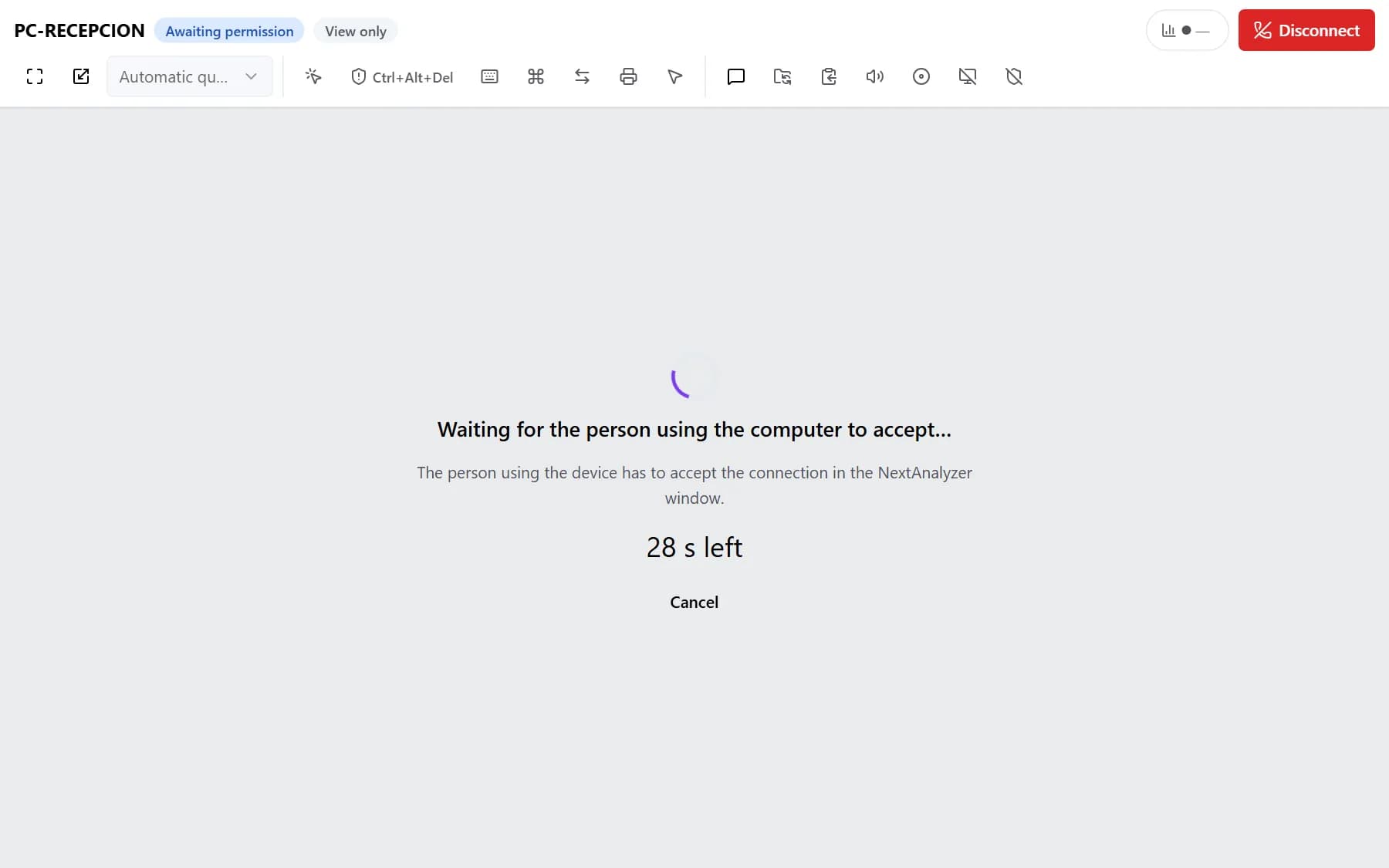
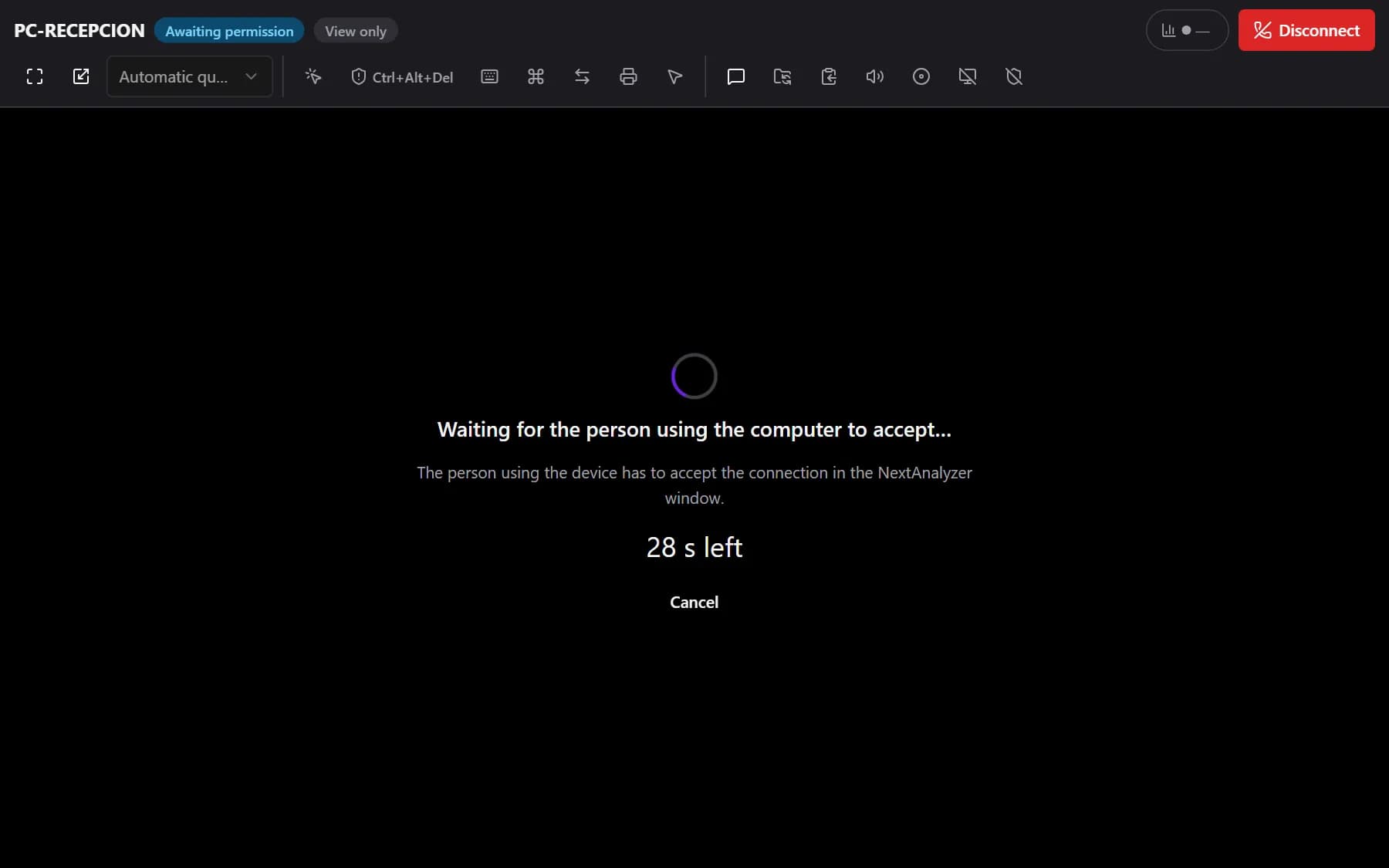
In attended mode, the person has 30 seconds to accept in the NextAnalyzer window and can remove permissions first. Meanwhile you see “Waiting for the person using the computer to accept…” with a countdown and “Cancel”. In unattended mode it starts without asking, but the device always shows a notice.
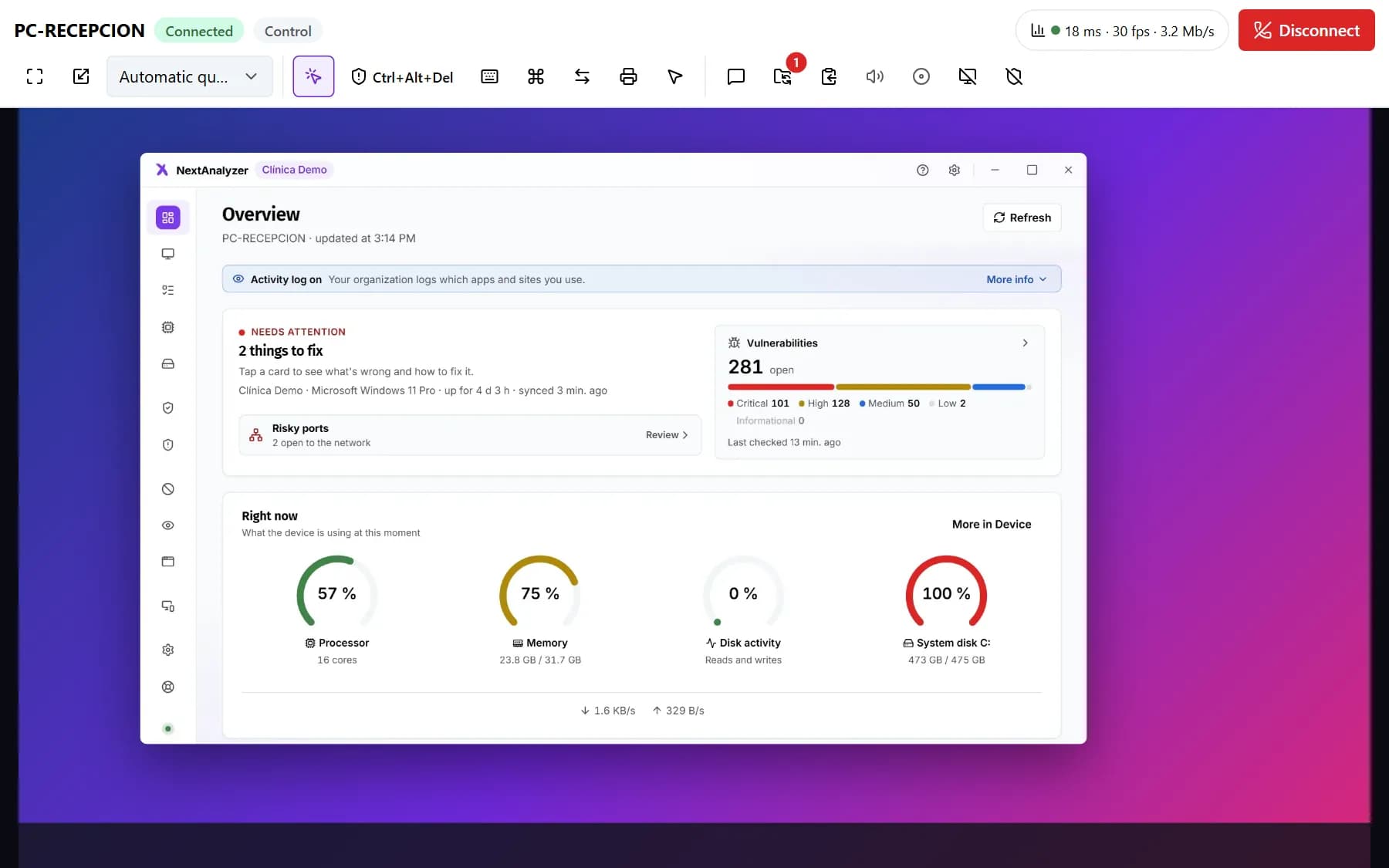
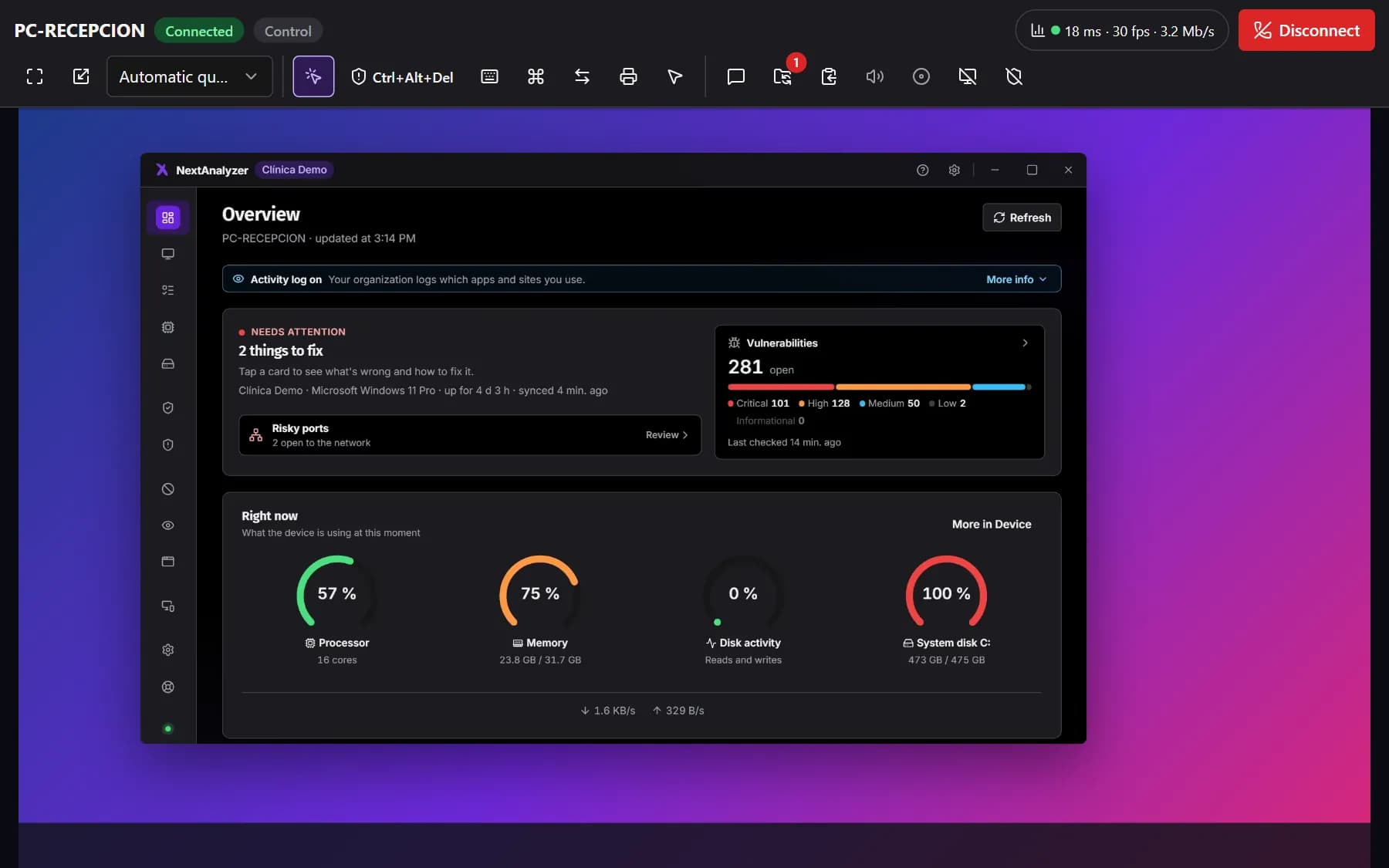
Expected result: Once accepted, the status changes to “Connected” and you see the device's screen.
Adjust the view
At the top you see the device, the status, the mode and an indicator of latency, frames and bandwidth. The “View” group has full screen, “Fit to window” or “Actual size (1:1)”, the monitor (or “All monitors”) and quality. Whatever does not fit goes into “More tools”.
Expected result: The device's screen looks sharp and at the size you want.
Tip: Click the connection indicator to open the “Connection statistics”.
Use the keyboard and shortcuts
In “Control and keyboard” you can “Take control” or “Switch to view only”, and send Ctrl+Alt+Del, Win, Alt+Tab or Print Screen. “More keyboard shortcuts” has Task Manager, Run, File Explorer, Show desktop, Lock the computer, Close window and the Start menu.
Expected result: The device responds to the shortcut as if you pressed it in front of it.
Tip: Keys are sent by physical position: the device's layout decides the character, including accents.
Talk over chat
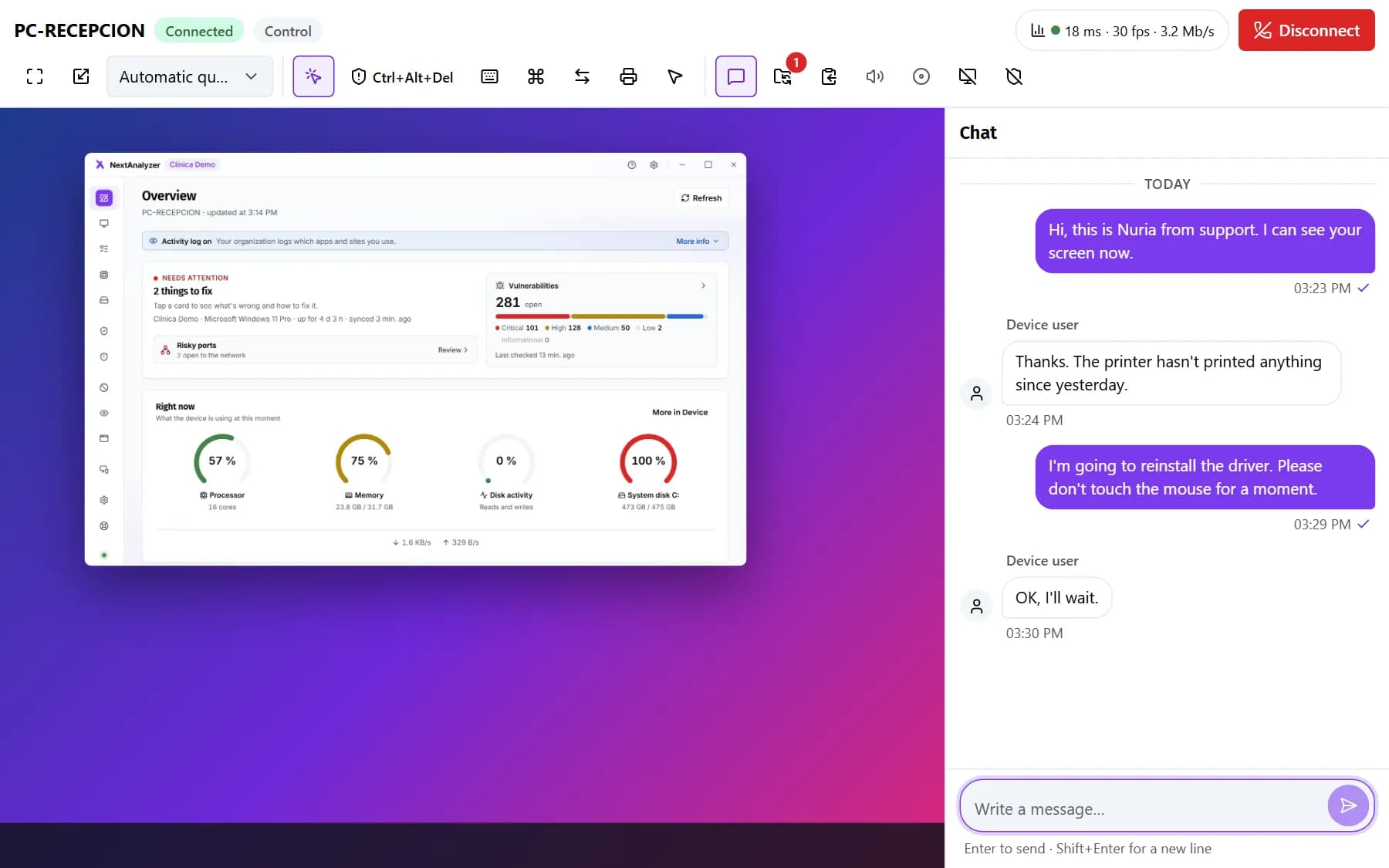
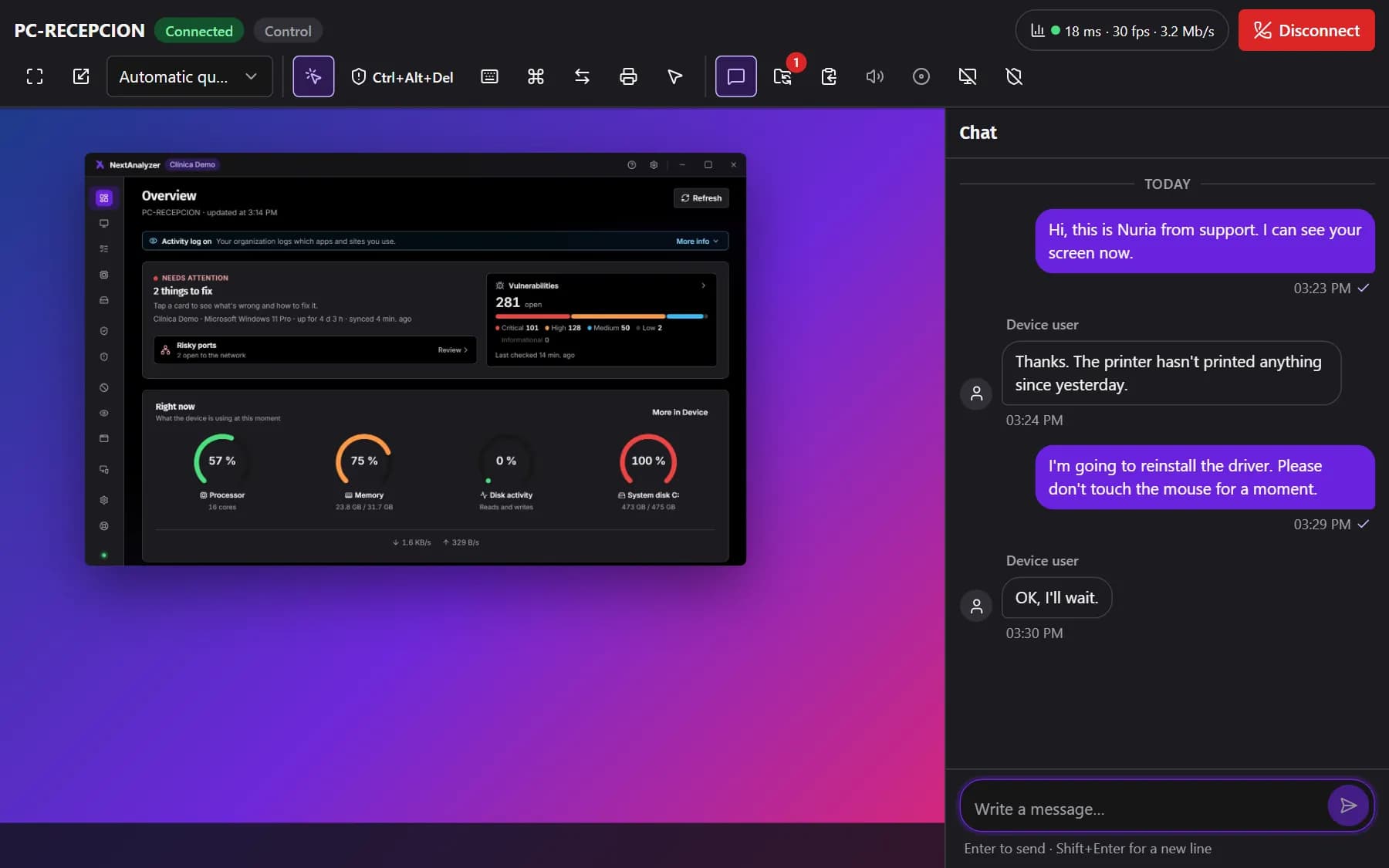
Open “Chat” to write to the person using the device. Enter sends and Shift+Enter adds a new line. Links are highlighted but do not open when clicked, so nobody falls for a fake one.
Expected result: Your message shows as “Sent” and the person sees it in their floating notice.
Tip: Chat text is not stored: the history only keeps how many messages there were.
Share the clipboard
In “Clipboard”, “Sync: send my clipboard” sends your text to the device. Whatever is copied on the device reaches your clipboard automatically. If the browser will not let it be read, paste the text in the box and click “Send to the computer”.
Expected result: You see “Text sent to the computer.” and can paste it there.
Tip: It only works with text and if the policy allows it. It is not available on Linux yet.
Transfer files both ways
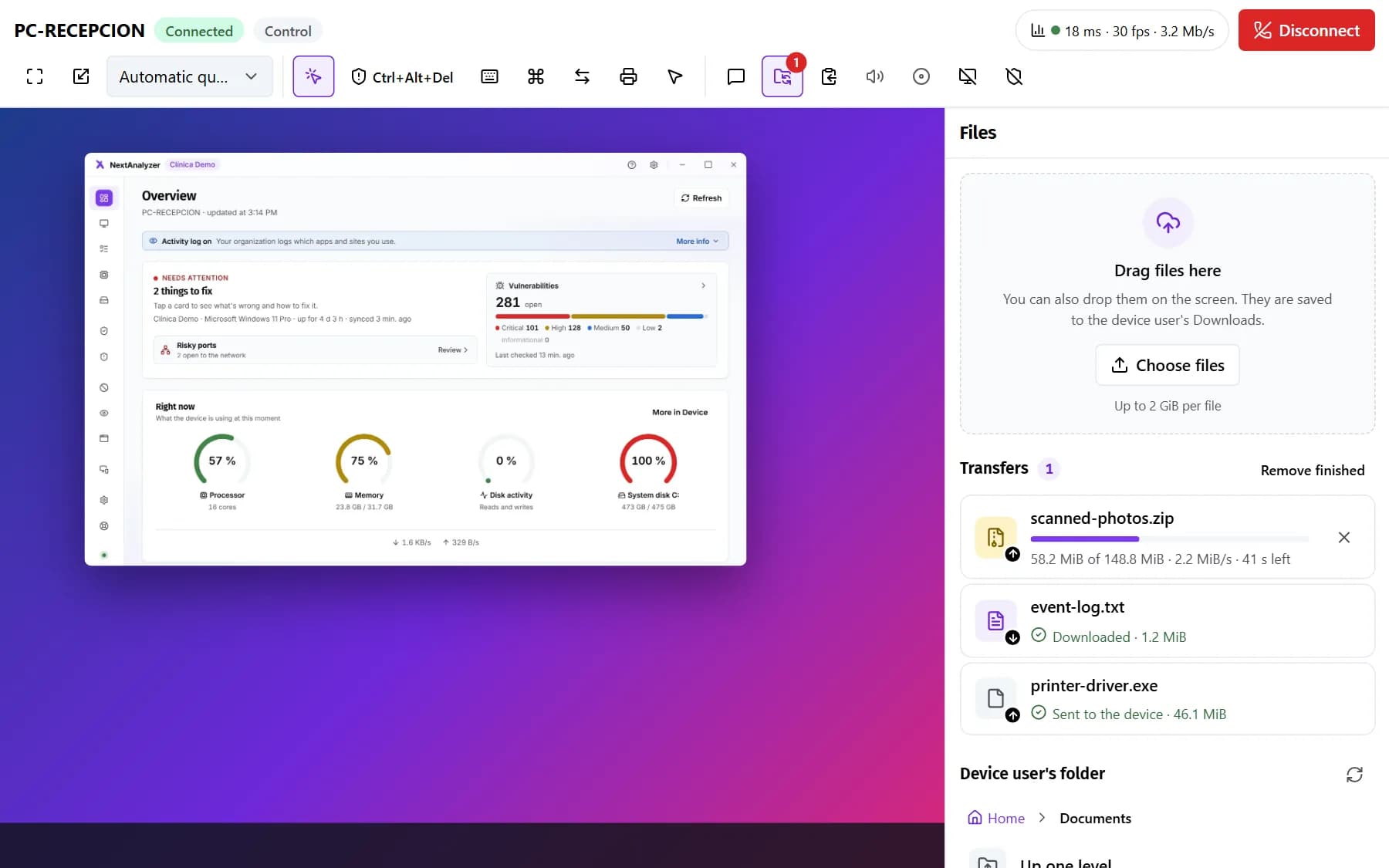
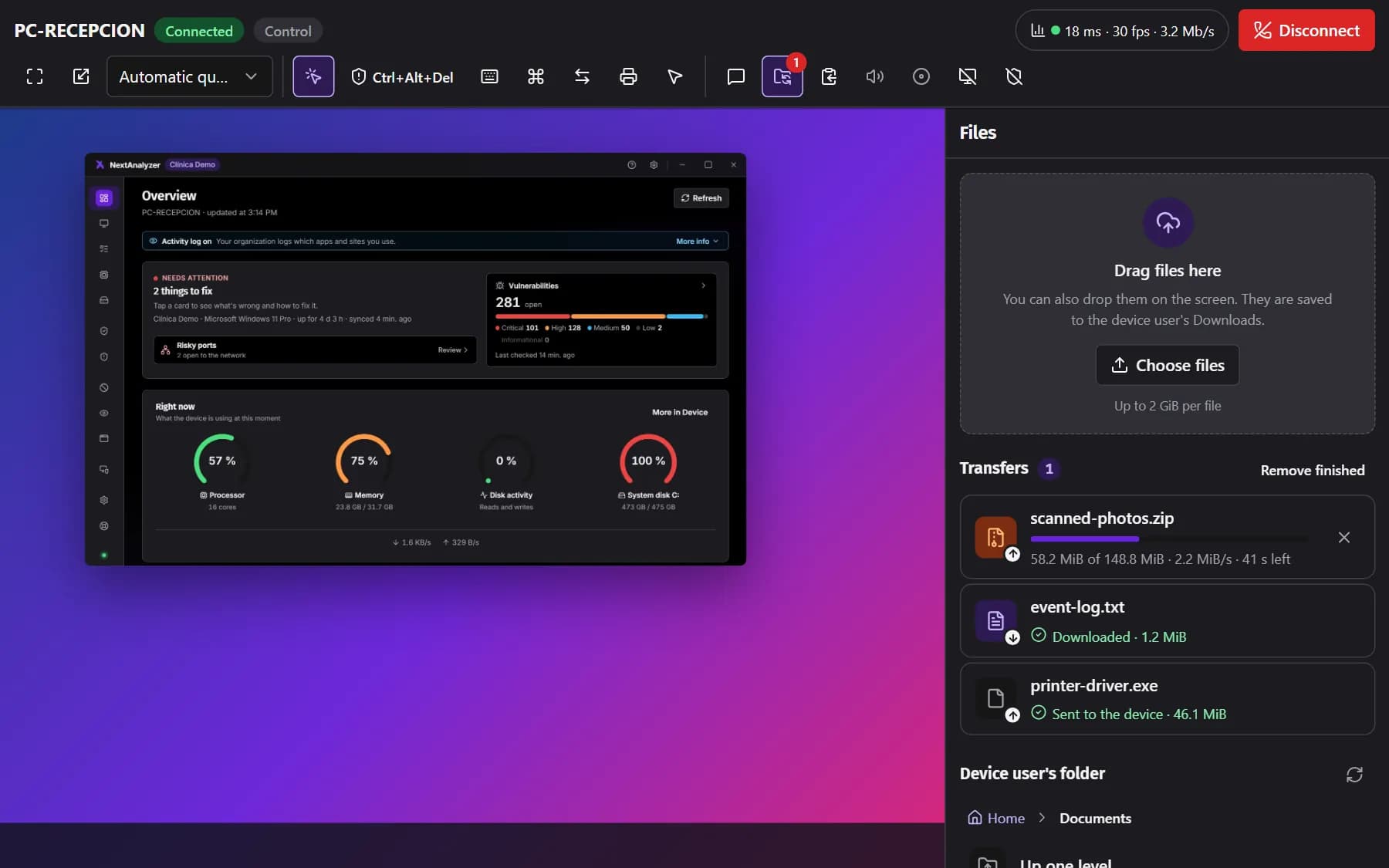
Drag files onto the screen or the “Files” panel, or click “Choose files”: they arrive in the device user's Downloads folder, up to 512 MB each. In “Device user's folder” you browse their home folder and download what you need.
Expected result: Each transfer shows its progress and speed and ends as “Completed”.
Tip: Files are off by default: an administrator turns them on in the policy. If one fails, click retry.
Record the session if needed
If the policy declares recording, “Record the session (on this computer)” saves a video in your browser, not on the platform. The device shows that it is being recorded. You can stop and resume it.
Expected result: The toolbar shows “Recording” and, when you finish, the “Download the recording” button.
Tip: If the button is greyed out, the policy does not declare recording.
End the session
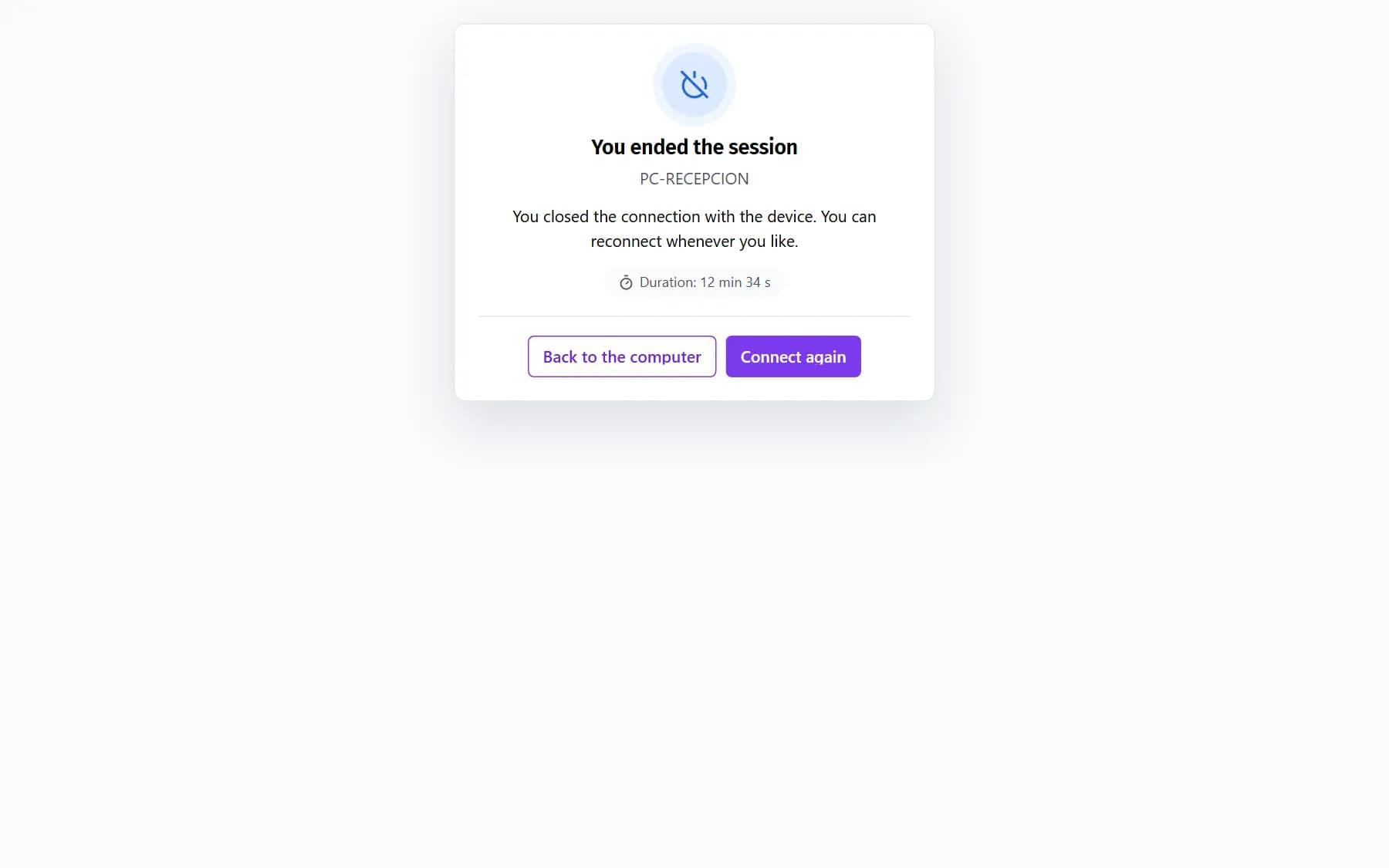
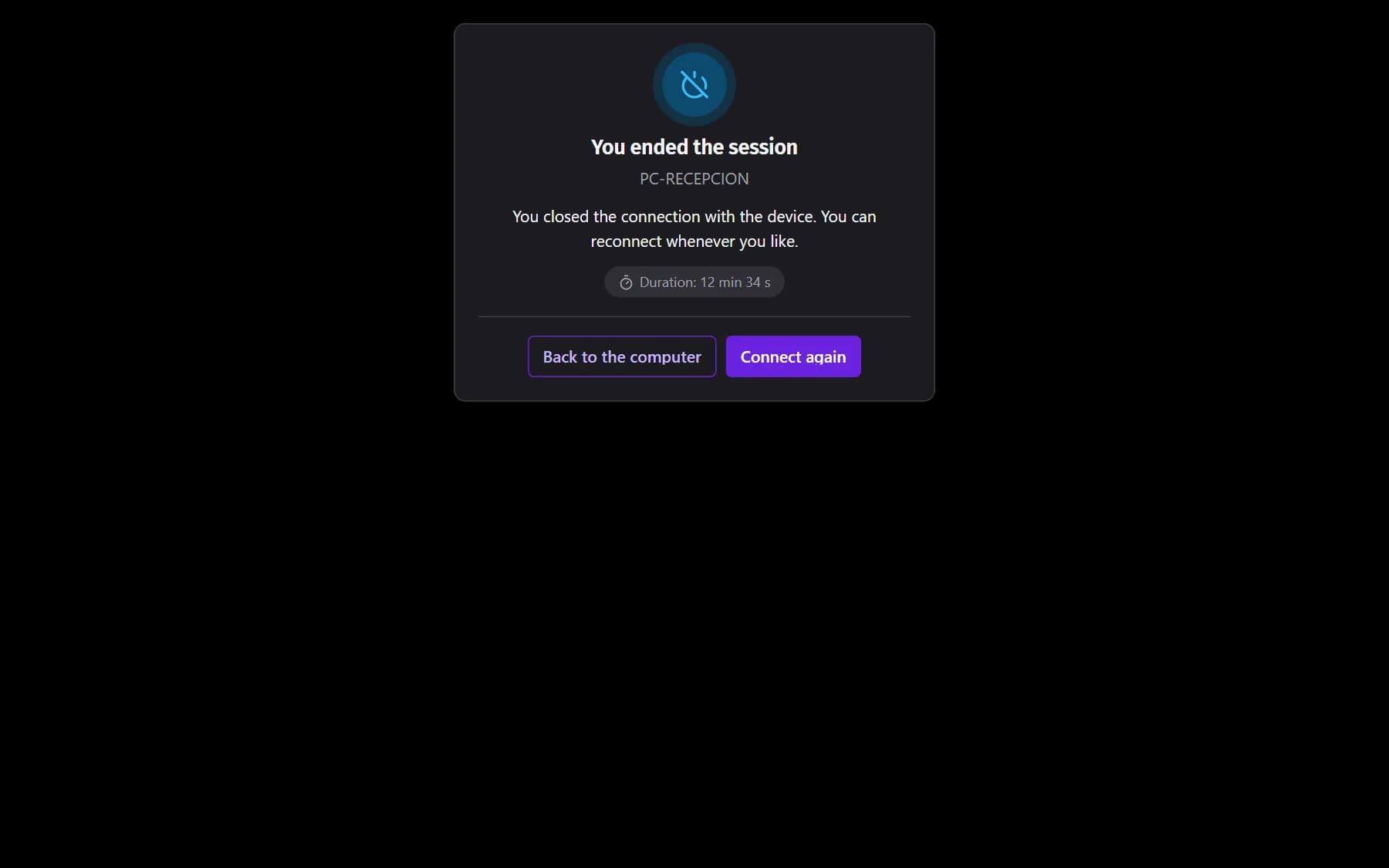
Click “Disconnect”. A card tells you how it ended and how long it lasted. “Connect again” opens a new session, which asks for permission again; “Back to the computer” takes you to its page.
Expected result: You see “You ended the session” with the duration, and the session appears in Remote sessions.
Tip: Reloading the viewer page also opens a new session and closes the previous one.
If something goes wrong
The session ends before it starts
It says “No answer” or “Connection rejected”: nobody accepted within 30 seconds, the NextAnalyzer app was not open or they clicked “Reject”. Let the person know beforehand. If nobody is at the device, an administrator can set unattended mode in the policy.
It says the device already has an open remote session
Each device allows one session at a time. Wait for it to end or end it from Remote sessions (whoever opened it or an administrator). If the open one is yours, connecting again replaces it automatically.
A toolbar button is greyed out
Hover over it to see why: the policy blocks it, the person did not grant it when accepting or the system does not support it. Real Ctrl+Alt+Del, the black screen and input blocking only work on Windows. Linux has no clipboard either.
The screen is black or the session does not start
On a Mac the Screen Recording or Accessibility permission is missing: grant it in System Settings › Privacy & Security and connect again. On Linux the device is using Wayland: choose Xorg or X11 when signing in.
The picture is slow or choppy
Lower the quality to “Data saver” in “View”. Open the statistics: if the path is “Through the relay (TURN)”, the network blocks direct connections. Allow outbound UDP and TCP to the service's port 3478 to improve it.
Still not working? Open a support ticket