
What the person using the device sees in a remote session
Nobody gets into a device without the person using it knowing. Use this guide to explain it to your staff: which window appears, what they can decide, how to pause control and how to end the session.
The request window
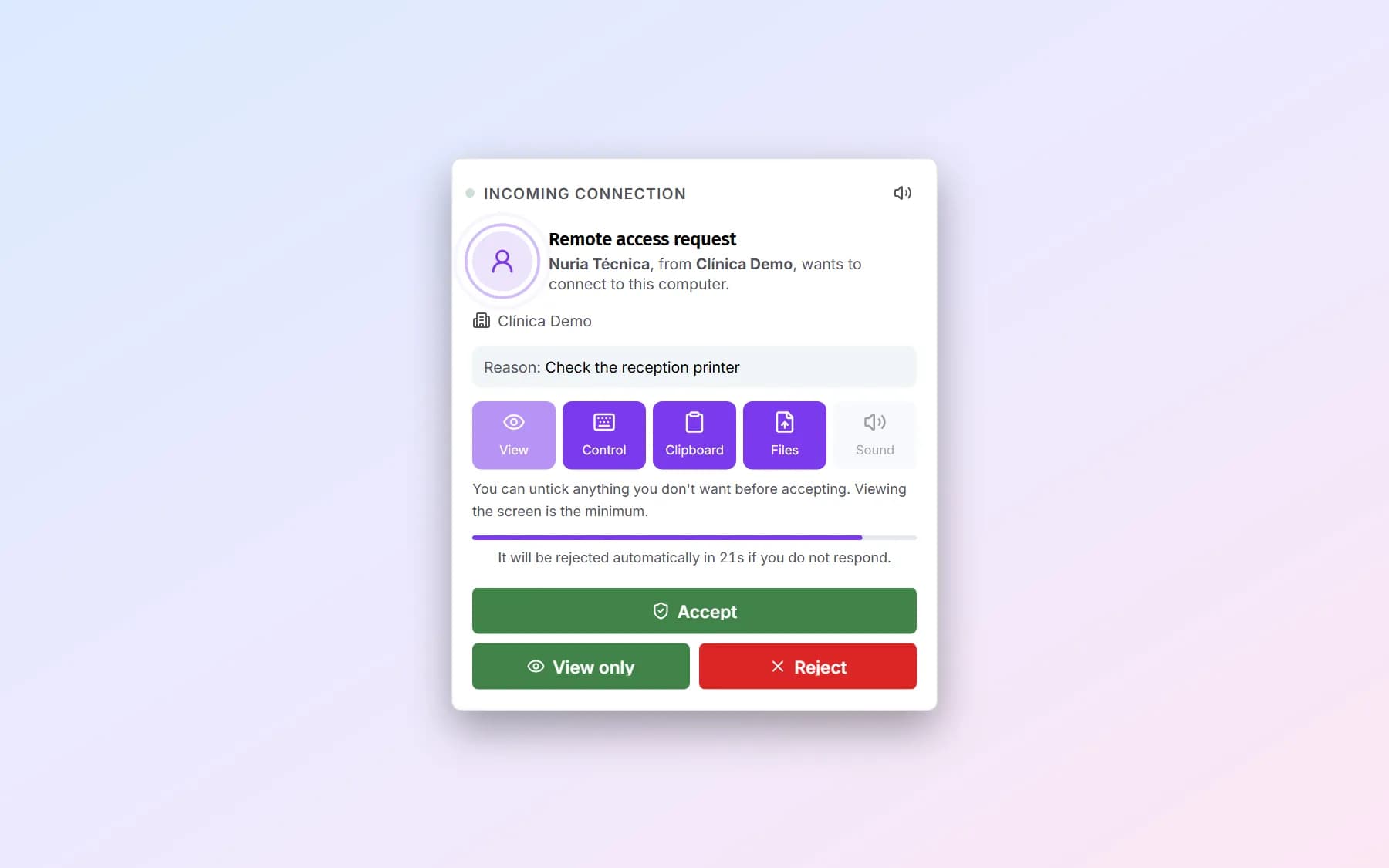
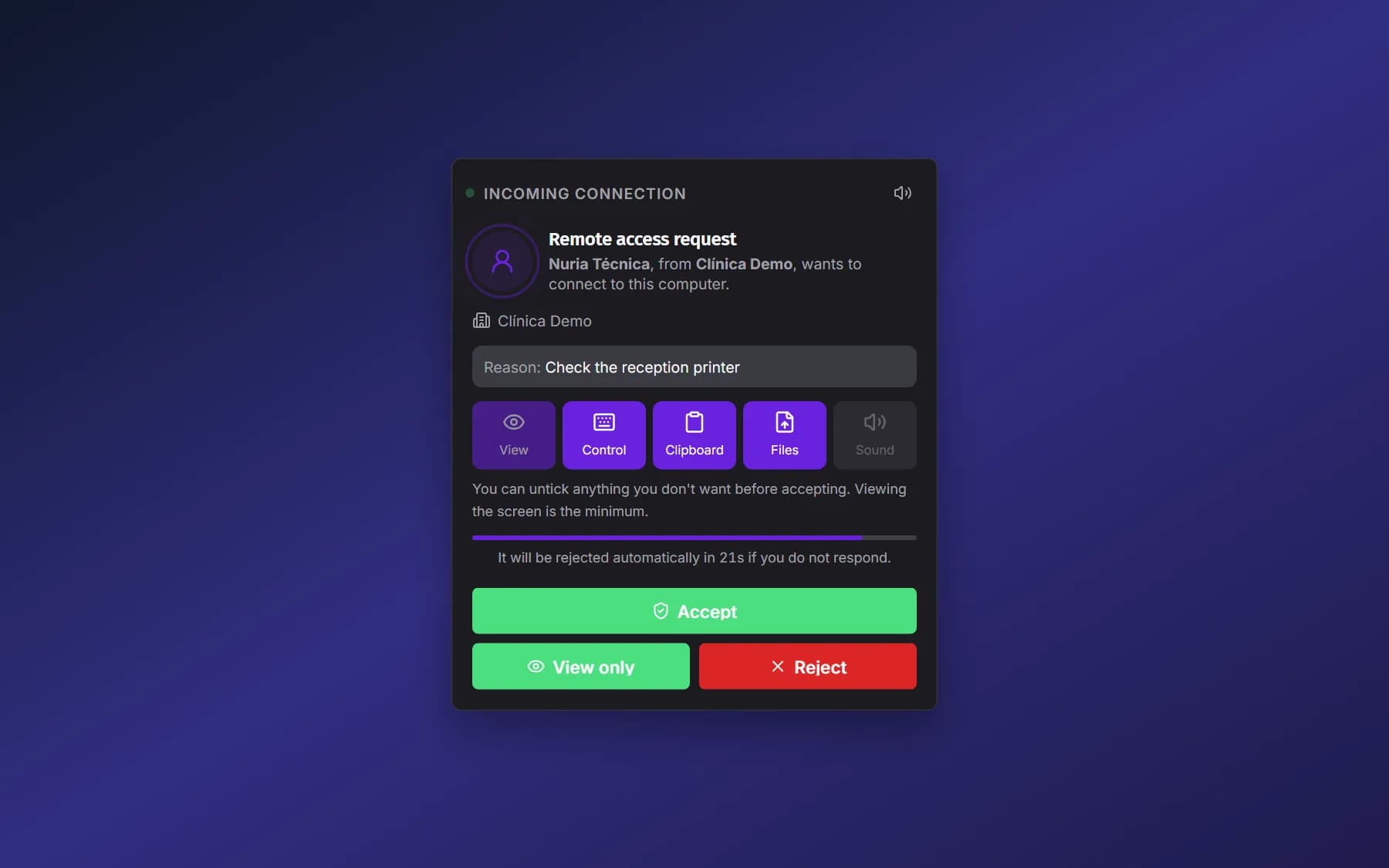
The “Remote access request” window appears, always on top. It says who wants to connect and from which organisation (or from which device), whether they can control or only view, and the reason. If the session will be recorded, it shows “This session will be recorded”.
Expected result: The person knows who is connecting, why and whether it will be recorded.
Choose what you allow
In “What you allow”, untick anything you do not want to grant: “Control keyboard and mouse”, “Share the text clipboard”, “Send and receive files”, blacking out the screen or blocking your keyboard and mouse. “View the screen (always)” is the minimum.
Expected result: Only what the person allows stays ticked. Anything not asked for shows as “Not requested”.
Tip: Without control there is no clipboard or files either.
Accept or reject
Click “Accept” to start with what you left ticked, or “Reject”. If you do not answer, the request is rejected automatically after 30 seconds.
Expected result: With “Accept” the floating session notice appears; with “Reject”, nothing else happens.
Tip: The app's “Remote access” page also lets you accept, but it grants everything requested. To choose, use the request window.
Recognise official support
If NextAnalyzer support is asking for access, the window is titled “Request from official NextAnalyzer support”. It shows their name with a verified badge and “Official NextAnalyzer technician”. The device itself checks that identity with a digital signature.
Expected result: The person can tell official support apart from any other request.
Tip: No organisation can display that badge. These sessions always ask for permission and are never recorded.
The floating notice
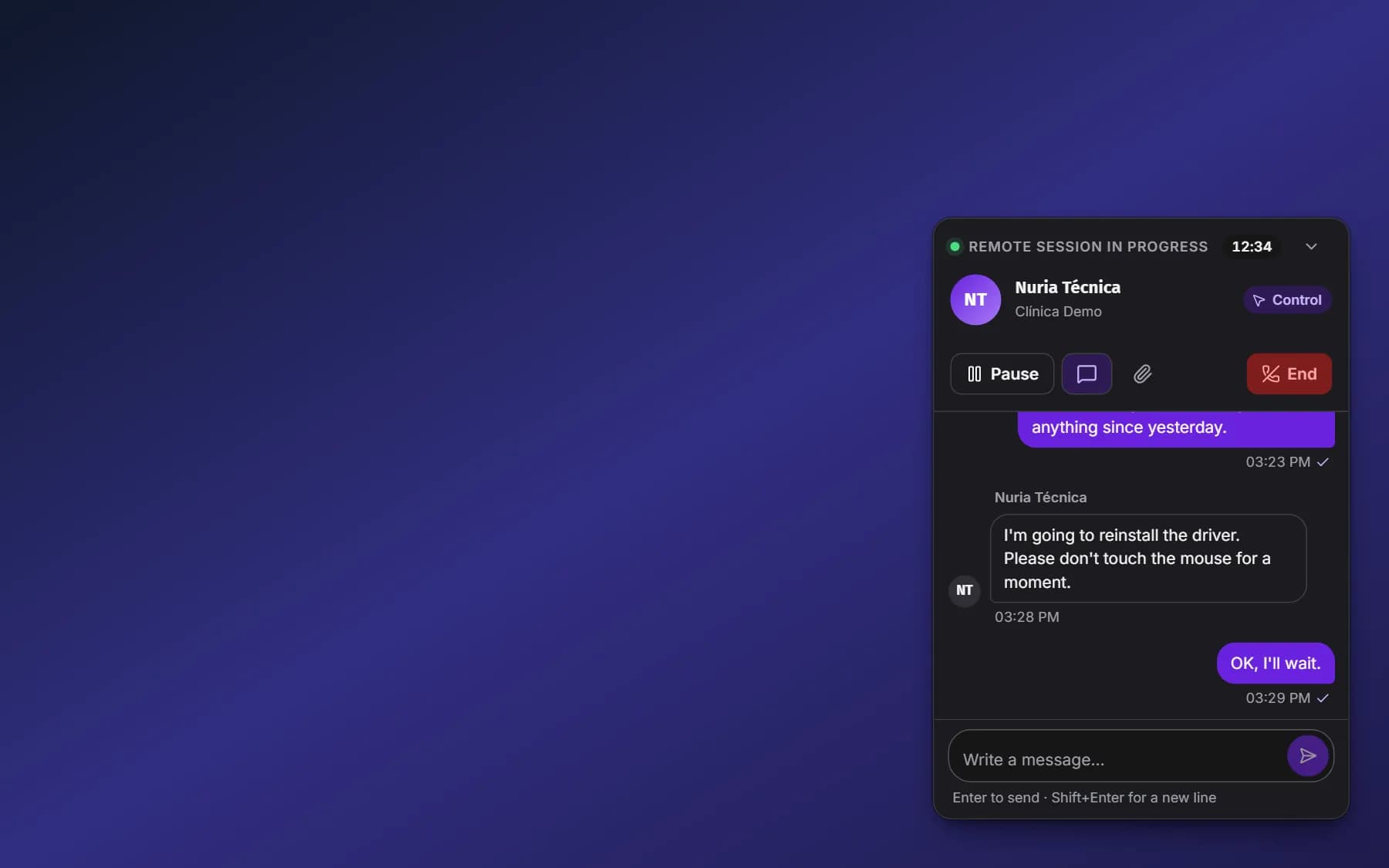
While the session lasts there is a notice in the corner: “Remote session in progress”, who is connected, the mode, the “Time connected” and whether it is being recorded. It can be dragged and collapsed into a pill so it does not get in the way.
Expected result: The person can always see that someone is connected to their device.
Tip: In an unattended session the system notification “Remote access in progress” also appears.

Pause control
With “Pause” the technician can no longer move the mouse or type, but still sees the screen. With “Resume” they get control back.
Expected result: The notice shows “Control paused” until the person resumes it.
Chat and receive files
With “Chat” the person writes to the technician; a new message expands the notice. In “Files” they see what is sent to them, saved to Downloads, and what the technician takes from their user folder. “Open Downloads” opens the folder.
Expected result: Each file shows its name, size and status.
Tip: Chat messages are not stored anywhere.
End it whenever you want
Click “End” in the notice and confirm in “End the session?”. The person can do this at any time, without giving a reason.
Expected result: The technician stops seeing the device straight away.
The final notice
When it ends, the notice shows for 8 seconds who ended the session (or whether it was rejected, nobody answered or the connection was lost), how long it lasted and “They no longer have access to your screen.”.
Expected result: The person gets confirmation that the session is over.


If something goes wrong
No window appeared for me to accept
The NextAnalyzer app was not open or you did not answer within 30 seconds, so the request was rejected automatically. Open the app from the Start menu or the tray and ask them to connect again.
They connected without asking me
Your organisation has set unattended mode on that device, meant for servers or devices with nobody in front of them. You still see the floating notice and a notification, and you can click “End” at any time.
How do I know it really is NextAnalyzer support?
It is only official if the window says “Request from official NextAnalyzer support” and shows the verified badge. If someone claims to be support without that badge, reject the connection.
Where are the files the technician sent me?
In your Downloads folder. From the floating notice, “Files” › “Open Downloads” takes you there. The technician can only take files from your user folder.
Is what I do being recorded?
Only if your organisation has turned it on, and then the window says “This session will be recorded” and the notice shows “Recording”. The video is kept in the technician's browser, not on the platform.
Still not working? Open a support ticket