
The desktop app in depth
The NextAnalyzer app lives in the system tray. Anyone using the device can open it to see its status, fix simple things and ask for help. What the organization decides can be seen, but not changed.
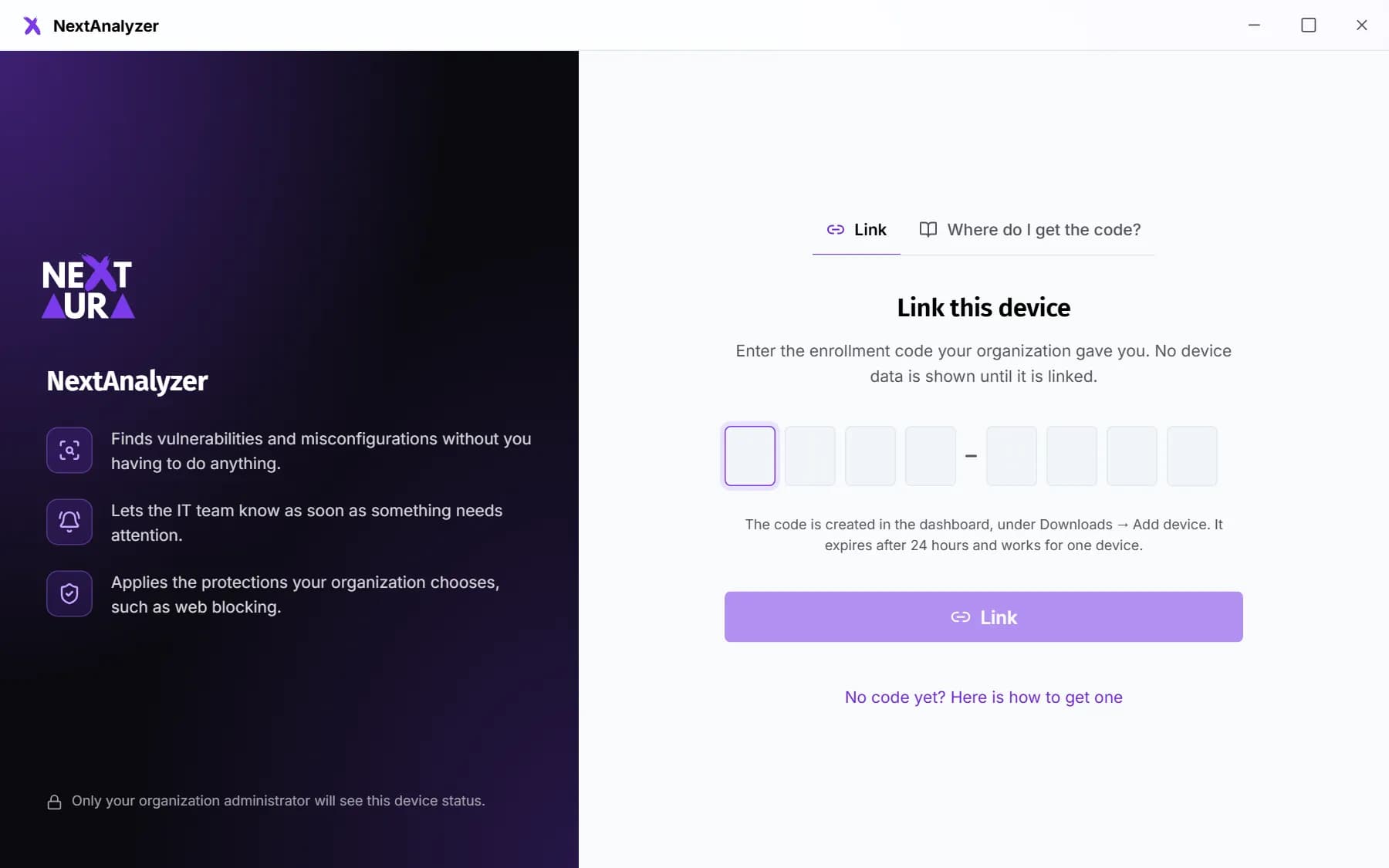
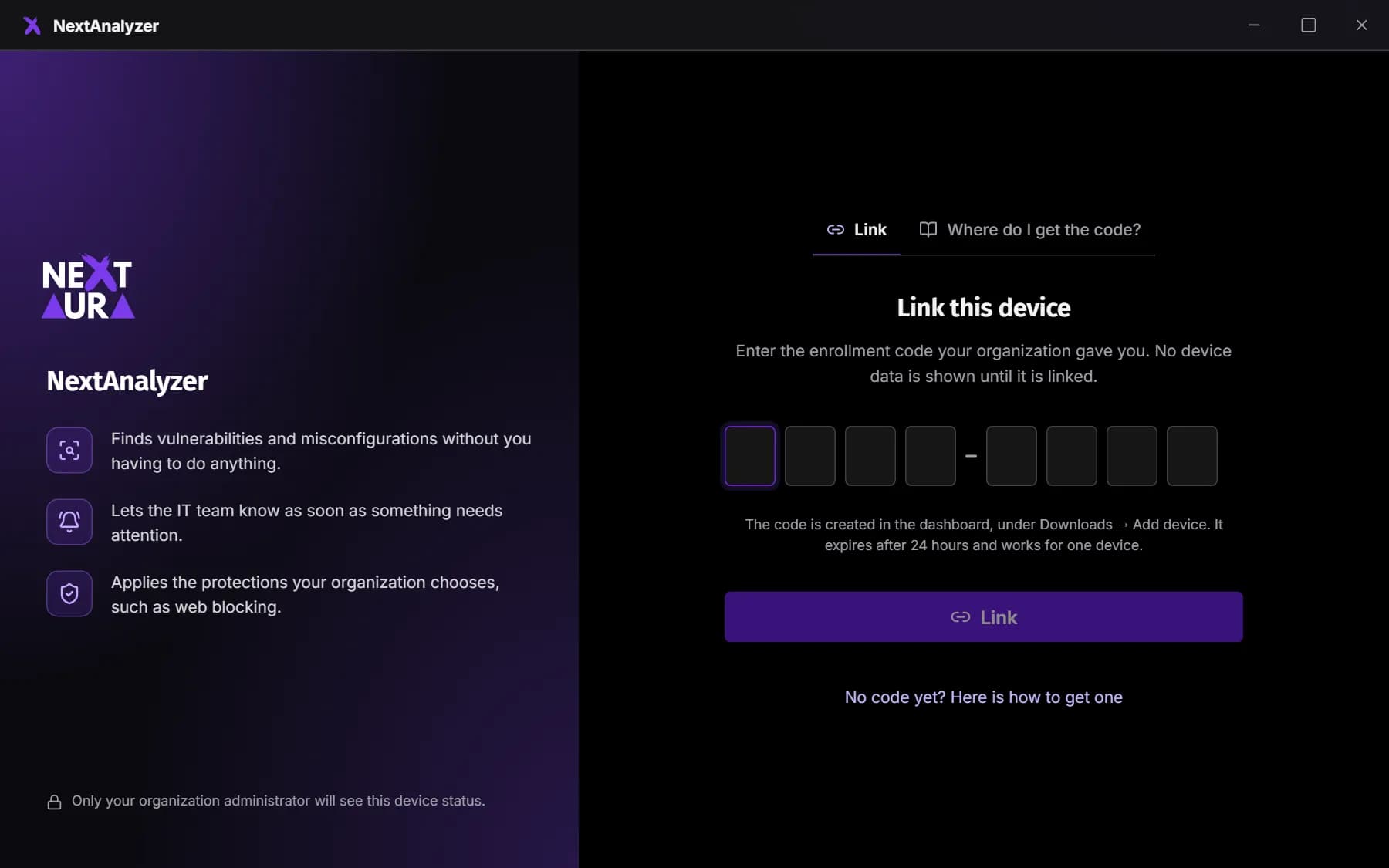
Link the device if asked
If nobody entered the code during installation, the app opens “Link this device”. Enter the enrollment code your administrator gives you and click “Link”. The “Where do I get the code?” tab explains how it's generated.
Expected result: You see “Device linked. It is now protected by your organization.” and Overview opens.
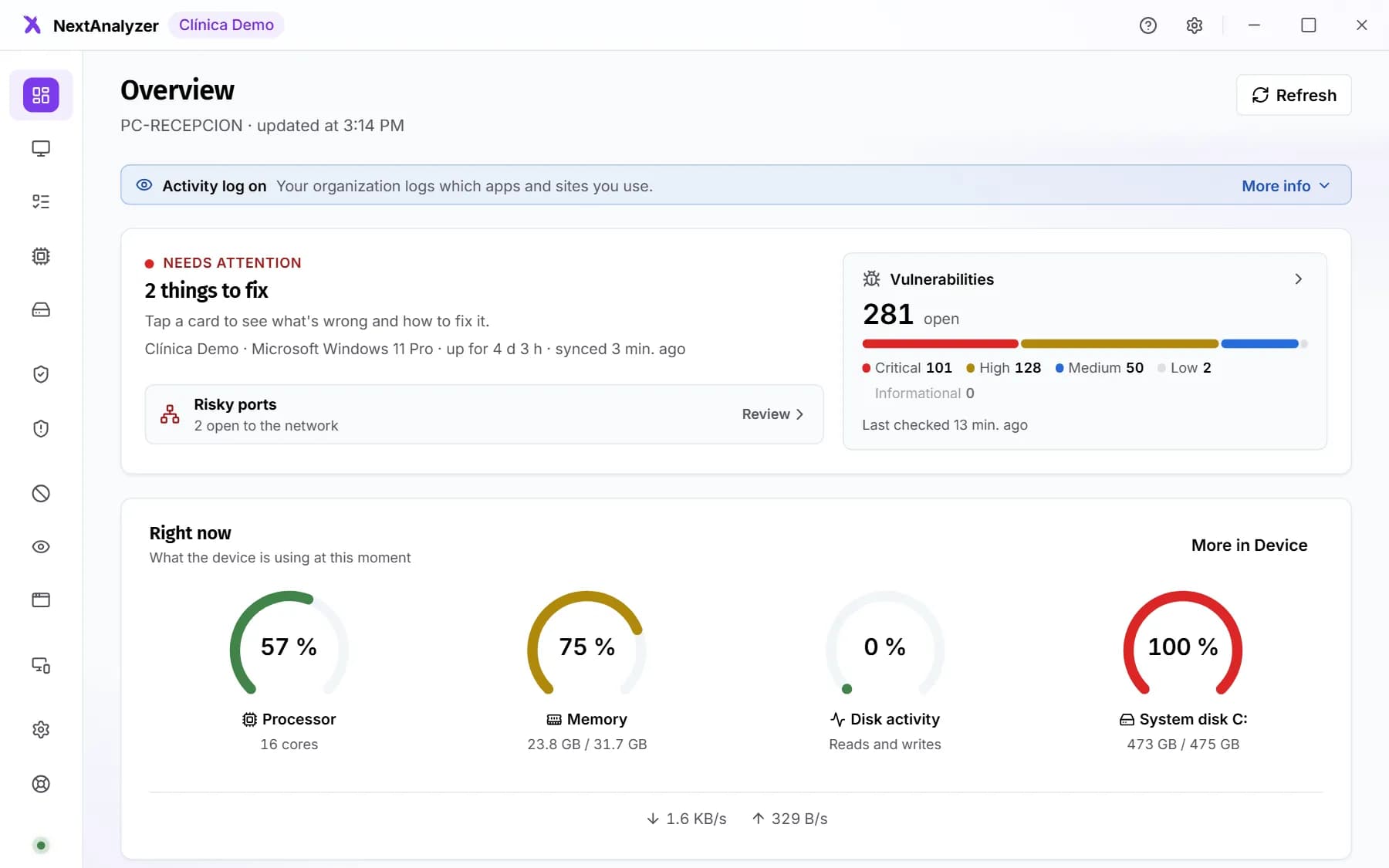
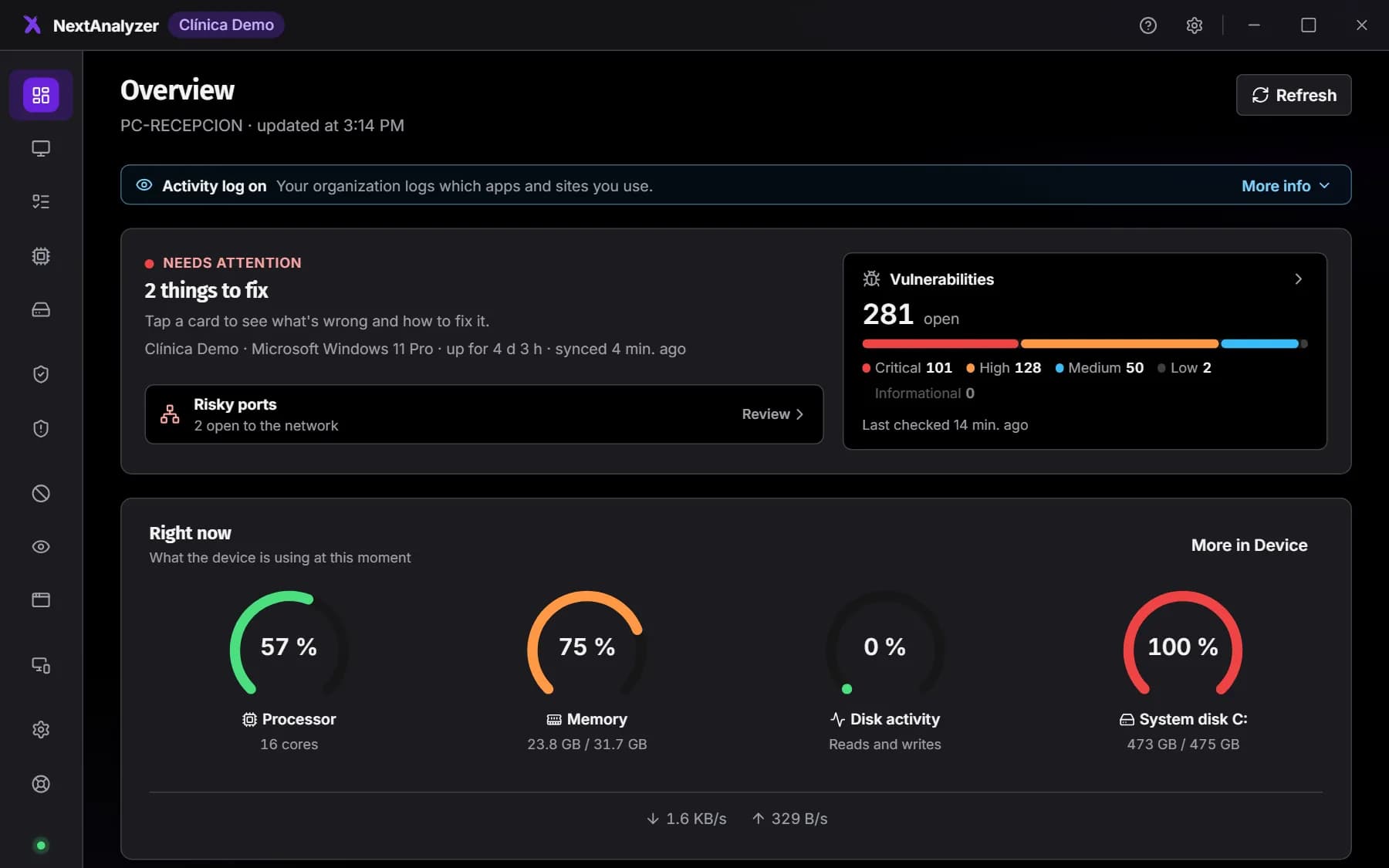
Overview
The first thing you see: whether anything needs fixing, vulnerabilities by severity, disk space and how the device is doing right now. “View details” on each figure opens its page.
Expected result: You can tell at a glance whether your device needs anything.
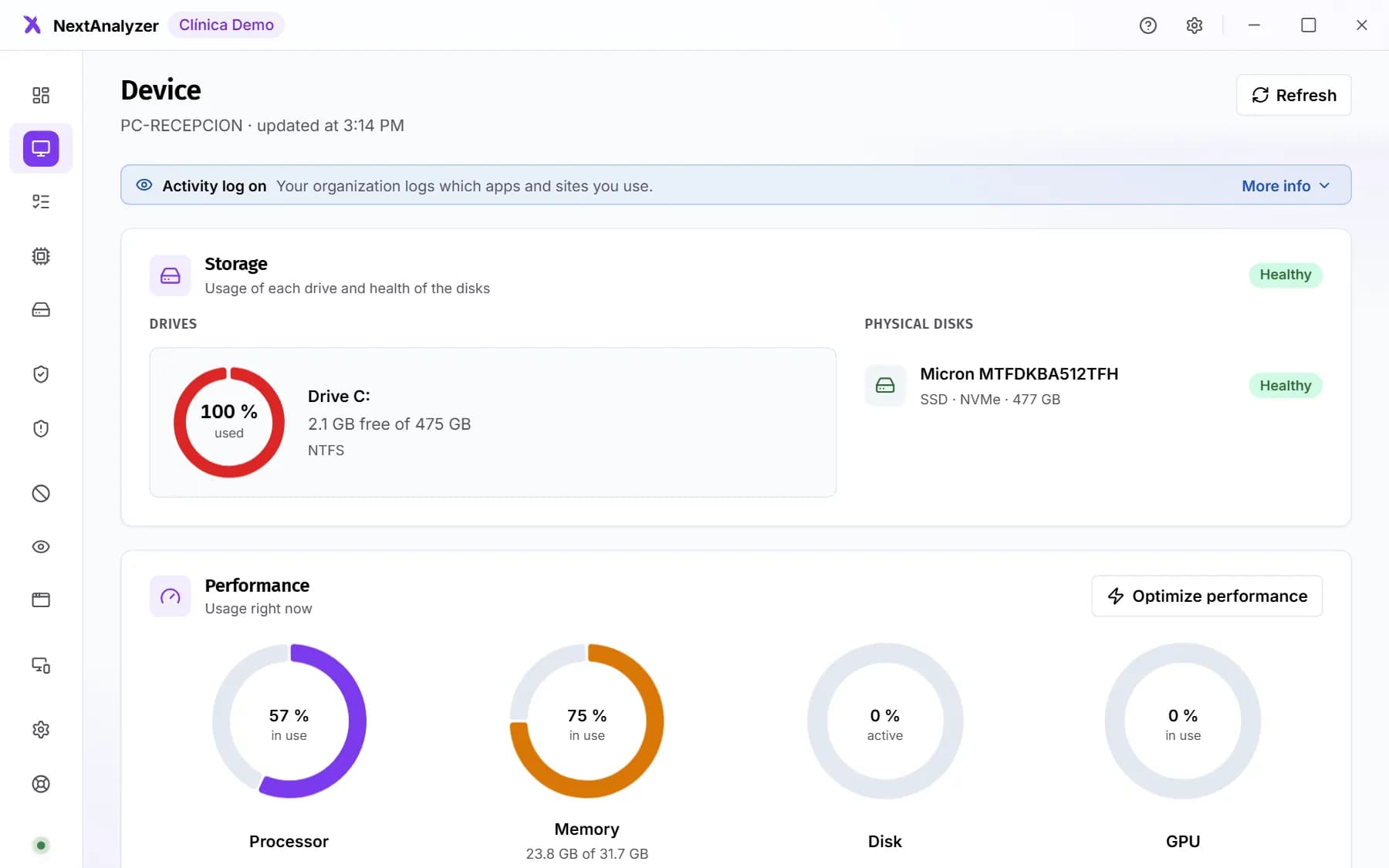
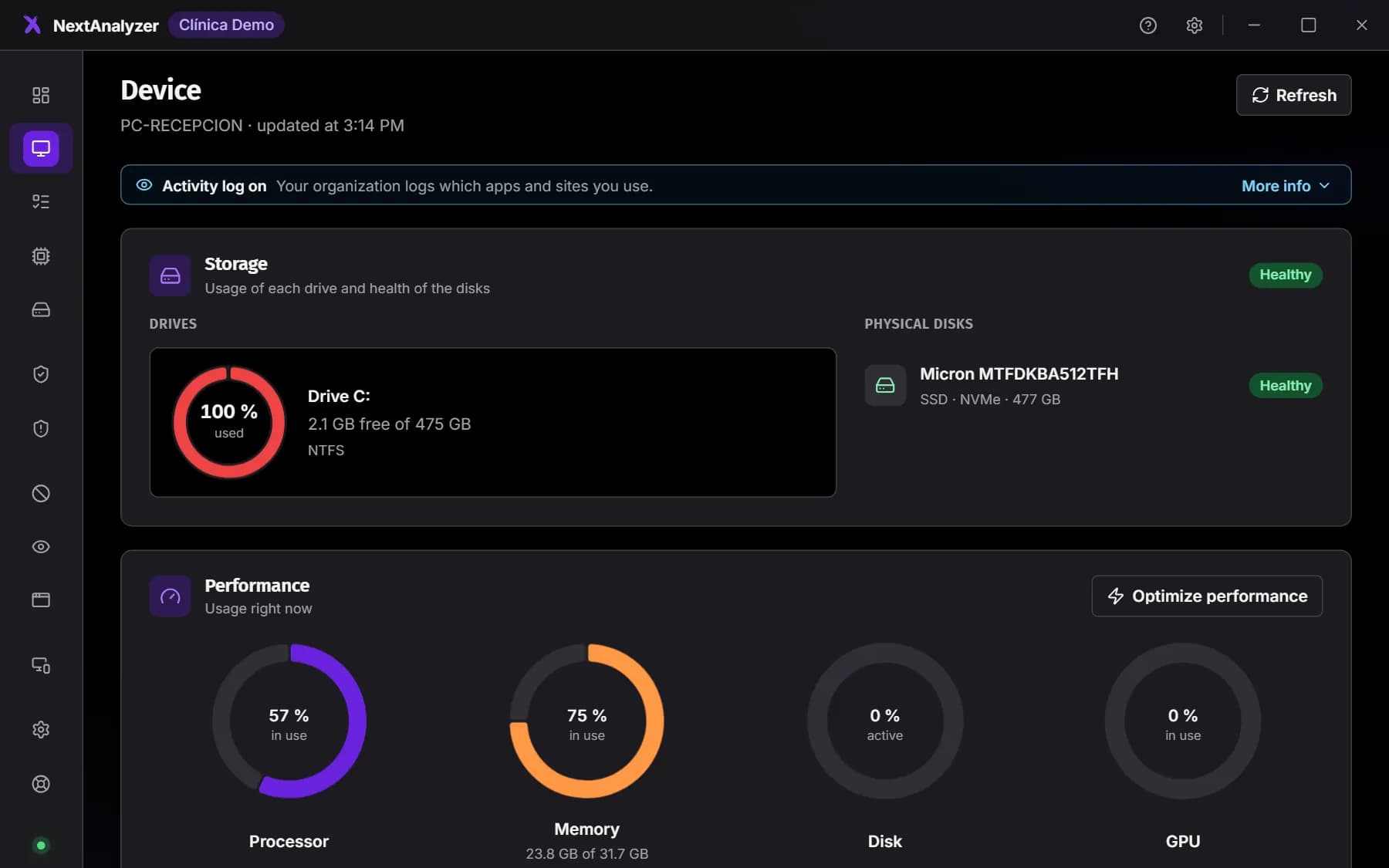
Tip: Each drive's ring turns amber from 75% full and red from 90%.
Device and Tasks
“Device” shows storage, disk health, processor and memory usage and the specs. “Tasks” lists open programs with their usage and lets you end one that isn't responding.
Expected result: You find which program is slowing the device down.
Tip: Anything with a padlock belongs to the system or the agent and can't be ended.
Disk and Drivers
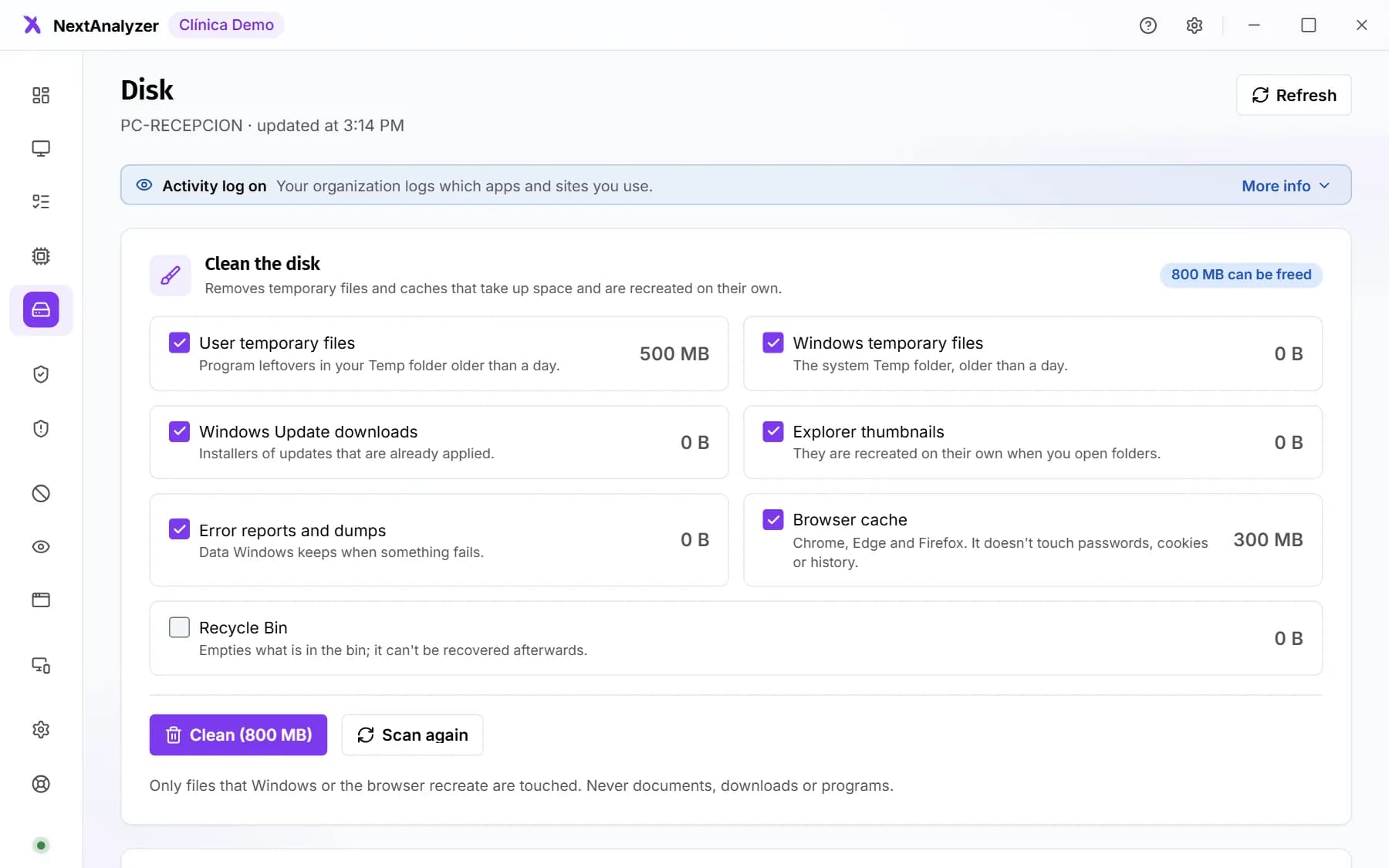
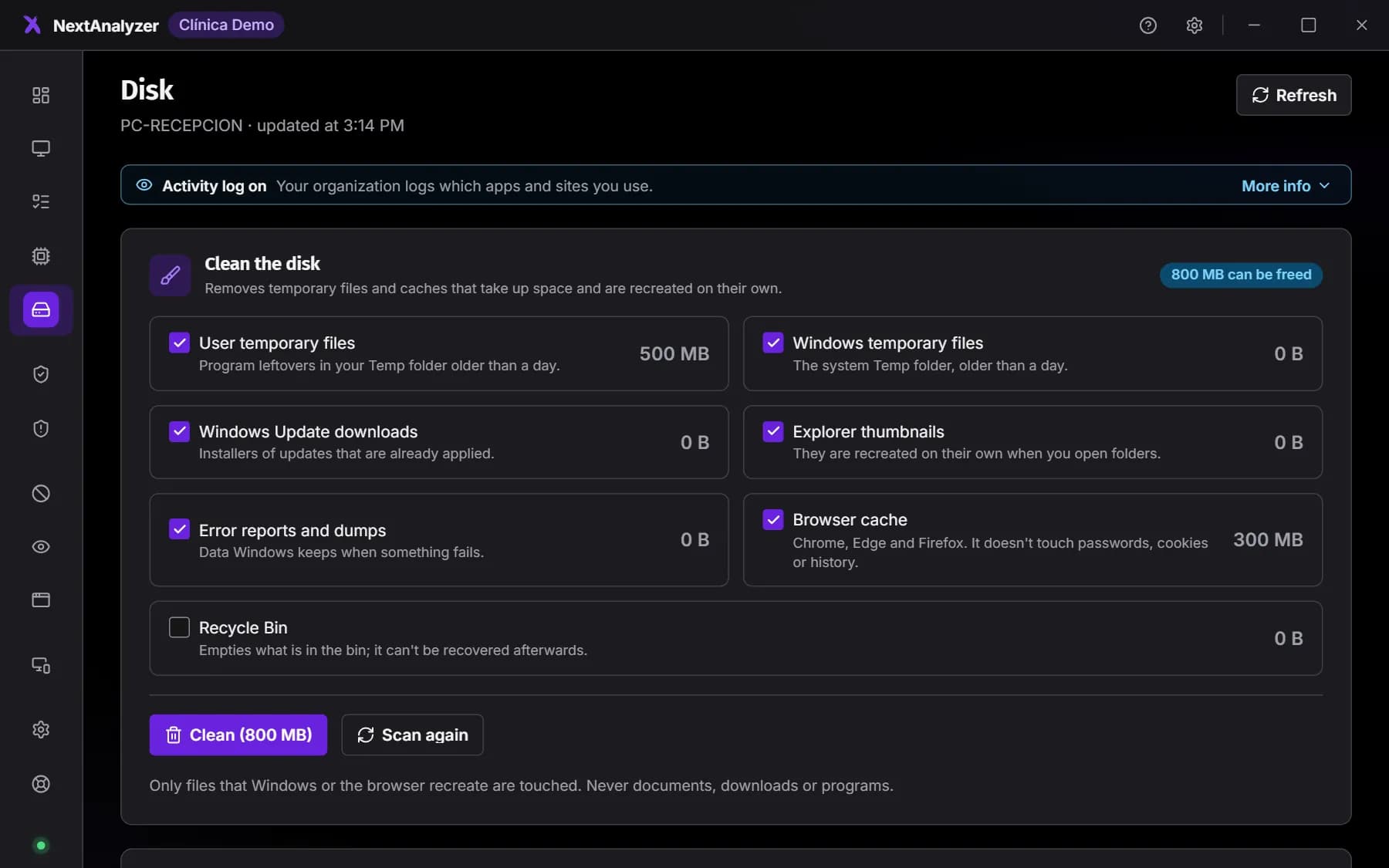
“Disk” works out how much you can free (temporary files, caches, recycle bin) and cleans it with “Clean”. It never touches documents, downloads or programs. “Drivers” shows updates from Windows Update, system updates on Mac or fwupd on Linux.
Expected result: You free up space and know whether drivers are pending.
Defenses & network
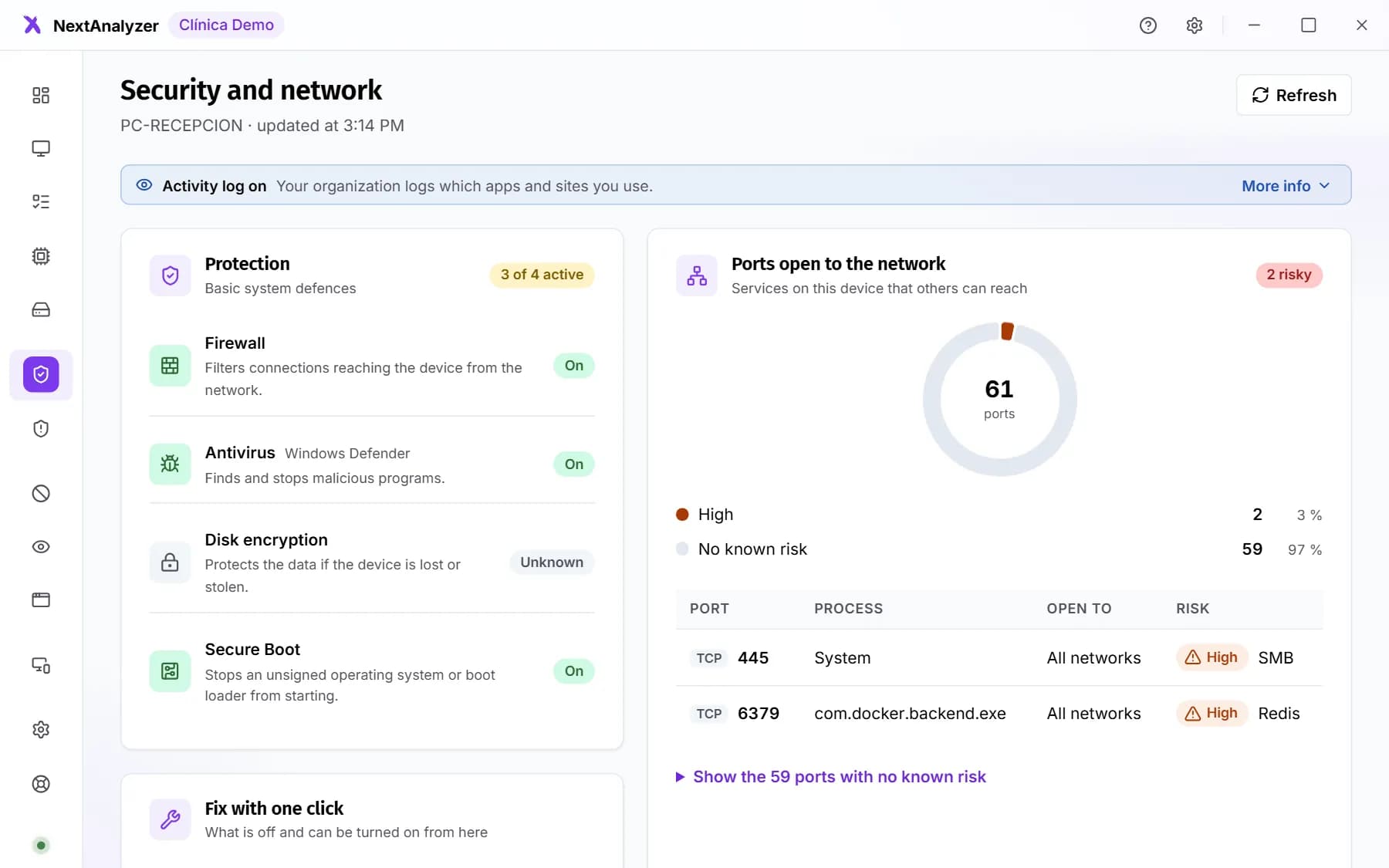
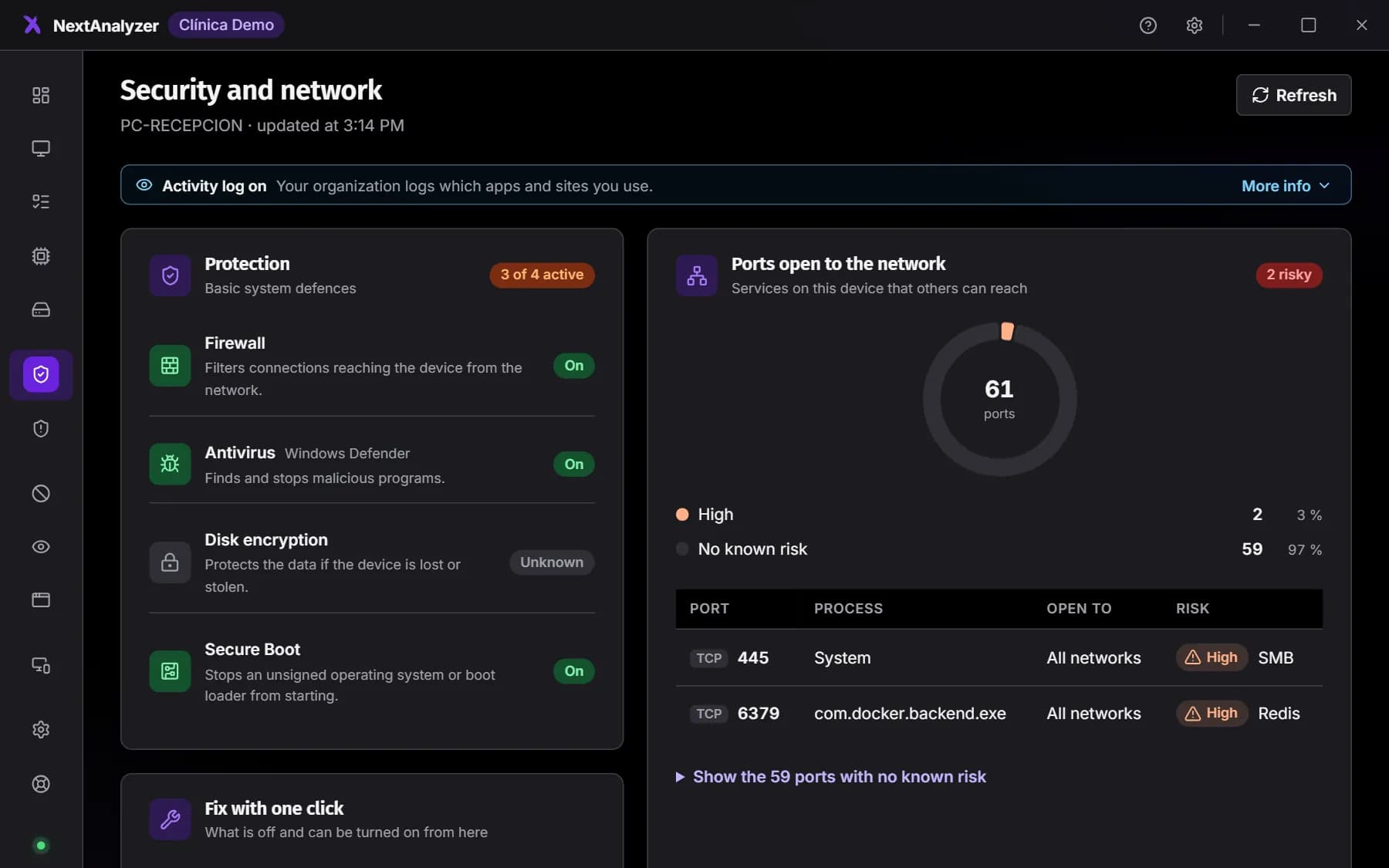
Firewall, antivirus, encryption and secure boot (on Mac, also Gatekeeper and SIP), and the ports open to the network with their risk. In “Fix with one click” you can turn on whatever is off.
Expected result: You see “Nothing to fix with one click” when everything is on.
Tip: Turning on the firewall or antivirus asks for confirmation and the system's administrator permission.
Vulnerabilities
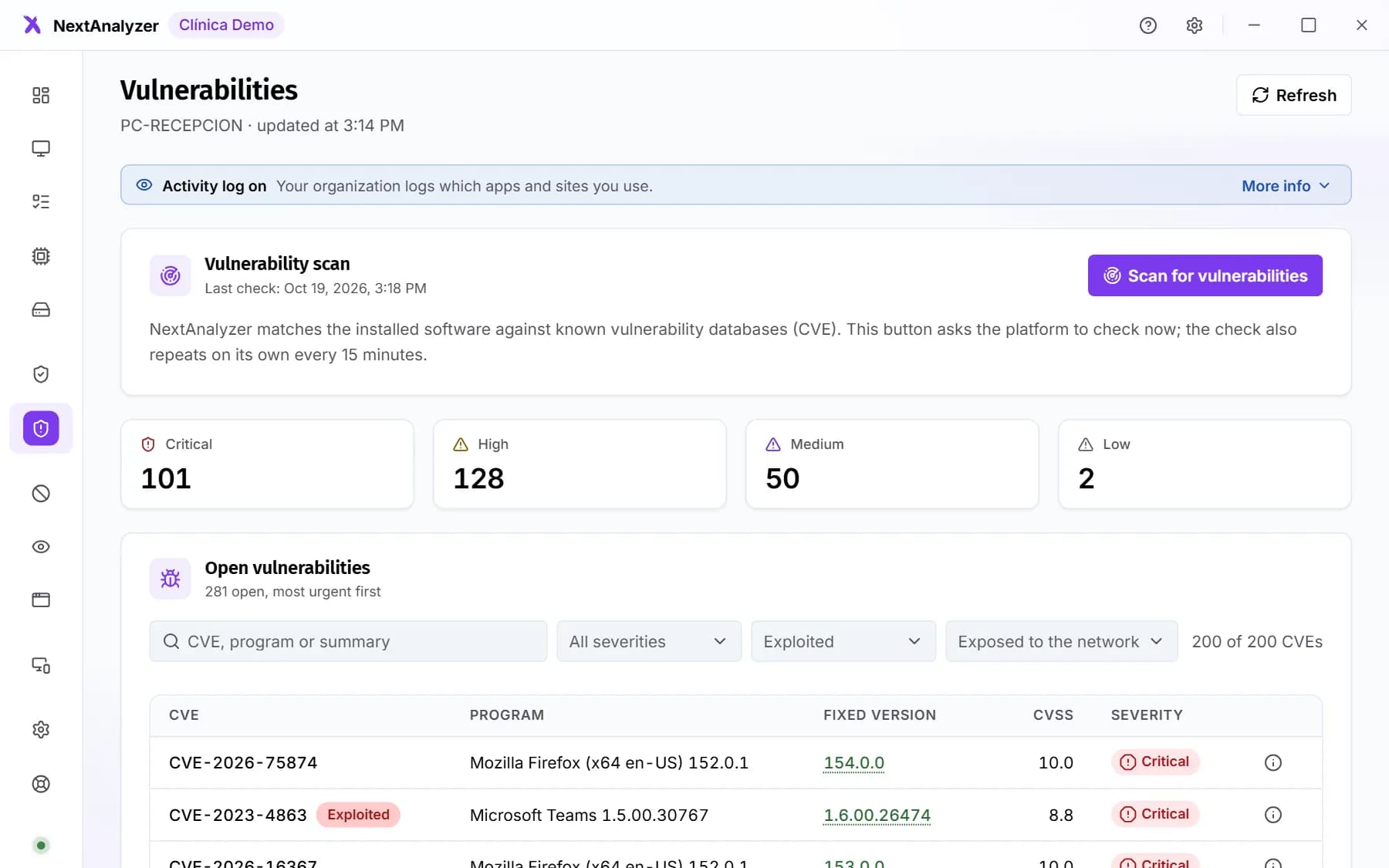
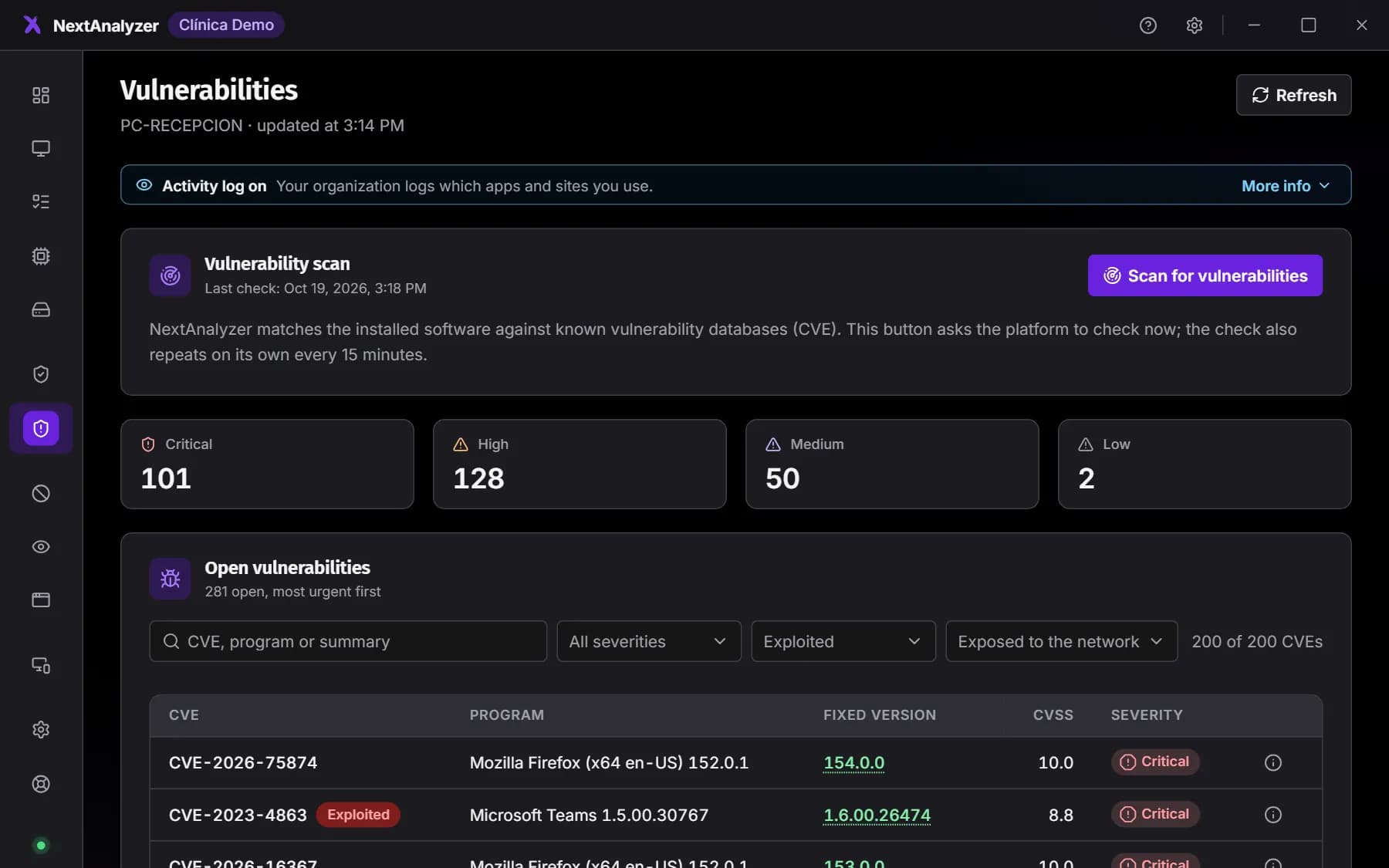
This device's vulnerabilities by severity: what each one means, the version that fixes it and how to fix it. “Scan for vulnerabilities” asks the platform for a fresh check.
Expected result: You know which program to update first.
Tip: If detection isn't active, the page says so and explains what to do: you won't see a misleading zero.
Web blocking and Activity
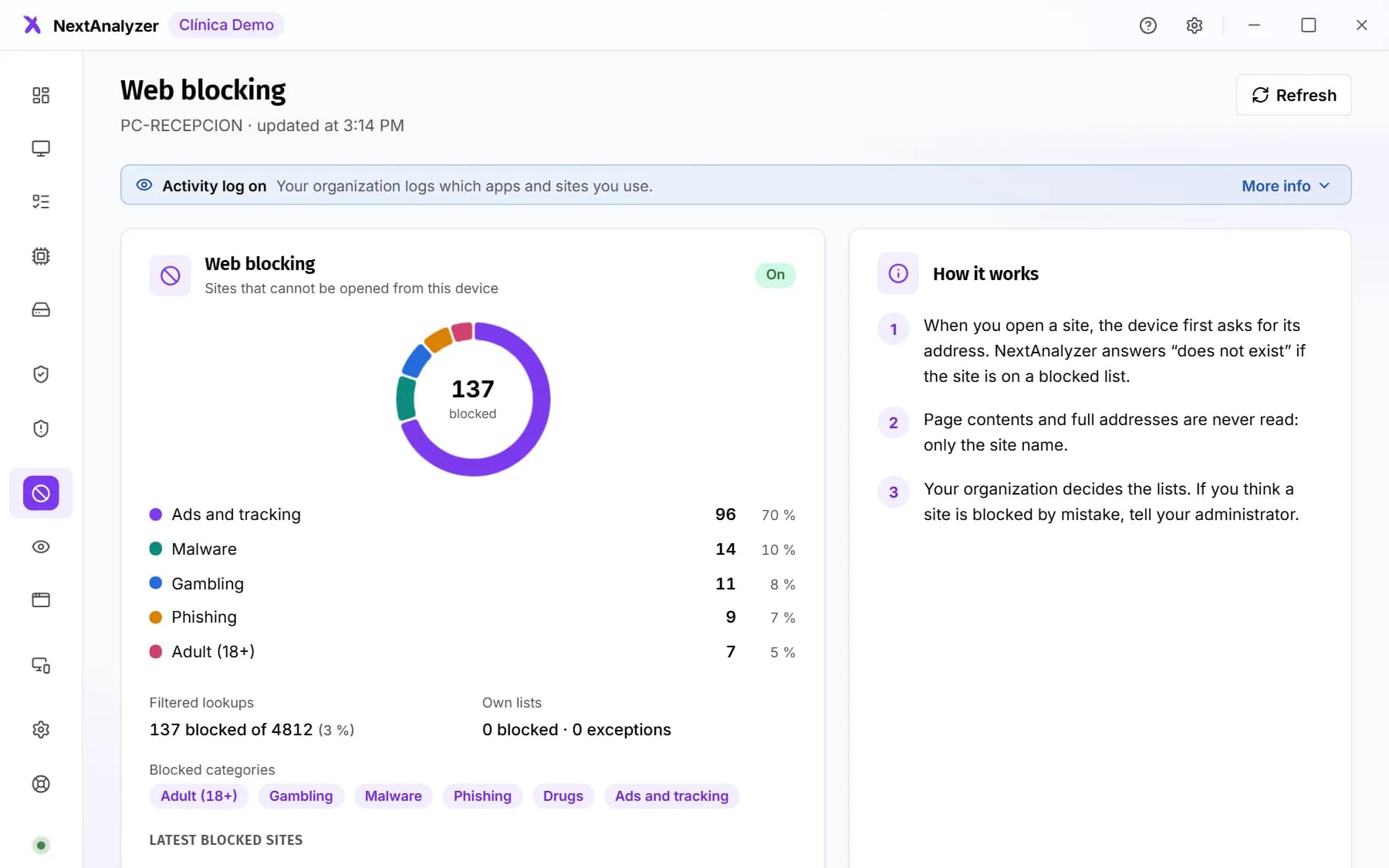
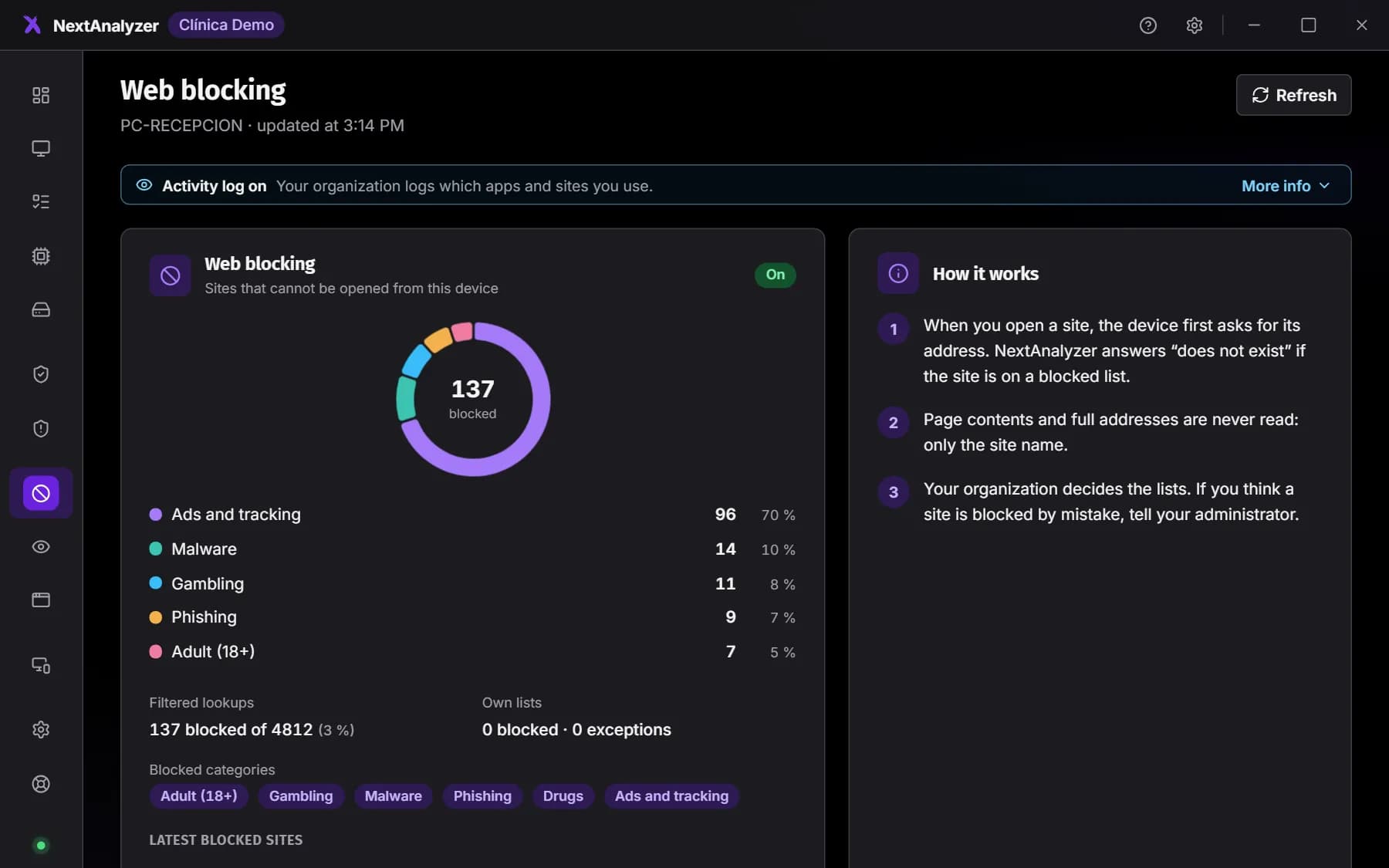
“Web blocking” shows the categories your organization blocks and ad blocking. “Activity” only appears if your organization turns on the history: it shows what is recorded, so you always know.
Expected result: You know which sites won't open on this device and whether usage is recorded.
Apps
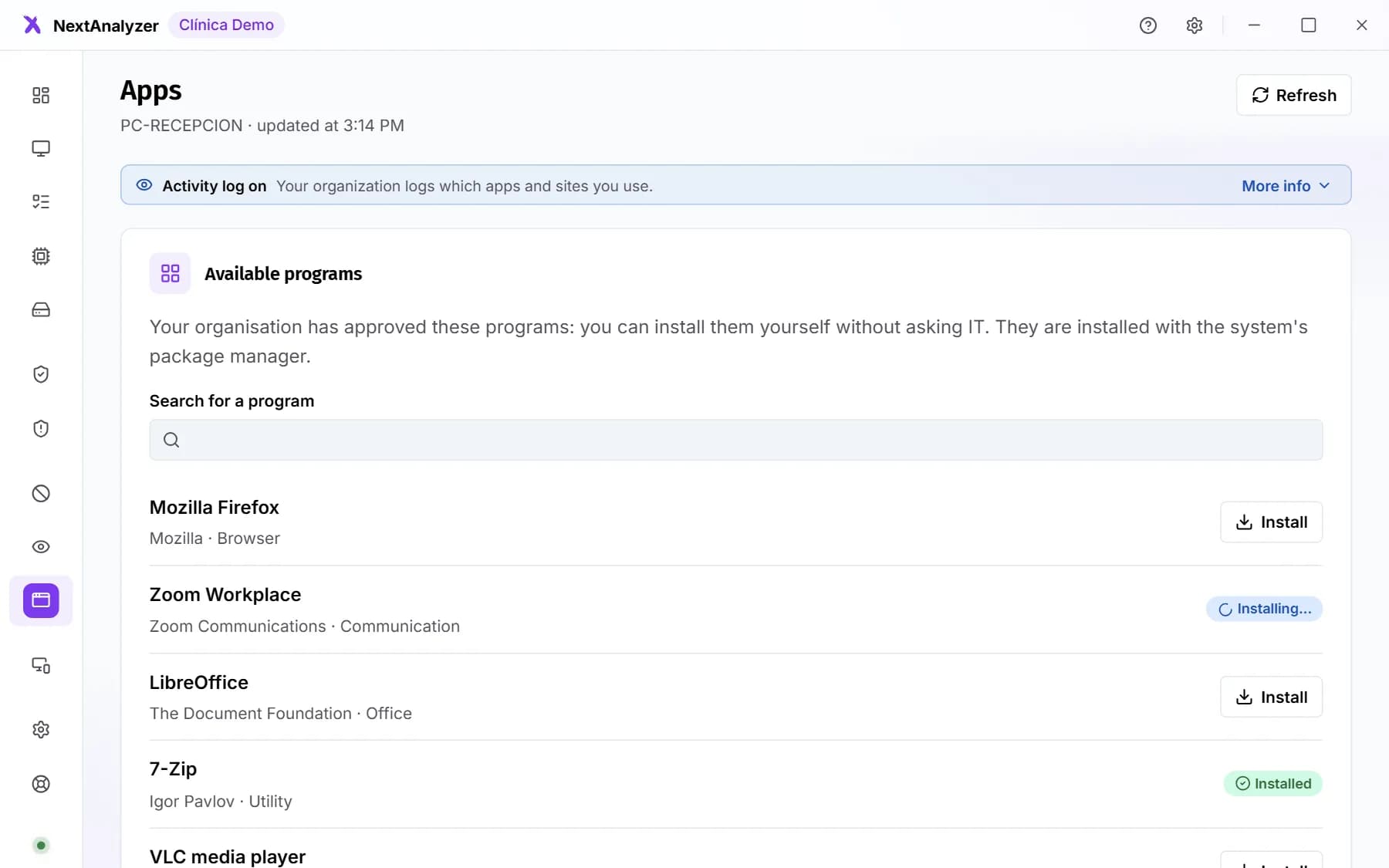
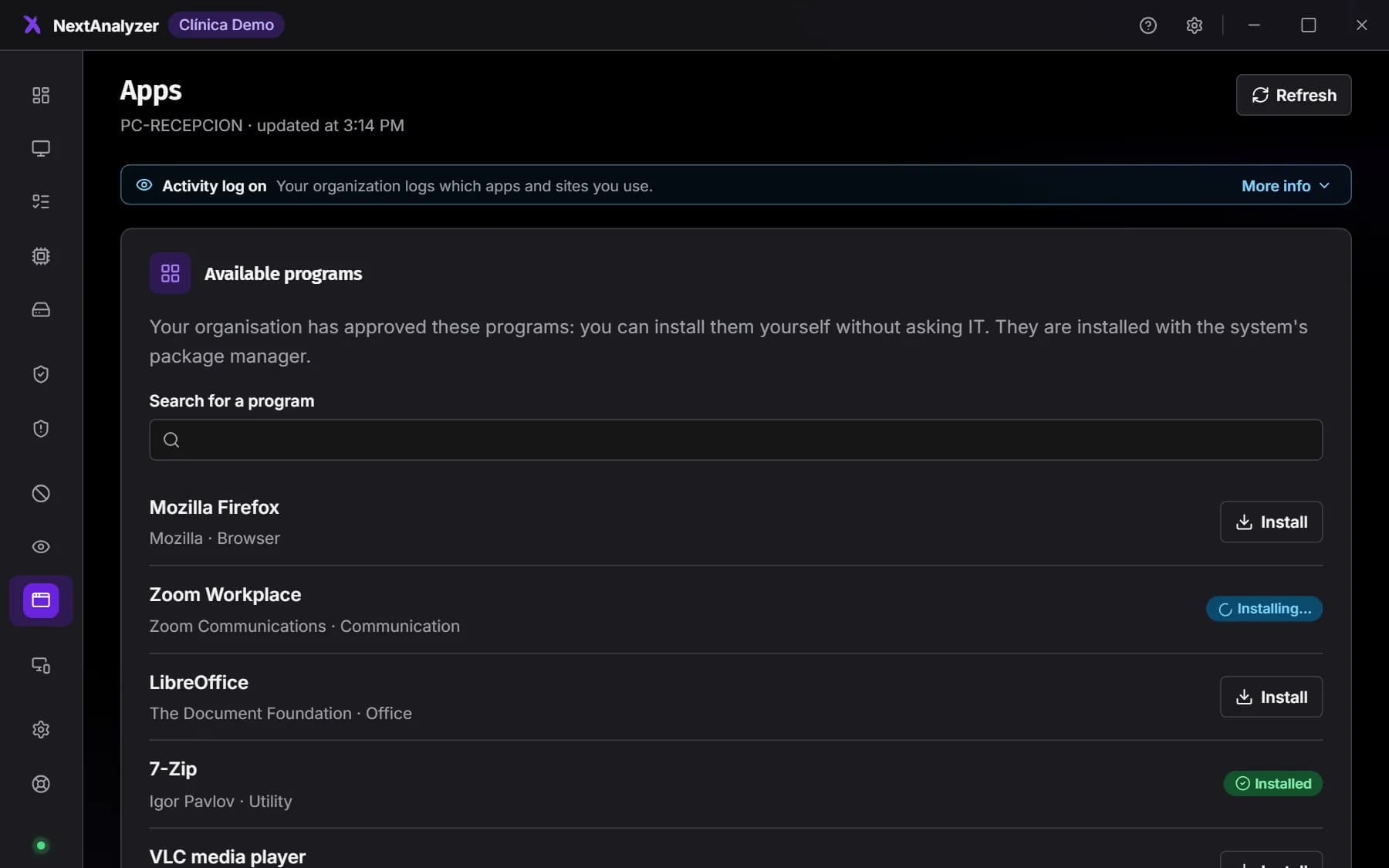
Only appears if your organization turns on self-service. Pick a program from “Available programs” and click “Install”. If you need one that isn't there, use the request form below the list.
Expected result: The program goes from “Queued” to “Installing…” and ends up installed.
Remote access
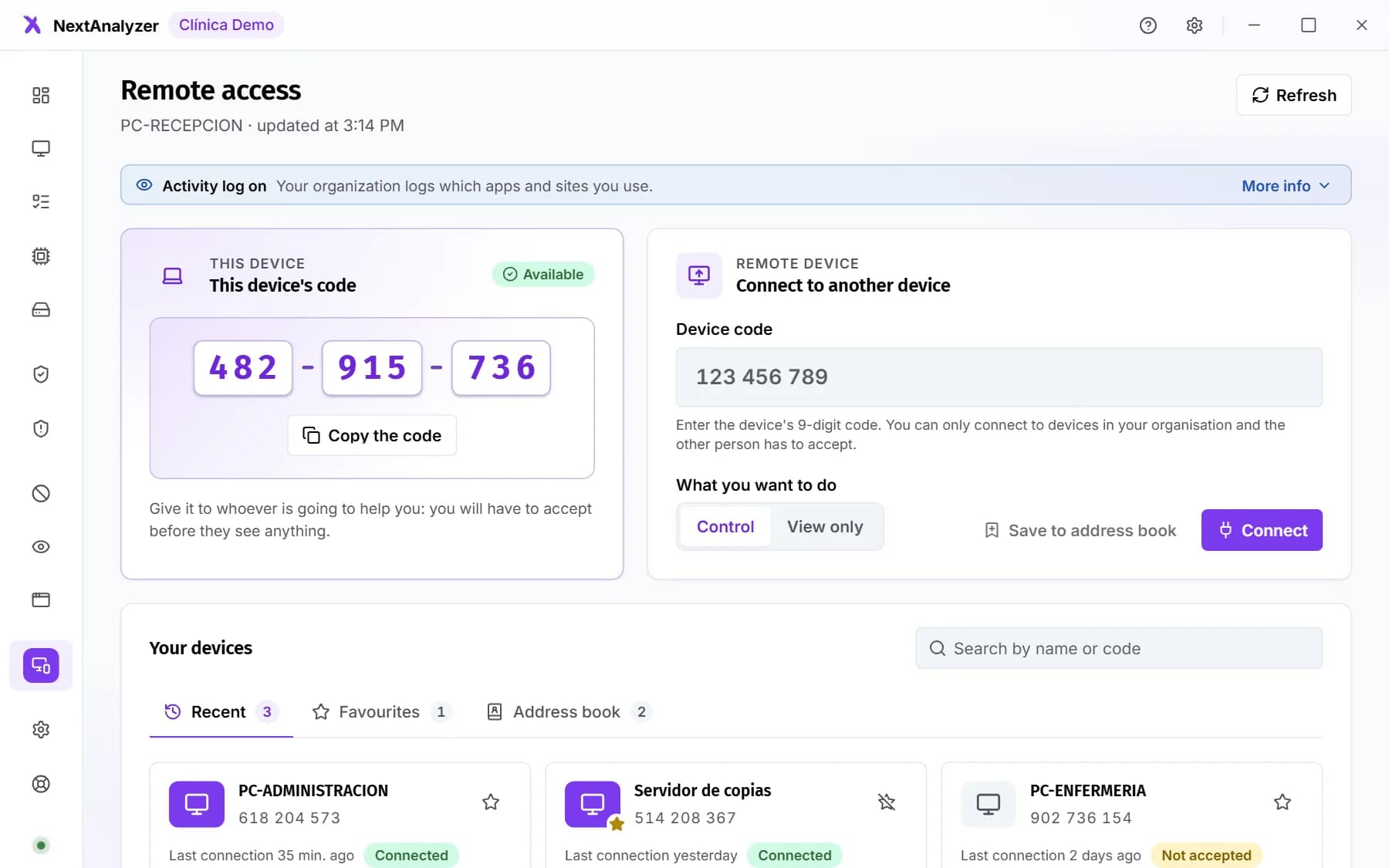
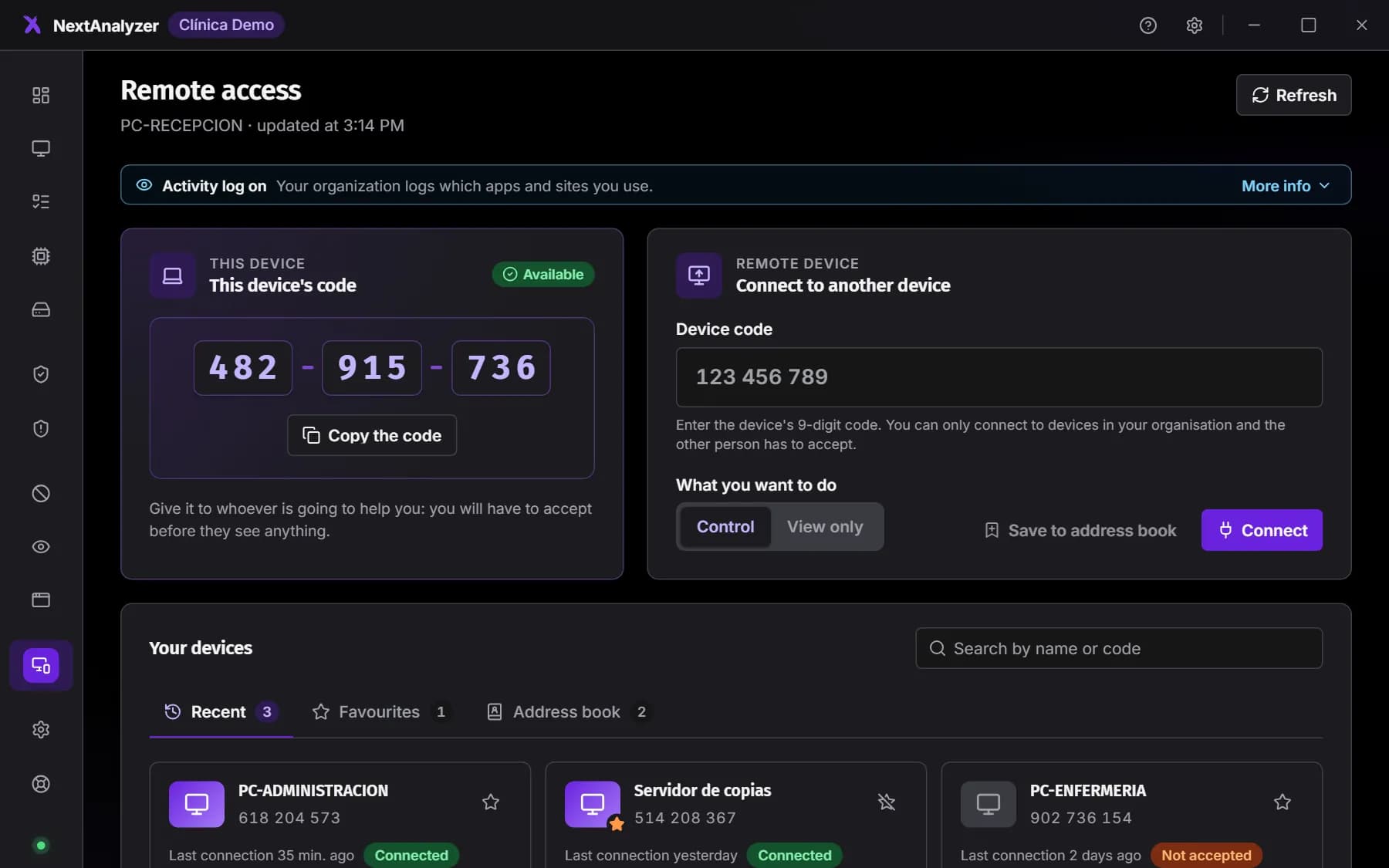
“This device's code” has 9 digits: give it to whoever is going to help you. You'll have to accept before they see anything. In “Connect to another device” you enter the code of another device in your organization.
Expected result: Whoever helps you can request a connection and you decide whether to accept.
Settings and Help
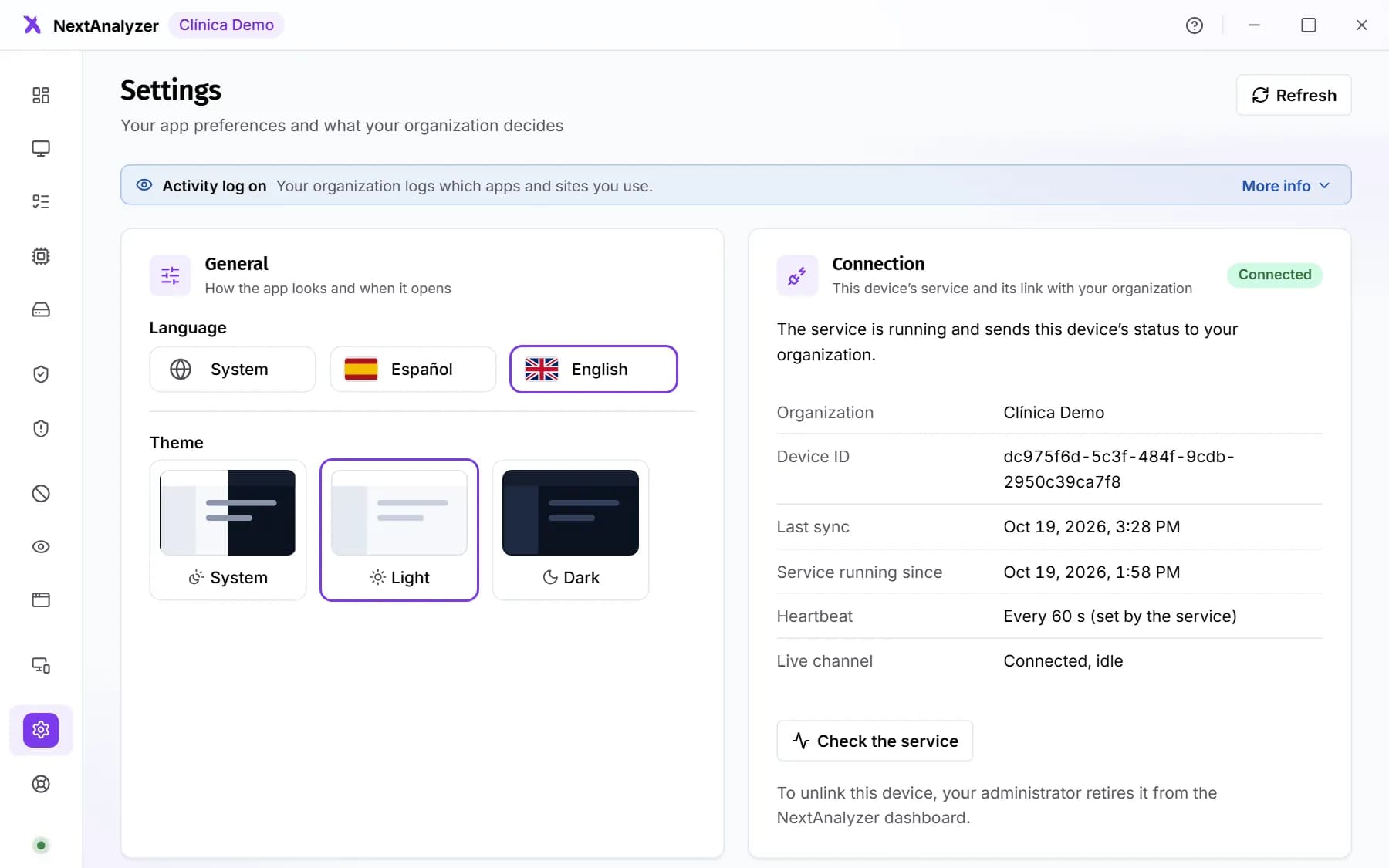
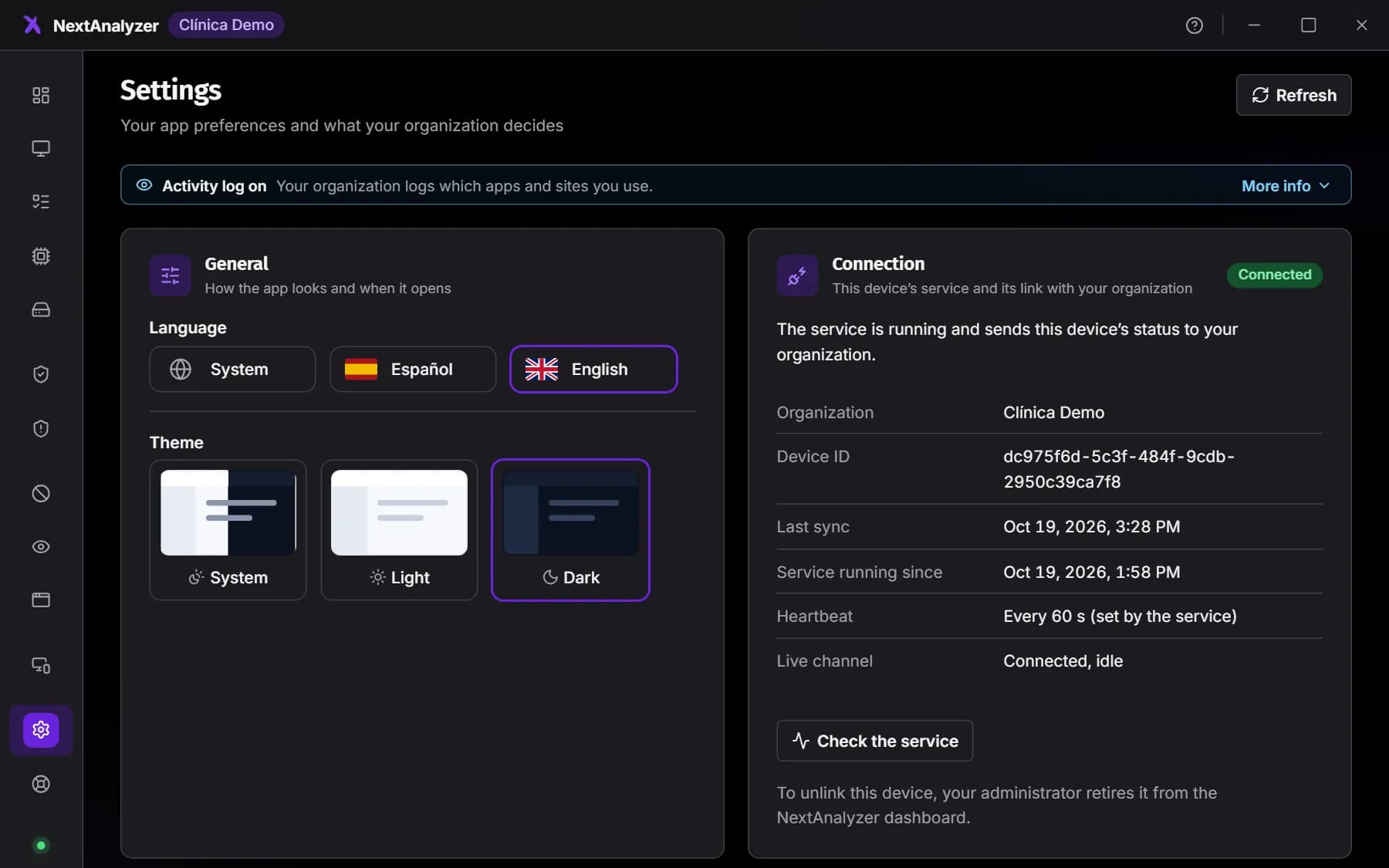
In “Settings” you choose language and theme, and see the “Connection” with your organization and “Privacy”. Under “Advanced” there's “Open the logs folder”. “Help” explains each page and what support will ask you for.
Expected result: “Connection” says “Connected”: the device is sending its status to your organization.
If something goes wrong
I can't find the open app
It lives in the system tray: next to the clock on Windows and in the menu bar on Mac. If you close it, the service keeps protecting the device.
The app says “The NextAnalyzer service is not responding”
The service that protects the device has stopped. Click “Check the service” in Settings. If nothing changes, restart the device and, if that doesn't fix it, tell your administrator.
I want to change web blocking or unlink the device
You can't from the app: your organization decides it and here it's view-only. Ask your administrator for the change. To unlink the device, they have to retire it from the dashboard.
Can my company see what I do?
Only if it turns on activity history, and then the app says so and shows it under “Activity”. Apps and site names are recorded, never keystrokes, screenshots, content or full URLs.
Support is asking for my logs
In Settings › “Advanced”, click “Open the logs folder” and send interface.log. If they need more detail, first raise the “Log level” to “Debug” and repeat what was failing.
Still not working? Open a support ticket