
Self-service apps in the app
With self-service, the person using the device installs programs your organization has already approved without waiting for IT. They can also request programs that aren't listed. You decide the catalog and which groups it is on for.
Open self-service
In the menu, Fleet › “Software”, “Self-service” tab. Read how it works. Tick “Turn on ‘Apps’ in the agent” and, if you like, “Allow requesting programs that aren't listed”.
Expected result: You get a confirmation that self-service was saved.
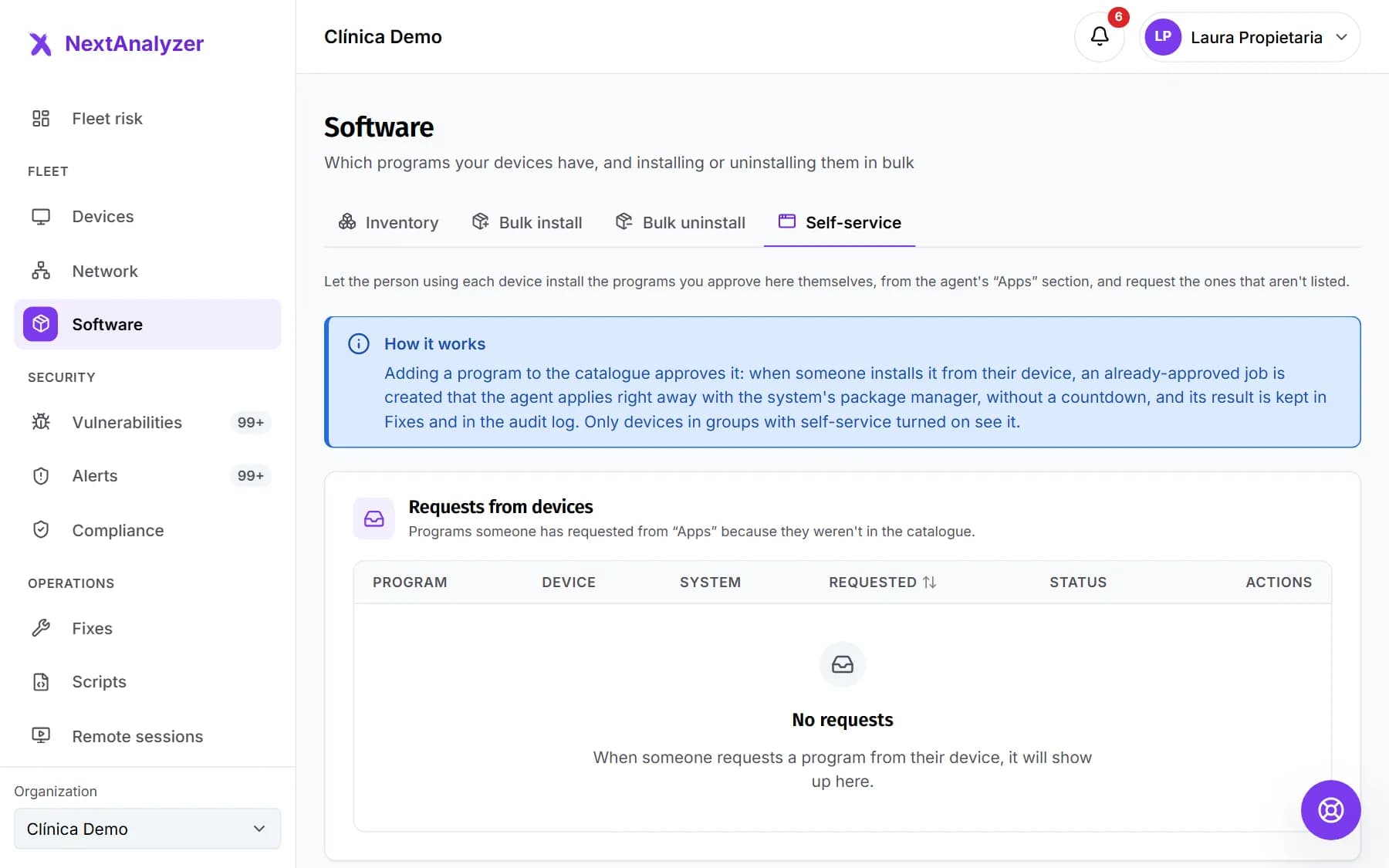
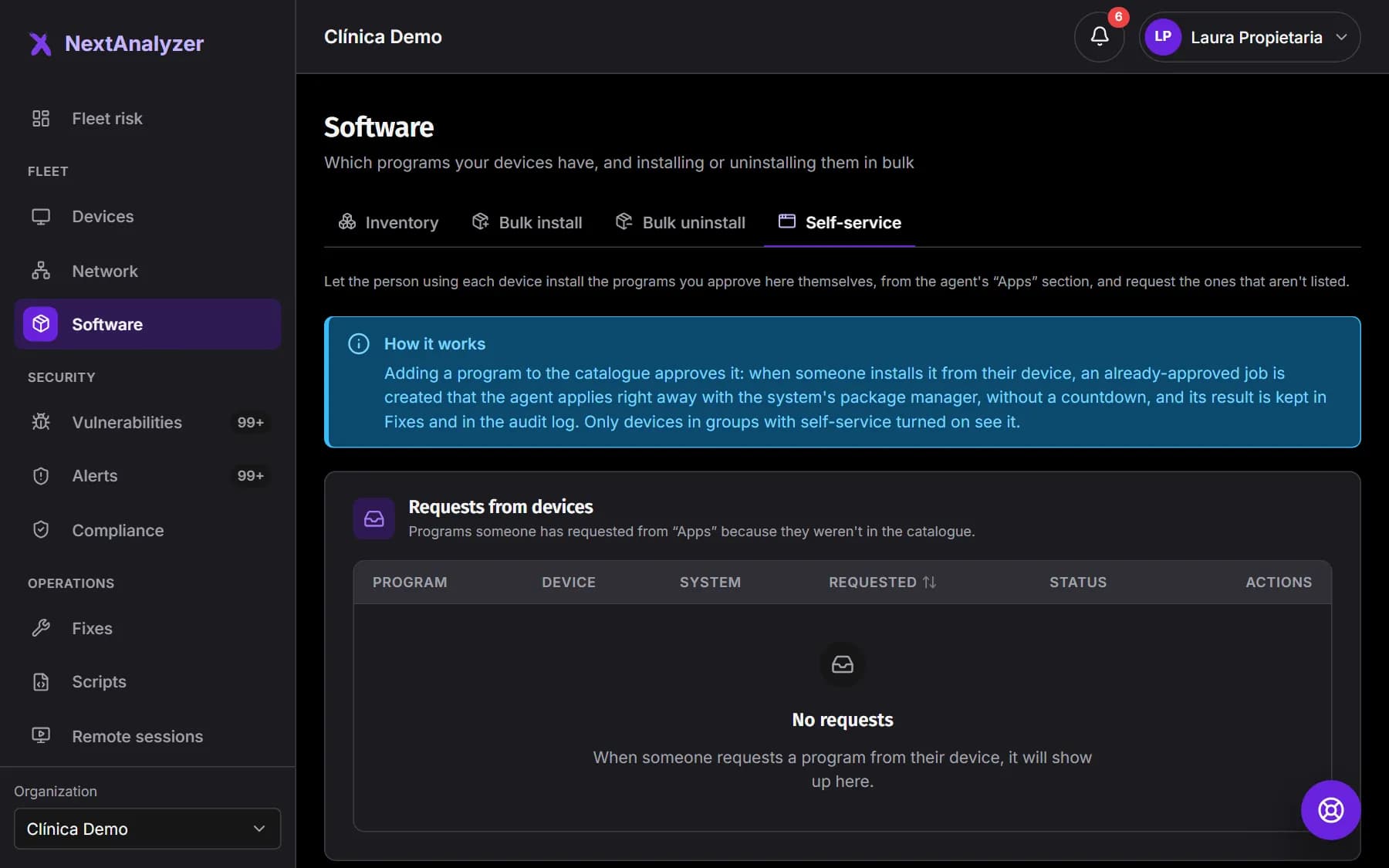
Choose where it is on
In “Where it is on”, turn self-service on group by group. The whole organization row is the default group: it applies to devices with no other group.
Expected result: Each group shows on or off, and how many devices have their own policy.
Build the catalog
Click “Add program”. Choose “From the checked catalogue” or “Custom” and enter its identifier in winget, apt, dnf or Homebrew. Adding it approves it. The catalog holds up to 200 programs.
Expected result: The program appears in the self-service catalog with its package managers.
Tip: Removing a program from the catalog doesn't uninstall it where it is already installed.
Make exceptions per device
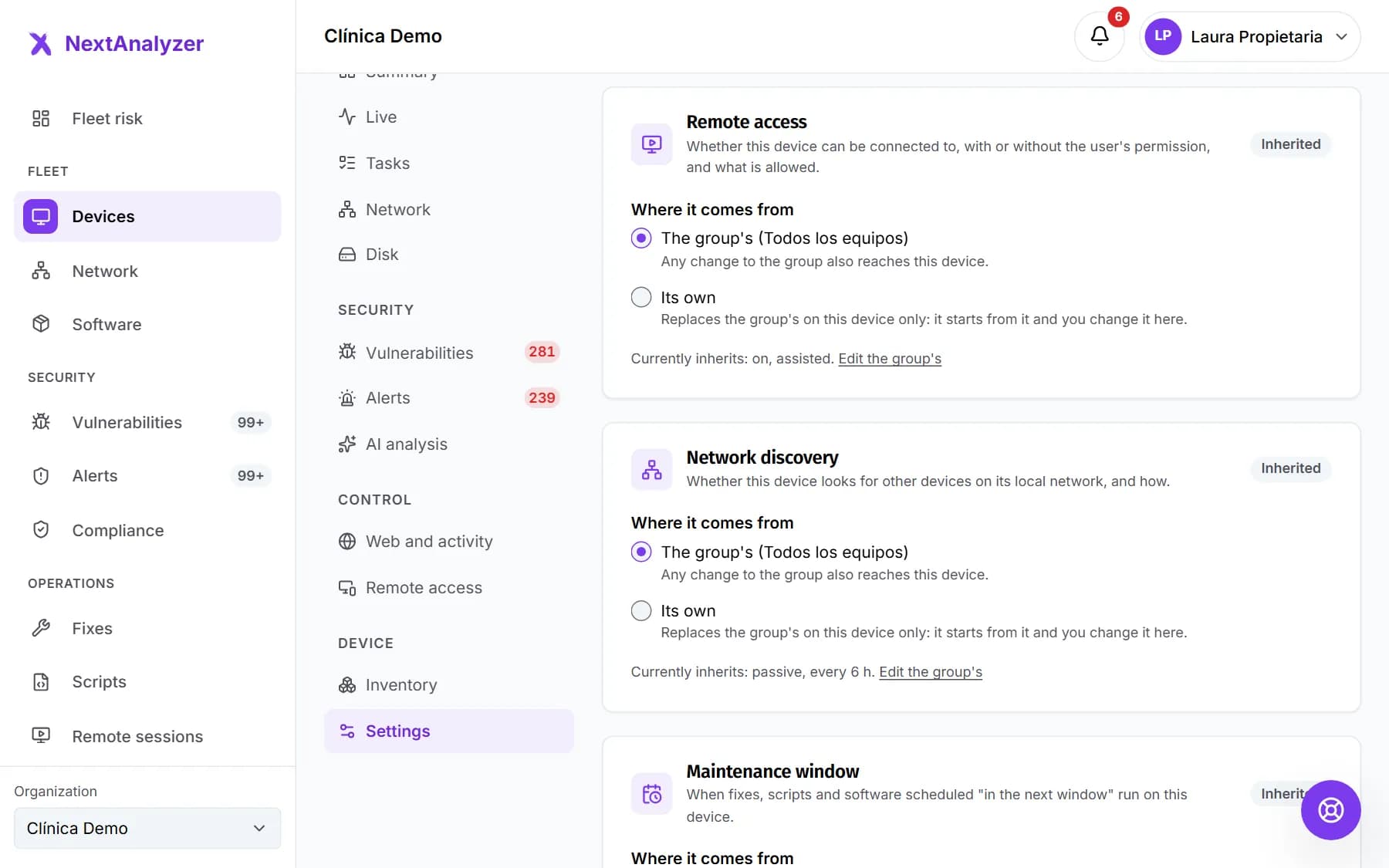
On the device page › “Settings”, under “Self-service apps”, change “Where it comes from” to the device's own policy. That way you turn it on or off for that device only.
Expected result: The device shows “Own” and no longer follows the group for that policy.
What the person using the device sees
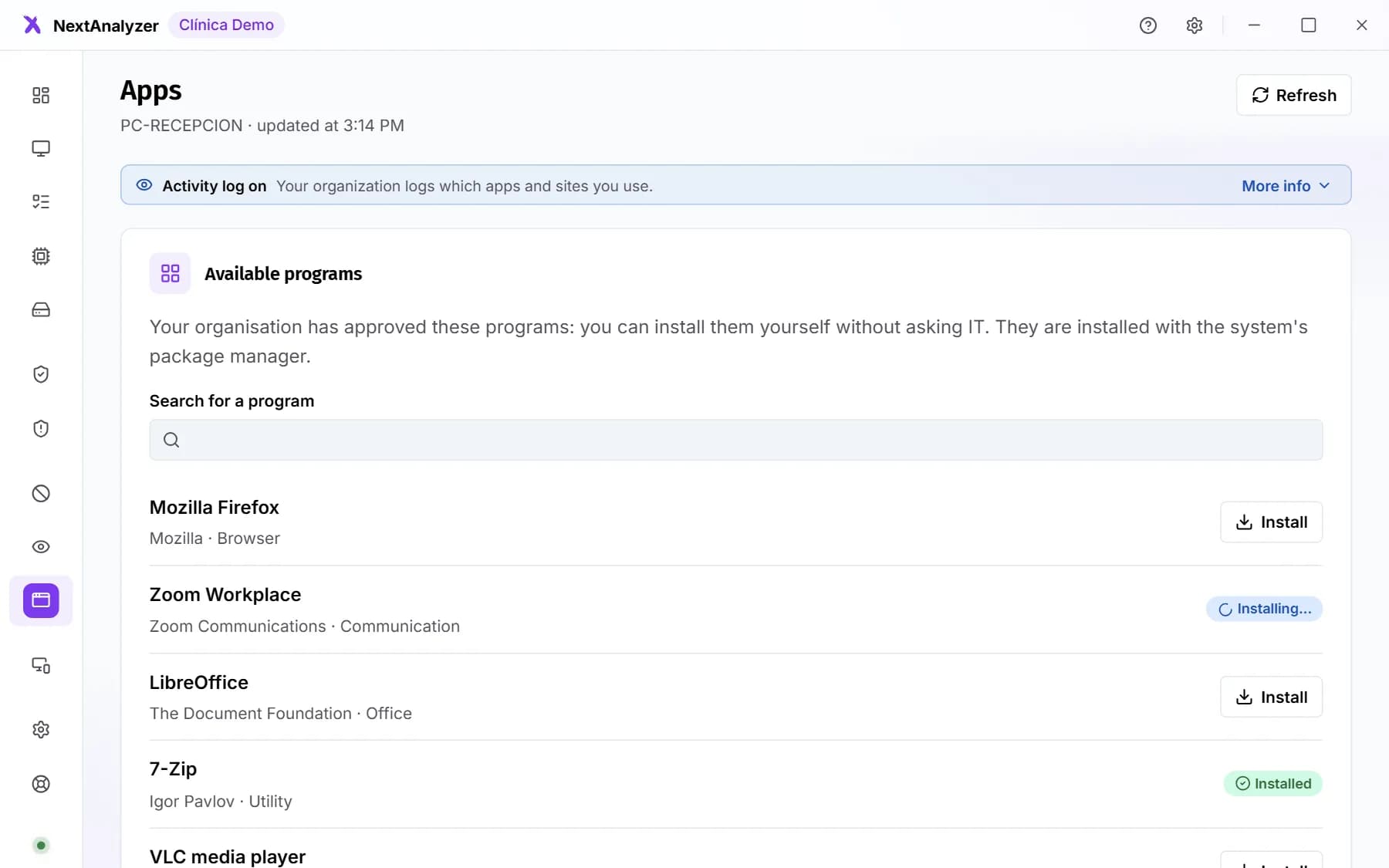
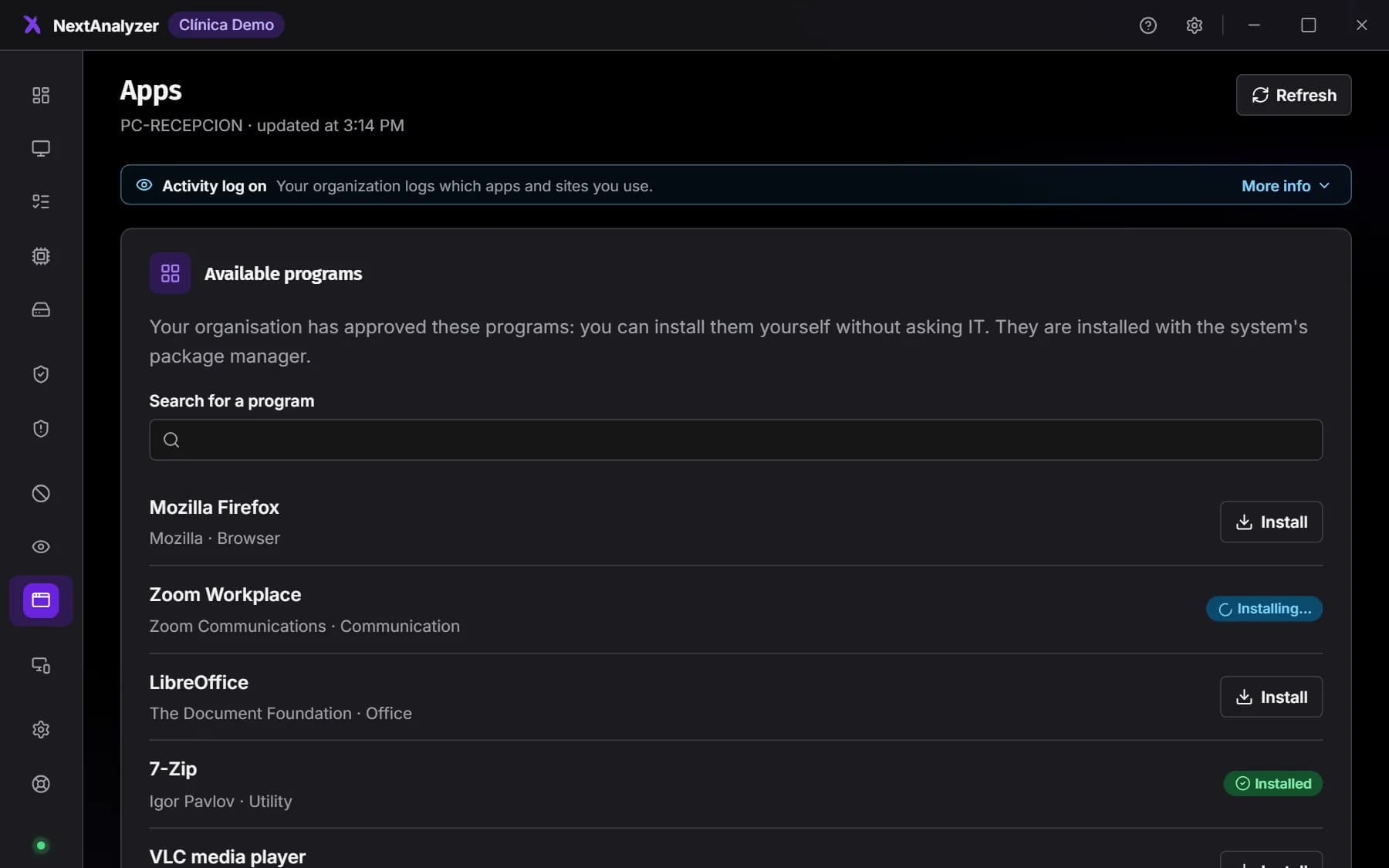
The app shows “Apps” with the available programs, a search box and the “Install” button. Each program shows whether it is queued, installing, installed or failed, with “Try again”.
Expected result: The person installs without asking. The device never restarts on its own.
Tip: The page only appears on devices with self-service on.
Request what isn't listed
In “Request a program that isn't listed”, the person types the program and, optionally, why they need it. They click “Send request”. In “Your requests” they see whether it is pending, approved or rejected.
Expected result: The request reaches the dashboard and the menu shows how many are pending.
Approve or reject
In “Requests from devices”, click “Approve” or “Reject”. On approval, the program joins the catalog. Tick the option to install it now on that device if you want it right away. On rejection, enter the reason.
Expected result: The person sees the decision and the reason in “Your requests”.
Follow the installs
Each self-service install creates an already approved job, with no countdown. You see it in Operations › “Fixes” with its result, and it is recorded in the audit log.
Expected result: You know what was installed, on which device and whether it finished well.
If something goes wrong
The person sees “You've reached today's install or request limit”
Each device can do up to 10 installs in 24 hours and have 5 pending requests at a time. Decide the pending requests or wait until the next day.
A catalog program doesn't appear on some devices
Devices on a system with no identifier don't see it. For example, if you only entered the winget one, it doesn't appear on Linux or macOS. Add the apt, dnf or Homebrew identifier.
It shows that the install failed
Open the job in Fixes and check the reason: program open, another installation running, no network or no disk space. Fix it and ask the person to click “Try again”. On macOS, Homebrew is required.
Still not working? Open a support ticket