
Review the remote session history
Every remote session is logged, including those that never start. The history helps you answer questions, prove what was done and end a session if needed.
Open Remote sessions
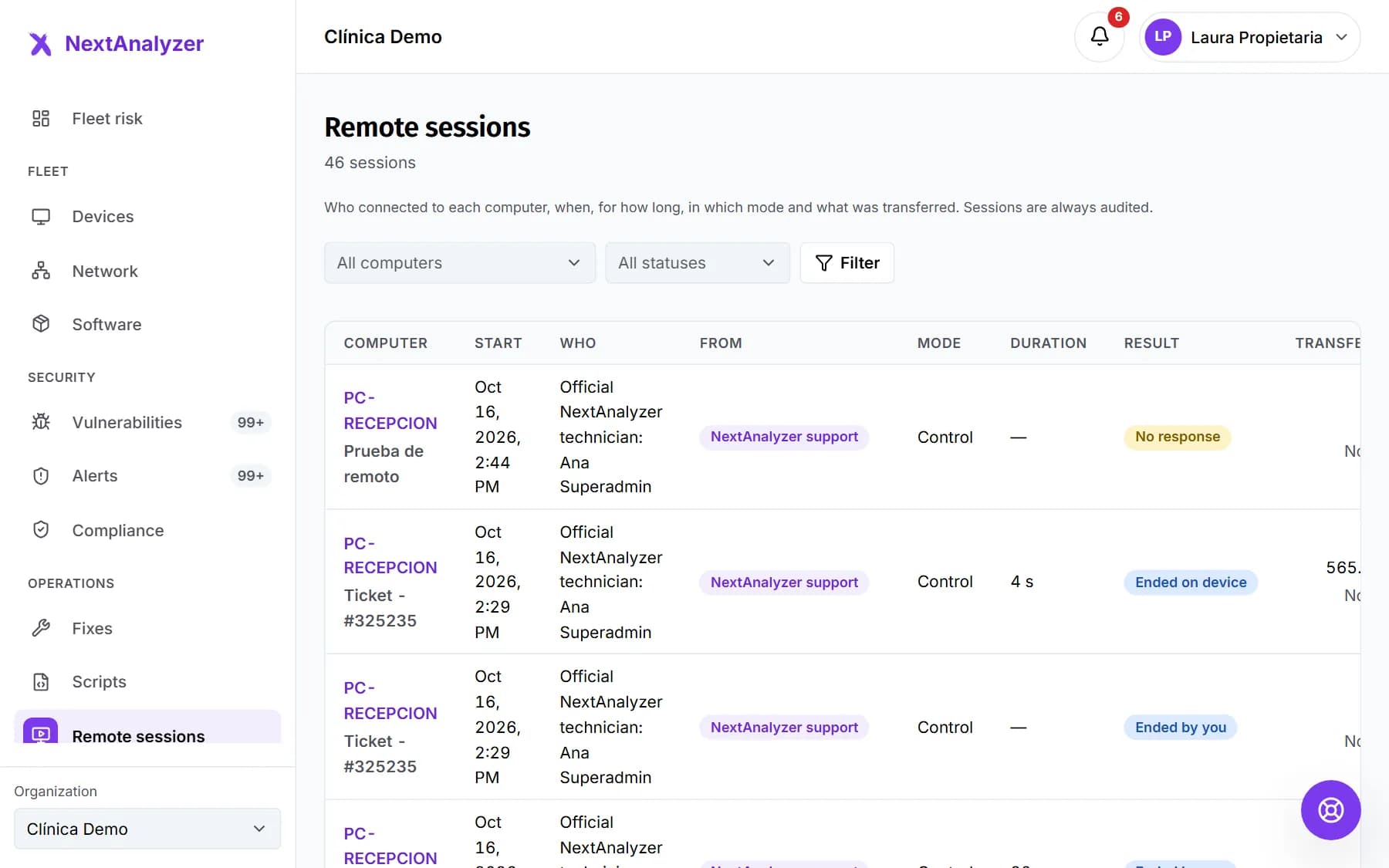
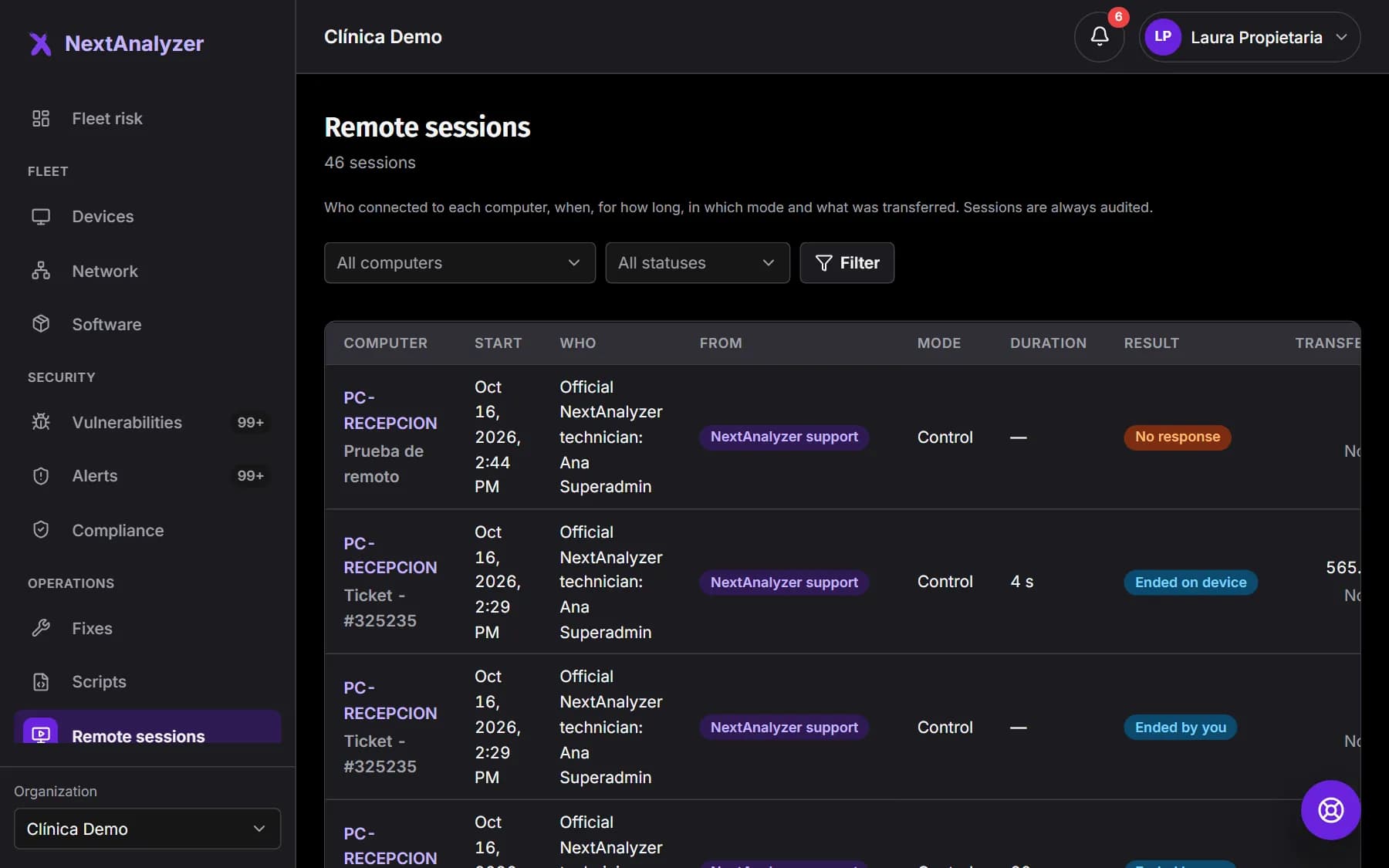
In the side menu, under Operations, click “Remote sessions”. Each row has the device, “Who”, “From”, the mode, the start, the duration, the result and what was transferred. The “Unattended” and “Recorded” tags appear when they apply.
Expected result: You see sessions from newest to oldest, with the total count at the top.
Filter by device or status
Pick a “Computer” or a “Status” (Requested, Awaiting permission, Connecting, In progress or Ended) and click “Filter”.
Expected result: The list shows only the sessions you are looking for.
Tip: Filter by “In progress” to see who is connected right now.
Read the result
It is shown briefly: “Ended by you”, “Ended on device”, “Declined”, “No response”, “Device offline”, “Connection lost”, “Time limit reached”, “Blocked by policy”, “Engine error”… Hover over it to read the full reason.
Expected result: You know whether the session ended normally or why it never started.
See where it came from
The “From” column says “Dashboard” if a technician used the browser, “Device” with its name if it came from the app with the device code, or “NextAnalyzer support” if it was our official support.
Expected result: You can tell your technicians' sessions, colleagues' sessions from the app and support sessions apart.
Tip: For official support sessions, “Who” shows “Official NextAnalyzer technician” with their name.
Open the detail
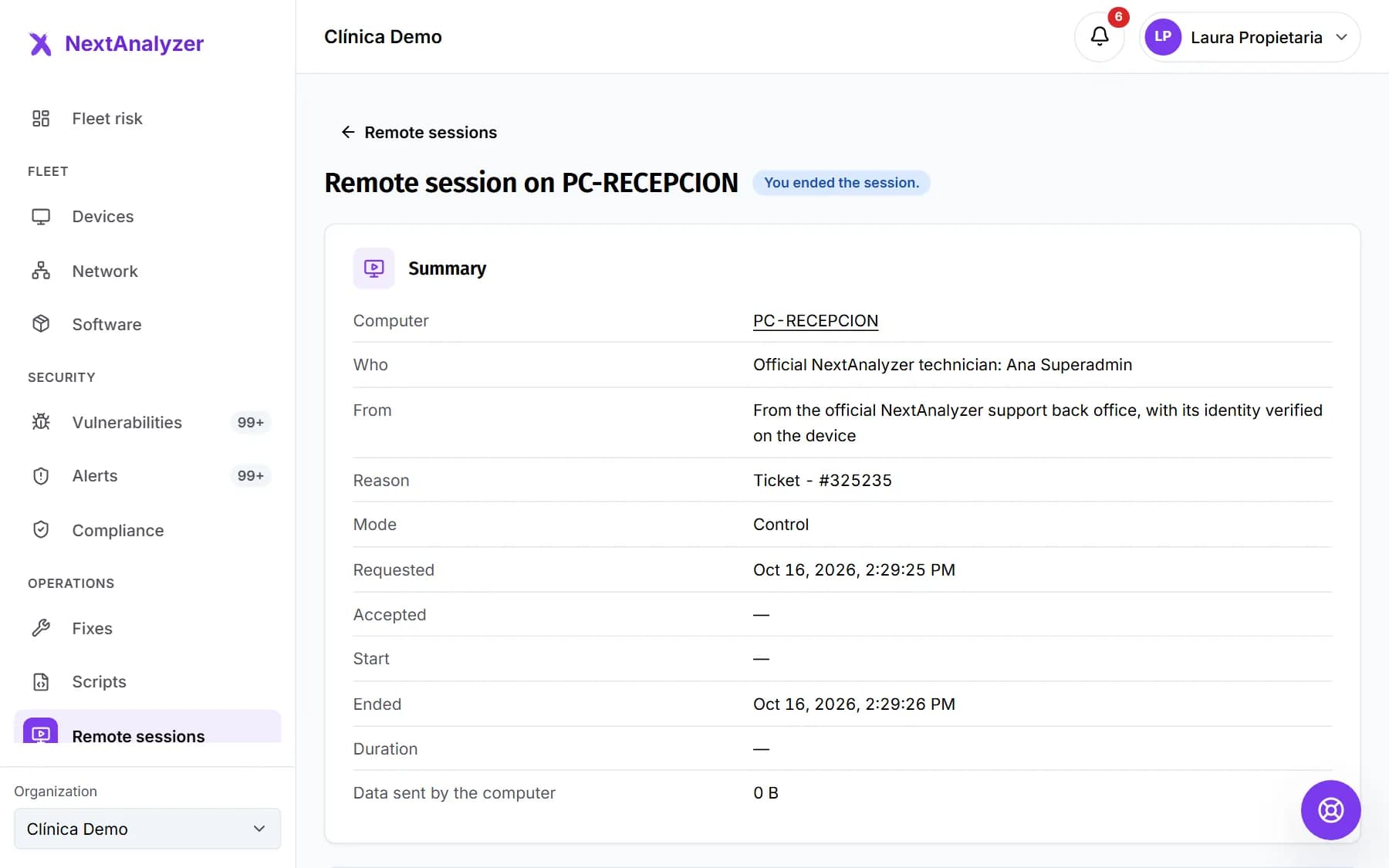
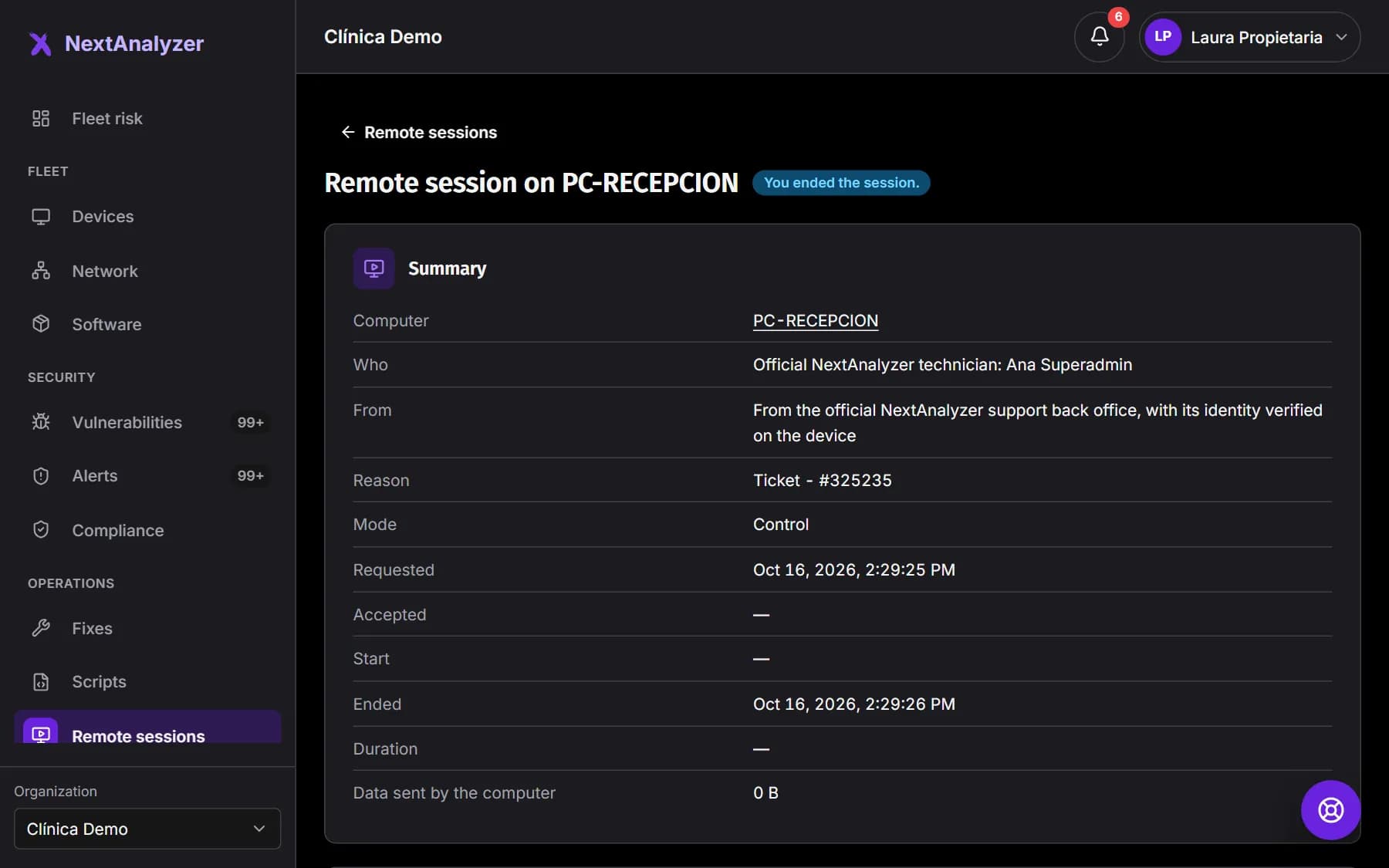
Click a session. The “Summary” has the reason, when it was requested, accepted and ended, and the data sent by the device. Below are the granted “Permissions”, the “Clipboard uses” and the “Chat messages”.
Expected result: You see everything that happened in the session, without the chat or clipboard content.
Check the transferred files
In “Transferred files” each file shows its name, size, direction (“To the computer” or “From the computer”) and whether it completed or failed.
Expected result: You can prove which files went in or out of the device.
Tip: The first 200 files of each session are kept.
Check a device's sessions
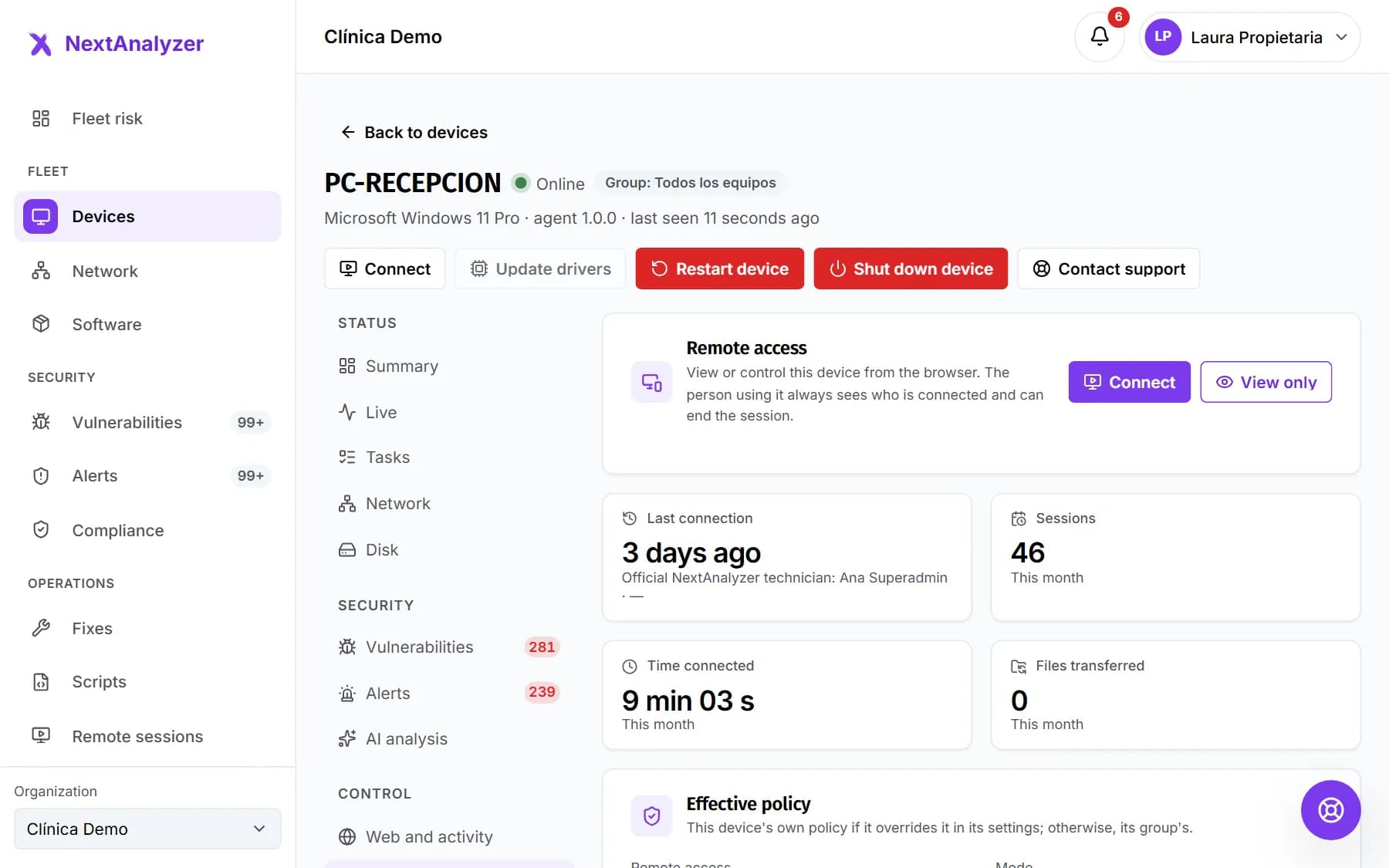
On the device page, the “Remote access” tab has the last connection, this month's figures and “Sessions on this device”, with a link to each detail.
Expected result: You see at a glance who has connected to that device and for how long this month.
End a session in progress
In the detail of an open session, click “End the session” and confirm in “End the remote session?”. Whoever opened it or an administrator can do this.
Expected result: You see “Session ended.” and the technician stops seeing the device straight away.
Find it in the audit log too
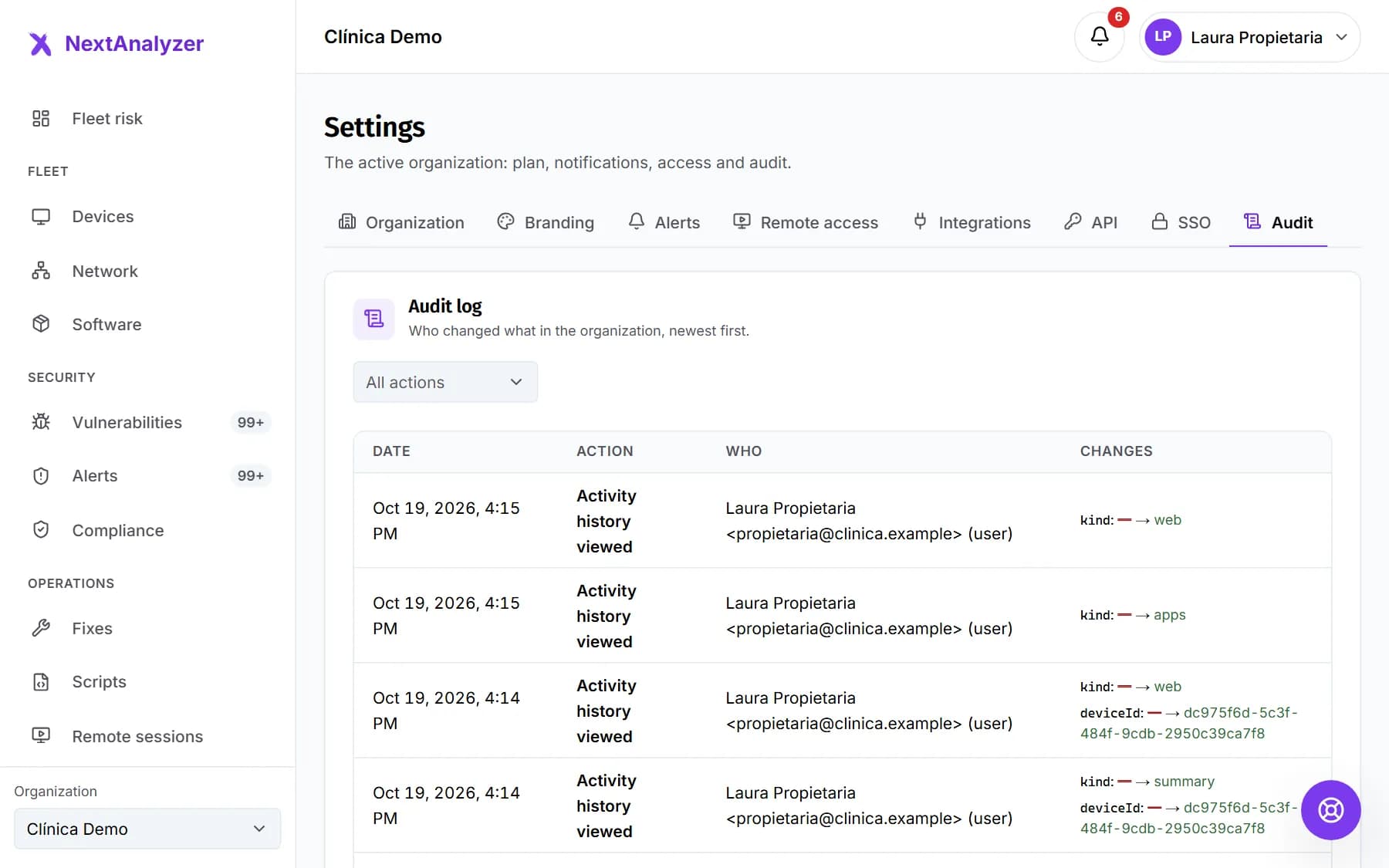
Settings › Audit keeps “Remote session requested”, “accepted”, “declined”, “started” and “ended”, each “File transferred in a remote session” and each “Remote access policy changed”.
Expected result: You have a record of who did what and when, useful for a review or an external audit.
If something goes wrong
I cannot see the sessions of some devices
You only see the devices you are in charge of. If your access is limited to some groups, an administrator can widen it in Members and groups.
Many sessions show “No response”
Nobody accepted within 30 seconds or the NextAnalyzer app was not open on the device. Let the person know beforehand. For servers or devices with nobody in front of them, an administrator can set unattended mode.
I do not see the “End the session” button
It only appears on open sessions, and only to whoever opened it or an administrator. If the session has already ended, there is nothing to end.
Where can I read what was written in the chat?
Nowhere: chat and clipboard text is not stored, for privacy. The history only counts how many messages and clipboard uses there were.
The session is tagged “Recorded”, but I cannot find the video
The recording is kept in the technician's browser, not on the platform. Only they could download it at the end with “Download the recording”.
Still not working? Open a support ticket