
Device security and one-click fixes
Basic system defenses prevent most problems. NextAnalyzer watches them on every device, alerts you when one turns off or a risky port opens, and lets you turn them on from the app.
Check protection in the dashboard
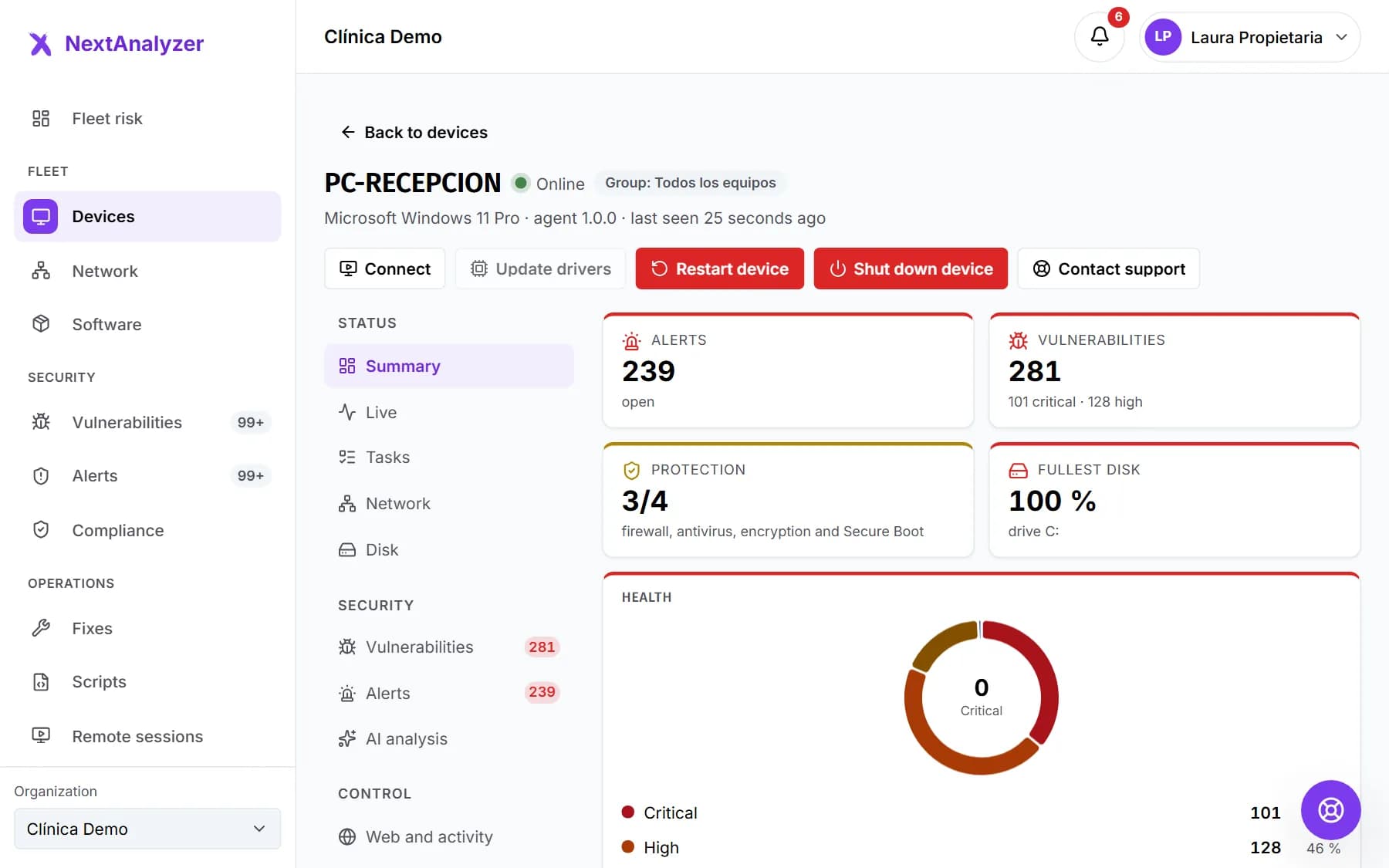
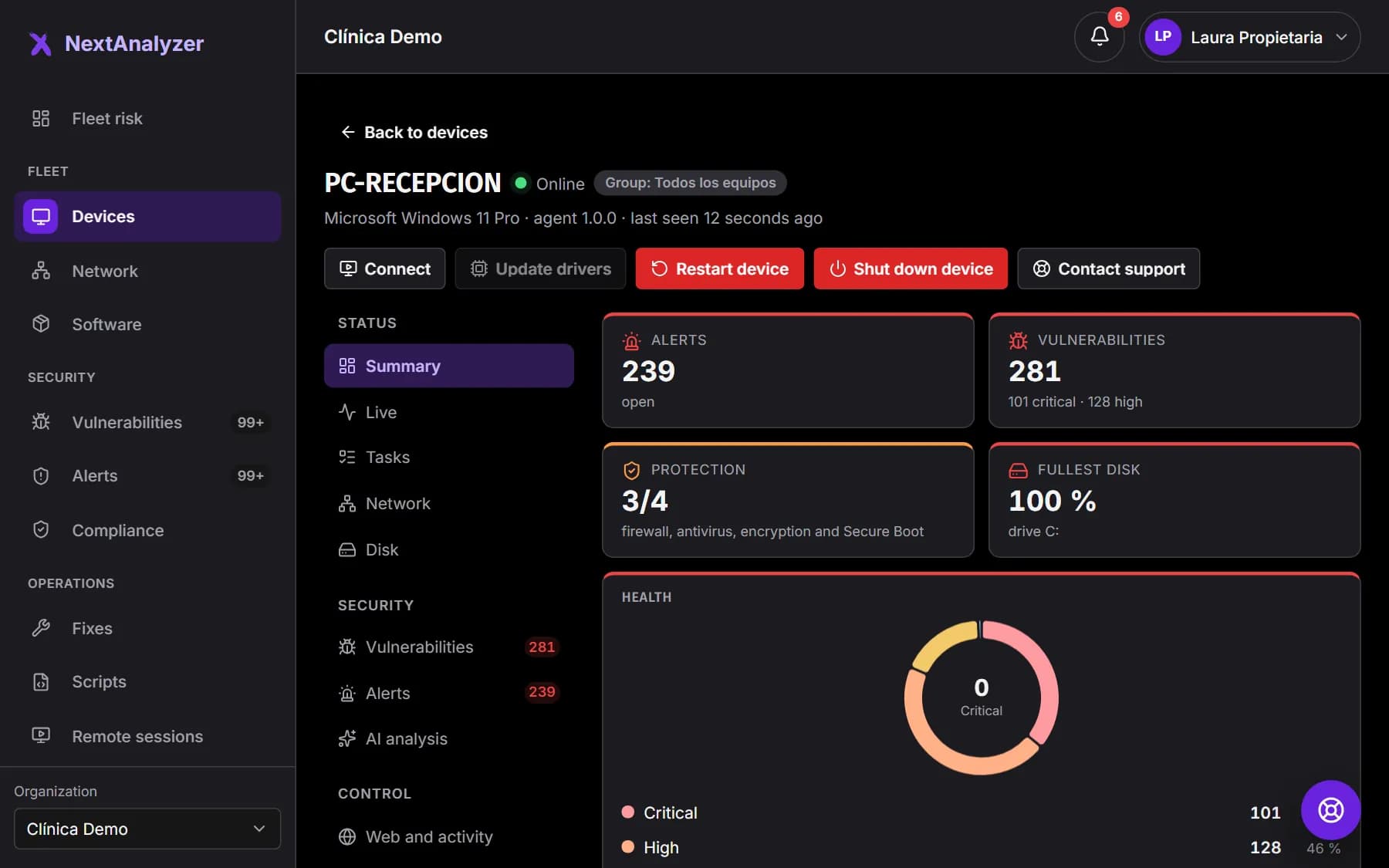
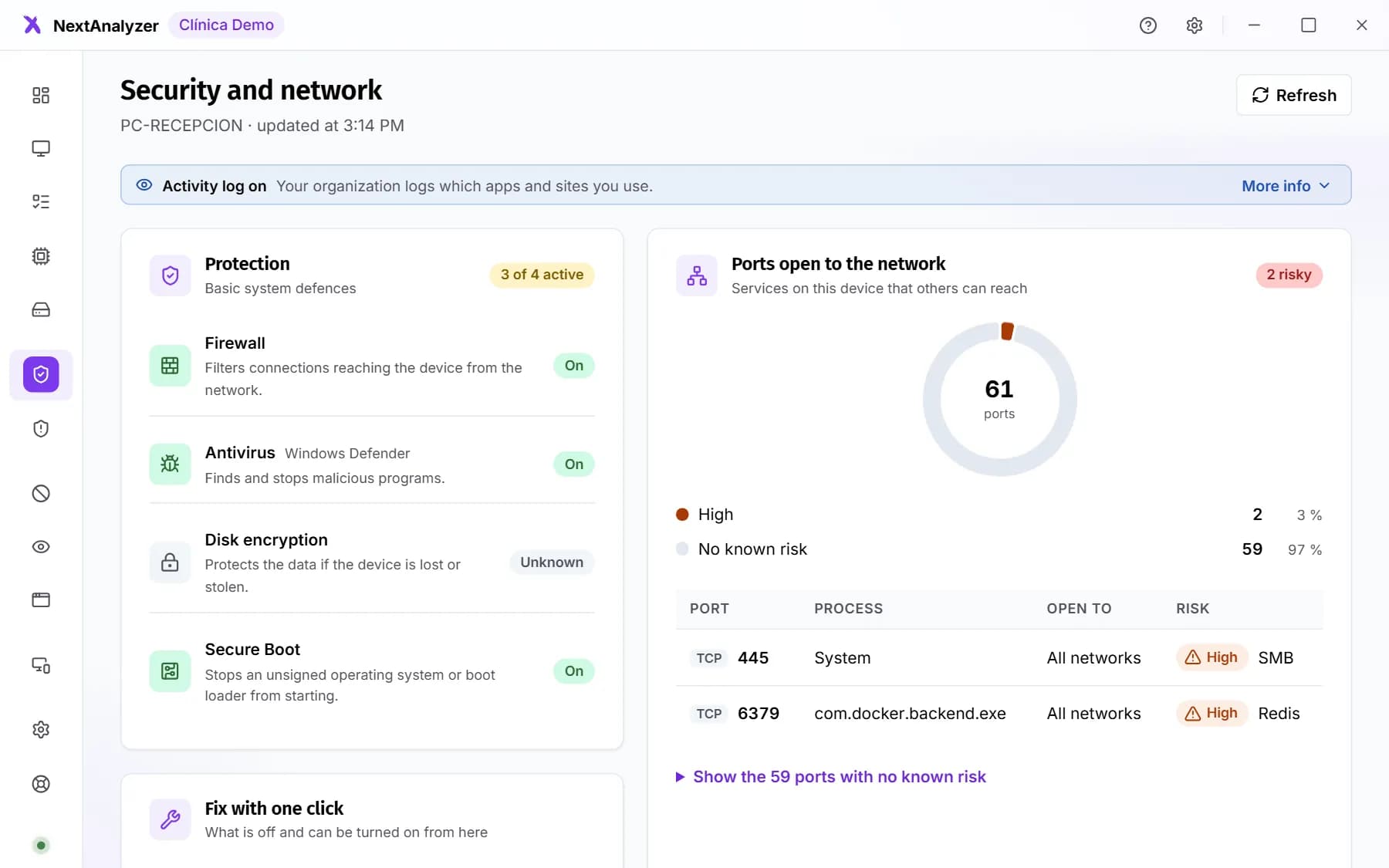
Open Fleet › “Devices” and a device. In the “Summary” tab, the “Protection” indicator counts the active defenses: firewall, antivirus, disk encryption and secure boot.
Expected result: You see how many of the 4 defenses are on and which ones are missing.
Check “Needs attention”
In the same summary, “Needs attention” lists what is wrong: firewall off, antivirus off, disk not encrypted or secure boot off. Click “View and fix”.
Expected result: You reach the details of each problem with what to do.
Get the alerts
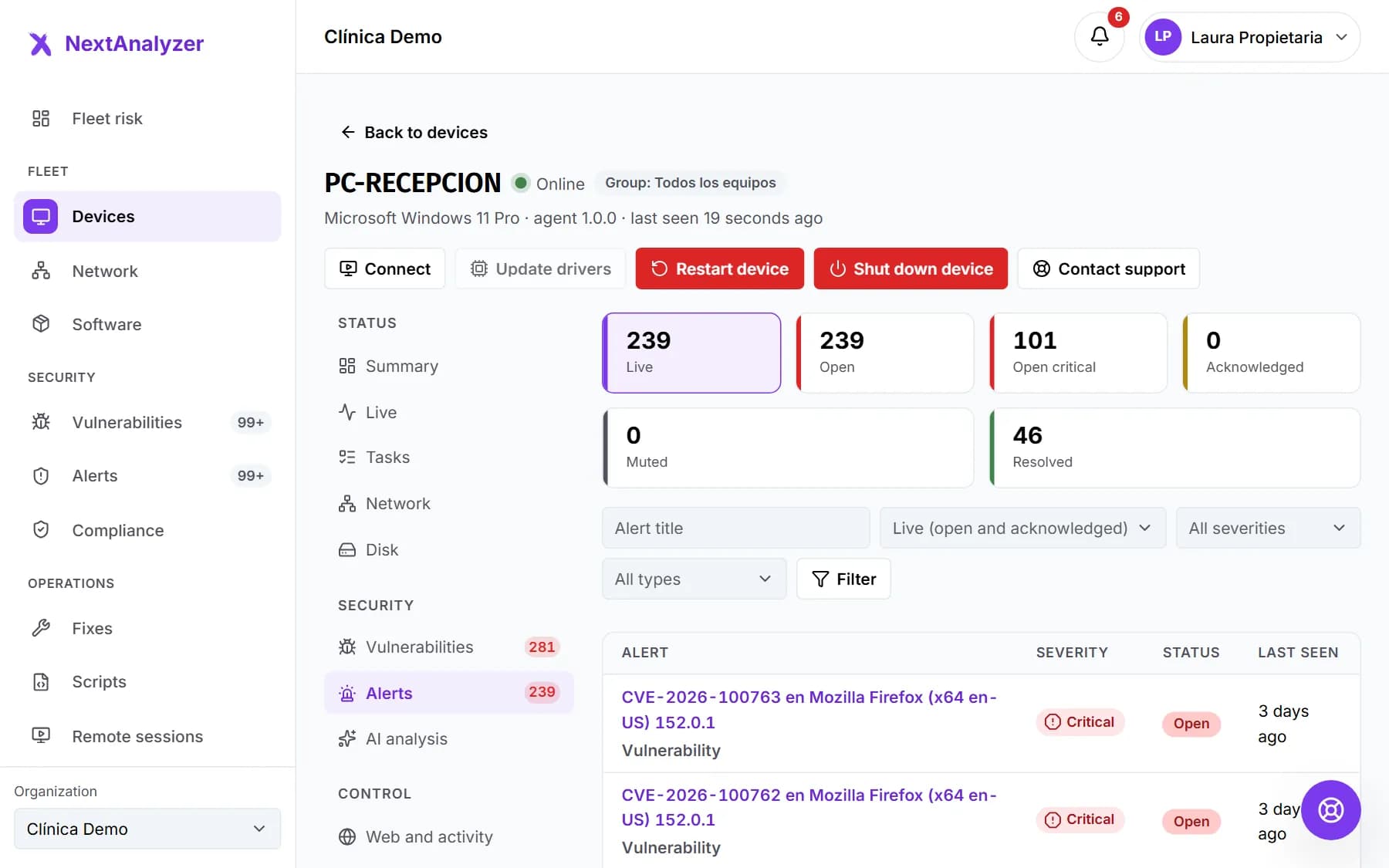
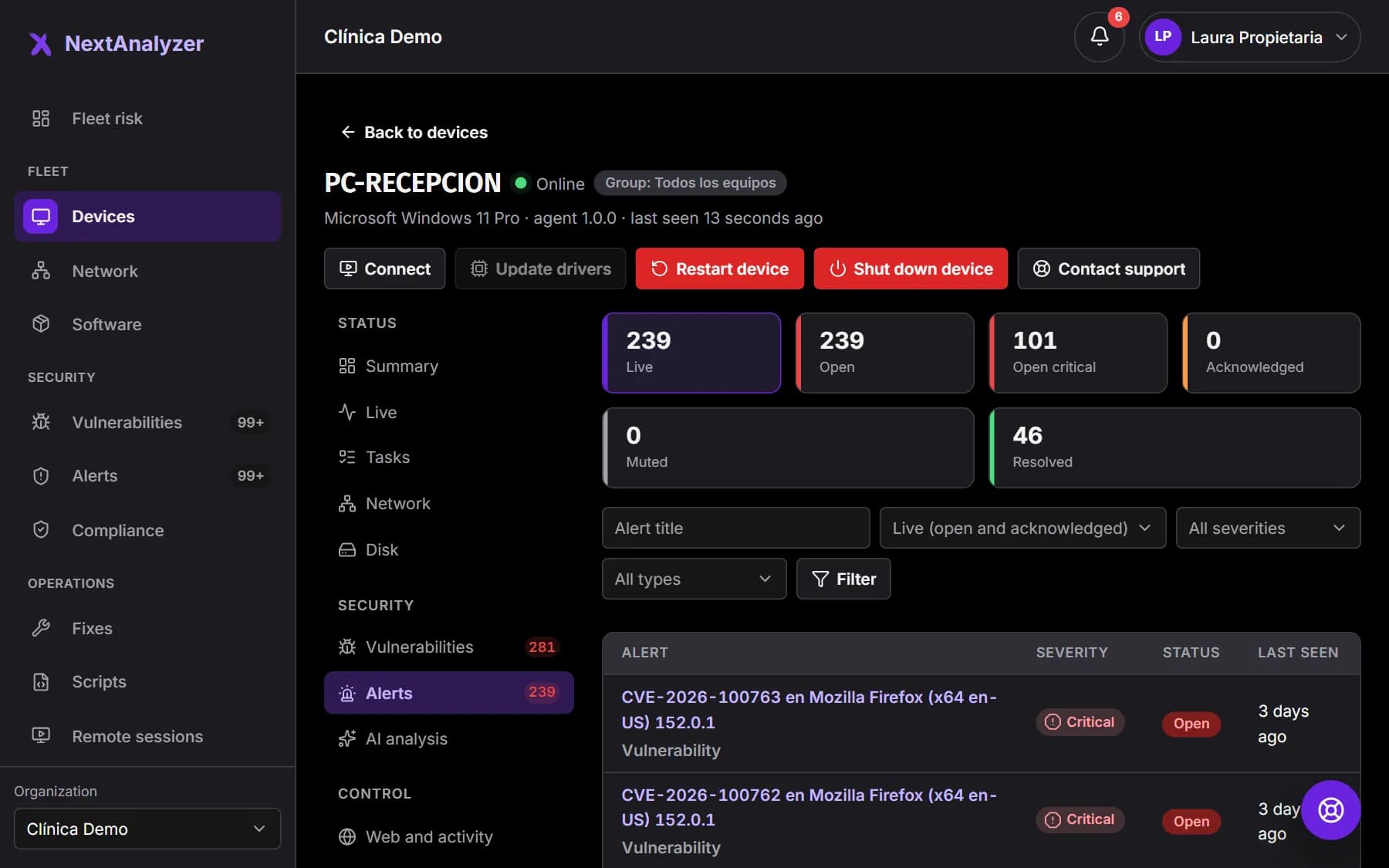
If the firewall or antivirus turns off, or a risky port opens, an alert opens: “Firewall disabled”, “Antivirus disabled” or “Risky port open”. You see them in the device's “Alerts” tab.
Expected result: Each alert explains what happened, why it matters and what to do. It resolves itself once fixed.
Tip: These three alerts are on by default, with immediate email to administrators.
Open the device app
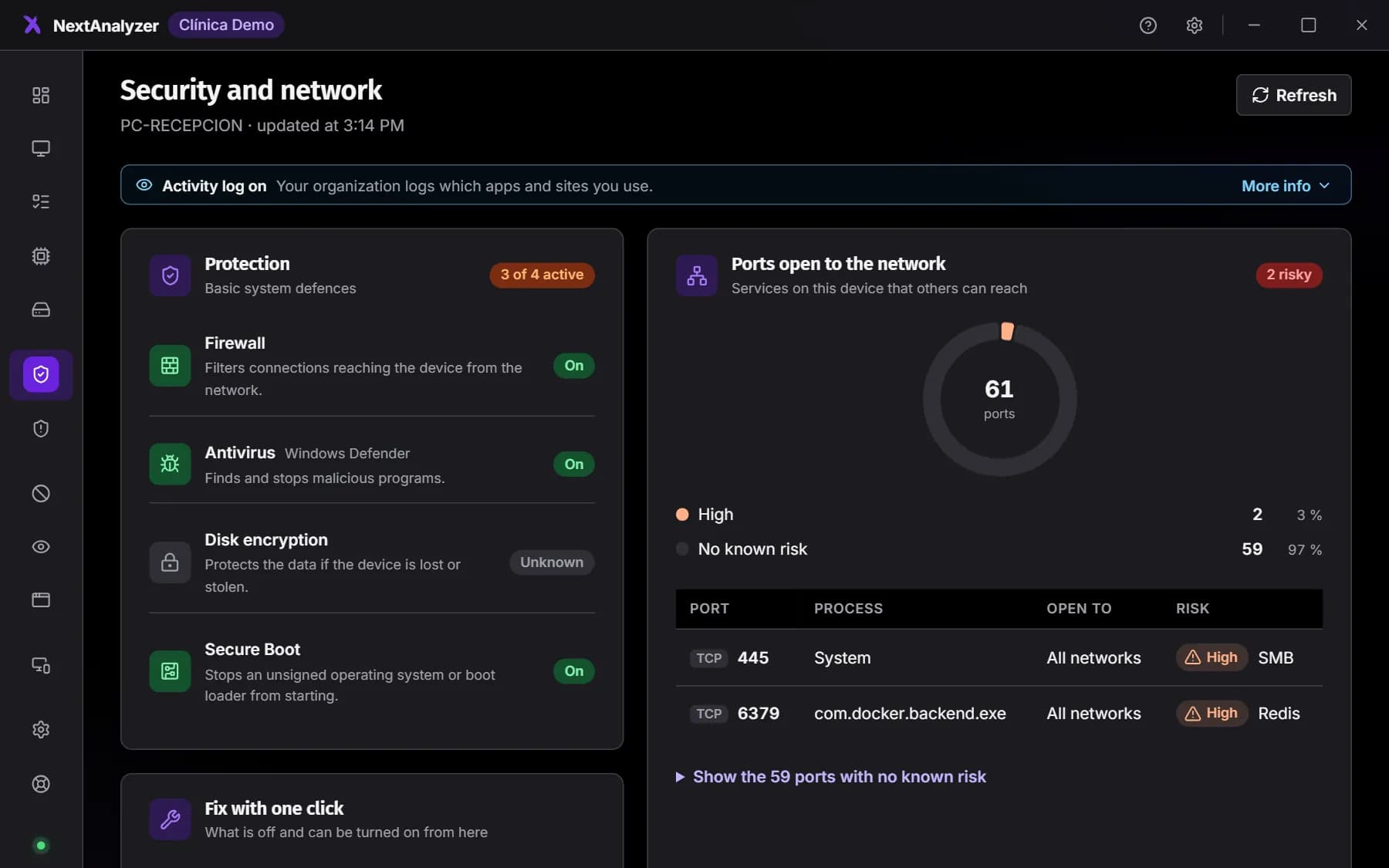
In the app, open “Defenses & network”. The “Security and network” page shows the same defenses, “Fix with one click” and the ports open to the network with their risk.
Expected result: The person using the device sees what you see and can fix it.
Tip: If the firewall or antivirus turns off, the app also shows a security alert notification.
Fix it with one click
In “Fix with one click”, click “Turn on the firewall” or “Turn on protection” (Microsoft Defender). The app shows the command it will run and asks you to confirm. Click “Do it” and accept the Windows permission prompt.
Expected result: A message confirms the firewall or protection is on, and the defense shows as active.
Tip: If it was already fine, the app says so and doesn't ask for permissions.
Update a vulnerable program
In the app, open “Vulnerabilities” and click “What it means” on one. Under “Let us do it”, click “Update now”. The app uses winget, shows the command and asks you to confirm.
Expected result: A message says the program was updated and vulnerabilities are being checked again.
Tip: The button only appears if winget can update that program. If not, the app explains the manual steps.
Check risky ports
The port list shows the services open to the network and their risk, such as Telnet, FTP, SMB, RDP, VNC or databases. Ports that only listen inside the device don't appear.
Expected result: You know which services an attacker could look for from the network.
Tip: Closing ports isn't a one-click fix, because it can break the system. Decide whether the service is needed and close it in the device firewall. Managing rules from the dashboard is coming soon.
Turn on encryption yourself
Disk encryption (BitLocker on Windows, FileVault on macOS) is only reported. Turn it on on the device and save the recovery key somewhere safe first.
Expected result: On the agent's next report, encryption shows as on.
Good to know
Fixes can't be undone from the app: they only raise protection. They are recorded in the device's local log. Only one fix runs at a time.
Expected result: You know what the app does and what you have to decide.
Tip: On macOS, the app turns on the firewall and Gatekeeper, installs system updates and opens the FileVault settings.
If something goes wrong
It says “The command finished but nothing changed”
Another antivirus (not Microsoft Defender) or a company policy is usually in charge. Check that antivirus or the policy. NextAnalyzer doesn't turn off other antivirus products.
It says it wasn't done because permissions weren't accepted
The Windows permission prompt was declined or the person isn't an administrator of the device. Click the button again and accept the prompt, or ask IT to do it.
“Update now” doesn't appear, or it says winget can't update it
The program isn't in the winget catalog. This happens with runtimes, frameworks, unsupported versions and programs installed by other means. Install the current version from the vendor's website and uninstall the old one.
I have a risky port alert, but I need it open
Limit it in the device firewall to the addresses that use it, such as the office network. If it is an accepted risk, mute the alert with a reason and a date.
The app doesn't show any one-click fix
If everything is on, it says there is nothing to fix. If it says it isn't available on this system, use the system's own security settings to turn on the firewall and antivirus.
Still not working? Open a support ticket