
Set up alerts and notifications
Alerts tell you what needs attention: vulnerabilities, offline or uninstalled devices, disk, firewall or antivirus turned off, risky ports, resources at their limit and more. You decide which ones notify and where.
Review alerts
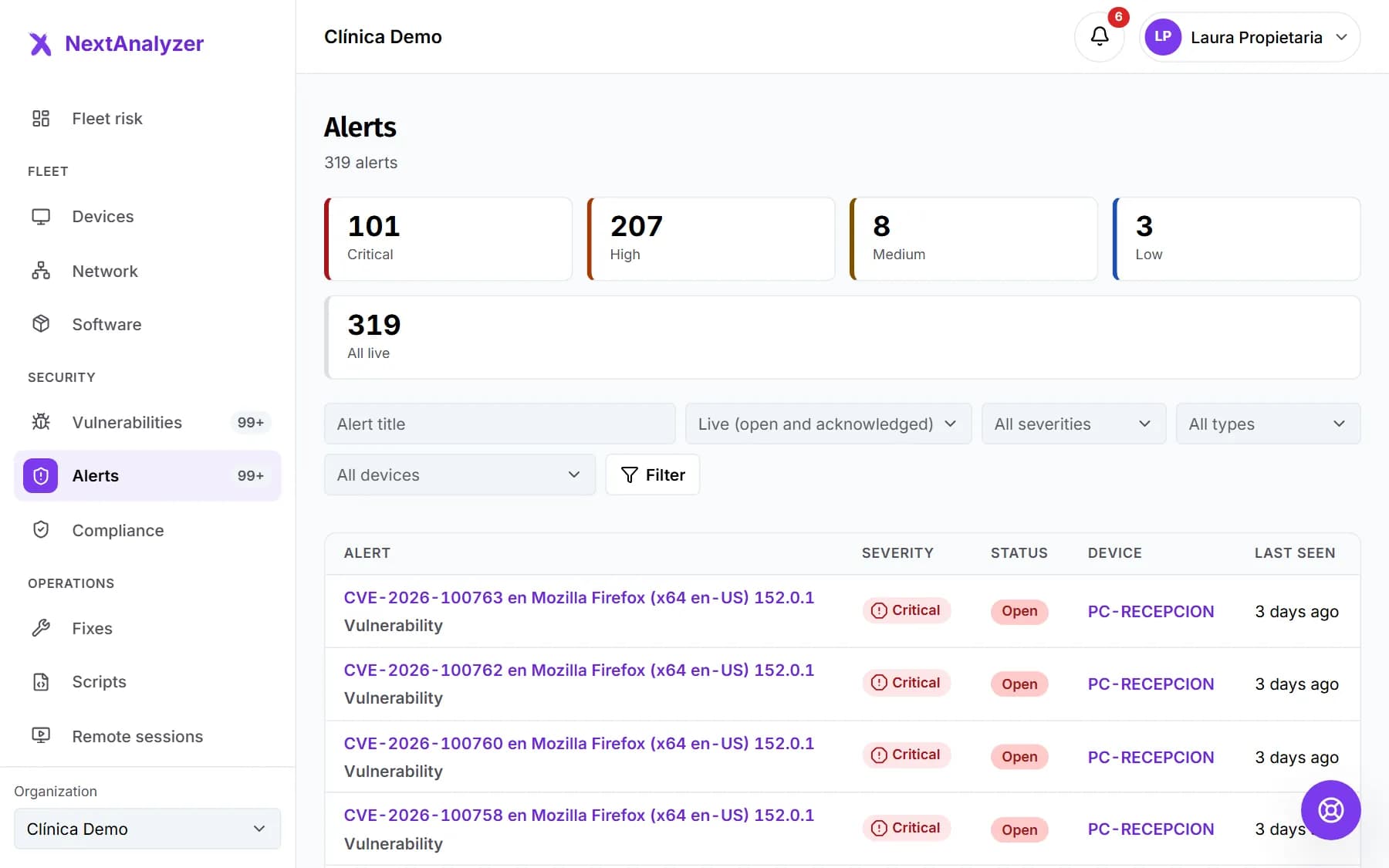
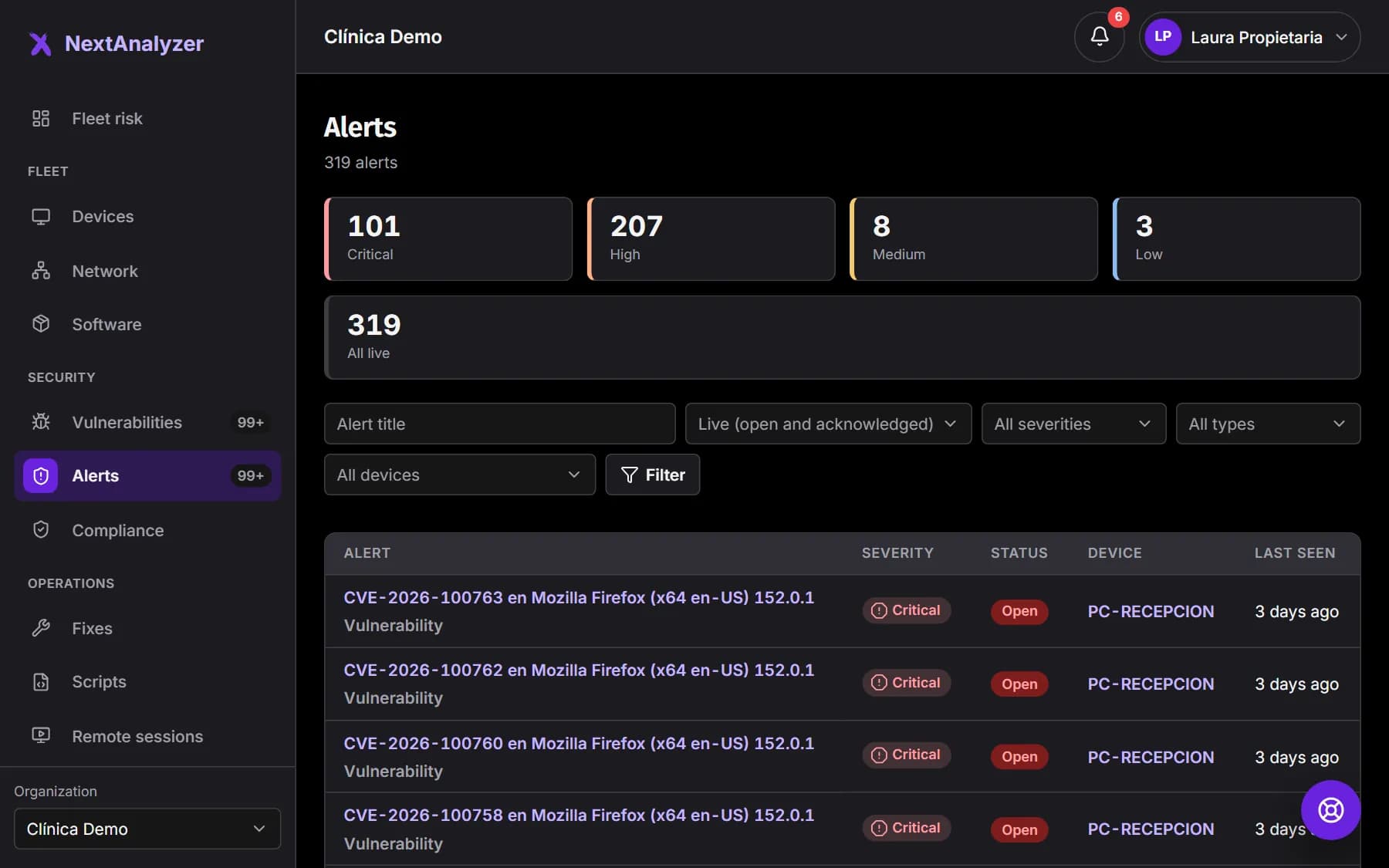
In the menu, Security › “Alerts”. At the top you have open alerts by severity; click one to filter. You can also filter by status, severity, type and device. By default you see “Live (open and acknowledged)”.
Expected result: You see each alert with its severity, status, device and how many times it repeated.
Tip: There are 10 built-in types, such as “Vulnerability”, “Device offline”, “Risky port open” or “New device on the network”, plus Wazuh security detections.
Open an alert
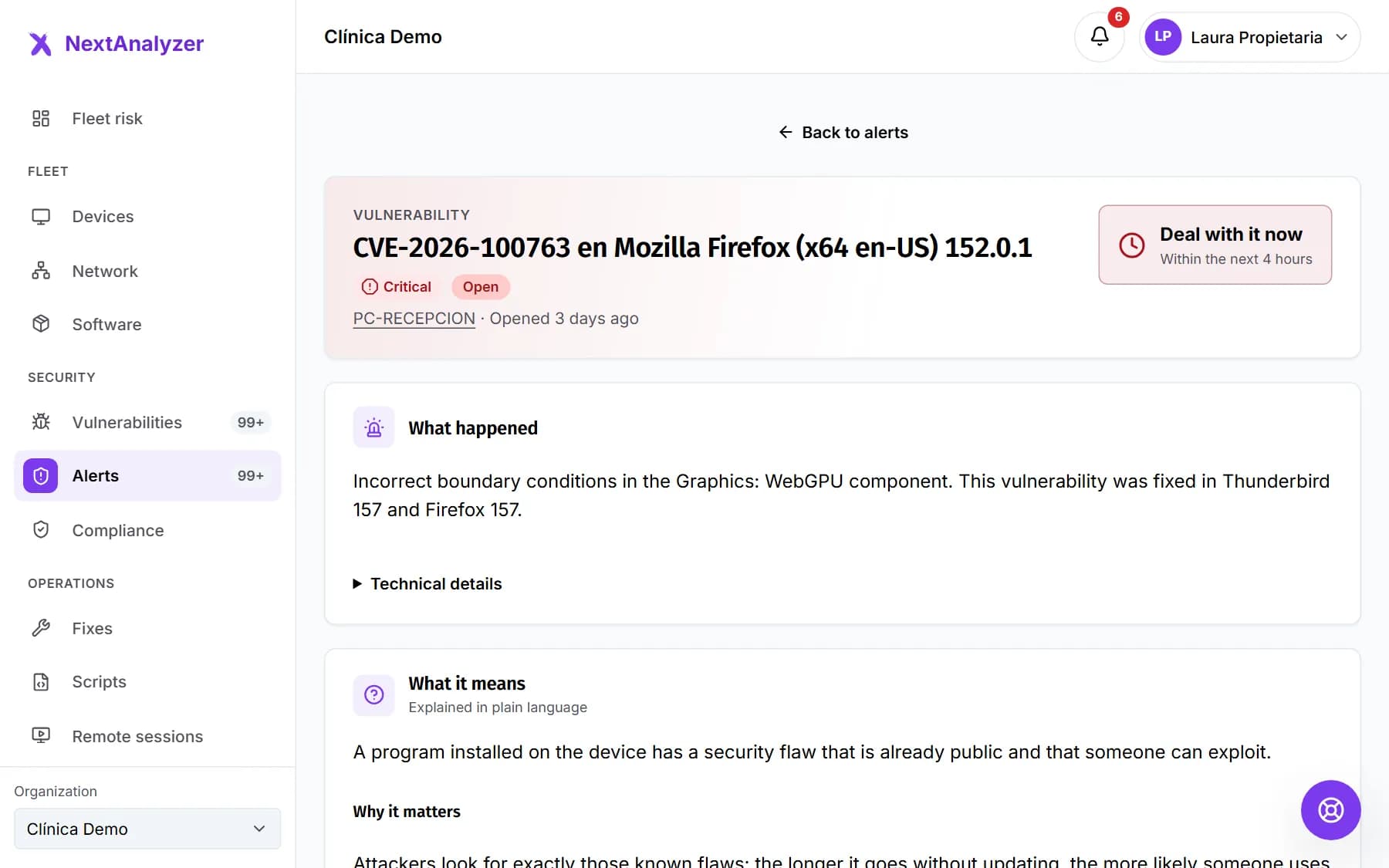
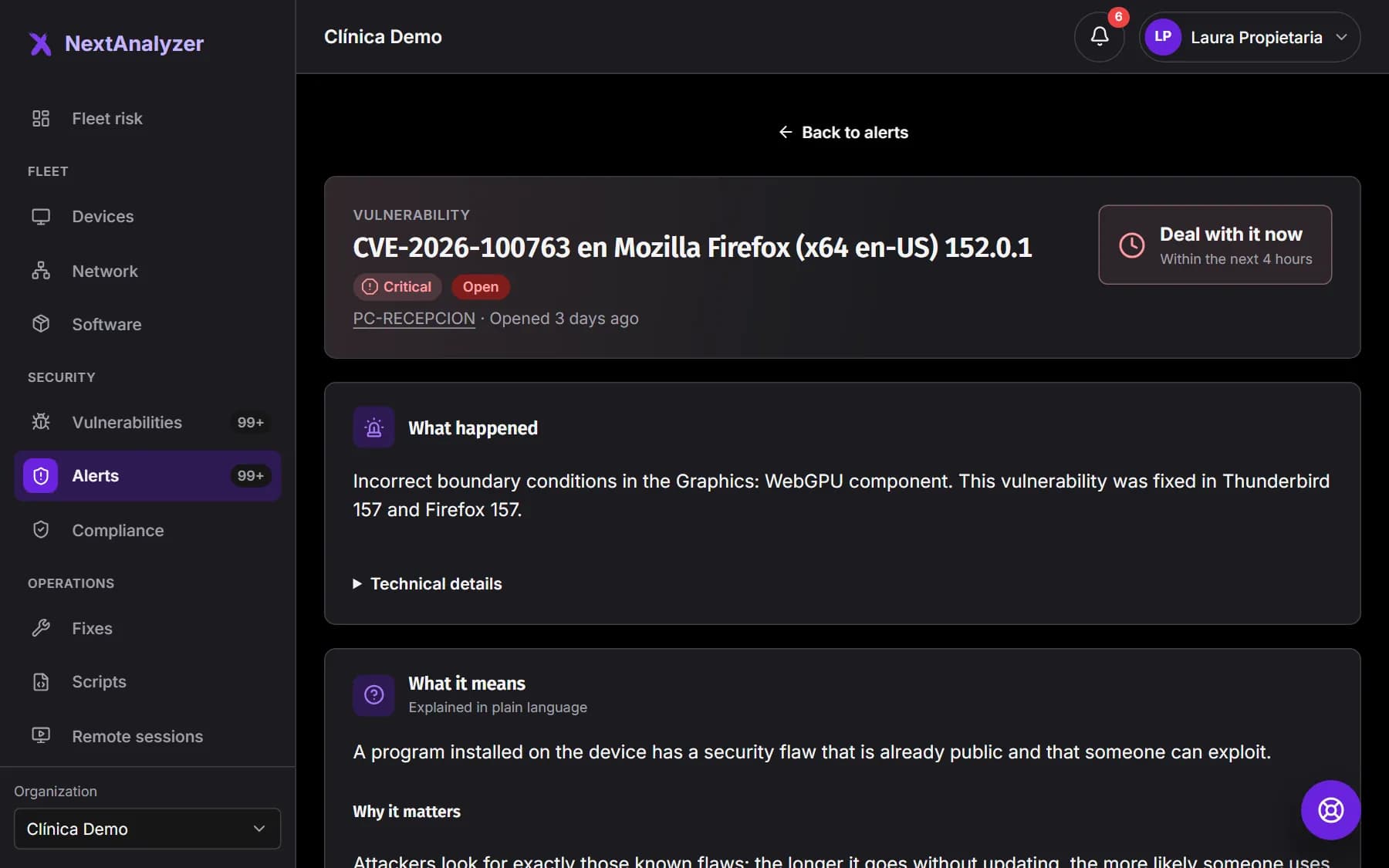
The page says how soon to handle it, “What it means”, “Why it matters”, “Most likely causes” and “What to do”, step by step. It also has a “Timeline” and “Other alerts on this device”.
Expected result: You know what happened and what to do. If it is about a vulnerability, it links to the CVE page.
Handle the alert
Click “Acknowledge” to show you are looking at it. Click “Resolve” when it is fixed. “Mute” silences it until a date, with a reason of at least 3 characters. “Reopen” opens it again.
Expected result: The status changes to acknowledged, resolved or muted, and it is recorded in the timeline.
Tip: Many alerts resolve themselves when the device no longer has the problem.
Alerts for one device
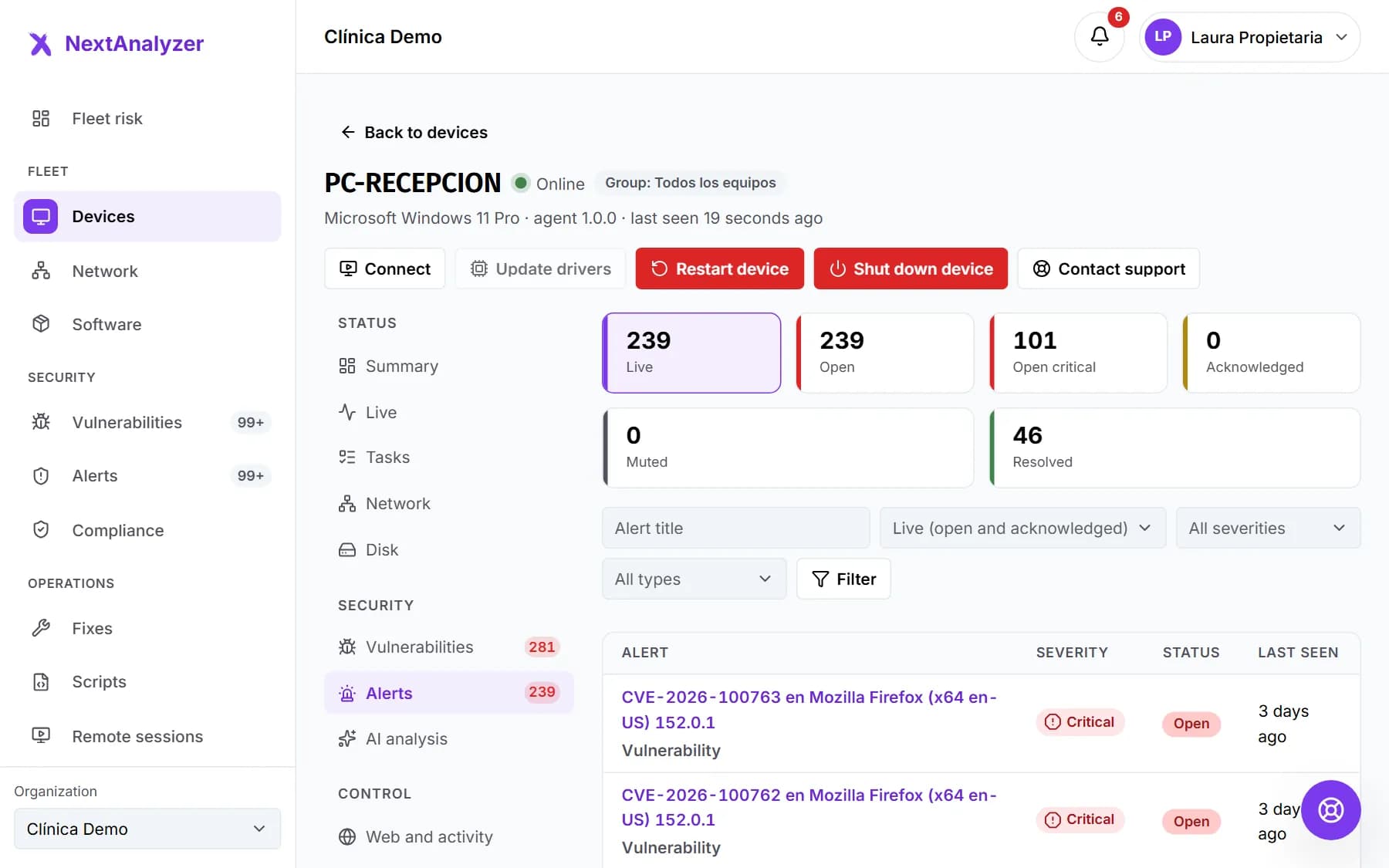
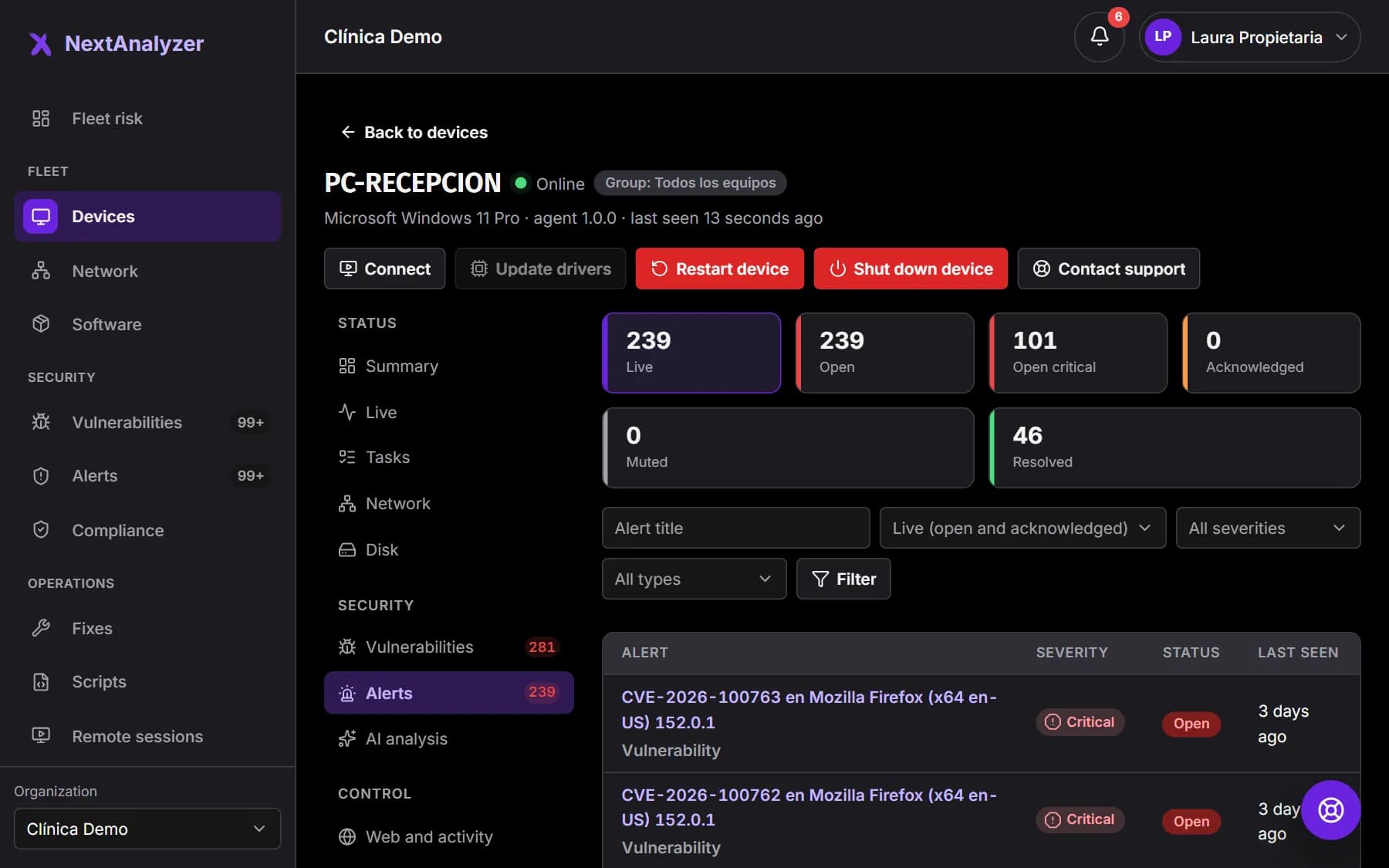
On a device page, the “Alerts” tab shows only its own, with the same filters and actions.
Expected result: You see everything that device has alerted about.
Set the organization's rules
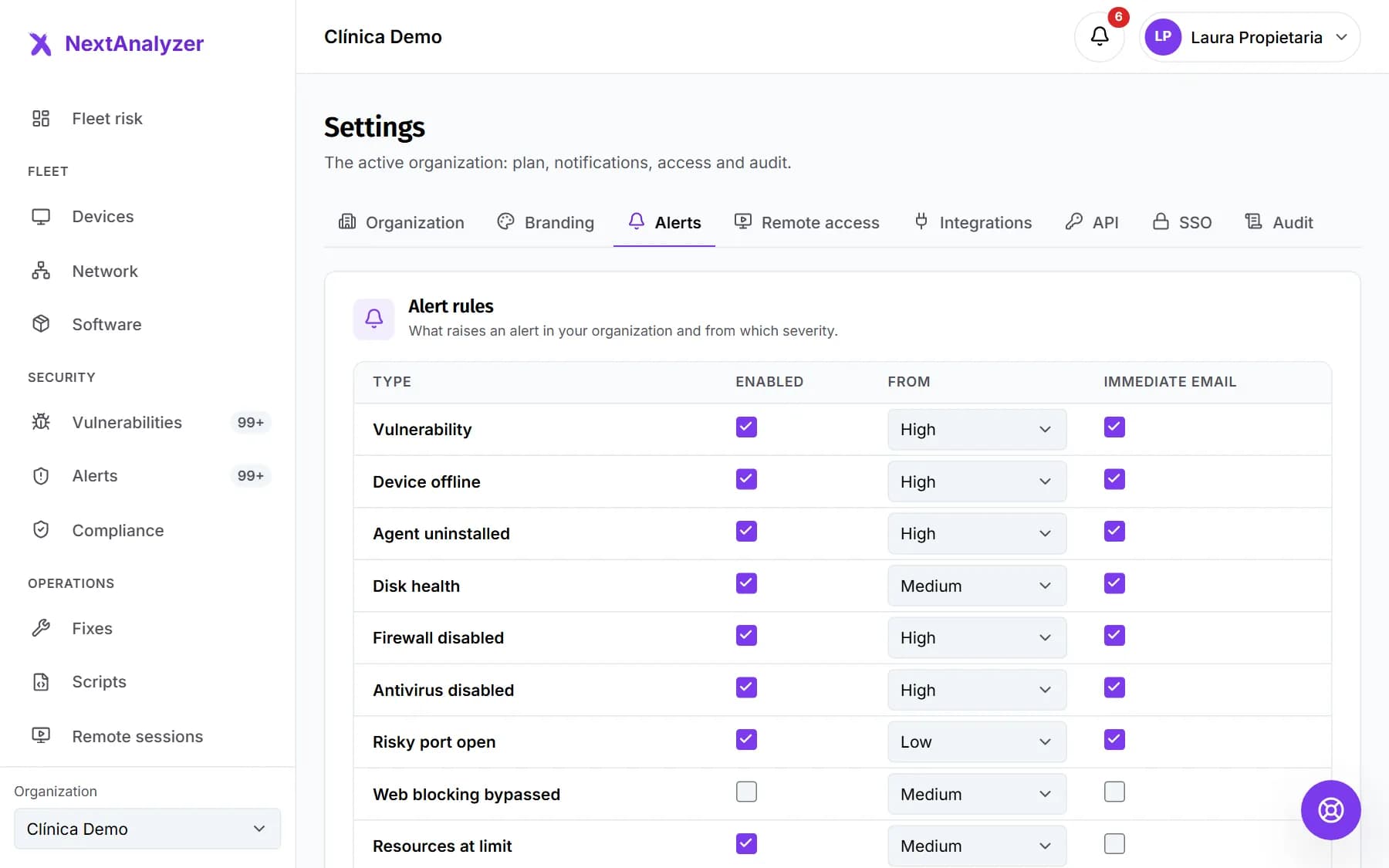
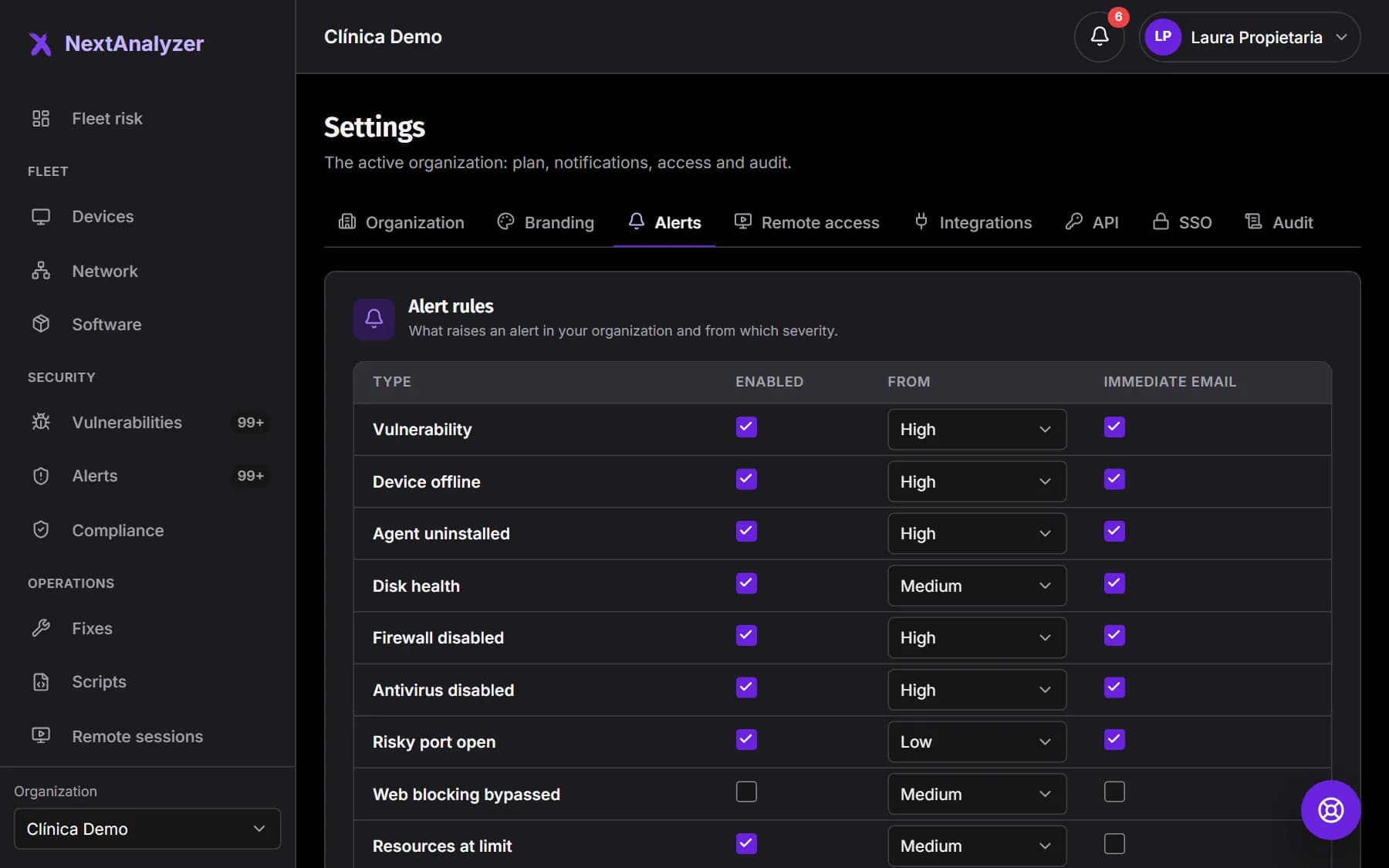
In Settings › “Alerts”, “Alert rules”. For each type, decide whether it is active, the minimum severity and whether it sends an “Immediate email” to administrators and the owner.
Expected result: A message confirms the rules were saved.
Tip: Vulnerability, connection, uninstall, disk, firewall, antivirus and port rules are on by default. “Resources at limit” and web blocking bypass are off.
Choose your email notifications
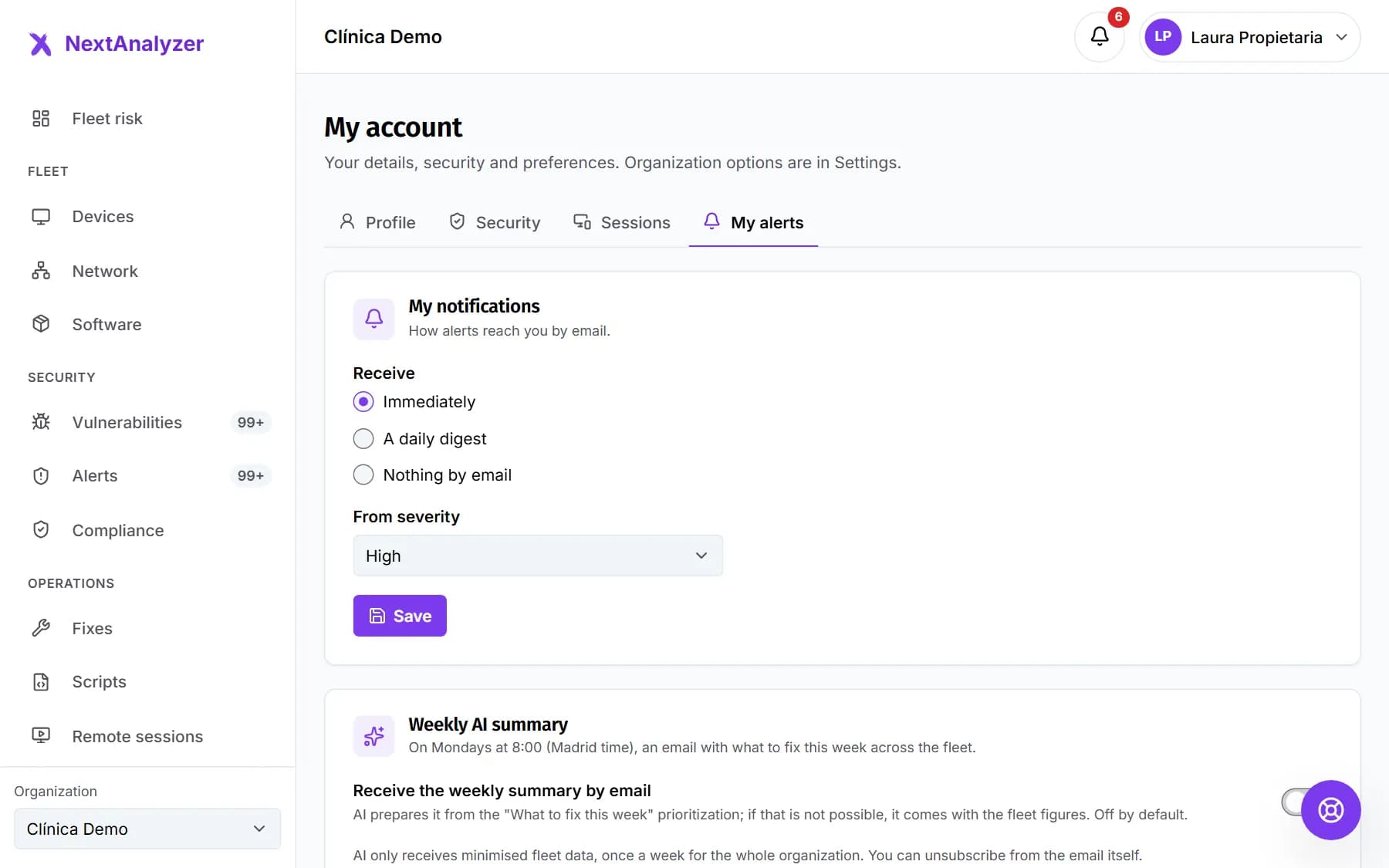
In My account › “My alerts”, choose “Immediately”, “A daily digest” or “Nothing by email”. Under “From severity”, choose the minimum severity.
Expected result: A message confirms your preferences were saved.
Tip: The daily digest goes out every day at 08:00 UTC with the alerts opened in the last 24 hours.
Turn on the weekly summary
On Business and Enterprise, in My account › “My alerts” you can turn on a weekly summary by email. Each person decides whether they want it. It gathers the week's priorities, written with AI from minimised data.
Expected result: You get one email a week with what to handle first.
Tip: It is optional and AI-generated content is labeled: review it before acting.
Connect Teams, Slack or a webhook
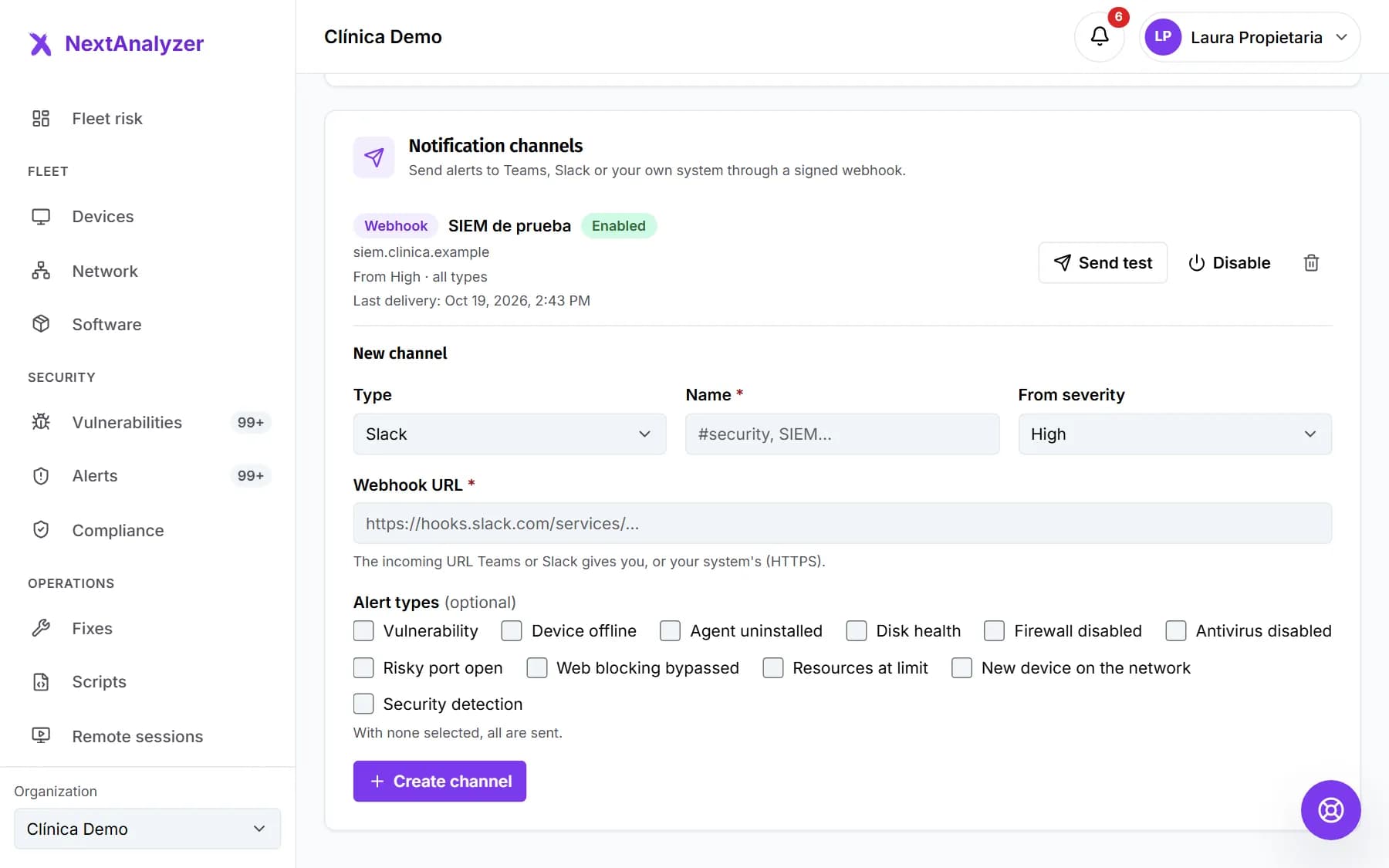
In Settings › “Alerts”, “Notification channels”, create a new one. Choose the type: Teams, Slack or Webhook. Paste the “Webhook URL” (HTTPS), choose the minimum severity and the alert types. Click “Create channel”.
Expected result: The channel is created. For a webhook, the “Signing secret” is shown only once: save it.
Tip: SMS notifications are coming soon.
Send a test
On each channel, click “Send test”. Always do it when you create it or change its URL.
Expected result: A message confirms the test was delivered, and the notice reaches the Teams or Slack channel or your system.
If something goes wrong
I get too many alerts
Raise the minimum severity in Settings › “Alerts” and in My account › “My alerts”, or switch to “A daily digest”. Also review each group's resource thresholds and mute what you already know about.
I don't get alert emails
Check My account › “My alerts”: it may be set to “Nothing by email” or to a very high severity. Members who aren't administrators get a daily digest from high severity by default. Also check your spam folder.
The test says it didn't arrive
Copy the Teams or Slack incoming webhook URL again: it may have expired or been deleted. For your own webhook, check that your system accepts HTTPS from the Internet.
A channel shows “Disabled after 20 consecutive failures”
Each notice is retried for about 24 hours. After 20 consecutive failures the channel is disabled and the owner gets an email. Check the URL, turn it back on and send a test.
I don't get CPU, memory or full disk alerts
The “Resources at limit” rule is off by default. Turn it on in Settings › “Alerts” and set the thresholds in Members and groups › “Groups”.
Still not working? Open a support ticket