
Connect the API and your ticketing tools
NextAnalyzer plugs into what you already use. The public API feeds your CMDB, SIEM or scripts. Ticketing integrations bring alerts into your support tool.
Open Settings › API
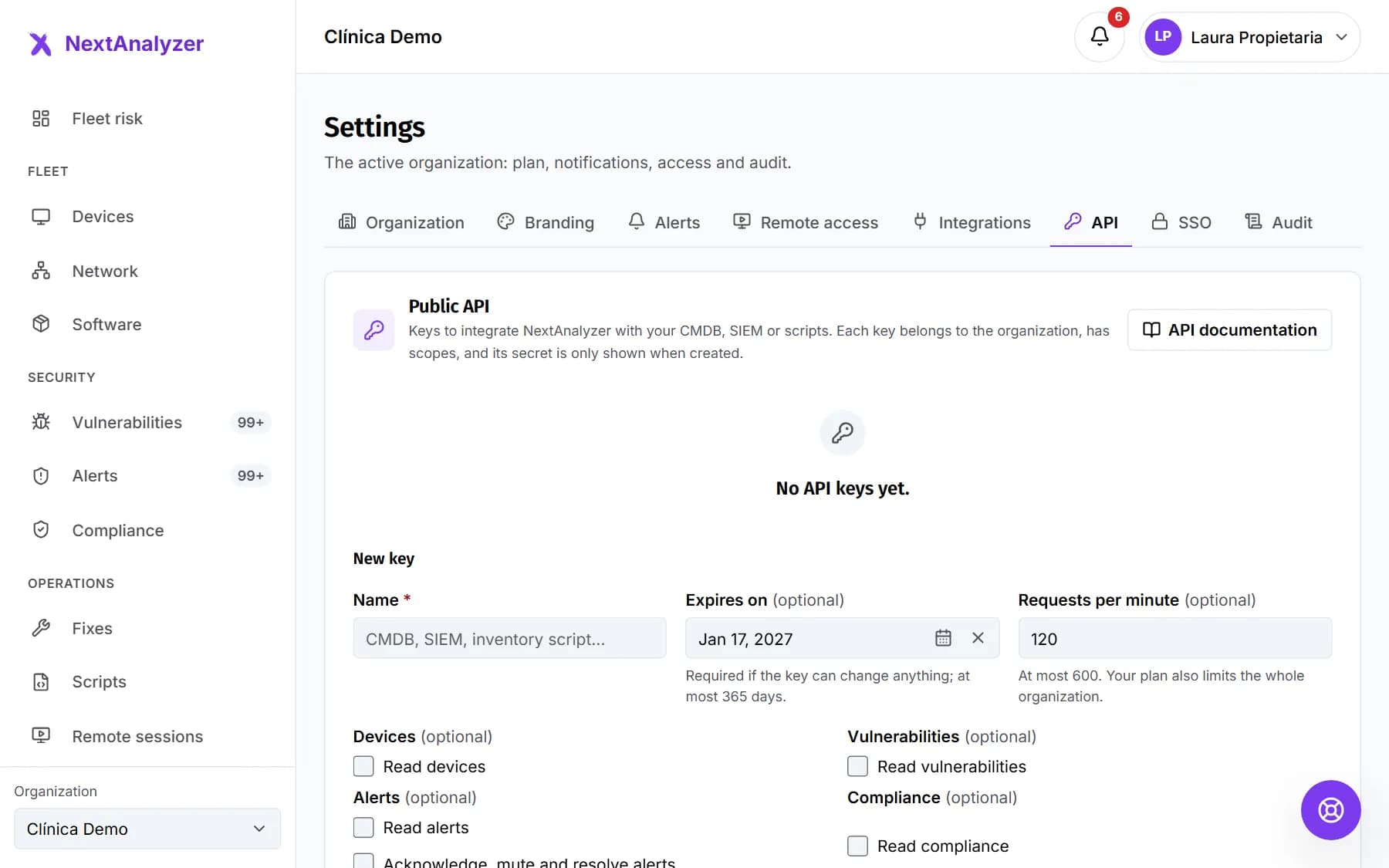
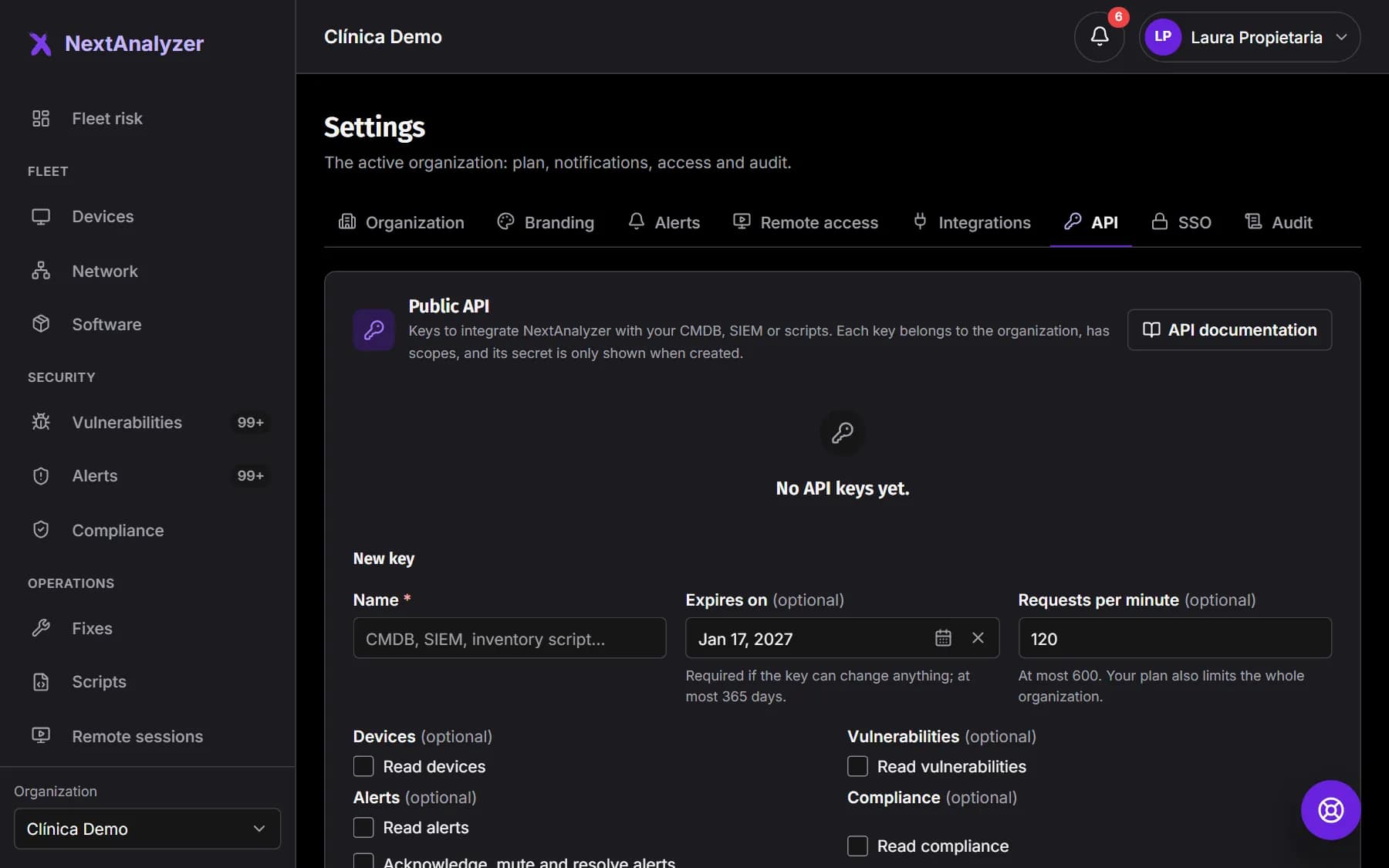
Open Settings in the side menu and go to the API tab. At the top is the “API documentation” with every route. Below is the list of keys with their status, last use and requests.
Expected result: You see the “Public API” page with your keys or a note that there are none yet.
Tip: The public API is only on the Enterprise plan.
Create a key
Under “New key”, enter a name, such as “CMDB”. Choose the scopes, the date under “Expires on”, the “Requests per minute” and, if you like, the “Allowed IPs”. Click “Create key”.
Expected result: You see “Key created.” and the full key is shown just once.
Tip: You can have up to 20 active keys. Each allows up to 600 requests per minute and 20 IPs or CIDR ranges.
Grant only the scopes you need
There are scopes to read devices, vulnerabilities, alerts, compliance, reports, remediations, scripts and the network. Others let the key act: manage alerts, create remediation jobs or run approved scripts, always with approval.
Expected result: The key can only do what you ticked; anything else returns 403.
Tip: Only the owner can grant “Approve remediation jobs”.
Store the key and use it
Copy the key right away and store it in your secrets manager: it won't be shown again. It starts with na_live_. Send it in the Authorization header as Bearer or in the X-Api-Key header.
Expected result: Your integration gets responses from the API and the key shows its last use.
Rotate or revoke a key
In the list, “Rotate” creates another key with the same scopes. You choose how long the old one keeps working: none, 1, 24 or 72 hours. “Revoke” cuts it off immediately.
Expected result: The new key shows as active and the old one expires after the chosen time.
Connect your ticketing tool
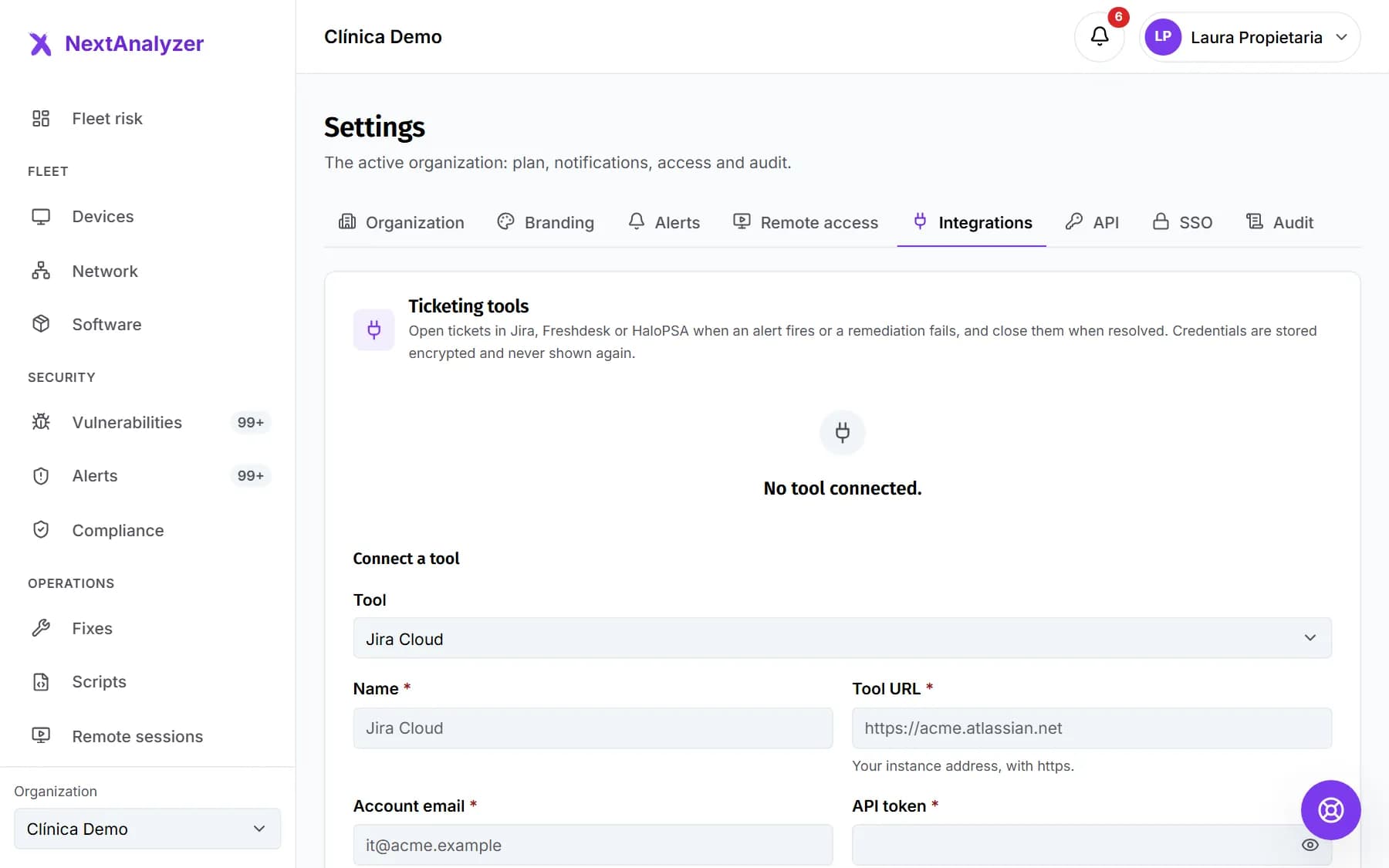
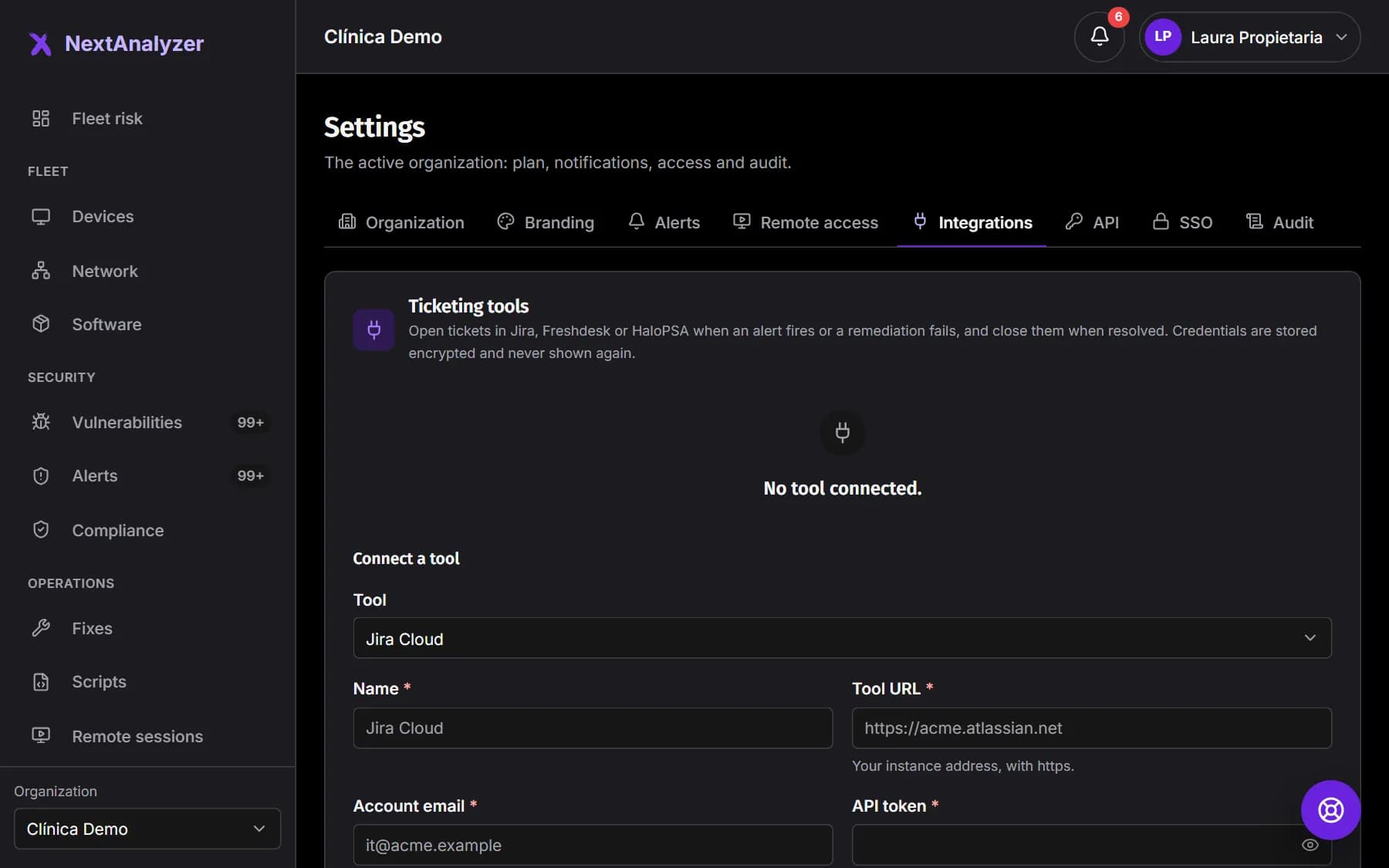
In Settings › Integrations, click “Connect a tool”. Choose Jira Cloud, Freshdesk or HaloPSA and fill in the tool URL and its credentials. Click “Connect”.
Expected result: You see “Tool connected.” and the connection shows as enabled in the list.
Tip: Credentials are stored encrypted and never shown again. You can have up to 5 connections.
Decide when a ticket is opened
Under “When a ticket is opened”, tick “When an alert fires” with its minimum severity and types, or “When a remediation job fails”. If you like, tick “Close the ticket when the alert is resolved”. Click “Test”.
Expected result: You see “The connection works.” and new tickets reach your tool.
Tip: If an alert gets worse, a comment is added to the ticket.
Create a ticket by hand
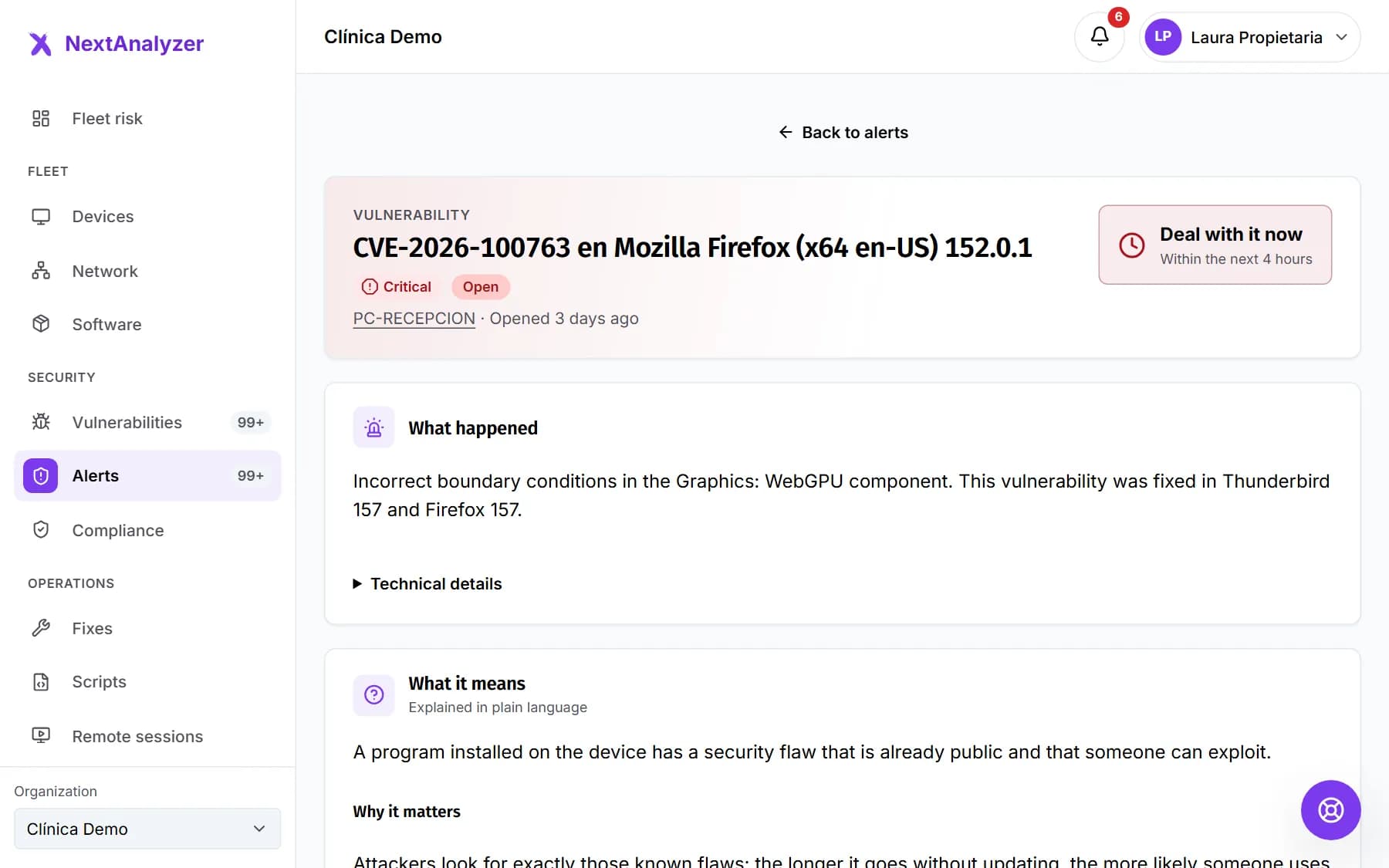
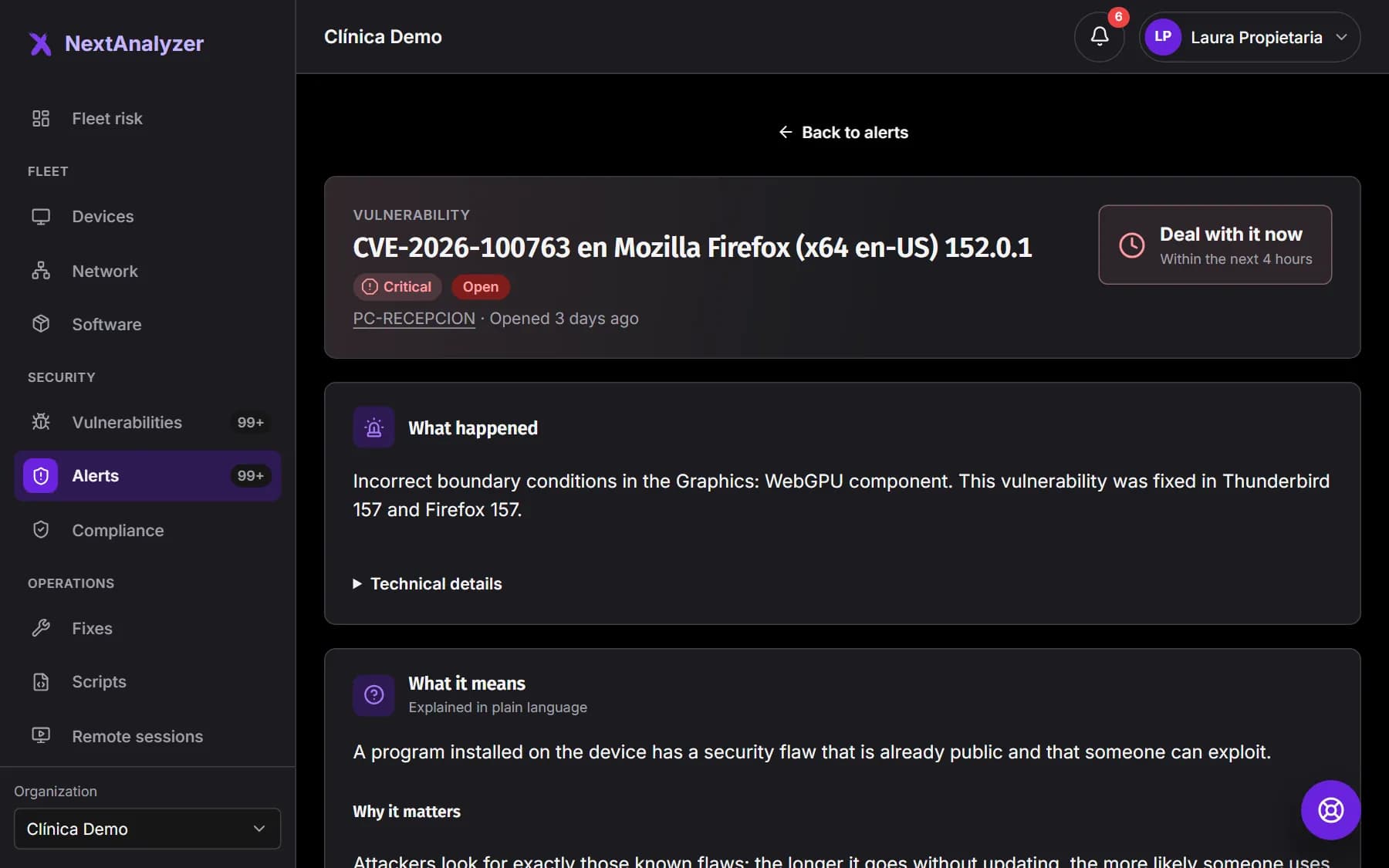
On an alert's detail page, the tickets card has “Create ticket”. It works even if no rule opens one automatically. Technicians can do it too.
Expected result: You see “Ticket created.” with the link to the ticket in your tool.
If something goes wrong
The API returns 429
You've gone over the key's per-minute limit or the organization's, which on Enterprise is 1200 per minute across all keys. Wait as long as the Retry-After header says and check RateLimit-Remaining. If needed, raise the key's limit.
The API returns 401 or 403
A 401 means the key isn't valid: it was copied wrongly, expired or was revoked. A 403 means it lacks the scope for that route, you're calling from an IP that isn't allowed, or your plan doesn't include that feature.
It asks for an expiry date
“A key that can change anything must expire.” If you tick a write scope, the expiry date is required and at most one year away. Read-only keys can have no expiry.
The integration disabled itself
It failed 20 times in a row, usually because of expired credentials or a changed URL. The owner gets an email. Click “Edit”, update the credentials, click “Test” and then “Enable”.
I can't grant the scope to approve jobs
“Only the organization owner can grant it.” Ask them to create the key. Without that scope, jobs created by the key wait for approval in the dashboard.
Still not working? Open a support ticket