
Your account and personal security
Your account gives access to your organization's devices: protect it well. Everything is in My account, in the menu under your name, top right.
Review your profile
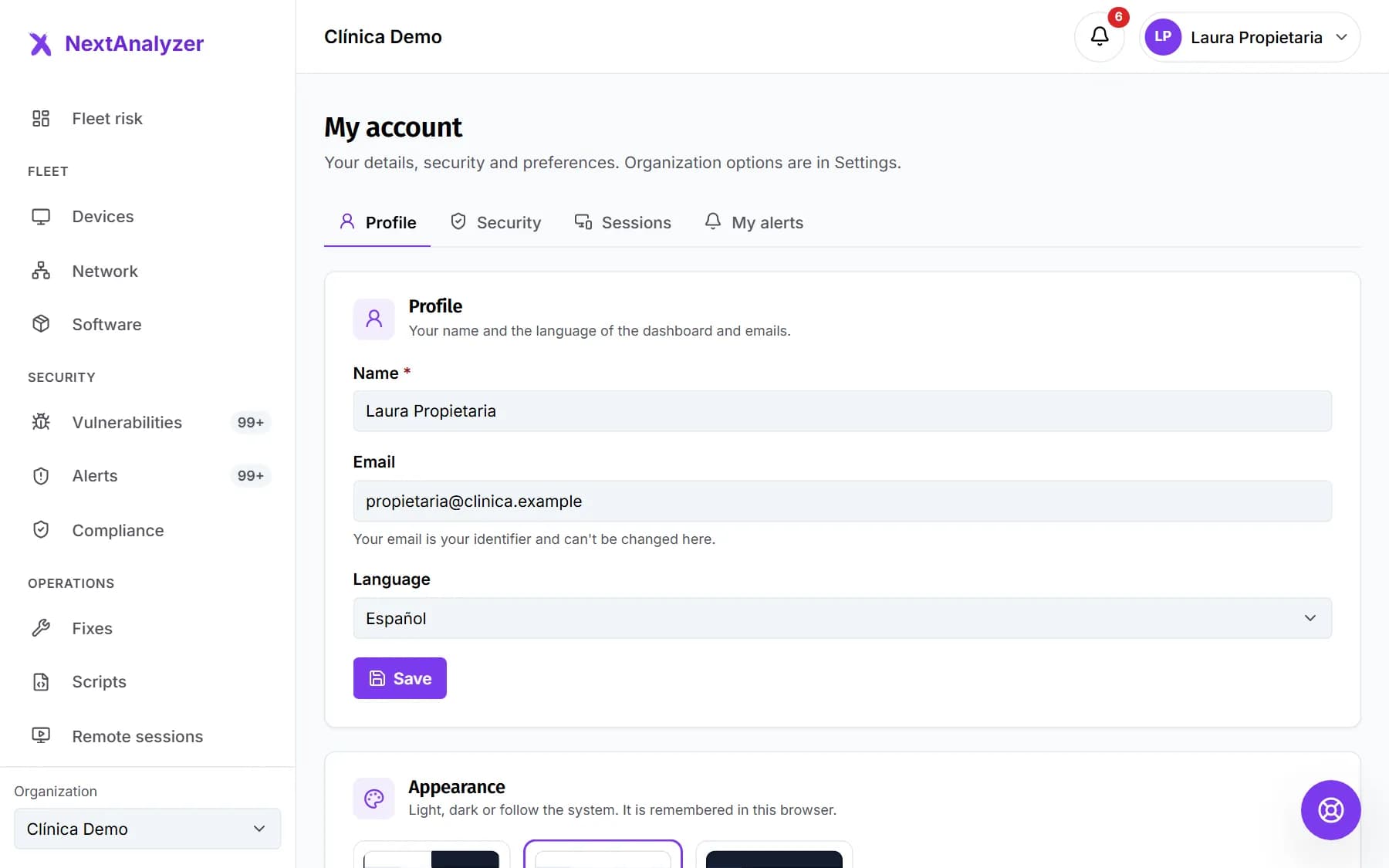
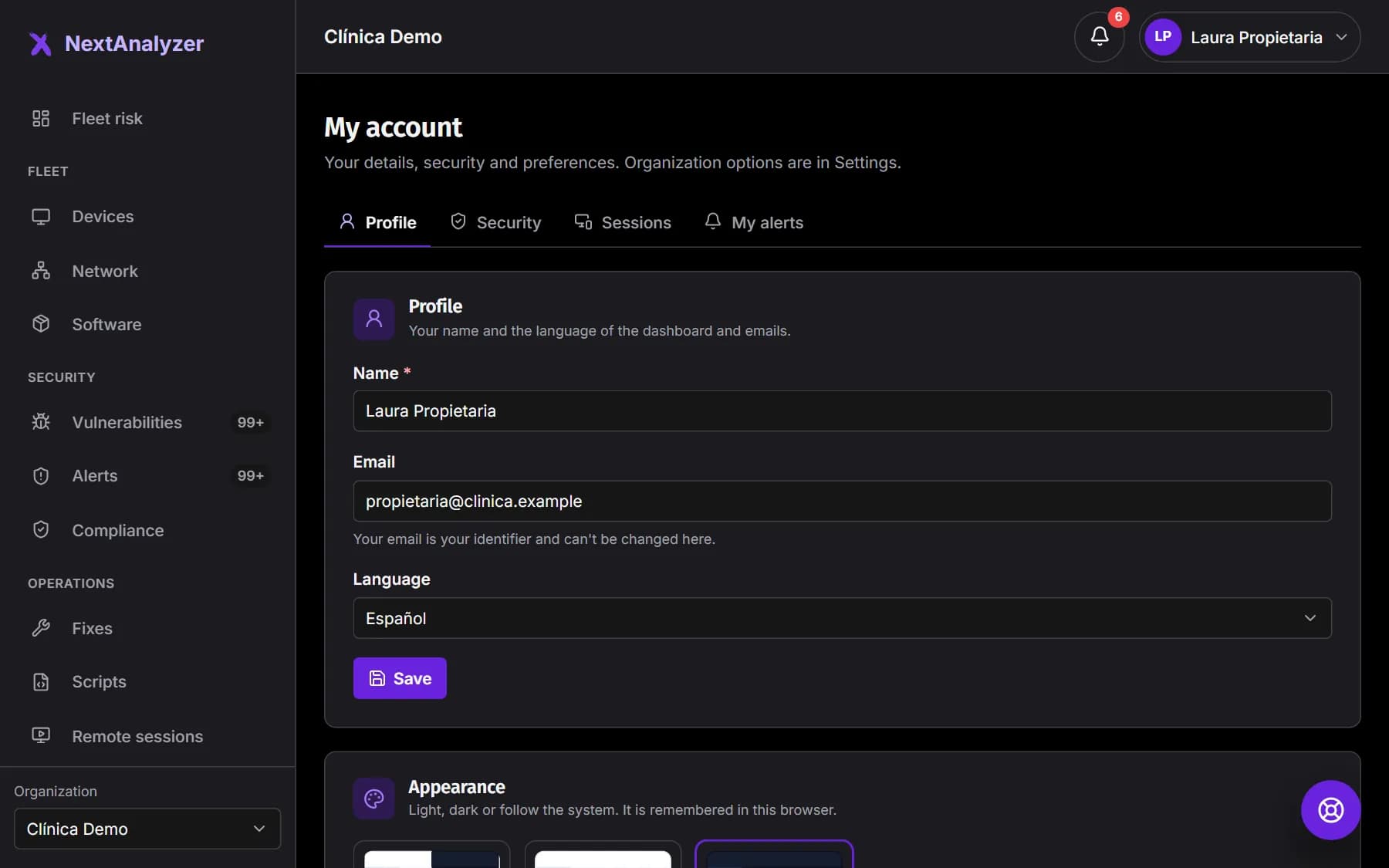
In My account › Profile you change your name and the language of the dashboard and emails. Under Appearance you choose light, dark or the system's. Your email is your identifier and can't be changed here.
Expected result: You see “Profile saved.” and the dashboard switches to the chosen language.
Change your password
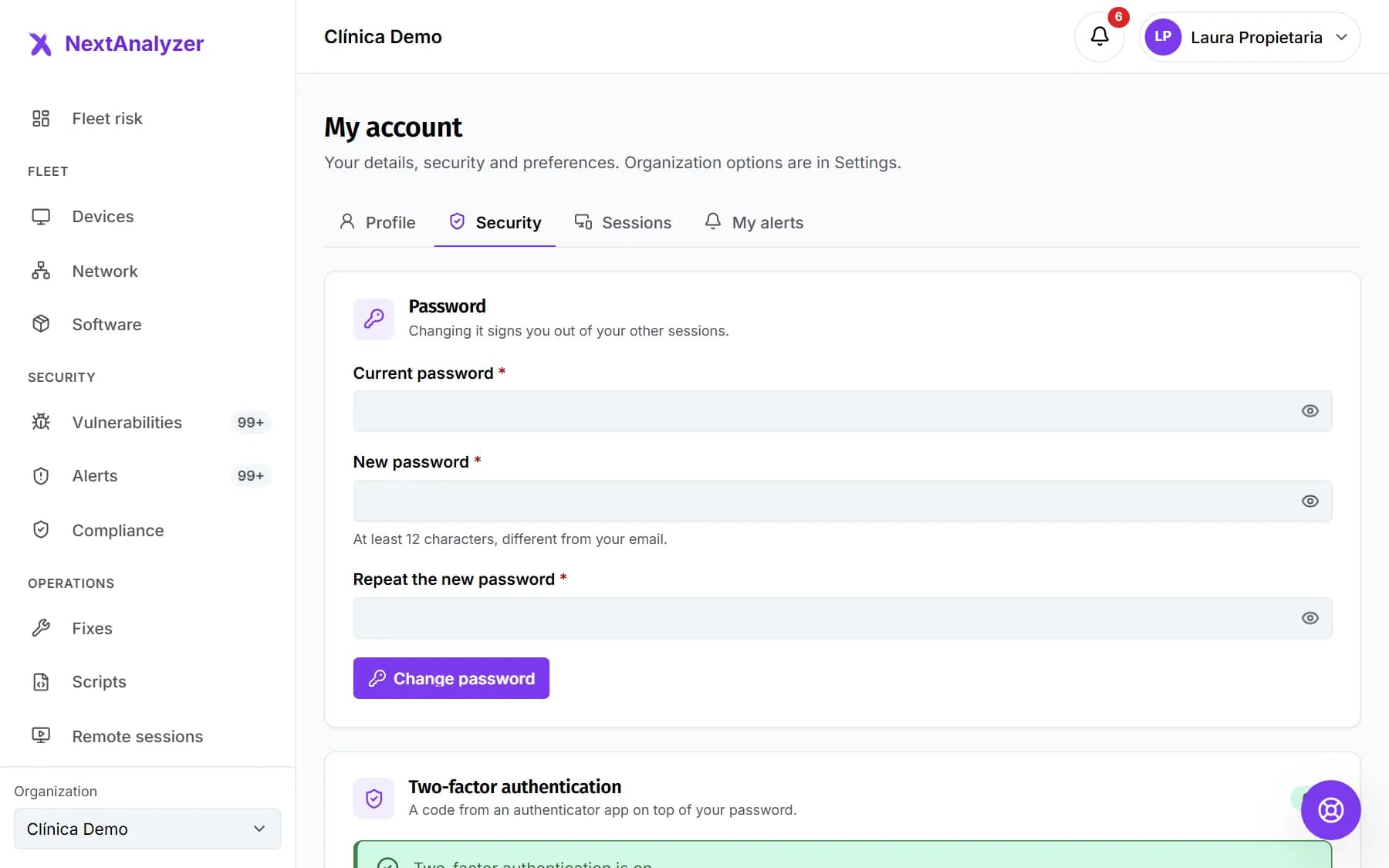
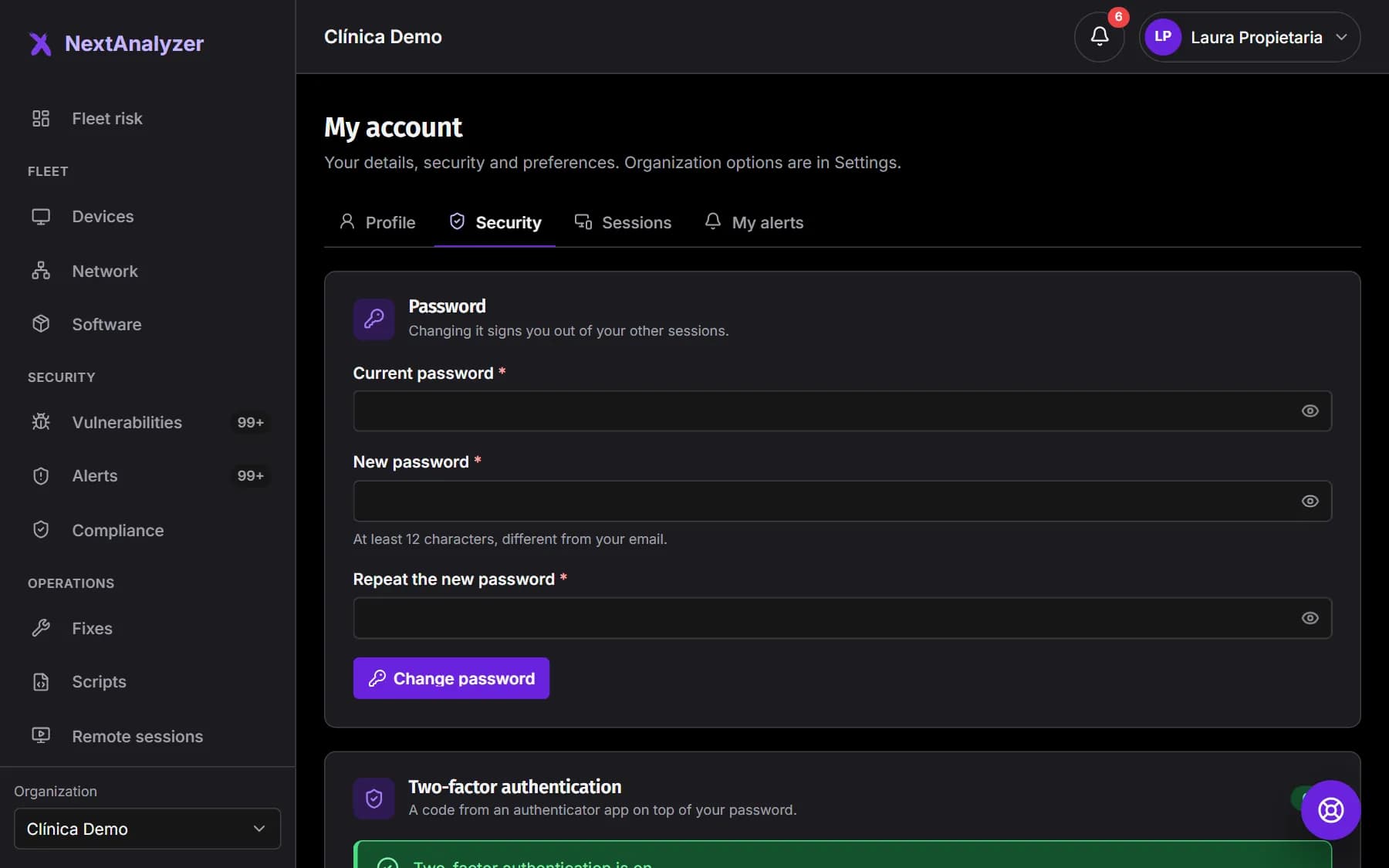
In My account › Security, enter your current password and the new one twice. It must be at least 12 characters and different from your email. Click “Change password”.
Expected result: You see “Password changed. Your other sessions have been signed out.”.
Turn on two-factor
In My account › Security, click “Set up two-factor authentication”. Scan the QR code with your authenticator app, or type the key by hand. Then enter the 6-digit code and click “Turn on”.
Expected result: You see “Two-factor authentication is on.” and the status changes to “On”.
Keep your recovery codes
When you turn it on, you see single-use codes to sign in if you lose your phone. They're shown only once. Store them off your computer, for example in your password manager.
Expected result: Your codes are stored somewhere safe.
Tip: If you run out, turn two-factor off and on again to get new ones. If your organization requires it, ask support for help.
Review your sessions
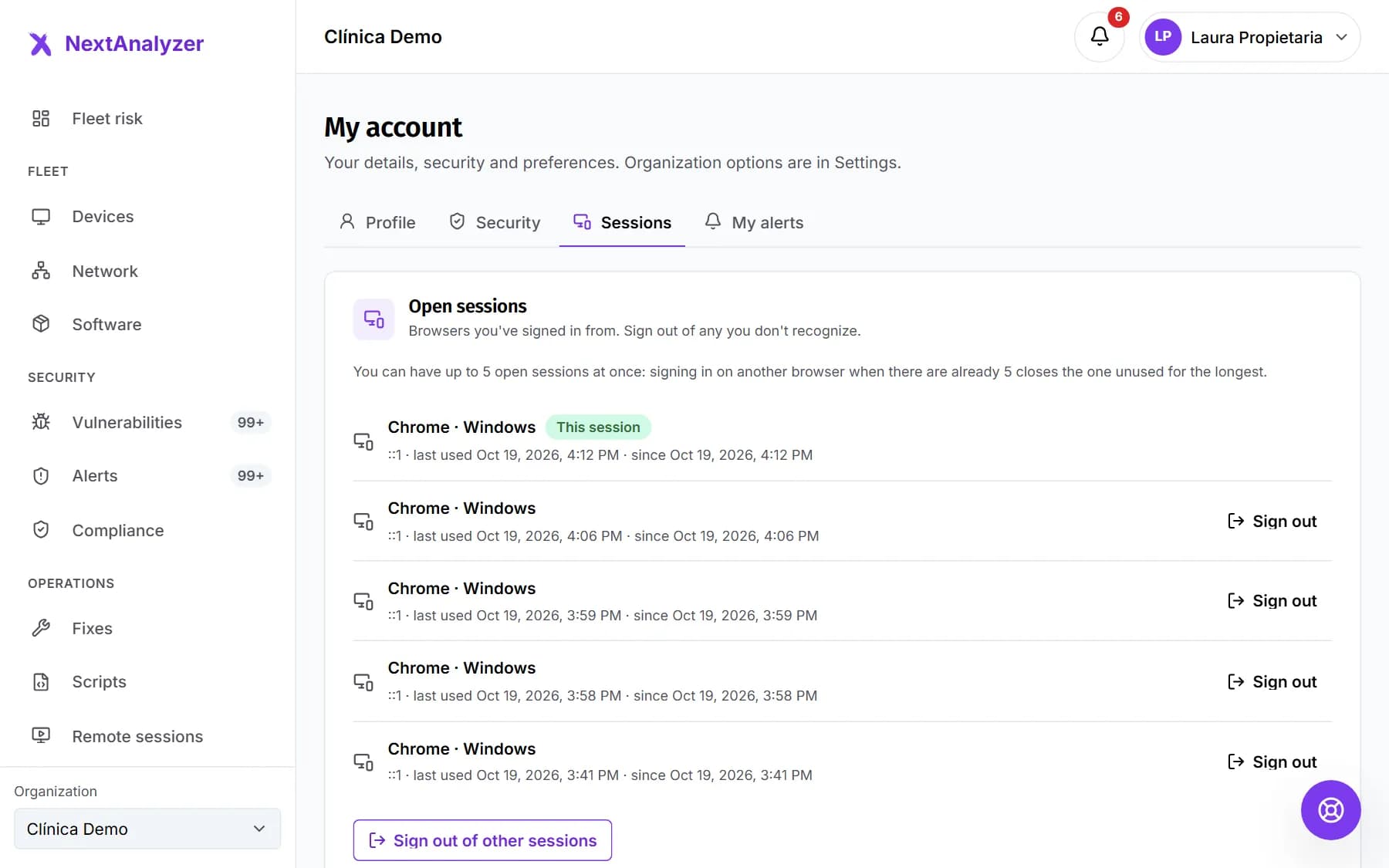
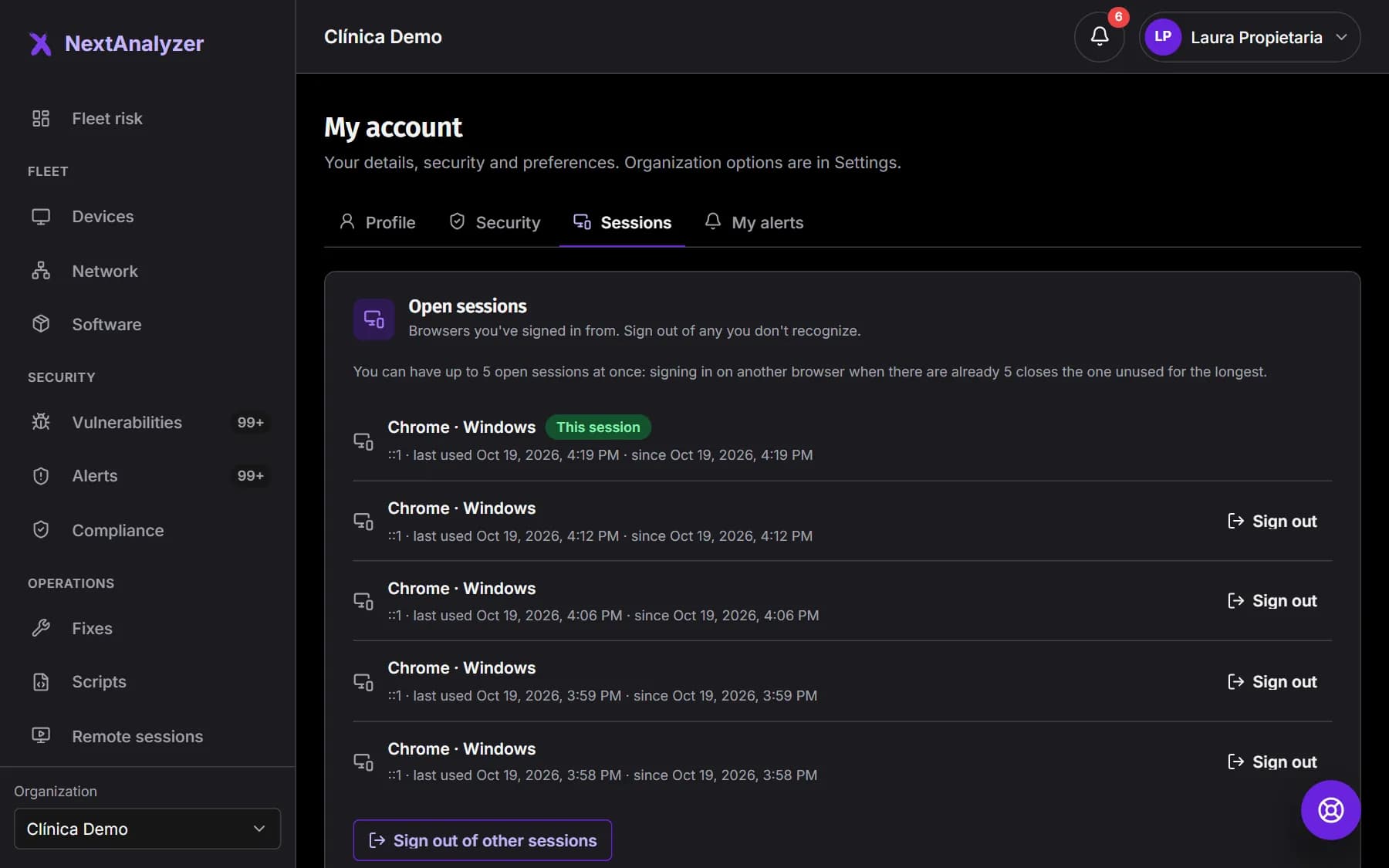
In My account › Sessions you see the browsers you've signed in from, with the IP and last use. Click “Sign out” on any you don't recognize, or “Sign out of other sessions”.
Expected result: Only the session marked “This session” and the ones you recognize stay open.
Tip: You can have up to 5 sessions at once. Opening another one closes the one unused for the longest.
Choose your alerts
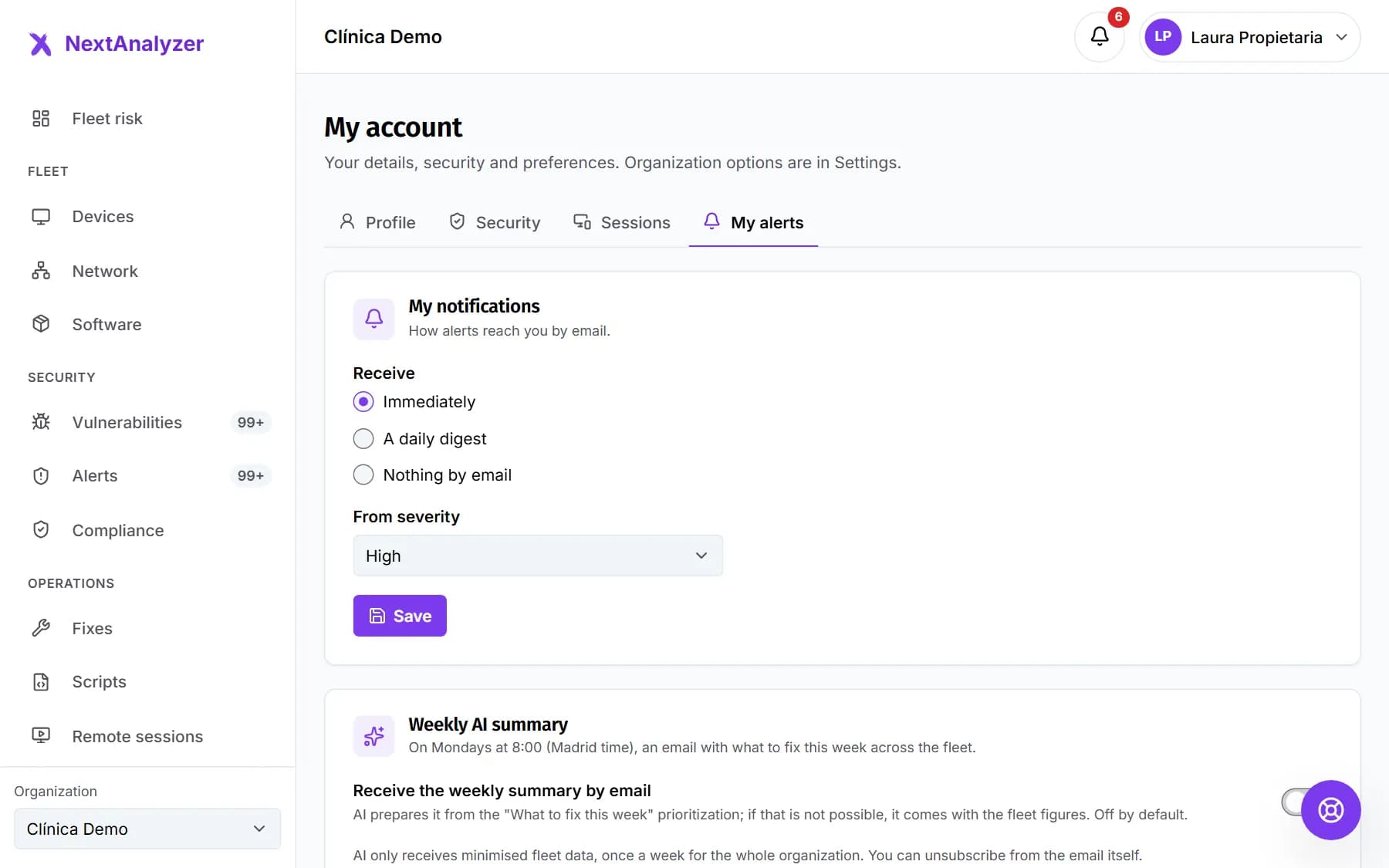
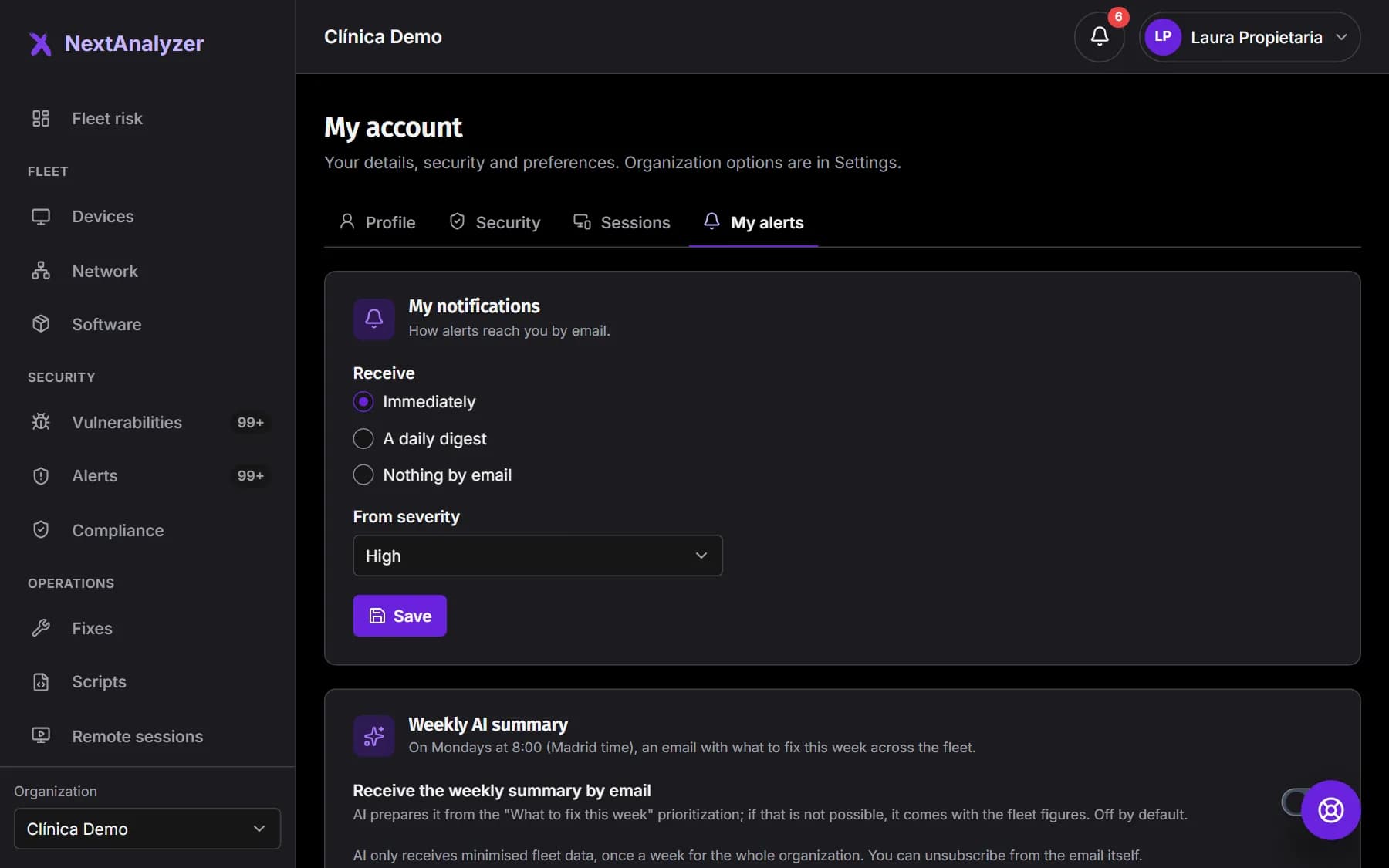
In My account › My alerts you decide how alerts reach you by email: “Immediately”, “A daily digest” or “Nothing by email”. You also choose the minimum severity.
Expected result: You see “Preferences saved.”.
Tip: On Business and Enterprise you can also get a weekly email summary with the week's priorities.
If something goes wrong
I lost the phone with my two-factor
Sign in with one of your recovery codes instead of the app code. Then set up two-factor again on your new phone. If you have no codes, open a support ticket from another account or ask your administrator for help.
It says “That code isn't right”
The code changes every 30 seconds and depends on your phone's clock. Turn on automatic time on your phone and enter the new code before it changes.
I don't remember my password
On the sign-in screen, click “Forgot your password?”. You get a link that expires in 30 minutes and works only once. Changing it signs you out of all your sessions.
It says “Too many failed attempts”
For security, sign-in is locked for a while after several failures. Wait the minutes shown in the message and try again, or reset your password with “Forgot your password?”.
It says my organization requires SSO
Your organization uses its identity provider. Click “Continue with SSO” and sign in with your company account. Your NextAnalyzer password no longer works for your domain.
Still not working? Open a support ticket