
Set up corporate sign-in (SSO)
With SSO, your team signs in to NextAnalyzer with their company account. When someone leaves and you remove them at your provider, they also lose access to the dashboard.
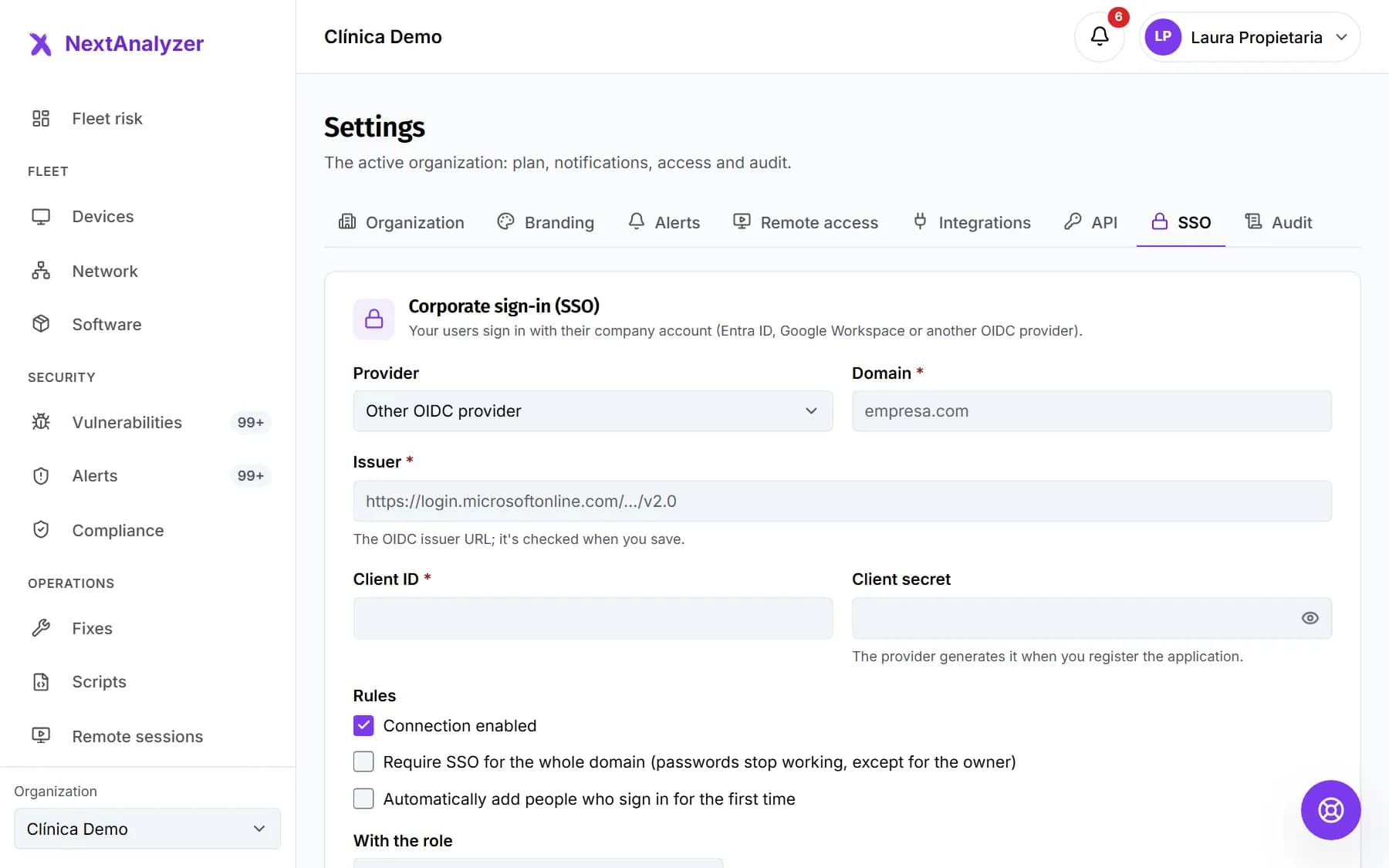
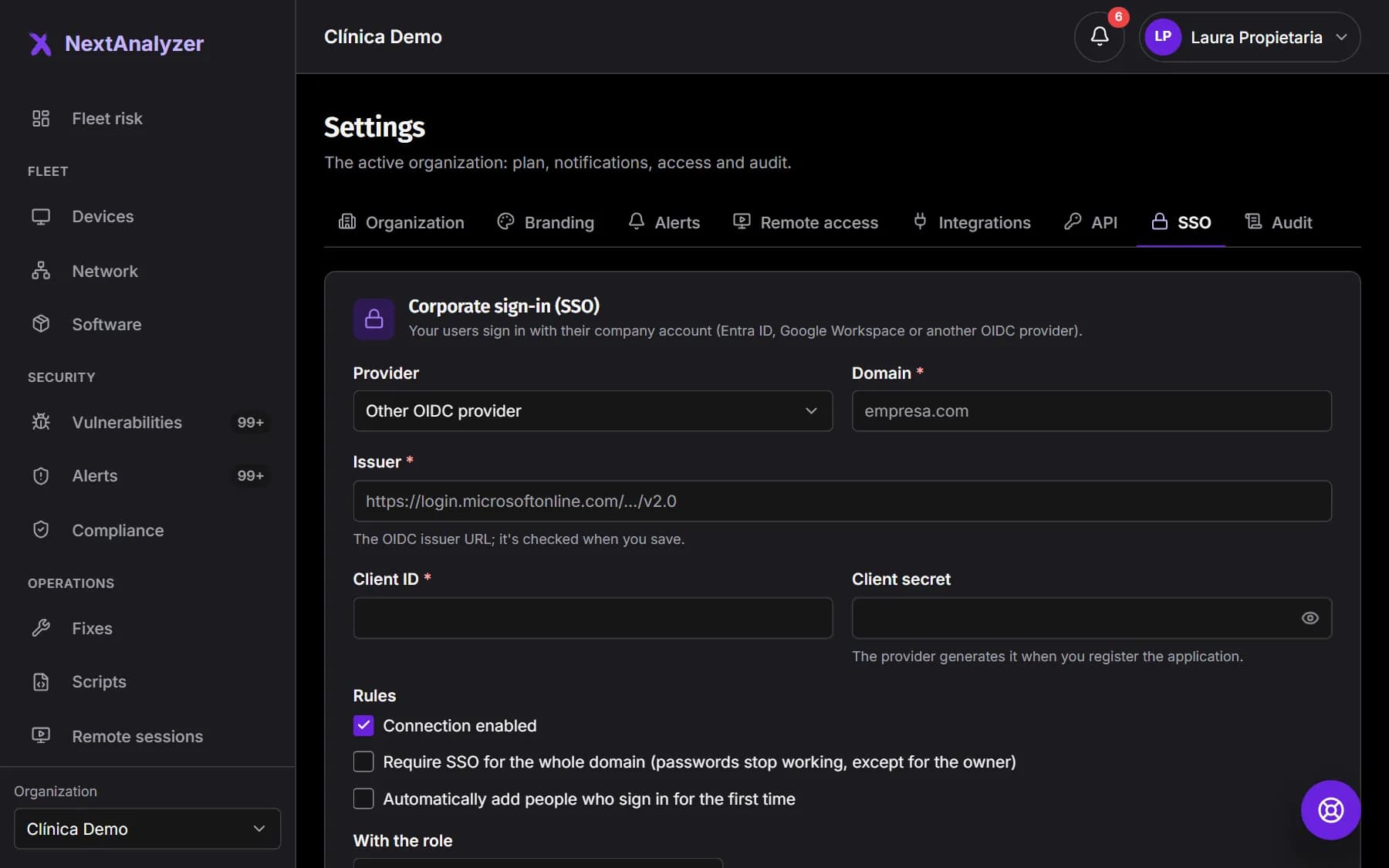
Open Settings › SSO
Open Settings in the side menu and go to the SSO tab. Only the owner sees it. If your plan isn't Enterprise, you'll see a notice to change plans.
Expected result: You see the “Corporate sign-in (SSO)” form and the “At your provider” block.
Register the application at your provider
In Entra ID, Google Workspace or your OIDC provider, register a web application. Copy NextAnalyzer's “Redirect URI you must register” and paste it as the redirect URI. Create a client secret.
Expected result: You have the client ID, the secret and the redirect URI registered at your provider.
Tip: NextAnalyzer requests the openid, email, profile and offline_access scopes. The provider must send each person's verified email.
Find the issuer
It's the base address of your OIDC provider. In Entra ID it's https://login.microsoftonline.com/TENANT-ID/v2.0. In Google Workspace it's https://accounts.google.com. For another provider, look in its OIDC settings.
Expected result: You have the issuer URL ready to paste.
Fill in the connection and save
Choose the “Provider” and enter the email “Domain”, the “Issuer”, the “Client ID” and the “Client secret”. Leave “Connection enabled” unticked and click Save.
Expected result: You see “SSO connection saved.” and the domain shows as “Not verified”.
Tip: The secret is stored encrypted and never shown again. To keep it, leave the field blank.
Verify your domain
Copy the “TXT record name” and its “TXT record value” and create the record in your domain's DNS. The name starts with _nextanalyzer and the value with nextanalyzer-verification=. Then click “Verify domain”.
Expected result: The domain changes to “Verified”.
Tip: DNS can take a few minutes to propagate. If it fails, wait and click again.
Enable the connection
Tick “Connection enabled” and click Save. Saving checks that the provider responds at the issuer address.
Expected result: You see “SSO connection saved.” with no errors.
Test signing in
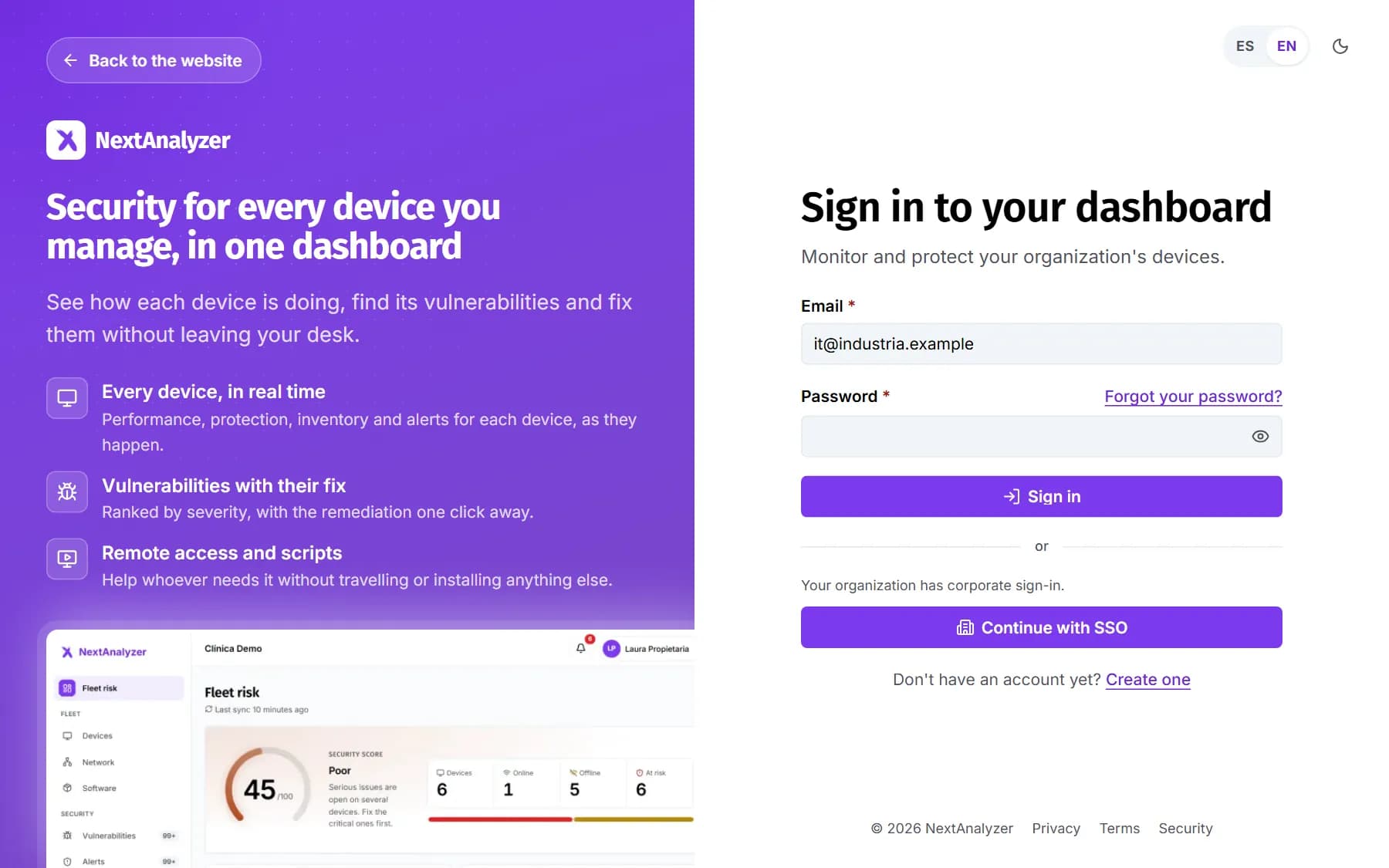
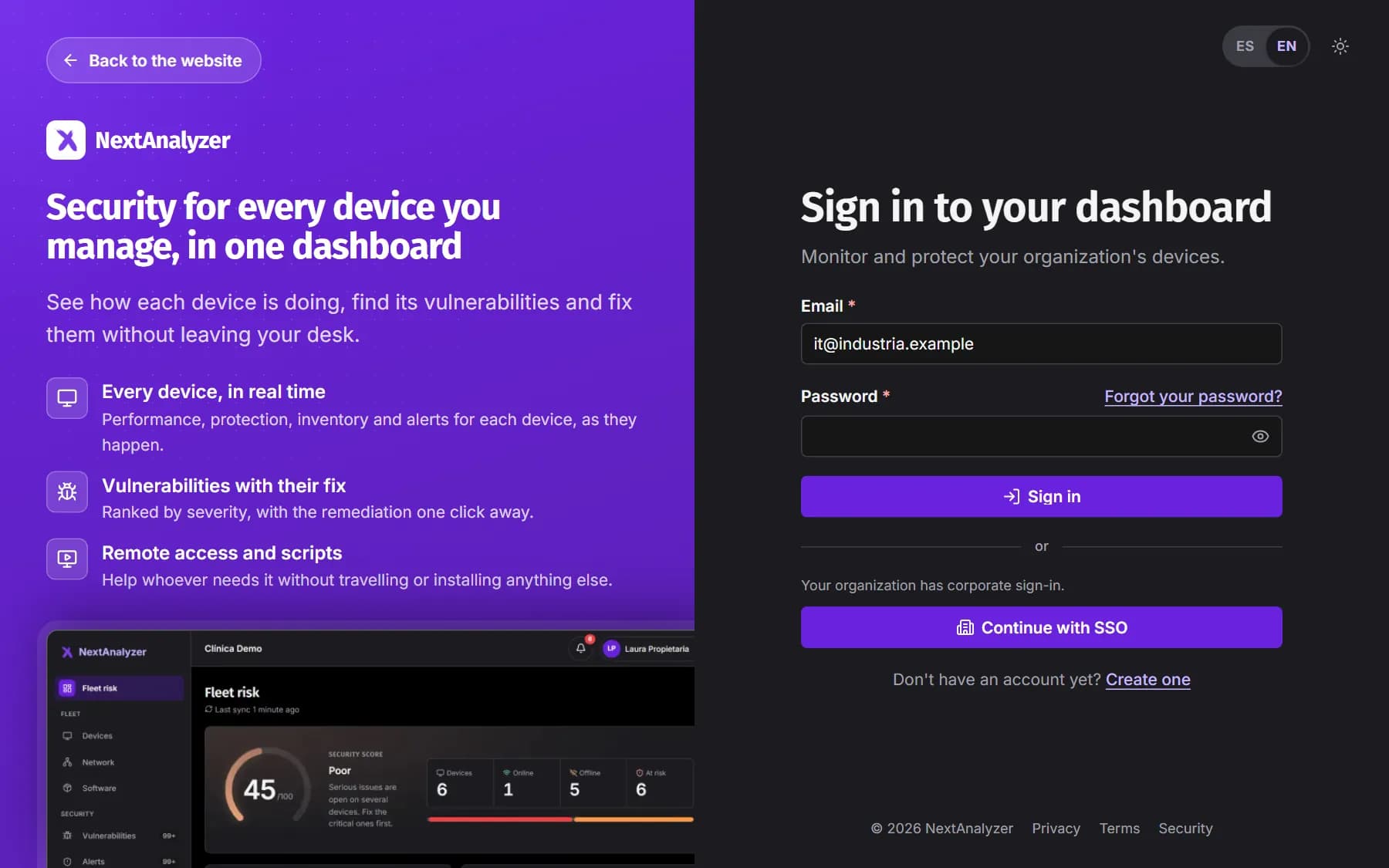
In a private window, open the dashboard sign-in and enter an email from your domain. Click “Continue with SSO” and sign in with your company account.
Expected result: You're back in the dashboard, signed in, without typing a NextAnalyzer password.
Add people the first time they sign in
This is optional. Tick “Automatically add people who sign in for the first time” and pick the role under “With the role”: Administrator, Technician or Read-only. If you don't, only existing members or people with an invitation can sign in.
Expected result: People from your domain who sign in with SSO appear in Members with that role.
Tip: Each new person counts towards the plan's user limit.
Require SSO for the whole domain
Tick “Require SSO for the whole domain (passwords stop working, except for the owner)” and save. Emails from your domain can now only sign in with SSO. You keep an emergency sign-in with password and two-factor.
Expected result: Anyone trying to sign in with a password sees “Your organization requires SSO”.
Tip: The emergency sign-in only works if your two-factor is on. To go back, untick the rule or click “Delete SSO connection”.
Remove access from your provider
Each session opened with SSO is confirmed again with your provider at least every 15 minutes. If you disable someone there, they lose access to the dashboard within that time.
Expected result: Someone removed at your provider can't keep using the dashboard.
If something goes wrong
It says “We could not find the domain TXT record”
The record isn't visible yet or doesn't match. Check that the name is the one shown in the dashboard, starting with _nextanalyzer, and that the value is complete. Wait a few minutes for it to propagate and click “Verify domain” again. If you change the domain, it must be verified again.
When enabling, it says “The provider does not respond at that address”
The issuer address is wrong or doesn't publish its OIDC configuration. Check that nothing is missing or extra, such as Entra ID's /v2.0. If it says “Verify the domain before turning SSO on”, finish the DNS verification first.
Signing in shows “We couldn't complete sign-in with your provider”
It's usually a wrongly registered redirect URI, an expired secret or an unverified email at the provider. Check the redirect URI and, if the secret expired, create a new one and enter it in “Client secret”.
It shows “Your provider account doesn't have access to this organization”
The person isn't a member and automatic sign-up is off. Invite them from Members and groups or turn on automatic sign-up. If it shows “The organization has reached its plan's user limit”, free a seat or change plans.
It shows “The account you used at the provider isn't from the organization's domain”
Another account was used at the provider, such as a personal one. Sign out of the provider and sign in with your domain's email. If it shows “That domain is already connected to another organization”, a domain can only have one connection: contact support.
Still not working? Open a support ticket