
Install on macOS and Linux
The macOS and Linux agent does almost everything it does on Windows. These versions are still in testing, so their packages aren't downloaded from the dashboard: support sends them to you, with their checksum to verify them.
Get the package and the code
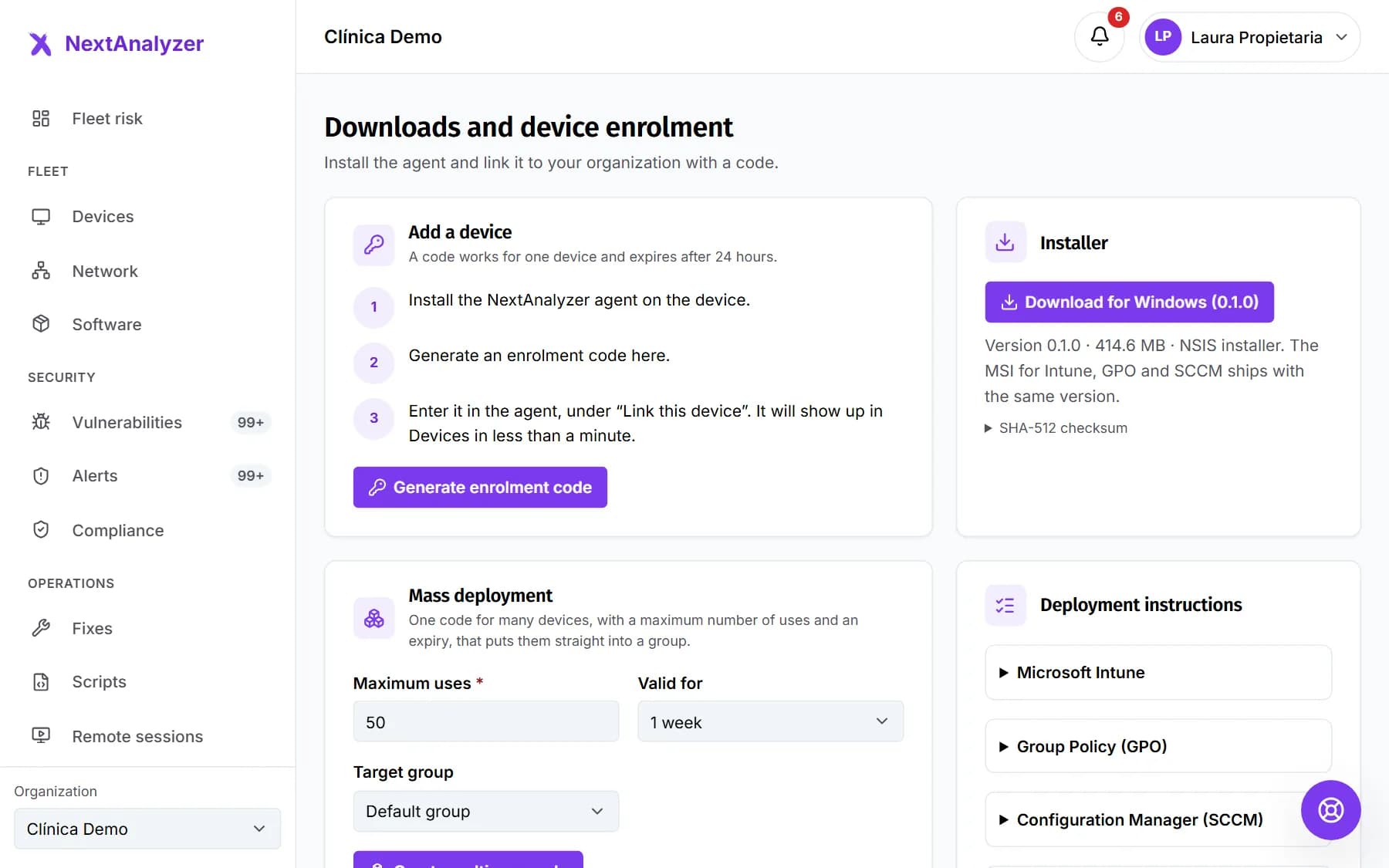
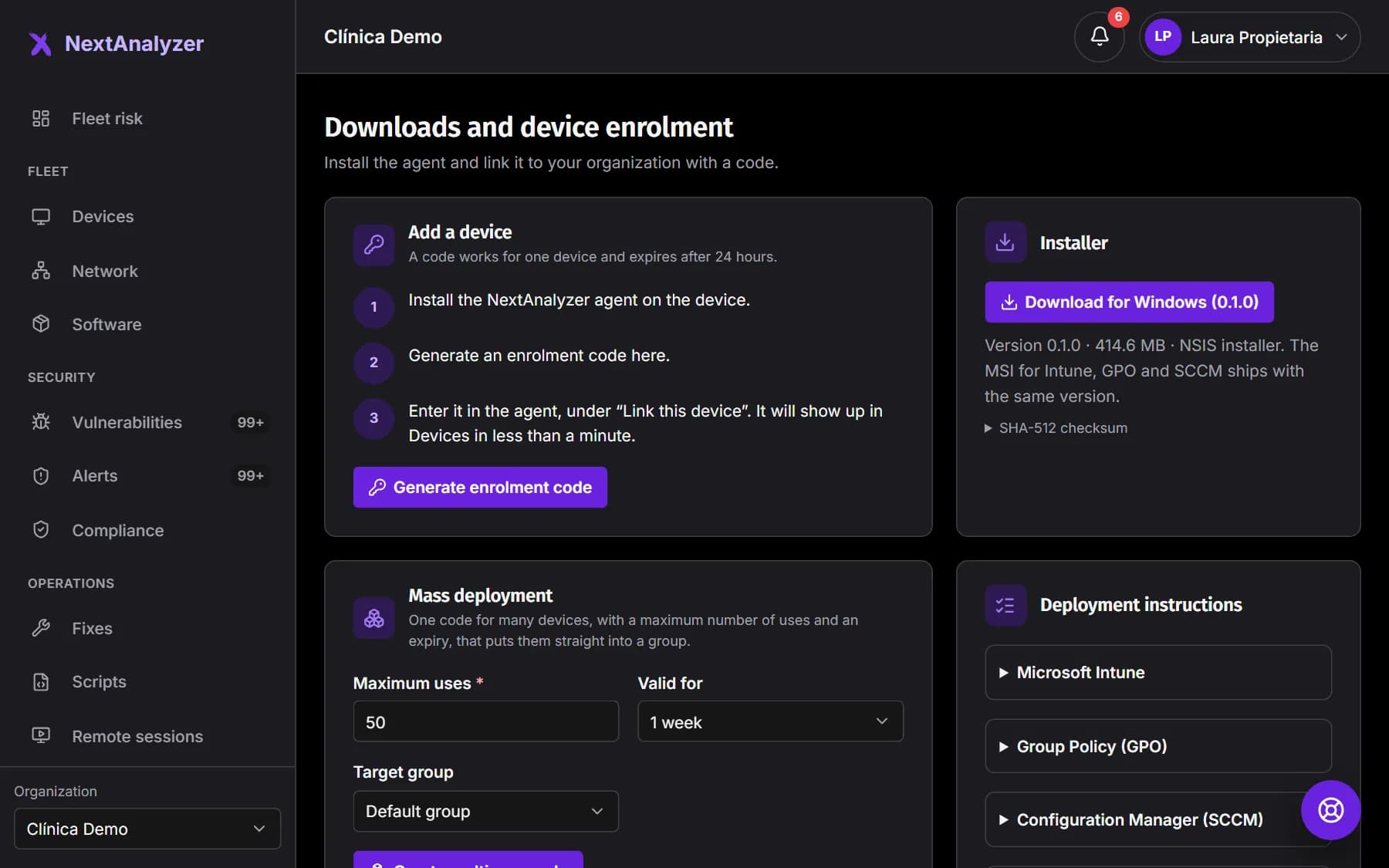
Open a ticket in Support with “A device or the agent” › “Adding a device”. Say which system and architecture you need. We'll send you the package with its SHA-512 checksum. Generate the code in Organization › Downloads › “Generate enrolment code”.
Expected result: You have the package for your system and an enrollment code valid for 24 hours.
Install it on a Mac
There's a single universal package, for Intel and Apple Silicon. Double-click it and follow the macOS installer. Or install it from Terminal with the command below so it's linked when it finishes. The example code isn't real.
sudo NEXTANALYZER_ENROLL_CODE=ABCD-EFGH installer -pkg NextAnalyzer-1.0.0-universal.pkg -target /Expected result: The installer finishes successfully and the NextAnalyzer app appears in the menu bar.
Tip: With an MDM, the code can also go in a com.nextanalyzer.agent profile (EnrollCode key). The mass deployment guide explains it.
Grant the remote access permissions on the Mac
So you can be helped remotely, macOS asks for two permissions for nextanalyzer-remote: Screen Recording and Accessibility. Turn them on in System Settings › Privacy & Security.
Expected result: nextanalyzer-remote shows as enabled in both lists.
Tip: Without them the rest of the agent works, but not remote access. With an MDM you can grant Accessibility through a profile; Screen Recording must be accepted by someone at the device.
Install it on Linux
Use the package for your distribution and architecture: .deb with apt, .rpm with dnf or zypper, or .pacman with pacman. Pass the code in NEXTANALYZER_ENROLL_CODE, as in the example below. The example code isn't real.
sudo NEXTANALYZER_ENROLL_CODE=ABCD-EFGH apt install ./nextanalyzer-1.0.0-x64.debExpected result: The nextanalyzer service is running and the device is linked.
Tip: You can also put the code in /etc/nextanalyzer/enroll.conf beforehand, with the line ENROLL_CODE=ABCD-EFGH.
Link it later if needed
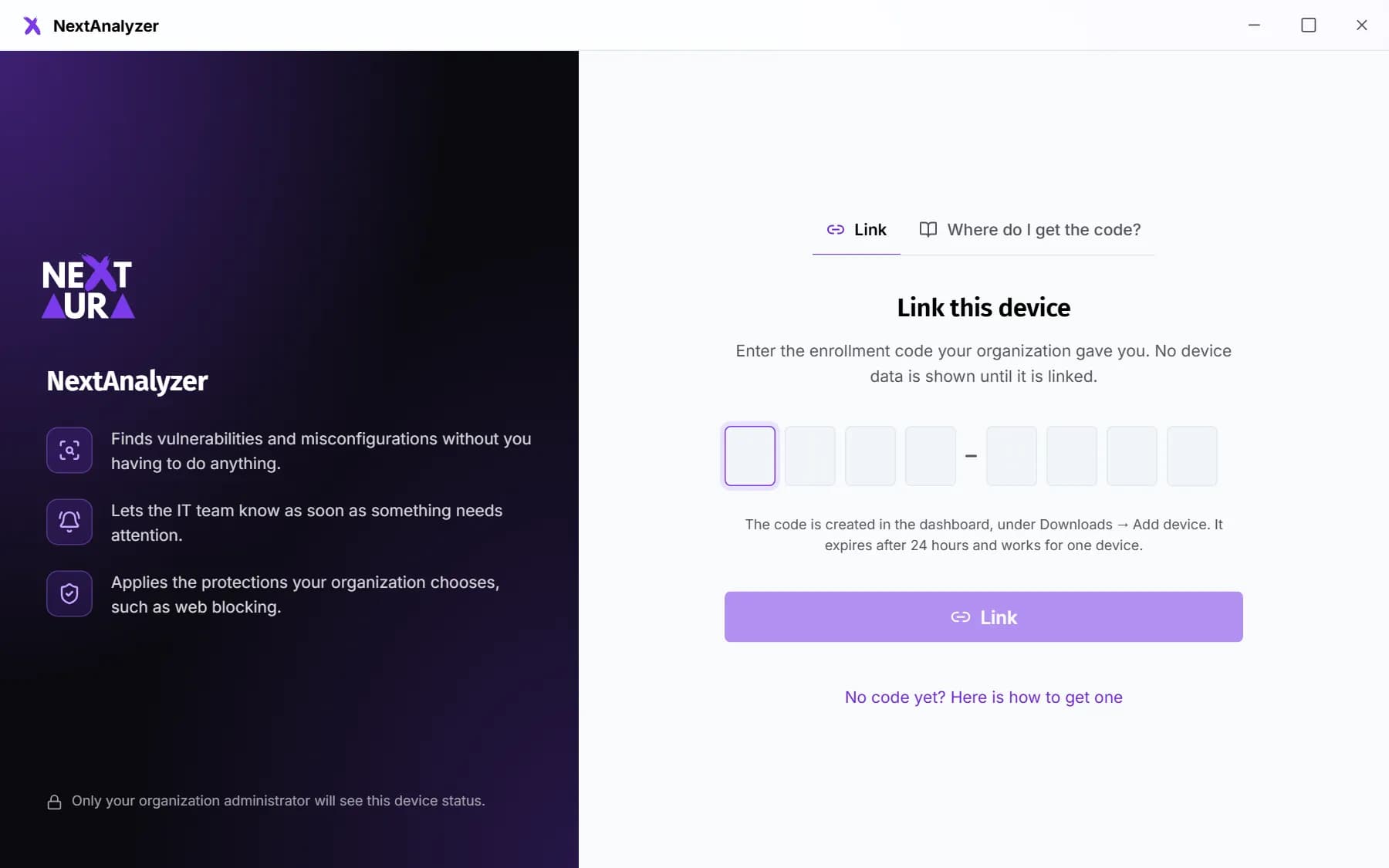
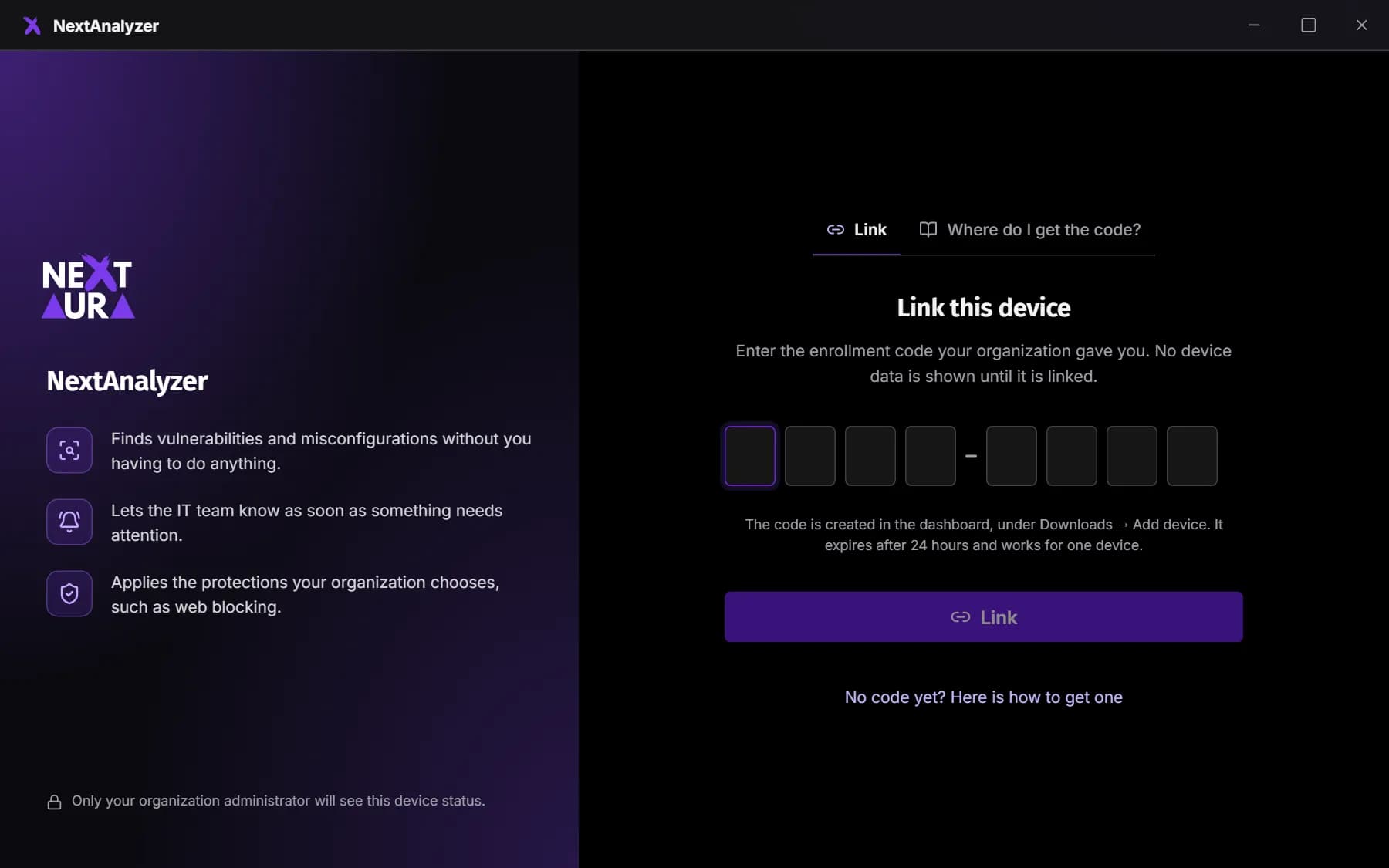
If you installed without a code, open the app and enter the code under “Link this device”. On Linux you can also do it from the terminal with the command below. You can add the group after the code.
sudo bash /opt/NextAnalyzer/resources/linux/enroll.sh ABCD-EFGHExpected result: The app says “Device linked. It is now protected by your organization.”
Check that it shows up
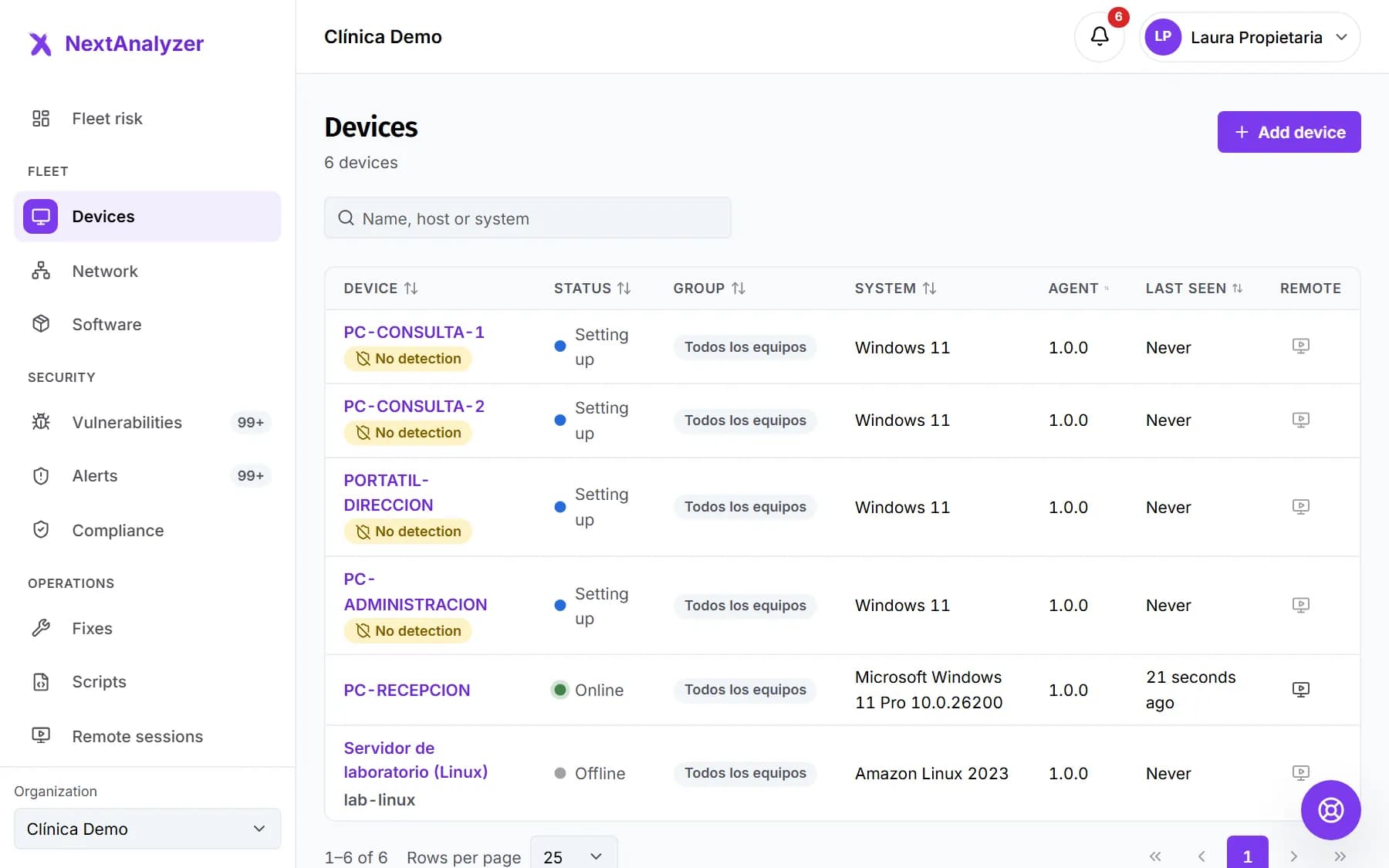
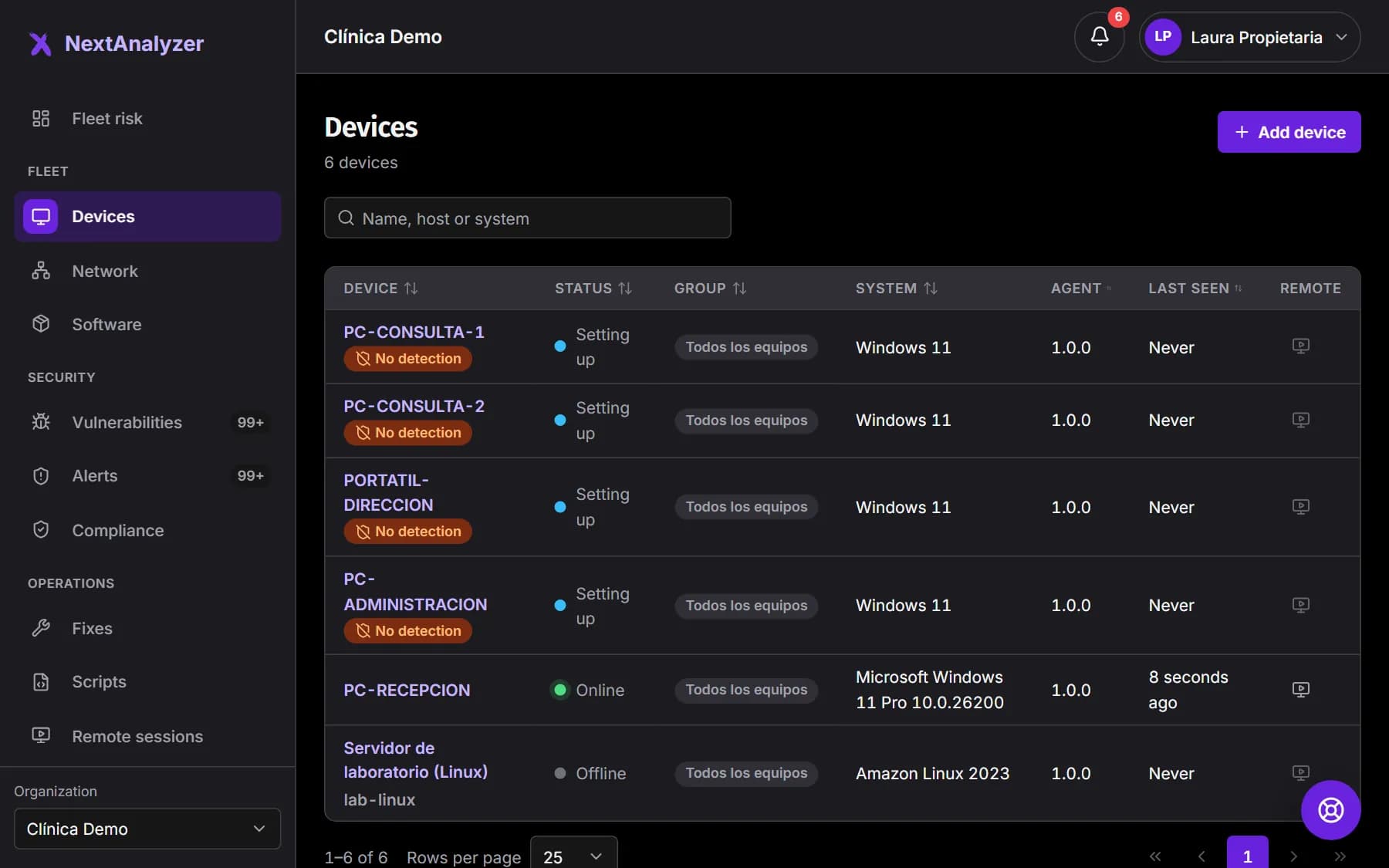
In the dashboard, open Devices. You'll see the device with its system and agent version. Vulnerability detection takes a few more minutes to start.
Expected result: The device shows “Setting up” and, within a minute, “Online”.
What changes compared with Windows
There's no Windows Update: programs are updated with Homebrew (if the Mac has it) or the distribution's package manager. Drivers shows system updates on Mac and fwupd firmware on Linux. Scripts run in bash or sh.
Expected result: You know what to expect from each feature on these systems.
Tip: Remote access has no Ctrl+Alt+Del, black screen or input lock. On Linux it only works with X11 sessions.
If something goes wrong
macOS won't let me open the package
The package isn't signed or notarized yet. Open it with right-click › Open, or allow it in System Settings › Privacy & Security › “Open Anyway”. Check its SHA-512 checksum first.
macOS asks for the permissions again after updating
Until the agent is signed, macOS may ask again for Screen Recording and Accessibility after each update. Grant them again in Privacy & Security.
Vulnerability detection doesn't start on Linux
On Debian, Ubuntu and .rpm distributions, the agent installs Wazuh from its official repository and needs Internet access for that. Arch has no official Wazuh package: that device will show as “No detection”.
I can't connect remotely on Linux
Remote access needs an X11 session. If the device uses Wayland, choose “Ubuntu on Xorg” (or similar) on the sign-in screen.
How do I check that the service is running?
On Linux, run systemctl status nextanalyzer and read its logs with journalctl -u nextanalyzer. On Mac, the logs are in /Library/Logs/NextAnalyzer (service.log and install.log). Attach them if you open a ticket.
Still not working? Open a support ticket