
Mass deploy with Intune, GPO, SCCM, Jamf or Linux
To install the agent on many devices without going one by one, create a multi-use code and run the silent installation from your management tool. Devices enroll themselves and join the group you choose.
Create a multi-use code
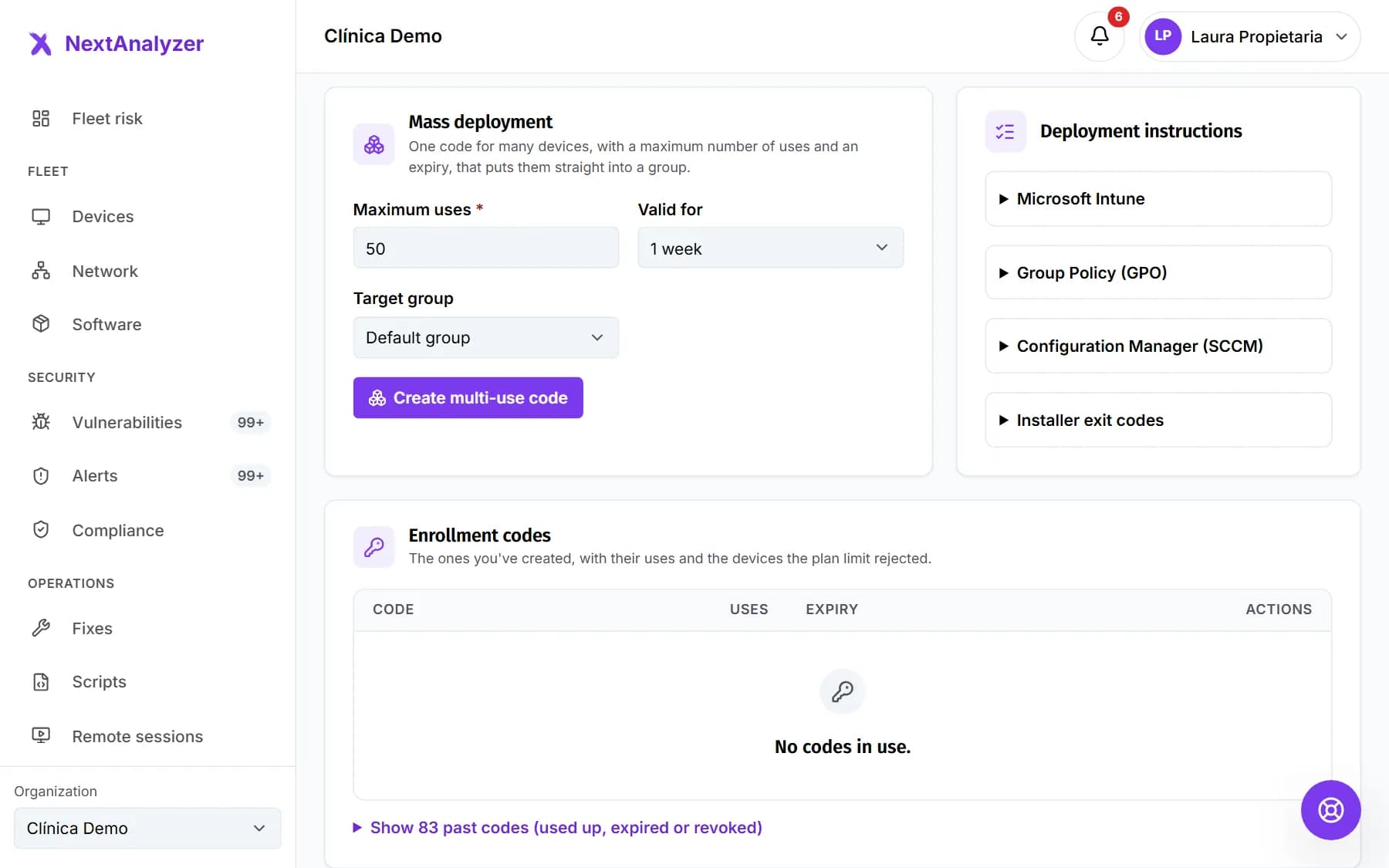
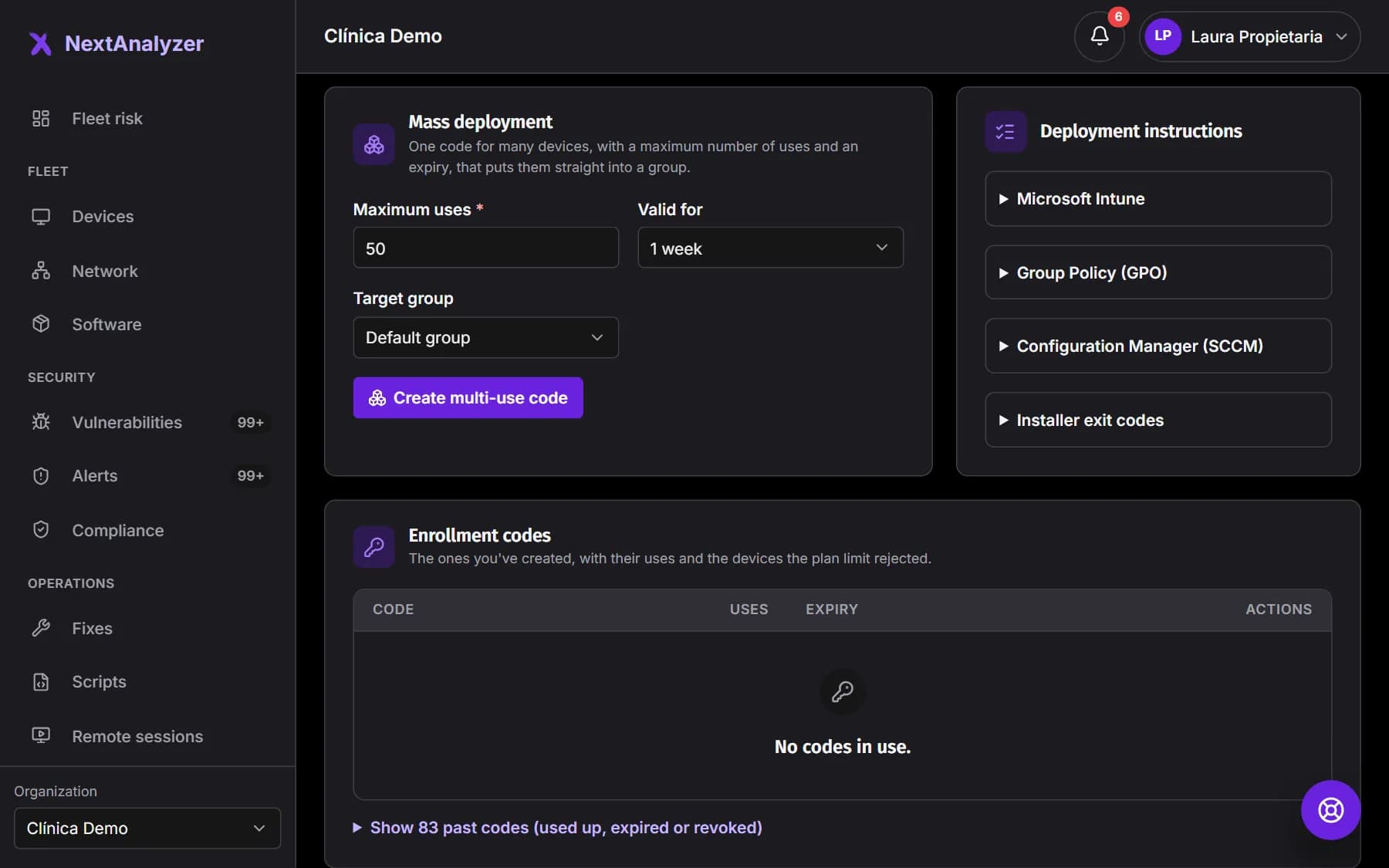
In Organization › Downloads, “Mass deployment” block, choose “Maximum uses” (up to 1000), “Valid for” (1 day to 30 days) and “Target group”. Click “Create multi-use code”.
Expected result: You see the “Multi-use code”, its expiry and the “Installer (silent)” and “MSI (Intune, GPO, SCCM)” commands ready to copy.
Tip: Set the uses slightly above the number of devices you'll deploy, but not much more: that way the code can't be used for unrelated devices.
Copy the MSI command
Copy the “MSI (Intune, GPO, SCCM)” command: it includes your code and, if you chose a group, GROUP=. Download the MSI of the same version as the installer. The example code isn't real.
msiexec /i NextAnalyzerSetup-1.0.0.msi /qn ENROLL_CODE=ABCD-EFGHExpected result: You have the exact command for your tool.
Tip: Step-by-step instructions for each tool are also in the dashboard, under “Deployment instructions”.
With Microsoft Intune
In Apps › Windows › Add, choose “Line-of-business app” and upload the MSI. In “Command-line arguments” enter ENROLL_CODE= and your code. Assign it as “Required” to the device groups.
Expected result: Intune installs the agent on each device at its next sync.
With Group Policy (GPO)
Copy the MSI to a shared folder the devices can read. Create a GPO linked to the organizational unit and add a startup script with the command. Restart the devices or run gpupdate /force.
Expected result: Each device installs the agent on its next boot.
With Configuration Manager (SCCM)
Create an application from the MSI and change the installation program to the command with your code. Distribute the content and deploy it as “Required” to the collection.
Expected result: In Monitoring you see the deployment status on each device.
On Mac with Jamf or another MDM
Upload the universal package to Jamf Pro and create a policy that installs it. The code can go in the environment variable, in a com.nextanalyzer.agent profile (EnrollCode and Group keys) or in /Library/Application Support/NextAnalyzer/enroll.conf.
sudo NEXTANALYZER_ENROLL_CODE=ABCD-EFGH installer -pkg NextAnalyzer-1.0.0-universal.pkg -target /Expected result: The Macs install the agent and are linked when it finishes.
Tip: With Intune for Mac, use “macOS app (PKG)” and a “Preference file” with the code. Screen Recording, for remote access, must be accepted by someone on each Mac.
On Linux with your scripts
Install the .deb or .rpm package with the NEXTANALYZER_ENROLL_CODE variable, or put the code in /etc/nextanalyzer/enroll.conf beforehand (ENROLL_CODE= and GROUP=). Any tool that runs commands as root works, such as Ansible.
sudo NEXTANALYZER_ENROLL_CODE=ABCD-EFGH apt install -y ./nextanalyzer-1.0.0-x64.debExpected result: The nextanalyzer service is running and the device is enrolled.
Read the exit codes
0: enrolled, or pending connection. 1: unexpected error. 2: invalid, expired or used-up code. 3: the organization reached its plan's device limit. 5: the platform rejected the enrollment. 6: agent version not supported.
Expected result: You know why each device failed without having to go to it.
Tip: With the MSI, any failure shows as 1603: install with /l*v log.txt and look for the real code in that log.
Check the result
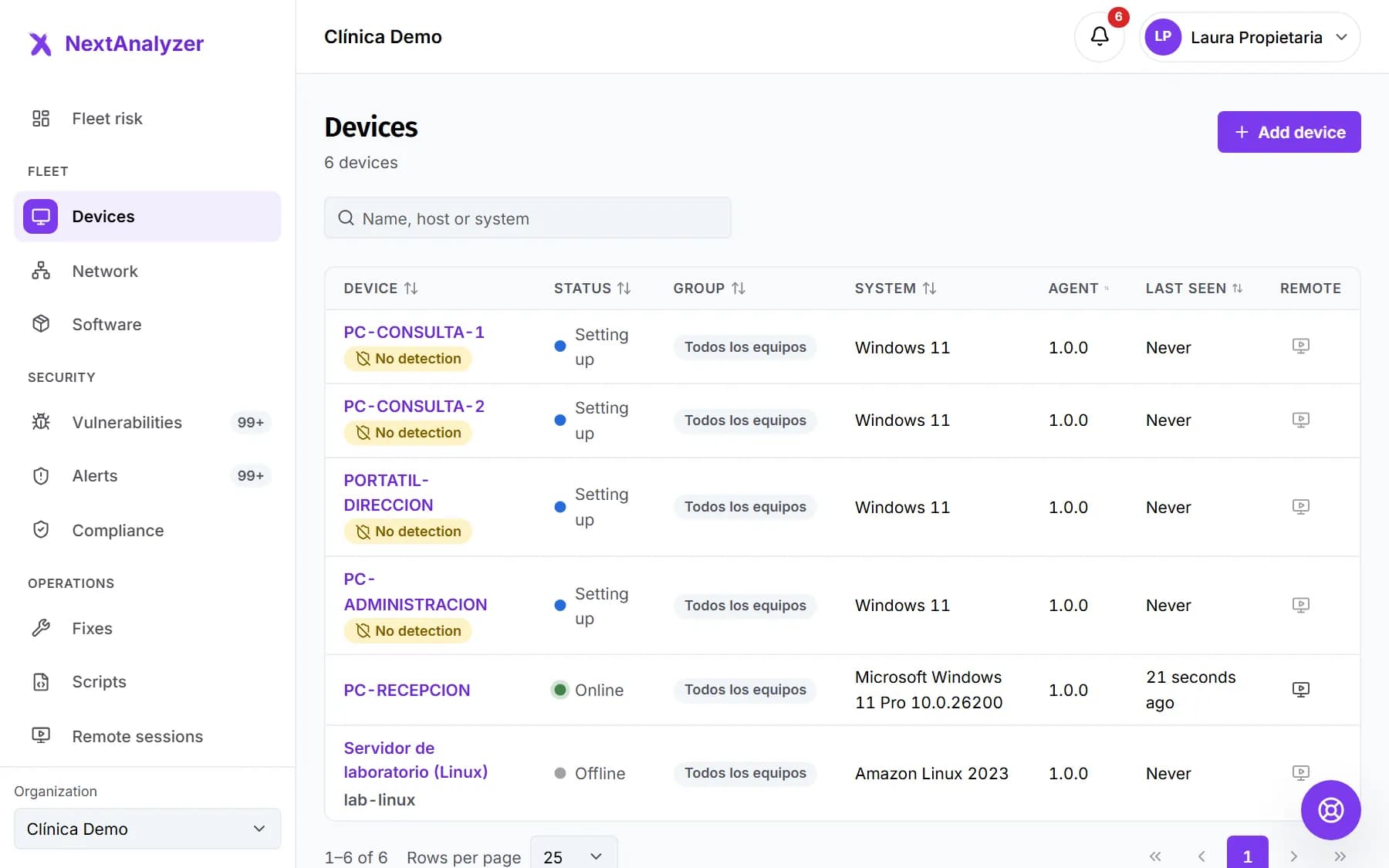
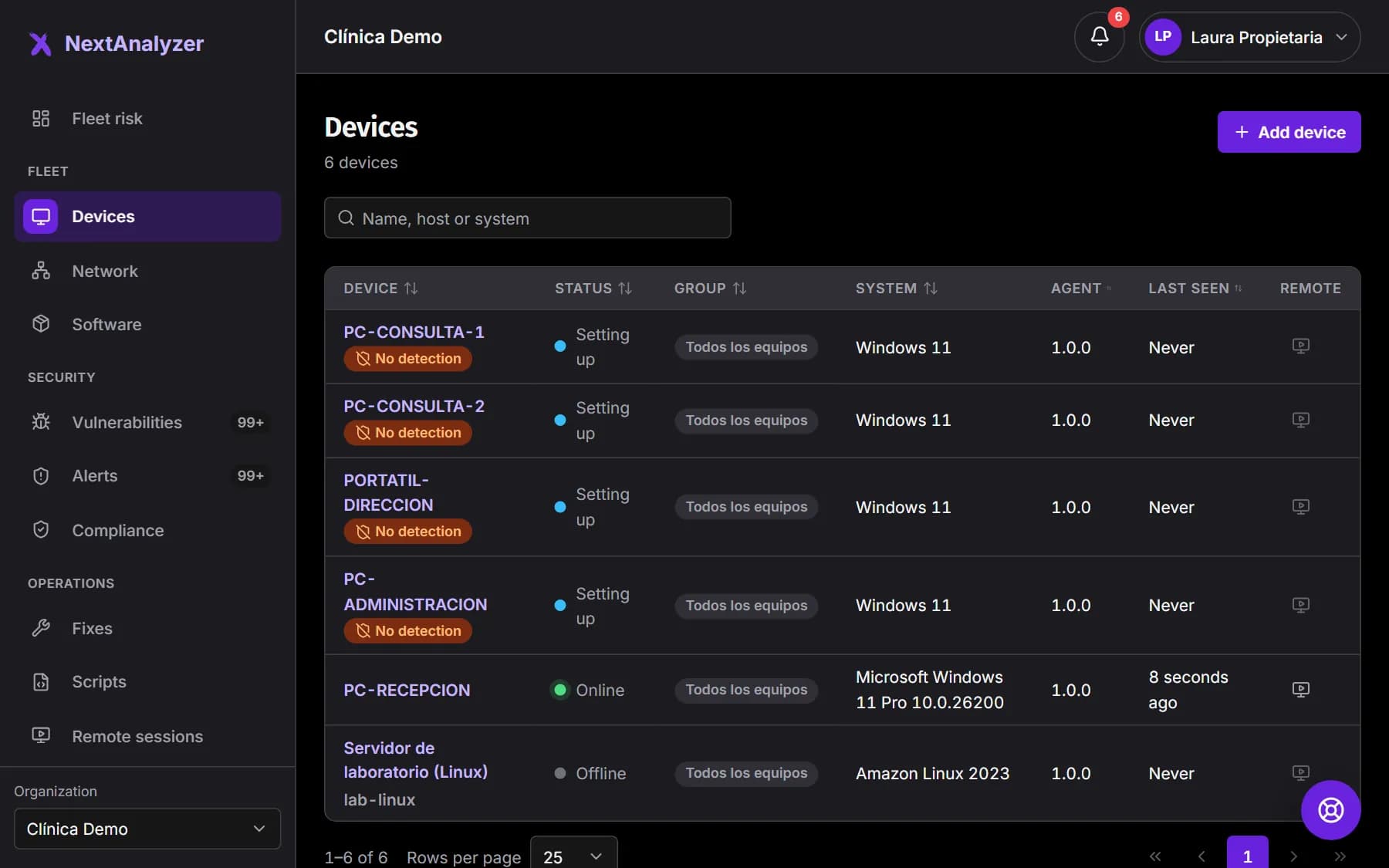
Devices start appearing in Devices, already in their group. Under “Enrollment codes” you see the code's uses and those rejected by the plan limit.
Expected result: The list shows, for example, “12 of 50 used” and the devices “Online”.
If something goes wrong
Some devices don't enroll (code 3)
The organization reached its plan's device limit: 25 included and up to 25 extra on Business, 100 and up to 400 on Enterprise, 5 in the trial. Under “Enrollment codes” they show as “rejected by limit”. Retire devices you don't use or upgrade, and run the installation again.
The MSI ends with 1603 and I don't know why
With the MSI, any failure shows as 1603. Install with /l*v log.txt and look in that log for the installer's real code (2: invalid code, 3: plan limit…).
The code stops working halfway through the rollout
It's used up or expired: under “Enrollment codes” it shows as “Used up” or “Expired”. Create another with more uses or a longer validity and update the command in your tool. Devices already enrolled aren't affected.
The installer ended with 0, but the device doesn't show up
The device had no connection during installation: enrollment stays pending and retries every minute. Check that your network allows outbound HTTPS 443 and TCP 3443 to the platform. As soon as it connects, it'll show up.
I can't see the “Mass deployment” block
It's a Business and Enterprise feature. On Standard you enroll devices one by one with single-use codes. The owner can change plan in Billing.
Still not working? Open a support ticket