
Customize your organization's branding
On the Enterprise plan, the dashboard and the desktop app carry your organization's colors, logo and name. Your team recognizes your brand, and NextAnalyzer stays visible in everything related to security.
Open Settings › Branding
Open Settings in the side menu and go to the Branding tab. If your plan doesn't include it, you'll see an example and a link to the plans.
Expected result: You see “Colors and preview”, “Logos and icon” and “Display name”.
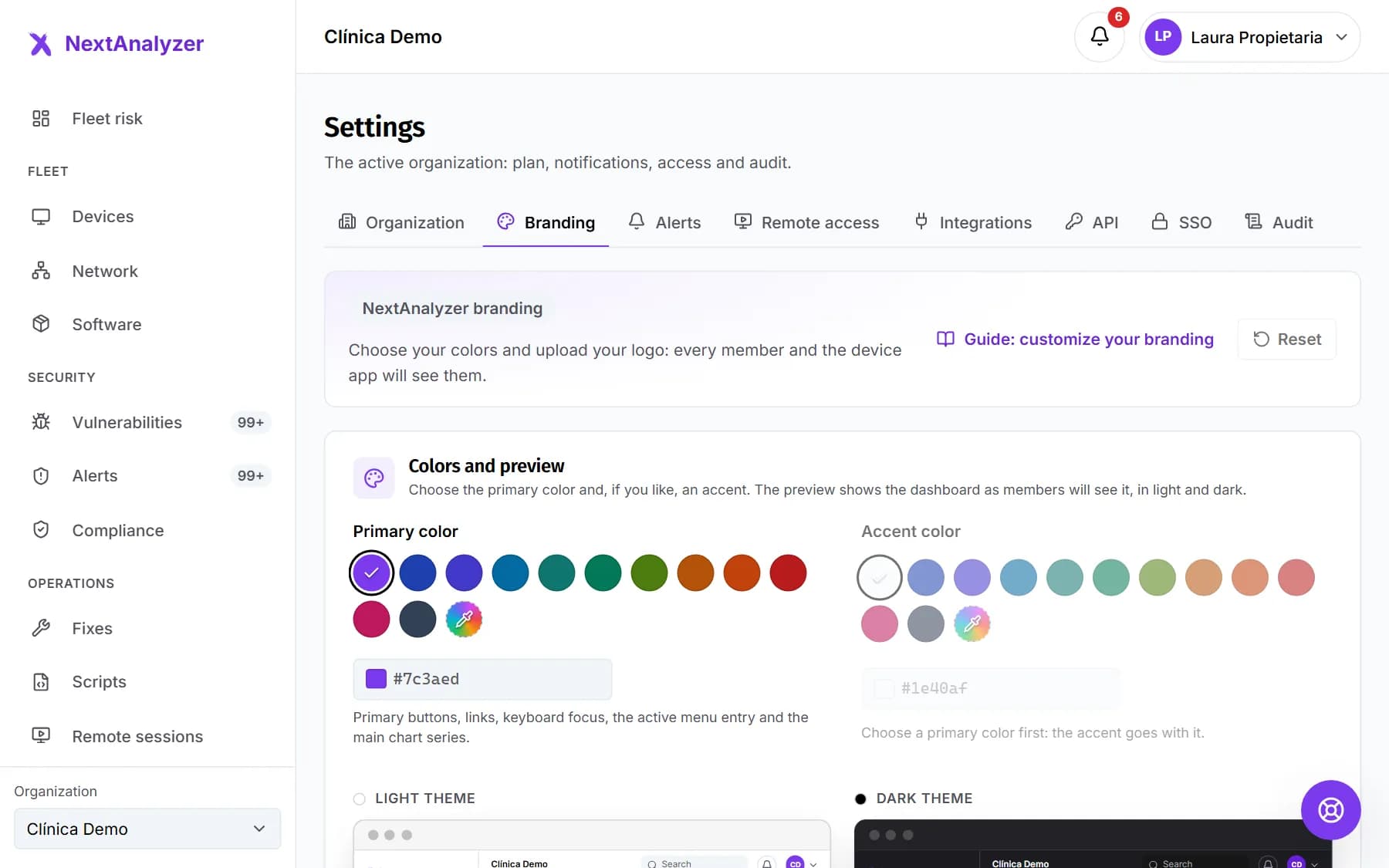
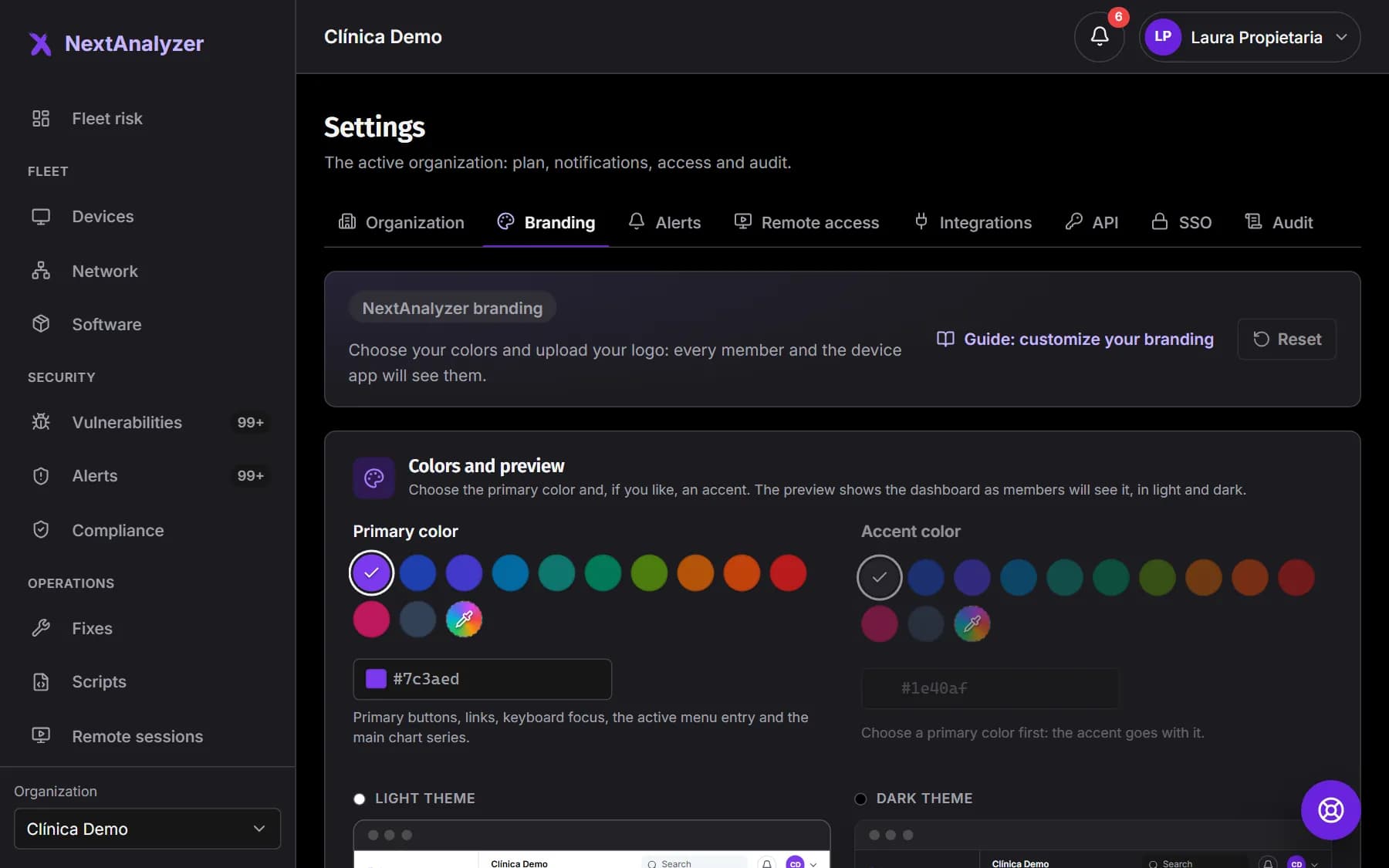
Choose the primary color
Click one of the swatches or type your color in hex, for example #1e40af. It's the color of the main buttons, links, keyboard focus, the active menu item and the main chart series.
Expected result: The preview changes instantly to your color.
Tip: Use your brand color as is: if it lacks enough contrast, the dashboard adjusts only the shades that need it.
Add an accent color
This is optional and used for secondary details, such as card icons. If you leave it empty, the primary color is used. Avoid reds, ambers and greens so it isn't mistaken for an alert.
Expected result: The preview's secondary details take the accent color.
Check the contrast and the preview
“Accessible contrast” checks in light and dark whether buttons, links and controls reach level AA. The preview shows the dashboard with your branding in both themes, side by side.
Expected result: Each check shows AA or AAA in both themes.
Tip: If a shade was corrected, you'll see which color it becomes. The button keeps your exact color.
Upload the logos
Drag each file onto its box or click it: “Logo for light backgrounds” and “Logo for dark backgrounds”. SVG, PNG or WebP, up to 256 KB, from 32 × 16 to 2048 × 1024 px and at most 8 times wider than tall.
Expected result: The box says it was uploaded and the preview shows your logo.
Tip: If you don't upload the dark version, the light one is used. If a PNG or WebP has a lot of transparent margin, it's trimmed automatically.
Upload the icon
It's the square version of your brand. It's used in the browser tab, with the menu collapsed and in the device app. Nearly square, 32 to 1024 px and up to 128 KB.
Expected result: The icon appears in its box and in the preview.
Set a display name
This is optional. If you leave it empty, the organization's name is used. Up to 60 characters. It can't include “NextAnalyzer” or the less-than and greater-than signs.
Expected result: The preview shows the name in the menu and the header.
Save
When you change colors or the name, a bar appears at the bottom: click “Save branding” or “Discard”. Logos save by themselves when uploaded. Every change is recorded in the audit log.
Expected result: You see “Branding saved” and the status changes to “Branding applied”.
Where your branding shows
Every member sees your colors, your logo in the menu and header, and your icon in the browser tab. The device app gets it on its next connection and keeps it for offline use.
Expected result: When you reload the dashboard, you see it with your branding.
Tip: Severity, status and security alert colors never change.
Go back to NextAnalyzer branding
“Reset” deletes your colors, name and logos once you confirm with “Reset branding”. To remove just one logo, use “Remove” on its box.
Expected result: You see “NextAnalyzer branding is back” and the dashboard recovers its colors.
If something goes wrong
My logo isn't accepted
Check the message. For security, SVGs with scripts, embedded styles, links or external images aren't allowed: export it as a plain SVG, with text converted to paths, or upload a PNG. If the size fails, trim the margins or change the size when exporting.
The link color isn't exactly mine
Your color didn't reach the minimum contrast as text on that background. It was darkened in light or lightened in dark just enough. Buttons keep your exact color. If you'd rather it isn't touched, choose a slightly darker shade.
I can't see my branding anymore
If the organization leaves Enterprise, the dashboard and the app go back to NextAnalyzer branding, but your settings aren't deleted. When you return to Enterprise, they apply again automatically. The change can take a few minutes.
The device app doesn't have my branding yet
It gets it on its next connection to the server, usually within a couple of minutes. If the device is off or offline, it gets it when it reconnects.
Why does NextAnalyzer still appear?
It isn't white label. The device app says “powered by NextAnalyzer” under your logo. In remote access, the official technician badge always keeps its own colors, so nobody can pretend to be our support.
Still not working? Open a support ticket