
Turn on activity history with safeguards
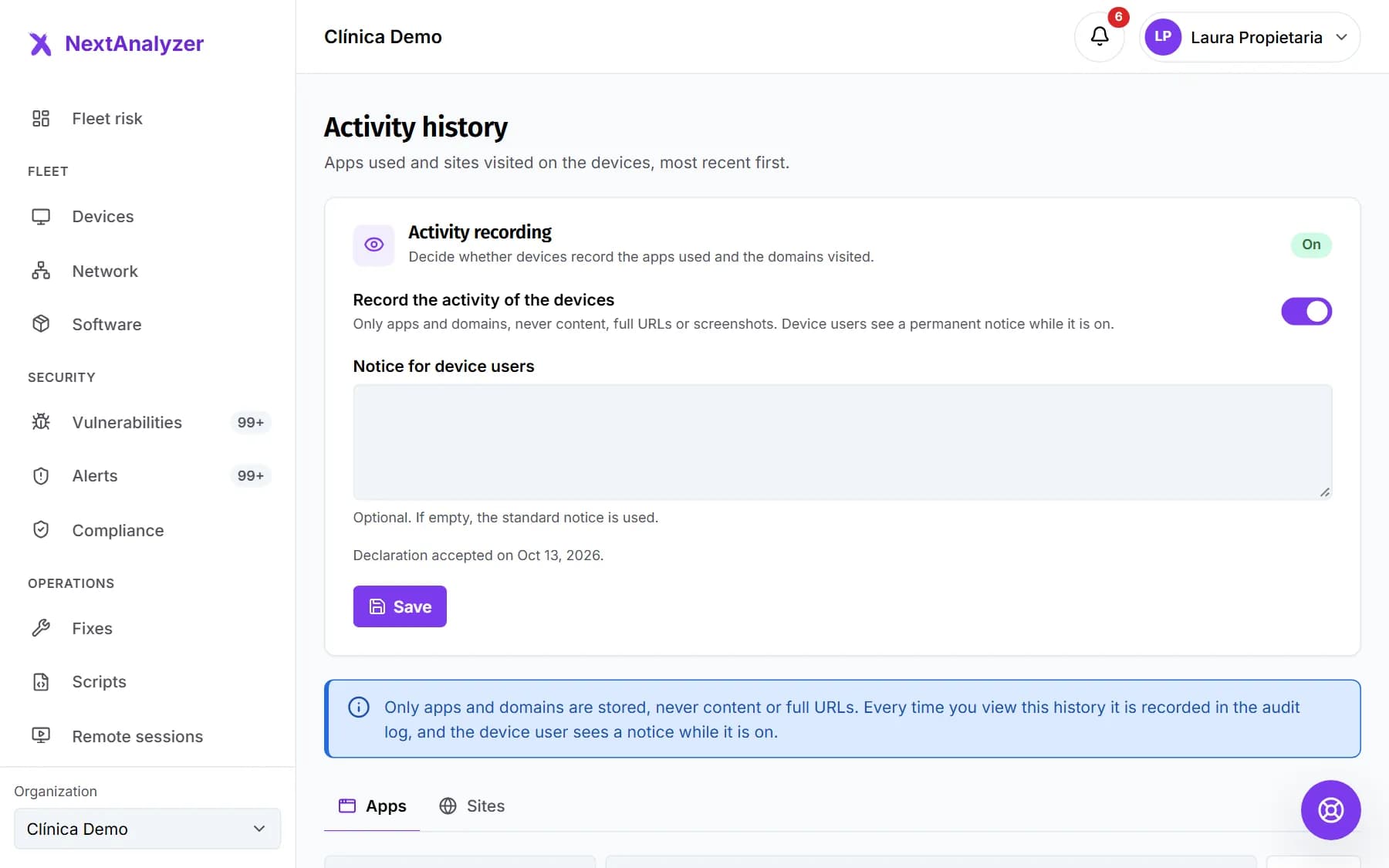
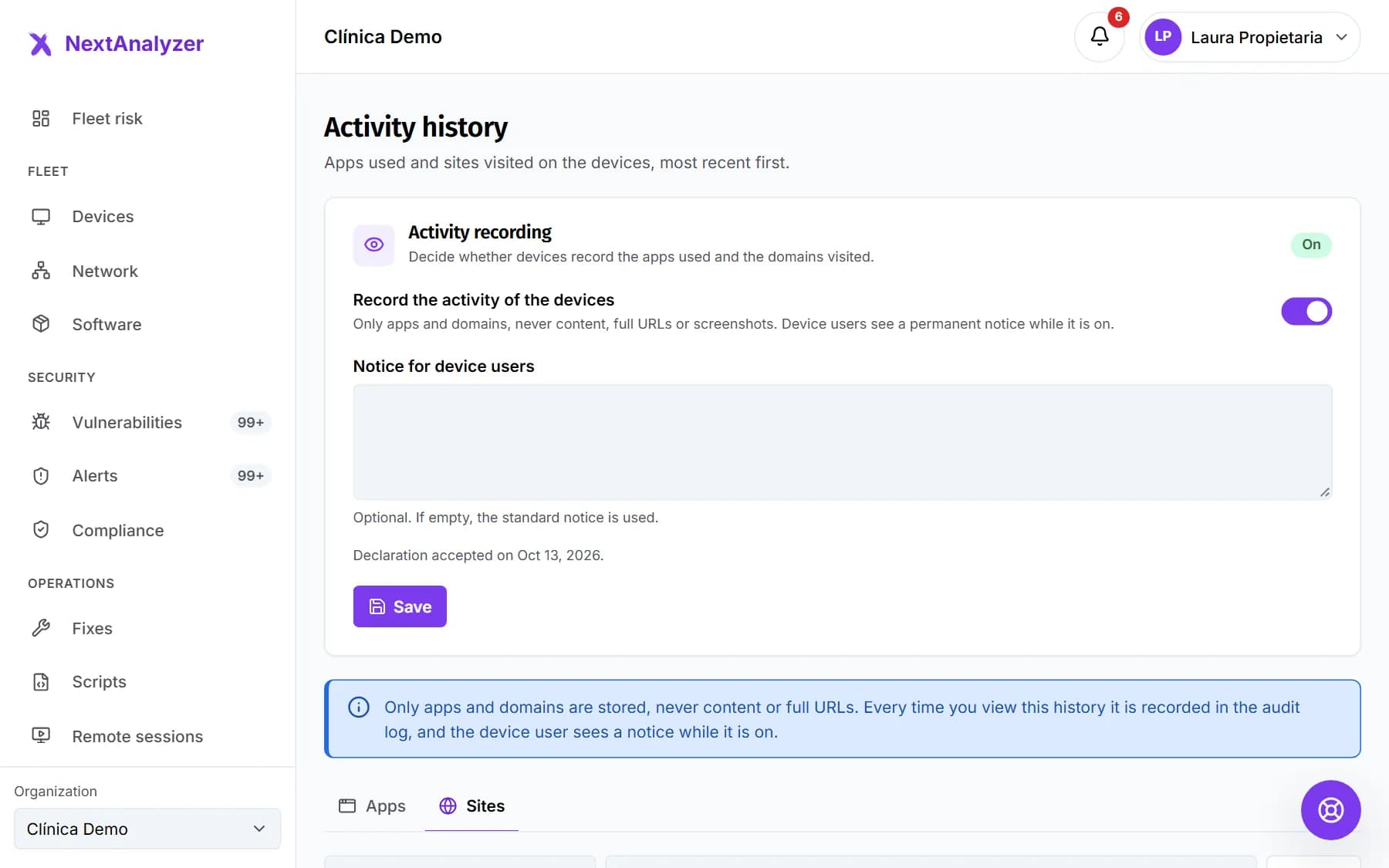
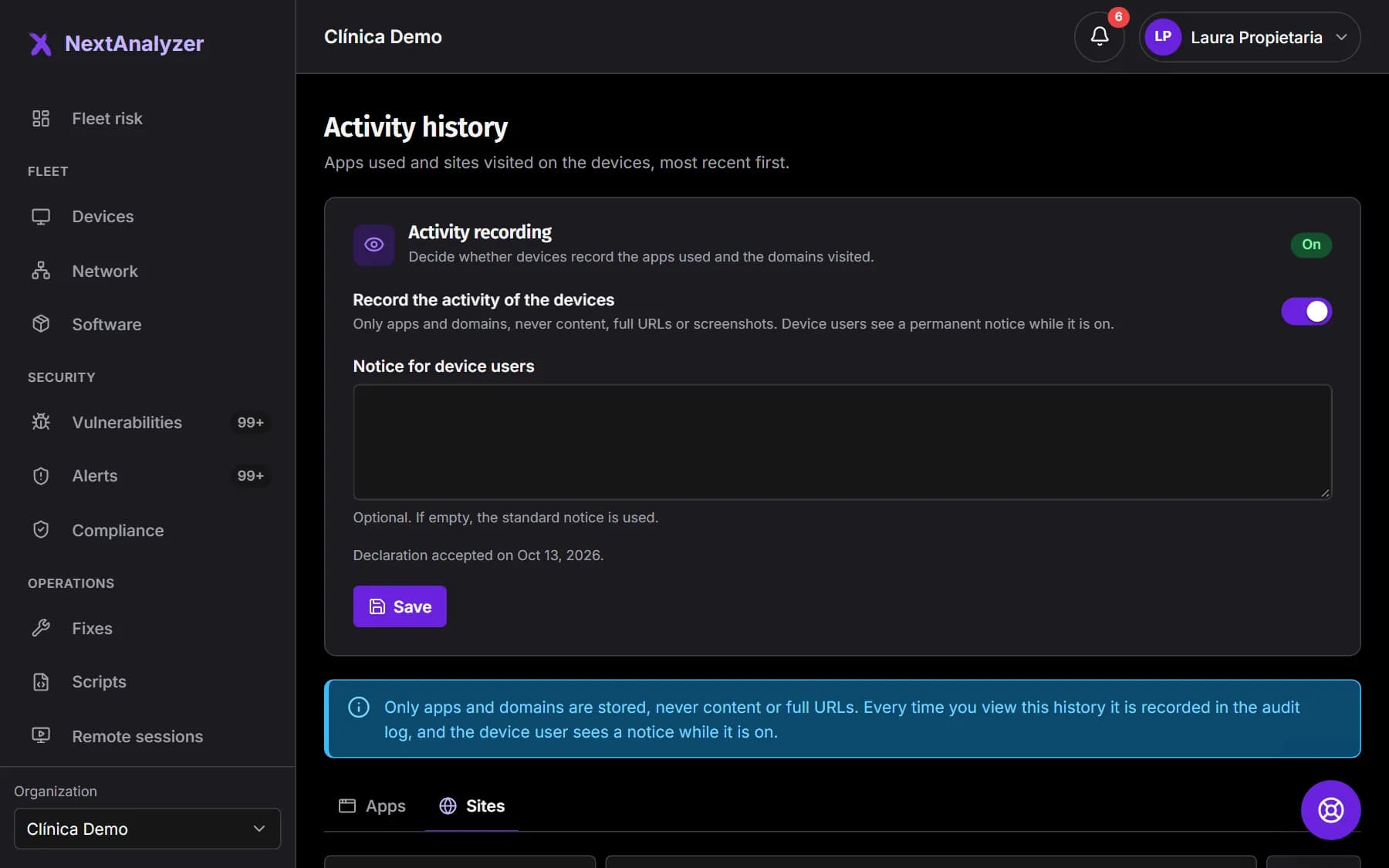
Activity history is off by default. If your organization needs it, you turn it on with safeguards: device users always see it, only app names and domains are stored, and every lookup is logged.
Check your plan and permissions
Only administrators and the owner can open History, under Web control in the side menu. If your plan doesn't include it, the page points you to the plans.
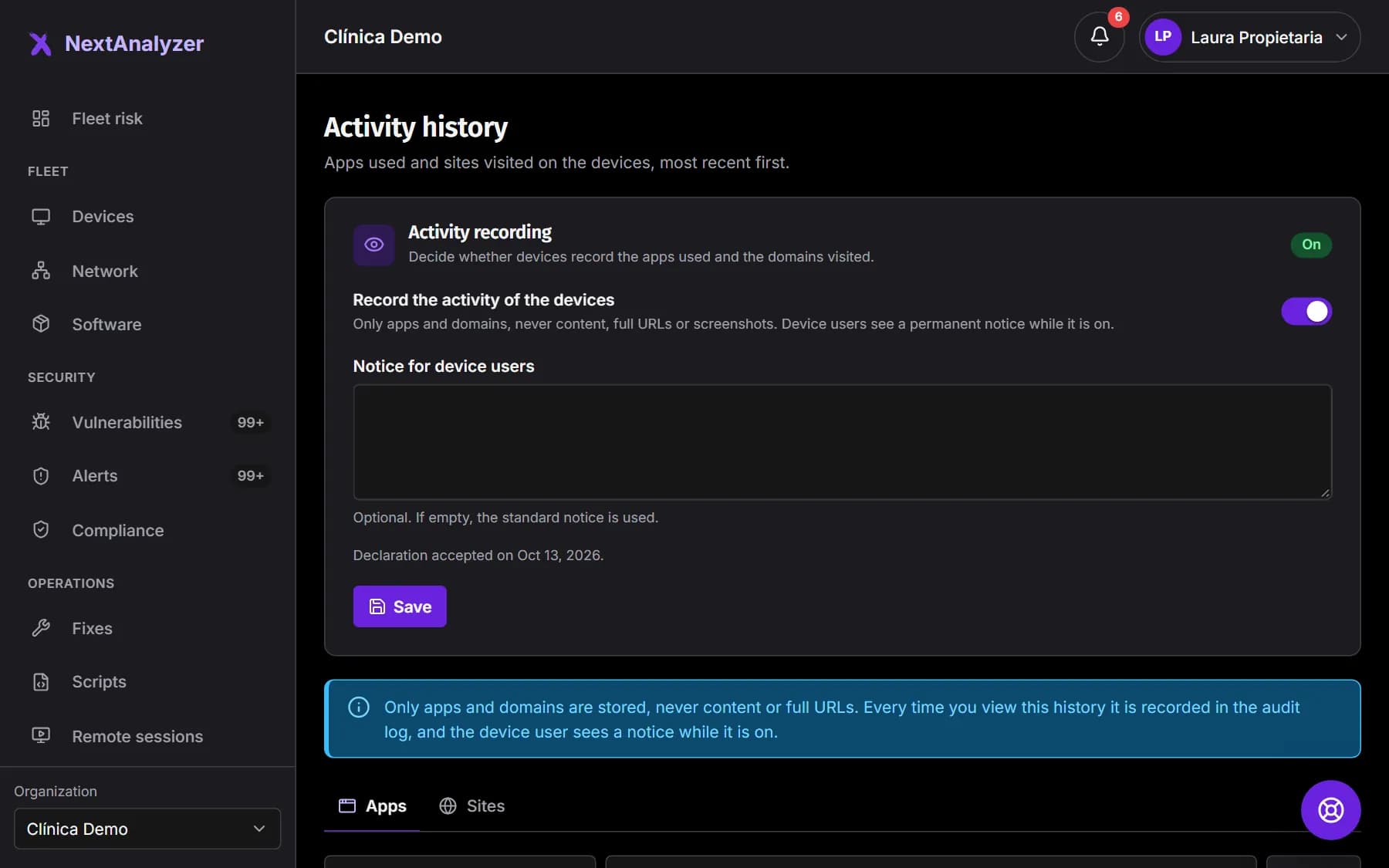
Expected result: You see the Activity history page with the Activity recording card.
Turn recording on
In the Activity recording card, turn on “Record the activity of the devices”. Only apps and domains are stored: never content, full addresses or screenshots.
Expected result: The switch is on, pending the declaration and saving.
Write the notice for users
This is optional. Under “Notice for device users” you can write your own text. If you leave it empty, the standard notice is used.
Expected result: The text is ready to show in the app on each device.
Confirm the legal basis and save
Tick “I declare that I have informed the device users of this recording and that I have a legal basis for it.” and save. The declaration is stored with your name and the date.
Expected result: You see “Activity history settings saved.” and the date the declaration was accepted.
Exclude what shouldn't be recorded
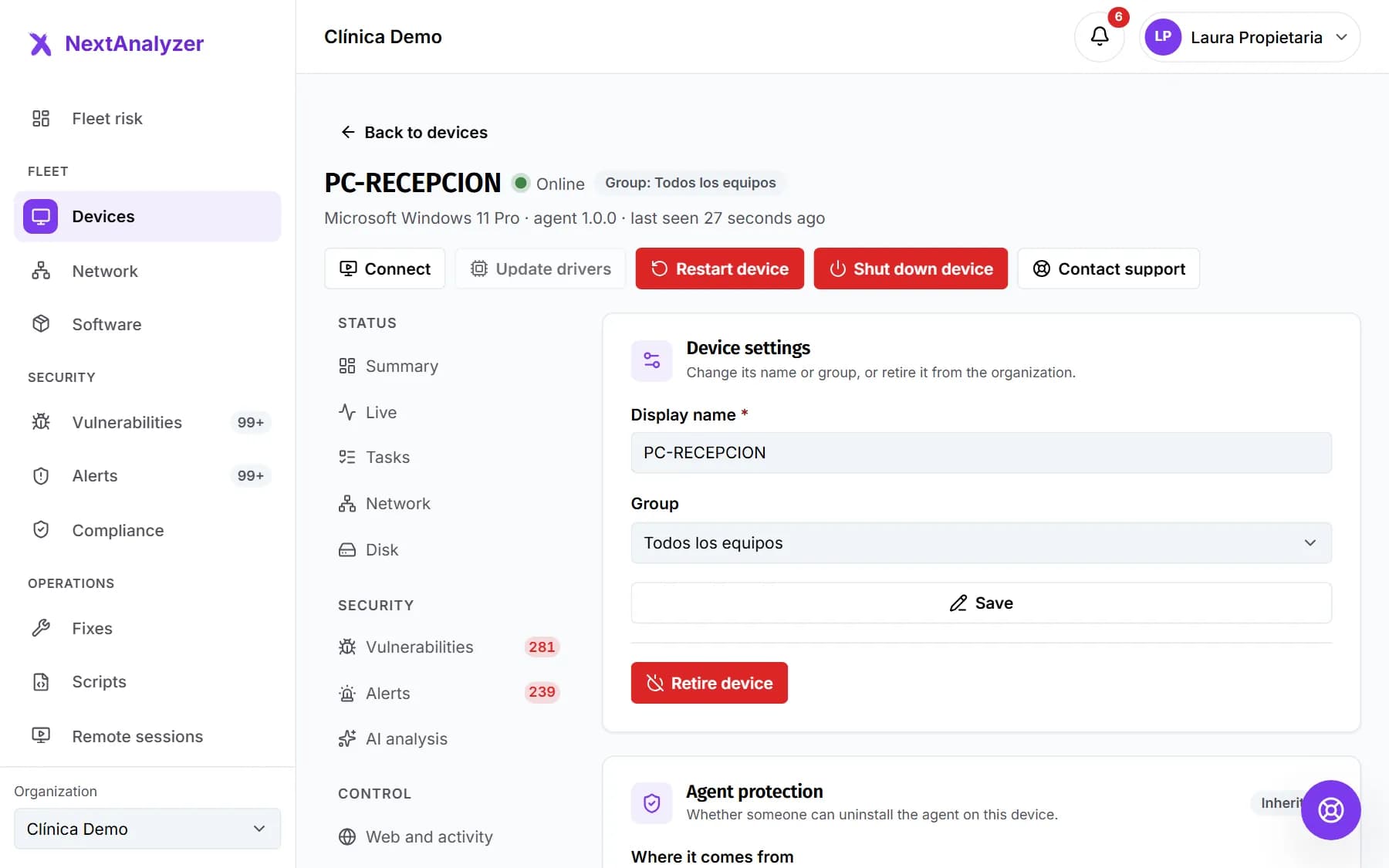
In a device's “Settings” tab, under “History for this device”, choose “Its own”. You can turn off “Record this device's activity” or add apps and domain words that are not recorded.
Expected result: That device stops recording what you excluded, or everything if you turned it off.
Tip: Password managers and banking, health and union domains are always excluded.
Device users know about it
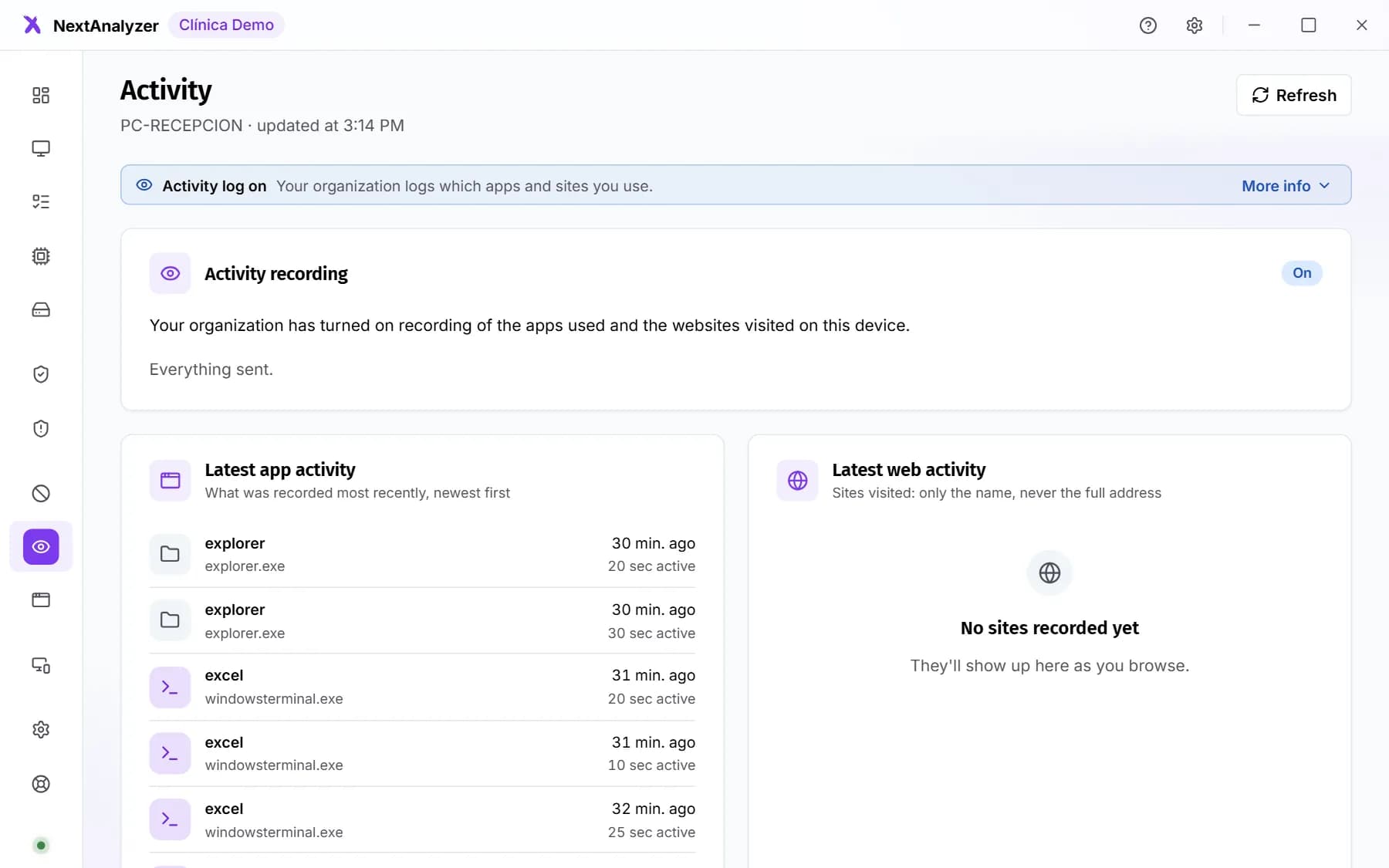
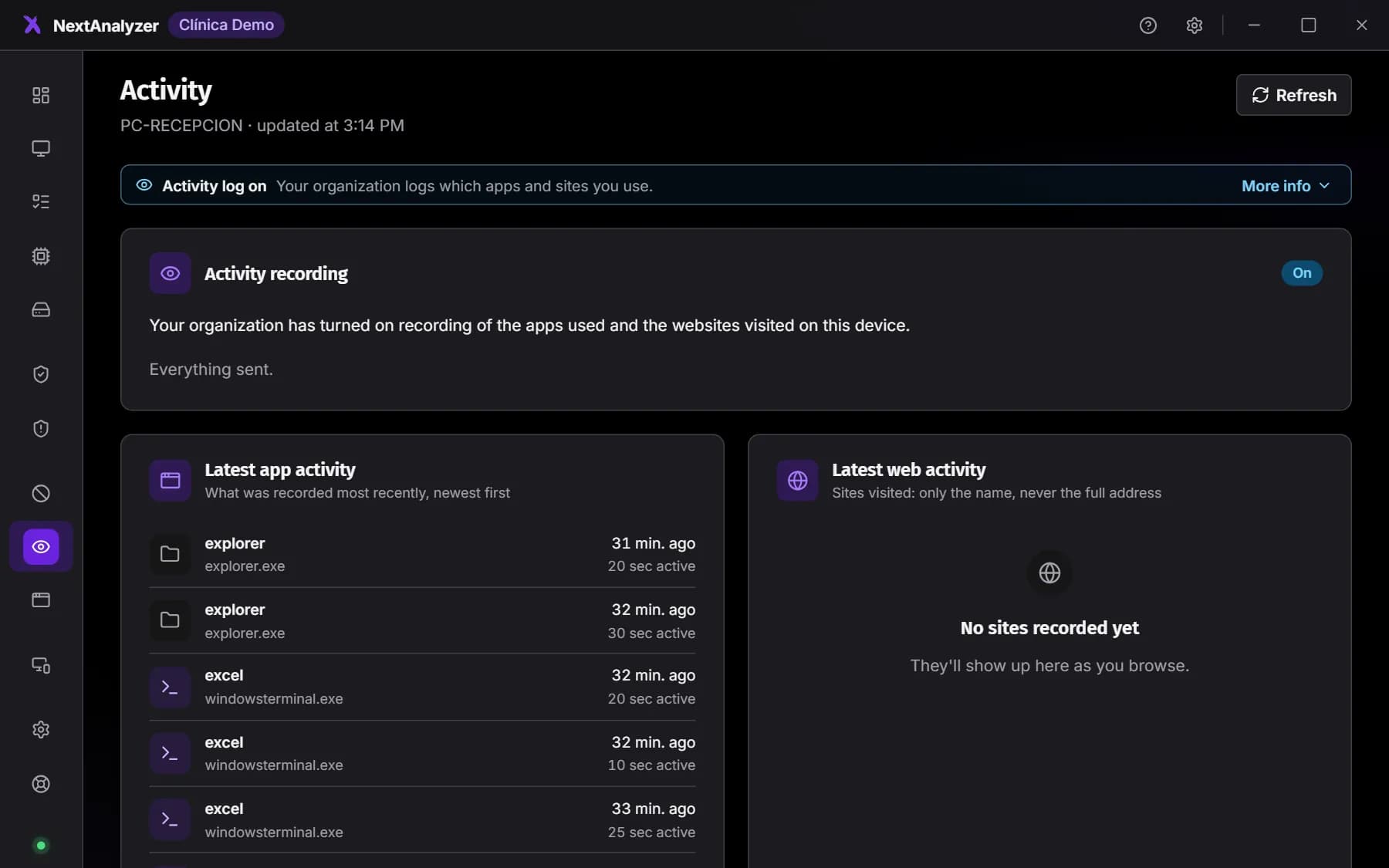
The device app shows the “Activity log on” notice on every page, and it can't be hidden. The Activity page explains what is and isn't recorded, and shows the latest entries.
Expected result: The device app shows the recording notice.
Look up the history
History has two tabs: “Apps”, with active time, and “Sites”, with visits and blocked ones. Filter by device or search for an app or a domain and click “Filter”.
Expected result: The list shows the most recent entries first, with the device and the system account.
Tip: Every lookup goes into the audit log: who looked at what and when.
See a device's summary
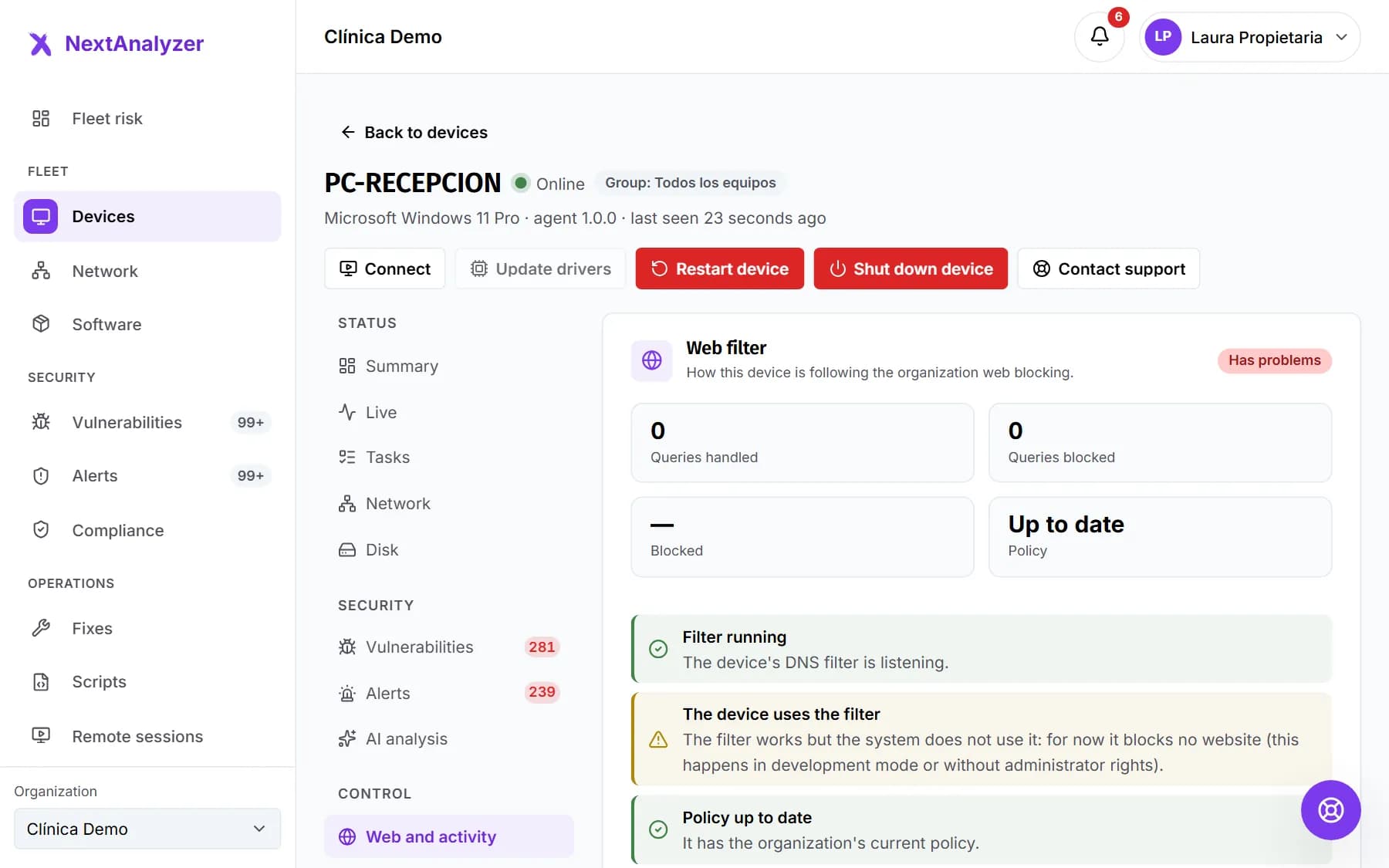
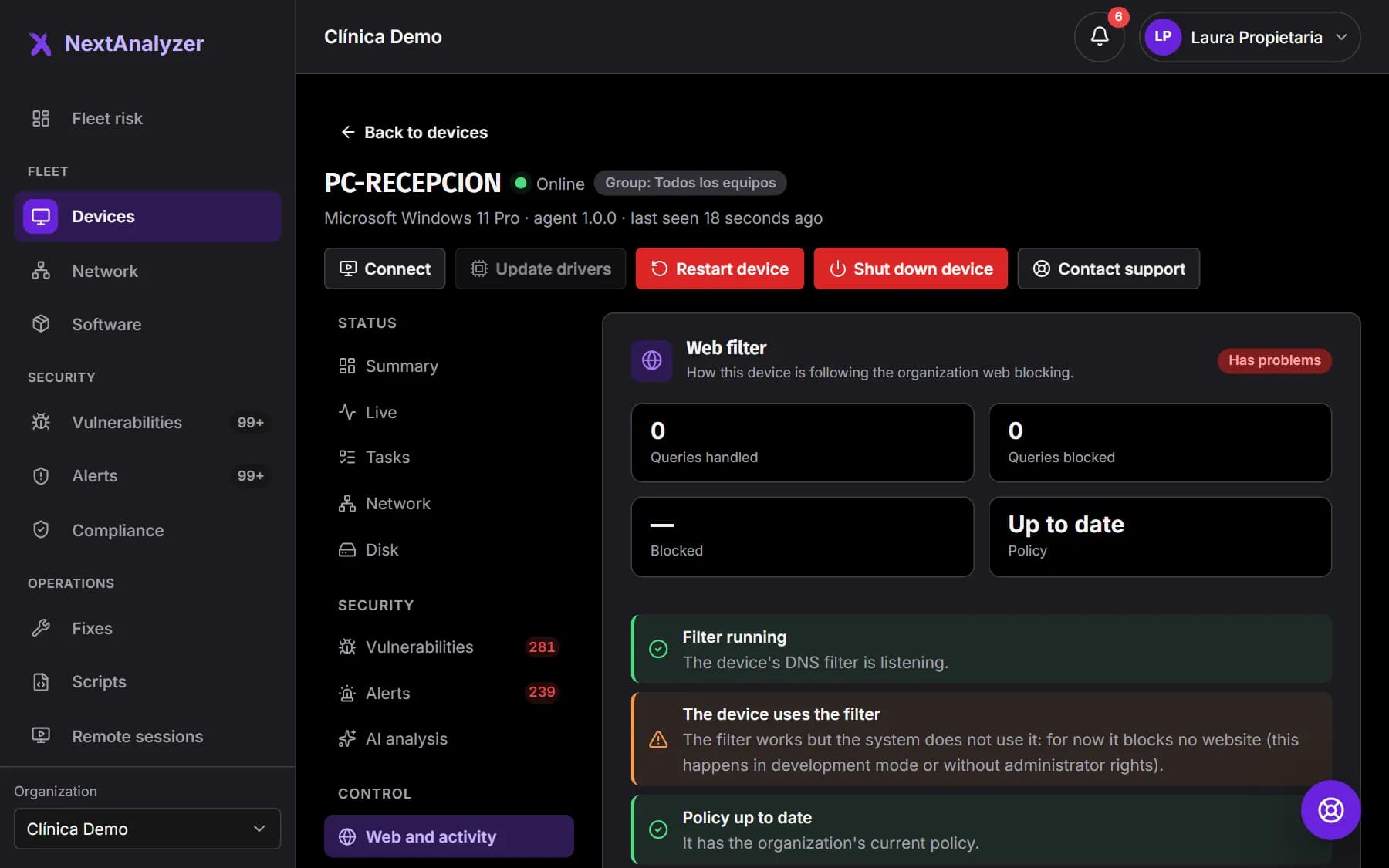
A device's “Web and activity” tab shows distinct sites, visits, blocked visits and apps used, with the top 5 sites and the top 5 apps. You can switch to “Blocked only”.
Expected result: You see that device's history figures and lists.
If something goes wrong
I turned history on and the list is still empty
Devices send activity in batches, not live. Wait a few minutes and check again. Also check that the device is online and that history isn't turned off in its “Settings” tab.
I can't turn recording on
Only the organization's owner can turn it on or off; the page says so. If your plan is Standard, it isn't included: you need Business or Enterprise.
No apps show up for a Linux device
On Linux, apps are only recorded in X11 sessions. Wayland has no standard way to know which app is in the foreground. Websites are still recorded.
Can you see what people type or the pages they read?
No. Only the app in the foreground and for how long, and each website's domain, never the full address. No content, keystrokes, passwords or screenshots are stored. History is never sent to the AI and NextAnalyzer support can't see it.
Still not working? Open a support ticket