
Block websites and ads on your devices
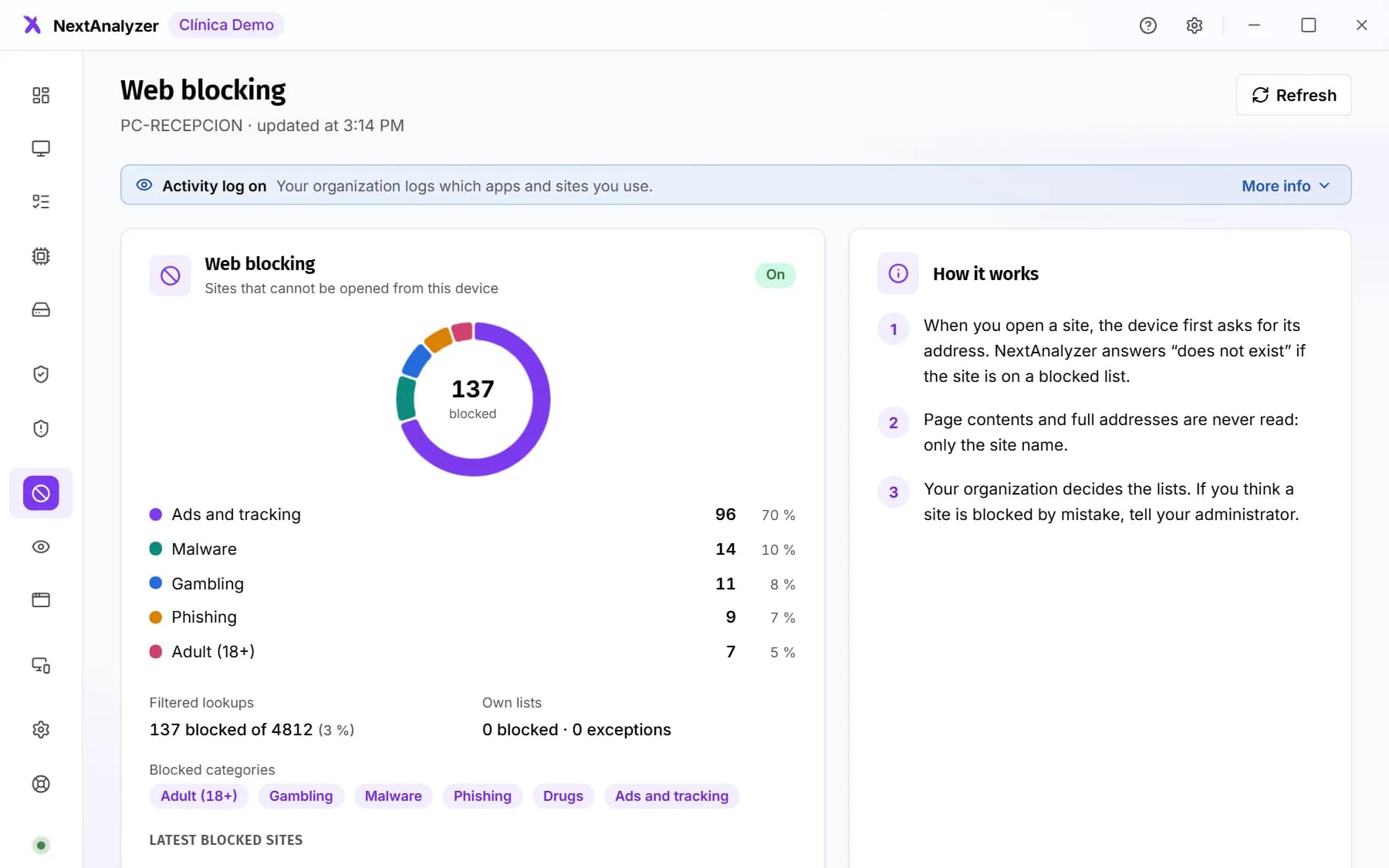
The agent sets up a local DNS filter on each device. When someone opens a blocked website, they see a notice page. It works in any browser and in apps too.
Turn blocking on
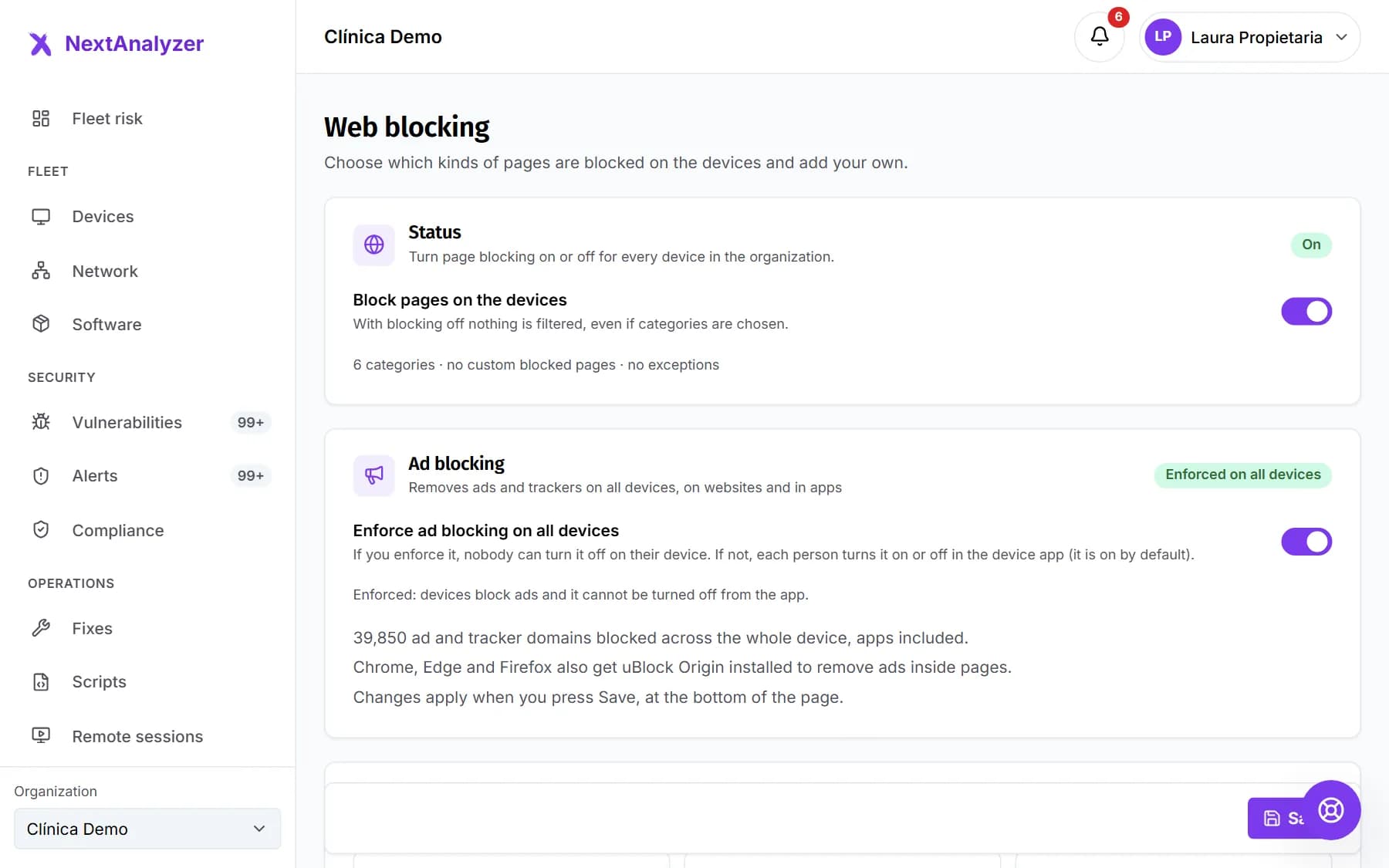
Open Web blocking in the side menu, under Web control. Turn on “Block pages on the devices”. With blocking off nothing is filtered, even if categories are selected.
Expected result: The status changes to “On” and the summary counts categories, custom pages and exceptions.
Start from a template
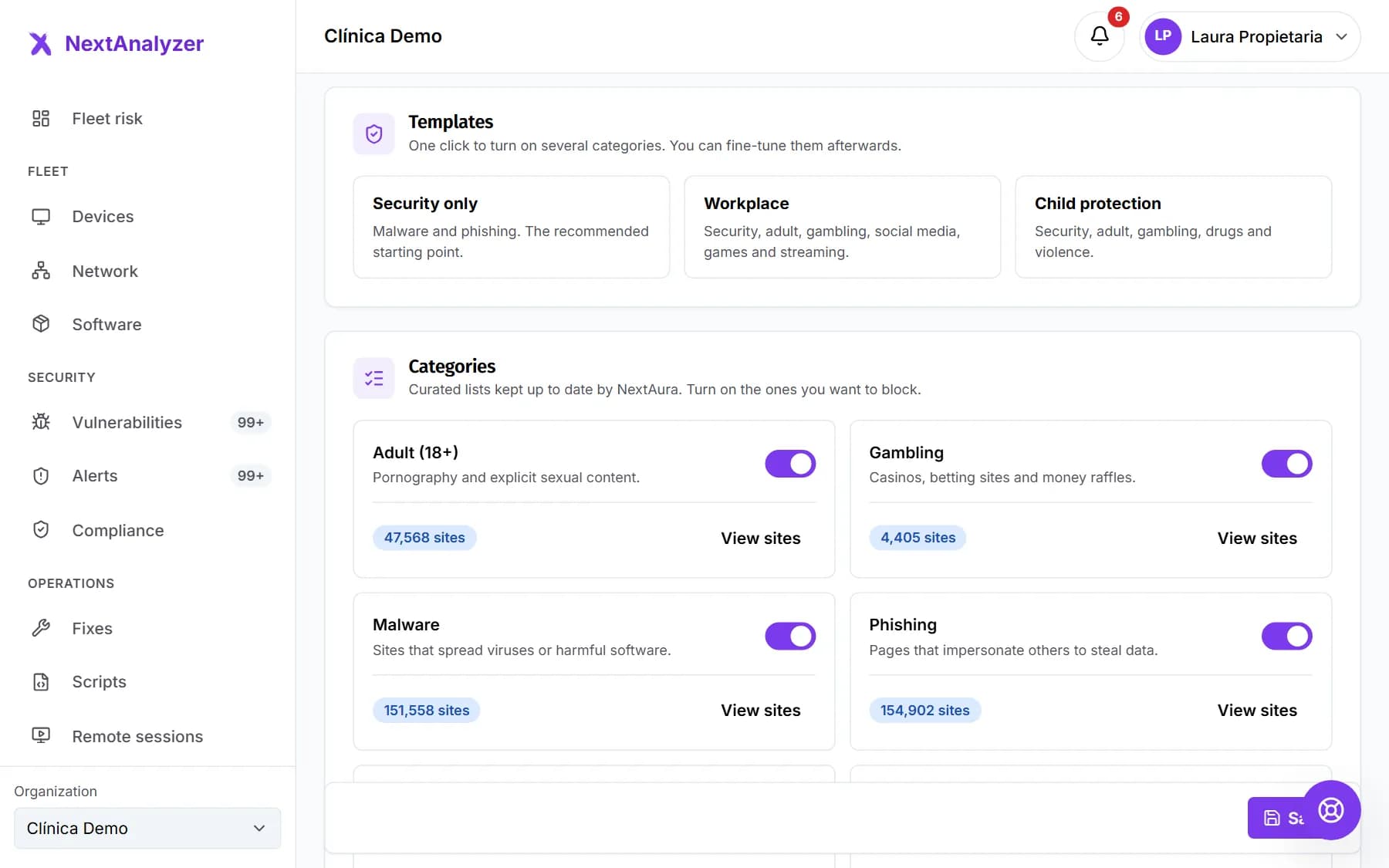
Under Templates, click one. “Security only” blocks malware and phishing, and is the recommended starting point. “Workplace” and “Child protection” add more categories.
Expected result: The template's categories show as switched on in the list below.
Adjust the categories
Switch each one on or off: Adult (18+), Gambling, Malware, Phishing, Drugs, Violence, Social media, Games, Streaming and Ads and tracking. “View sites” shows the domains on the list and lets you search for one.
Expected result: Each chosen category has its switch on and shows how many sites it includes.
Tip: The malware and phishing lists come from open sources. They protect against what is already known, but they don't replace your antivirus.
Add your own domains and exceptions
Under Custom lists, type or paste domains into “Blocked pages” or “Exceptions”. Click “Add to the list”. You can paste hundreds at once, one per line or as CSV, up to 1000 per list.
Expected result: A message tells you how many domains were added and how many were already there.
Tip: Blocking a domain also blocks its subdomains. An exception beats a custom block, and a custom block beats a category.
Decide on ads
The Ad blocking card has “Enforce ad blocking on all devices”. If you enforce it, Ads and tracking is turned on and nobody can switch it off. If not, each person decides in the device app, where it comes on by default.
Expected result: The badge reads “Enforced on all devices” or “Chosen by each person”.
Tip: It works in two layers: the DNS filter removes ad domains across the whole device, and uBlock Origin is installed by policy in Chrome, Edge and Firefox for ads inside pages.
Save your changes
Click Save at the bottom of the page. Online devices get the new policy in under a minute. Devices that are off get it when they reconnect.
Expected result: You see the message “Blocking saved.”.
Check a device
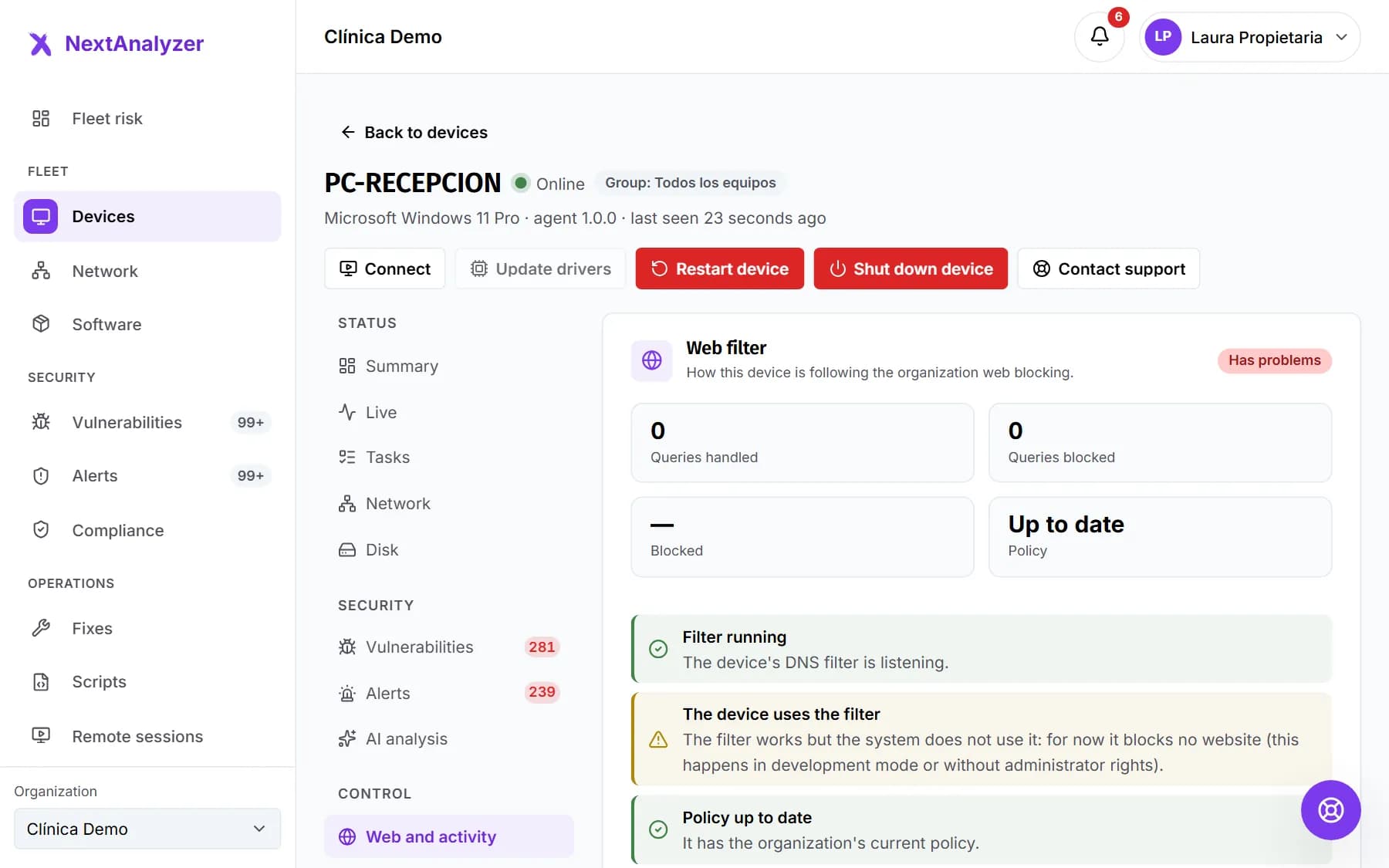
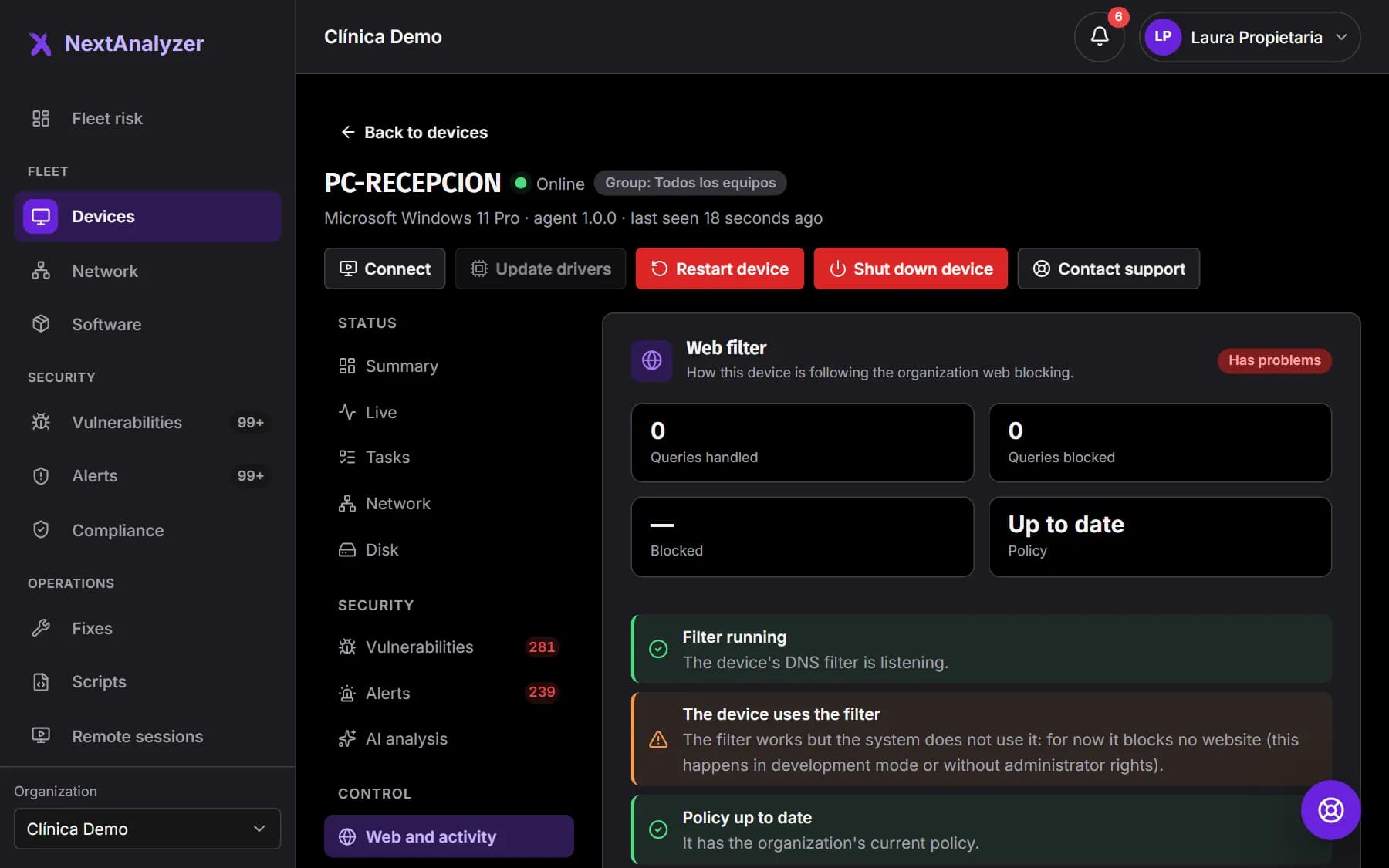
Open the device from Devices and go to the “Web and activity” tab. The Web filter card shows three checks: “Filter running”, “The device uses the filter” and “Policy up to date”.
Expected result: The status reads “Blocking”, all three checks pass and blocked queries go up.
Give a device its own blocking
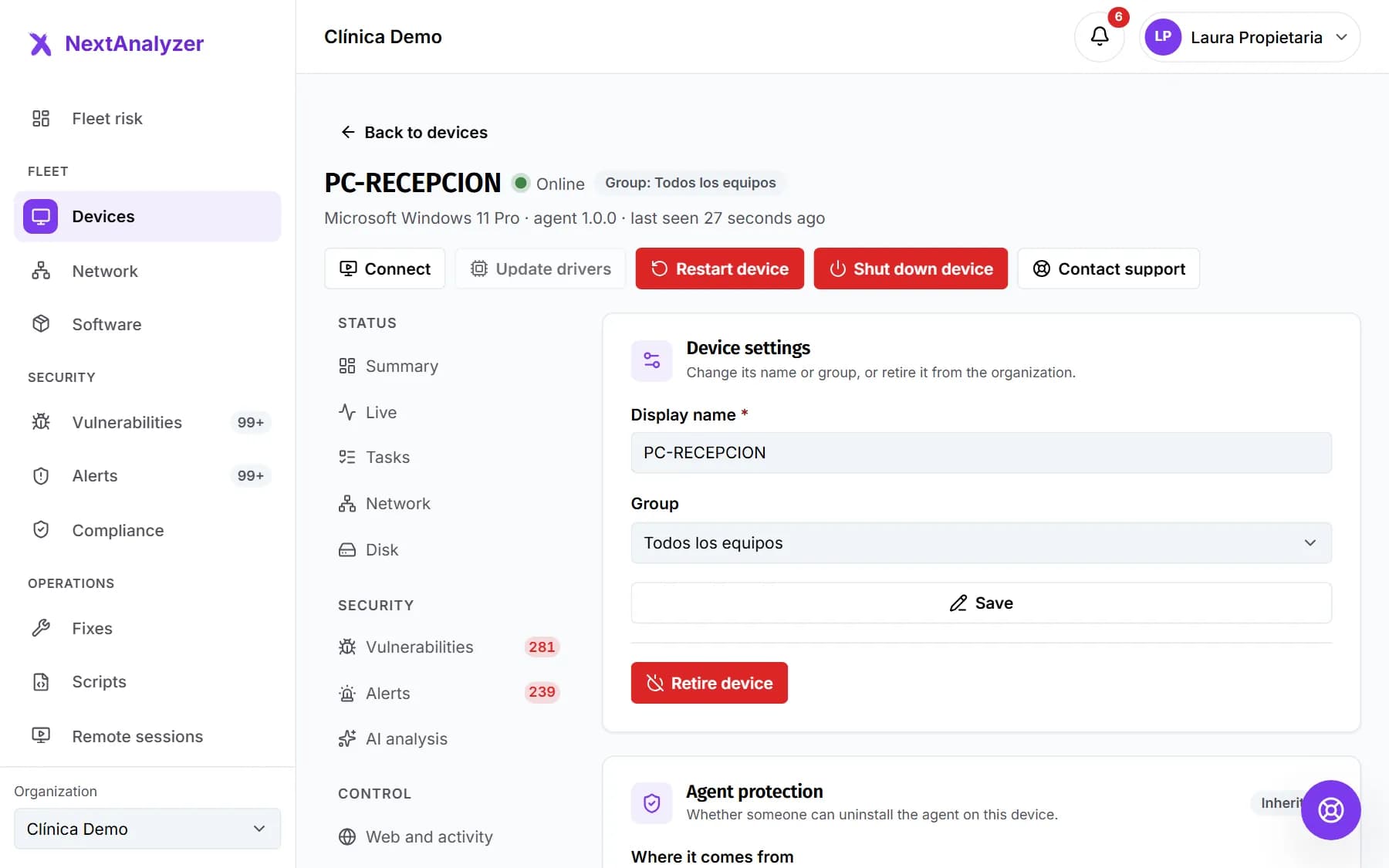
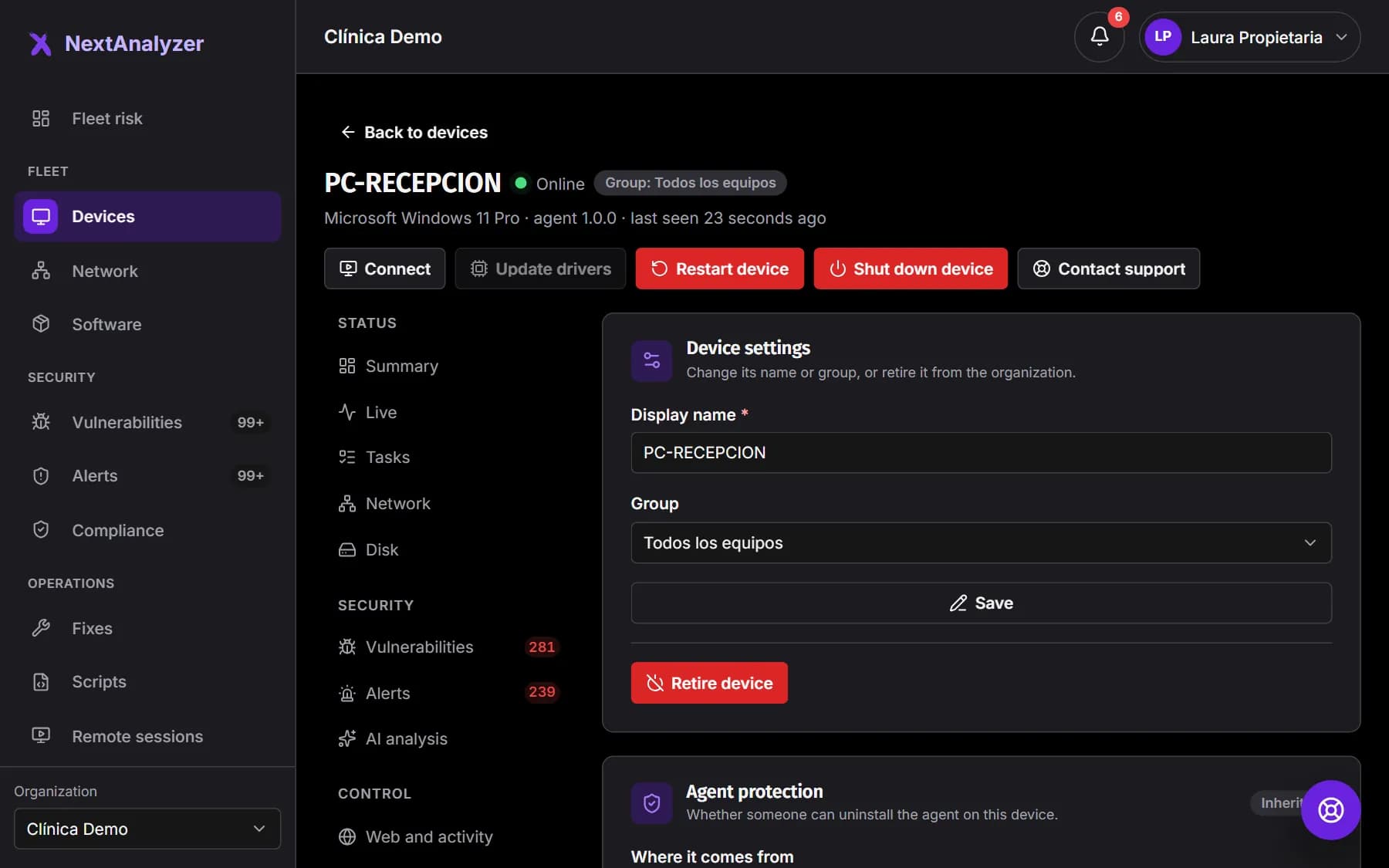
This is optional. In the device's “Settings” tab, under “Web blocking for this device”, choose “Its own”. It fully replaces the organization's: you start from it and change it only there.
Expected result: That device applies its own categories and lists, and no longer follows the organization's changes.
What the device user sees
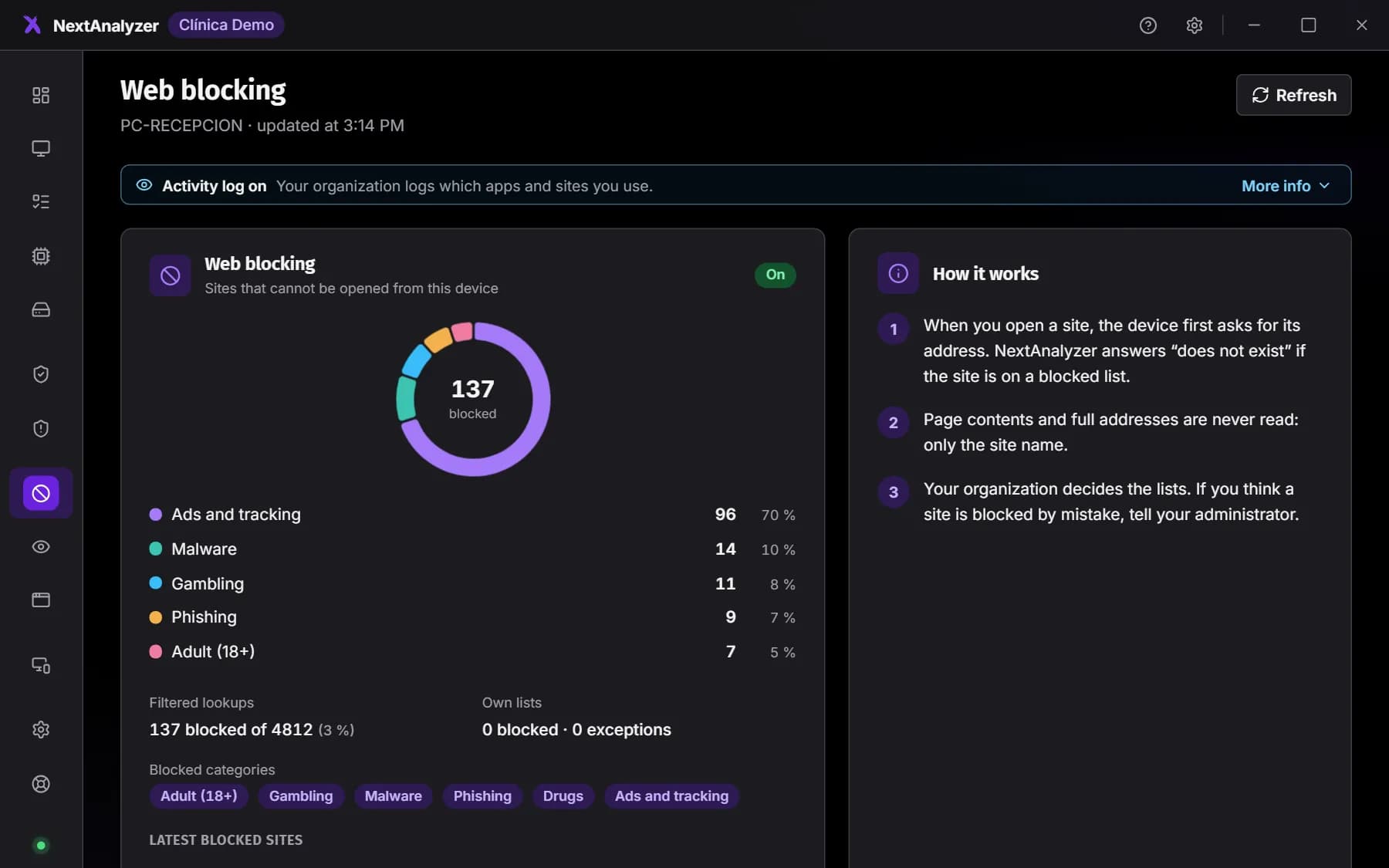
When they open a blocked website, the browser shows “This website isn't allowed”, with the domain and the reason. In the app, the Web blocking page explains how it works and warns if a VPN is active.
Expected result: Opening a website from a blocked category shows the notice page.
Tip: Share the guide “What to do if a website is blocked” with your team.
If something goes wrong
A website we need is being blocked
Add it to “Exceptions” under Custom lists and save: an exception beats any category. If it should only open on one device, give that device its own blocking from its “Settings” tab. Within a minute, the notice page changes to “This website is no longer blocked”.
A website from a blocked category still opens
Check the device's “Web and activity” tab. If “The device uses the filter” fails, the system isn't using the local DNS: this happens without the service installed or without permissions. An active VPN also bypasses it, and the device app warns about it. The agent turns off encrypted DNS in Chrome, Edge, Brave, Vivaldi and Firefox by policy, but a browser that was already open applies it when restarted.
A device has lost its internet connection
On Windows this shouldn't happen: if the agent's filter doesn't start or stops responding, Windows uses the backup DNS servers, 8.8.8.8 and 1.1.1.1. Meanwhile the connection works, but web blocking doesn't filter. Change them with the system environment variable NEXTANALYZER_DNS_BACKUP, separated by commas; empty means no backup. Linux has no backup: check that the agent service is running.
A connection error shows instead of the notice page
The website is still blocked. To show the notice over HTTPS, the agent installs a local certificate authority on the device and uses ports 80 and 443. If it can't, because a port is busy or it lacks permissions, the browser shows its own connection error. You should never see an untrusted certificate warning.
Ads still show up
Close the browser completely, all windows, and open it again: until then it doesn't download uBlock Origin. YouTube video ads and ads served with the content are only removed by the extension, and only in Chrome, Edge and Firefox. Brave and Vivaldi use their own blocker.
Still not working? Open a support ticket