
Connect from the app with the 9-digit code
You don't need the dashboard to help a colleague. From the NextAnalyzer app you connect to another device in your organisation with its 9-digit code. The other person always has to accept.
Open “Remote access” in the app
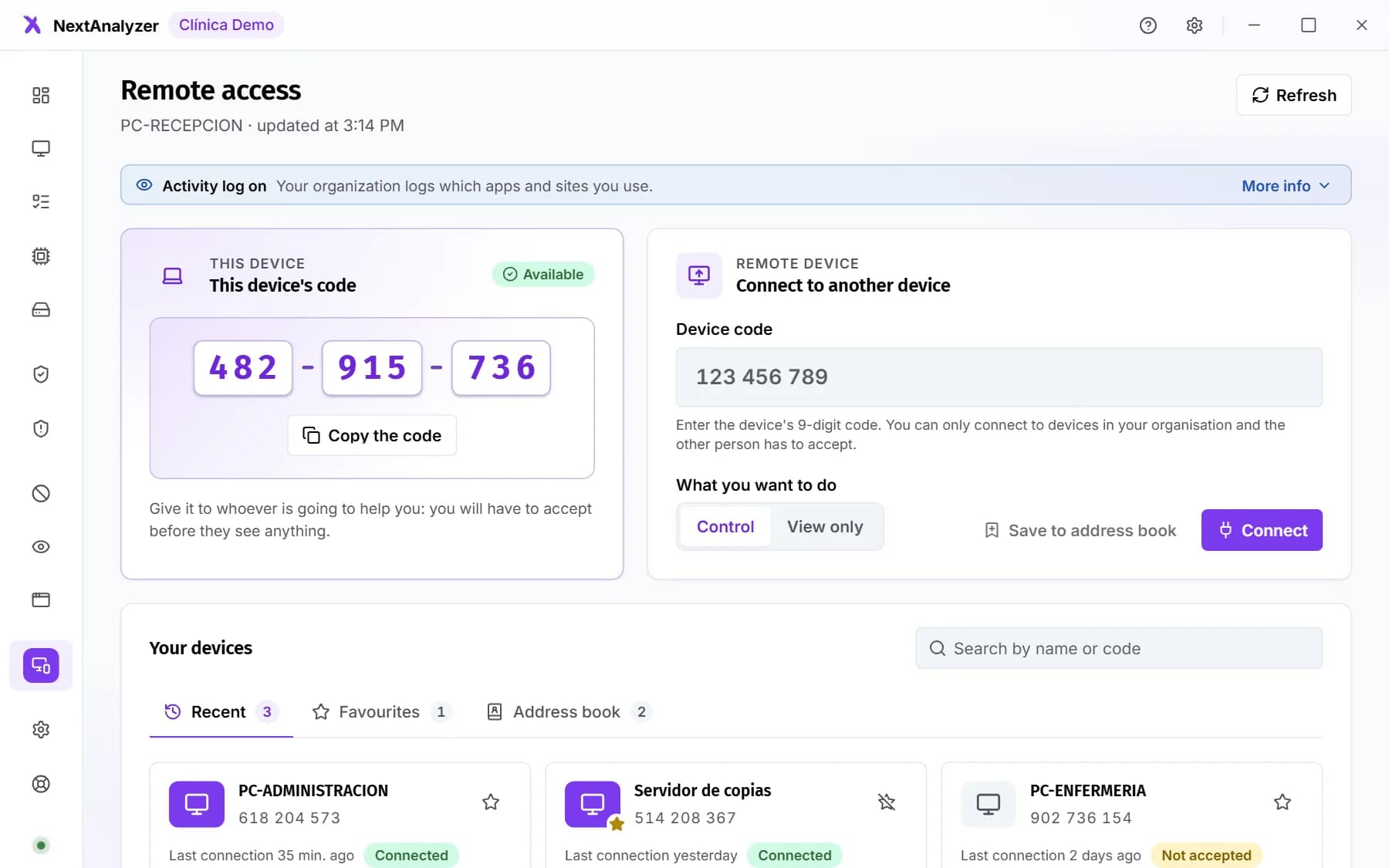
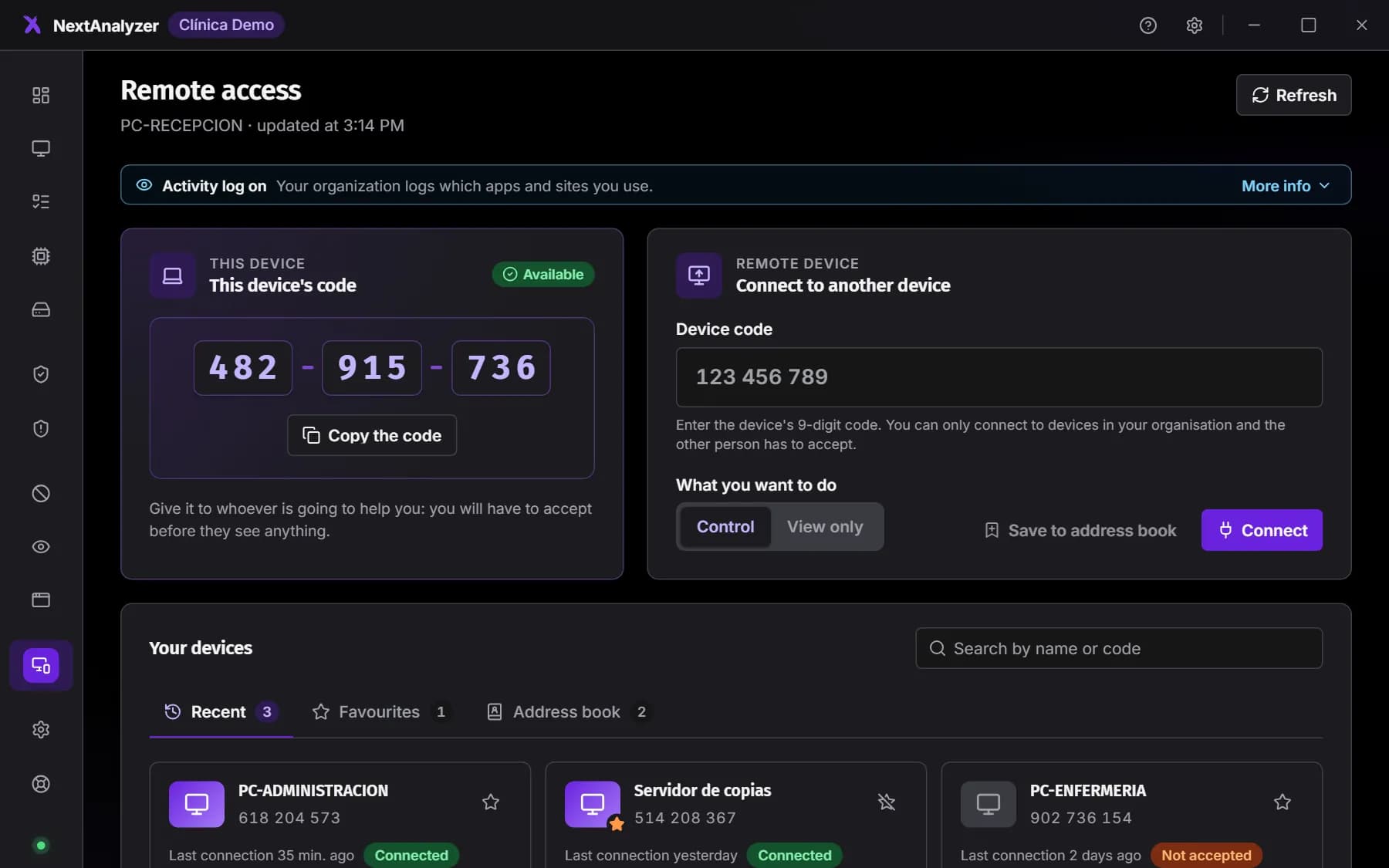
Open the NextAnalyzer app and, in the menu, go to “Remote access” in the “Assistance” group. At the top there are two cards: “This device”, with its code, and “Remote device”, to connect to another one. Below is “Your devices”.
Expected result: You see your device's code with the status “Available”.
Share this device's code
The code has 9 digits and looks like 123 456 789. Click “Copy the code” and give it to whoever is going to help you. Before they see anything, a window will ask you to accept and choose what they can do.
Expected result: The code is on your clipboard, ready to paste into a chat or an email.
Tip: The code does not change: it is always the same for your device.
Connect to another device
In “Remote device”, type the 9 digits in “Device code”, with or without spaces. Under “What you want to do” choose “Control” or “View only” and click “Connect”.
Expected result: The viewer opens and waits for the other person to accept.
Tip: Even if their policy is unattended, the other person always has to accept.
Work in the viewer
The viewer opens in its own app window, one per connection. It works like the dashboard viewer: view, keyboard shortcuts, chat, clipboard and files, depending on what the other person allowed. Close it with “Disconnect”.
Expected result: You see the other device's screen and, when you finish, a card with the duration.
Tip: For details of every button, see the guide on connecting from the dashboard.
Save the device to the address book
Click “Save to address book” and give it a “Name”, for example “Reception PC”. Later you can rename it, star it as a favourite or remove it from the address book.
Expected result: You see “Saved to the address book” and the device appears in the “Address book” tab.
Tip: The address book and recent sessions are only stored on this device, not on the server.
Reconnect with one click
“Your devices” has three tabs: “Recent” (the last 20 connections, with their result), “Favourites” and “Address book”. Use “Search for a device” to filter by name or code and click the device to connect.
Expected result: The viewer opens straight away with the chosen device.
Tip: Each recent connection shows “Connected”, “Not accepted” or “Failed”.
What is logged
These sessions are never recorded. They appear in the dashboard's Remote sessions with the origin “Device” and the name of the device you connect from, and the person connecting is shown with their system user.
Expected result: A technician in your organisation can see the session in the history and the audit log.
If something goes wrong
It says “There is no device in your organisation with that code”
Check the 9 digits. The code must belong to a device in your organisation: one from another organisation responds as if it did not exist. The device cannot be retired either.
It says “That is this device's own code”
You typed your own code. Ask the other person for the code shown in the “This device” card of their app.
The status says “Not allowed by your organisation”
The remote access policy of your device or the other one has “Device-to-device connection with the code” turned off. An administrator turns it on in the group's Settings › Remote access, or in the device settings if it has its own policy.
I connect and nothing happens
The other person has 30 seconds to accept in their NextAnalyzer window. If they do not answer or the app is not open, the connection is rejected automatically. Let them know before you connect.
Still not working? Open a support ticket