
Invite your team and protect access
Each person signs in with their own account and role. That way you know who does what and nobody has more permissions than they need.
Invite people
Open Members and groups in the side menu. Under Invitations, enter “Their email”, choose the “Role” and click “Invite”. The invitation expires after 7 days.
Expected result: You see “Invitation sent.” and the invitation stays in the pending list until it's accepted.
Tip: Pending invitations count towards the user limit from the moment they're sent.
Choose the right role
Owner: everything, including plan, payments, SSO, two-factor and history. Administrator: members, devices, policies, alerts, API and integrations. Technician: acts on devices. Read-only: view only.
Expected result: Each person has the role they need in the table, and you can change it in their row.
Organize devices into groups
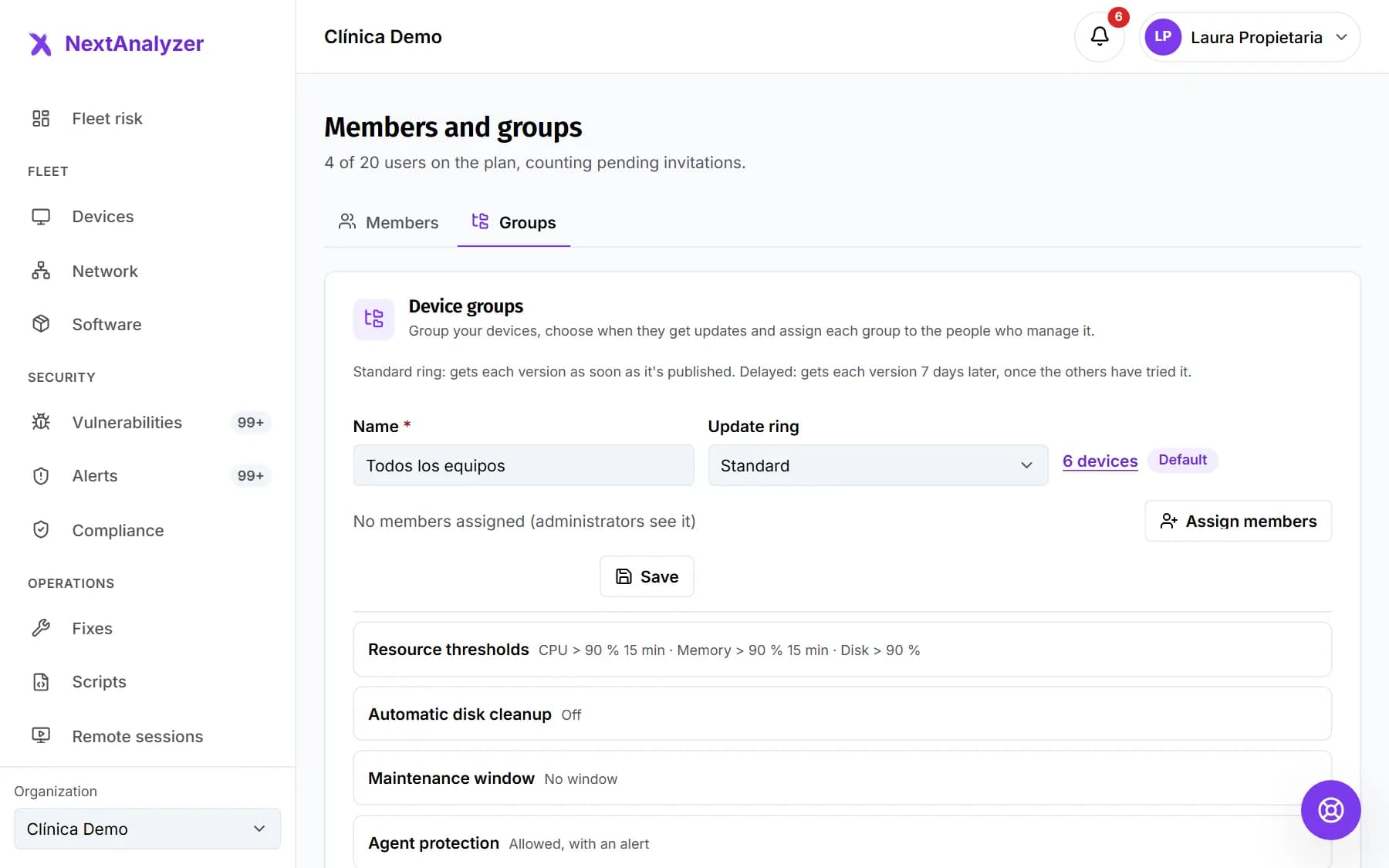
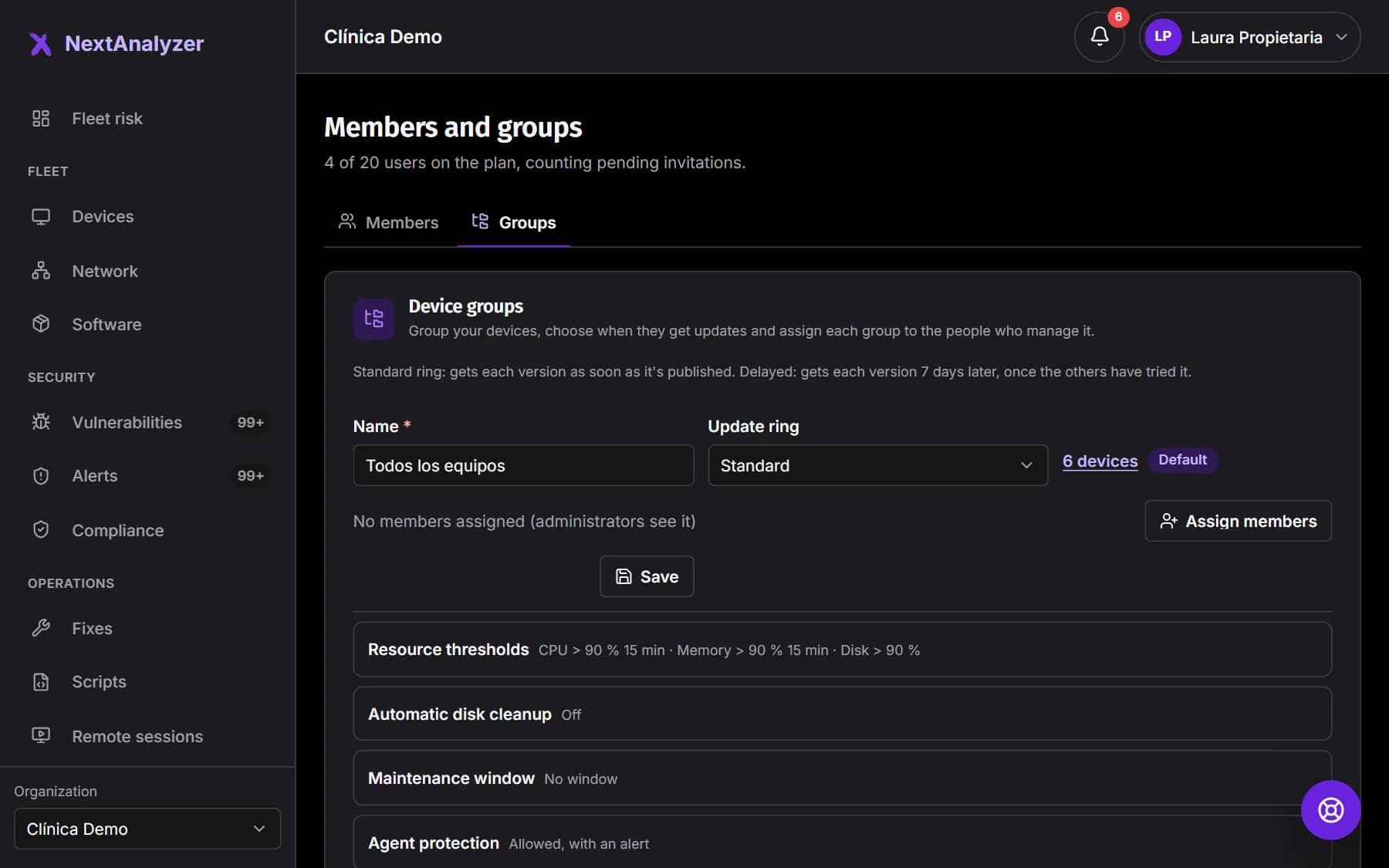
In the “Groups” tab you create device groups, choose when they get updates and who manages them.
Expected result: The groups show in the list with their number of devices.
Limit what each person sees
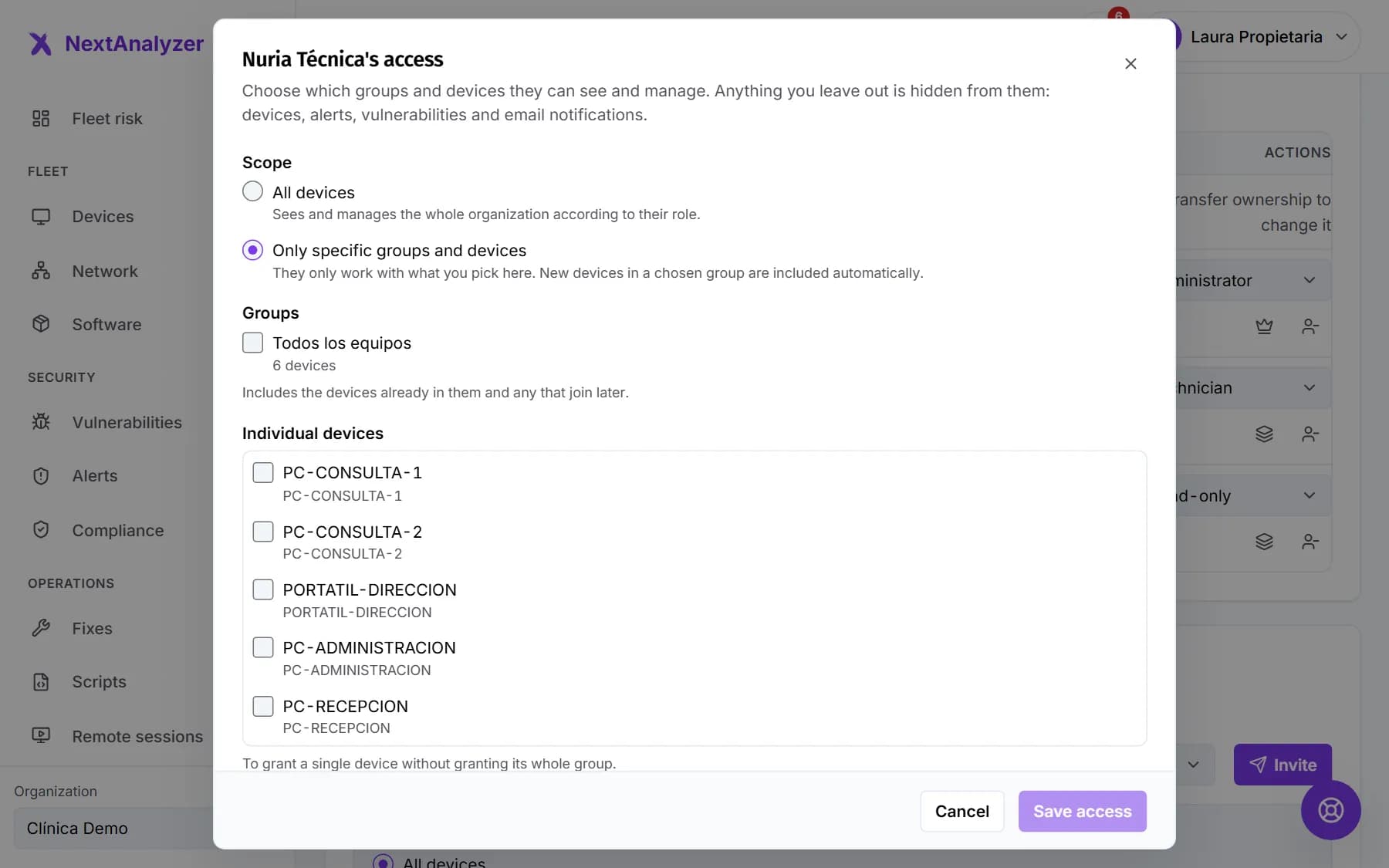
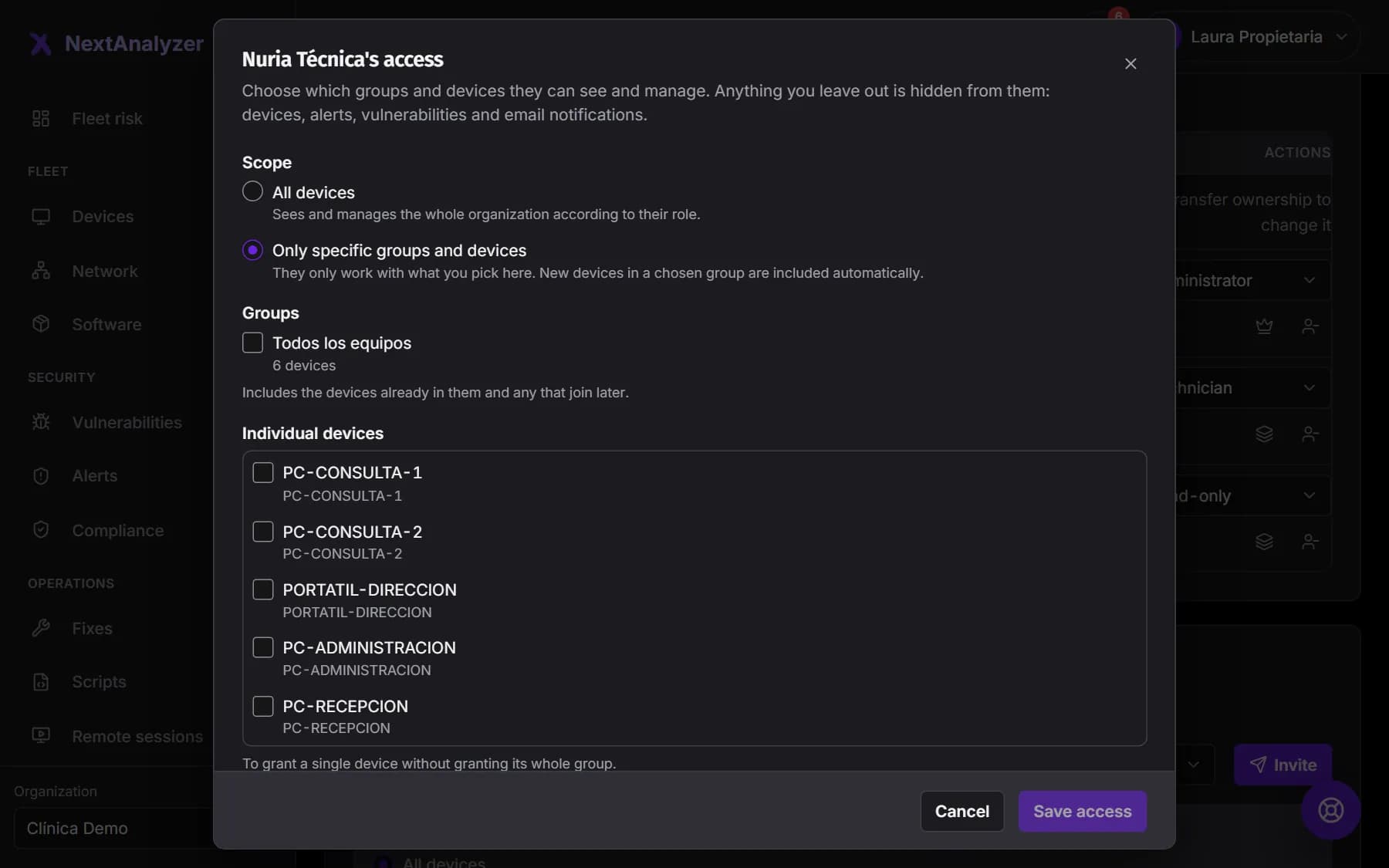
In the row of a technician or a read-only member, open “Access”. Choose “Only specific groups and devices” and tick their groups or devices. Anything you don't choose doesn't appear for them: no devices, alerts or email alerts.
Expected result: The Access column summarizes their groups and devices instead of “All devices”.
Tip: New devices in a chosen group are included automatically.
Require two-factor
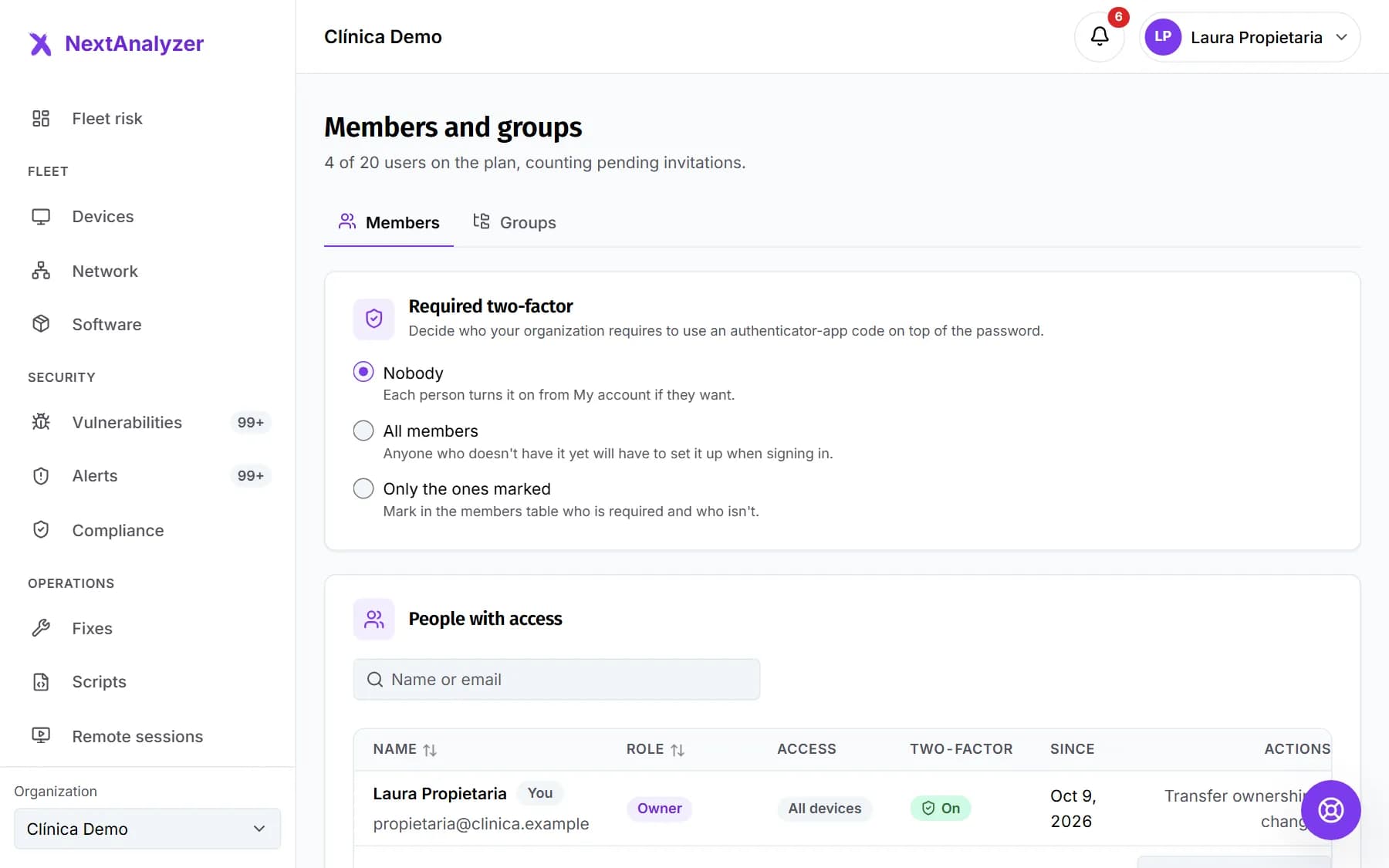
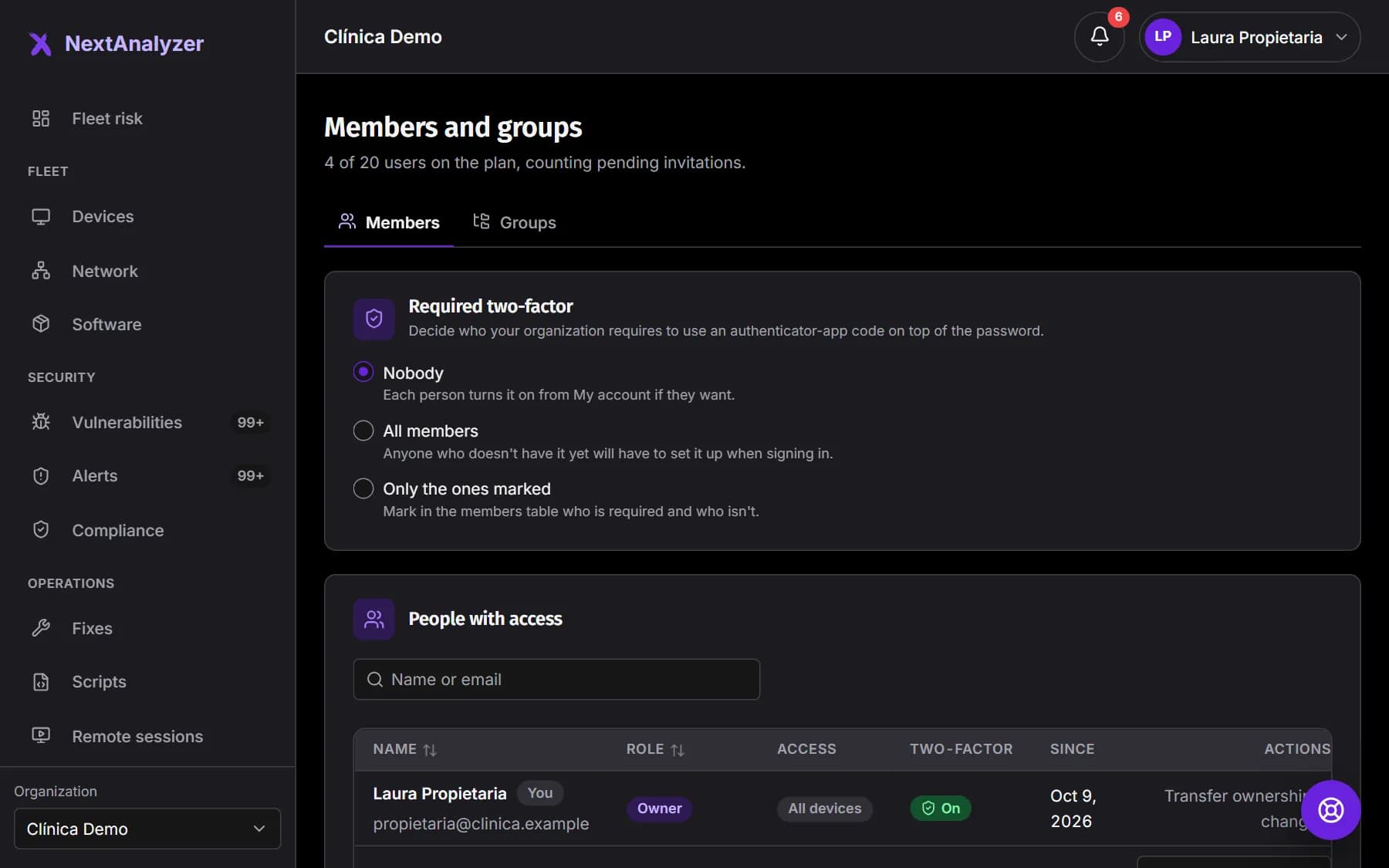
In Members, the “Required two-factor” section decides who must use it: “Nobody”, “All members” or “Only the ones marked”. Only the owner can change it.
Expected result: The Two-factor column shows who has it “On” and who is required to.
Tip: Anyone who doesn't have it yet must set it up when signing in, before using the dashboard.
Review the organization's details
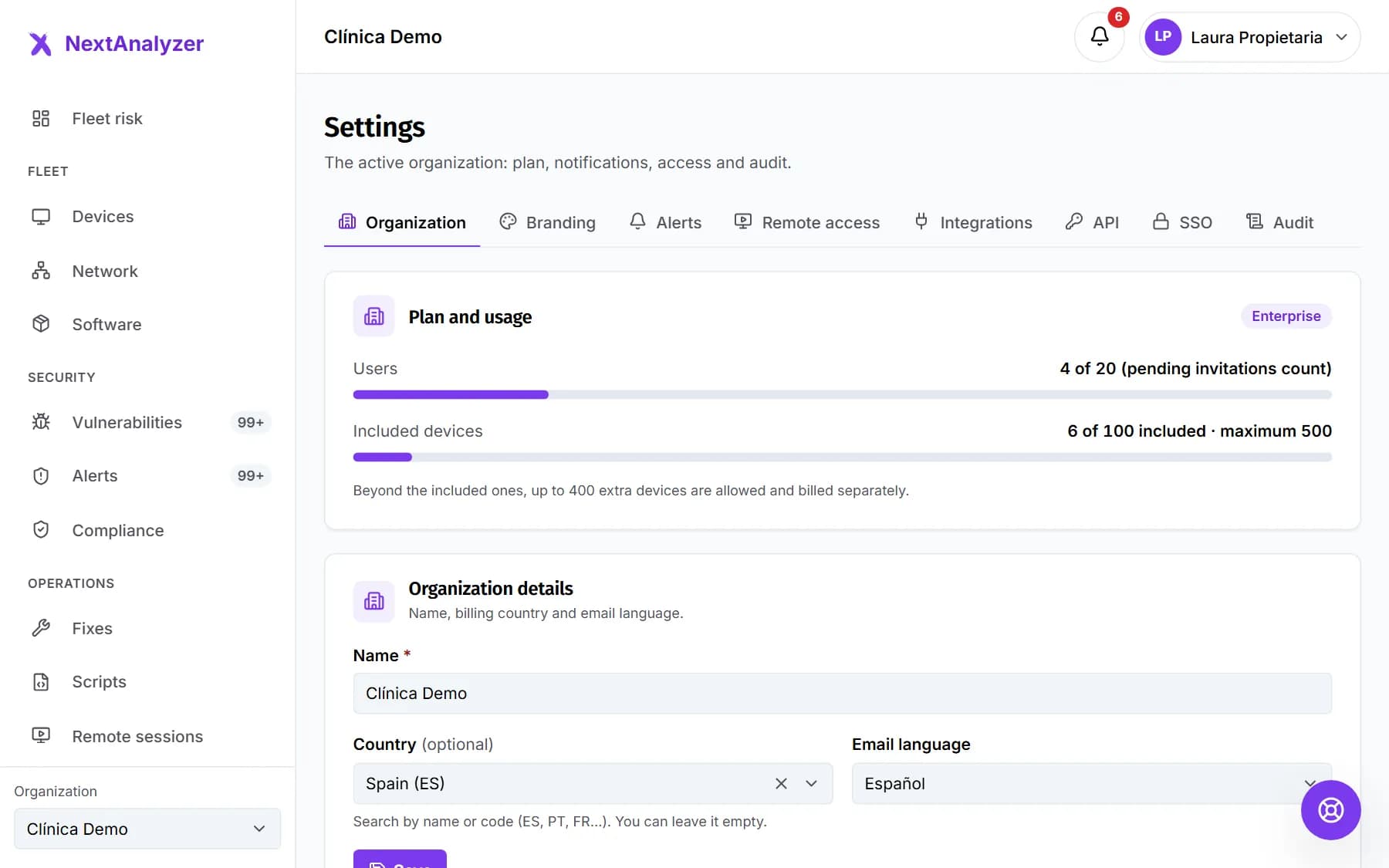
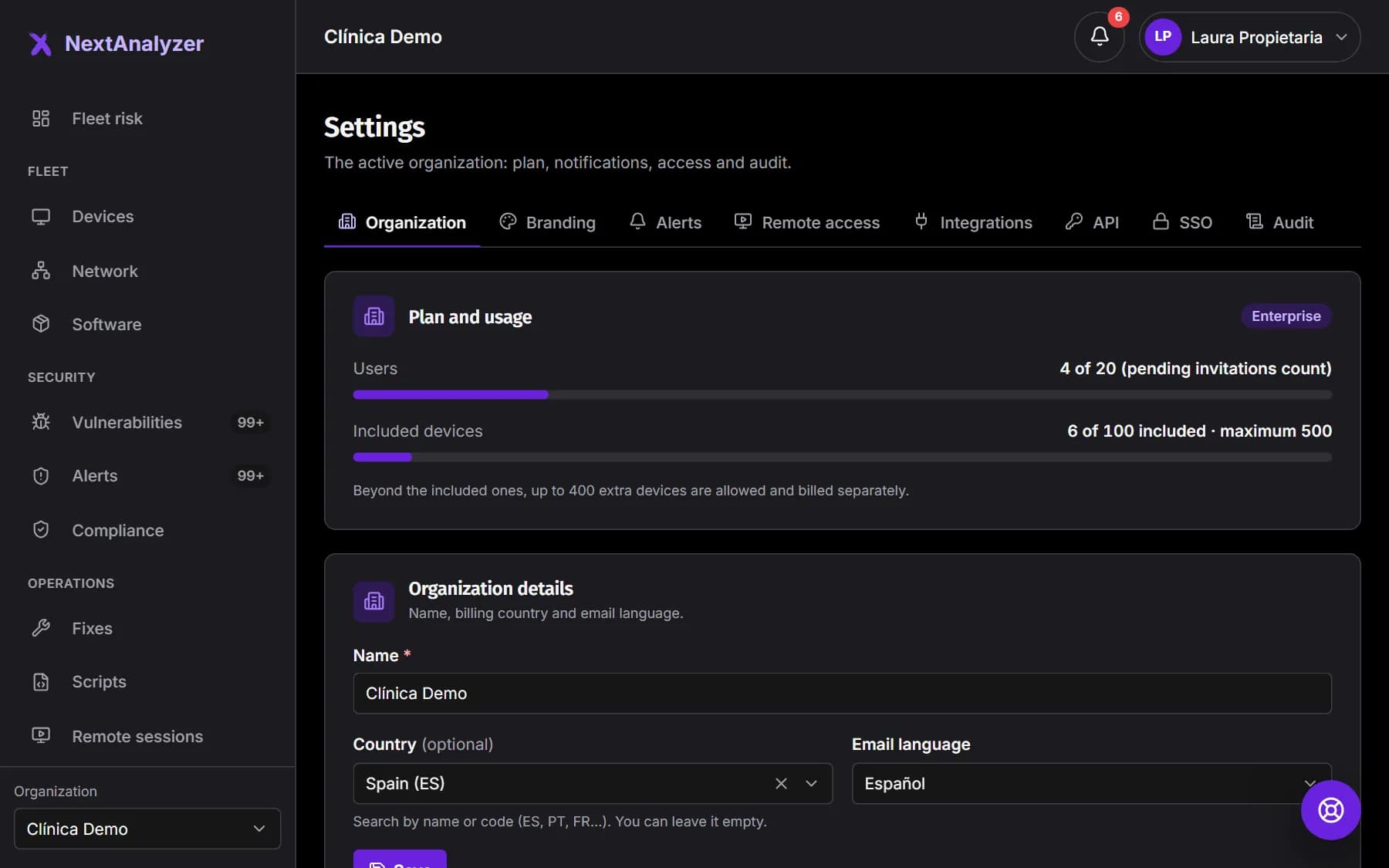
In Settings › Organization you see the plan and the use of users and devices. You change the name, the country and the email language. You also see when NextAnalyzer support accessed it and why.
Expected result: You see “Organization saved.” when you save the details.
Connect your SSO (Enterprise)
On Enterprise, the owner can let your team sign in with their company account: Microsoft Entra ID, Google Workspace or another OIDC provider. We explain it in “Set up corporate sign-in (SSO)”.
Expected result: You know where it's set up: in Settings › SSO.
Review the audit log
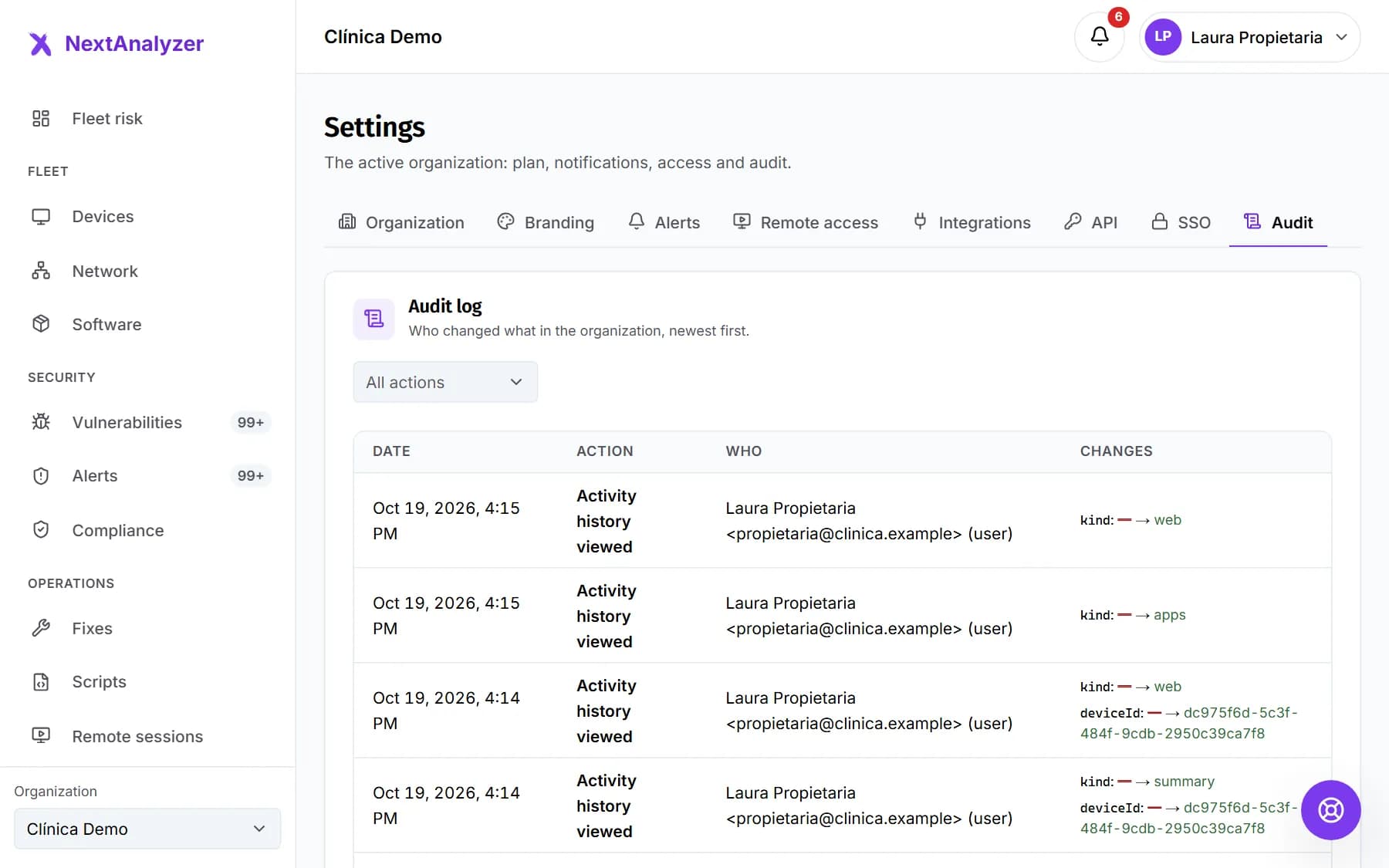
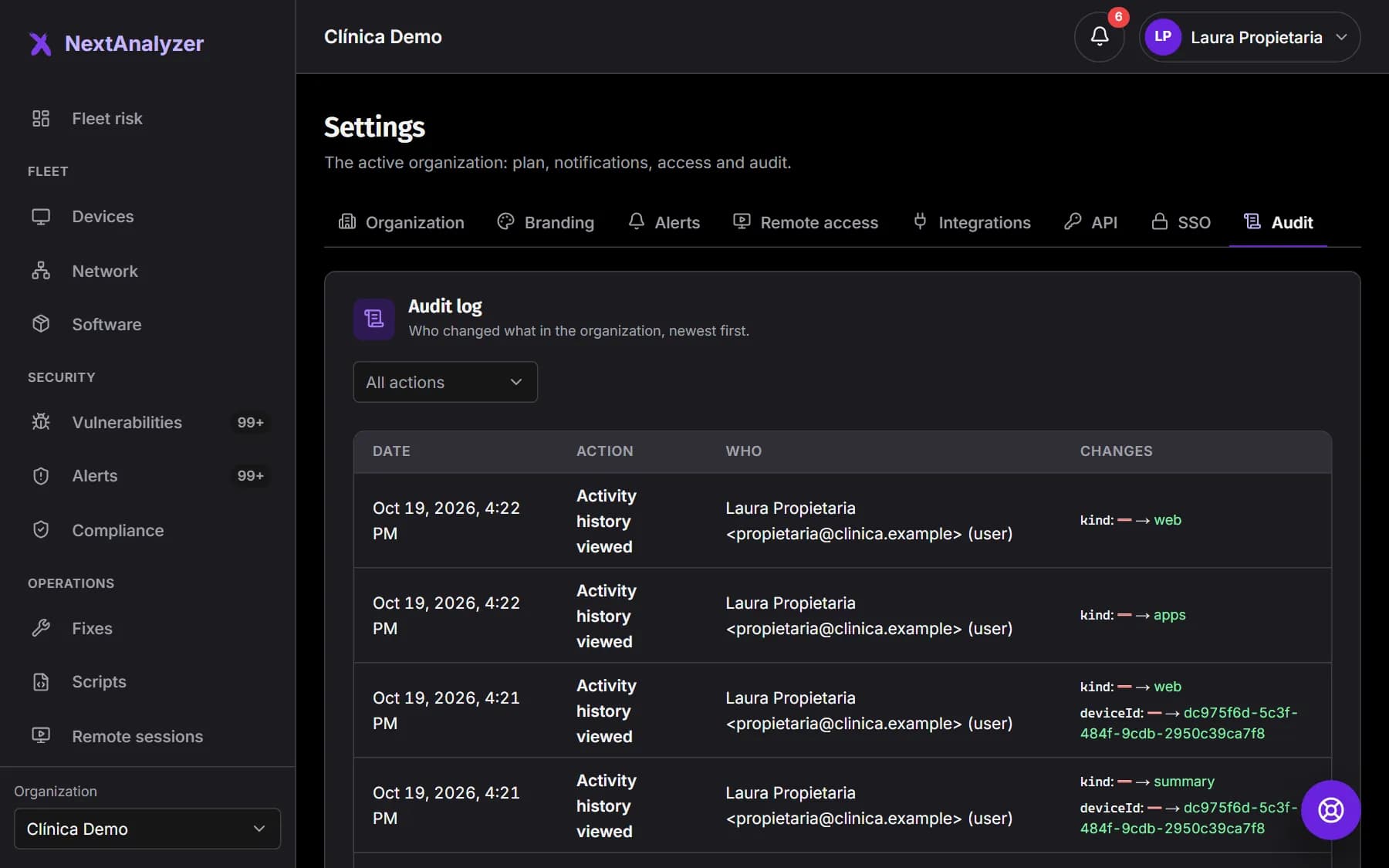
In Settings › Audit you see who did what and when: configuration changes, device commands, history lookups, support access… Filter by “Action”.
Expected result: The table shows the date, the action, who did it and the changes.
Transfer ownership if needed
There is only one owner. To hand the role to someone else, click “Make owner” in their row and confirm. You become an administrator.
Expected result: The other person shows as Owner and you as Administrator.
If something goes wrong
I can't invite anyone else
You've reached your plan's users: “Your plan doesn't allow more users”. Revoke pending invitations, remove someone who no longer needs access or change plans.
The invitation doesn't arrive or has expired
Ask them to check their spam folder. If 7 days have passed, revoke it and invite them again. When they open it, they must sign in with the same email it was sent to.
A technician can't see a device
Their access is limited to certain groups or devices. Open “Access” in their row and add the group or device, or choose “All devices”.
Someone can't turn off their two-factor
Your organization requires it, so it can't be removed. If they lost it, they should sign in with a recovery code. If they have no codes either, they should open a support ticket.
I'm the owner and want to leave the organization
First transfer ownership to someone else with “Make owner”. Then you can use “Leave organization”.
Still not working? Open a support ticket