
Plans, extra devices and billing
You pay a monthly fee per plan, with some users and devices included. On Business and Enterprise, devices above that are charged as extras. Here's how it's calculated and how to change it.
Check your usage
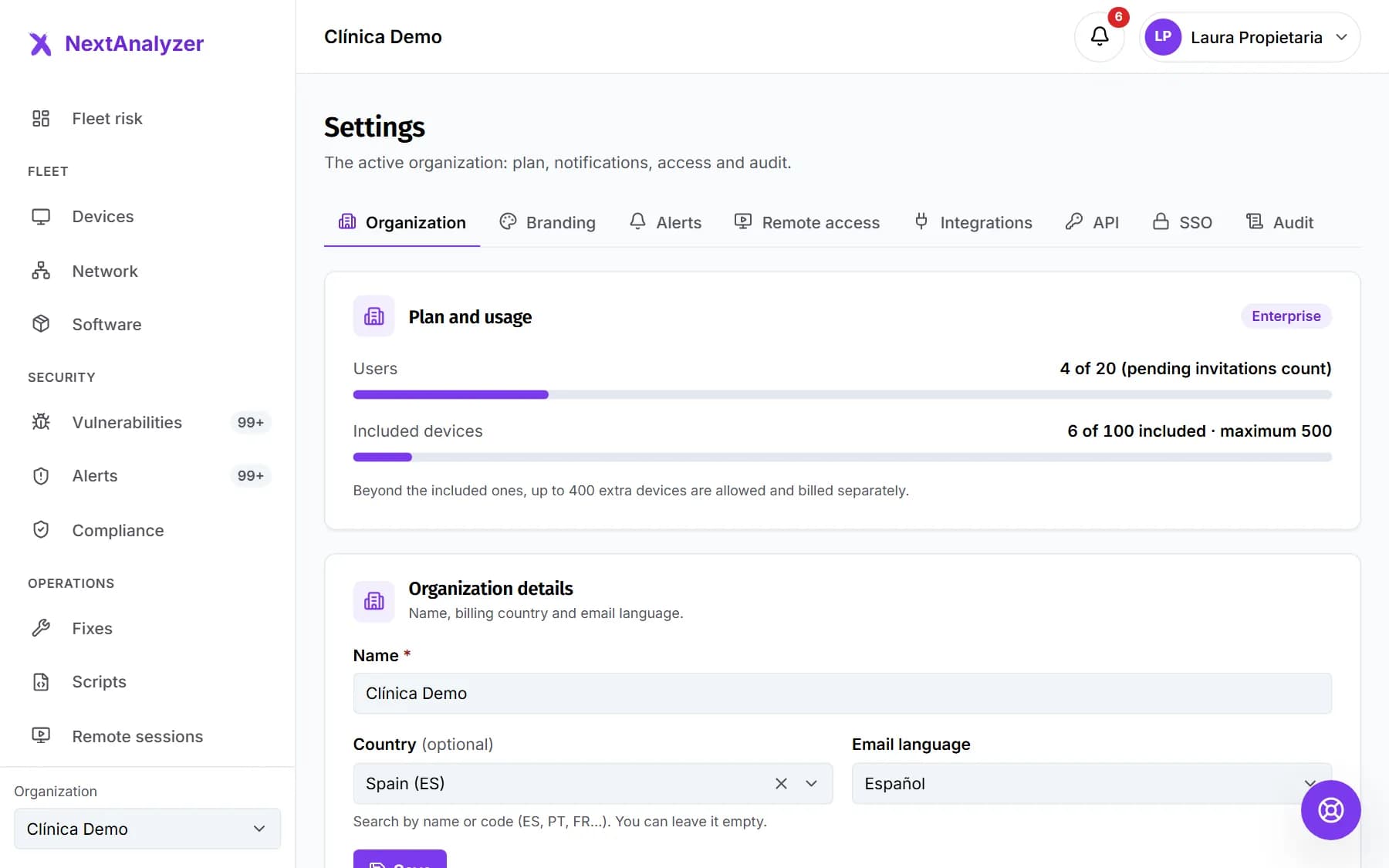
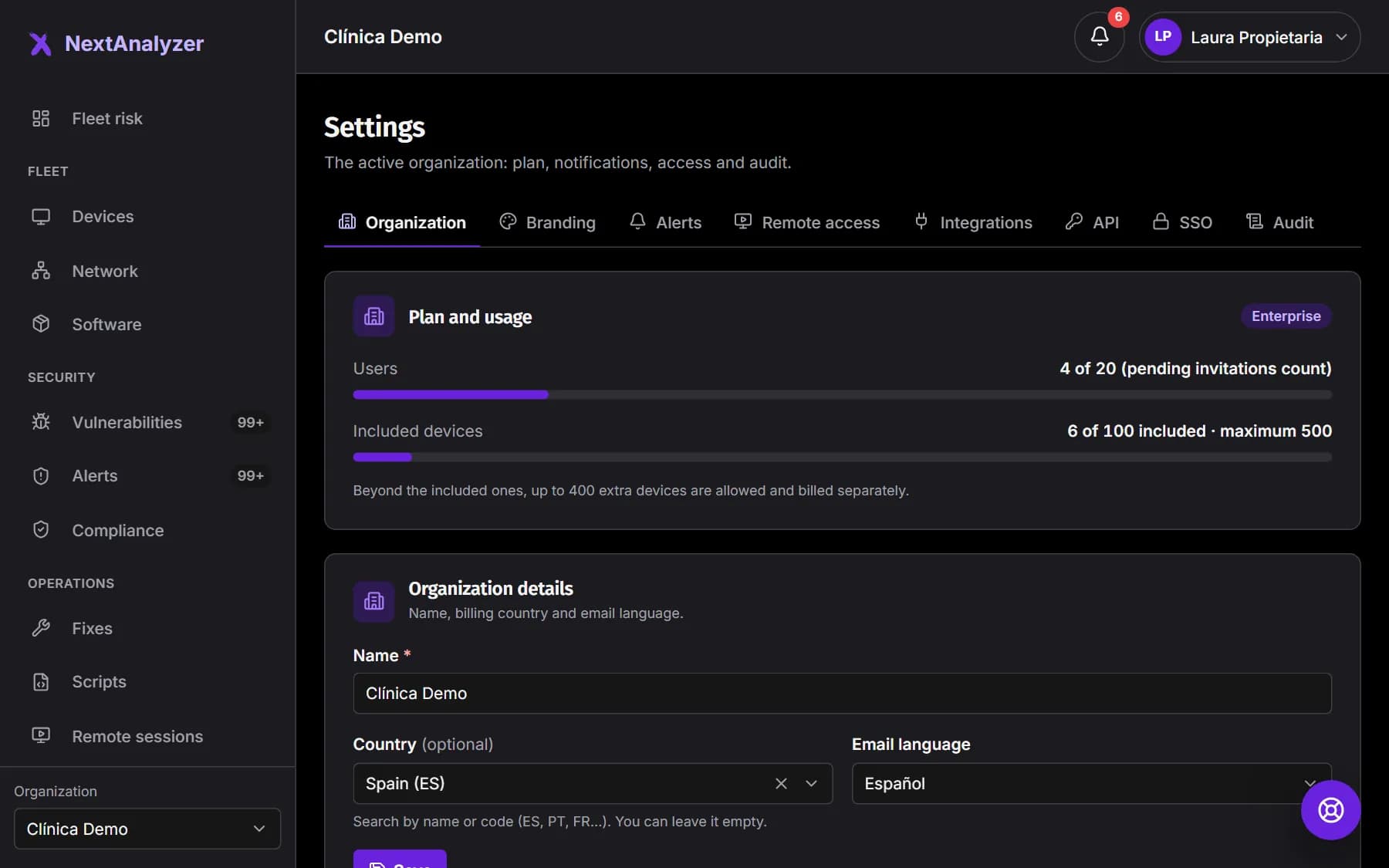
In Settings › Organization, the “Plan and usage” card shows the users and devices you use against those included. Pending invitations count as users.
Expected result: You see how many users and devices you have left before reaching the limit.
Open Billing
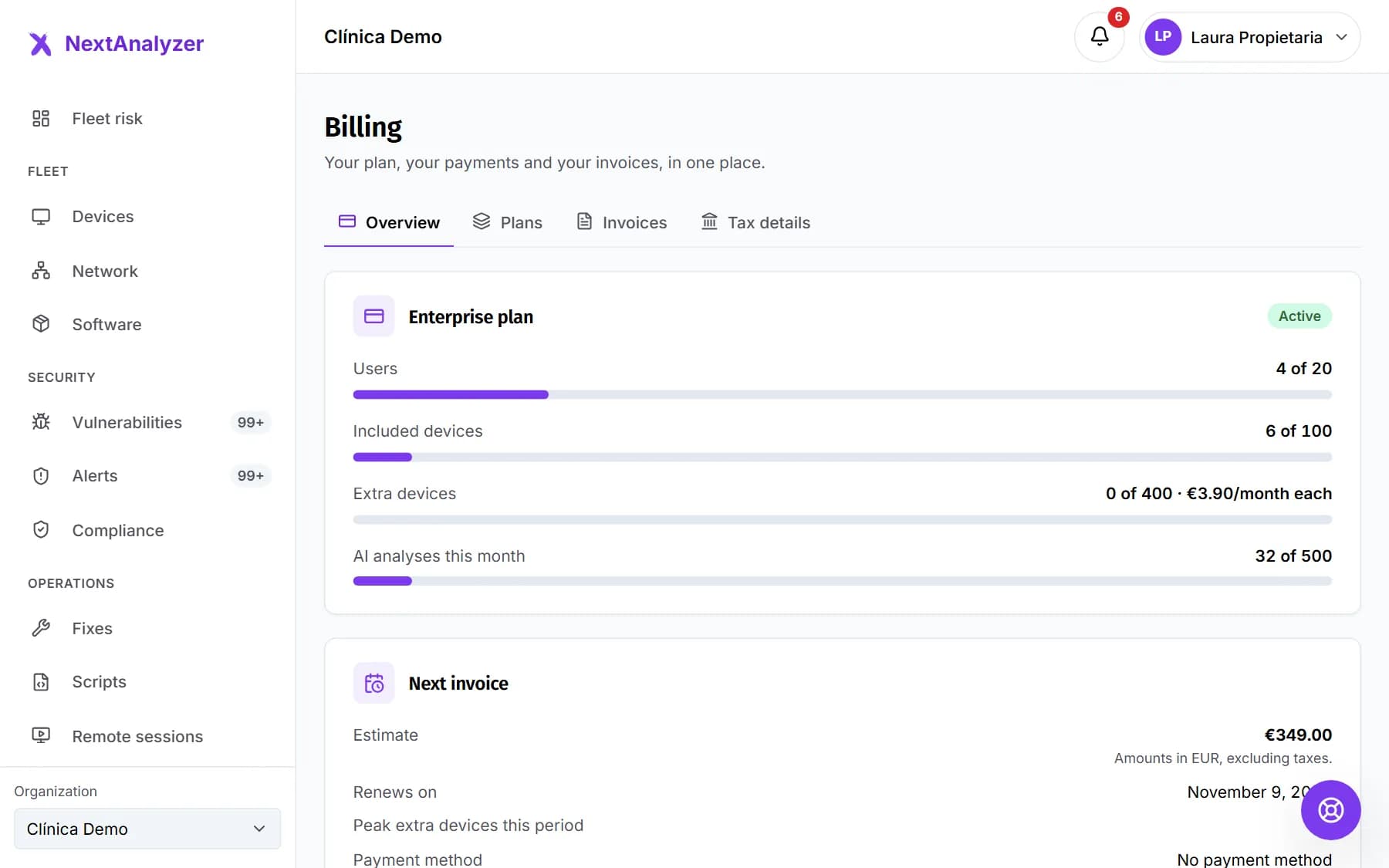
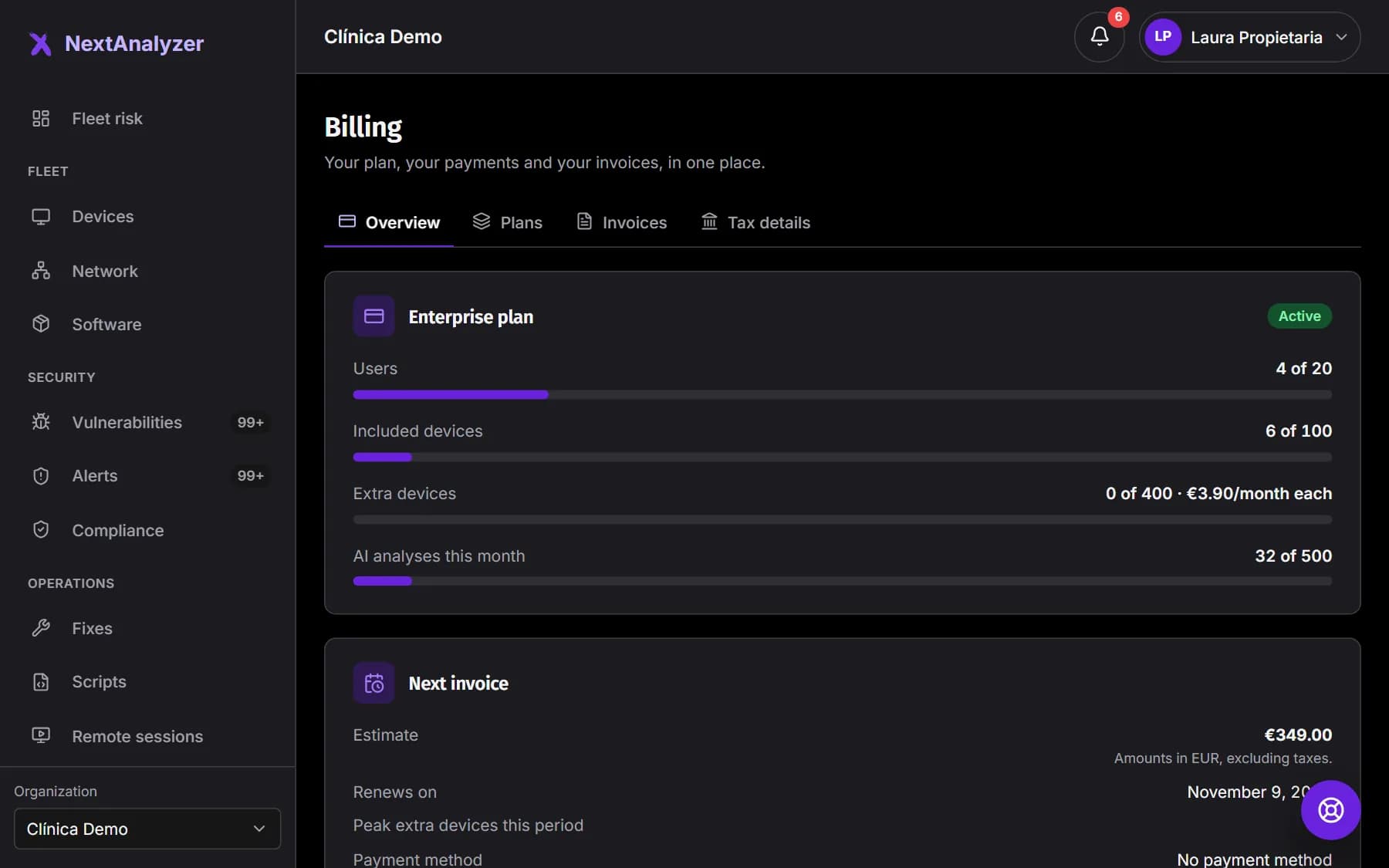
Open Billing in the side menu, under Account. The Overview tab shows the plan, the subscription status, the estimated next invoice, extra devices and this month's AI analyses.
Expected result: You see the subscription status, such as “Active” or “Trial”.
Compare the plans
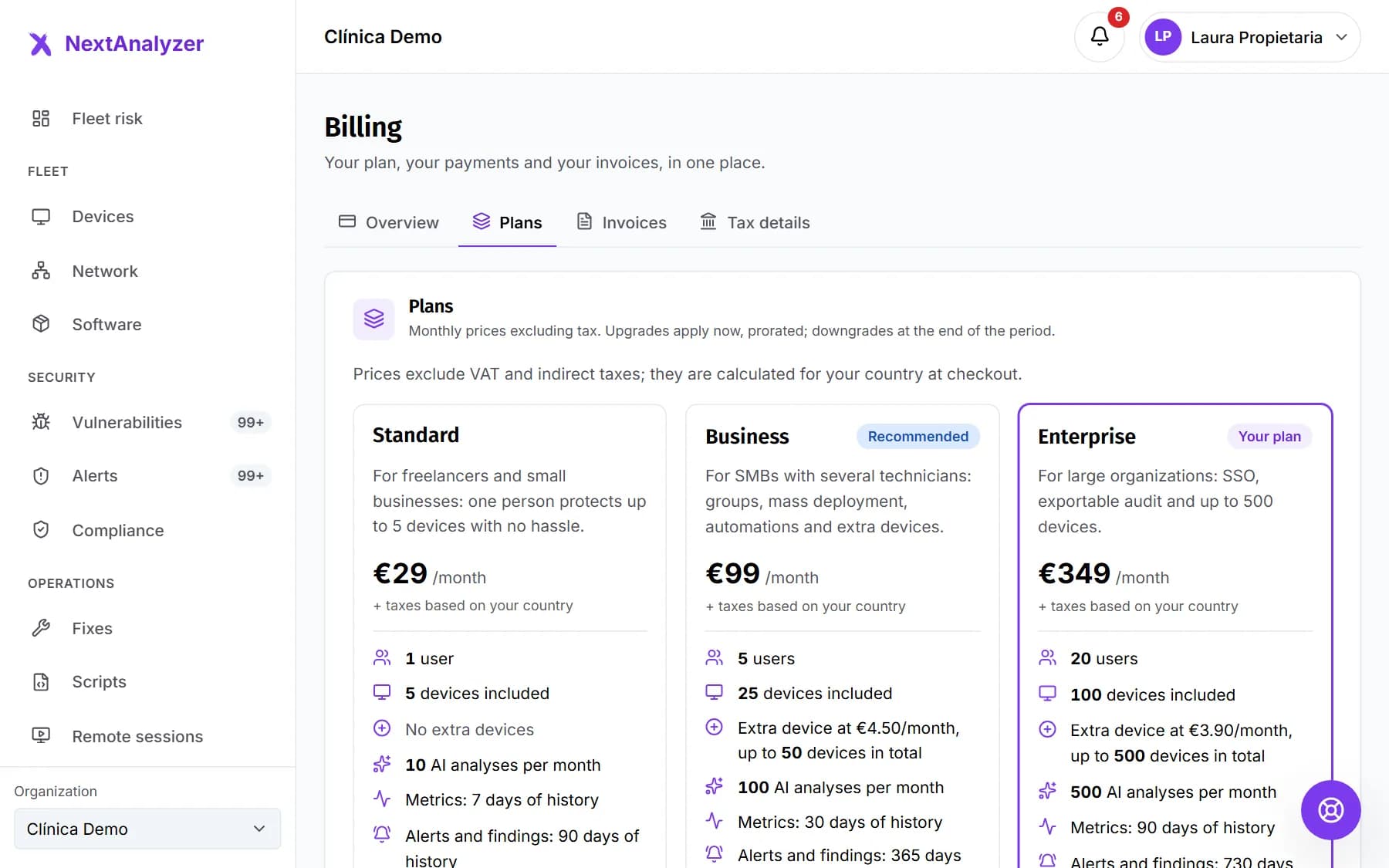
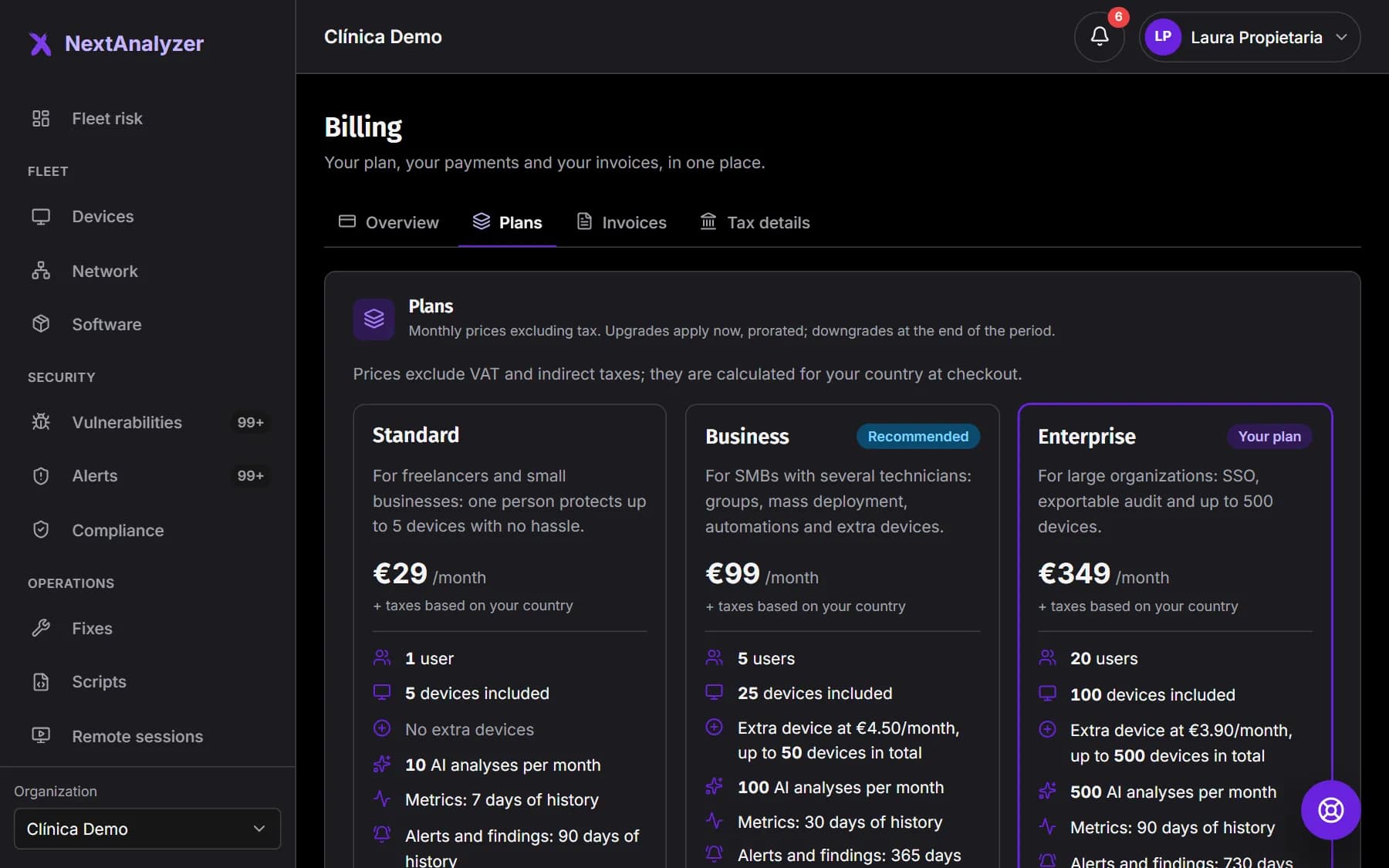
In the Plans tab you see Standard, Business and Enterprise with their monthly price, users, included devices, extra devices and features. Standard is for one person and has no extra devices.
Expected result: Your plan is marked “Your plan”.
Tip: Enterprise includes SSO, the public API and custom branding.
Understand the free trial
When you sign up you get 14 days of the Business plan, with no card, up to 5 devices and no extra devices. A banner at the top tells you how many days are left.
Expected result: You know when the trial ends and which plan to take before then.
Tip: If the trial ends without a plan, the dashboard becomes read-only. After 30 days, the organization is suspended.
Add extra devices
On Business and Enterprise you can go over the included devices up to a cap. Before generating the enrolment code, the dashboard warns that the device will be charged as an extra. Each day's peak is counted, prorated.
Expected result: Billing shows the extra devices used and the period's peak.
Change plans
In Plans, click “Upgrade to this plan” or “Downgrade to this plan” and confirm. Upgrades apply now, prorated. Downgrades apply at the end of the period.
Expected result: You see “Plan updated.” or, for a downgrade, the date of the scheduled change.
Tip: If the new plan allows fewer users or devices, you choose which ones stay. The owner always stays; extra devices are retired.
Manage your card
In Overview, “Payment method” lists your cards. Click “Add a card” to open the payment provider's secure page, with no charge. You can choose which one is charged or remove one.
Expected result: The new card shows in the list and you can make it the “Default”.
If a payment fails
You have 7 days' grace to pay with another card: use “Update payment” in the banner. After that, the dashboard becomes read-only. After 30 days read-only, the organization is suspended.
Expected result: Once you pay, the banner goes away and everything works again straight away.
Tip: While read-only, devices stay protected with their last policy. Once suspended, they're no longer protected.
If something goes wrong
The dashboard is read-only
The trial ended without a plan or a payment is outstanding. You can see the data, but you can't enroll devices, invite people or change policies. Subscribe or click “Pay and reactivate” and everything comes back straight away.
It won't let me change the plan or the card
“Only the owner can change the plan or the payment method.” Administrators can see it but not change it. Ask the owner.
I can't enroll another device
You've reached your plan's device cap. Standard has no extra devices, so you need to upgrade to Business. On Business and Enterprise, when you reach the extras cap, the dashboard offers an upgrade.
I can't remove a card
A paid subscription needs at least one card. Add another, make it the default and then remove the old one. An expired card can't be chosen.
I don't see the buttons to change plans
Your organization is billed separately, under a contract or through a partner. To change plans, contact your account manager.
Still not working? Open a support ticket