
Install on Windows with the wizard
NextAnalyzerSetup is a short wizard. It installs the service, the app and the Wazuh detection engine, and enrolls the device in your organization. Here's what you'll see on each screen and what to decide.
Download the installer
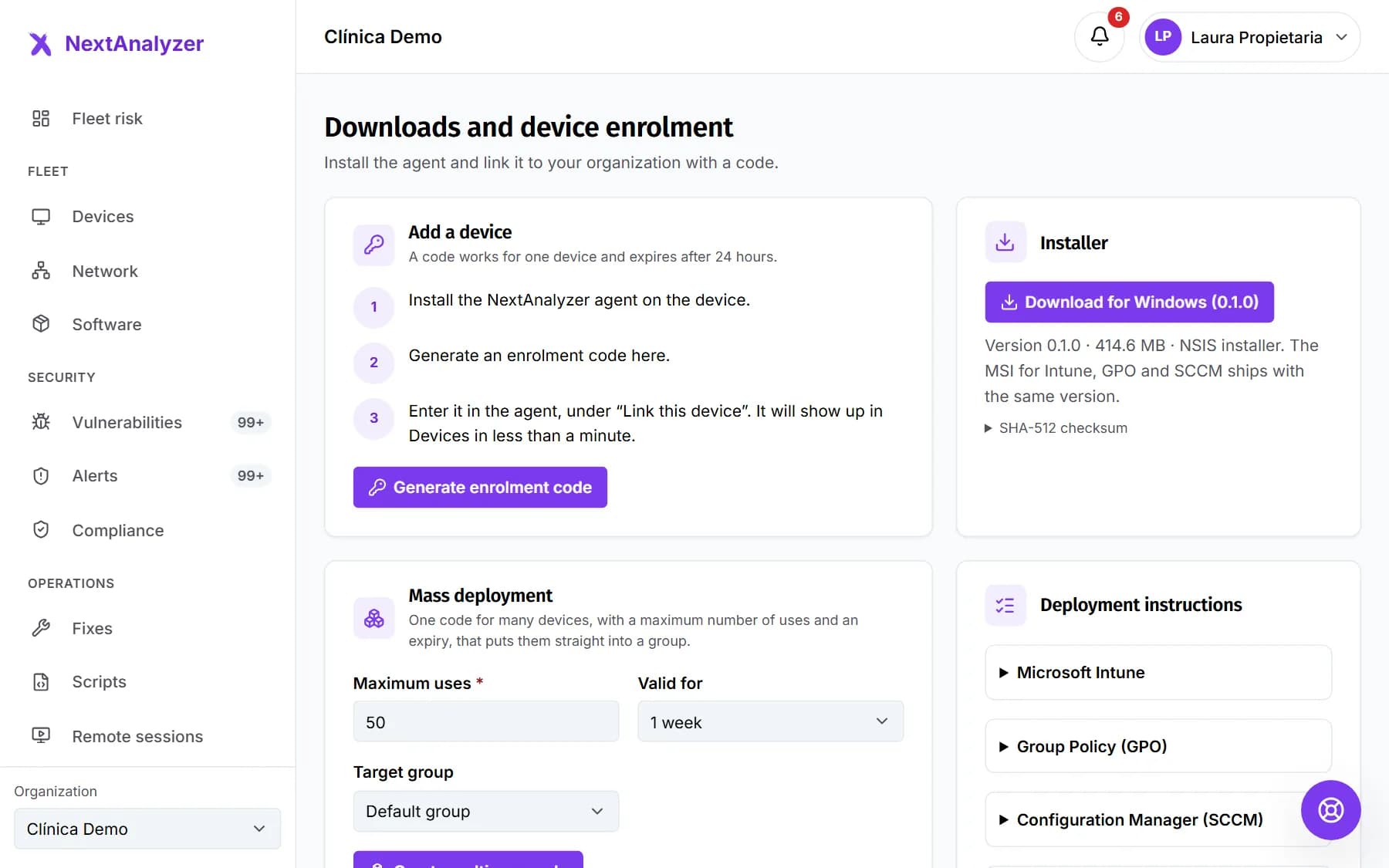
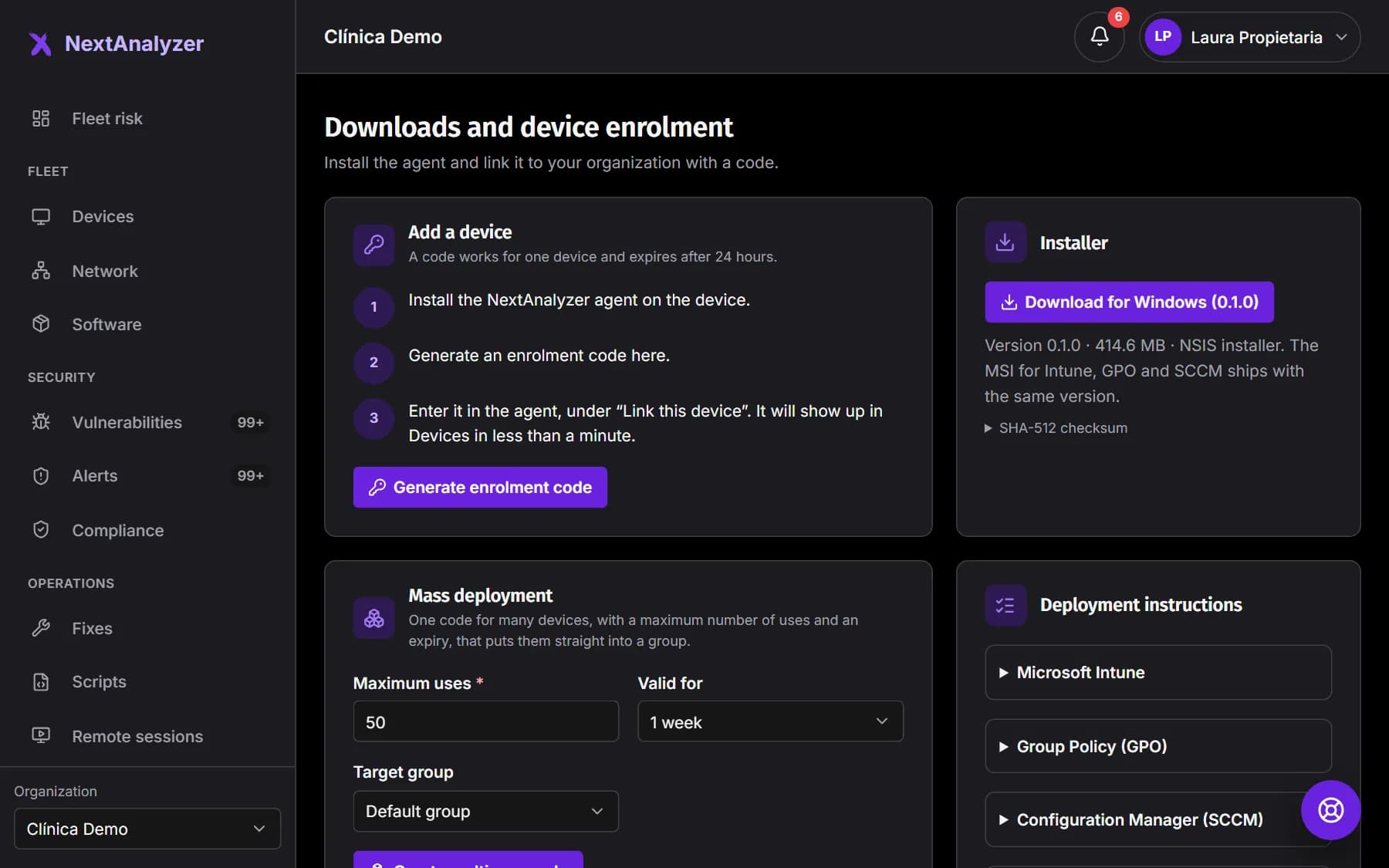
In the dashboard, Organization › Downloads, click “Download for Windows”. It's a single NextAnalyzerSetup that installs the x64 or ARM64 version depending on the device.
Expected result: You have NextAnalyzerSetup-1.0.0.exe (with your version) in your downloads folder.
Tip: Generate the enrollment code on the same page before you start: the wizard will ask for it.
Welcome and terms of use
Run the installer and accept the administrator prompt. The wizard appears in English unless Windows is in Spanish. In “Terms of use”, tick “I accept the terms of use”.
Expected result: The Next button becomes active.
Tip: The terms include the notices for the third-party programs that get installed: Wazuh, smartmontools and PowerShell.
Privacy and permissions
This screen explains what the agent does before anything is installed. The service runs as the system account and everything it changes is undone on uninstall. It sends inventory, status and security data. It never records keystrokes, screenshots or content.
Expected result: You tick “I have read and accept…” and move to the next screen.
Tip: Activity history is off by default. Remote access asks for permission each session unless an administrator turns on unattended mode.
Device enrollment
Enter the enrollment code: 8 letters or digits, like ABCD-EFGH. Hyphens, spaces or lowercase don't matter. If you don't have it yet, tick “I will enter it later, from the NextAnalyzer application”.
Expected result: The wizard accepts the code and moves to Components.
Tip: If the device was already enrolled or you install with /ENROLL=, this screen doesn't appear.
Choose the components
“NextAnalyzer” (service, tray app and remote access engine) and the “Wazuh agent” are required and greyed out. “smartmontools (disk health)” is ticked. The “Desktop shortcut” is optional.
Expected result: You click Install and the installation starts.
Tip: If you untick smartmontools, disk health won't be available. Your choice is kept on updates.
Follow the installation
You'll see each step: copying files, enrolling the device, installing Wazuh, setting up smartmontools, allowing Ctrl+Alt+Del from remote access and starting the service. It takes a few minutes.
Expected result: The bar reaches the end with “Done.”.
Tip: If a part fails, the wizard explains why and carries on with the rest. Everything is logged in C:\ProgramData\NextAnalyzer\logs\installer.log.
Read the installation summary
The last screen, “Installation summary”, tells you how the service, enrollment, Wazuh and smartmontools went. Leave “Open NextAnalyzer” ticked to open the app with your user.
Expected result: You see “NextAnalyzer service: running.” and “Enrolment: device linked to your organisation.”
Tip: “Enrolment: waiting for a connection to the server” means there was no Internet: it will complete on its own once there is.
Check the device in the dashboard
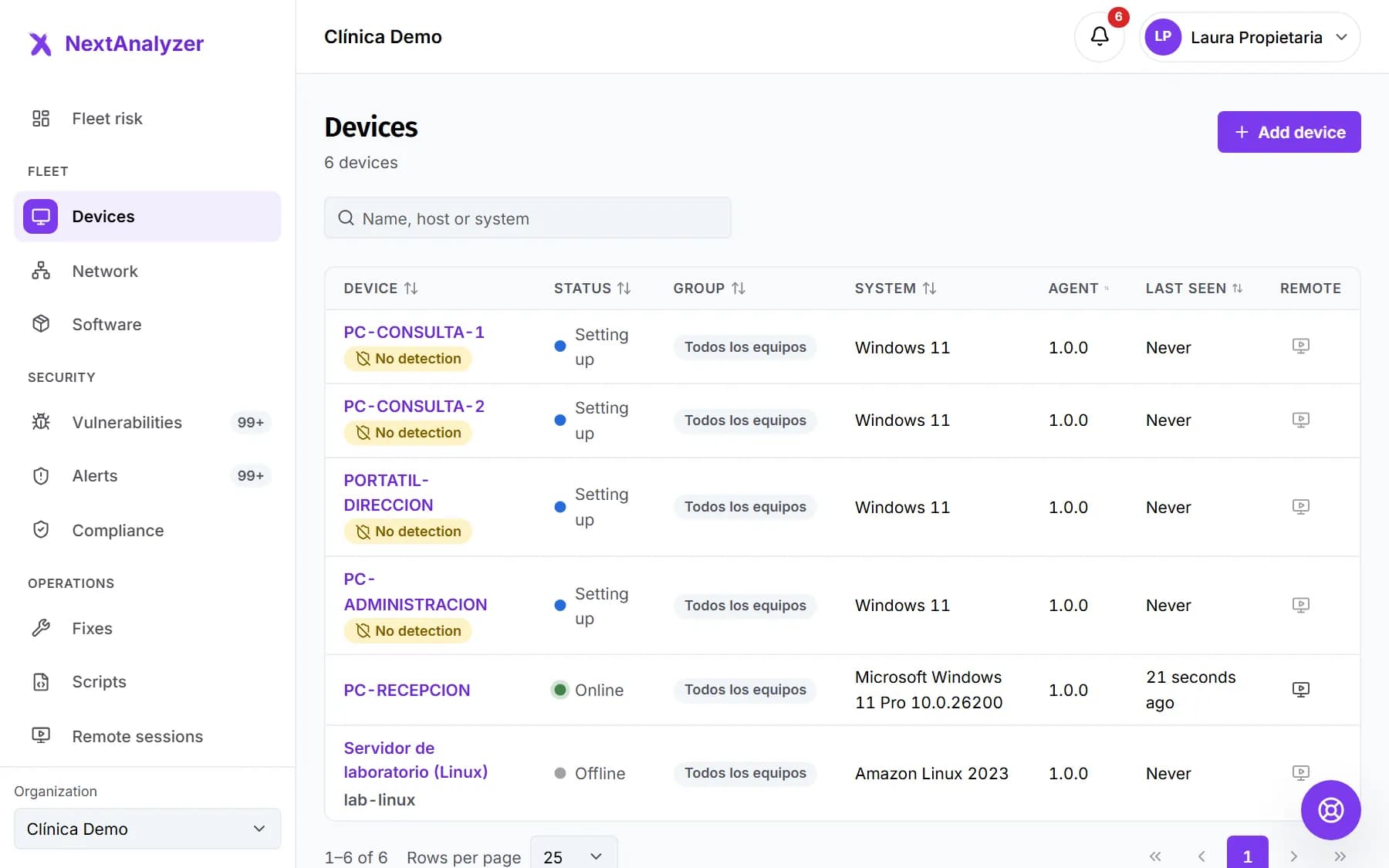
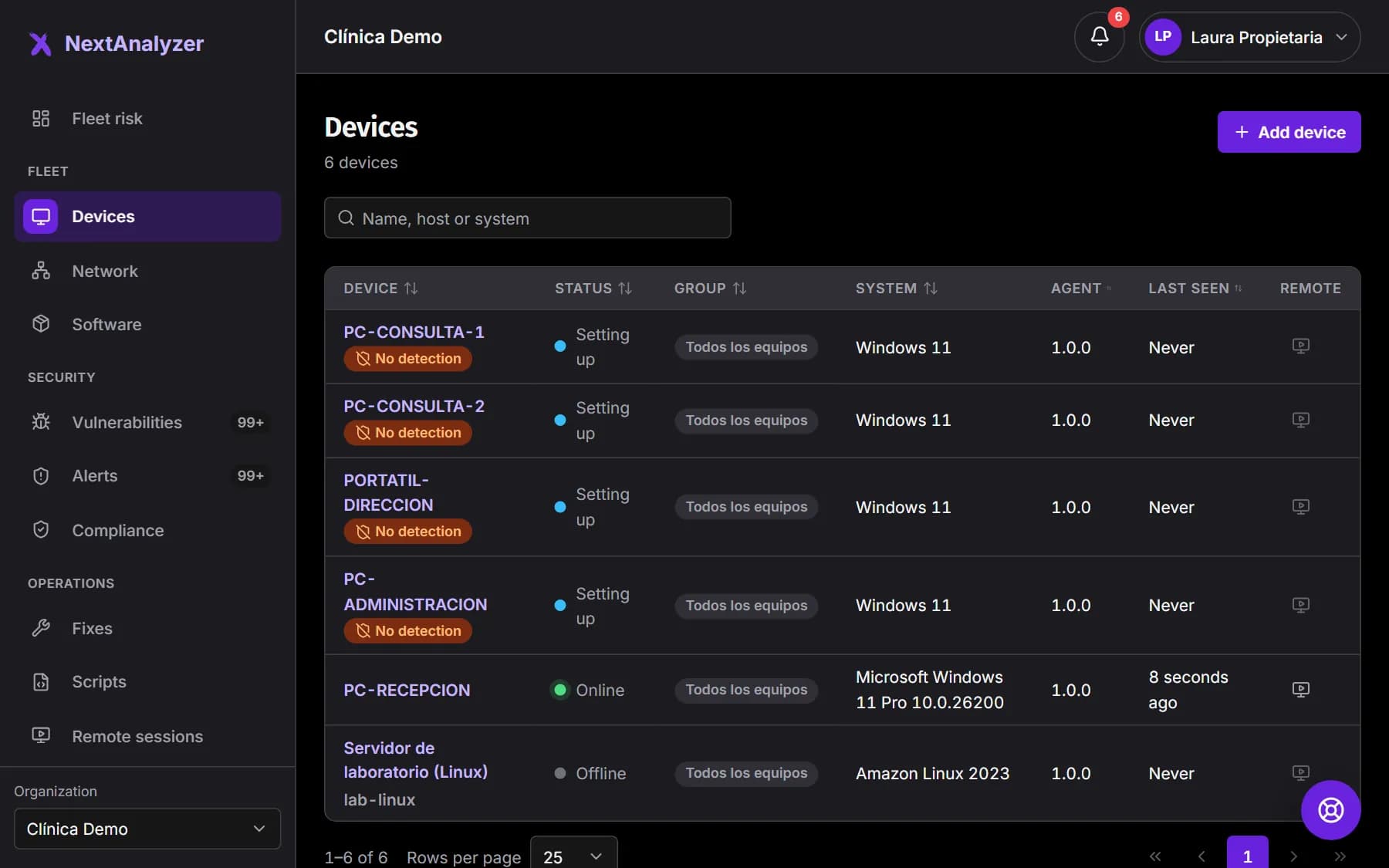
In the dashboard, open Devices. The device appears with its system, agent version and last contact.
Expected result: It shows “Setting up” first and “Online” within a minute.
Install silently
To install with no prompts, pass /S and the code with /ENROLL=. Use /GROUP="Office" to choose the group. The installer exits with 0 if all went well, 2 if the code isn't valid and 3 if the plan limit was reached. The example code isn't real.
NextAnalyzerSetup-1.0.0.exe /S /ENROLL=ABCD-EFGHExpected result: The device installs with no windows and shows up in Devices within a minute.
Tip: For Intune, GPO or SCCM use the MSI: it has its own mass deployment guide.
Uninstall if needed
From Windows Settings › Apps › NextAnalyzer › Uninstall. The wizard undoes the DNS filter, firewall, browser policies and Ctrl+Alt+Del, and notifies your organization. With no prompts, use the command below.
"%ProgramFiles%\NextAnalyzer\Uninstall NextAnalyzer.exe" /SExpected result: You see “NextAnalyzer has been uninstalled” and the device becomes “Agent uninstalled” in the dashboard.
Tip: Leave “Also remove the Wazuh agent (recommended)” ticked. If uninstallation is protected, ask an administrator to allow it on the device page › Settings.
If something goes wrong
The Wazuh agent doesn't install (code 1618)
Another installation was in progress, usually Windows Update. The summary says “Wazuh agent: the service will install it shortly”. Do nothing: the service retries on its own.
It fails with code 1603 or 1925
It's usually missing administrator rights. Run the installer again with an administrator account or with right-click › “Run as administrator”.
It says “The device could not be enrolled”
The message gives the reason: the code isn't valid, has expired or has been used; the organization has reached its plan's device limit; or the version is no longer supported. NextAnalyzer stays installed: generate another code and link it from the app.
It says the service hasn't started
Restart the device. If nothing changes, open a ticket in Support and attach the logs from C:\ProgramData\NextAnalyzer\logs: installer.log and the NextAnalyzerService.*.log files.
After installing, the device lost Internet access
The agent sets 8.8.8.8 and 1.1.1.1 as alternate DNS servers: if its filter doesn't respond, Windows uses them and web blocking stops filtering meanwhile. If your network blocks those public DNS servers, set the system environment variable NEXTANALYZER_DNS_BACKUP to your own, comma-separated, and restart the service.
Still not working? Open a support ticket