
Open tasks and processes
When a computer is slow there's almost always a program behind it. From the dashboard you see what's open on each device; the person using it can close what's stuck from the app's Tasks page.
Check tasks from the dashboard
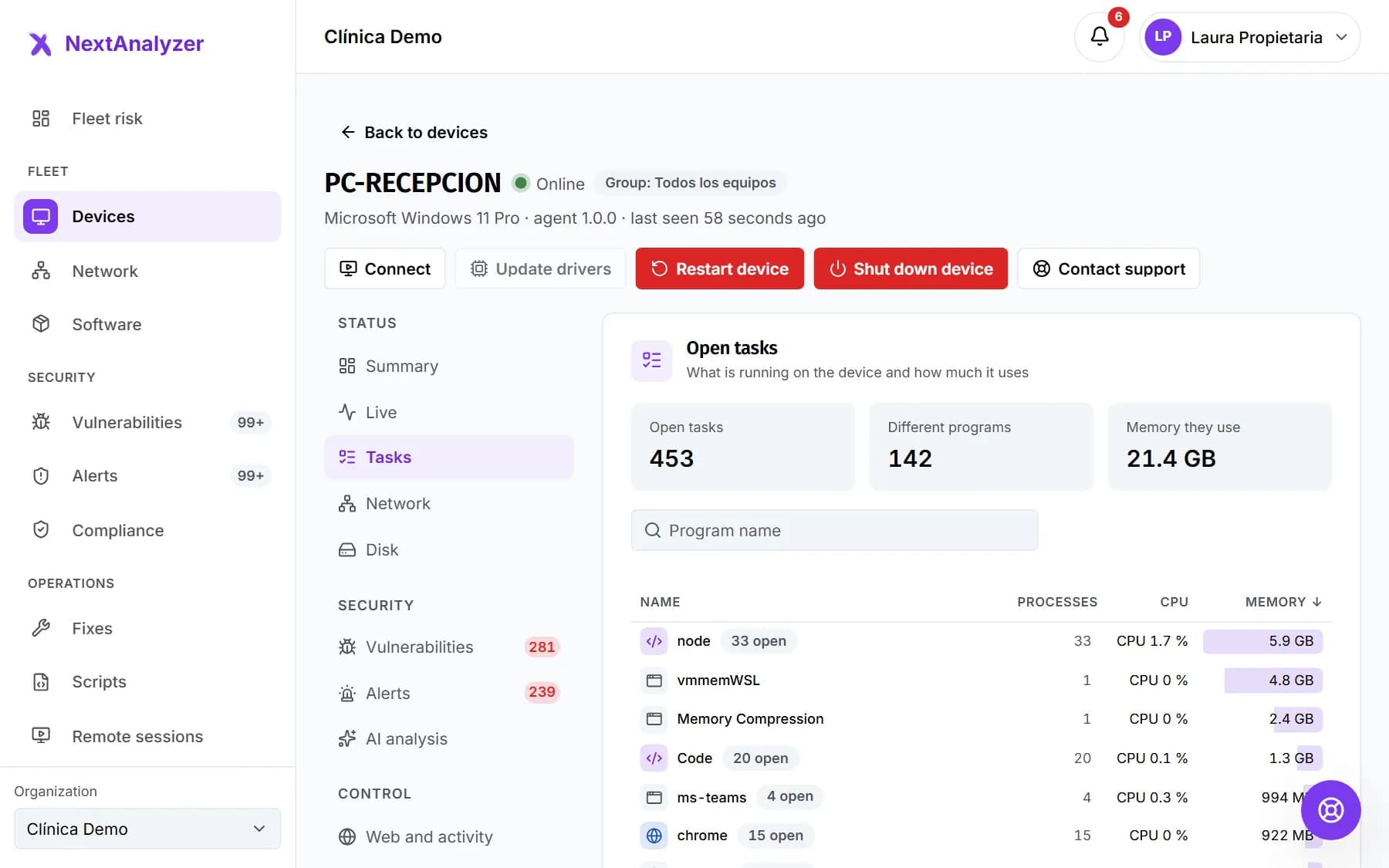
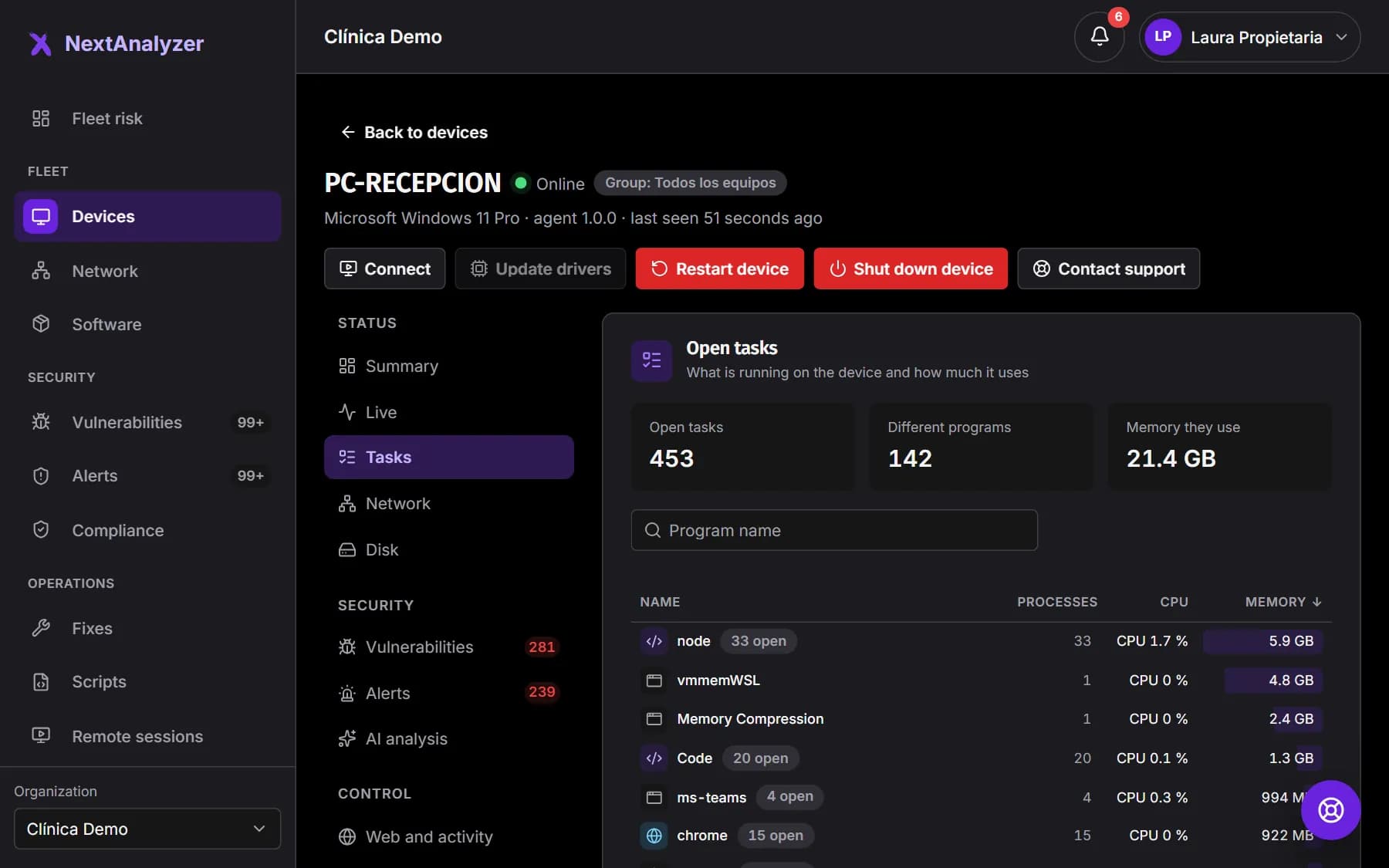
On the device page, Status › “Tasks”. At the top you see the open tasks, the different programs and the memory they use. Below, each program with its processes, CPU and memory.
Expected result: You see the open programs sorted from most to least memory.
Search and sort
Type a program name in “Search tasks”. With “Sort by”, choose “Most memory”, “Most CPU” or “Most open”.
Expected result: The program you're looking for, or the heaviest one, is at the top of the list.
See the full list
By default the heaviest ones are shown. Click “Show all … tasks” to open the whole list, up to 200 programs with all their tasks together.
Expected result: All the device's open programs appear.
Compare with what's happening now
The Tasks tab uses the device's latest inventory, which arrives every 15 minutes. To see current usage, open Status › “Live” and look at “Top processes by CPU”.
Expected result: You see the ten heaviest processes, refreshed every 5 seconds.
Open Tasks in the app
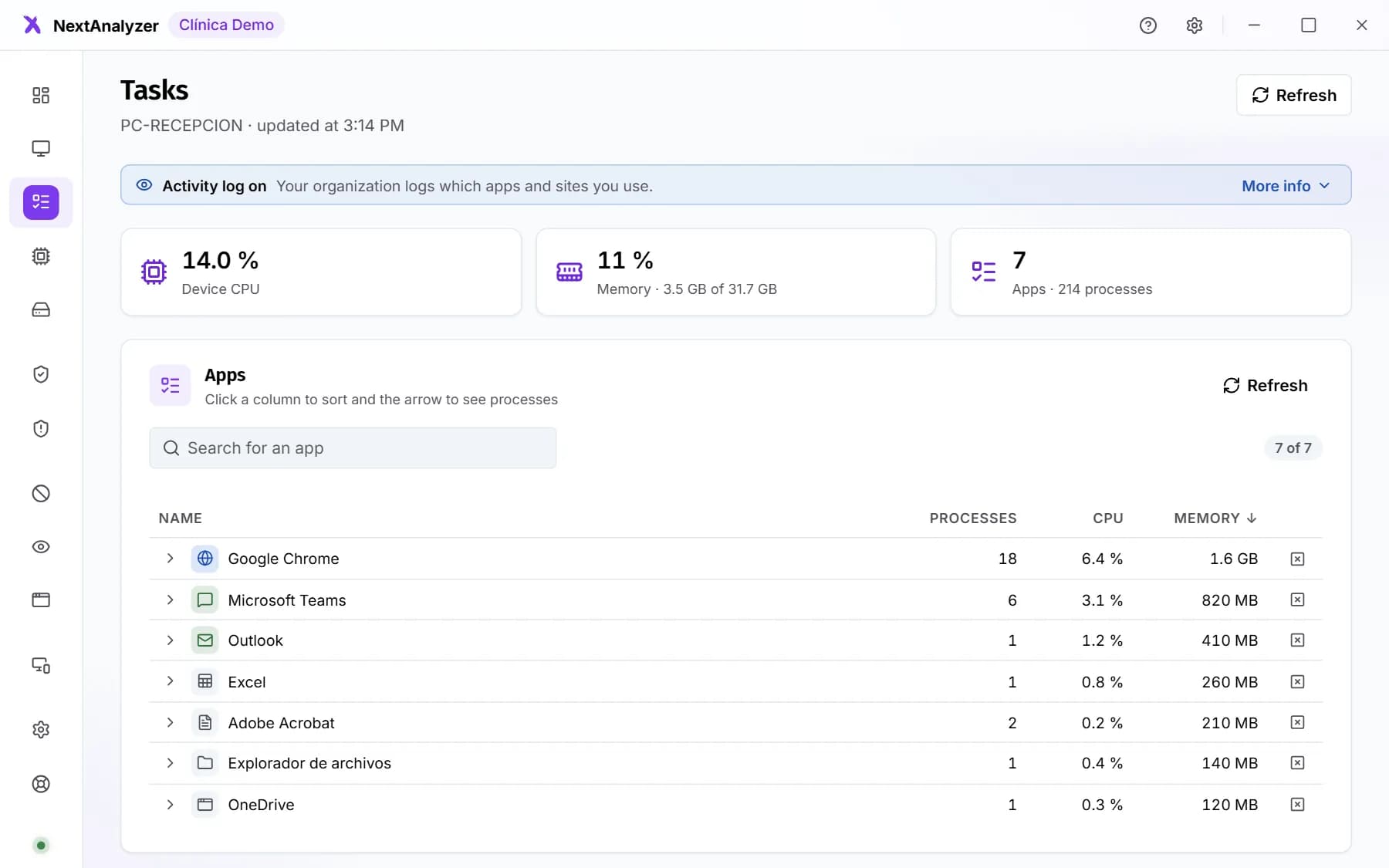
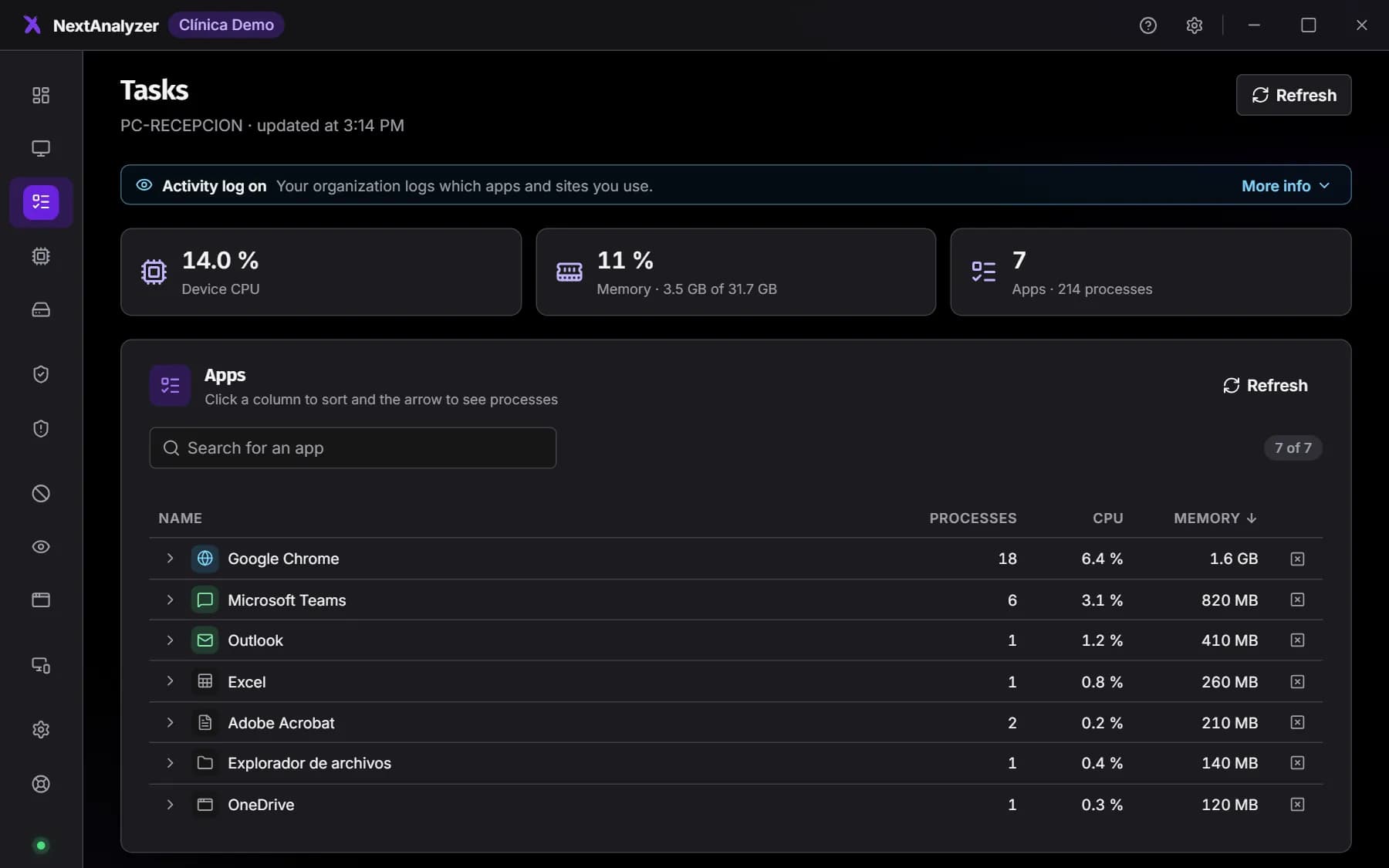
On the device, open the NextAnalyzer app and go to “Tasks”. You see the device's CPU and memory and each app with its processes. Click a column to sort.
Expected result: You see what's open on the device right now, with each program's icon.
Tip: Click “Refresh” to read the list again, and an app's arrow to see its processes.
End a stuck program
In the app, click the X of the program or of one of its processes. In “End …?”, click “End”.
Expected result: A notice says it has been ended and the program disappears from the list.
Tip: Anything not saved in that program is lost, and it can't be undone.
Do it yourself remotely
If the person doesn't know how to close it, connect with “Connect” in the device page header and end the program yourself on their desktop.
Expected result: The program closes without you having to go to the desk.
If something goes wrong
A program has a padlock and can't be ended
It's a system process or part of the agent itself: “System or this agent: cannot be ended”. They're protected so the device doesn't become unstable. If it's really stuck, restart the device.
It says some processes could not be closed
The app ends processes with the permissions of the person using the device. Processes of another user or running as administrator can't be closed from there. Close them with remote access or restart the device.
The dashboard doesn't show the same as the app
The dashboard Tasks tab comes from the latest inventory, which arrives every 15 minutes; the app reads the current moment. For real-time usage from the dashboard, use the Live tab.
The app says “Open apps cannot be read”
Close the app window and open it again. If nothing changes, check the logs in the app's “Settings” and make sure the NextAnalyzer service is running.
Still not working? Open a support ticket