
Get help from support
The better you describe the problem, the sooner it's solved. The support assistant asks just enough for the team to help you first time.
Open the support centre
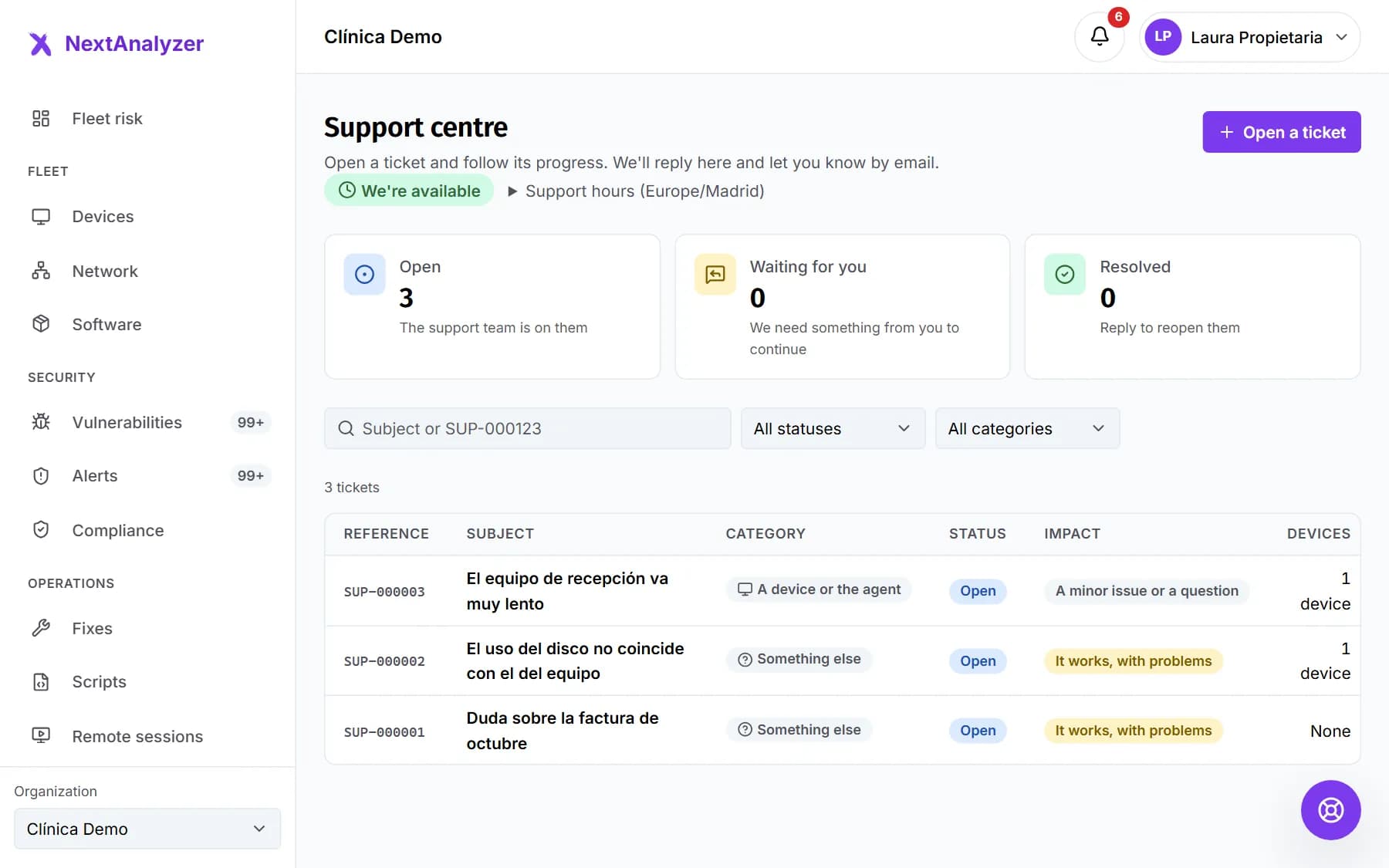
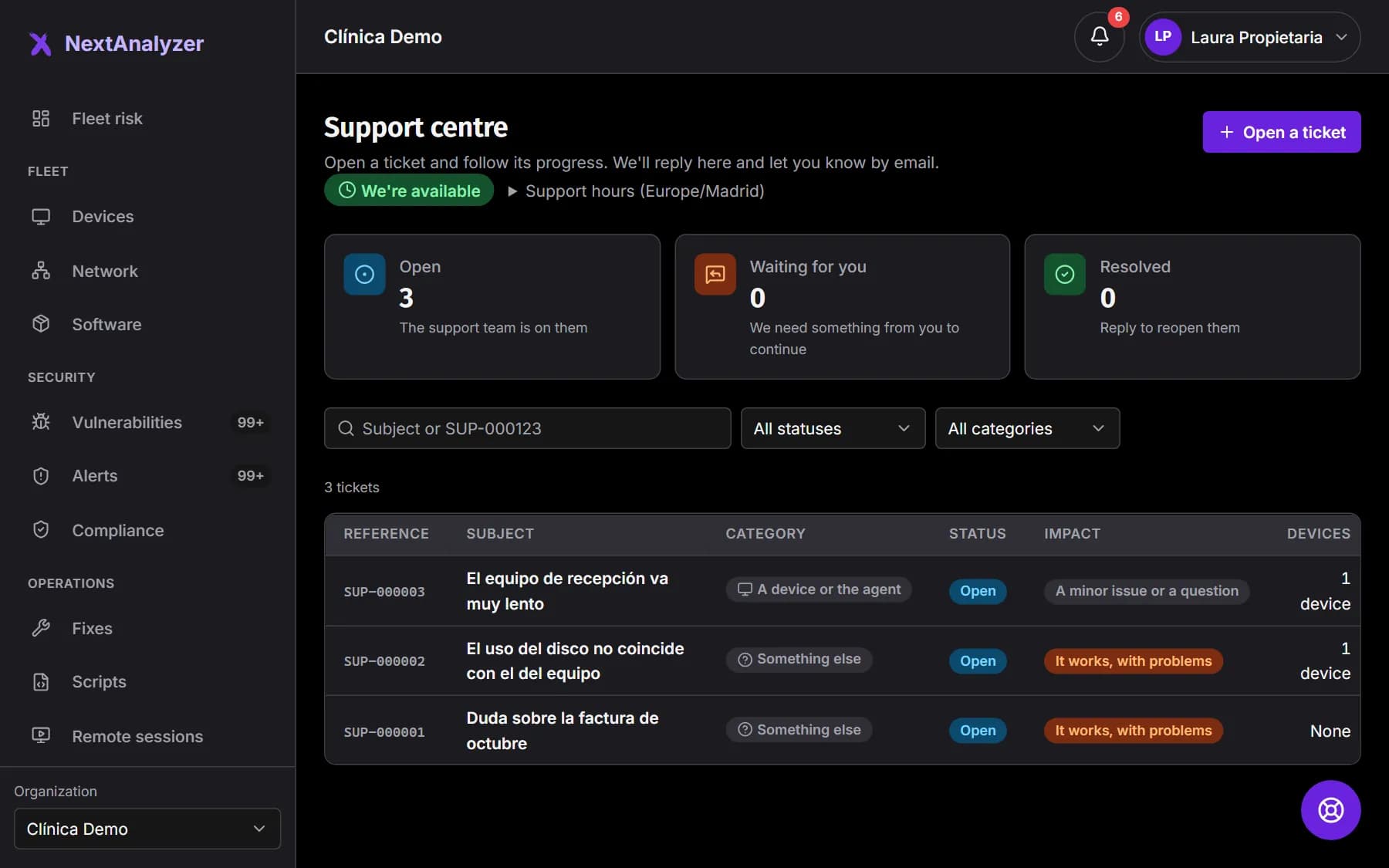
Open Support in the side menu, under Account. At the top you see “We're available” or “Outside support hours”. Below are your open tickets, those waiting for you and resolved ones.
Expected result: You see the “Support centre” with the list of your tickets and their reference.
Tip: You can also open support with the floating button at the bottom right, or with “Contact support” on a device page, which selects that device for you.
Choose the topic
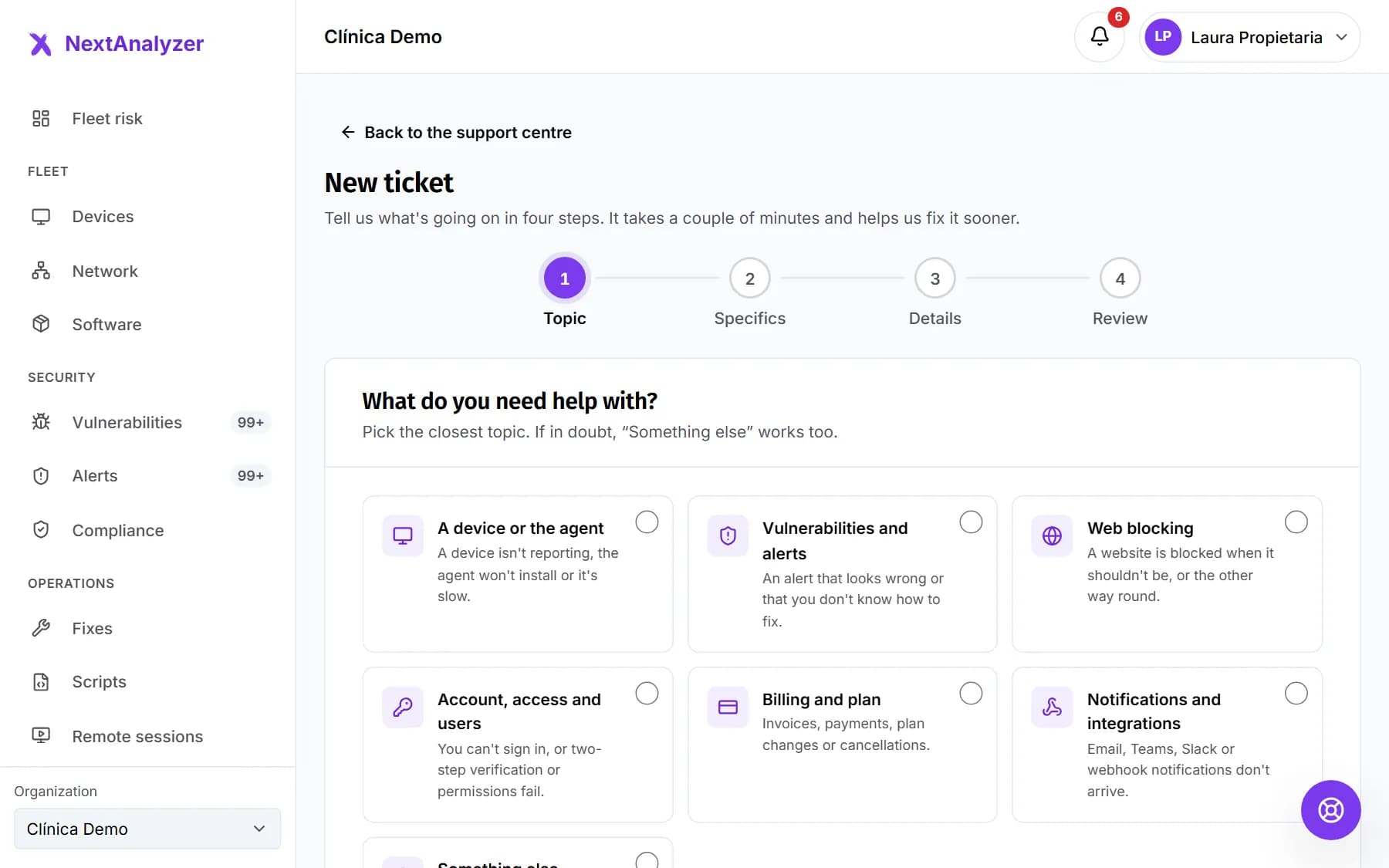
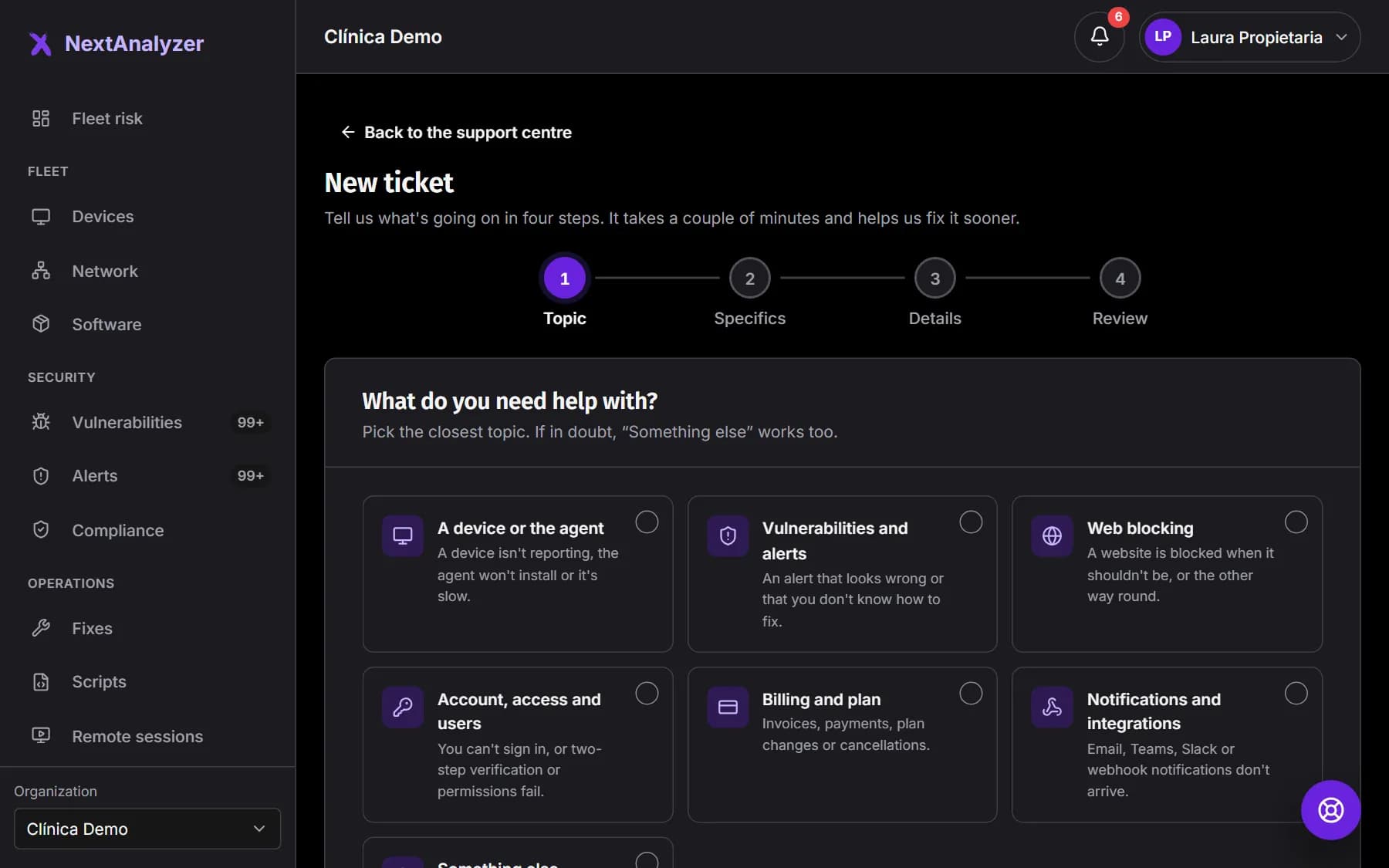
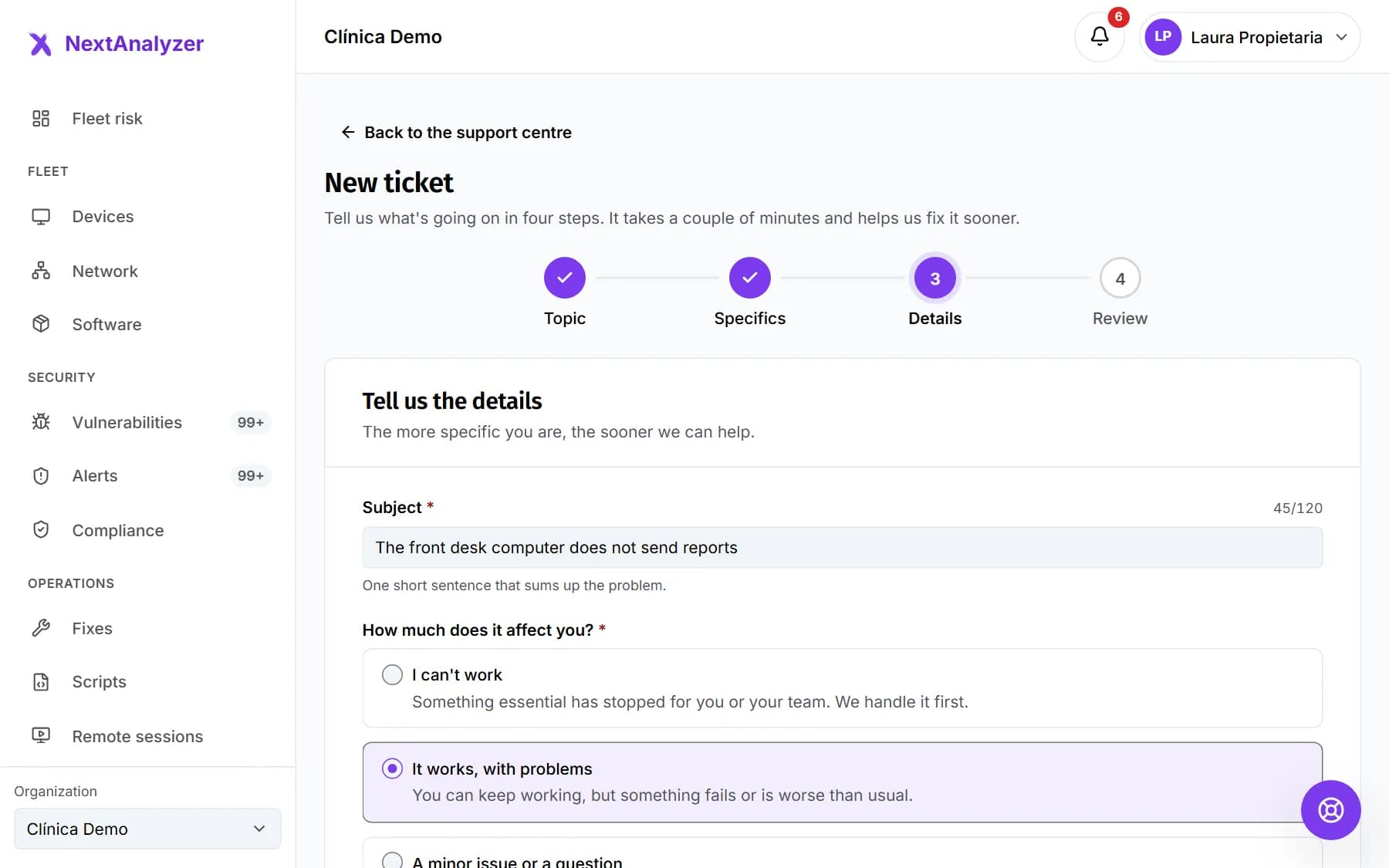
Click “Open a ticket”. The assistant has four steps: Topic, Specifics, Details and Review. First choose the topic, such as “A device or the agent” or “Web blocking”, then what exactly is happening.
Expected result: You move to the Specifics step with that topic's options and a guide that might solve it.
Give the details
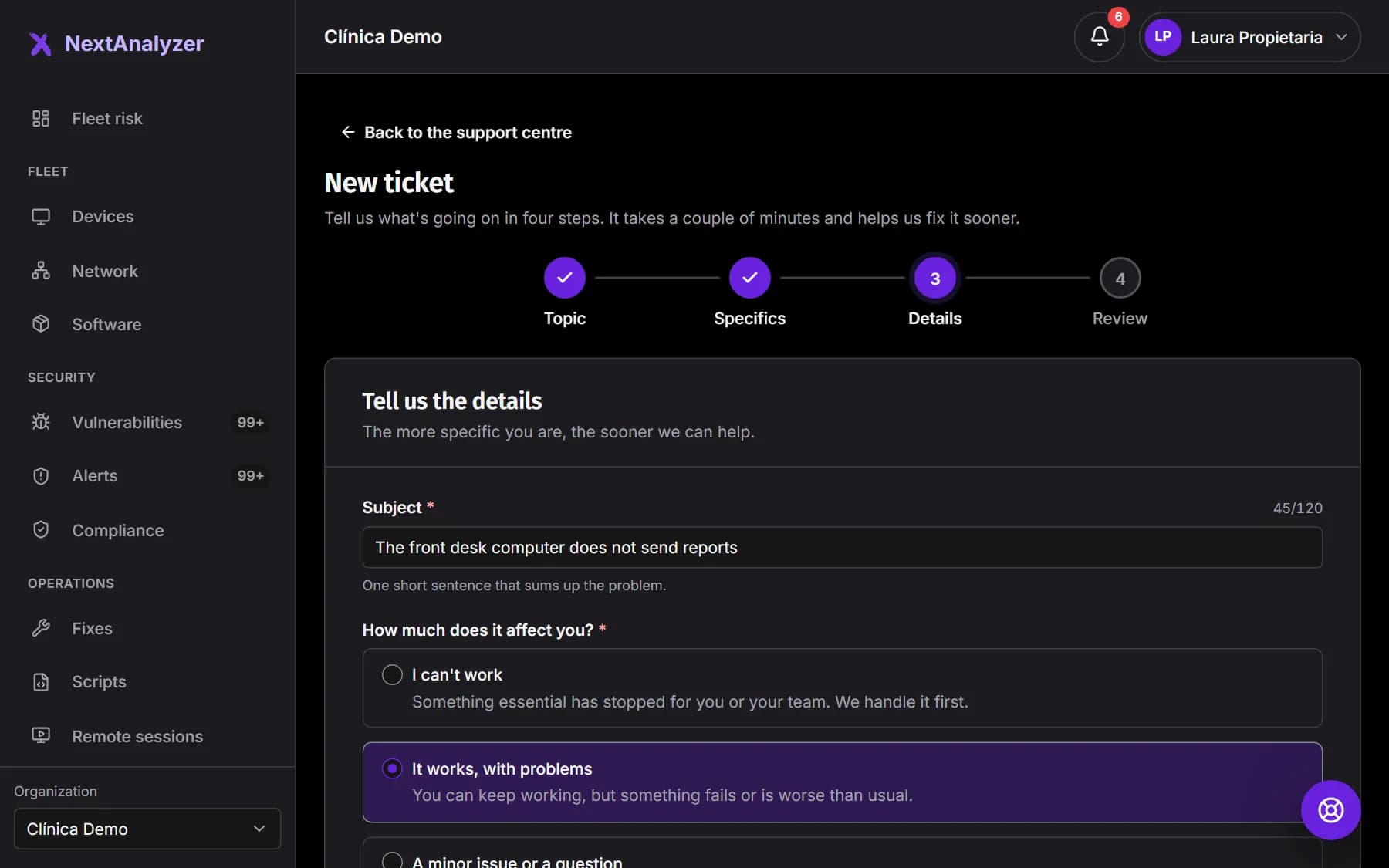
Write the subject and choose the impact: “I can't work”, “It works, with problems” or “A minor issue or a question”. Tick the affected devices, up to 20, and since when it happens. Describe what you expected and what happened.
Expected result: In Review you see the summary and click “Send ticket”.
Tip: Never write passwords or verification codes: we'll never ask for them.
Attach screenshots
In the description and in each reply you can attach up to 3 files: PNG, JPG, WebP or PDF, up to 5 MB. Drag them, paste them or click “Attach files”.
Expected result: Each file shows “Ready to send” before you send the message.
Keep the reference
Once sent, you see “We've received your ticket” with your SUP- reference and a button to copy it. A message in the conversation confirms receipt with that reference. Outside support hours, you also get an out-of-hours notice.
Expected result: You have the SUP- reference copied and the ticket shows as “Open”.
Follow the conversation
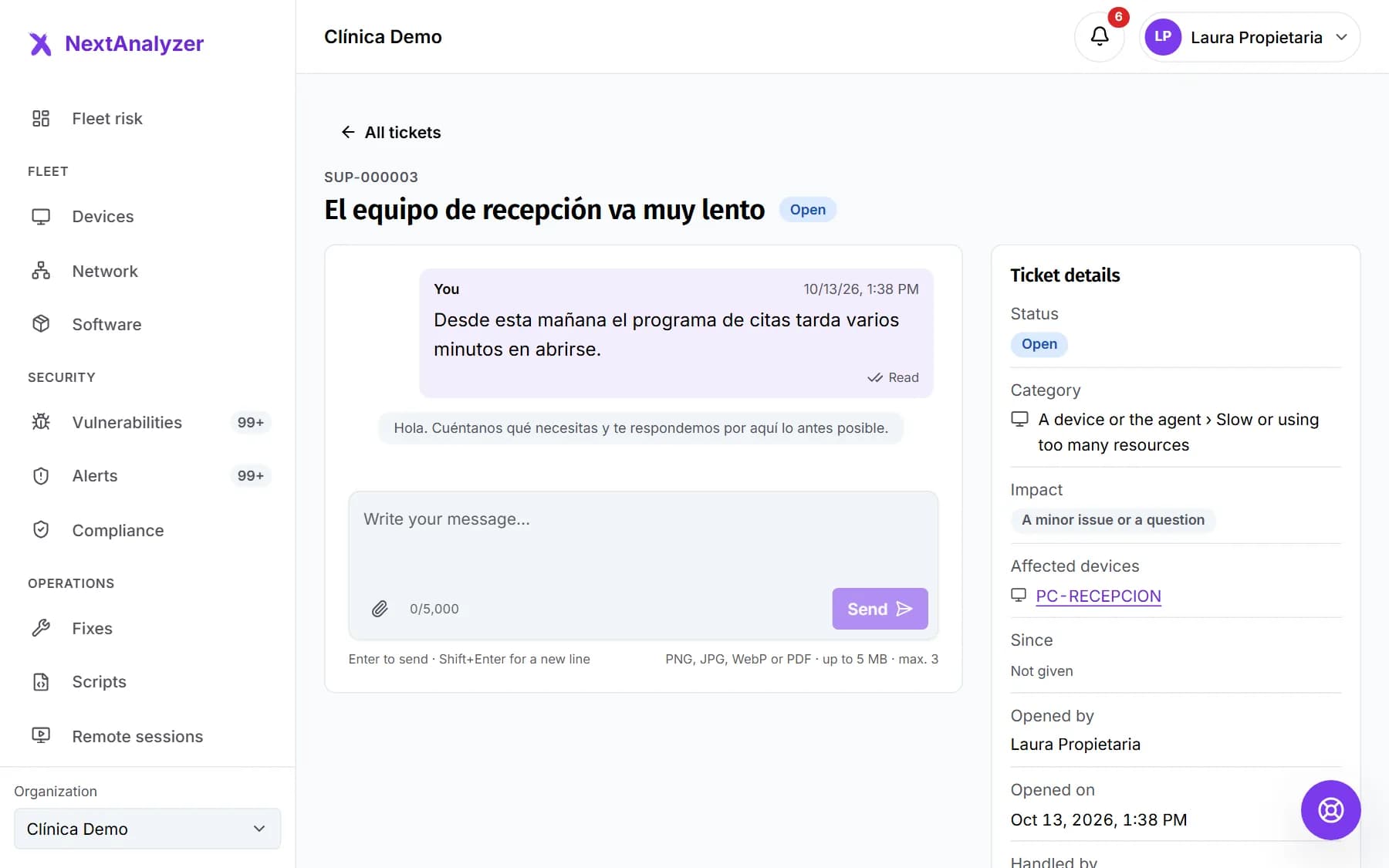
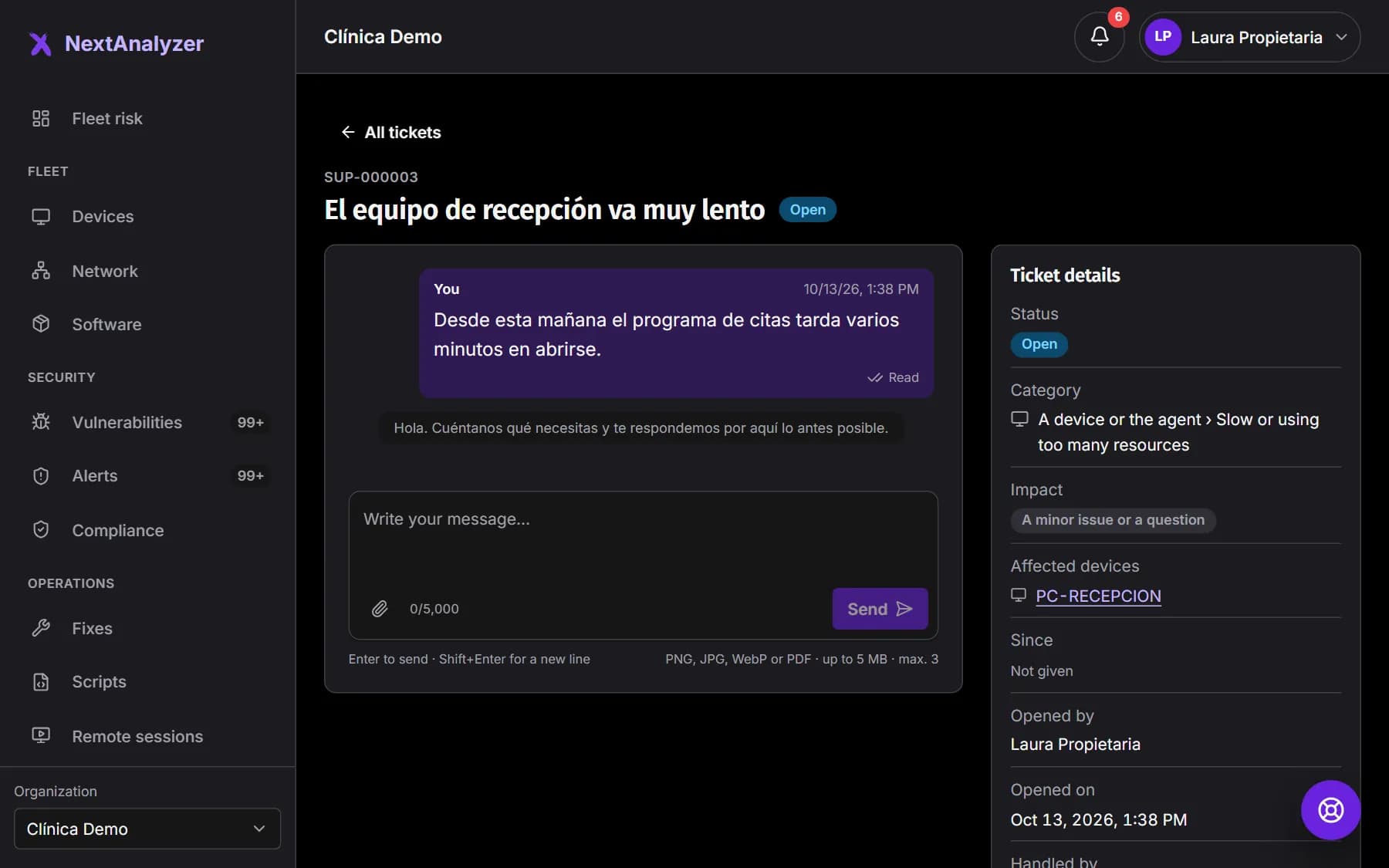
Click “View ticket”. The conversation updates in real time, and on the right you see status, impact, devices and who is helping you. If you don't read a reply for a while, we let you know by email.
Expected result: When we need something from you, the status changes to “Waiting for you”.
Tip: If you reply to a resolved ticket, it reopens.
Rate the help
When it's resolved, the ticket shows “How did we do?”: choose 1 to 5 and, if you like, leave a comment. A few minutes later you get a single email to rate it with stars, with no reminders.
Expected result: You see “Thanks for your rating” and the score stays on the ticket.
Understand support access
To look into your organization, support uses a temporary, read-only 60-minute access with a reason. The owner gets an email. In Settings › Organization, “Support access” lists each access and lets you revoke it.
Expected result: You see when support accessed, why and whether access is still “In progress”.
Remote access by official support
If they need to connect to a device, the person using it must always accept. They'll see the “Official NextAnalyzer technician” badge, the technician's name and the reason. It lasts at most 60 minutes, isn't recorded and stays in the history.
Expected result: The session shows in Remote sessions with official support as its origin.
Tip: The remote access policy decides it with “Official NextAnalyzer support”, on by default.
If something goes wrong
When will you reply?
The support centre shows whether we're available and our hours. Outside hours, open the ticket anyway: we'll review it when we're back and email you. Tickets marked “I can't work” are handled first.
I can't see a colleague's ticket
Each member only sees their own. Administrators and the owner see and reply to all of the organization's tickets.
It won't let me attach a file
Only PNG, JPG or WebP images and PDFs up to 5 MB are allowed, with at most 3 per message. For a text log, take a screenshot or save it as PDF.
Support asks to access my organization
It's a temporary 60-minute, read-only access with a reason. The owner gets an email and sees it in Settings › Organization, where they can revoke it. Support never sees activity history.
Can support connect to a device without permission?
No. A support session always asks the person using the device, even if your policy is unattended. You can end it any time or turn off “Official NextAnalyzer support” in the remote access policy.