
Create and run signed scripts
Scripts let you do on many devices what you would do by hand on one. Only scripts from your library run. An administrator approves each version, the platform signs it and the agent checks the signature before running it.
Open your library
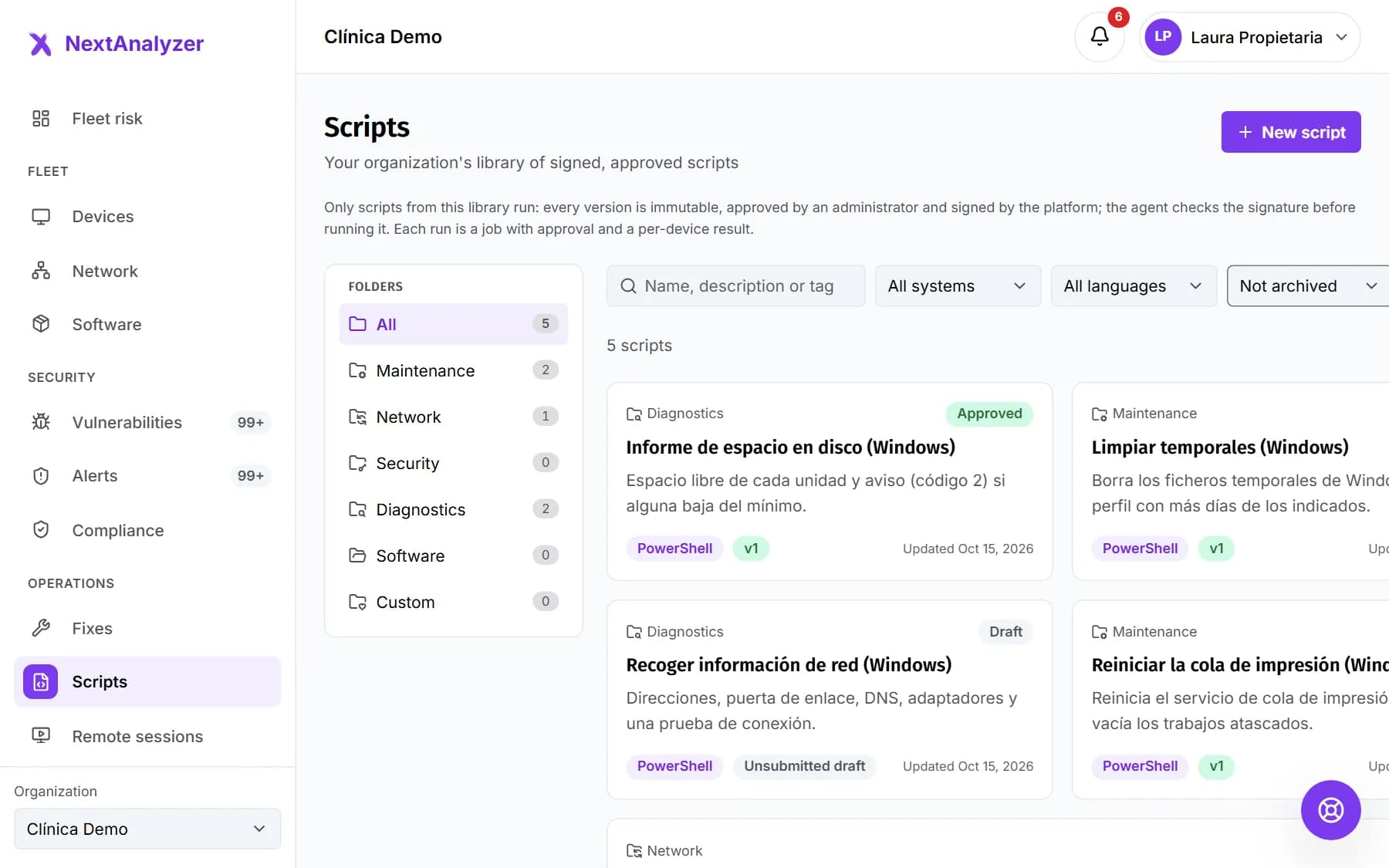
In the menu, Operations › “Scripts”. Sort them by folder (Maintenance, Network, Security, Diagnostics, Software and Custom) and tag. Filter by system, language and status, in “List” or “Cards” view.
Expected result: You see each script with its folder, its status and its approved version.
Tip: Archived scripts are hidden. Click “Show archived scripts too” to see them.
Start from scratch or from a template
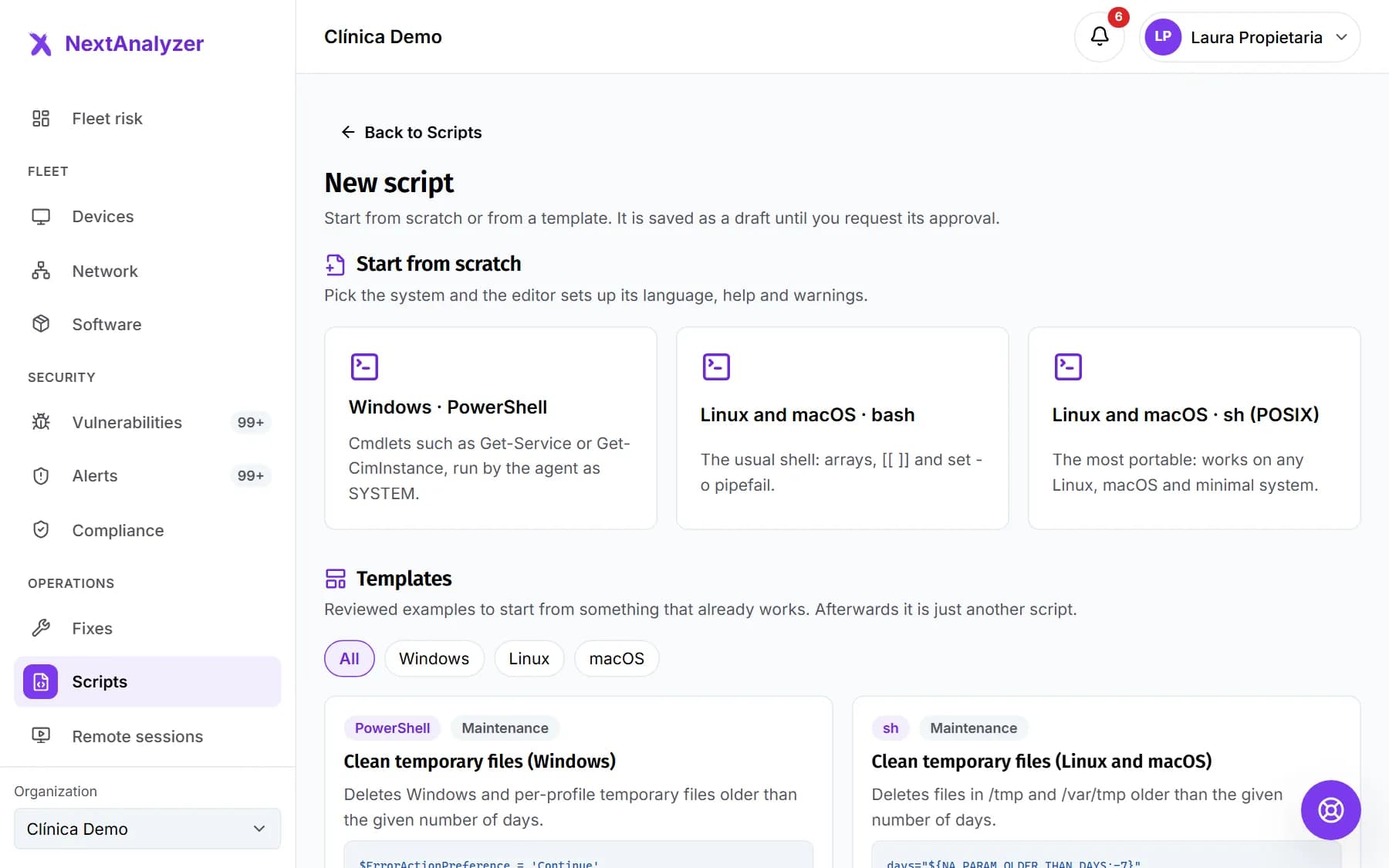
Click “New script”. In “Start from scratch”, choose Windows · PowerShell, Linux and macOS · bash or Linux and macOS · sh (POSIX). Or use a reviewed template: temp files, print queue, DNS cache, network, disk space or restarting a service.
Expected result: The editor opens with the chosen language, its help and its warnings.
Write the script
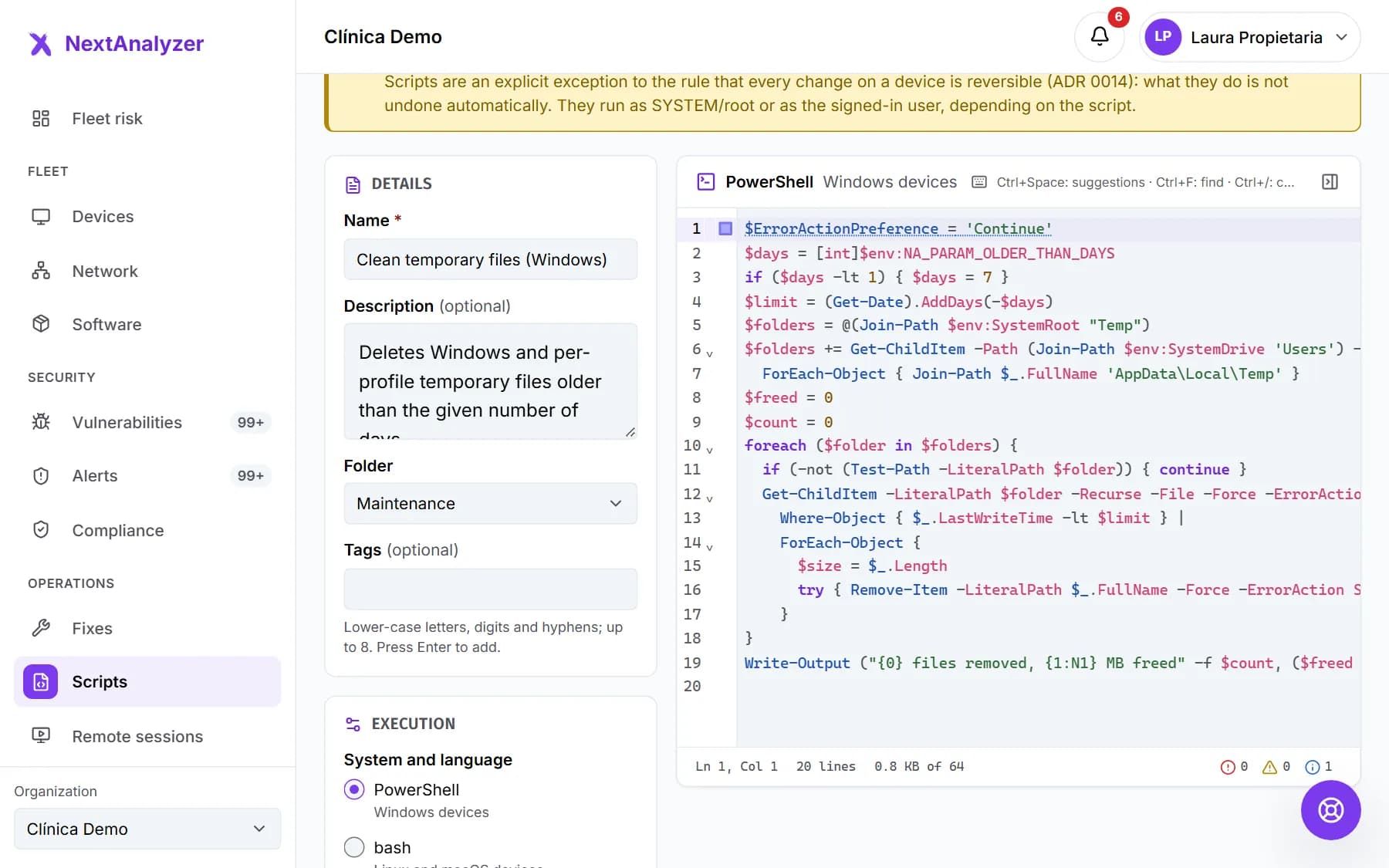
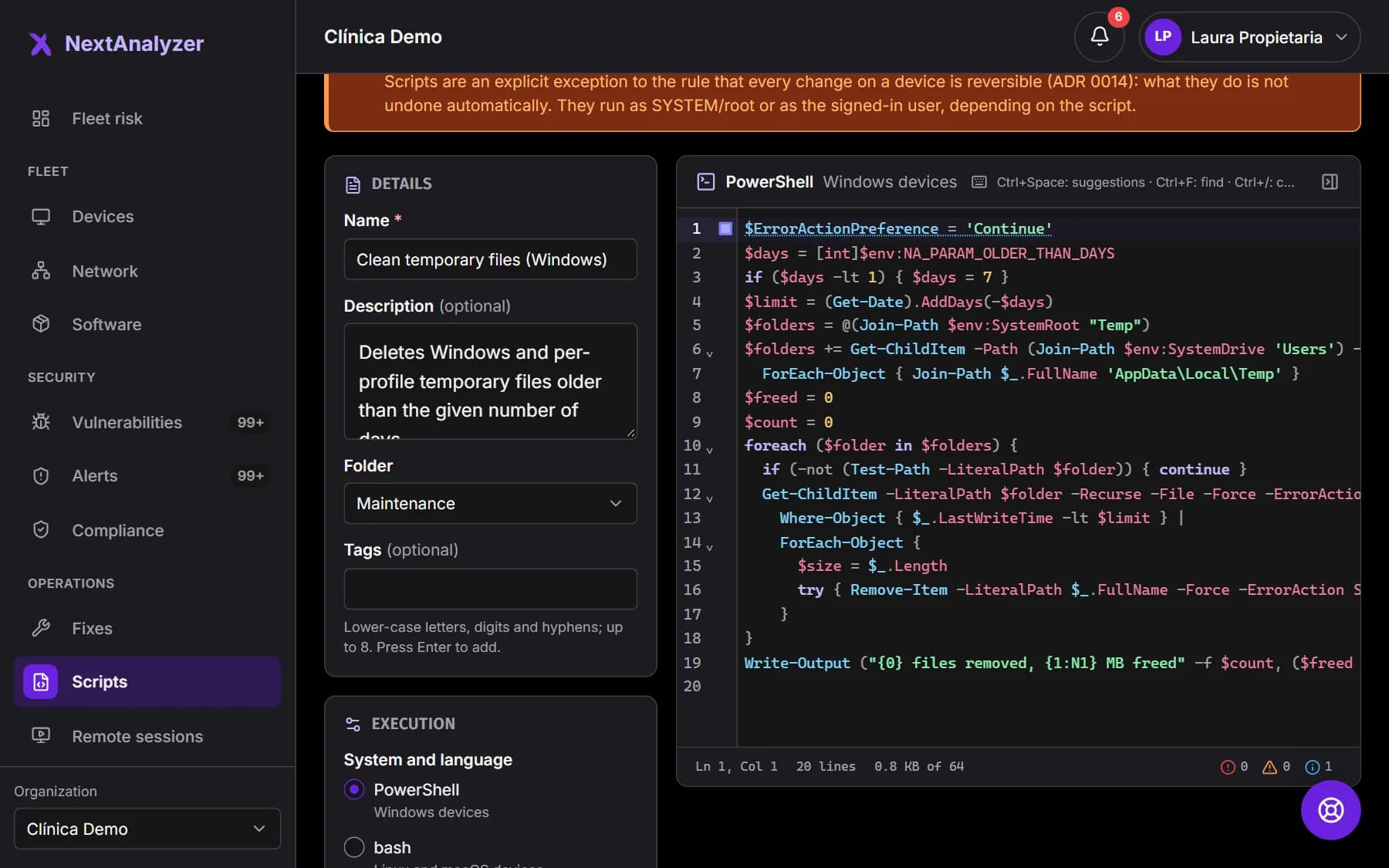
On the left, “Details” (name, description, folder and up to 8 tags) and “Execution”: how it runs and the time limit (10 to 3600 seconds). On the right, the code. Ctrl+Space suggests commands and “Show help” opens the reference and snippets.
Expected result: “Problems” flags what is “Dangerous” (wiping a disk, turning off the antivirus) and what you should “Review”.
Tip: “As SYSTEM / root” has full permissions. “As the signed-in user” only runs if someone is signed in.
Add parameters
Click “Add parameter”. Enter an uppercase name, a label and the type: text, number, yes/no or list. Set the default value and whether it is required. You can have up to 10.
Expected result: The parameter reaches the script as an environment variable named NA_PARAM_ followed by its name.
Tip: “Insert the variable into the code” writes it for you with each language's syntax.
Save and request approval
“Save draft” saves it without sending it. “Save and request approval” sends it to the administrators. From then on, that version no longer changes.
Expected result: The script shows as “Pending approval” in the library.
Approve the version
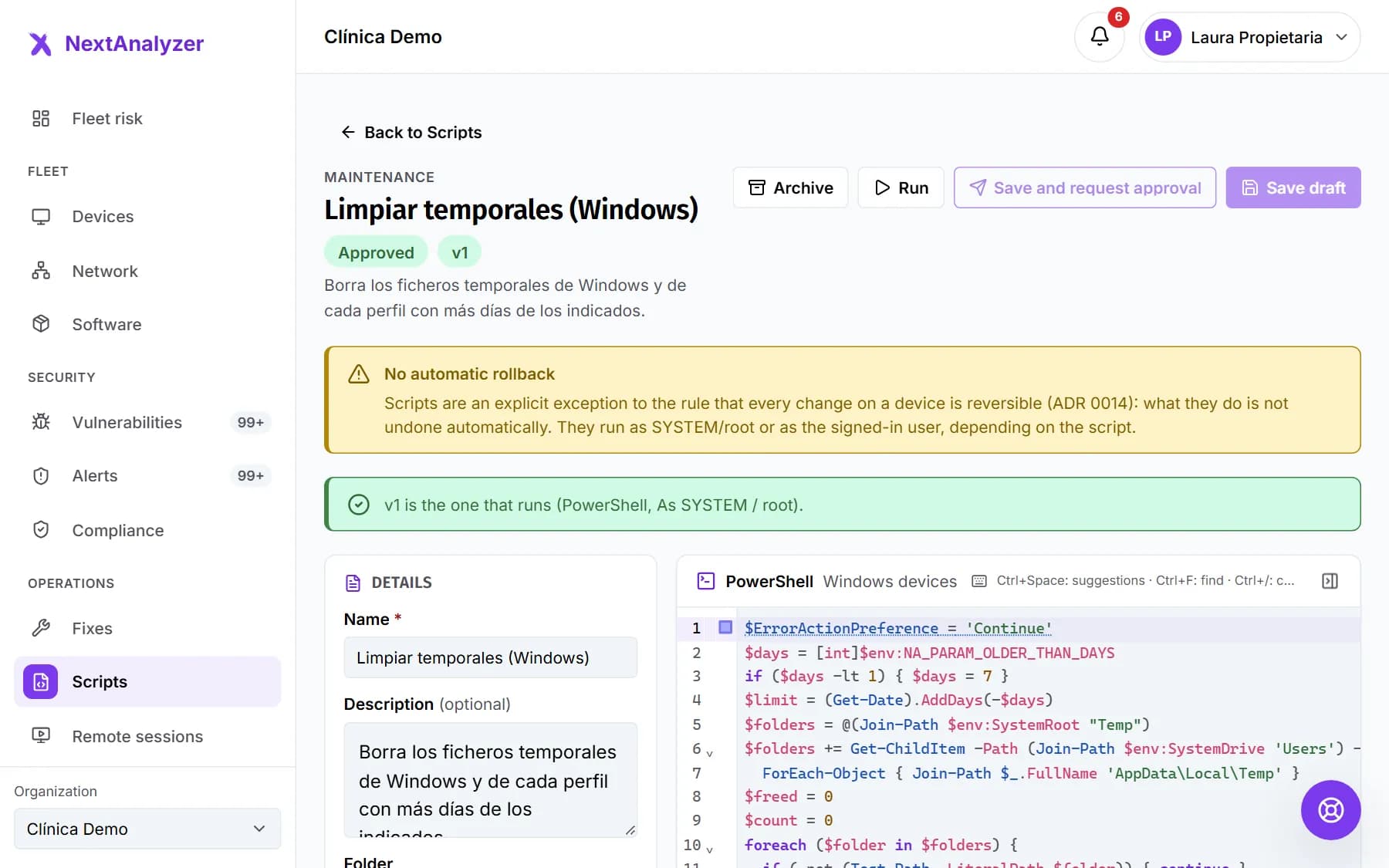
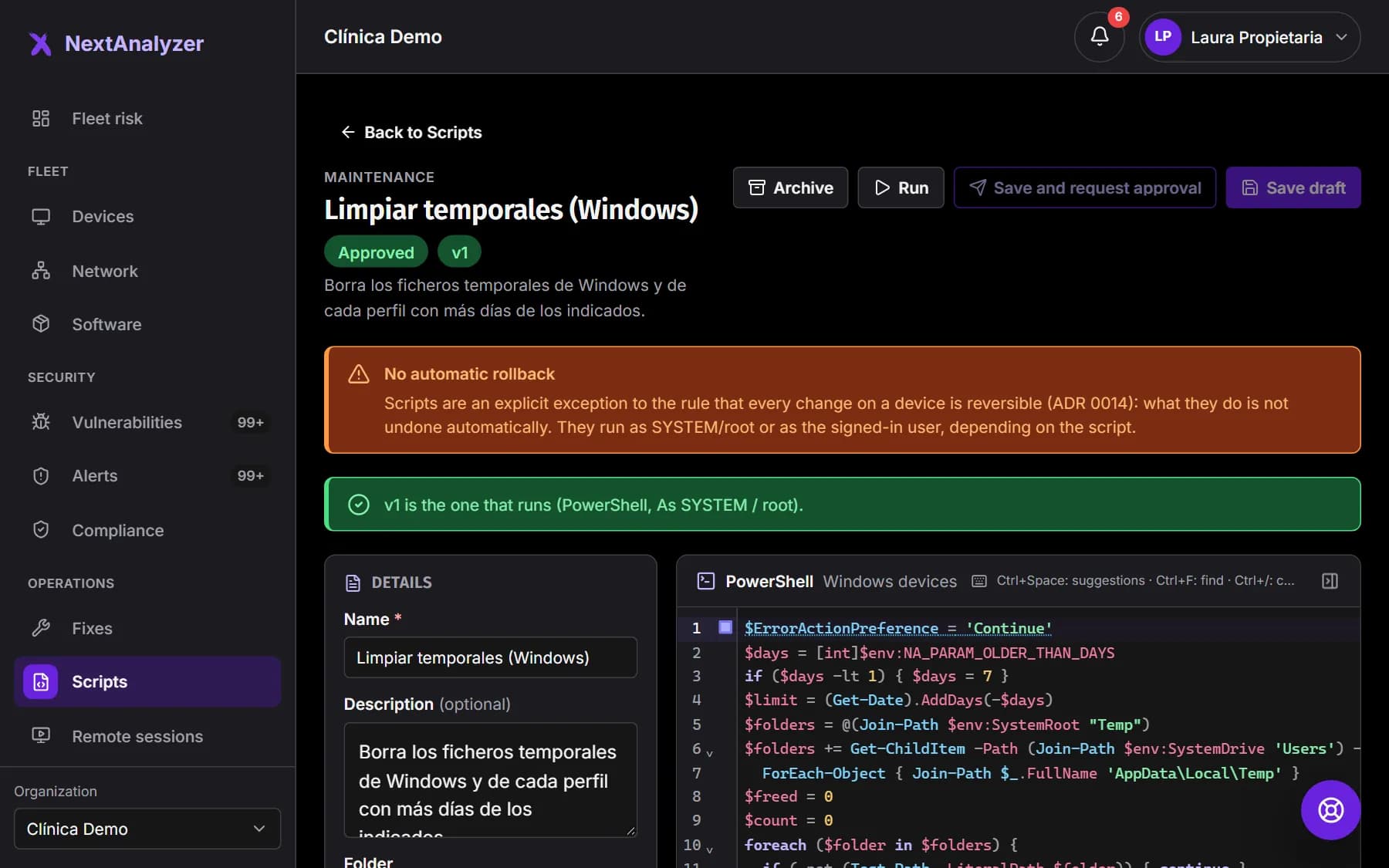
An administrator or the owner opens the script, reviews the code and clicks “Approve” or “Reject” with a reason. On approval, the platform signs it. To change it, create a “New version”: the approved one keeps working until the new one is approved.
Expected result: The page shows the version that runs and the “Signed by the platform” mark.
Tip: In the “Versions” tab, “Compare” shows what changed between two versions.
Test it on one device
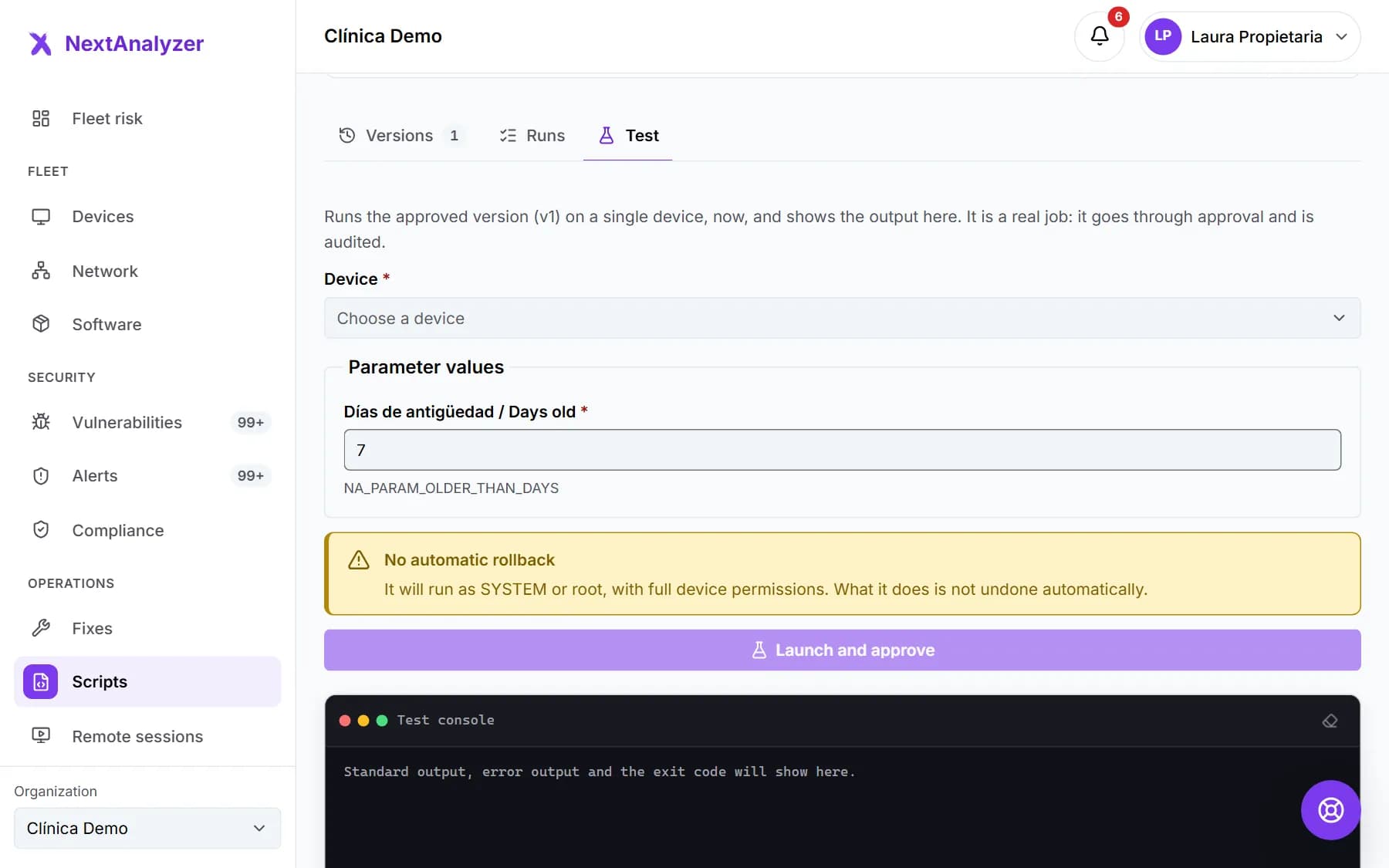
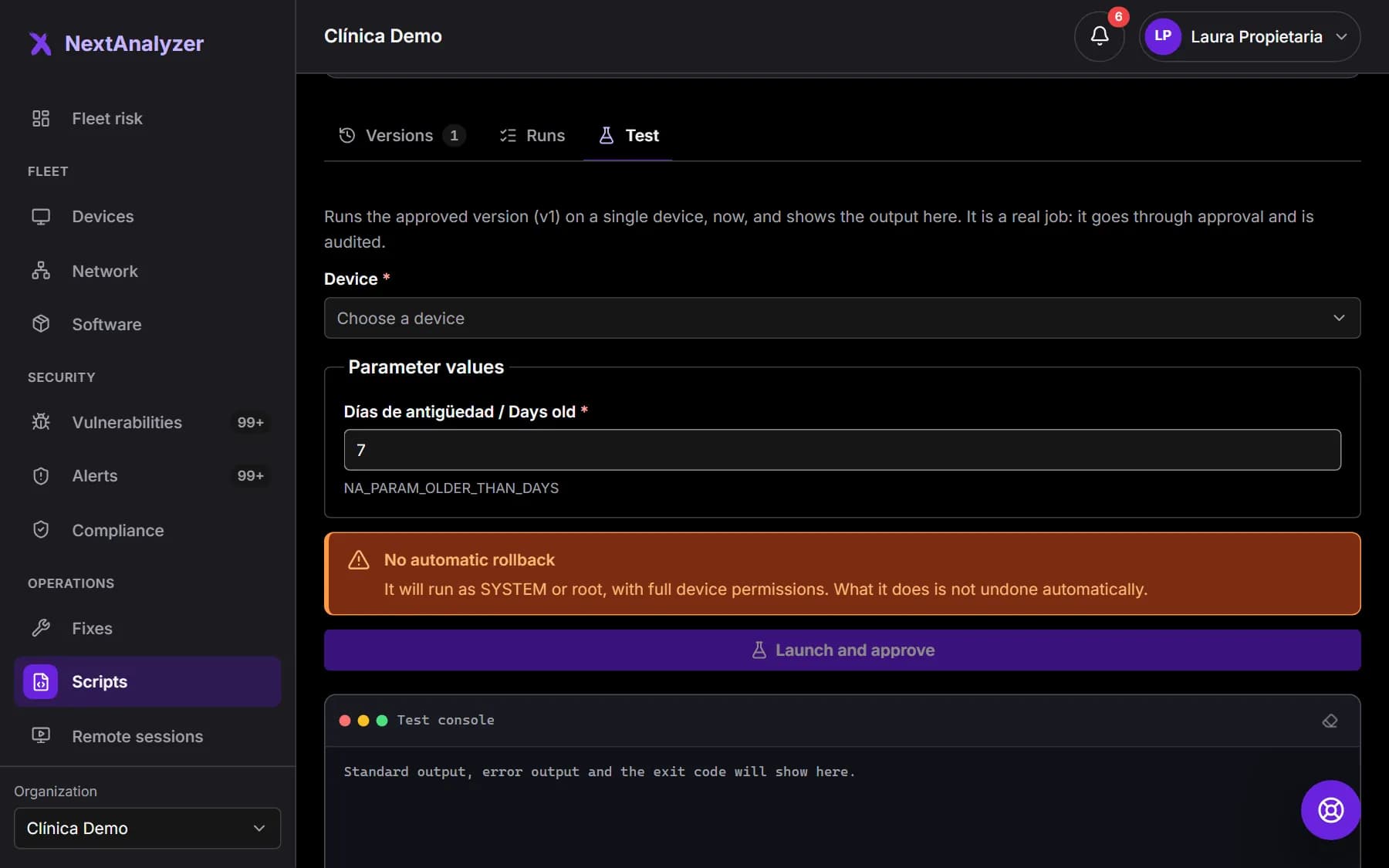
In the “Test” tab, choose a device, fill in the values and click “Launch test”. It runs the approved version, not unsaved changes in the editor. It is a real job: it goes through approval and is audited.
Expected result: The console shows the standard output, the error output and the exit code.
Run it on your devices
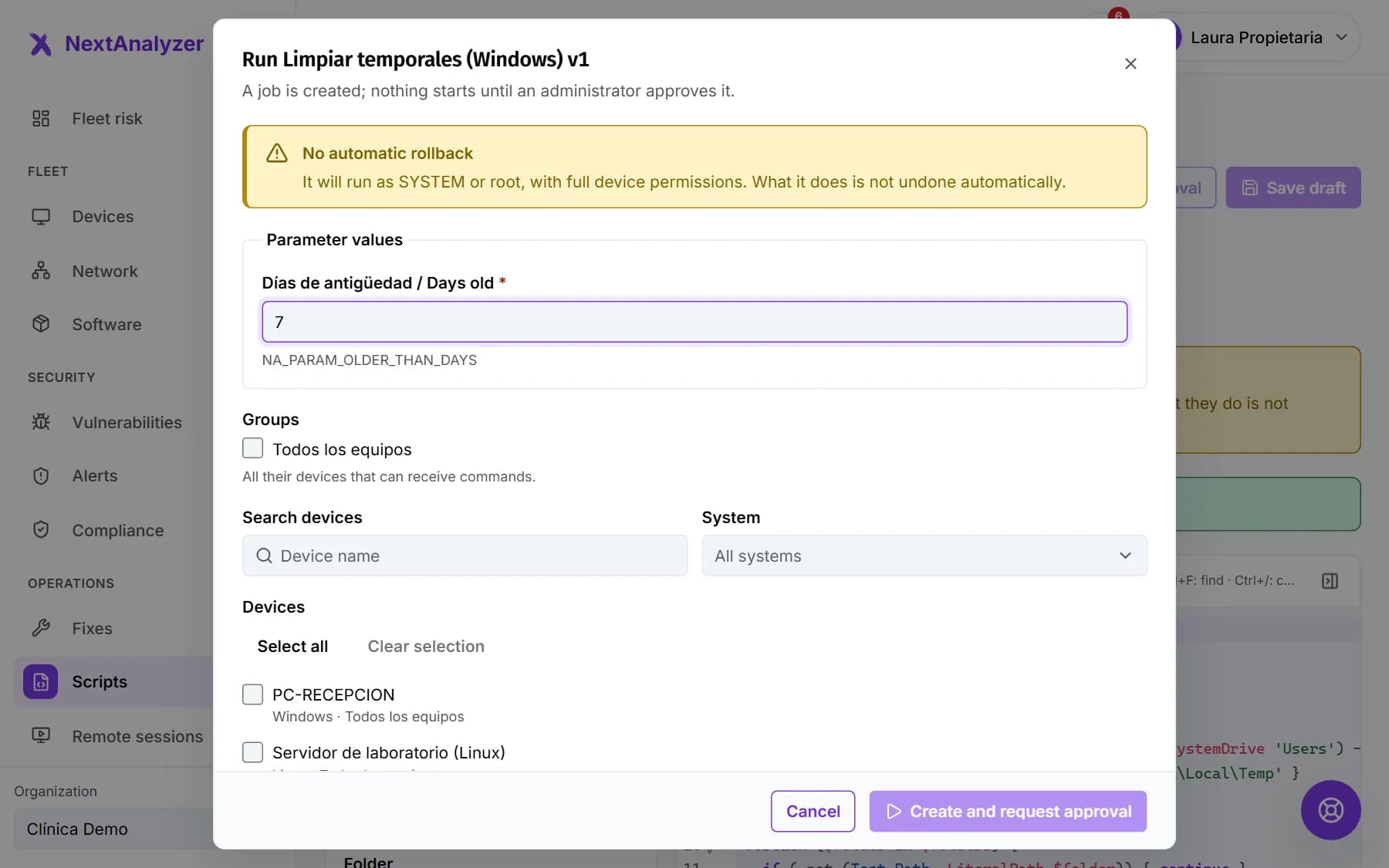
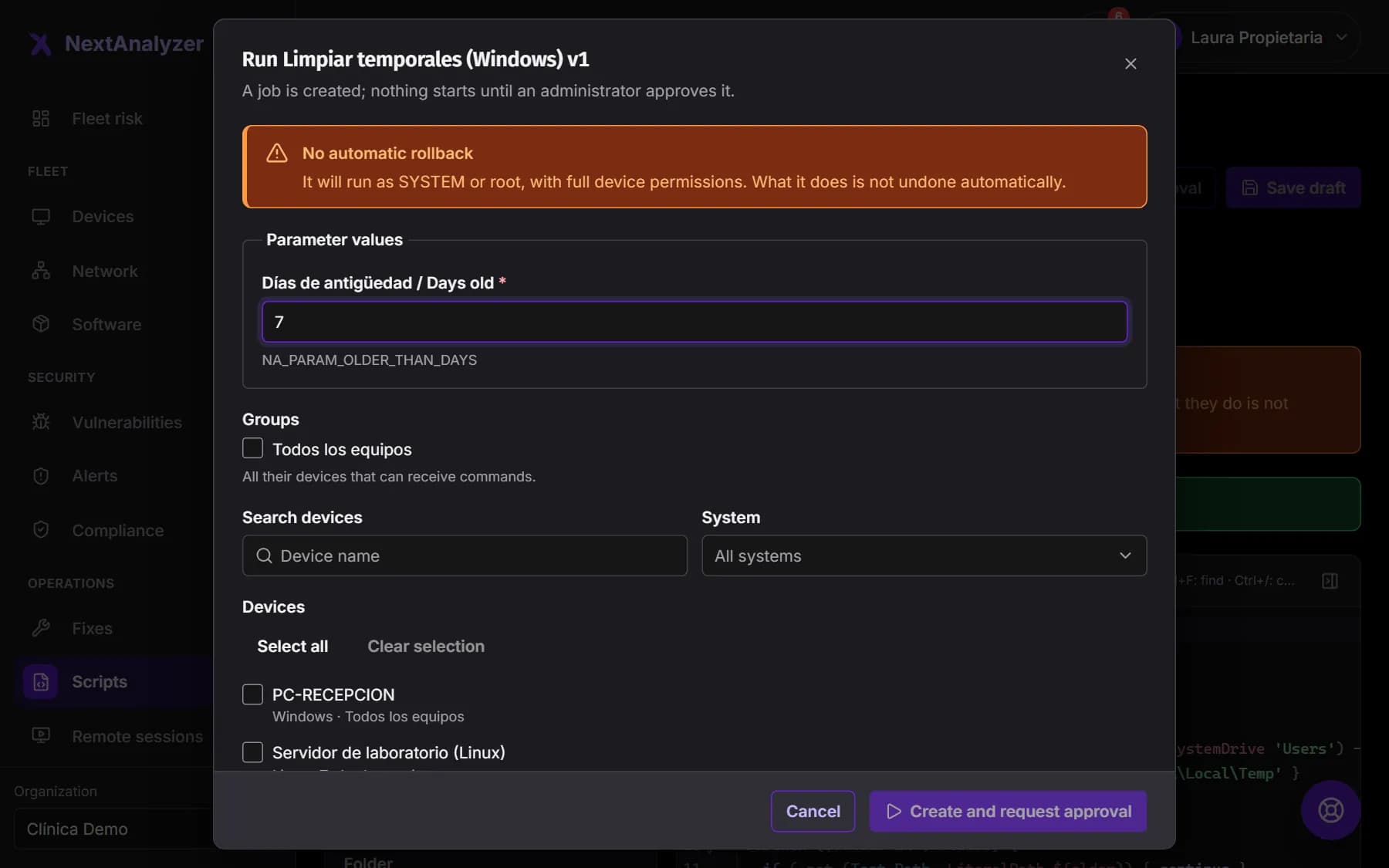
Click “Run”. Fill in the “Parameter values” and choose groups or devices. Choose when: “As soon as it is approved” or “In the next maintenance window”. Turn on “Try it first on pilot devices” to play it safe. Click “Create and request approval”.
Expected result: A job is created and waits for approval. If you are an administrator, “Create and approve” launches it right away.
Tip: The person using the device sees a 60-second countdown notice before it starts.
Check the result
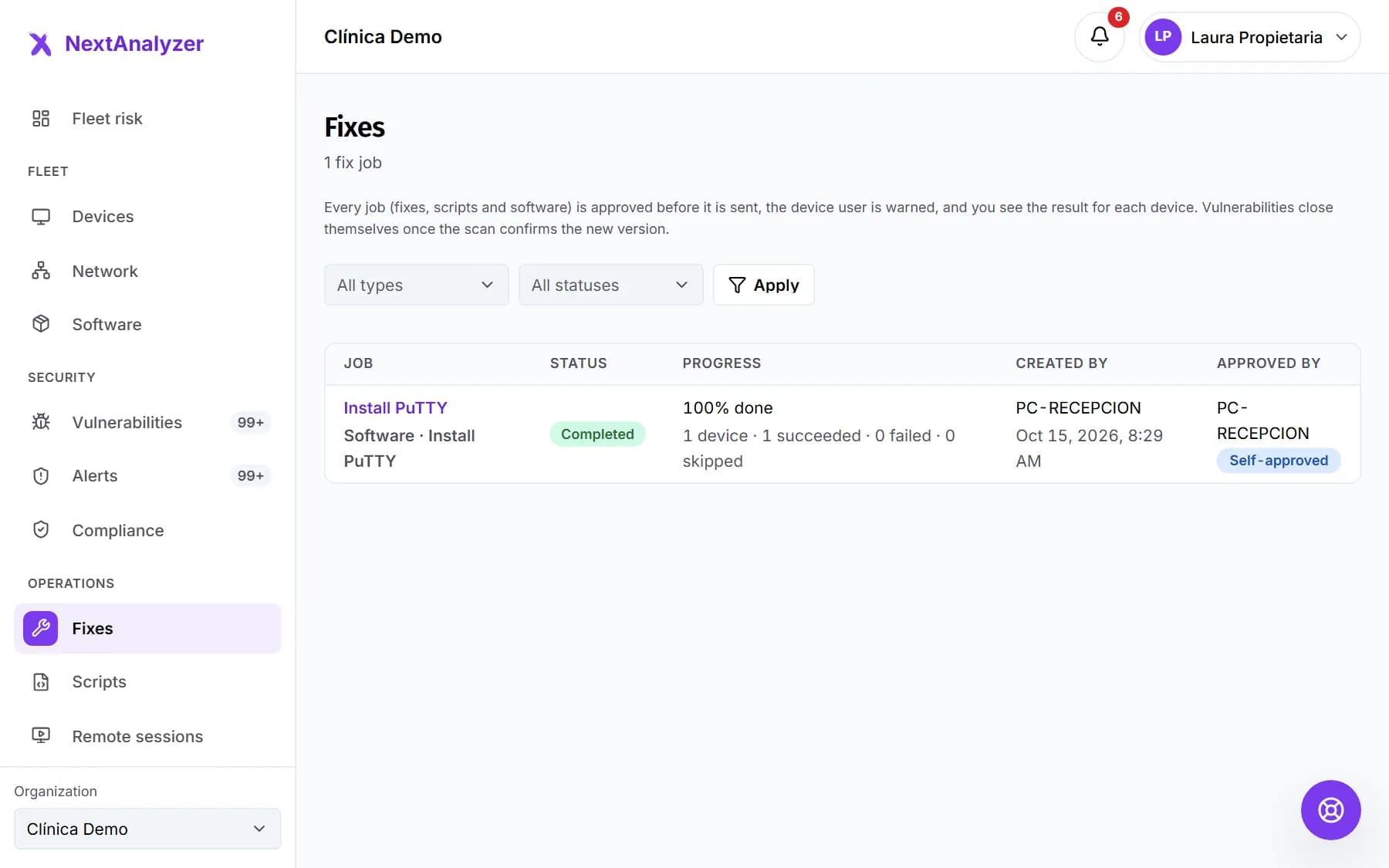
Each run is a job in Operations › “Fixes”. Open it to see each device: “Succeeded”, “Failed”, “Skipped” or “Pending”. Click “Show output” to read what it returned.
Expected result: You see each device's standard output, error output and exit code.
Tip: On the script page, the “Runs” tab lists its latest jobs.
If something goes wrong
A device shows as “Skipped”
The script is for another system: PowerShell only runs on Windows; bash and sh on macOS and Linux. It also happens if the device is retired or did not report back in time. The reason is shown next to the device.
The script doesn't run
Check the job status in Fixes. “Awaiting approval” waits for an administrator. If you chose the maintenance window, it waits for the group's window to open. A device that is off gets it when it reconnects.
It says “It finished with a non-zero exit code”
The script ended with an error. Click “Show output” on that device: the error output usually says what happened. Fix it in a new version and try it from “Test” before launching it again.
It says “Nobody was signed in”
The script runs “As the signed-in user” and nobody was signed in on that device. Launch it when someone is, or switch the execution to “As SYSTEM / root” in a new version.
The device rejects the script because of the signature
The agent only runs what the platform signed. Messages such as “The signature is not valid and the device did not run it” or “The device does not recognise the platform signing key” mean something does not match. Don't force it: open a ticket in Support.
Still not working? Open a support ticket