
Apply fixes and follow their result
A fix updates a vulnerable program or installs Windows Update patches on the affected devices. Each fix is a job: it is approved, it warns the person using the device and it gives a result per device.
Click “Apply fix”
You find it on a CVE page, in a device's “Vulnerabilities” tab and on a program's page. On the CVE page it is in the section for applying fixes remotely.
Expected result: A dialog opens to apply the fix, with the program and the affected devices.
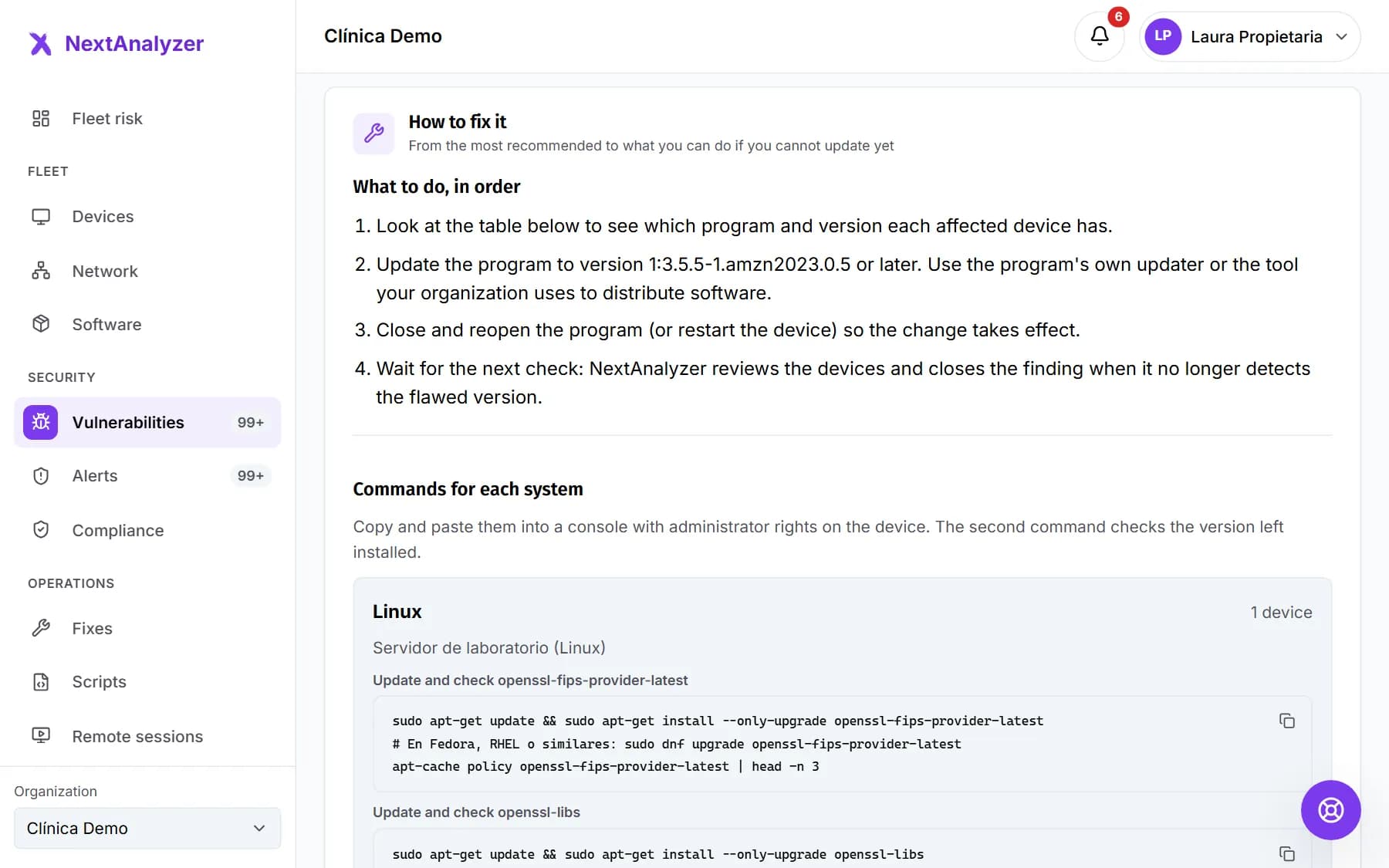
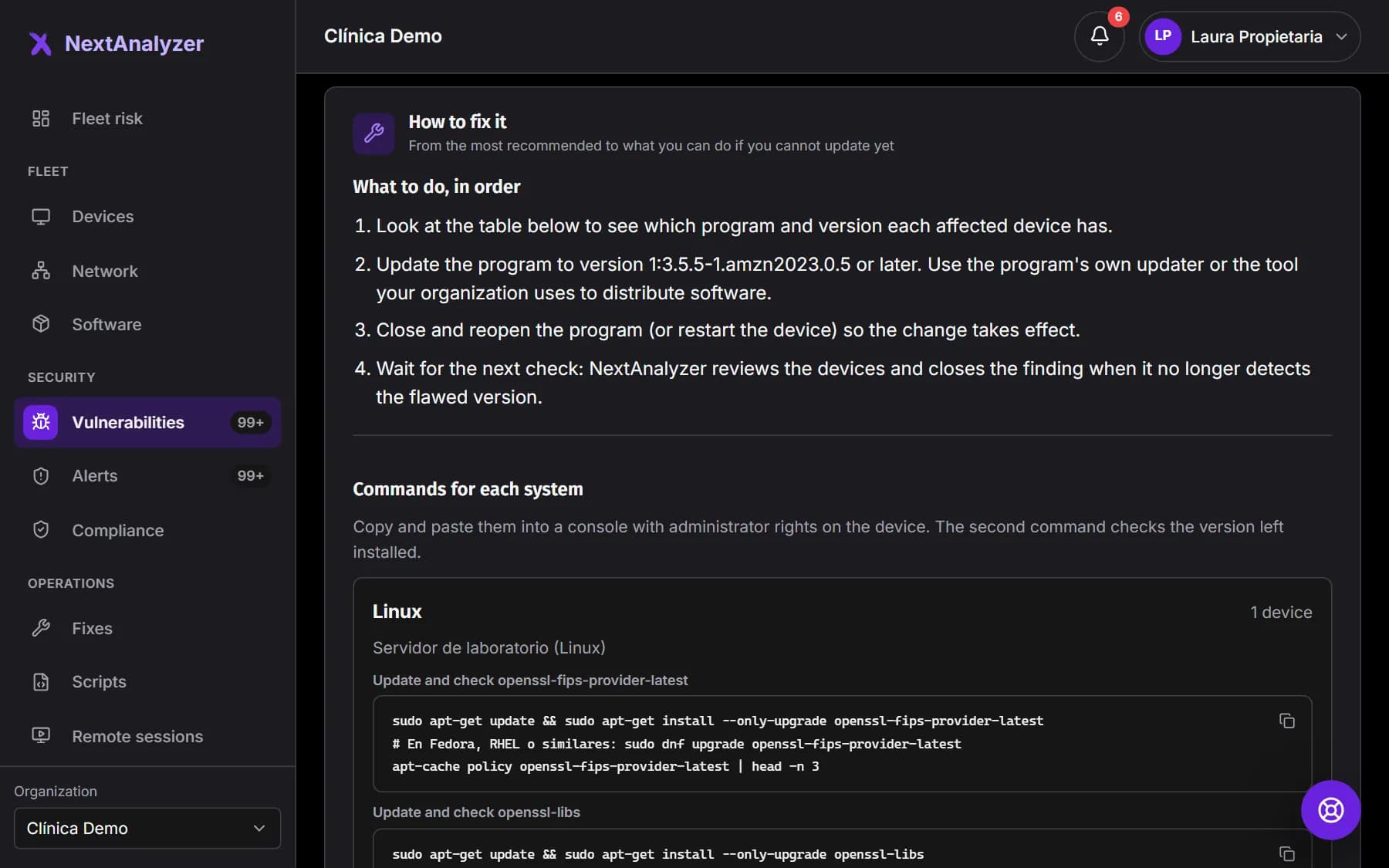
Choose devices and what to do
Under devices, choose “All affected devices” or “Choose devices”. Under what to do, choose to update the program with the system's package manager or “Install Windows Update patches”.
Expected result: If a device doesn't support the fix, the dialog warns which ones will be skipped.
Tip: The program is updated with winget on Windows, apt or dnf on Linux and Homebrew on macOS.
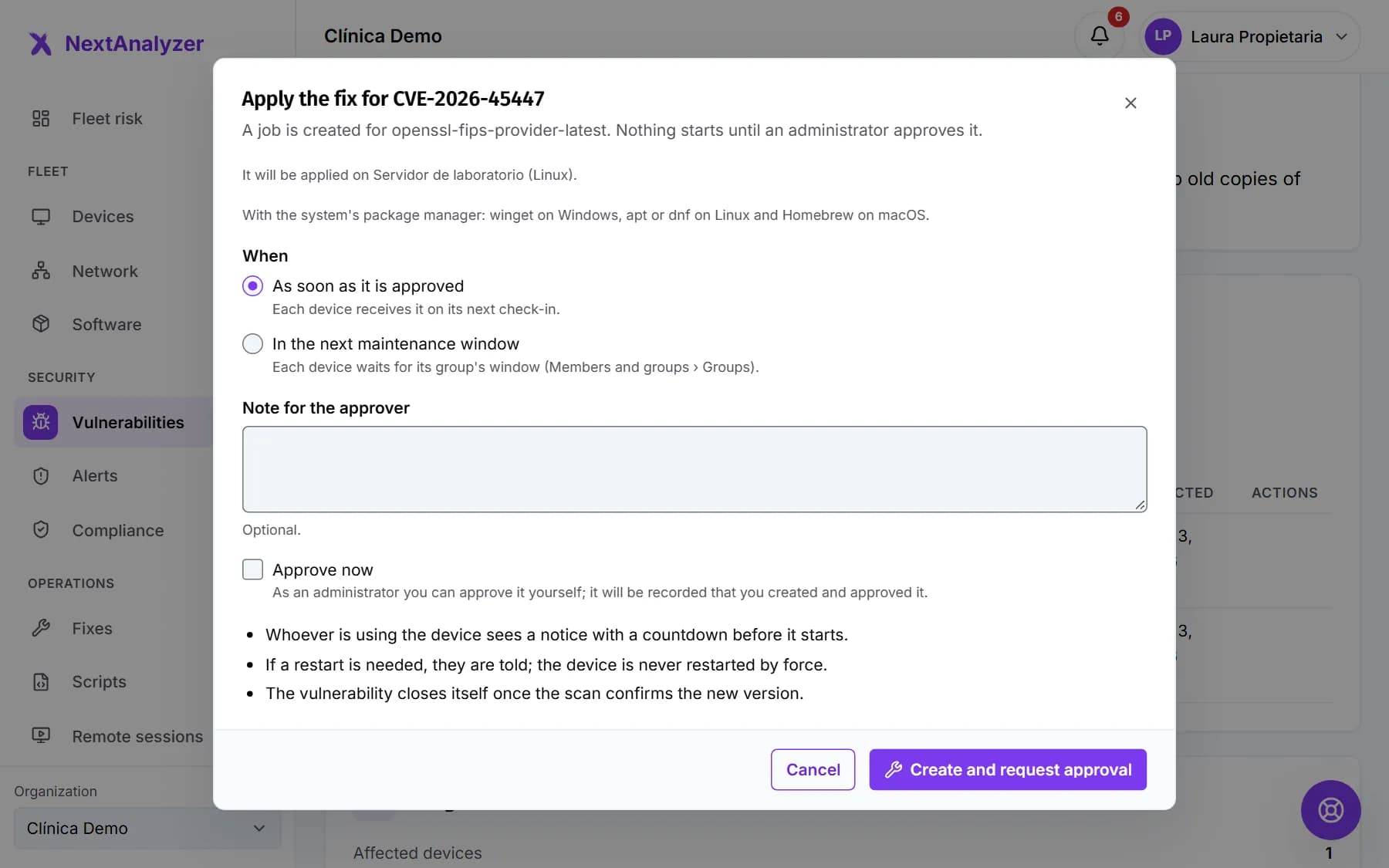
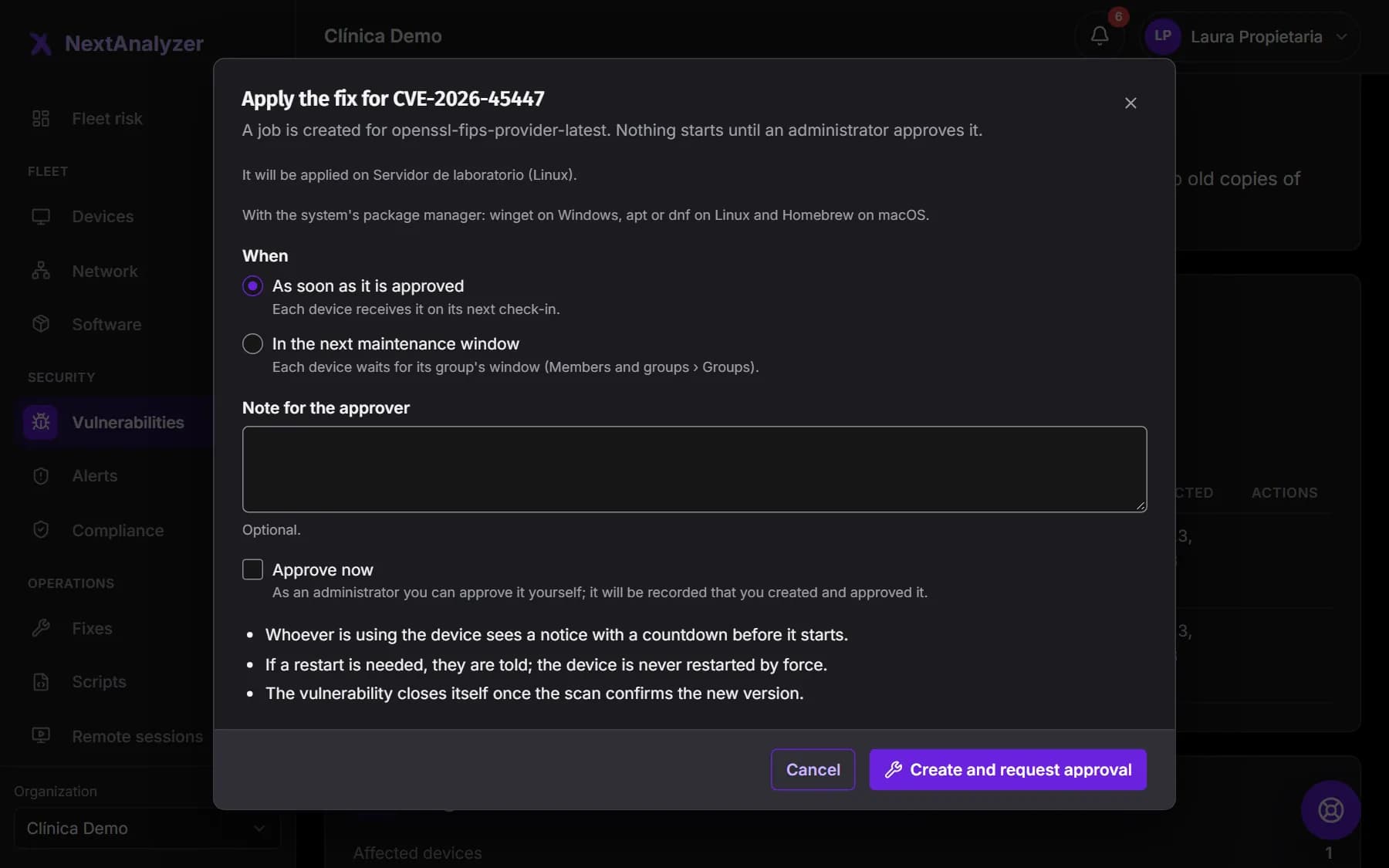
Choose when and how carefully
Under when, choose “As soon as it is approved” or “In the next maintenance window”. Turn on “Try on pilot devices first” and pick up to 5: the rest only get the fix if the pilots finish well.
Expected result: The dialog sums up when it starts and whether it goes to the pilots first.
Create the fix
Optionally, write a “Note for the approver”. Click “Create and request approval”. If you are an administrator, tick “Approve now” and click “Create and approve”.
Expected result: You see that the fix was created, awaiting approval or approved, with “View the fix”.
Approve it
An administrator or the owner opens the job in “Fixes” and clicks “Approve” or “Reject”. When rejecting, they can write a reason that the creator will see.
Expected result: The status changes from “Awaiting approval” to approved or in progress.
Follow the jobs
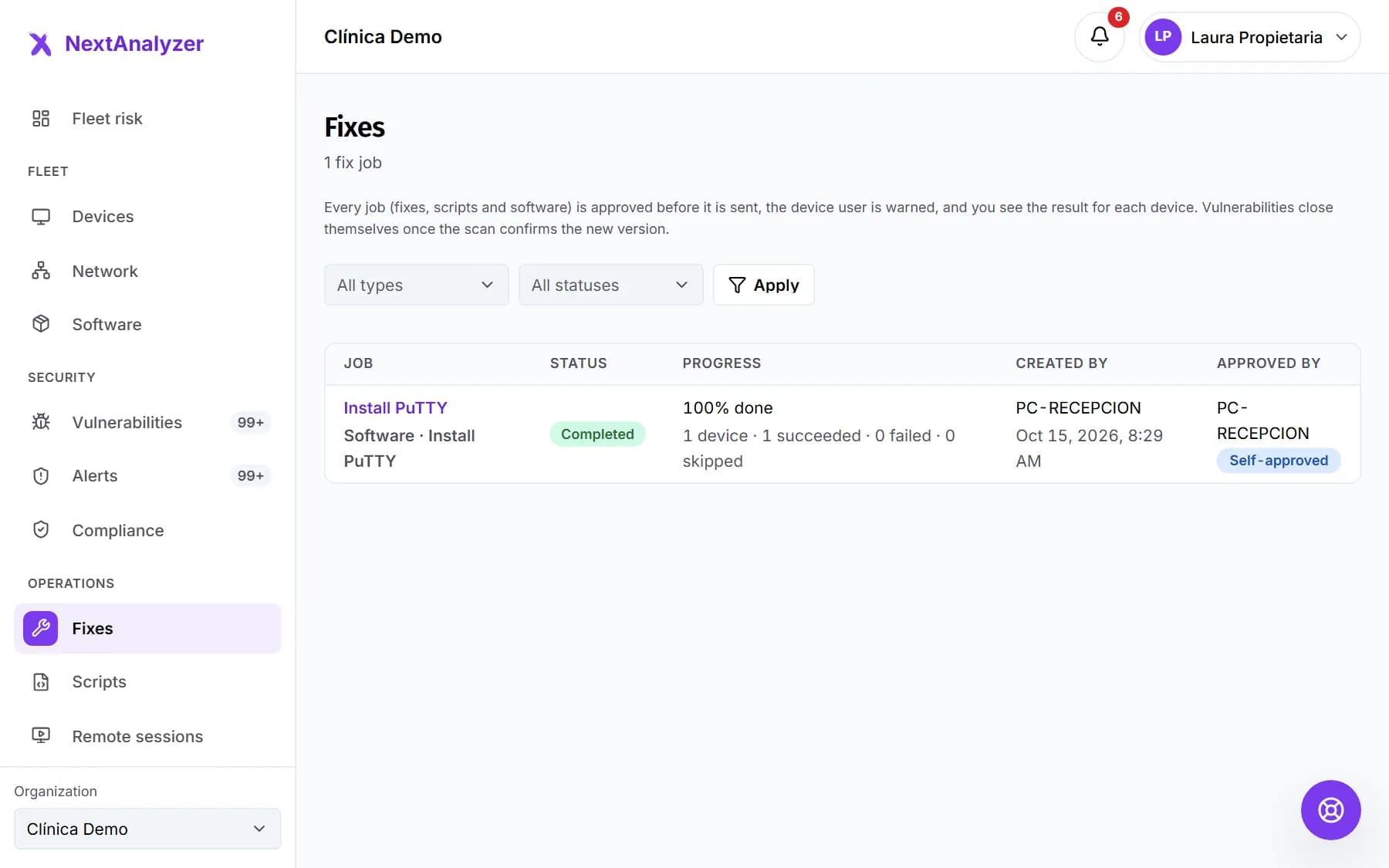
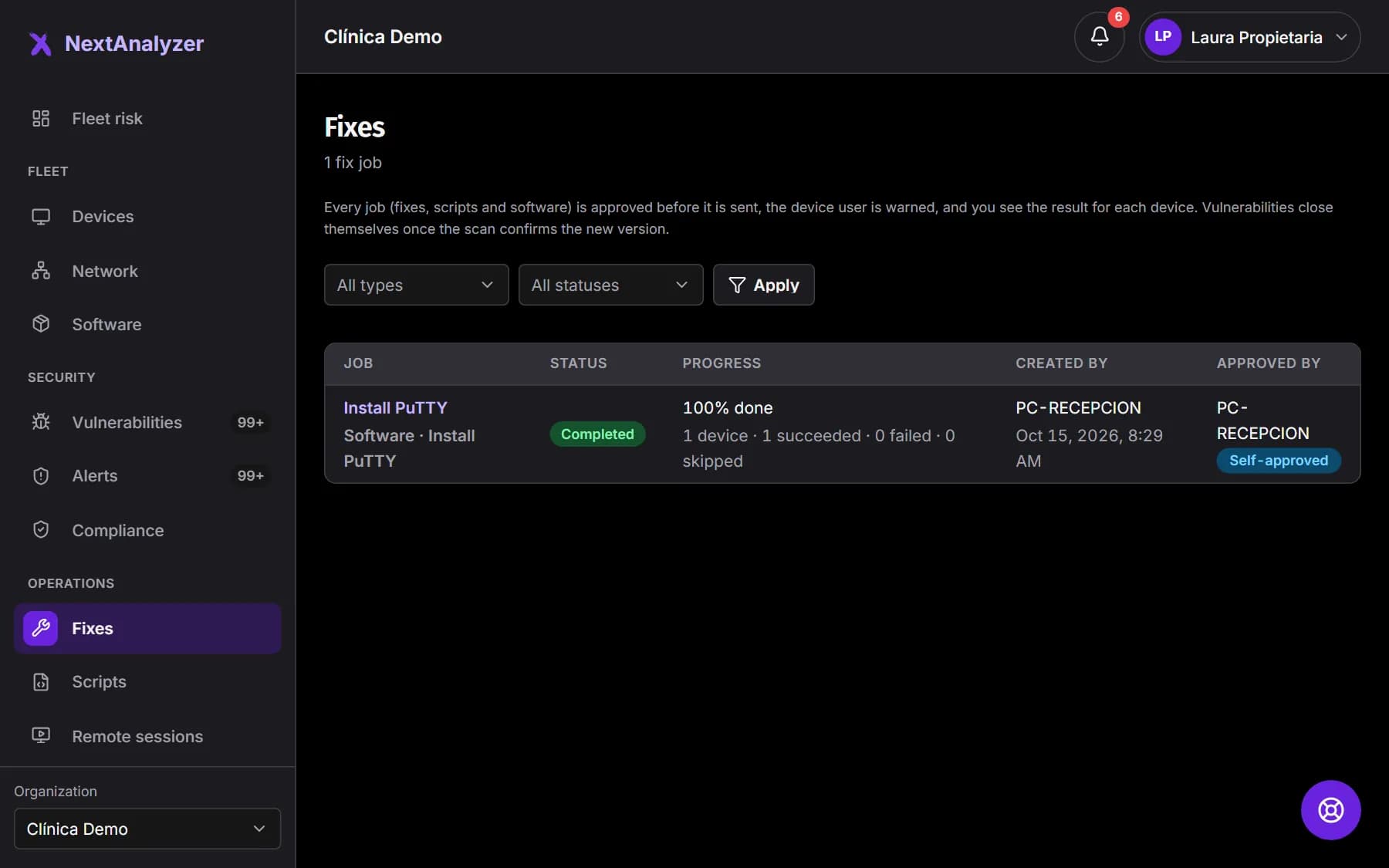
In the menu, Operations › “Fixes”. All jobs are there (fixes, scripts and software) with their status, progress and who created and approved them. Filter by status and type.
Expected result: You see at a glance what awaits approval, what is running and what has finished.
Check each device
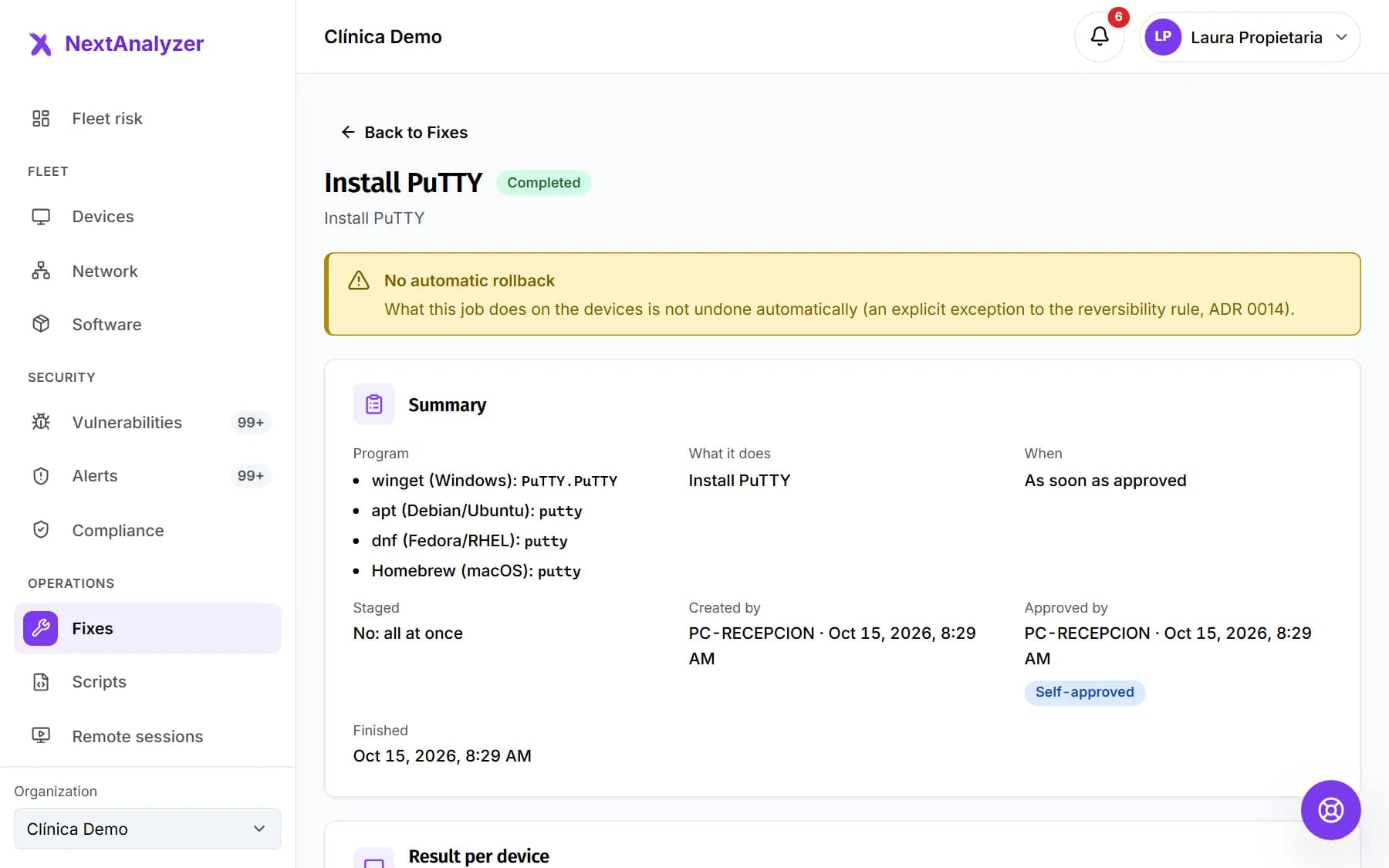
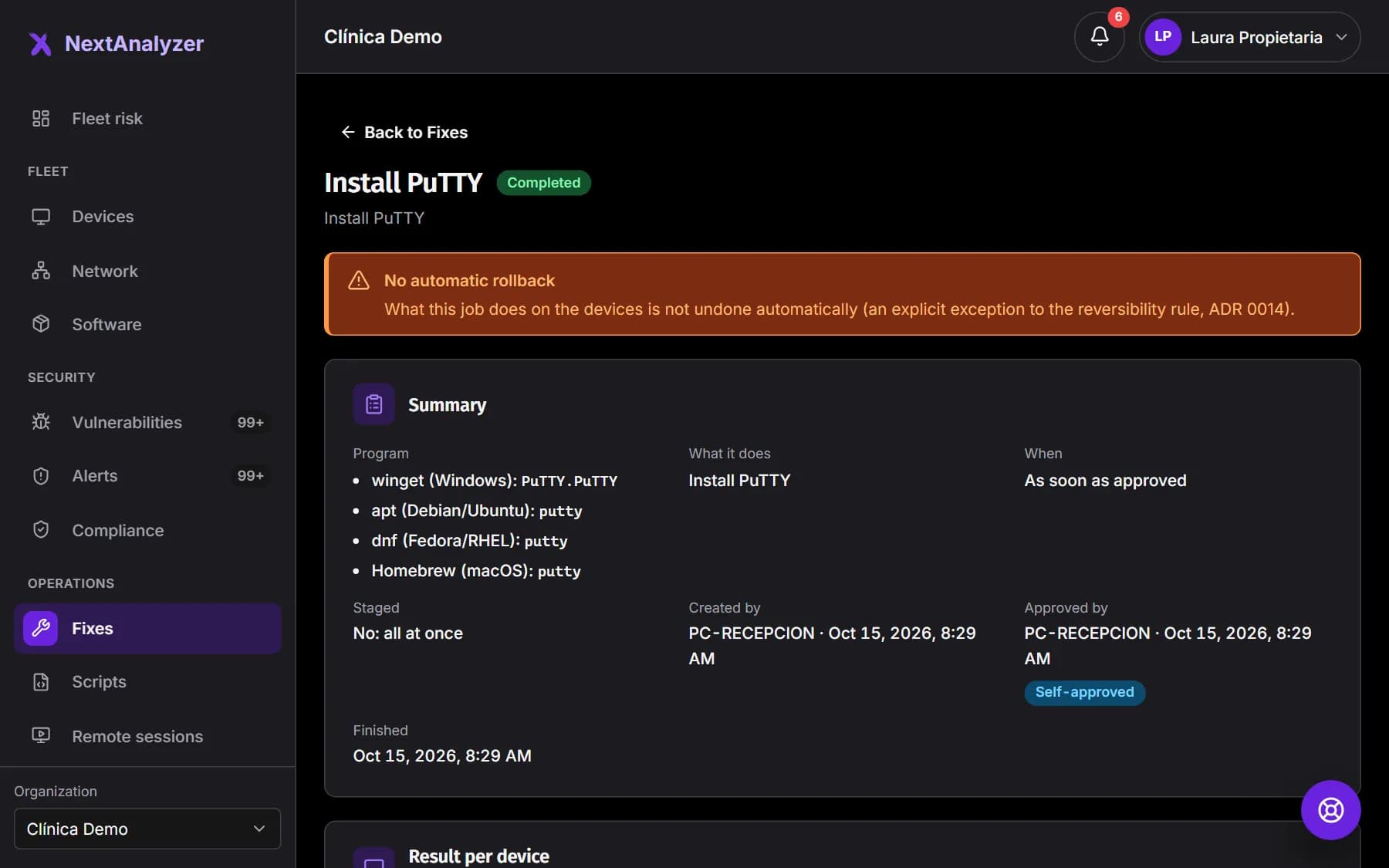
Open a job. In the per-device results, each device shows as “Succeeded”, “Failed”, “Skipped” or “Pending”, with its reason. Click “Show output” to read what the package manager returned.
Expected result: You know which devices went well and why the others failed.
Notice for the person using the device
Before it starts, the person sees a notice with a 60-second countdown to save their work. The device is never restarted by force.
Expected result: If a restart is needed, the device shows “Restart pending” and the person gets a notice.
Check that it closed
The vulnerability isn't closed by hand. It closes on its own when the scan confirms the new version on each device.
Expected result: In the confirmation column, each device changes from “Awaiting confirmation” to “Confirmed by the scan”.
If something goes wrong
The job shows as “Paused”
A pilot device failed and the rest have not started. Check its output. If it is safe to continue, an administrator clicks “Resume”; if not, cancel the job.
The vulnerability is still open after fixing
It closes when the next scan confirms the new version, usually within 15 minutes. If the device shows “Restart pending”, it must restart first. If nothing changes, check that no old copy of the program is left.
The fix doesn't start
Check its status. “Awaiting approval” waits for an administrator. If you chose the maintenance window, it waits for the group's window to open. A device that is off gets it when it reconnects.
A device shows as “Skipped”
Read the reason: “The package manager offers no newer version”, “The package manager cannot find the program on this device” or “This fix does not exist for the device's operating system”. Update that program by hand following the CVE page.
It failed with “The program was open” or “Administrator permissions are missing”
The package manager can't update a program in use, and some installers ask for permissions the device doesn't grant. Ask the user to close it and launch another fix in the maintenance window.
Still not working? Open a support ticket