
Notifications and inbox
Besides email or chat, the dashboard keeps your notifications in your own inbox. The bell at the top tells you how many are unread.
Check the bell
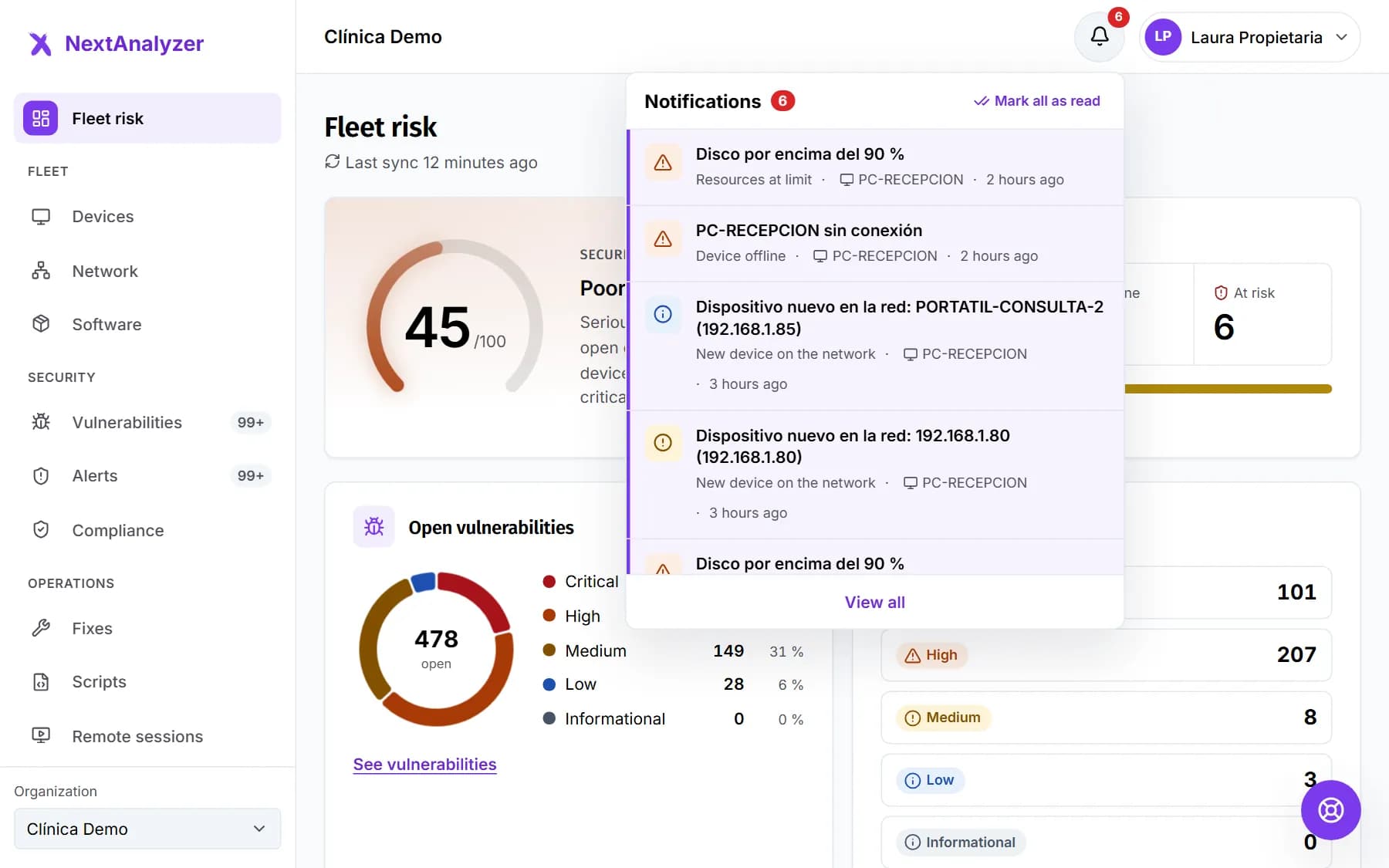
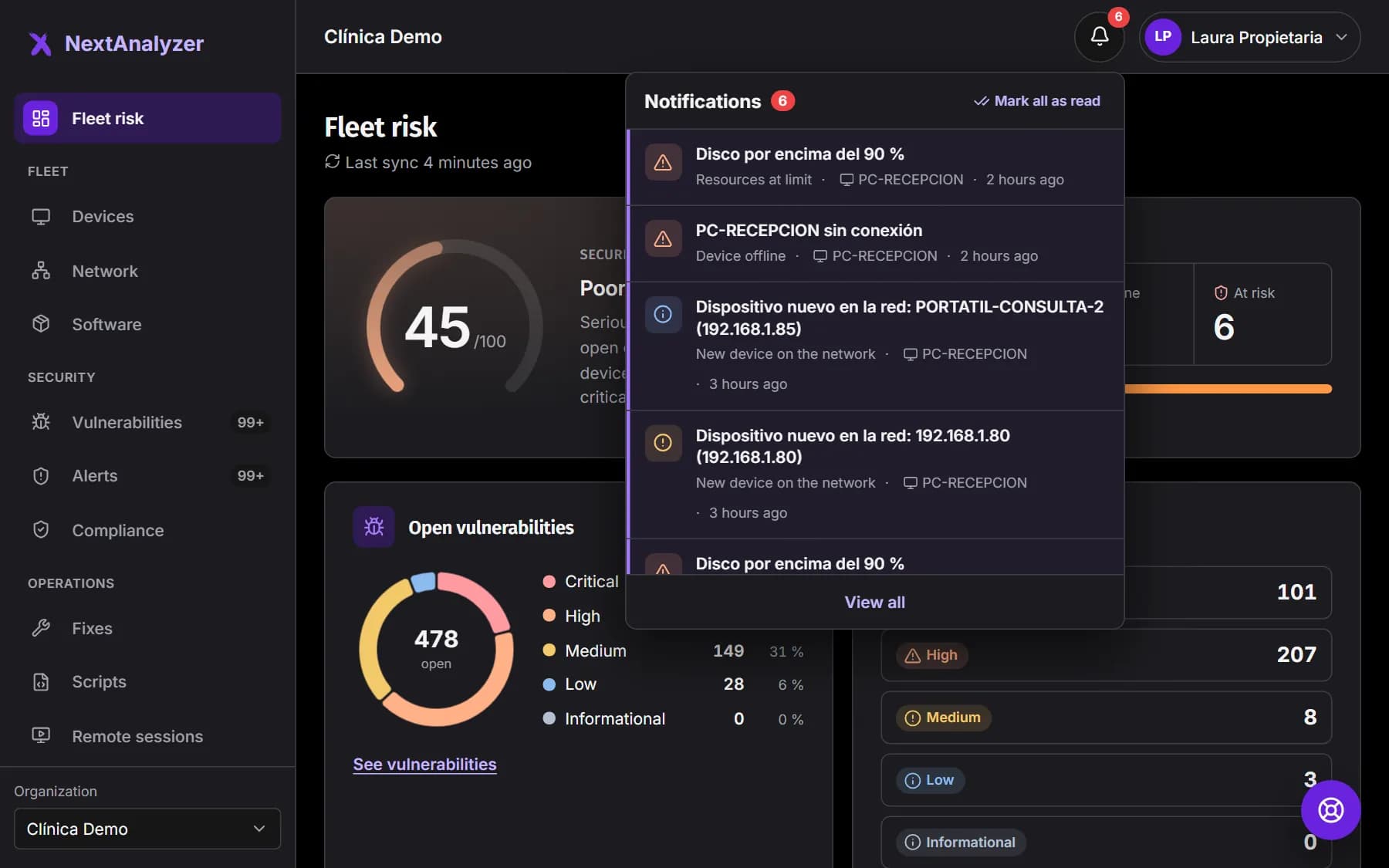
At the top, in the dashboard bar, the bell shows how many notifications you have unread. Click it to see the latest ones.
Expected result: A short list opens with the most recent notifications and the “View all” link.
Open the inbox
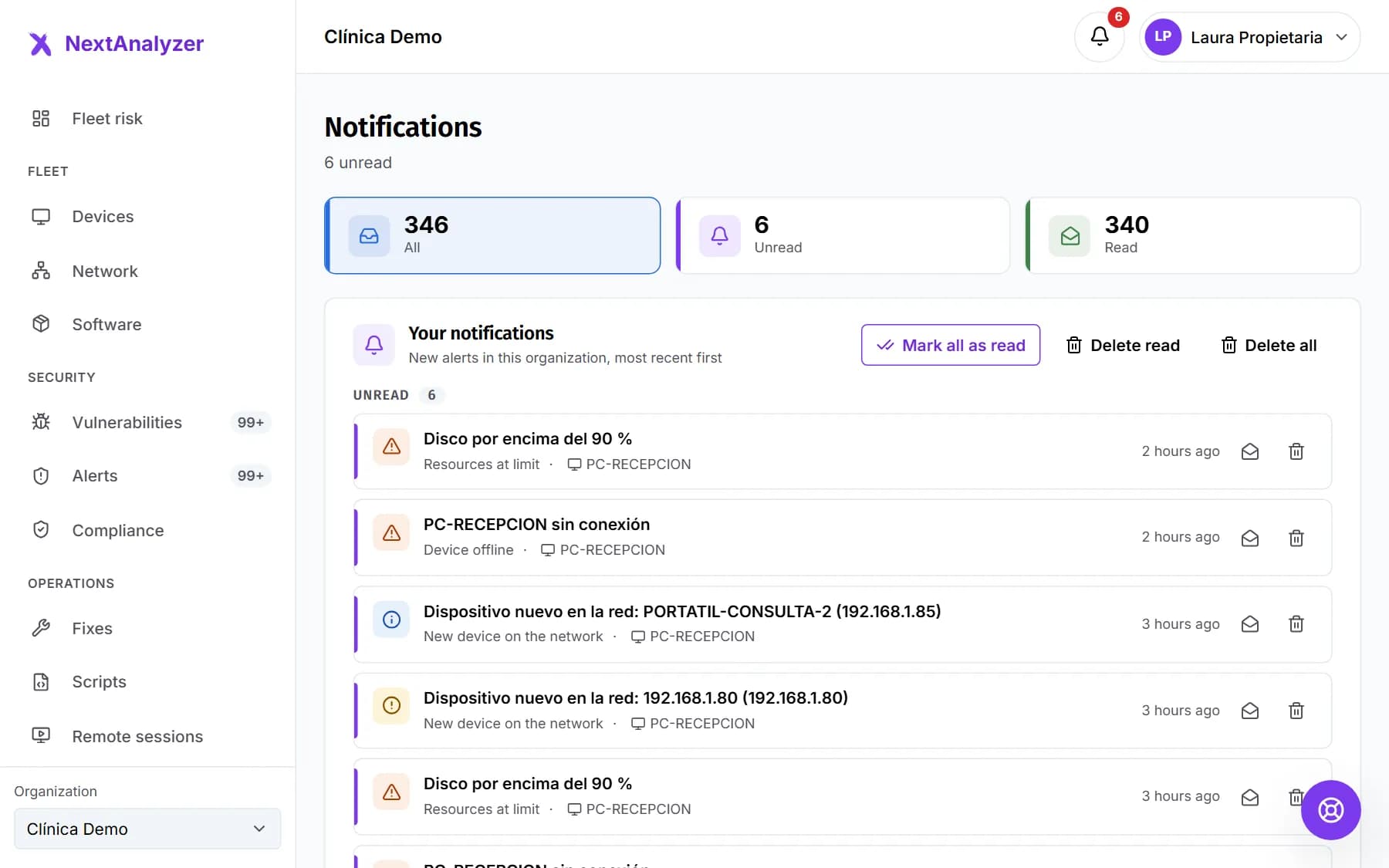
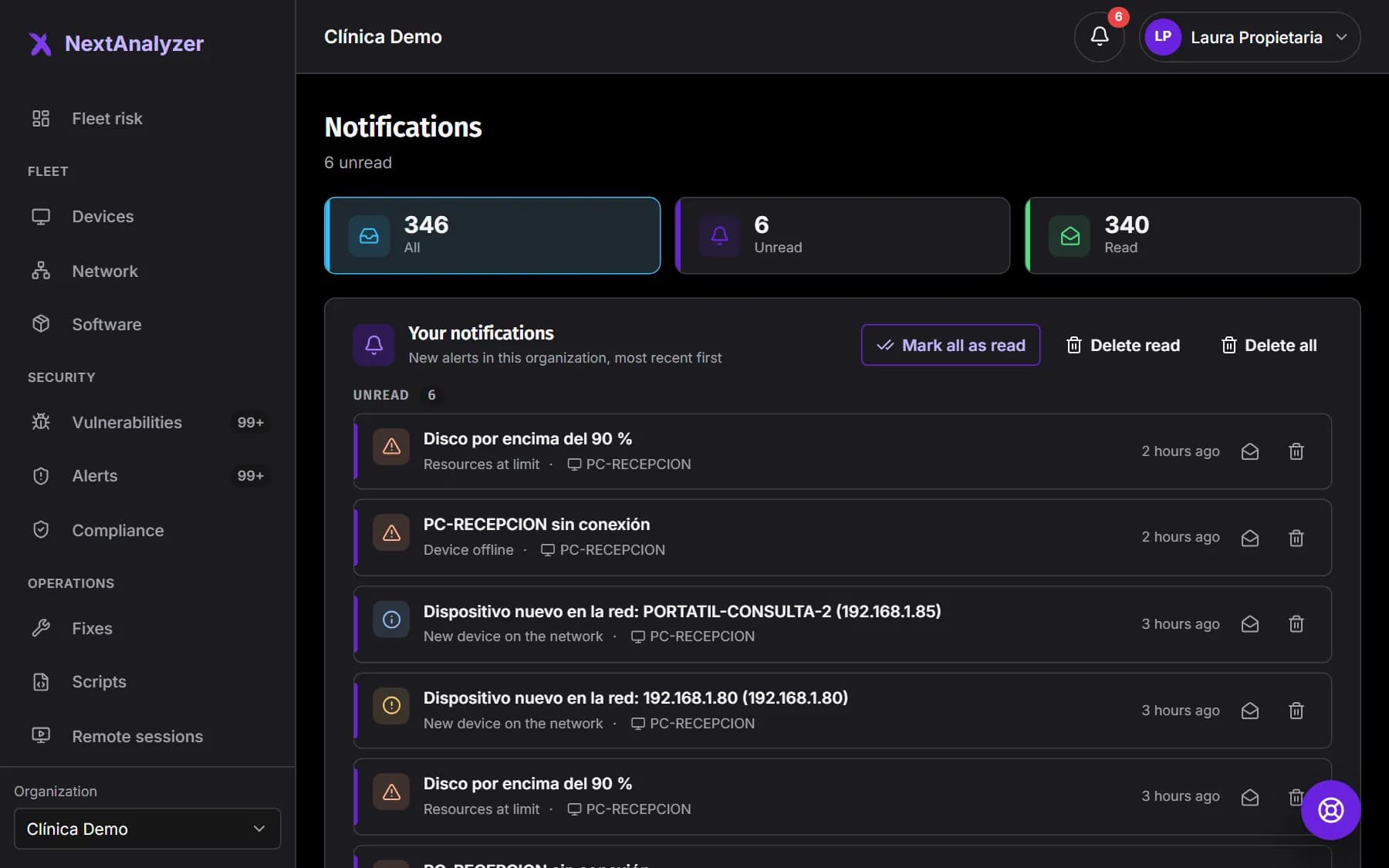
Click “View all”. In “Notifications”, filter with “All”, “Unread” and “Read”. They go from newest to oldest.
Expected result: The title says how many are unread, or that you have nothing unread.
Open a notification
Each notification is a new alert or one that “Got worse”. Click it to go to the alert and its device.
Expected result: You reach the alert page with what to do.
Keep it tidy
On each notification, use “Mark as read”, “Mark as unread” or “Delete”. At the top you have “Mark all as read”, “Delete read” and “Delete all”.
Expected result: The list and the bell counter update right away.
Tip: Deleting can't be undone, but the alert stays in Alerts.
How long they are kept
Read notifications are deleted automatically after 30 days. Unread ones, after 90.
Expected result: The inbox doesn't grow forever and old items disappear on their own.
Decide what reaches you
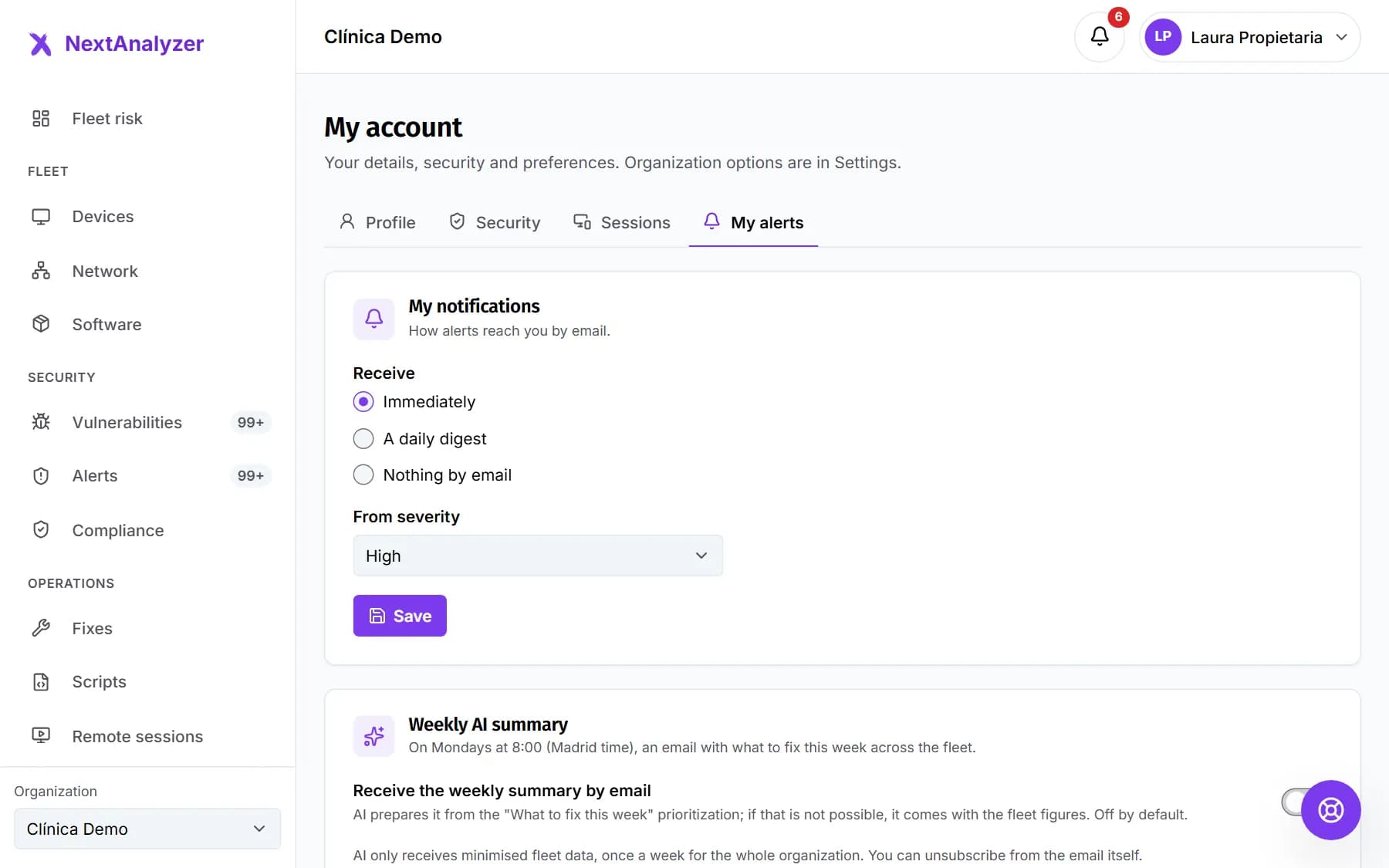
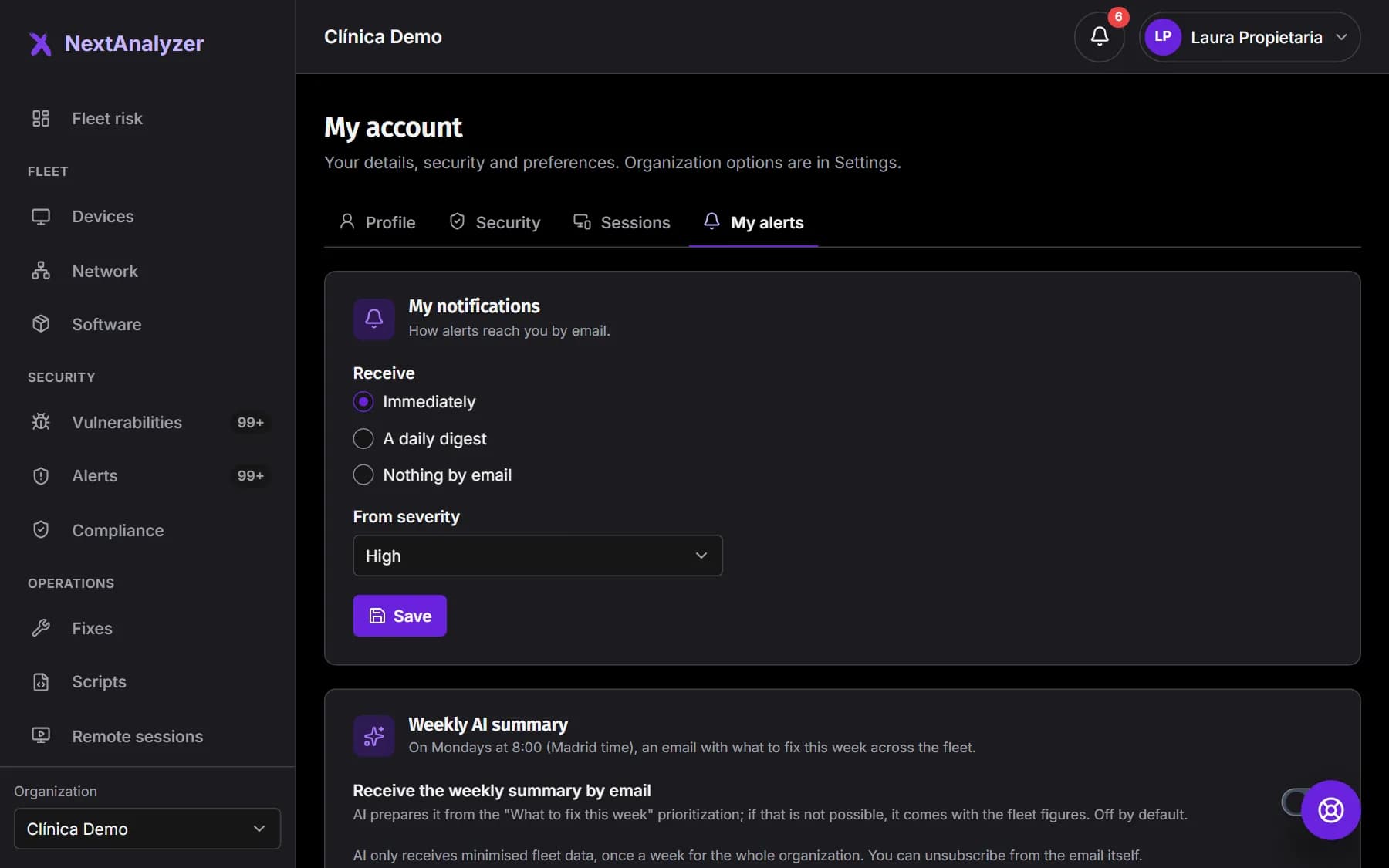
New alerts and alerts that get worse reach the inbox. For vulnerabilities, only critical and high. For email, open My account › “My alerts” and choose “Immediately”, “A daily digest” or “Nothing by email”.
Expected result: You only get by email what you chose; the inbox keeps collecting everything.
Get the weekly summary
On Business and Enterprise, in My account › “My alerts” you can turn on a weekly summary by email with the week's priorities. It is optional for each person and AI writes it from minimised data.
Expected result: You get one email a week with what matters most, labeled as AI-generated.
If something goes wrong
The inbox is empty and I know there are alerts
Only alerts that open or get worse after you joined arrive. Medium and low vulnerabilities don't. If a rule is off in Settings › “Alerts”, those don't either. See them all in Security › “Alerts”.
I deleted a notification and I need it
Deleting removes the notification from your inbox, not the alert. Find it in Security › “Alerts” with the status, type and device filters.
I don't see notifications from another organization
The inbox belongs to the active organization. Choose the other one in the organization selector in the side menu to see its inbox.
Still not working? Open a support ticket