
Discover what is on your network
Your devices with the agent can look at their local network and tell you what else is connected. That way you find computers NextAnalyzer does not protect yet and devices you did not expect. Nothing else needs installing.
Choose each group’s mode
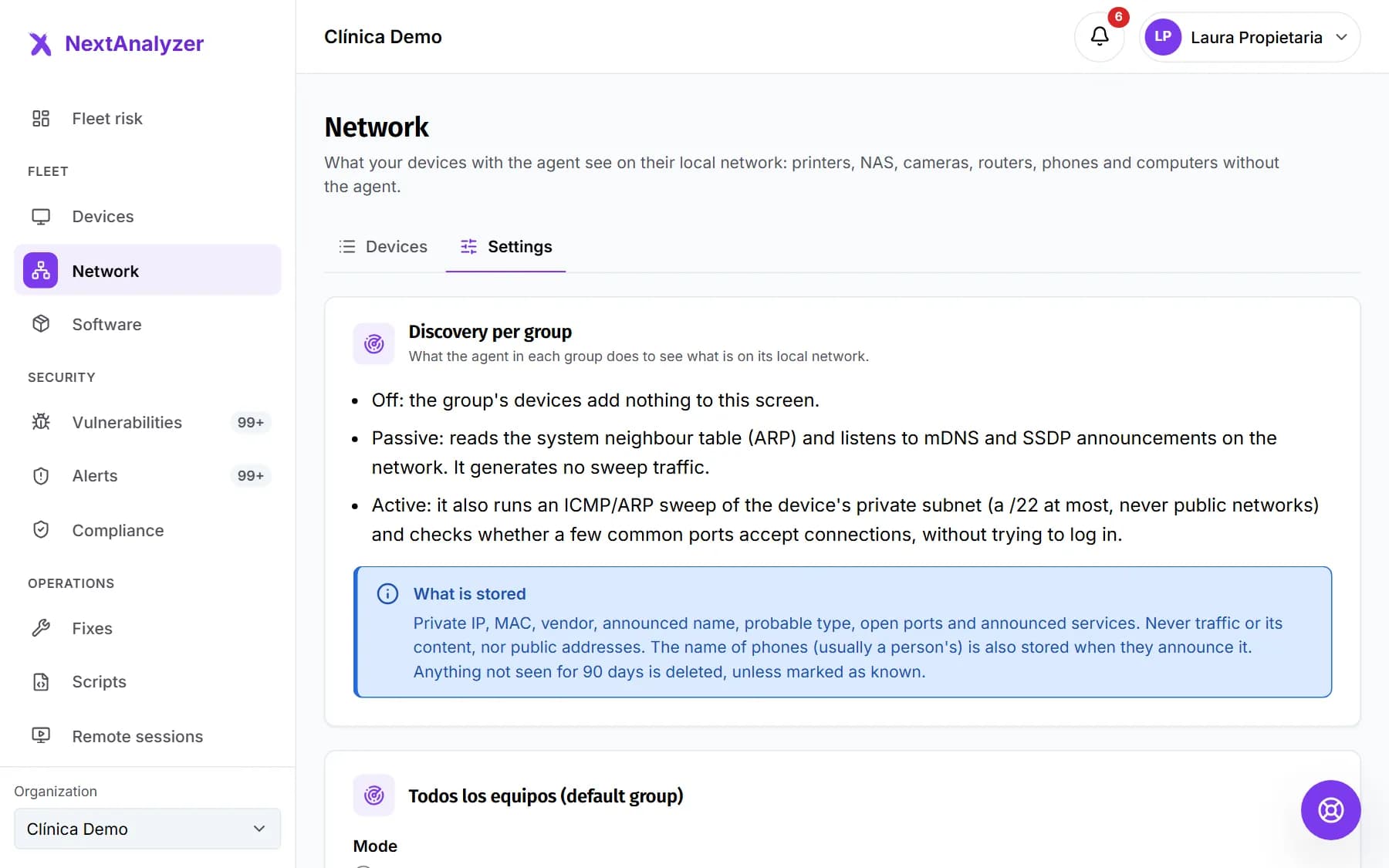
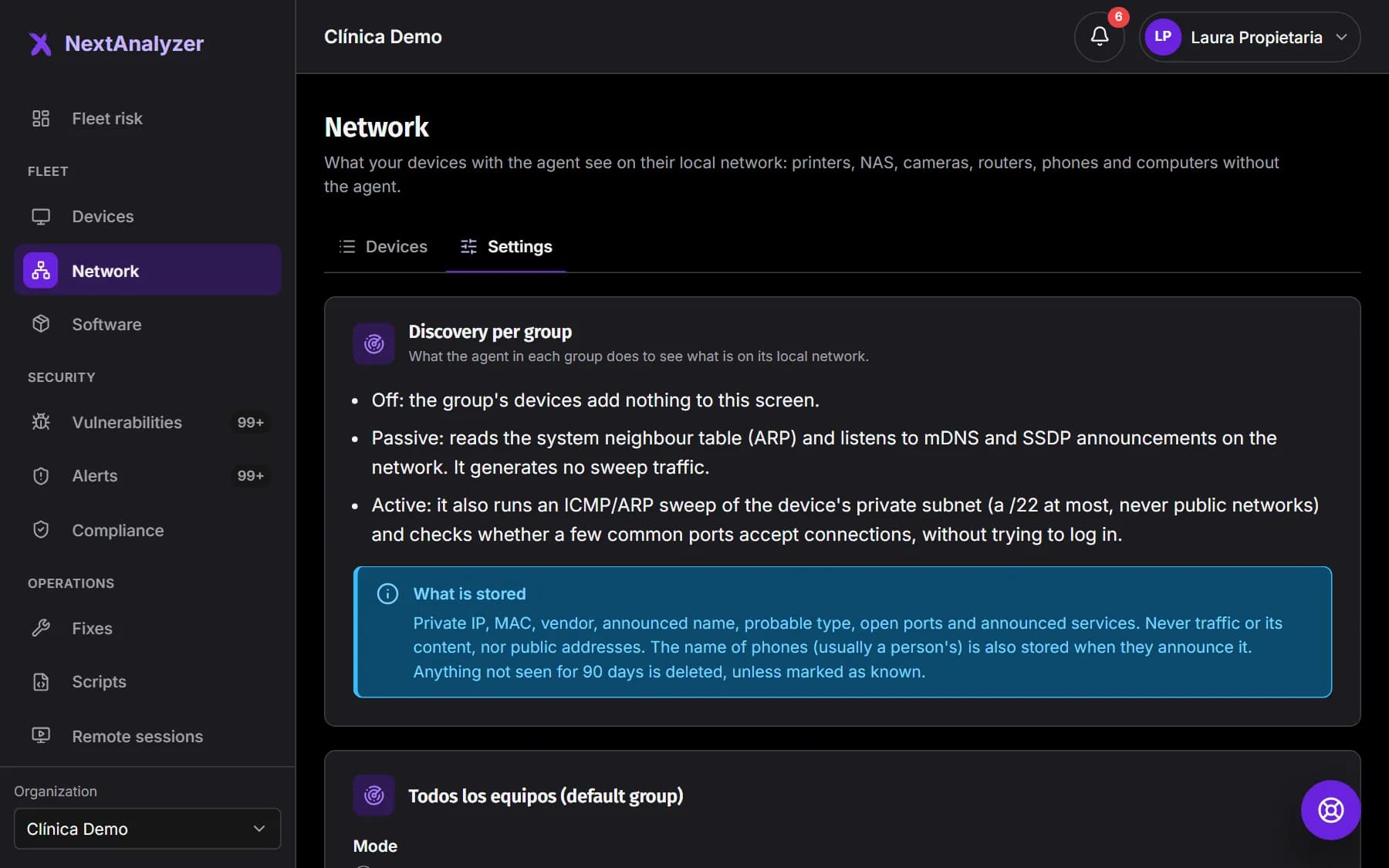
Open “Network” in the Security menu and go to the “Settings” tab. Under “Discovery per group”, pick the mode: “Off”, “Passive (recommended)” or “Active”. Passive only listens and sends no sweep traffic.
Expected result: When you press “Save” you see “Settings saved. Devices will pick them up on their next check.”
Tip: Every group starts in passive mode, every 6 hours and without SNMP.
Decide whether to use active mode
Active also sweeps the device’s private subnet (a /22 at most) and checks 13 common ports without trying to log in. Set “How often” (6, 12 or 24 hours) and, if you want, “Query SNMP” with the “public” community.
Expected result: The group is set to Active with the chosen frequency.
Tip: Active mode sends traffic to the whole local network. Make sure the network is yours: some detection systems will see it as a scan.
Change the mode for one device
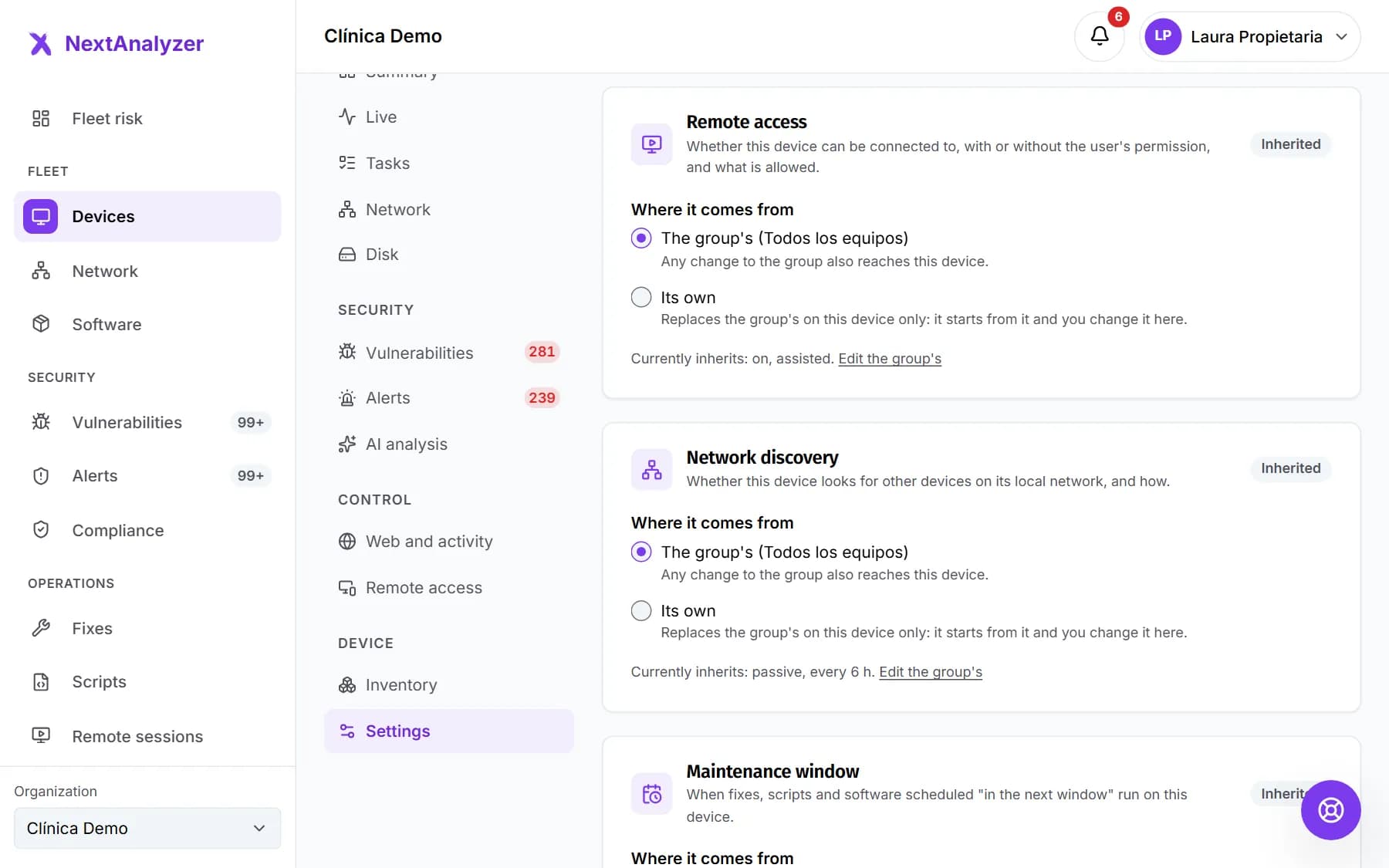
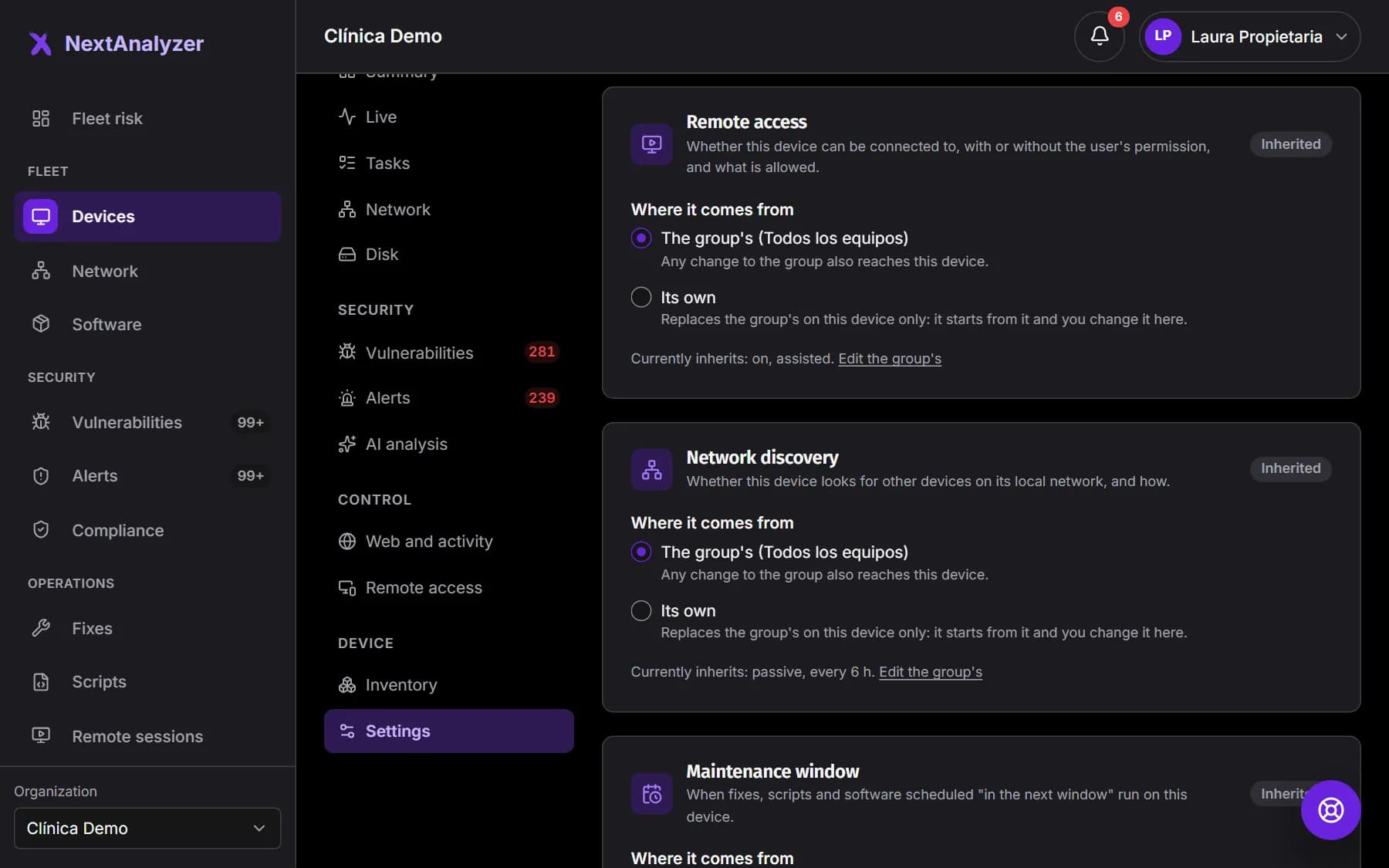
On the device page, “Settings” tab, the “Network discovery” policy can use the group’s or its own. Use it to turn discovery off on a server or a laptop that travels.
Expected result: The device policy shows where it comes from and which mode it has now.
Review what was found
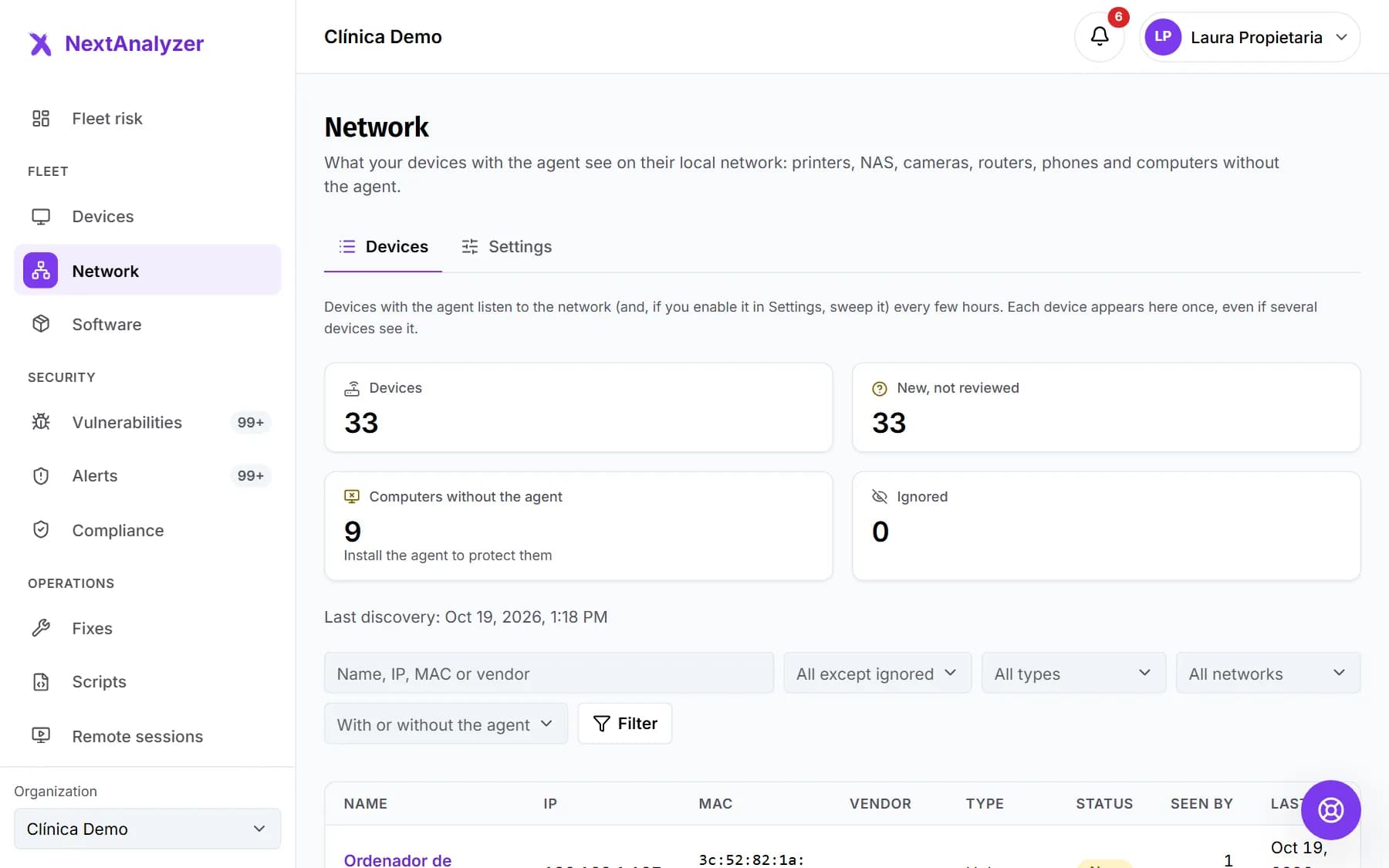
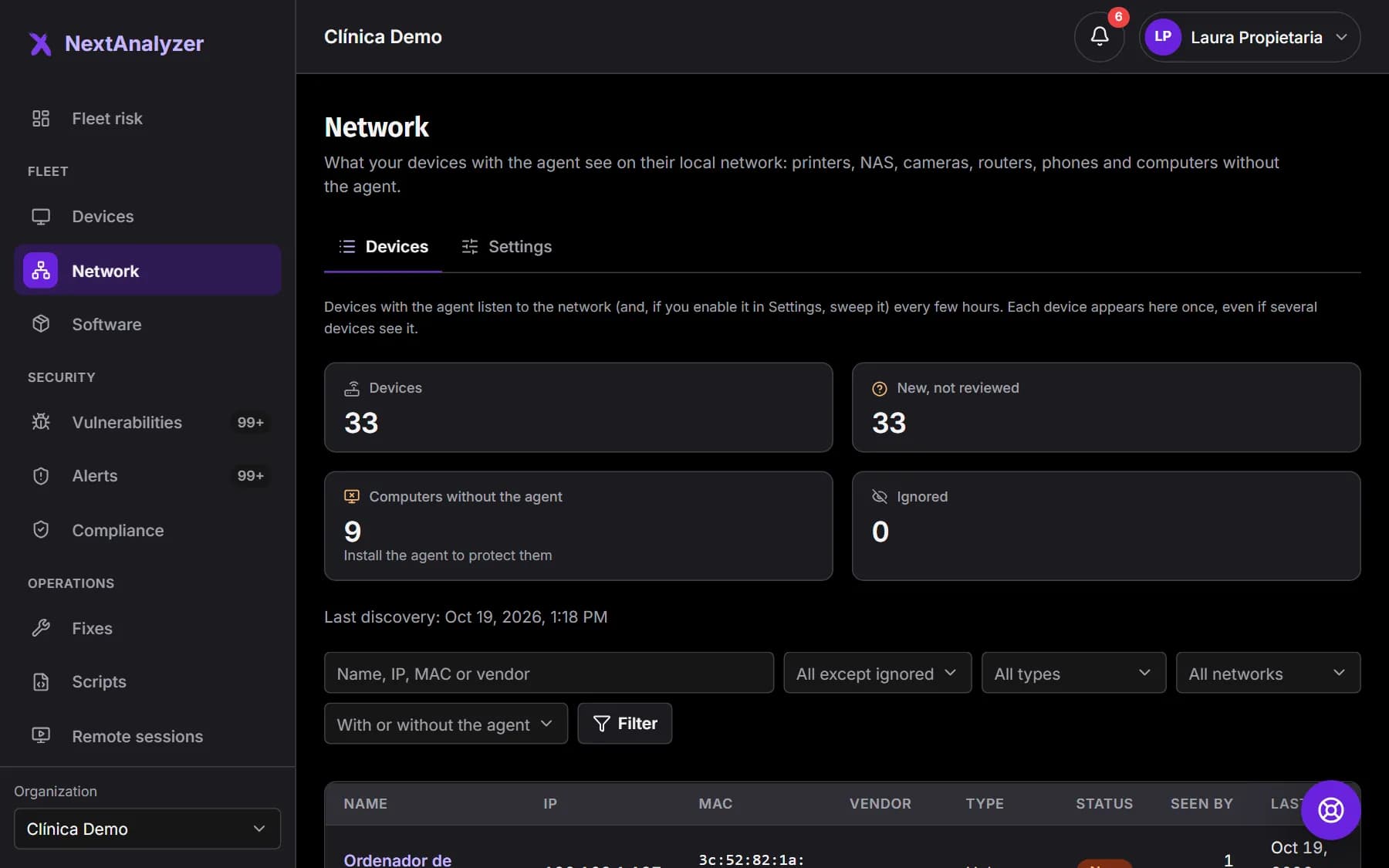
In “Network”, “Devices” tab, you see the figures: “Devices”, “New, not reviewed”, “Computers without the agent” and “Ignored”, plus the date of the last discovery. Each device appears once even if several devices see it.
Expected result: The list shows name, IP, MAC, vendor, type, status and which devices have seen it.
Filter the list
Search by name, IP, MAC or vendor, and filter by status, type and network. Under “Agent”, choose “Only computers without the agent” and press “Filter”.
Expected result: The list shows only what you are looking for. Ignored devices are hidden unless you ask for them.
Open a device
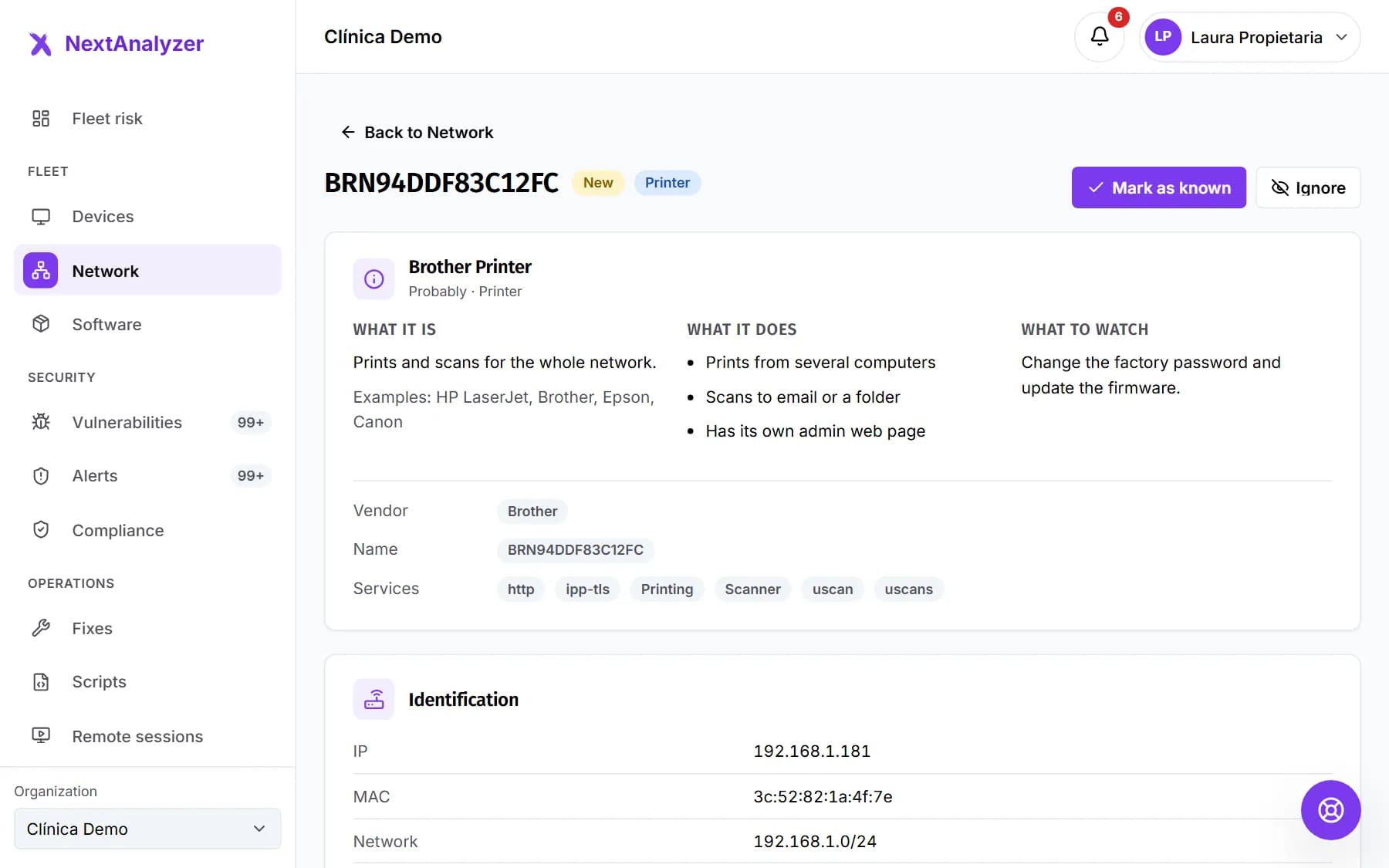
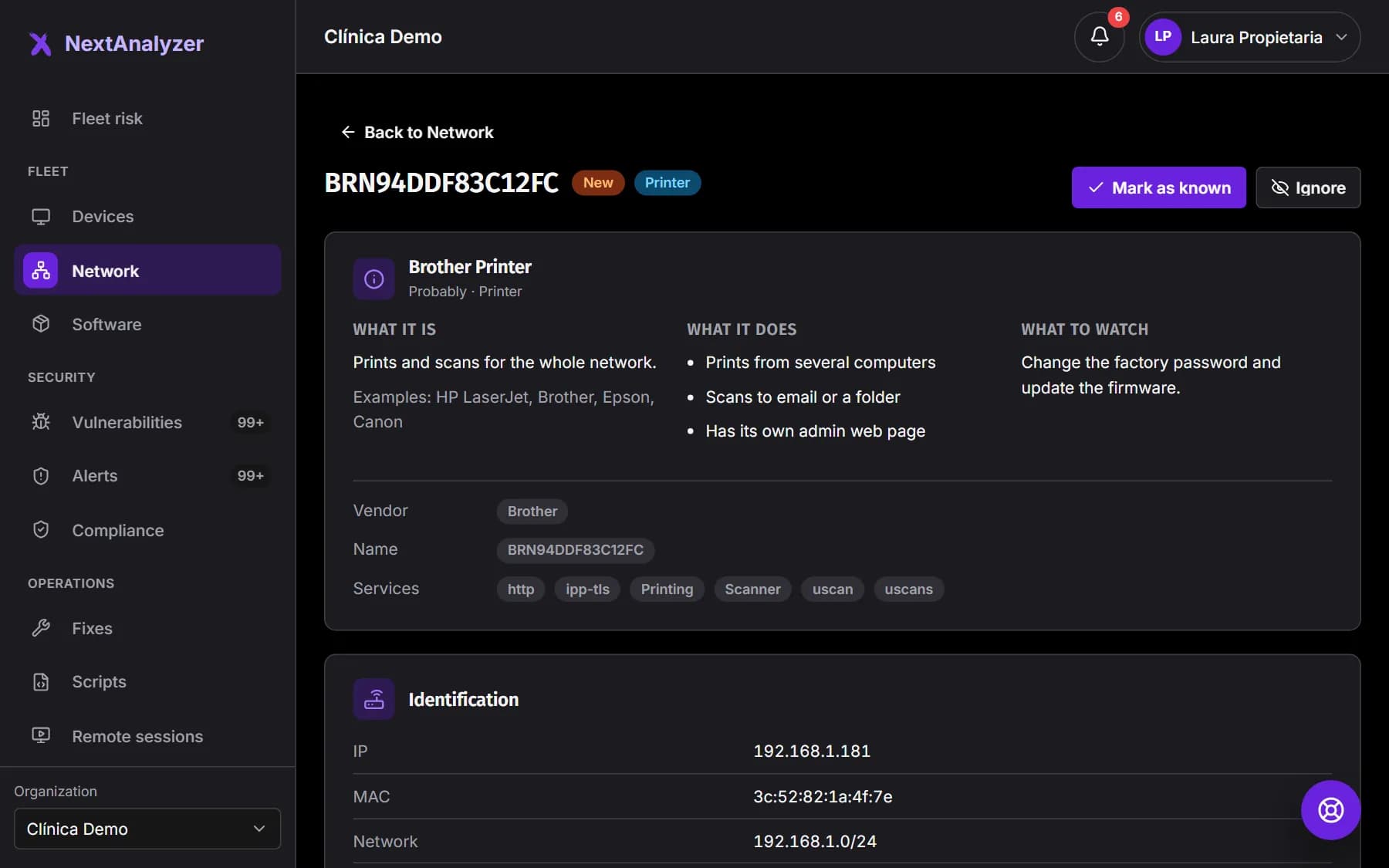
You see its identification, network, open ports, the services it announces and which devices saw it. Add a name, tags and notes and press “Save”. Then “Mark as known” or “Ignore”.
Expected result: You see “Marked as known.” or “Device ignored: it will not alert again.”
Tip: The type is an estimate based on vendor, services and ports: it may be wrong.
Protect computers without the agent
On a Windows, Mac or Linux computer without the agent, press “Install the agent”. It takes you to “Downloads” to install it on that computer.
Expected result: Once the agent enrolls, the entry is linked to its device and no longer counts as “without the agent”.
Get notified about new devices
When a device without the agent appears on an already known network, the “New device on the network” alert fires. It is medium for a computer and low otherwise. Choose who gets it in “Settings”, “Alerts” tab.
Expected result: The alert reaches your rules’ channels and closes when you mark the device as known or ignore it.
What is stored and for how long
Private IP, MAC, vendor, announced name, likely type, ports and services. Never the traffic or its content, nor public addresses. Phones are stored without a name.
Expected result: Anything not seen for 90 days is deleted automatically, except devices marked as known.
If something goes wrong
No devices appear
Check that the group is in Passive or Active mode and that some device is online. The first check can take a few minutes and then runs every 6, 12 or 24 hours. Wi-Fi networks with client isolation show very little: try active mode.
It says “Your plan doesn't include network discovery”
It is a Business and Enterprise feature. On the Standard plan the agent does not look at the network. Change plans in Billing.
A device shows an IP but no name
It does not announce its name on the network, or it is a phone, which is stored without a name on purpose. Give it a name on its page and mark it as known.
I got no alert for the first devices
That is expected: the first discovery of each network is the baseline and raises no alerts. After that, new devices are reported, with at most 20 alerts per report.
My firewall or IDS reports a scan
That is active mode, which probes the subnet and a few ports. Switch that group or device to Passive, or add an exception for the devices with the agent.
Still not working? Open a support ticket