
Live view and history of a device
When someone says their computer is slow, the Live tab shows you what's happening right now, without connecting to it and without bothering the person using it. Below it you have the history, to see whether it's a one-off or has been going on for a while.
Open the Live tab
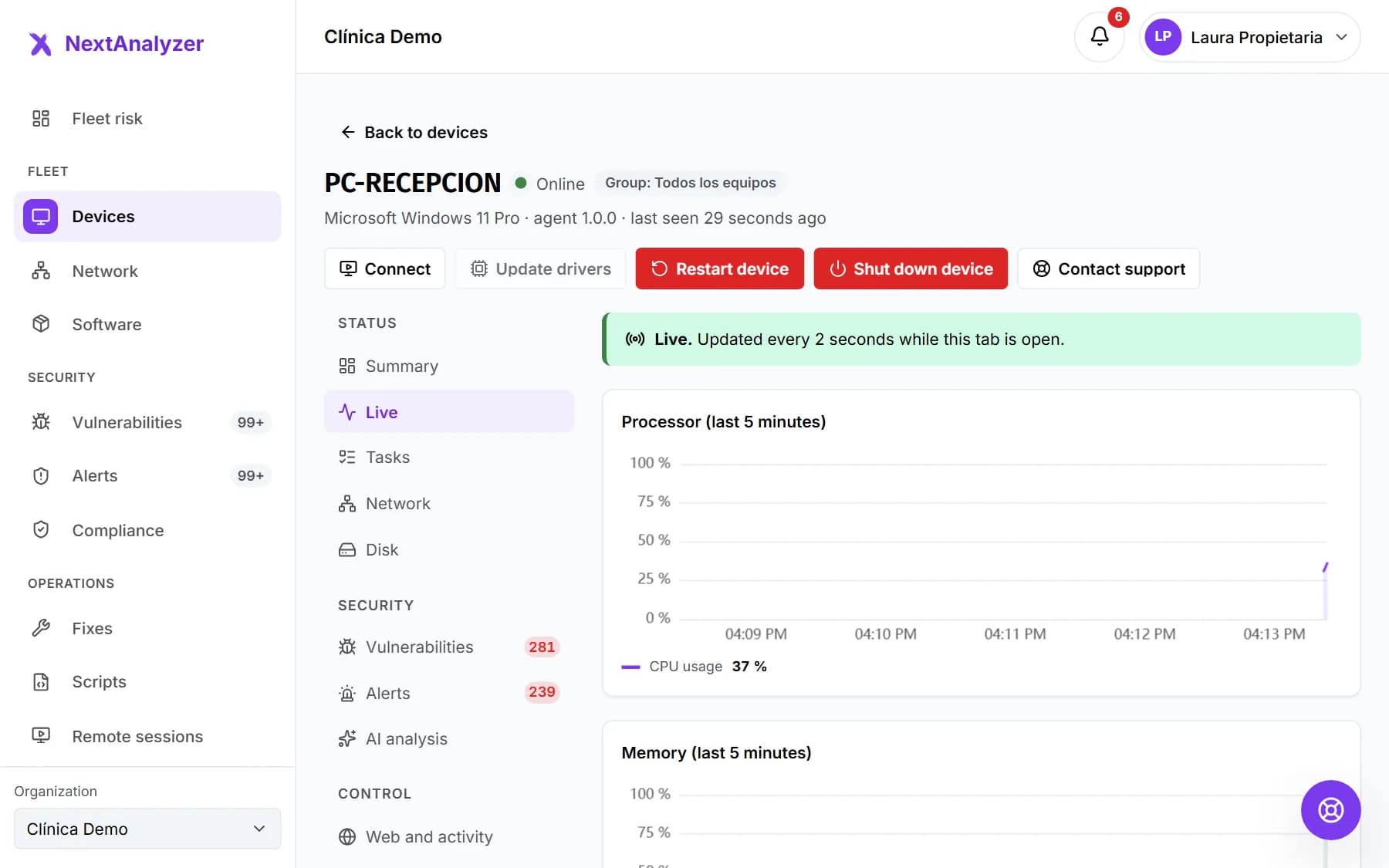
On the device page, Status › “Live”. You'll first see “Connecting…” and “Waiting for data…” for a few seconds.
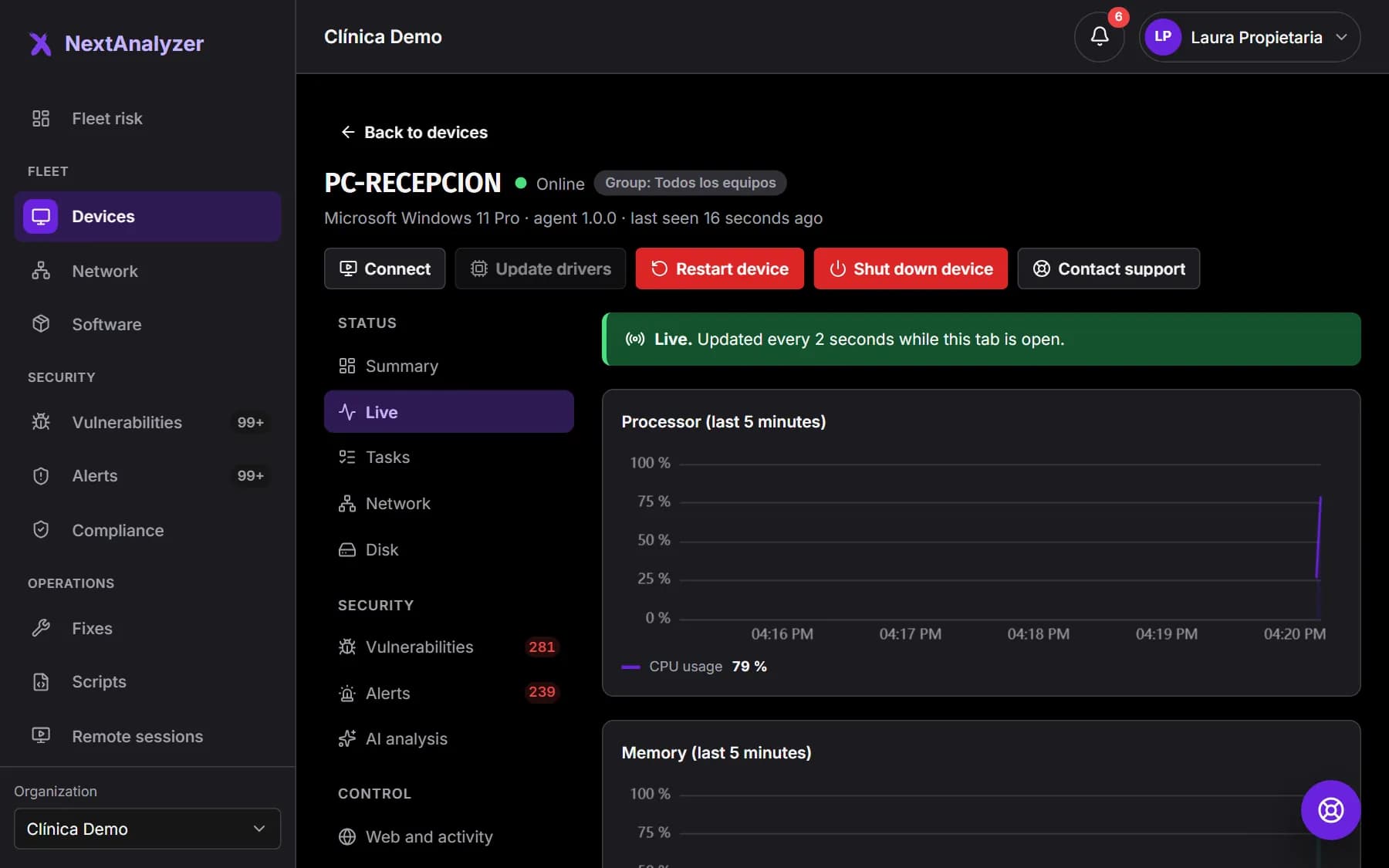
Expected result: The top says “Live.” and the charts move every 2 seconds.
Tip: The device only sends live data while someone has the tab open. When you close it, it stops sending.
Read the charts
There are four charts for the last 5 minutes: “Processor”, “Memory”, “Network” (download and upload) and “Disk”. Each one shows the current value, the average and the peak.
Expected result: You see whether the device is maxing out its CPU, memory, network or disk right now.
Check the processor per core
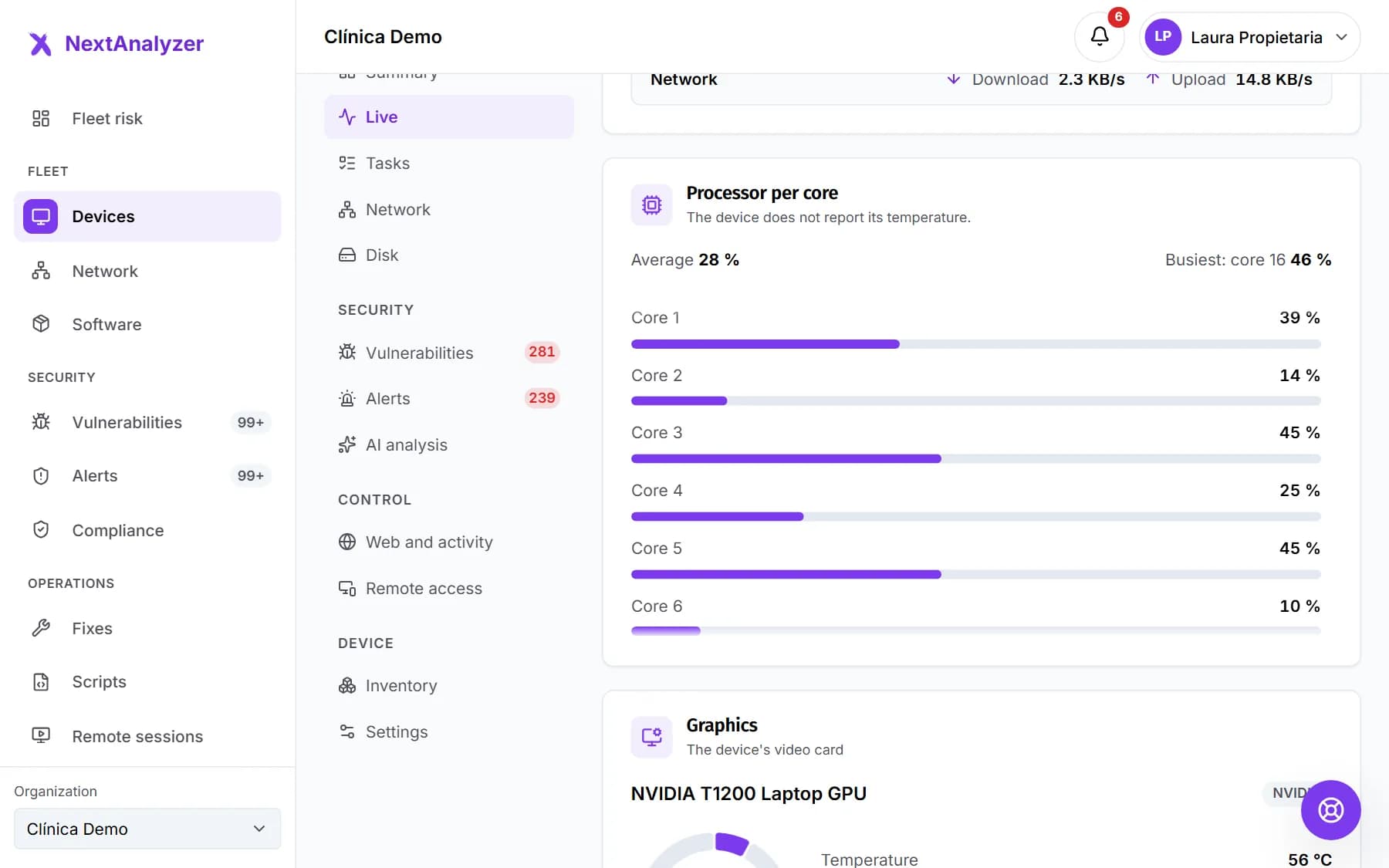
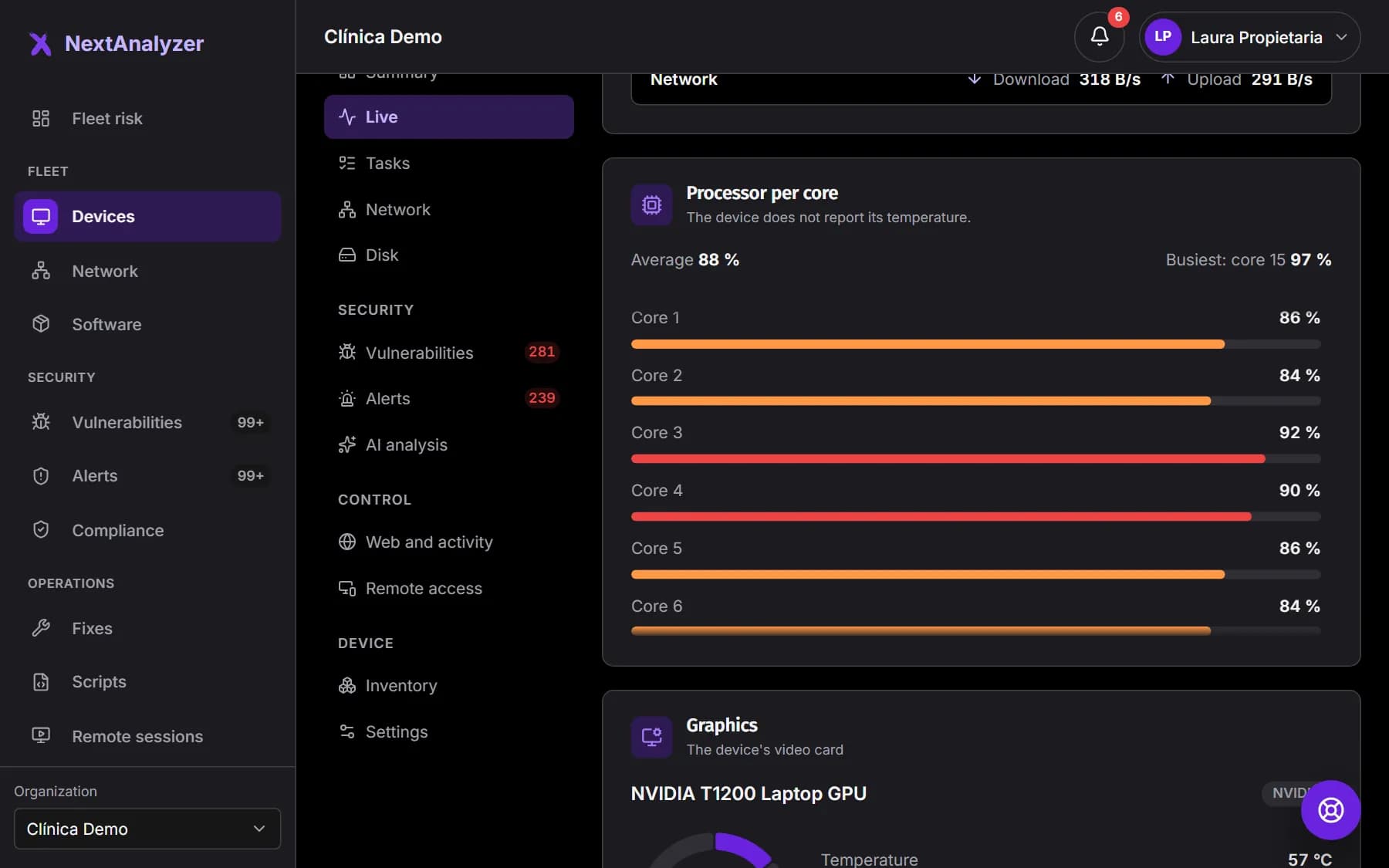
In “Processor per core” you see the average and the busiest core. If the device reports its temperature, it shows too.
Expected result: You know whether the load is spread out or concentrated on one core.
Tip: One core at 100% while the rest are calm is usually a single stuck program.
Check memory and network
In “Memory and network” you see swap memory, cached memory and established network connections.
Expected result: You know whether the device has run out of memory and is falling back on the disk.
Find the process using resources
“Top processes by CPU” shows the ten heaviest, with their PID, CPU and memory. It refreshes every 5 seconds.
Expected result: You have the name of the program slowing the device down.
Tip: To close it, ask the person using the device to end it from the app's Tasks page.
Follow the live logs
“Live logs” receives system events of warning level or above, by source: System, Application and Security.
Expected result: New events appear in the list as they happen.
Tip: Only the latest are kept, in your tab. The server doesn't store them: if you close the tab, they are gone.
Check the history
Scroll down to “History” and choose the “Range”: “24 hours”, “7 days” or “30 days”. You see the average and peak of each 5-minute interval.
Expected result: You see how the device has done over that period, with a summary of the average and peak of each metric.
Tip: Ranges beyond what your plan keeps are disabled.
If the device is not connected
With the device “Offline” you can't see it live. Instead you get “Last known state”, with the last measurement, and the history is still available.
Expected result: You can check how the device was doing before it disconnected.
Get alerted when it maxes out
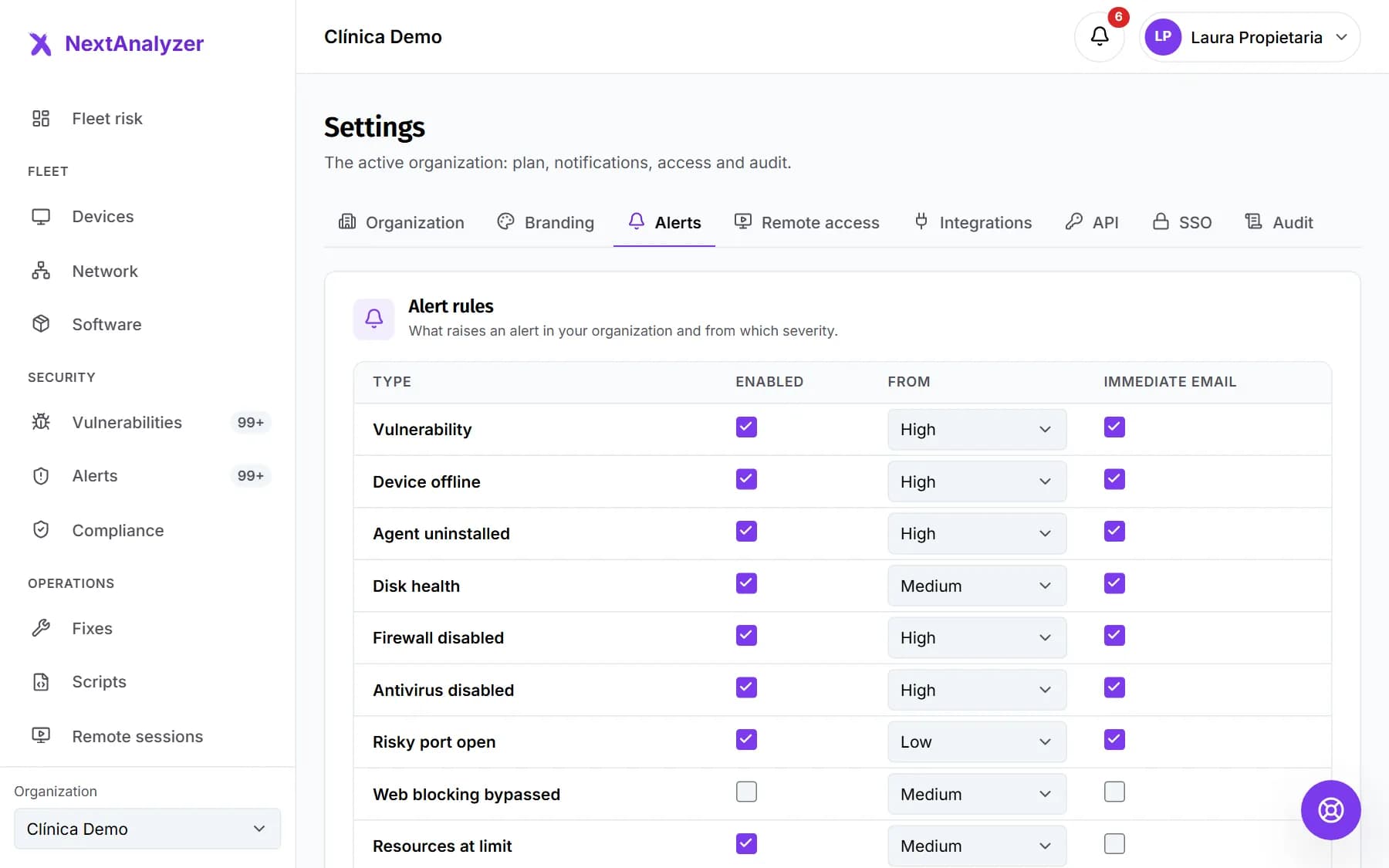
CPU, memory and disk thresholds are set per group, in Organization › “Members and groups” › “Groups”. For them to alert, turn on “Resources at limit” in Settings › “Alerts” › Rules.
Expected result: When a device exceeds the threshold for the set time, an alert opens.
Tip: Thresholds use 5-minute averages, not one-second spikes.
If something goes wrong
It says “The device is not responding live.”
The device is enrolled, but right now its channel to the server isn't open. It usually happens while it starts up or when the network is down. The data appears by itself as soon as it's back. If it persists, check that the NextAnalyzer service is running.
I can't choose “30 days” in the history
That range exceeds your plan's retention: Standard keeps 7 days, Business 30 and Enterprise 90. A higher plan keeps more history.
It says “The device does not report its temperature.”
Many devices, especially virtual machines and some laptops, don't allow the sensor to be read. That's normal: everything else works the same.
The logs disappear when I come back to the tab
Live logs aren't stored on the server: you only see them while the tab is open, and the latest ones are kept. If you need an event, copy it before you leave.
Still not working? Open a support ticket