
Install the agent and link a device
The agent is what monitors the device and applies your organization's protections. It's linked to your organization with an enrollment code you generate in the dashboard. Here's how to do it for one device.
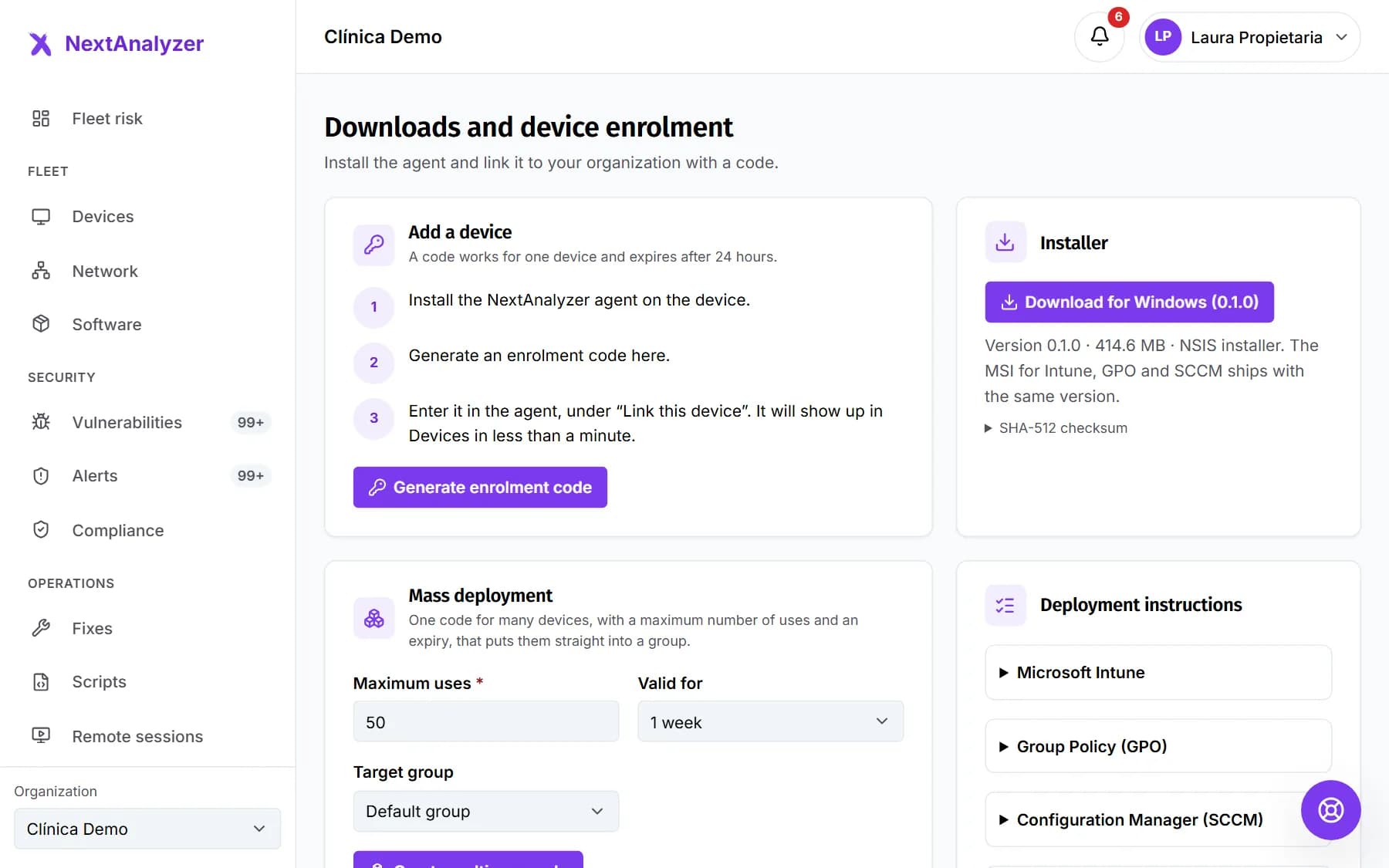
Open Downloads
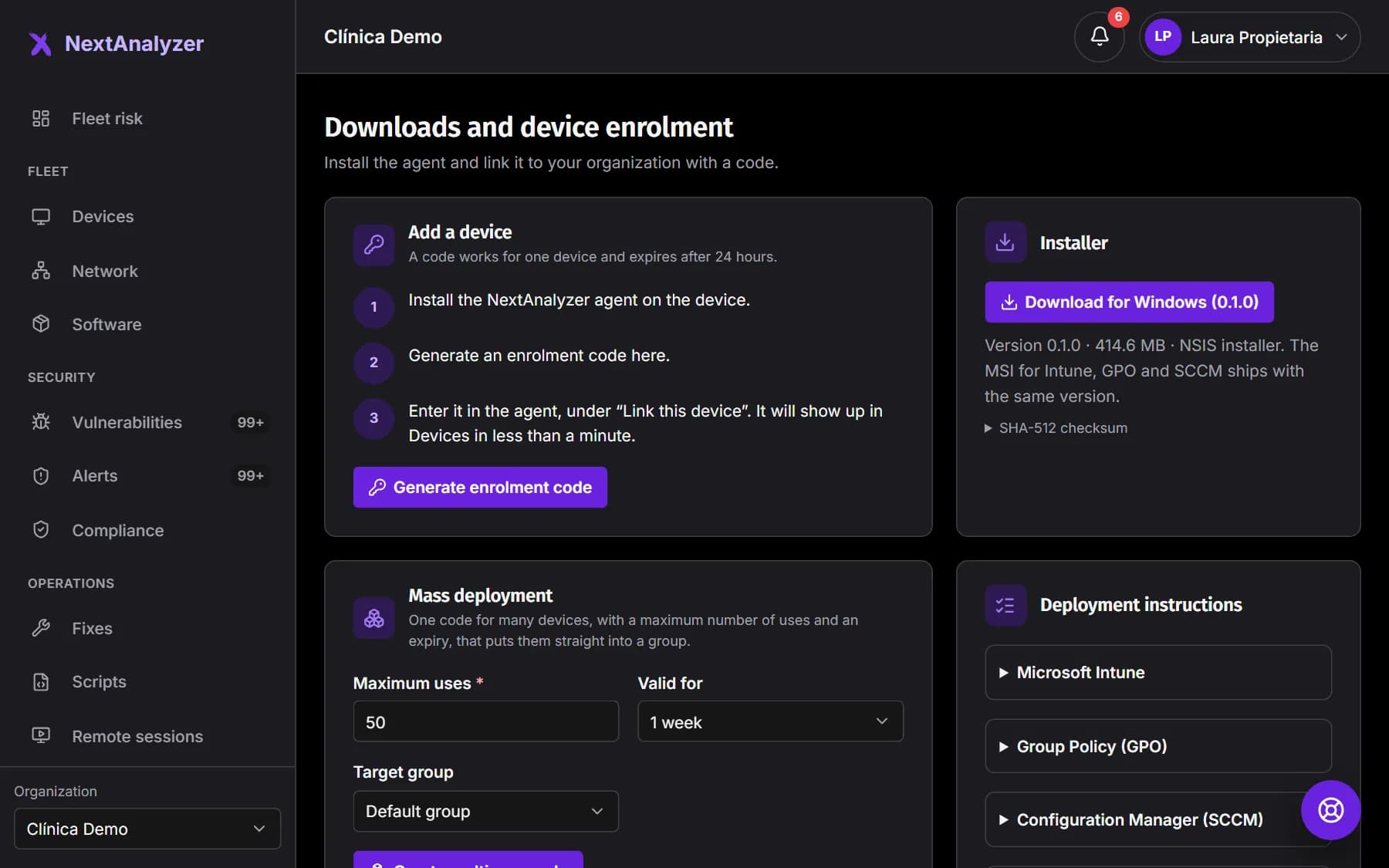
In the side menu, Organization › Downloads. At the top you have “Add a device” with the three enrollment steps, and next to it the “Installer”.
Expected result: You see the “Downloads and device enrolment” page.
Download the installer
Click “Download for Windows”. It's a single installer for x64 and ARM64 devices. If you want to verify it, compare its “SHA-512 checksum” with the one on the page.
Expected result: You have NextAnalyzerSetup in your downloads folder.
Tip: The macOS and Linux packages are in testing and aren't downloaded here: request them in Support.
Generate an enrollment code
Under “Add a device”, click “Generate enrolment code”. You get an 8-character code, like ABCD-EFGH, with its expiry date and a button to copy it.
Expected result: You see the “Enrolment code” and “Expires on” with the date and time.
Tip: If it says “This device will be billed as an extra”, the device goes beyond your plan's included ones. For many devices, use mass deployment.
Install the agent on the device
Run NextAnalyzerSetup and accept the administrator prompt: the agent needs a system service. Follow the wizard and enter the code when it asks for it.
Expected result: The wizard ends with “Installation summary” and the line “Enrolment: device linked to your organisation”.
Tip: There's a screen-by-screen guide to the Windows wizard and one for macOS and Linux.
Link it from the app if needed
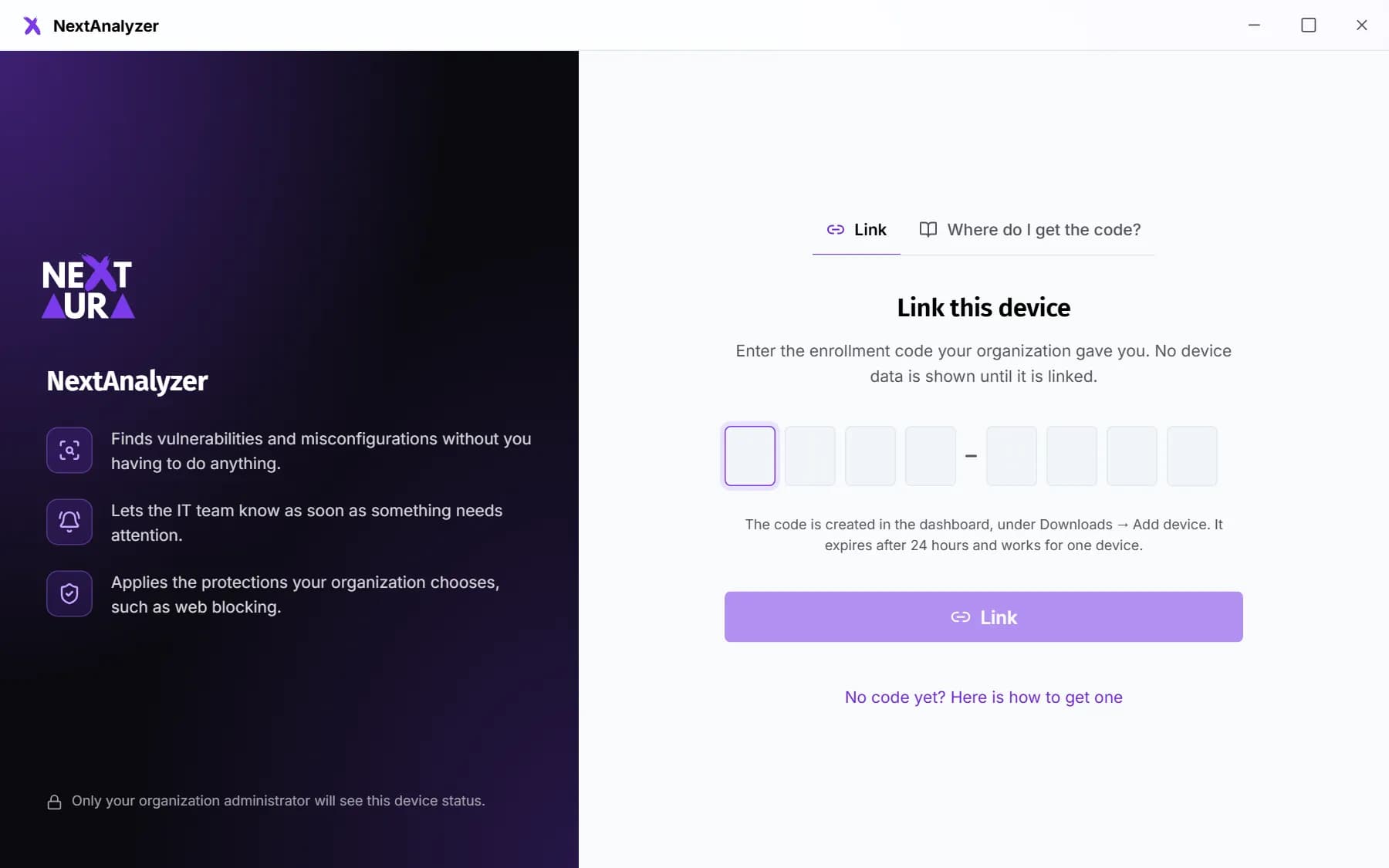
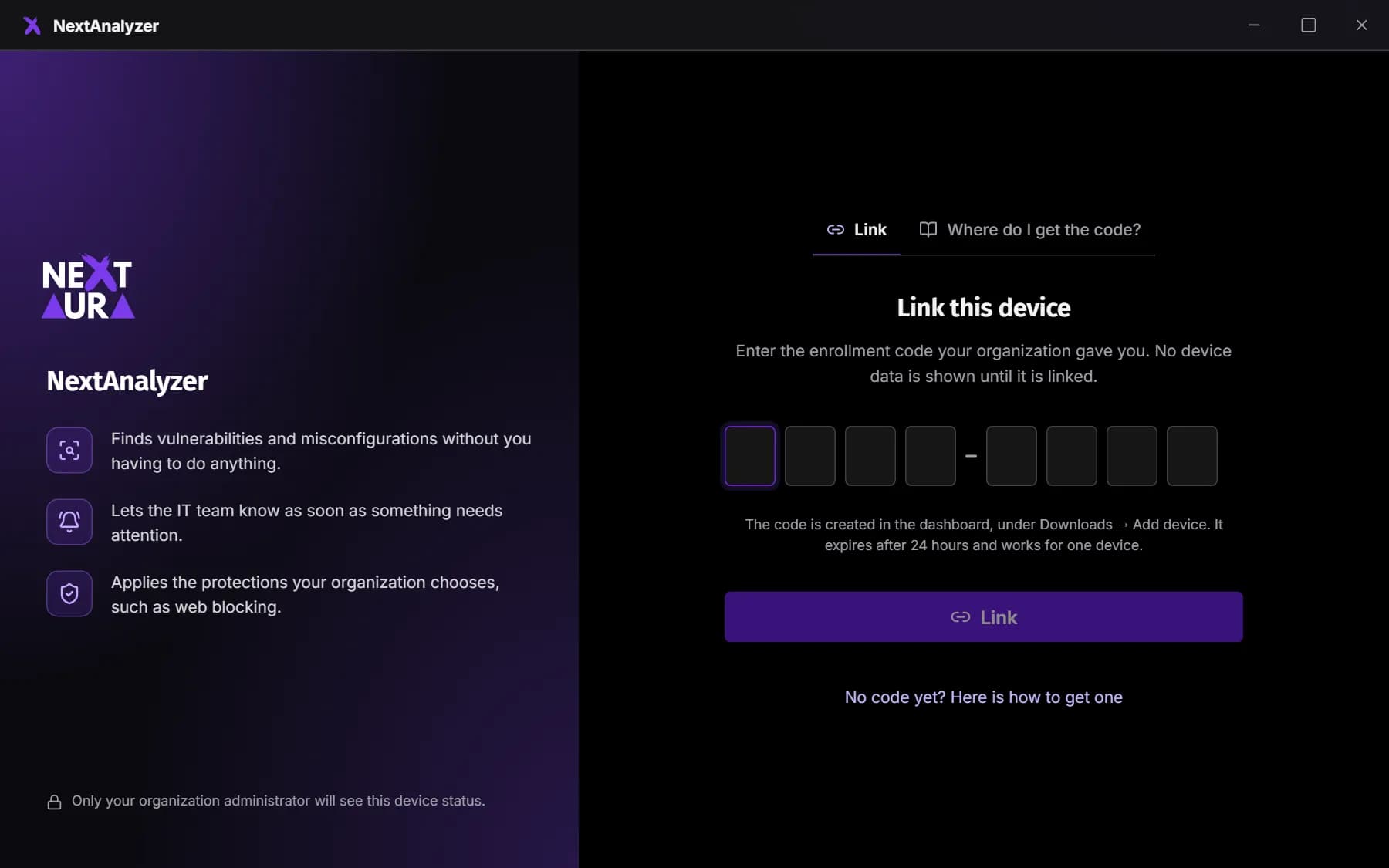
If you didn't enter the code during installation, open the NextAnalyzer app. You'll see “Link this device”: enter the code and click “Link”. You can paste it with or without the hyphen.
Expected result: You see “Device linked. It is now protected by your organization.”
Tip: Until you link it, the app doesn't show any device data.
Check that it shows up
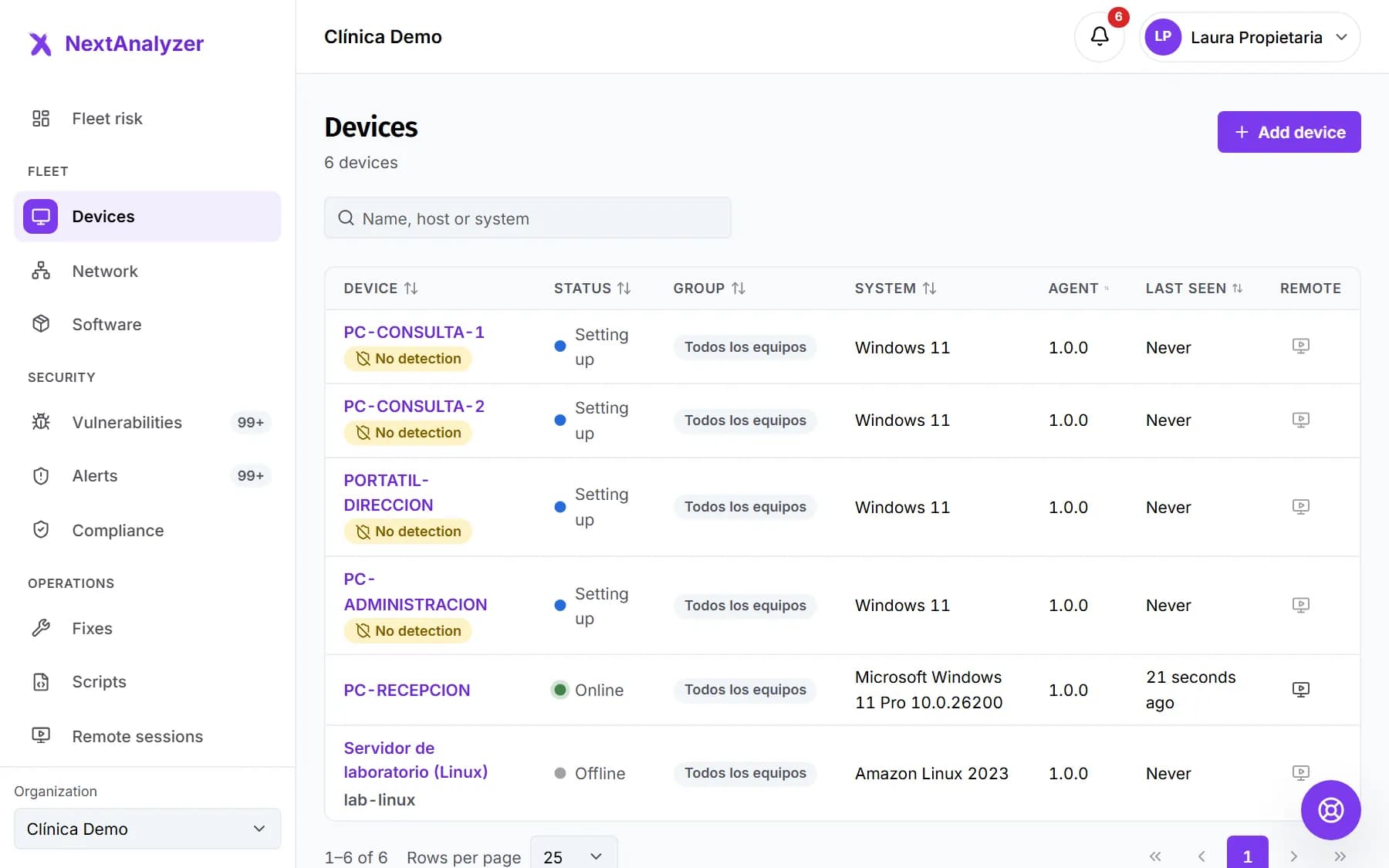
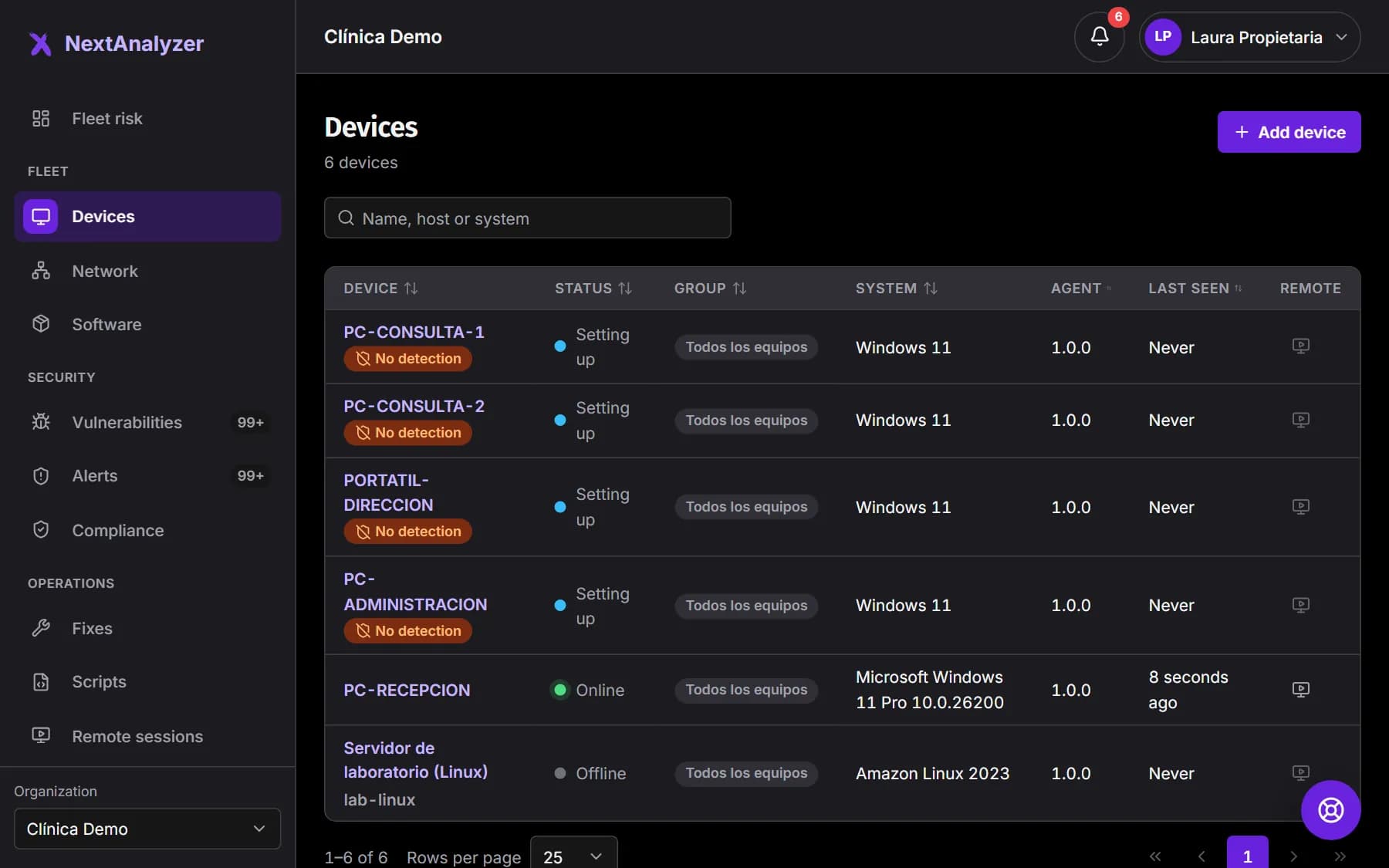
In the dashboard, open Devices. Look the device up by name: you'll see its system, agent version and “Last seen”.
Expected result: The device shows “Setting up” and, within a minute, “Online”.
Confirm that detection works
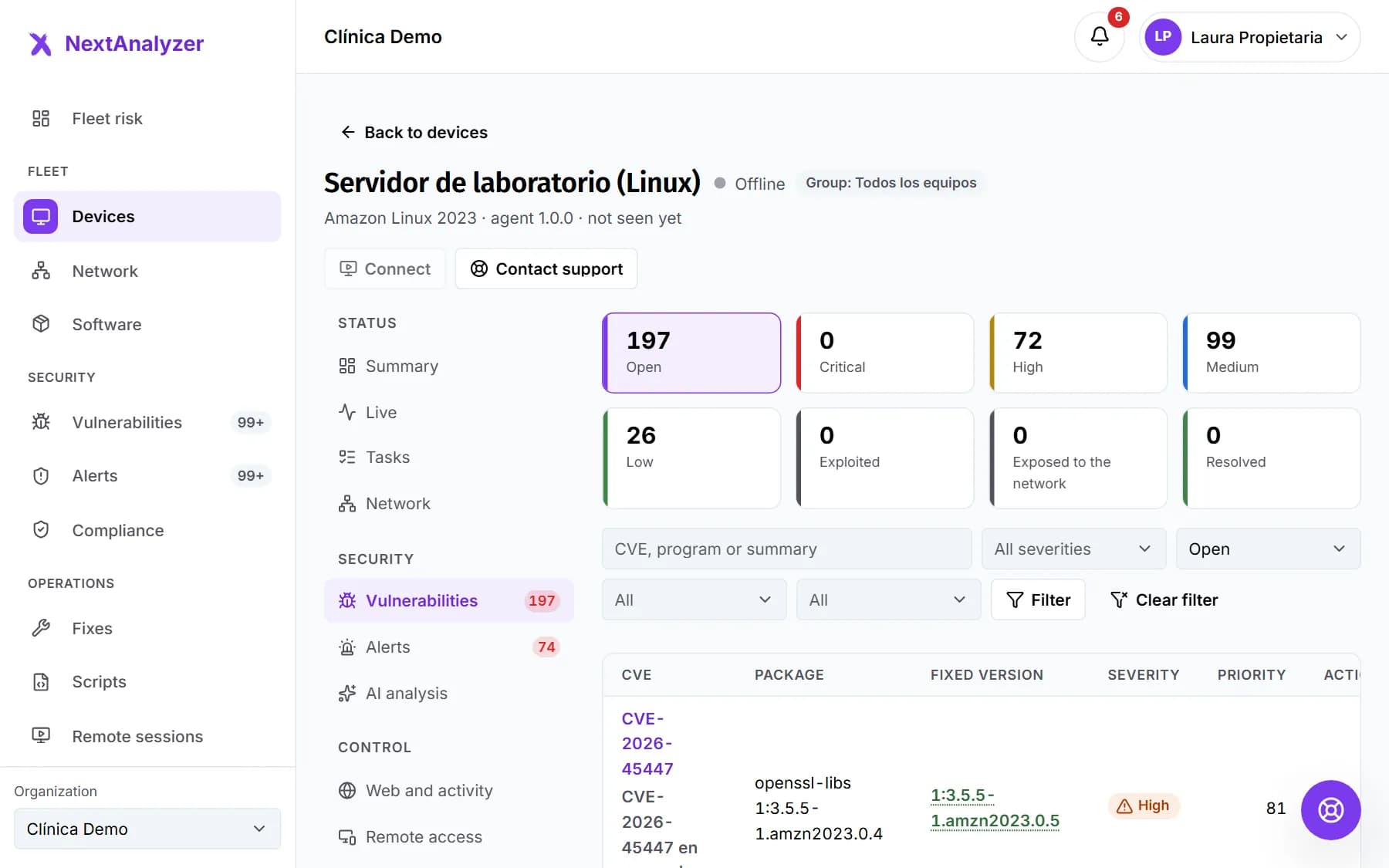
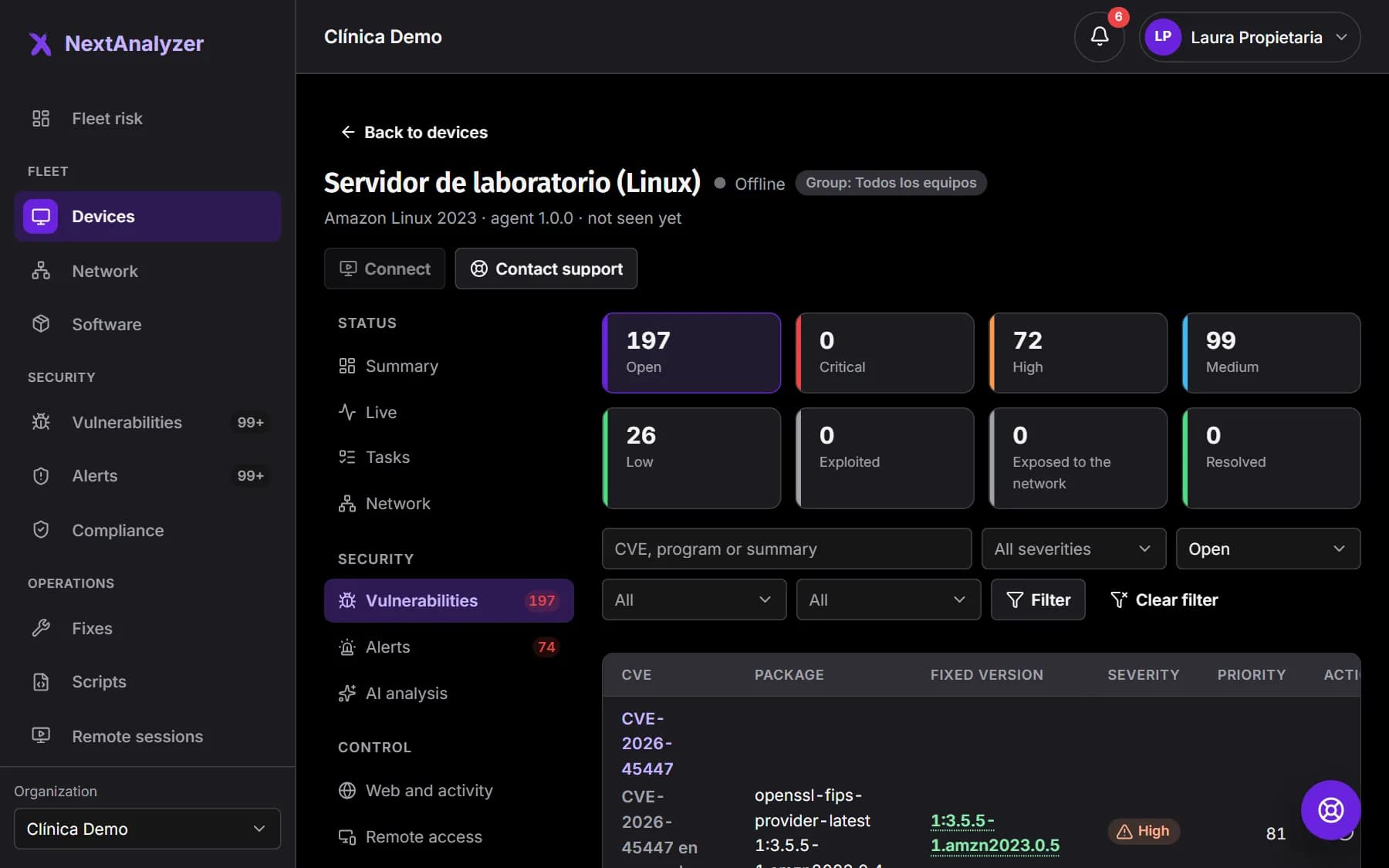
A few minutes later, open the device page › “Vulnerabilities”. If it says “No detection”, the Wazuh engine hasn't connected yet.
Expected result: You see the device's vulnerabilities by severity, with no detection warnings.
If something goes wrong
Windows says the installer isn't trusted
The installer isn't signed yet, so Windows SmartScreen warns you. Check that the SHA-512 checksum matches the one in Downloads and click “More info” › “Run anyway”.
The app says “The code is invalid, has expired or has already been used”
A code expires after 24 hours and works for one device. Generate another in Downloads. Codes never contain O, I, L, U, 0 or 1; copy it with the button instead of reading it out.
It says “Your organization has reached its plan's device limit”
You already have all the devices your plan allows (5 on Standard and during the trial). Retire one you no longer use from its page › Settings, or upgrade from “See plans”.
The device doesn't show up in Devices
In the app, check that Settings › “Connection” says “Connected”. If it says “No service”, restart the device. If it can't reach the platform, check that your network firewall allows outbound HTTPS 443 and TCP 3443. The troubleshooting guide covers the remaining cases.
After installing, the device lost Internet access
It shouldn't: on Windows the agent sets 8.8.8.8 and 1.1.1.1 as alternate DNS servers and, if its filter doesn't respond, a watchdog sets DNS back to automatic within a minute. While the backup is in use, web blocking doesn't filter. If your network blocks those public DNS servers, set your own in the system environment variable NEXTANALYZER_DNS_BACKUP.
Still not working? Open a support ticket