
Troubleshoot the agent
Most agent problems have a specific cause: a code that doesn't work, a network that blocks outbound traffic or a stopped service. This guide goes from most to least common, with what to check and how to fix it.
If the device doesn't show up after installing
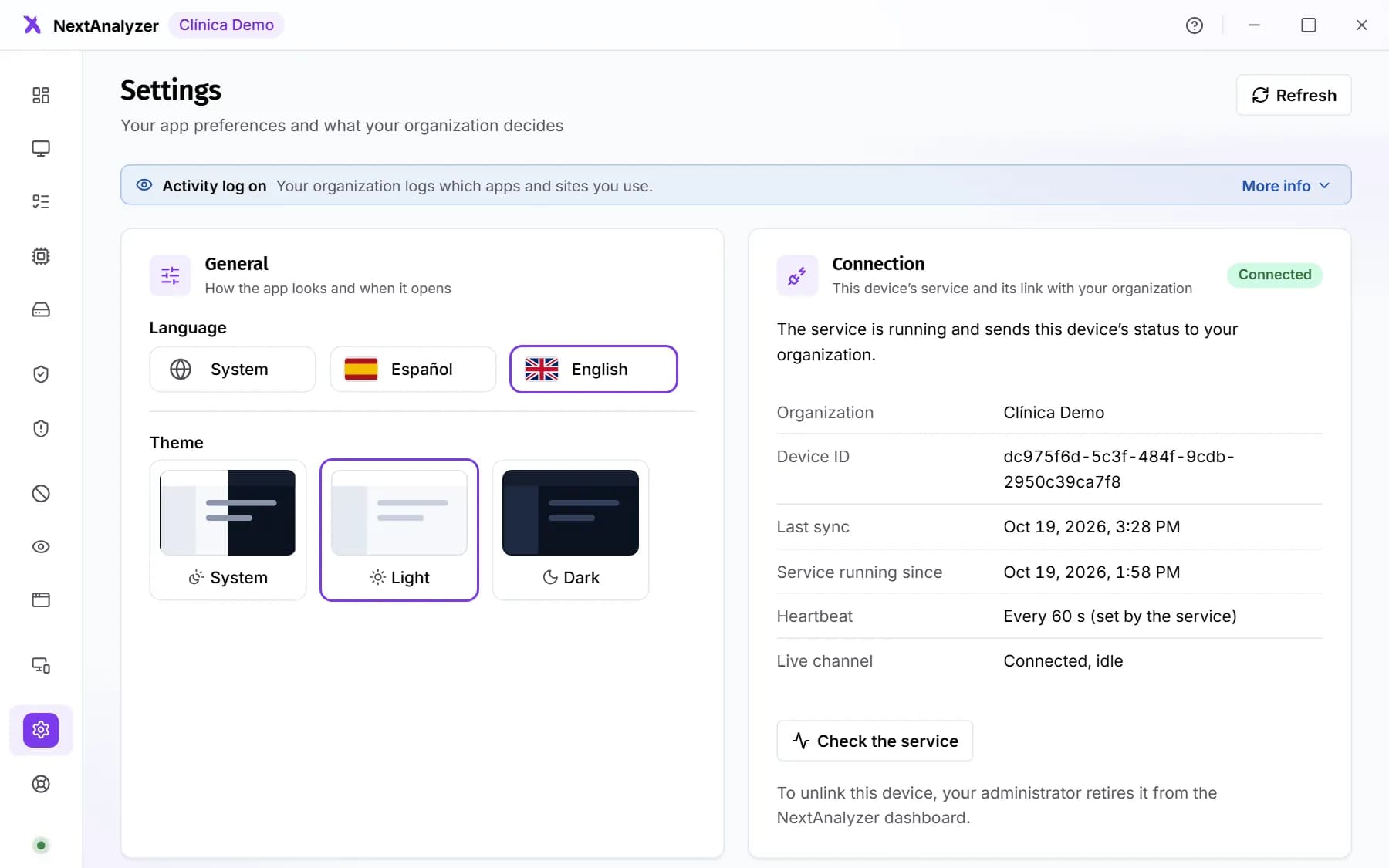
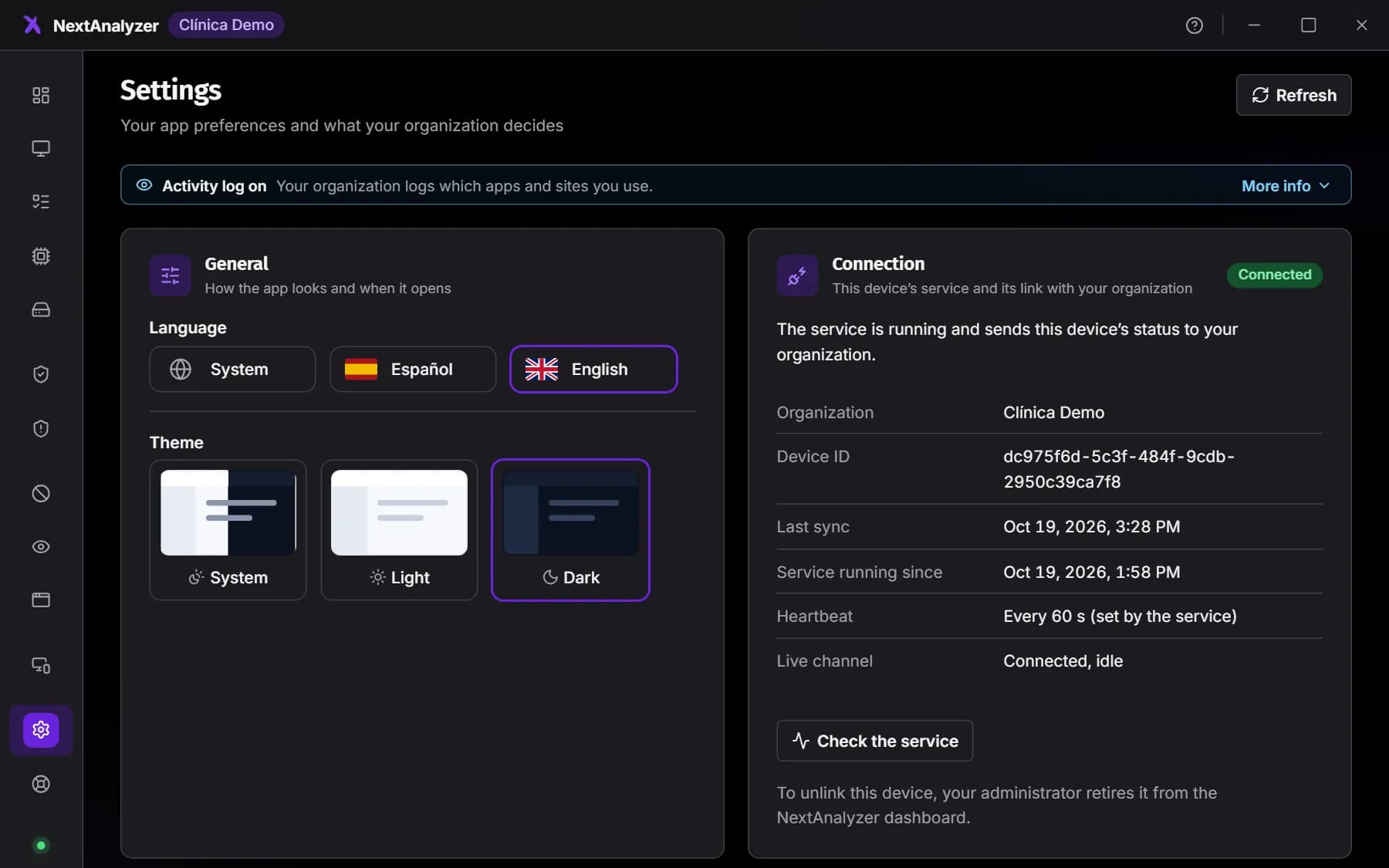
Open the NextAnalyzer app on the device › Settings › “Connection”. “Not linked” means the code is missing. “Having issues” means the service can't reach the platform. “No service” means the service has stopped.
Expected result: You know whether the problem is the code, the network or the service.
Tip: On Windows, the wizard's “Installation summary” also says how enrollment went.
Check the enrollment code
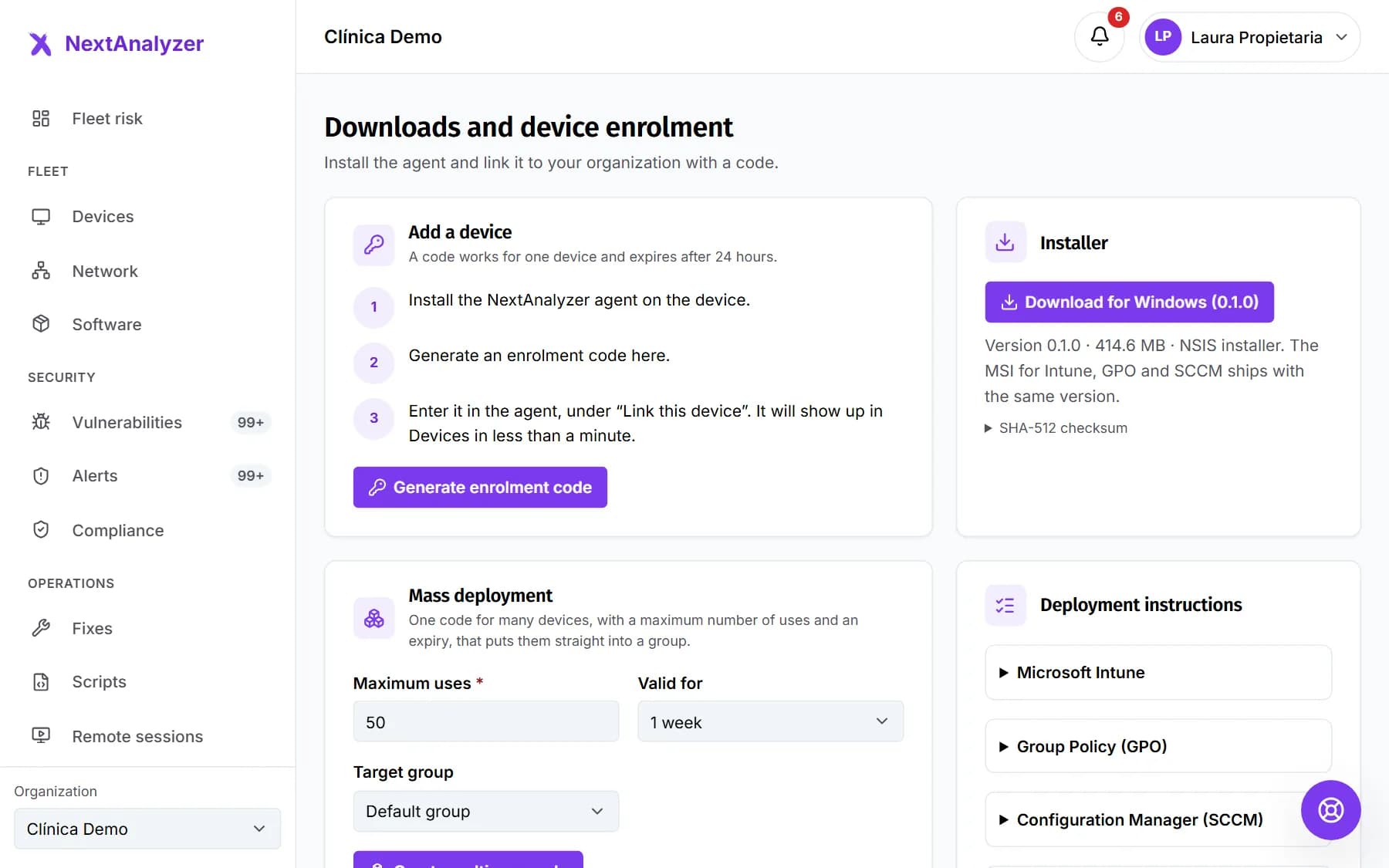
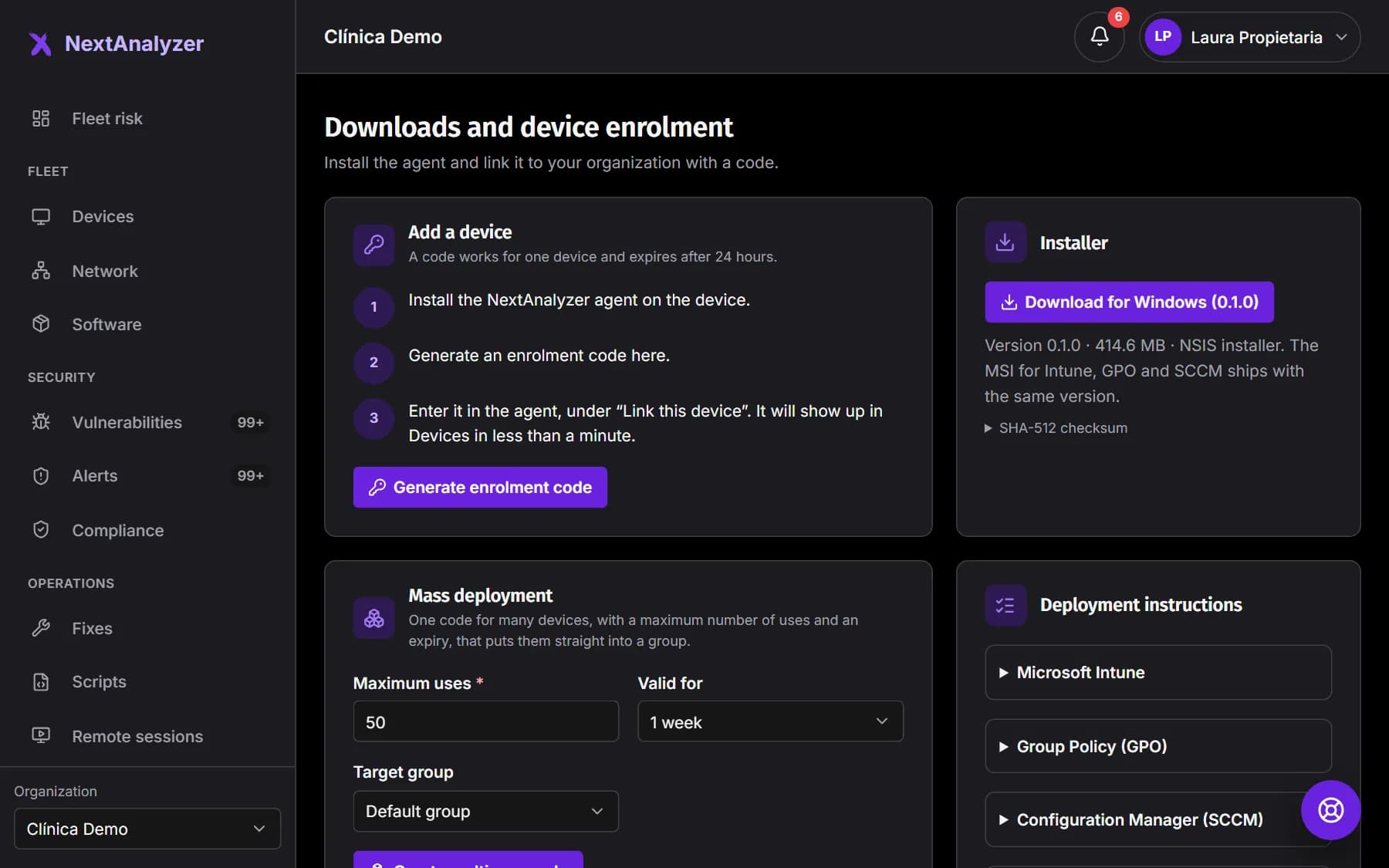
In Organization › Downloads, look at “Enrollment codes”. A single code expires after 24 hours and works for one device. If it shows “Used up”, “Expired” or “Revoked”, generate another. If there are some “rejected by limit”, the plan is full.
Expected result: You have an “In use” code with uses left, or you know you need to free seats.
Tip: Limits: 5 devices on Standard and in the trial, up to 50 on Business and up to 500 on Enterprise, including extras.
Check outbound connectivity
The device needs outbound Internet access over HTTPS (443) for enrollment, TCP 3443 for the devices' encrypted channel (mTLS) and TCP 1514 for Wazuh. The exact addresses are in agent.json, in the installation's resources\service folder.
Test-NetConnection -ComputerName api.example.com -Port 3443Expected result: The connection test to port 3443 returns TcpTestSucceeded: True.
Tip: If a proxy inspects TLS, exclude the platform: the device channel uses a client certificate and doesn't allow inspection. Replace api.example.com with the address in your agent.json.
If it shows “Offline”
A device becomes “Offline” after 5 minutes without a heartbeat and the “Device offline” alert is raised. Check that it's on and connected. Then check that the NextAnalyzer service is running: on Windows, with the command below or in services.msc.
sc query NextAnalyzerServiceExpected result: The service shows RUNNING and the device is back “Online” within a minute.
Tip: On Linux, systemctl status nextanalyzer. If the service won't start, restart the device and check its logs.
If it shows “Agent out of date” or “Agent uninstalled”
“Agent out of date”: its version is below the minimum supported and it stops sending full data. It updates itself in its next window; otherwise reinstall with the installer from Downloads. “Agent uninstalled”: someone removed it on the device.
Expected result: After reinstalling, the device is back “Online” with the new version.
Tip: An uninstalled device keeps its seat for 7 days. If you won't reinstall it, retire it to free the seat now.
If there's no vulnerability detection
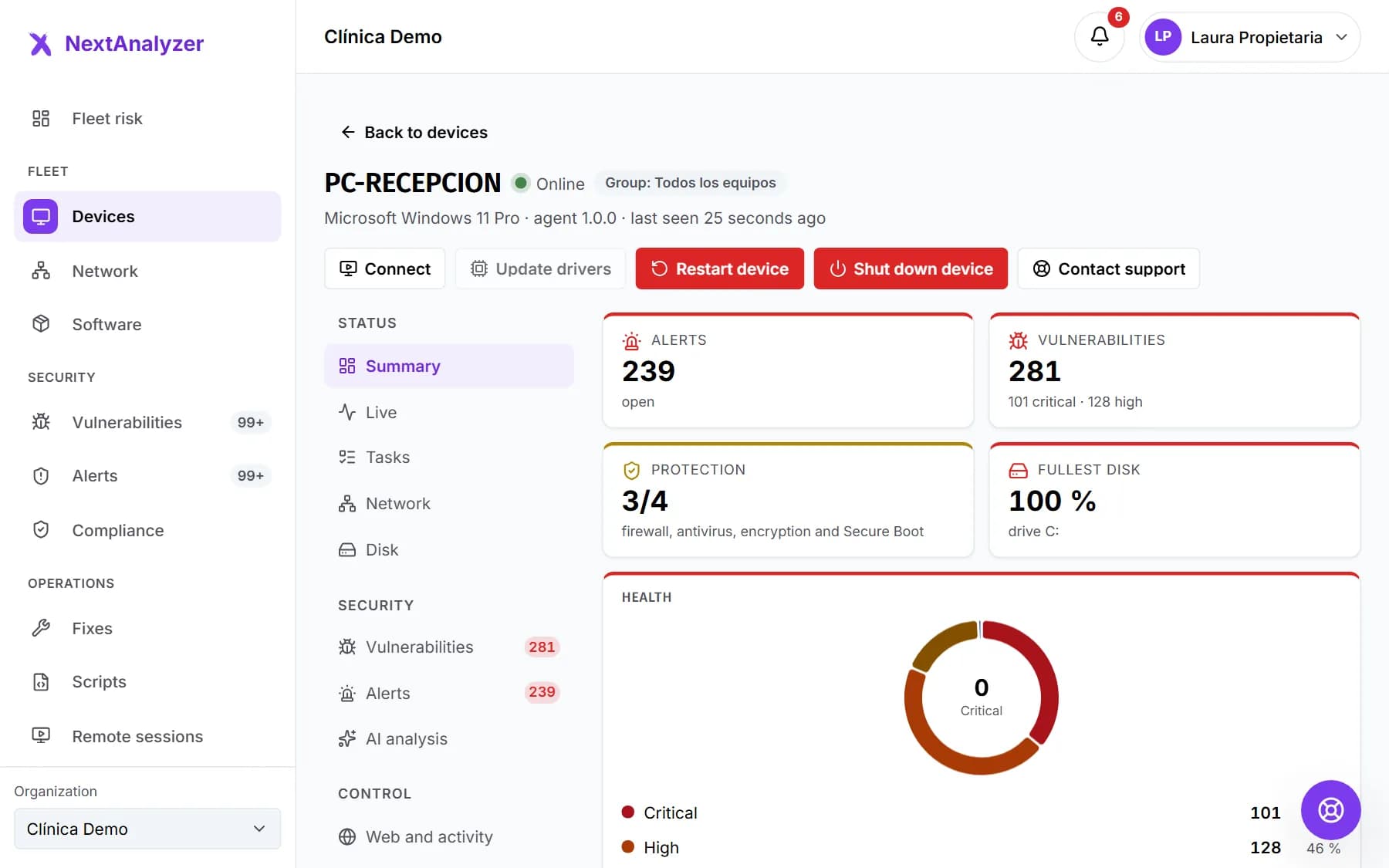
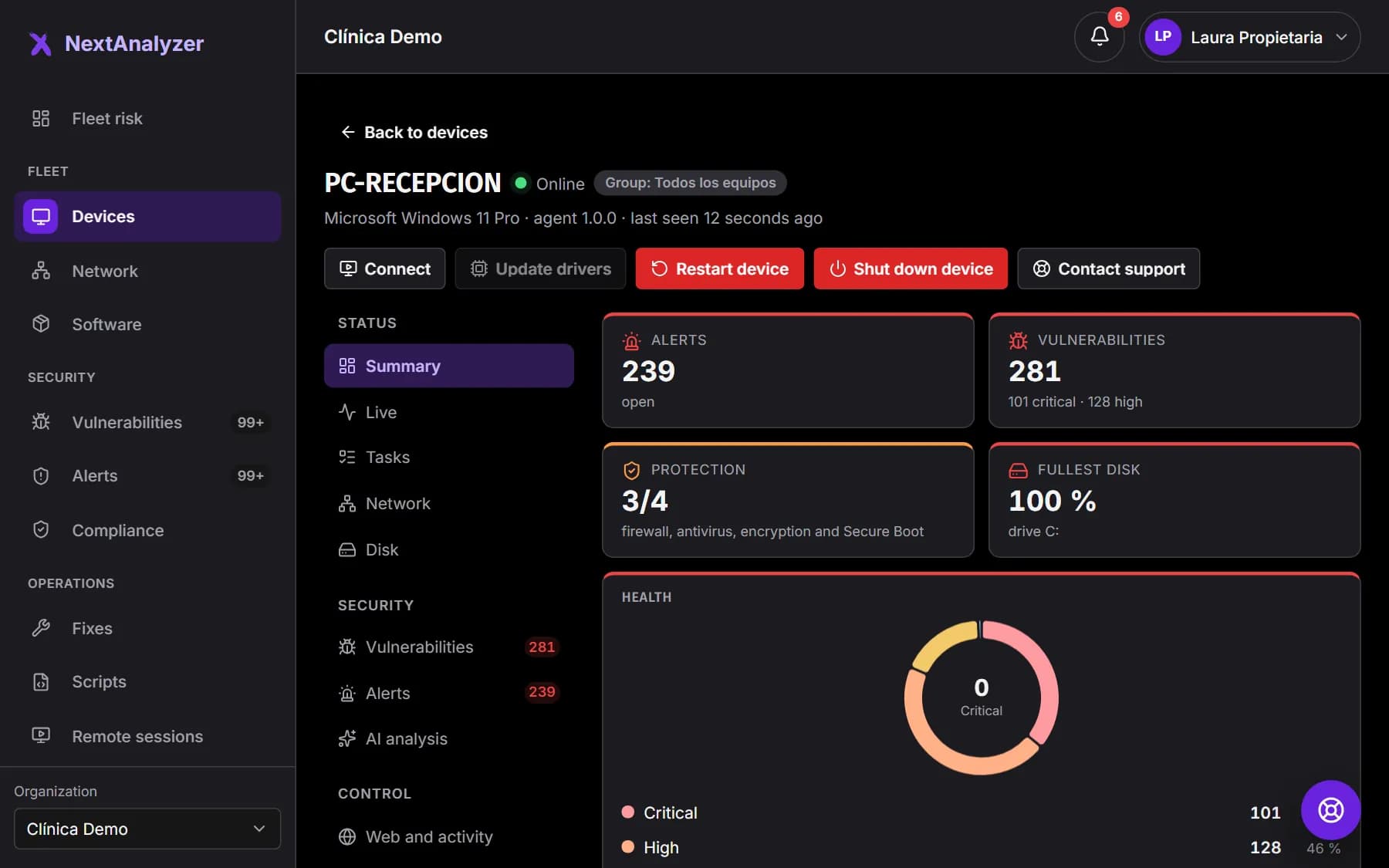
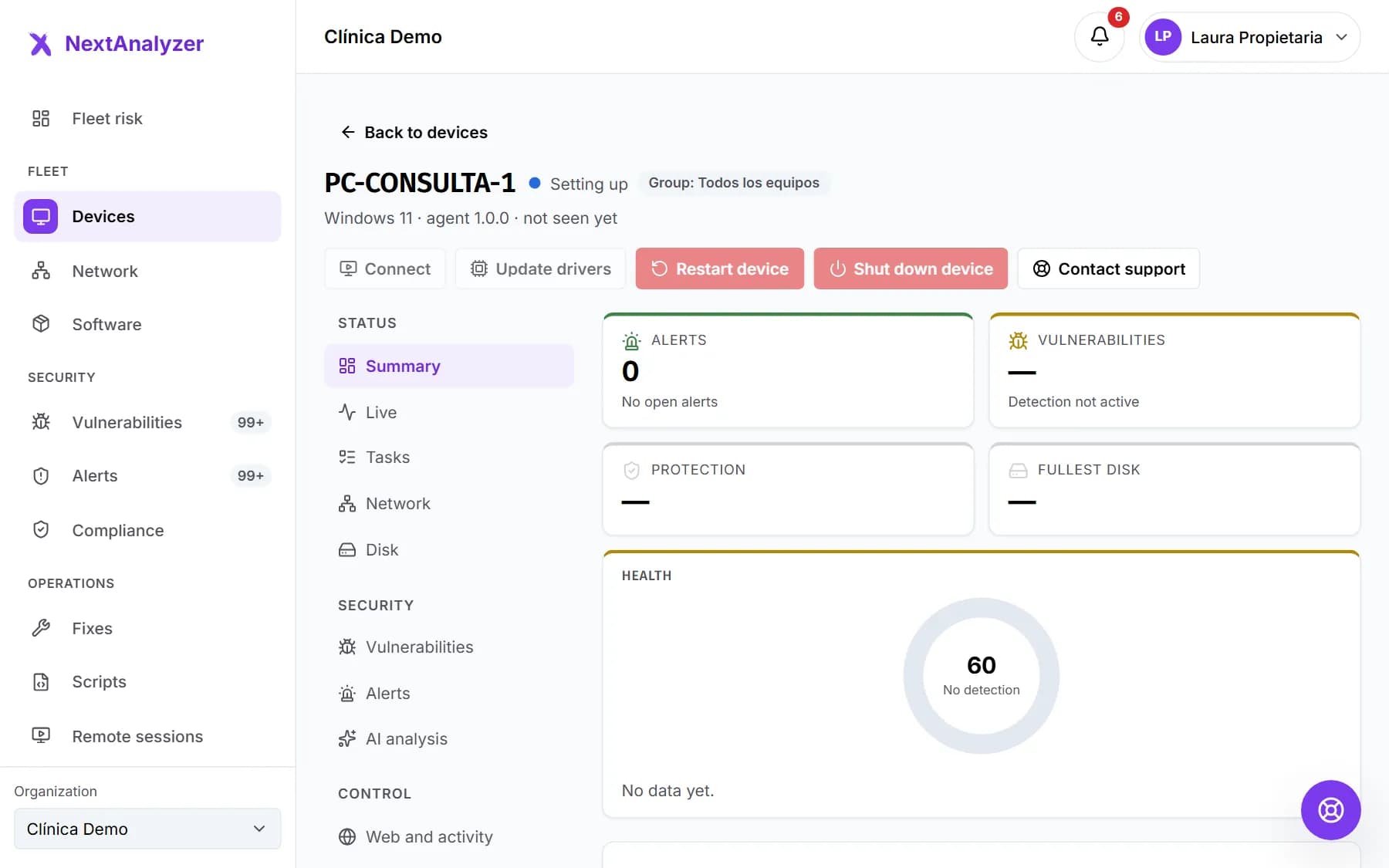
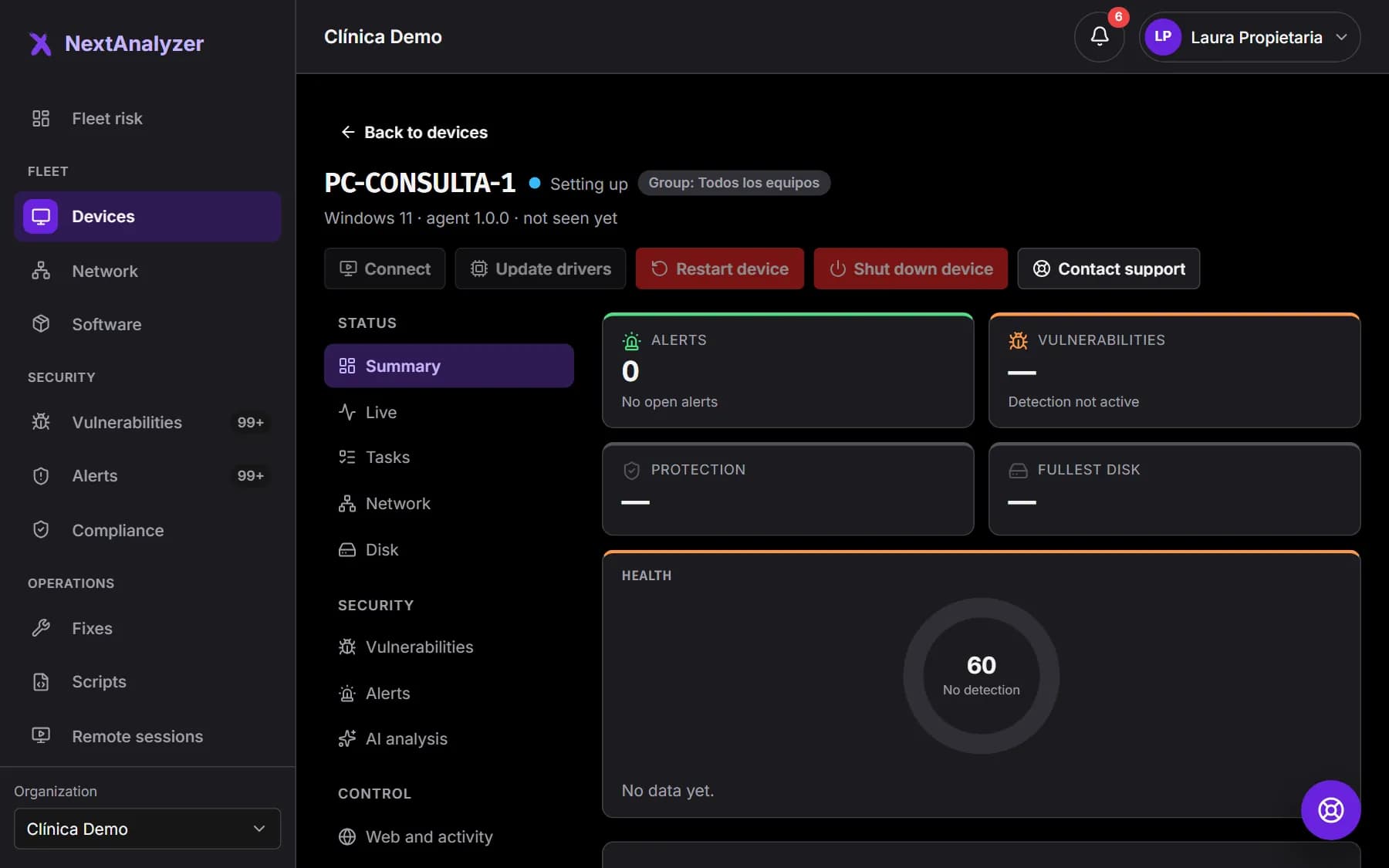
With the “No detection” label, the device page says what is wrong with Wazuh: “isn't active yet” (never connected), “has stopped” (stopped connecting) or “has no vulnerability detection” (no Wazuh agent registered). Check the WazuhSvc service (wazuh-agent on Linux) and port 1514.
Expected result: The warning disappears and the device page shows its vulnerabilities.
Tip: If nothing changes, reinstall NextAnalyzer with administrator rights: it reinstalls Wazuh. Right after installing, the status can take a few minutes to become active.
If the device loses Internet access
On Windows, the agent sets 8.8.8.8 and 1.1.1.1 as alternate DNS servers. If its filter doesn't respond, Windows uses them and, within a minute, a watchdog sets DNS back to automatic. While the backup is in use, web blocking doesn't filter.
ipconfig /flushdnsExpected result: The device can browse again within a minute at most.
Tip: To restore it by hand: Settings › Network & Internet › your connection › DNS server assignment › Automatic (DHCP), then clear the cache with the command below. If your network blocks public DNS, set your own in the system variable NEXTANALYZER_DNS_BACKUP, comma-separated; empty turns it off.
Collect the logs
Windows: C:\ProgramData\NextAnalyzer\logs (installer.log and NextAnalyzerService.*.log). macOS: /Library/Logs/NextAnalyzer (service.log and install.log). Linux: the system journal, with the command below. The app keeps its own under Settings › “Advanced” › “Open the logs folder”.
journalctl -u nextanalyzer --since todayExpected result: You have the files ready to attach to the ticket.
Tip: For a recurring problem, first raise the app's “Log level” to “Debug” and reproduce it.
Open a ticket with the right details
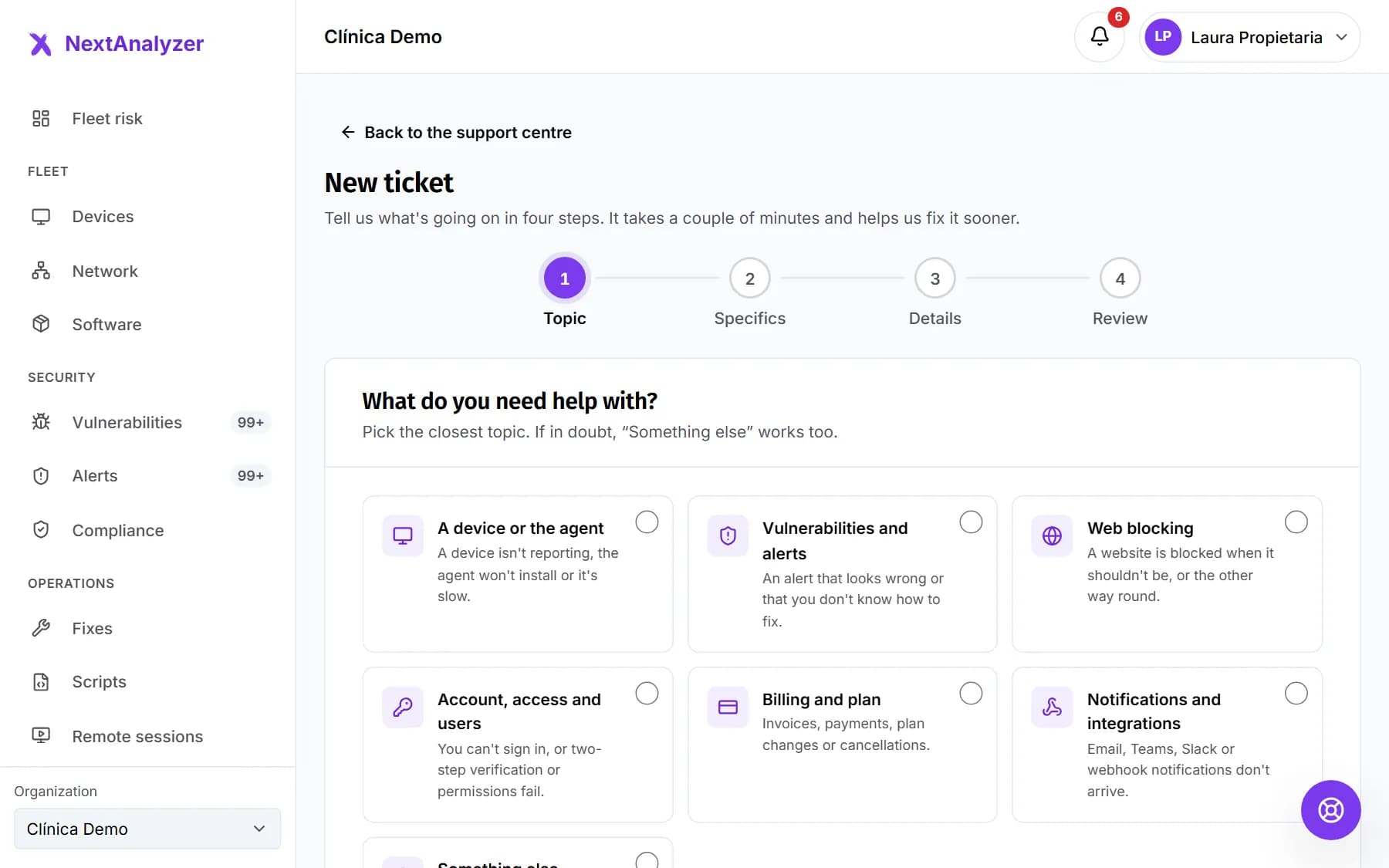
If none of the above fixes it, go to Support and choose “A device or the agent” and the reason (“Not reporting”, “Installation fails”…). Mark the affected device. Give its system, agent version, since when it happens, the exit code if any, and attach the logs.
Expected result: You get a confirmation in the conversation with its reference number (SUP-…).
Tip: Outside business hours, you also get a notice with the support hours. We'll never ask for your password.
If something goes wrong
The app says “This device has been retired”
Someone retired it from the dashboard. To protect it again, generate a new code in Downloads and enter it under “Link this device”. It will count as a new device.
The connection shows “Having issues”
The service is running, but the last sync failed. It retries on its own and nothing is lost. If it lasts more than a few minutes, check outbound 443 and 3443 and that the device's clock is right: a skewed clock breaks the encrypted channel.
It says “This agent version is no longer supported”
The device has a version below the minimum. Download the current installer from Downloads and install it over the top: the device keeps its enrollment.
The summary says “Enrolment: waiting for a connection to the server”
There was no connection during installation. The service retries enrollment every minute. If it doesn't show up within a few minutes, check outbound connectivity and that the code hasn't expired in the meantime.
Web blocking has stopped working on a device
The agent's DNS filter may not be responding and the device may be using the backup DNS servers, which don't filter. Check whether the app shows “No service” and restart the device. If it happens again, open a ticket with the service logs.
Still not working? Open a support ticket