
Install and uninstall software in bulk
Software brings together the program inventory of all your devices. From there you install or remove programs in bulk with each system's package manager: winget on Windows, apt or dnf on Linux and Homebrew on macOS.
See what is installed
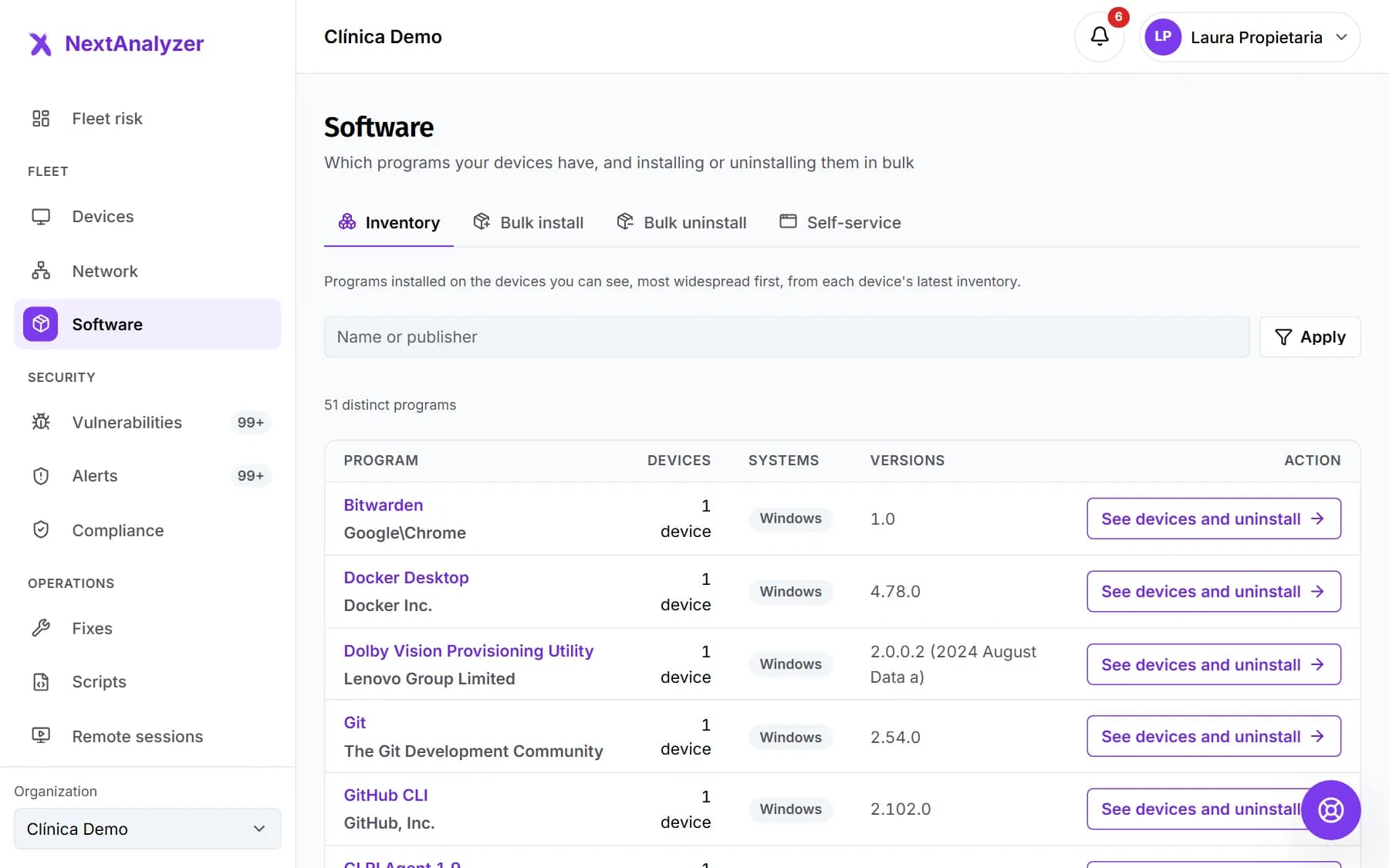
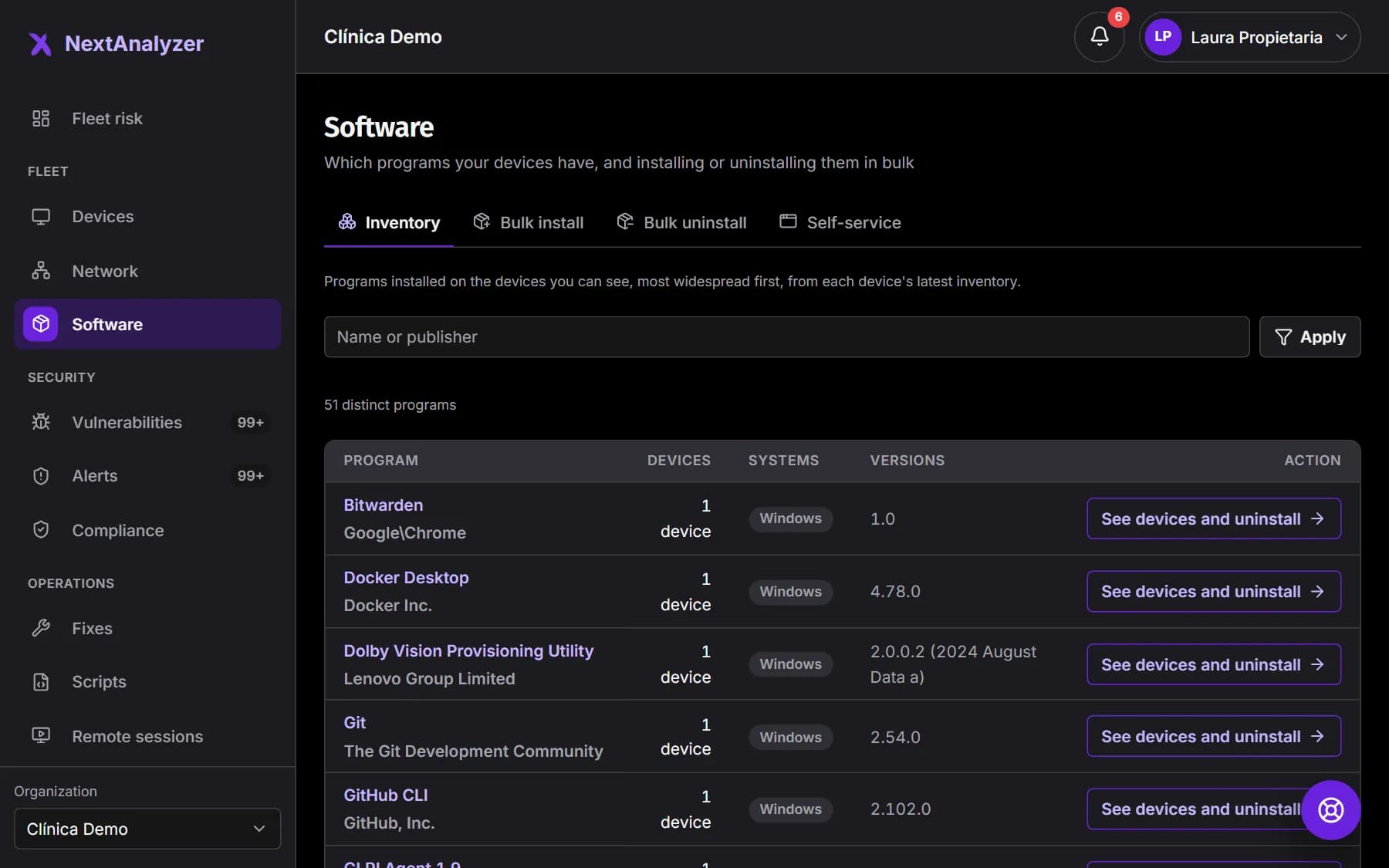
In the menu, Fleet › “Software”, “Inventory” tab. Each program shows how many devices have it, on which systems and in which versions. Use the program search to jump straight to one.
Expected result: You see the list of programs, from most to least widespread.
Open a program's page
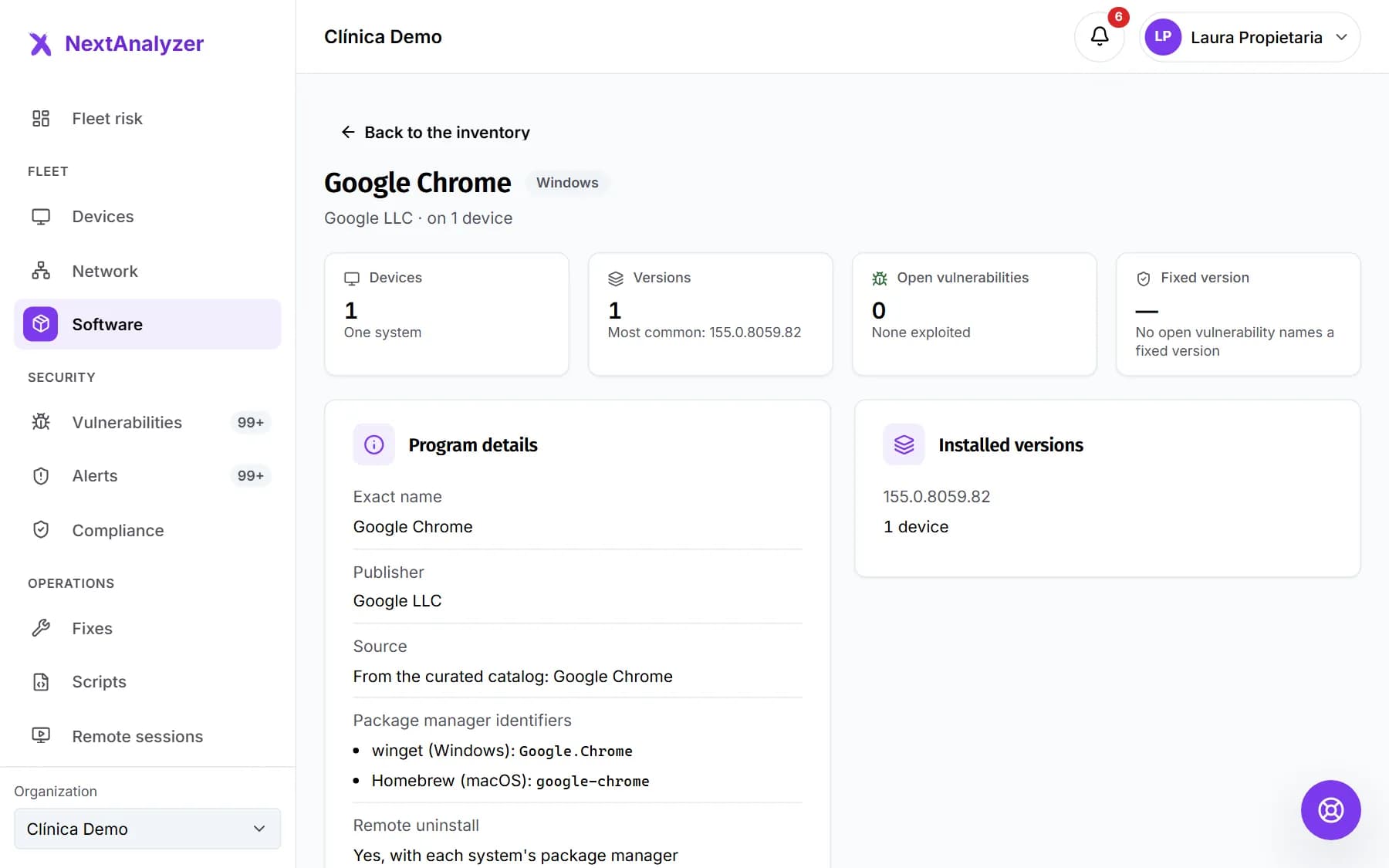
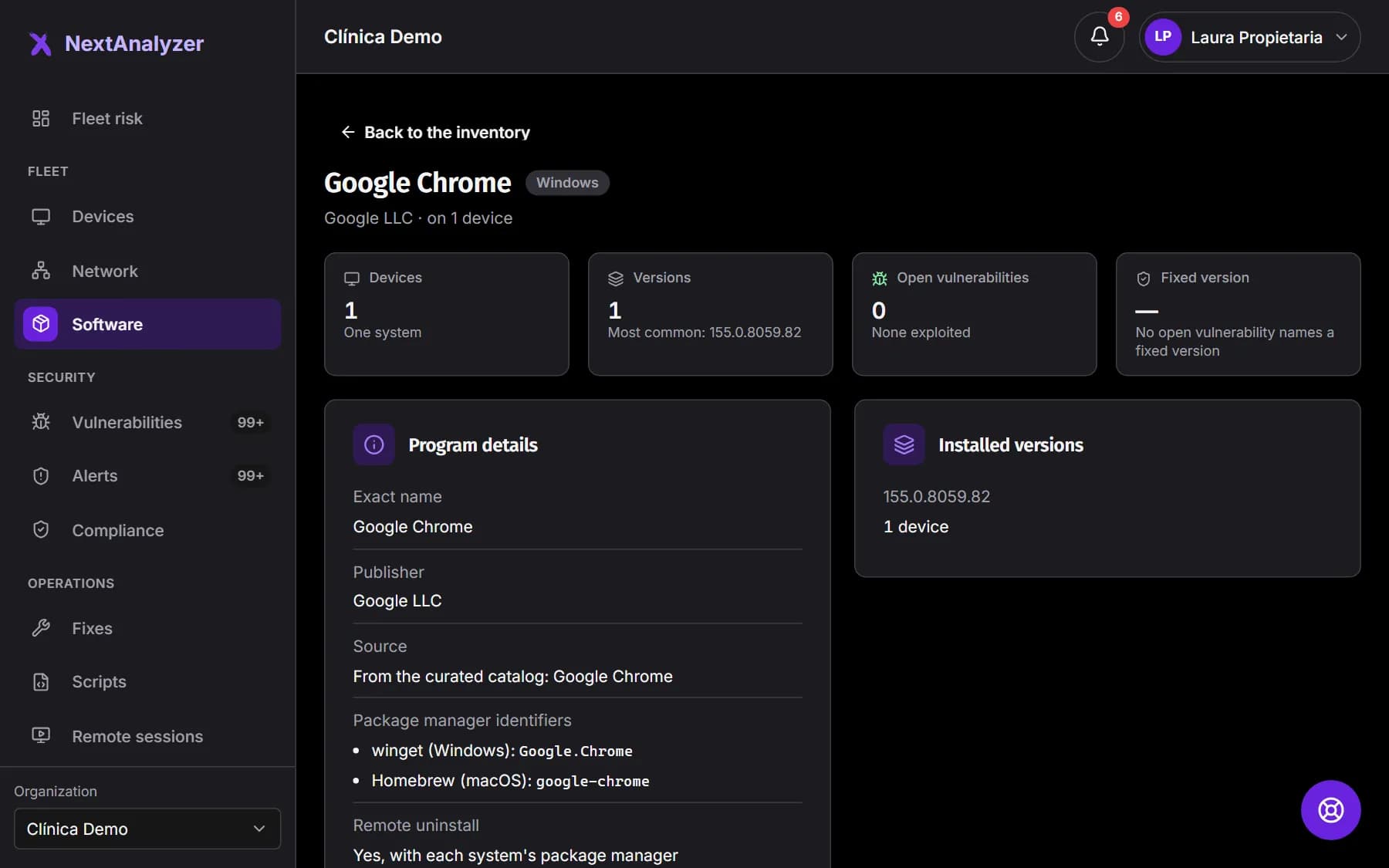
Click a program. At the top you see its devices, versions, open vulnerabilities and the version that fixes them. Below, its identifiers in each package manager and the devices that have it.
Expected result: Under the actions you have “Install on more devices” and “Uninstall in bulk”.
Tip: To update a vulnerable program, use “Apply fix” on each vulnerability on its page.
Choose what to install
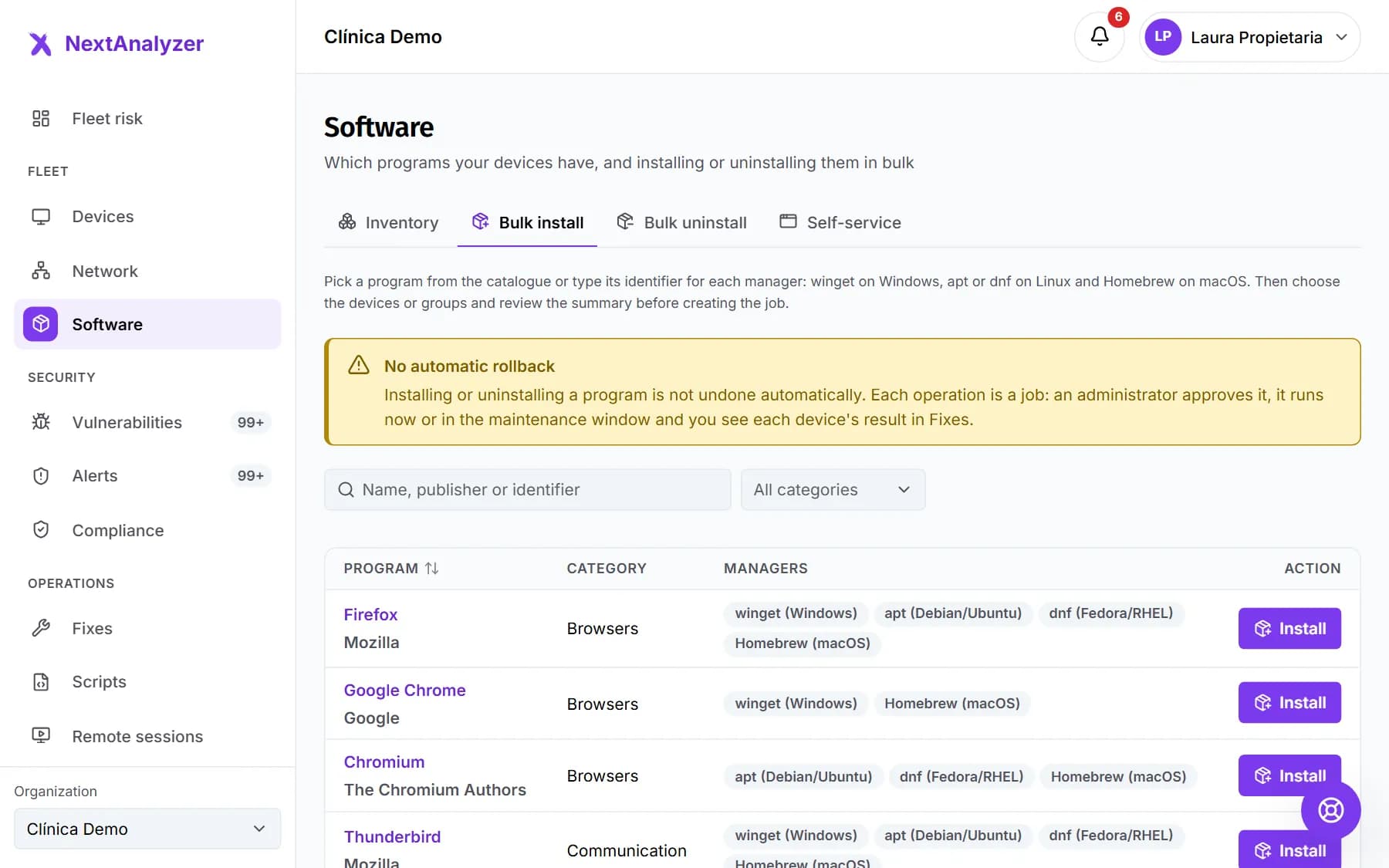
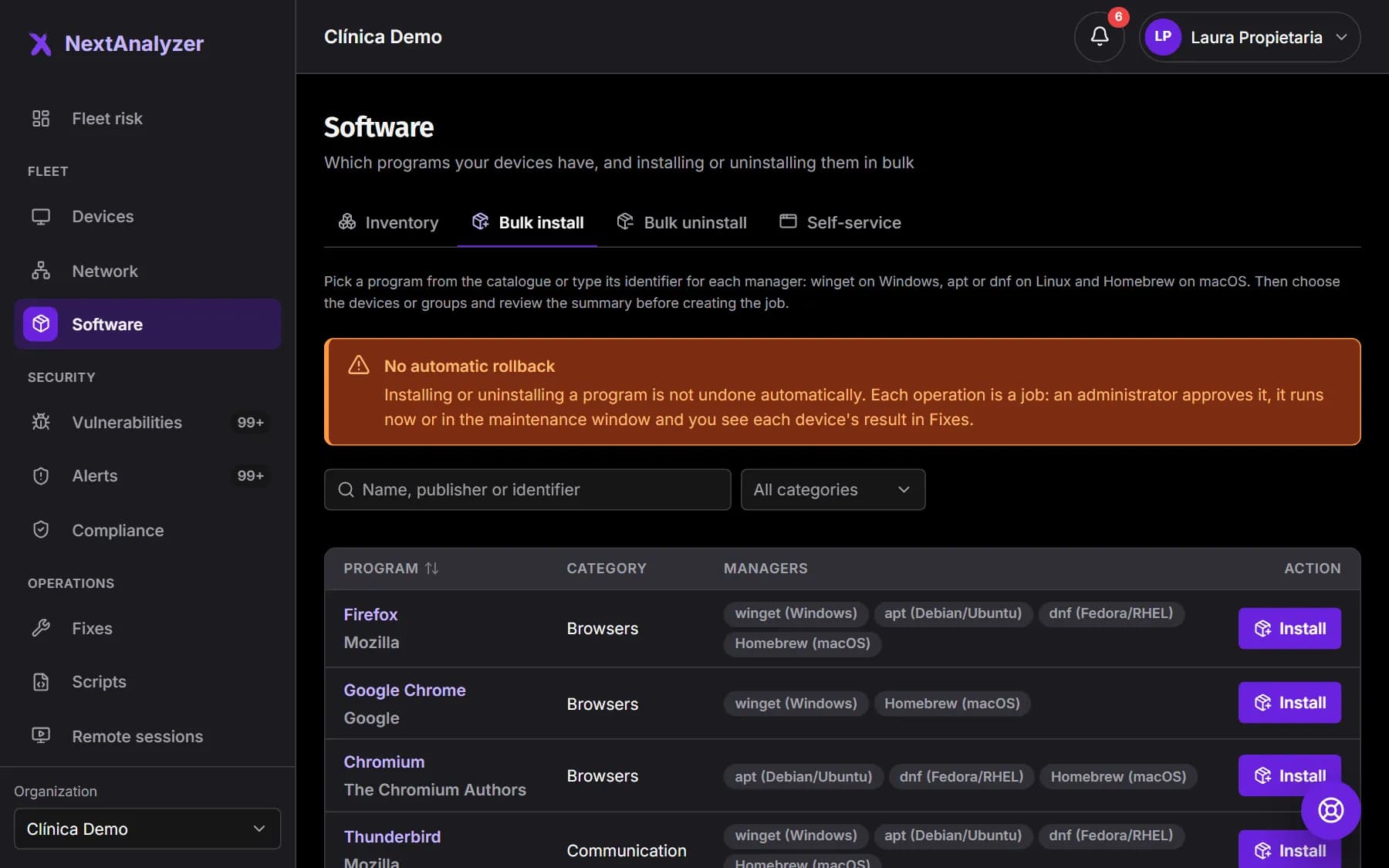
Open the “Bulk install” tab. Search the “Program catalogue” by name or filter by category: browsers, communication, office, utilities… Click “Install” on the one you want.
Expected result: The wizard opens with the chosen program and the package managers it will use.
Or type its identifier
If it is not in the catalog, use “Custom identifier”. Enter the display name and its identifier in each package manager, for example Mozilla.Firefox in winget. One is enough.
Expected result: The identifier is checked right away. If its format is not valid, you get a warning.
Choose devices and when
Pick groups or individual devices, with filters by system and group. Choose “As soon as it is approved” or “In the next maintenance window”. If you like, turn on “Try it first on pilot devices”.
Expected result: The counter shows how many devices you have chosen.
Review and create the job
Click “Review”. The summary says what will happen, how many devices will get it, which ones will be skipped and why. Click “Create and request approval”, or “Create and approve” if you are an administrator.
Expected result: You see that the job was created, either awaiting approval or approved, with “Open the job”.
Uninstall in bulk
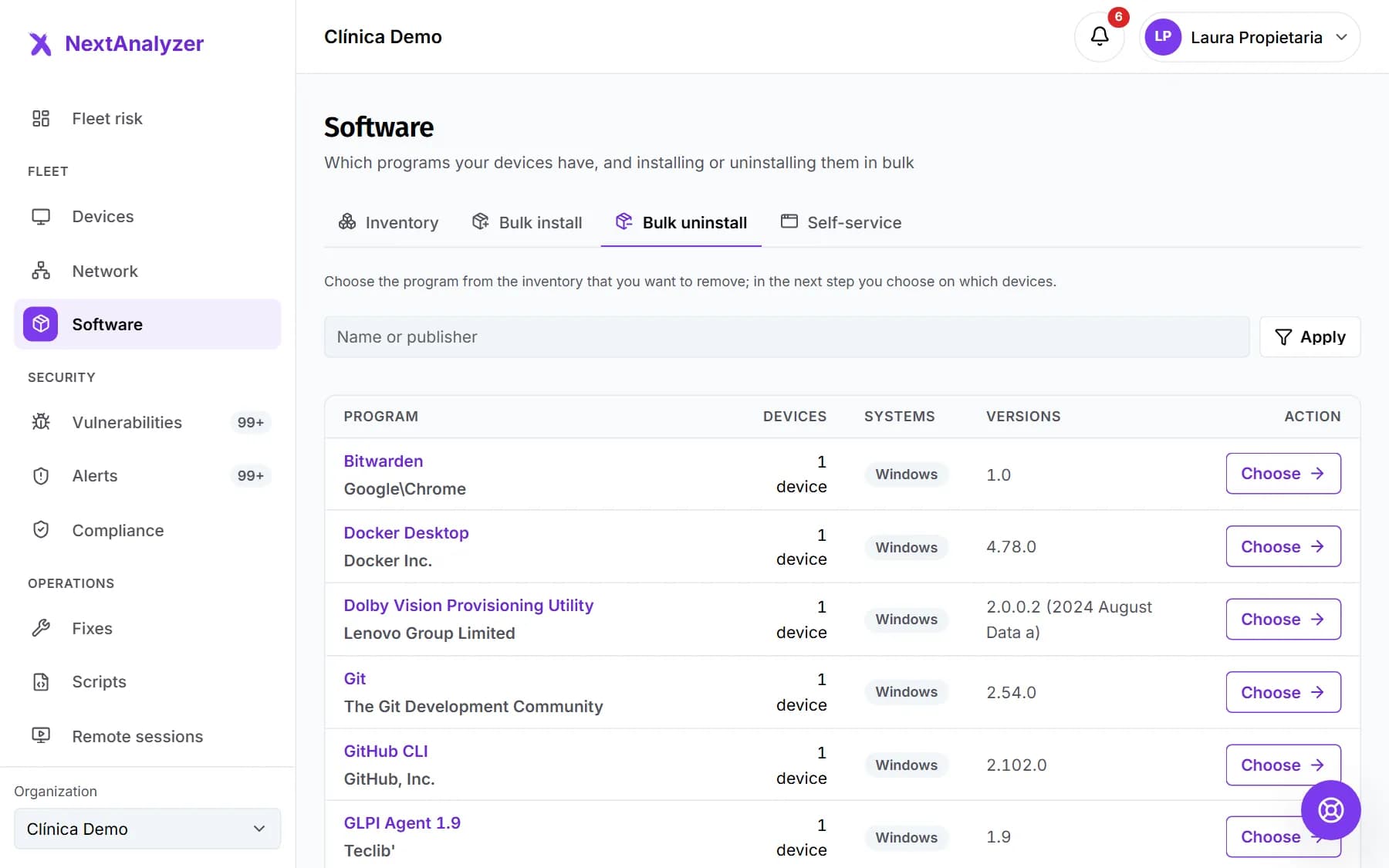
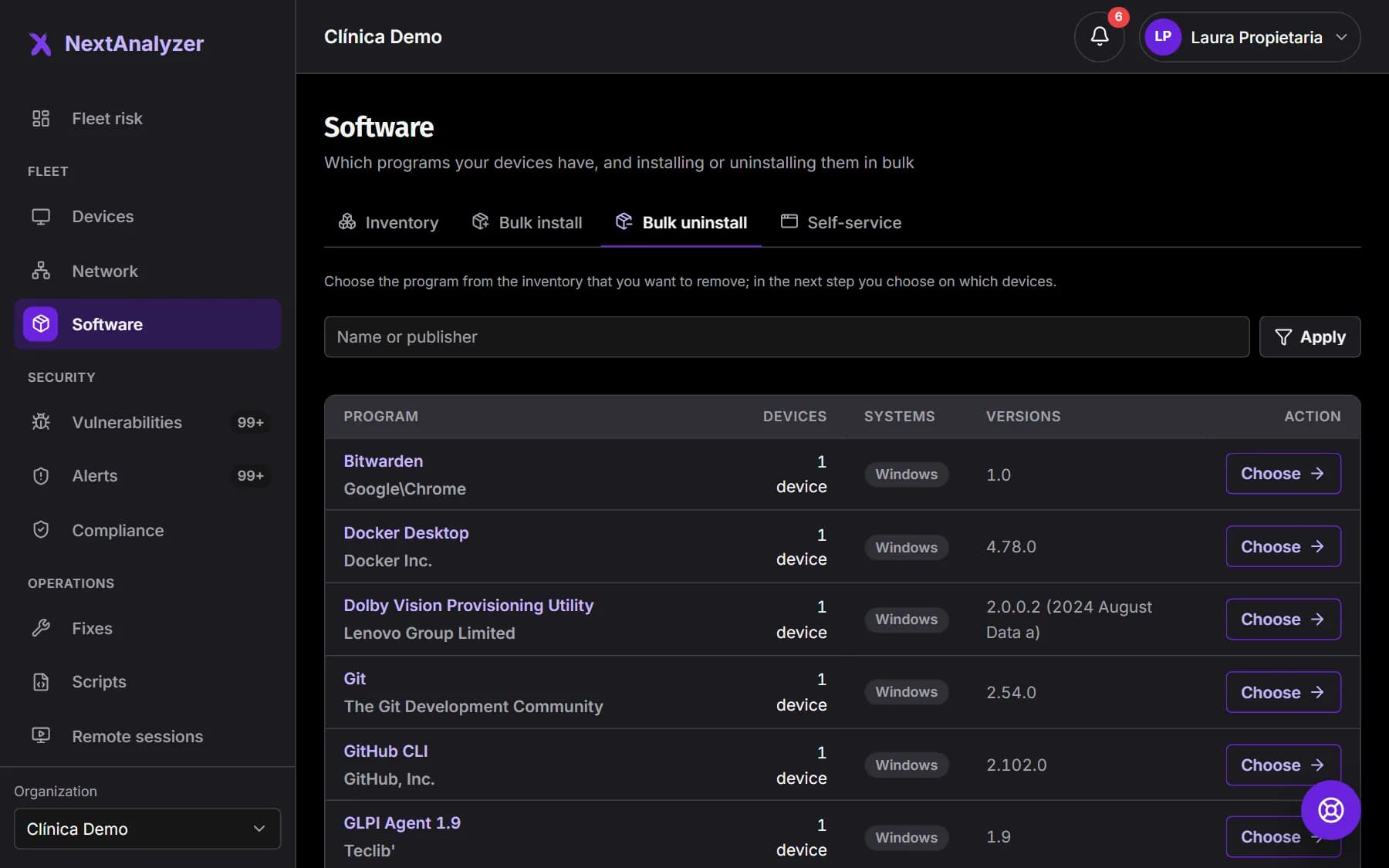
In the “Bulk uninstall” tab, click “Choose” on the program from the inventory. Tick the devices you want to remove it from and follow the same steps: when, review and approval.
Expected result: An uninstall job is created with the chosen devices.
Follow the result
Open Operations › “Fixes” and the job. Each device shows as “Succeeded”, “Failed”, “Skipped” or “Pending”, with the package manager's output. The person using the device sees a countdown notice first.
Expected result: When it finishes, the device's inventory shows the program installed or removed.
If something goes wrong
It doesn't install on Macs
macOS uses Homebrew, and it only works if the Mac already has it and the program exists in Homebrew. NextAnalyzer doesn't install Homebrew. Install it first or install the program by hand.
It says “There is no program identifier for the device's system”
You gave the identifier for one package manager but not for that device's system. For example, only the winget one for a Linux device. Add the apt, dnf or Homebrew one, or remove that device.
A device shows as “Skipped”
Check the reason next to the device. “It was already installed” and “It was not installed” are normal. If it says “The package manager cannot find the program on this device”, the name does not match the package manager's.
It failed with “The program was open” or “Another installation was in progress”
The package manager can't change a program in use or install while another installation runs. Ask the user to close it, or schedule it for the maintenance window, and launch the job again.
I can't uninstall a program from the inventory
If its name has characters that can't be passed safely to the package manager, the page says so and won't let you remove it in bulk. Uninstall it by hand on that device.
Still not working? Open a support ticket