
Remote commands: restart, shut down, update and clean
Remote commands save you a trip to the device. There are six: restart, shut down, update drivers, update a program, clean disk and optimize disk. None is sent without a dialog that explains what will happen.
Find the buttons
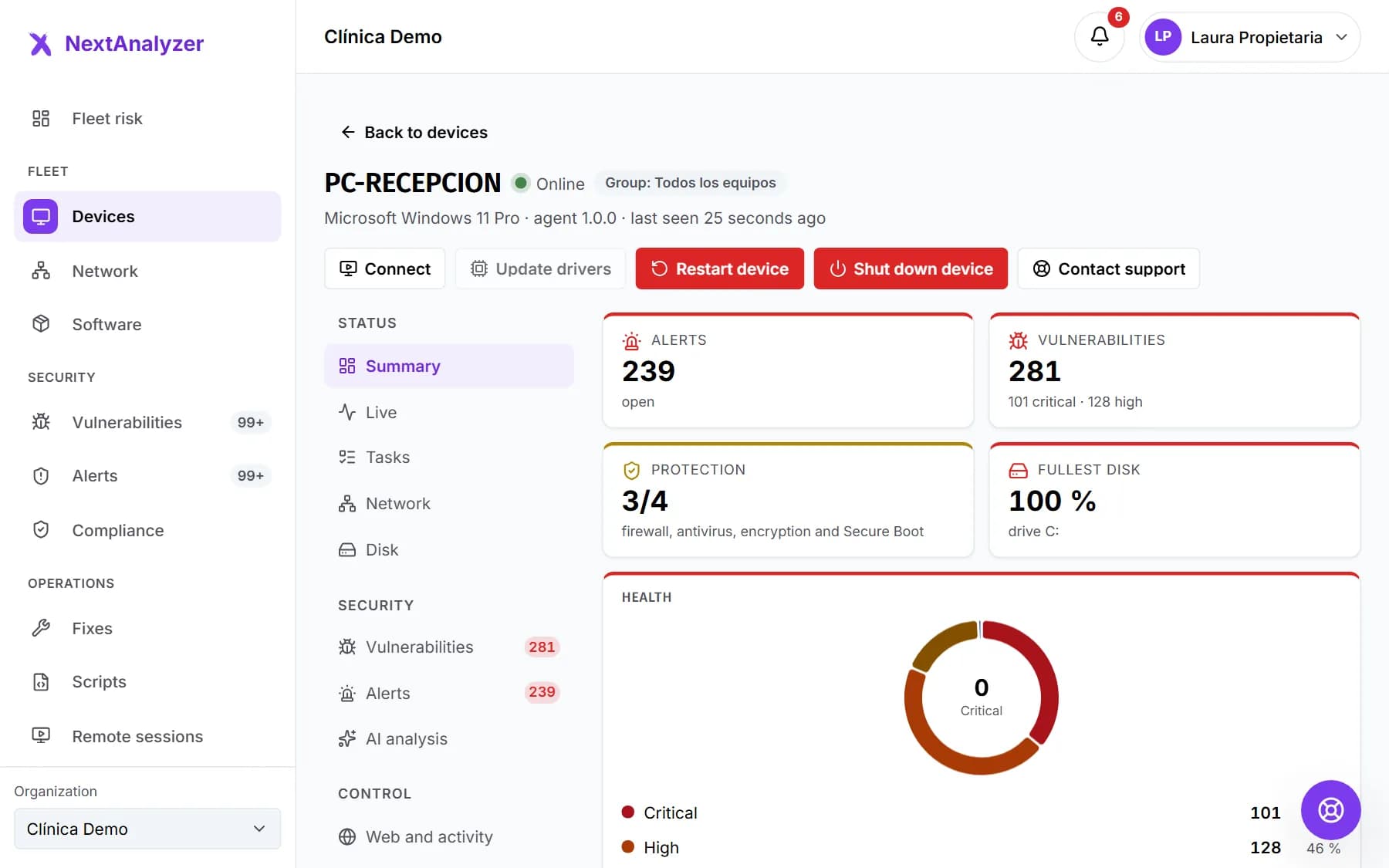
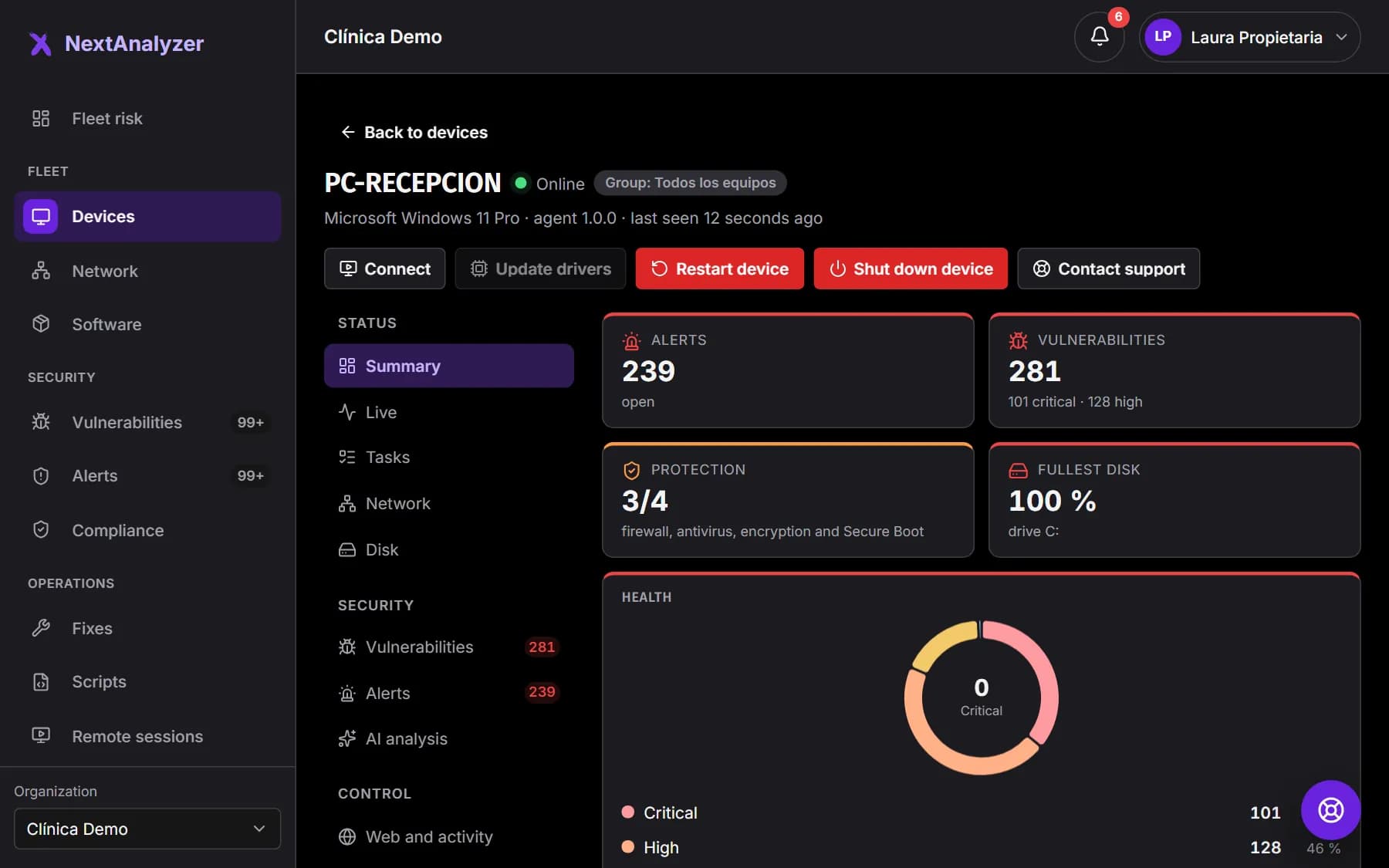
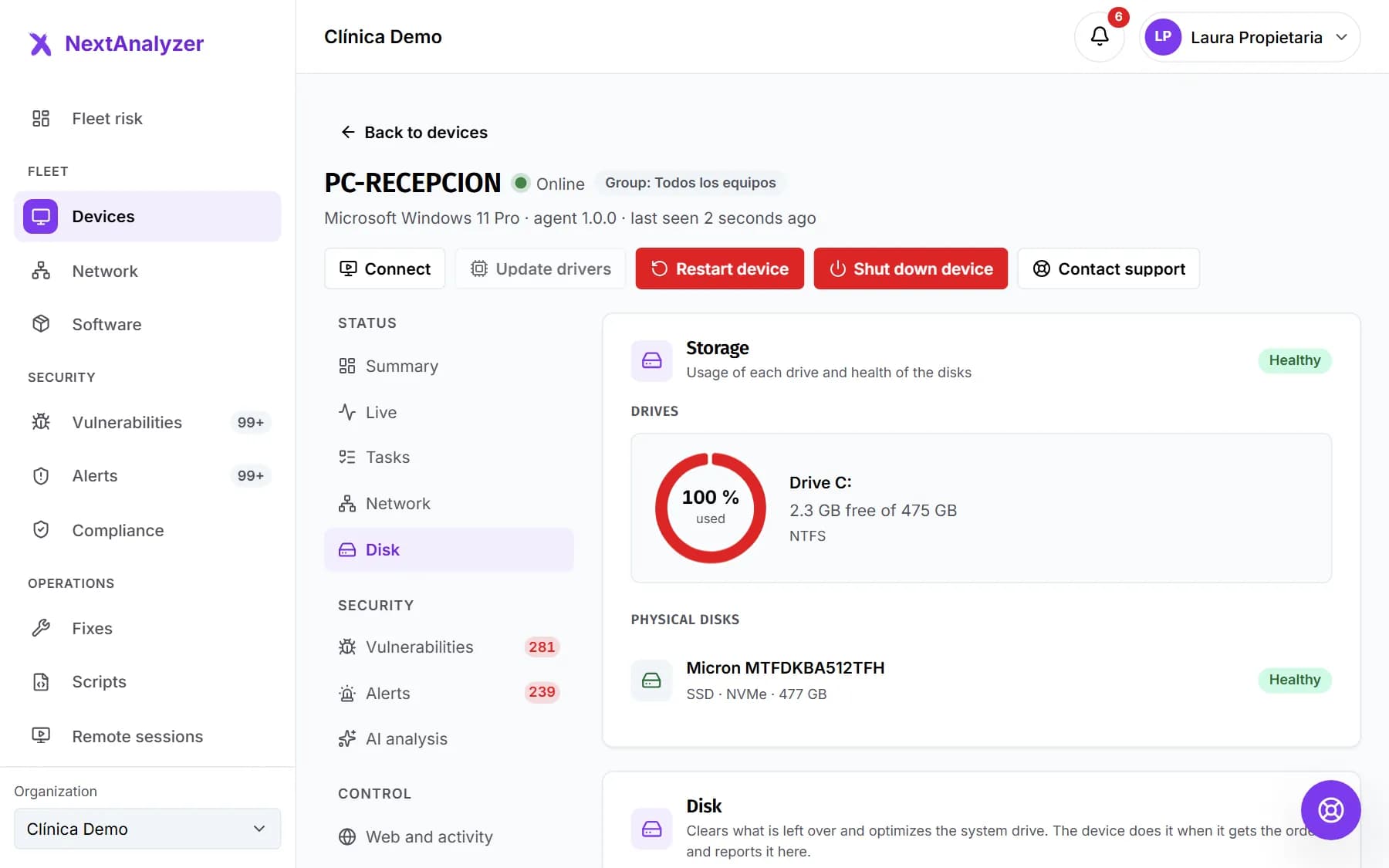
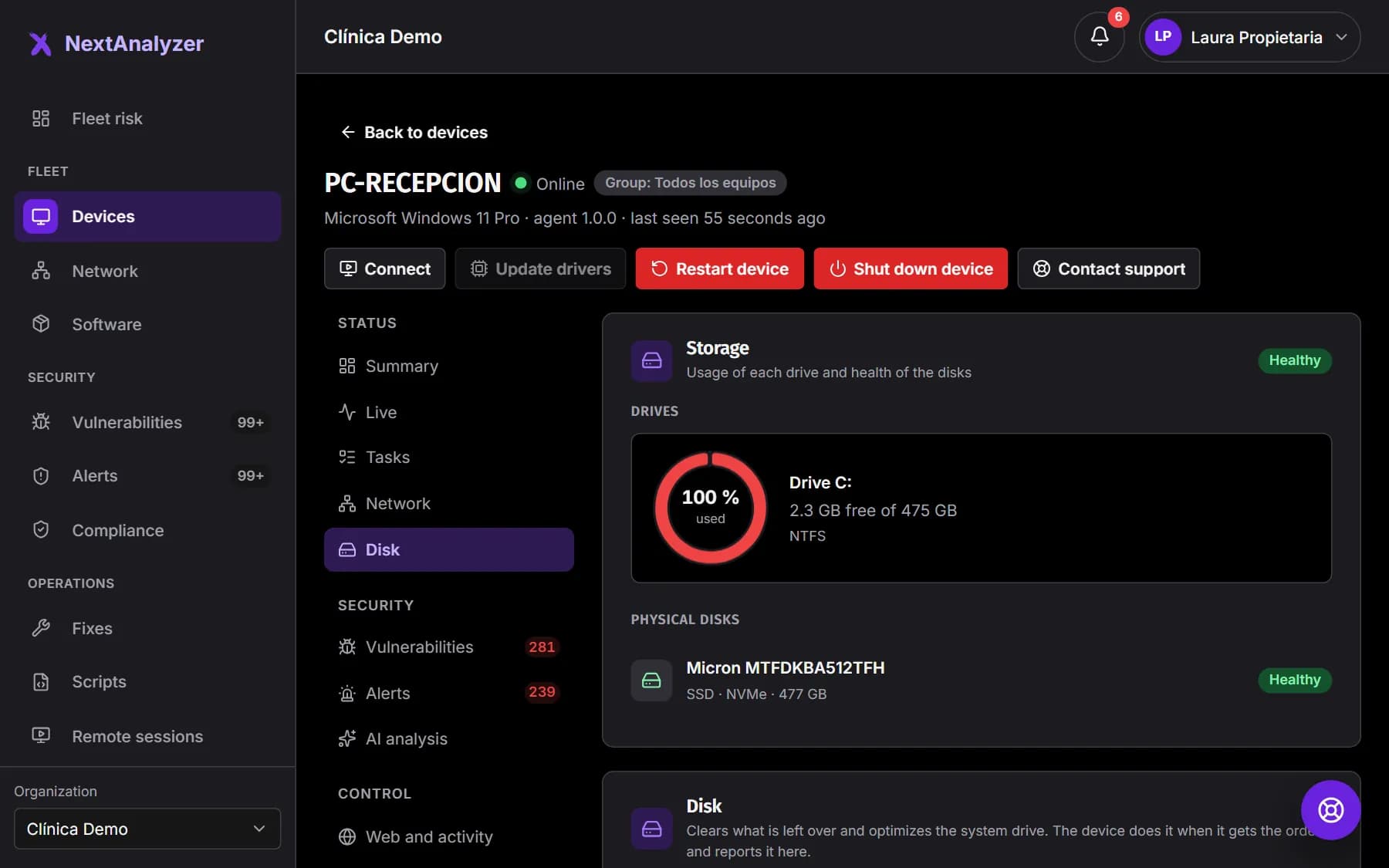
Open a Windows device. The header has “Update drivers”, “Restart device” and “Shut down device”, next to the remote access “Connect” button. Clean and optimize are in the “Disk” tab.
Expected result: You see the buttons enabled. If one is greyed out, hovering over it tells you why.
Restart or shut down with confirmation
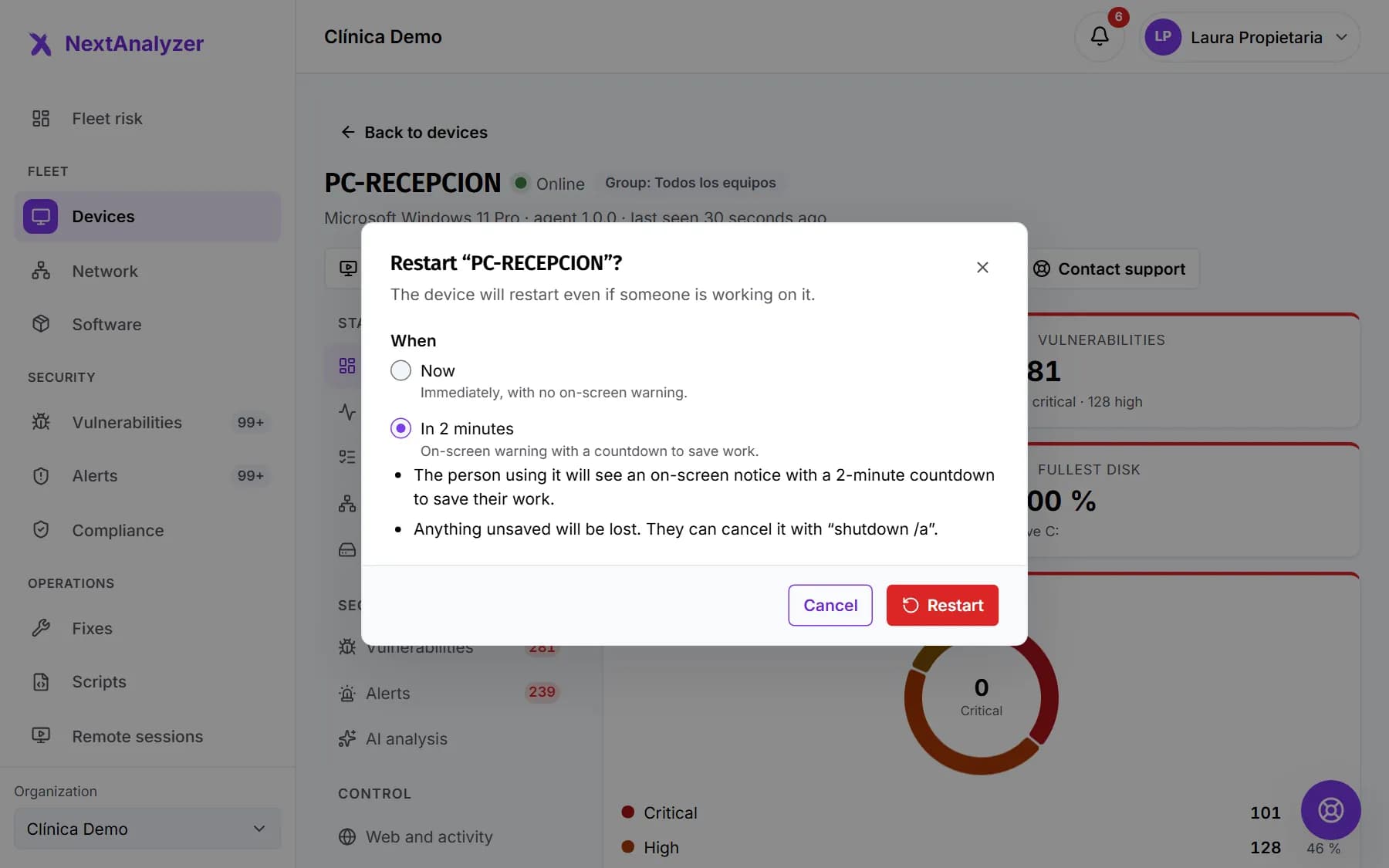
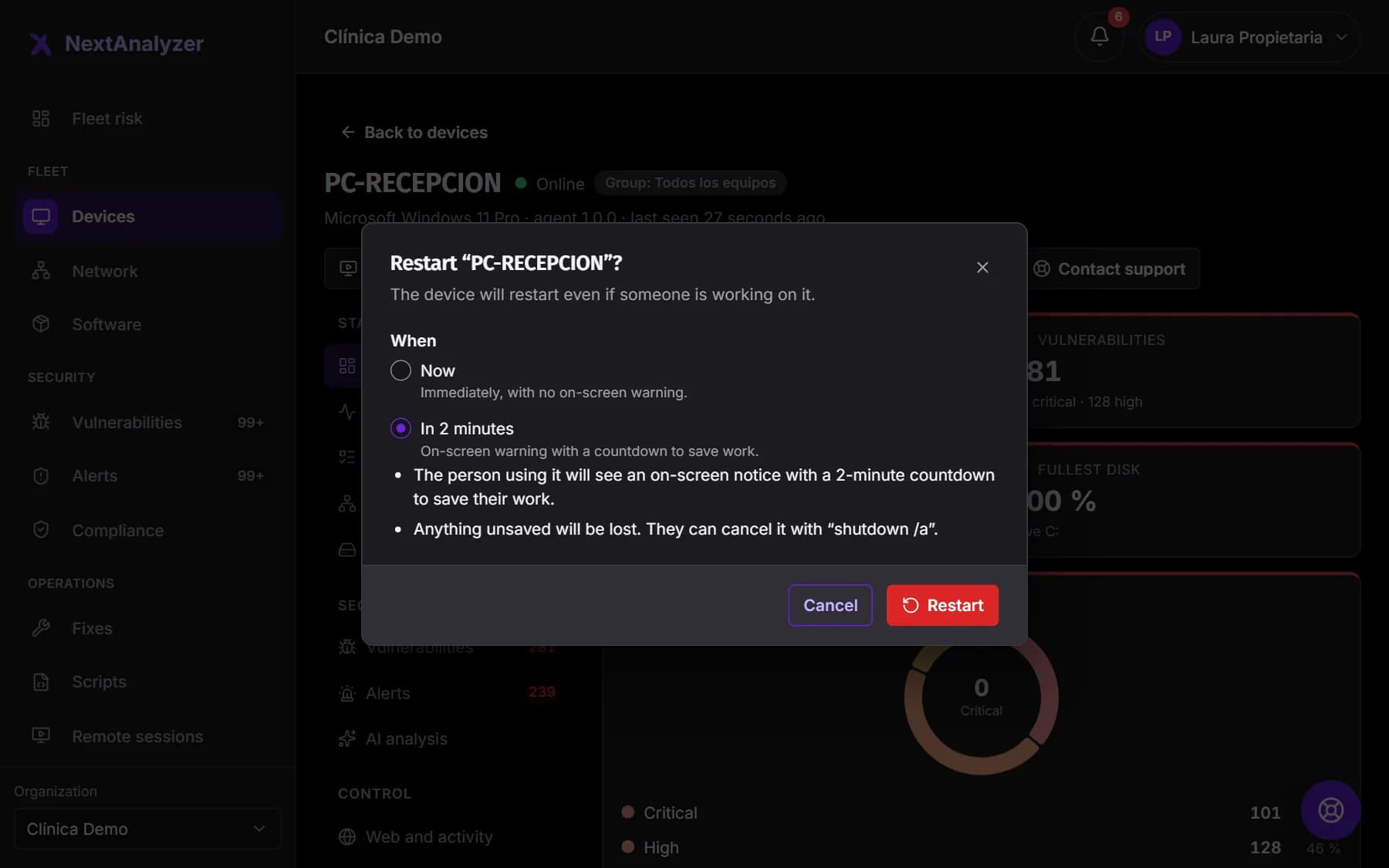
Press “Restart device” or “Shut down device”. Under “When”, choose “Now” or “In 2 minutes” and confirm with “Restart” or “Shut down”. If you press “Cancel”, nothing is sent.
Expected result: You see “Order sent. The device will receive it within a minute.”
Warn the person using the device
With “In 2 minutes”, the person sees a countdown notice to save their work. They can cancel it on the device with “shutdown /a”. With “Now” there is no warning and unsaved work is lost.
Expected result: After the 2 minutes, the device restarts or shuts down.
Tip: If someone is working, always choose “In 2 minutes”.
Update drivers
“Update drivers” installs the signed drivers offered by Windows Update. It is only enabled if the agent has found pending drivers. A restart may be needed afterwards.
Expected result: You see “Order sent” and the pending count drops at the agent’s next check.
Clean or optimize the disk
In the “Disk” tab, “Clean disk” lets you tick what to delete and “Optimize disk” runs TRIM or defragments. Confirm with “Clean” or “Optimize”.
Expected result: The command appears in “History” as pending and, when done, with the space freed.
Update a program on one device
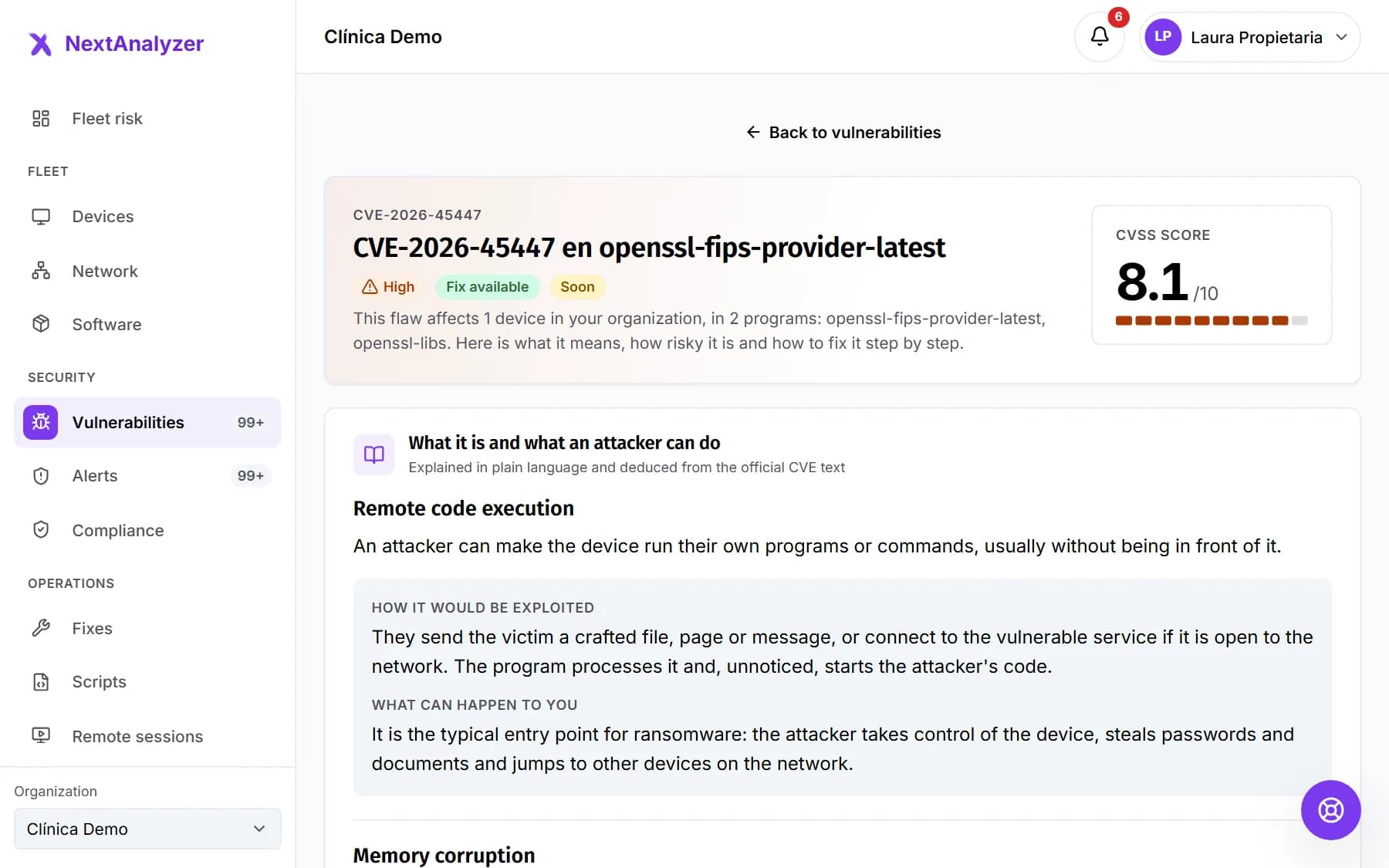
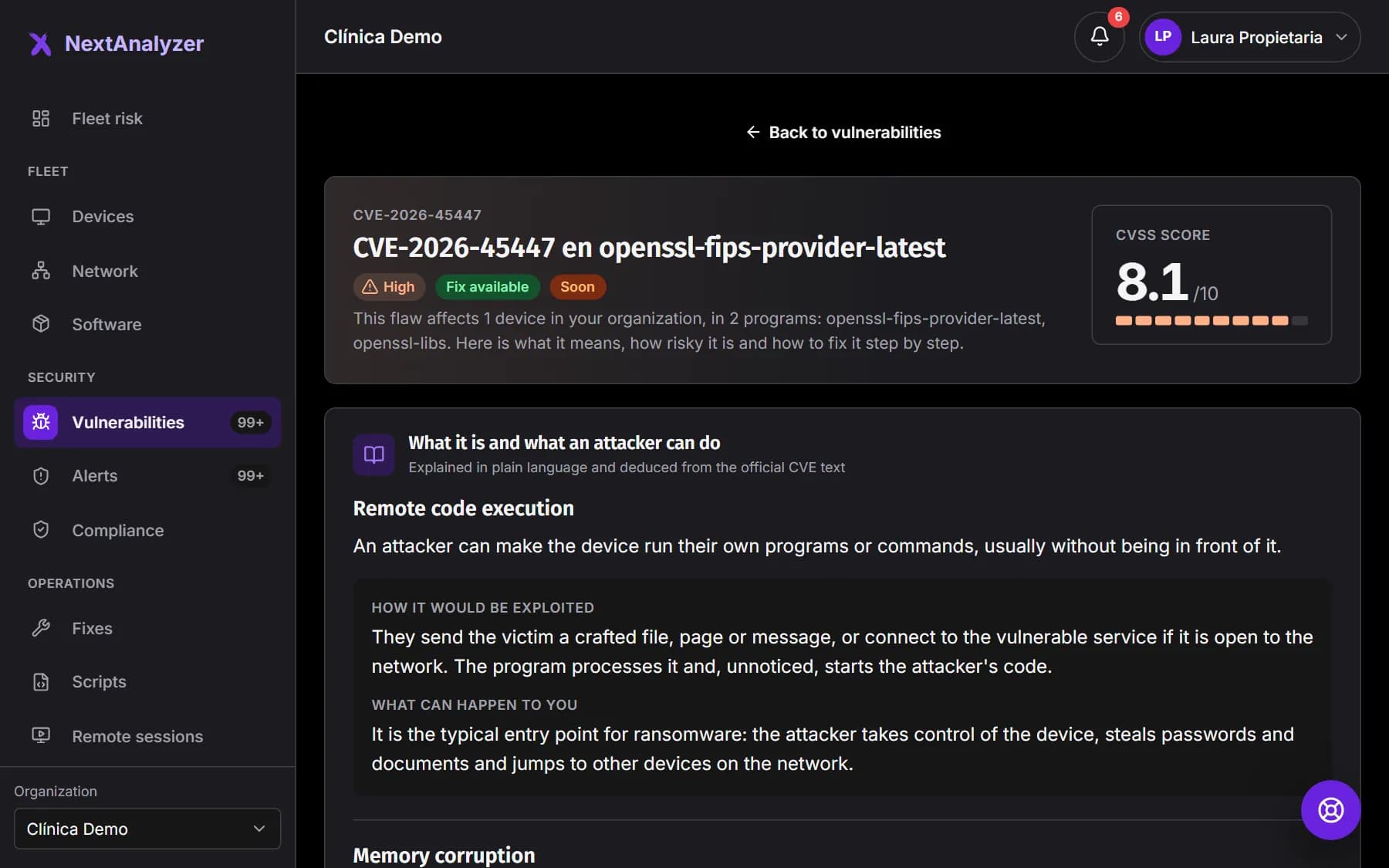
On a CVE page, the affected devices table has “Update the program” for Windows devices. It updates to the latest available version with winget; confirm with “Update”.
Expected result: You see “Order sent. The device will receive it within a minute.”
Tip: For several devices, with approval and a result per device, use “Apply fix”.
Check what happened
Restart, shut down, update drivers and update a program do not report their result to the panel. Check the device status, its last check-in or its vulnerabilities. Clean and optimize do report it in the “Disk” tab “History”.
Expected result: You know where to look for the effect of each command.
Tip: If you need a result per device, use “Apply fix” or a script: their jobs show it under “Fixes”.
See who sent it
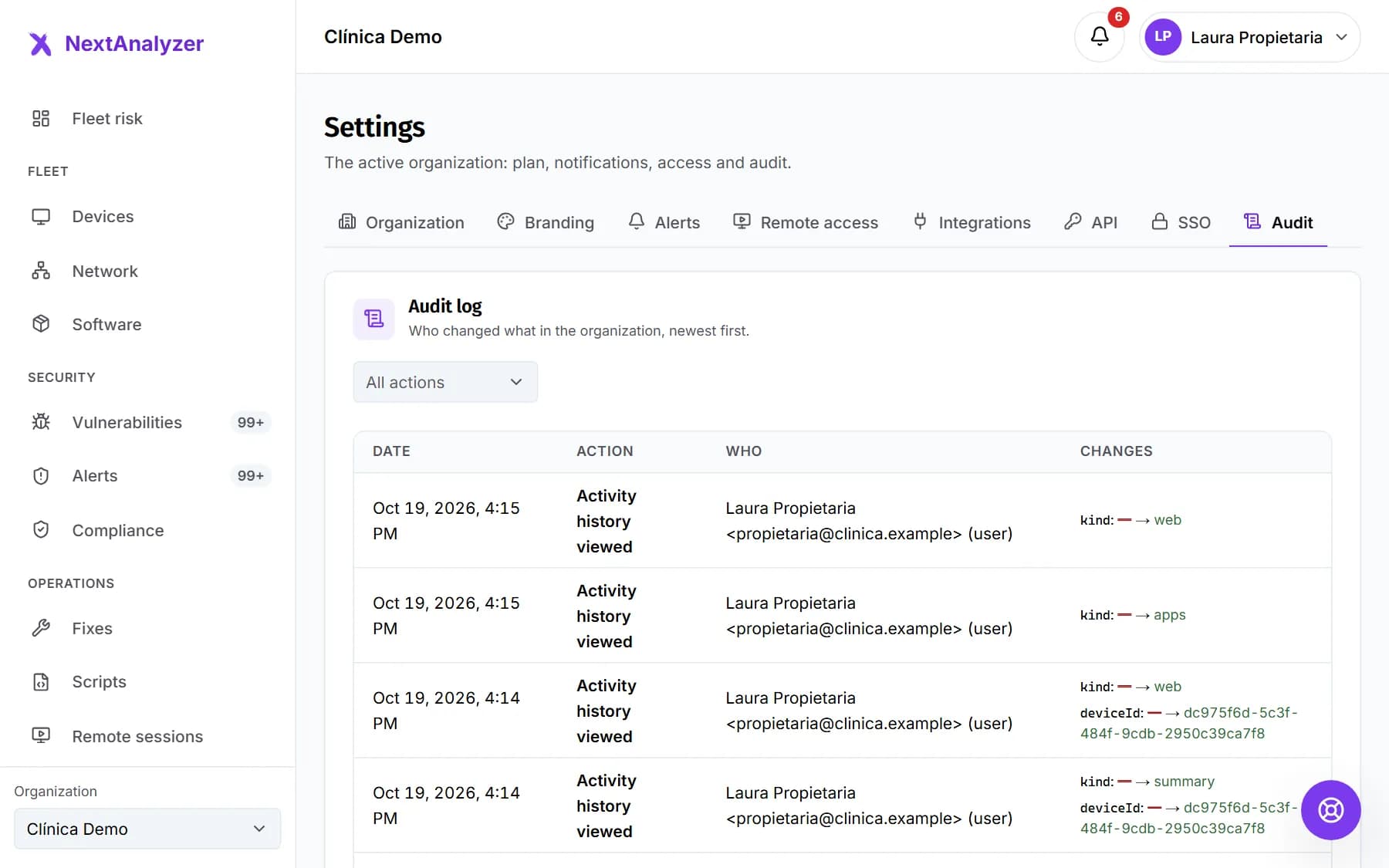
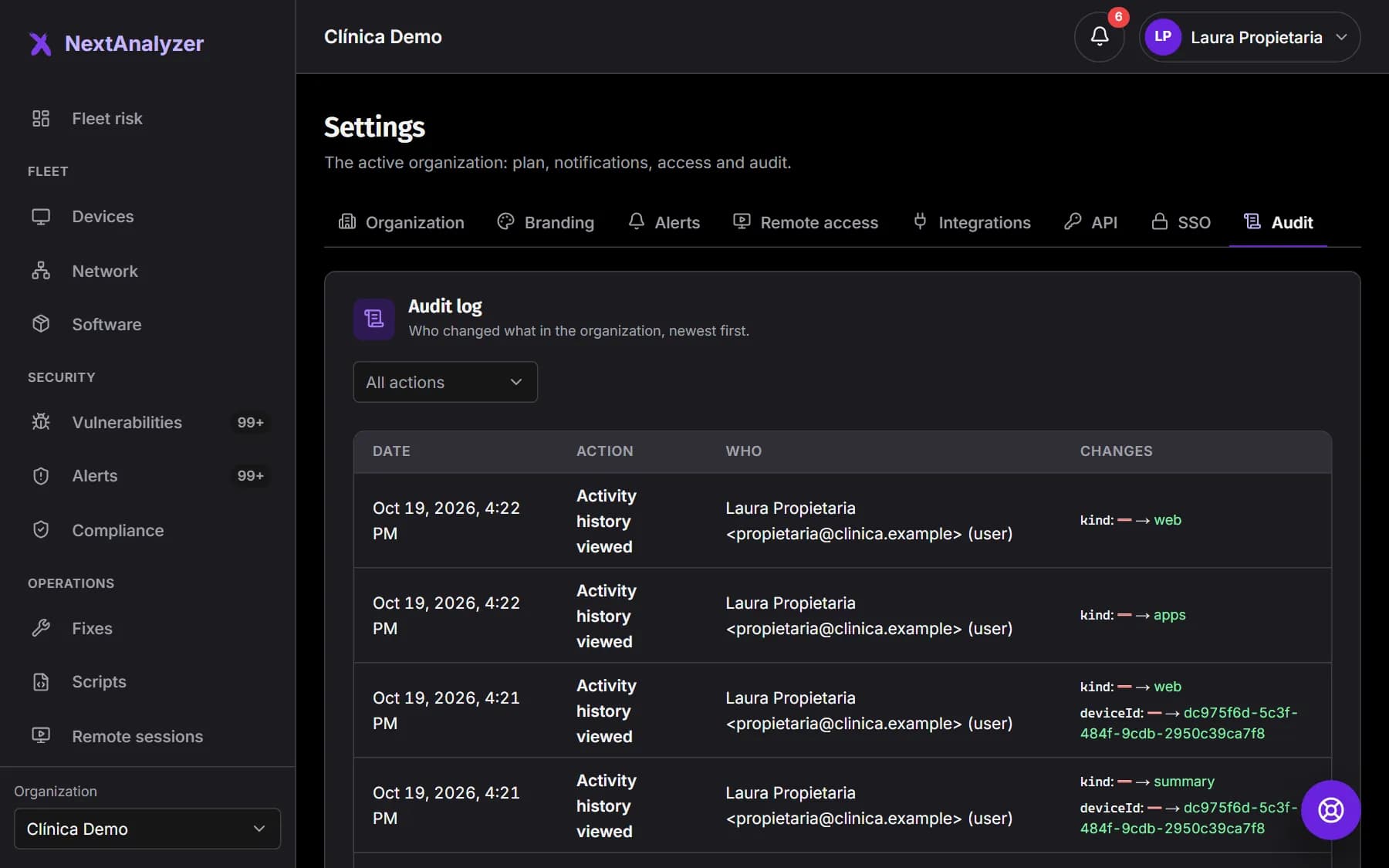
Open “Settings” and the “Audit” tab. Each command is logged as “Remote command sent to a device”, with who, when and which device.
Expected result: You see the command in the list with your name and the time.
If something goes wrong
The header buttons are greyed out
The device is off or offline: they are enabled when it reconnects. “Update drivers” is also greyed out when drivers are up to date or the agent has not checked yet.
I sent the command and do not know whether it ran
One-off commands (restart, shut down, drivers and update a program) do not report to the panel. Check the device’s last check-in or review its vulnerabilities again. If you need the result, use “Apply fix”.
I shut a device down and cannot turn it on
Once off, it cannot be turned on from the panel. It must be switched on in person or with Wake-on-LAN, if your network supports it.
I pressed the same button twice
No problem: if an identical command has not been picked up yet, it is not duplicated. Both presses are still logged in the audit.
I do not see the commands on a Mac or Linux device
Today the remote command buttons only appear on Windows devices, and so does the “Disk” tab. On Mac and Linux use remote access, scripts or “Apply fix”, which work on all three systems.
Still not working? Open a support ticket