
How NextAnalyzer works
NextAnalyzer has four parts: an agent on each device, the Wazuh detection engine, a platform hosted in the EU and the web dashboard. Here you'll see what each one does and where the limits are.
The agent: a service and an app
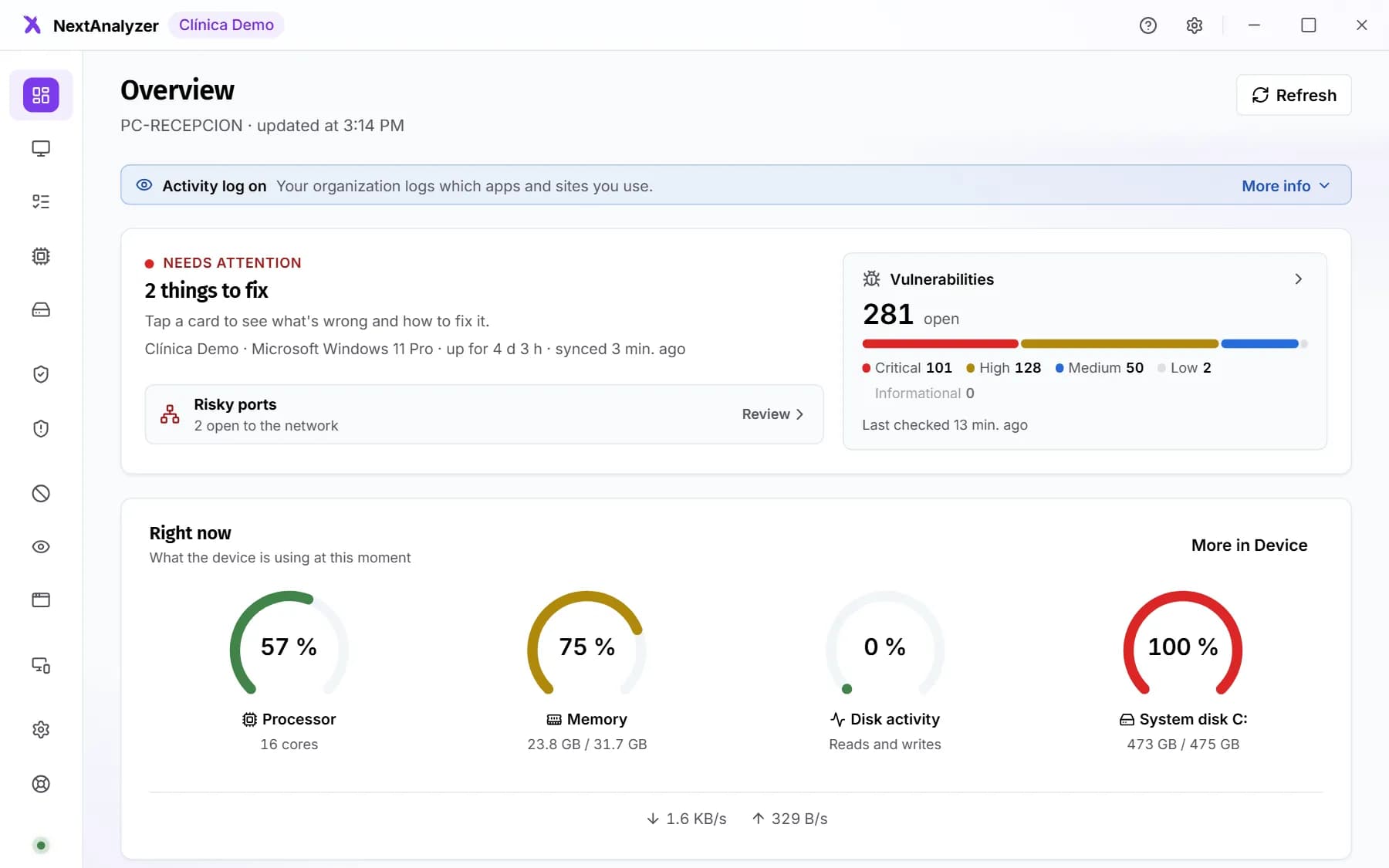
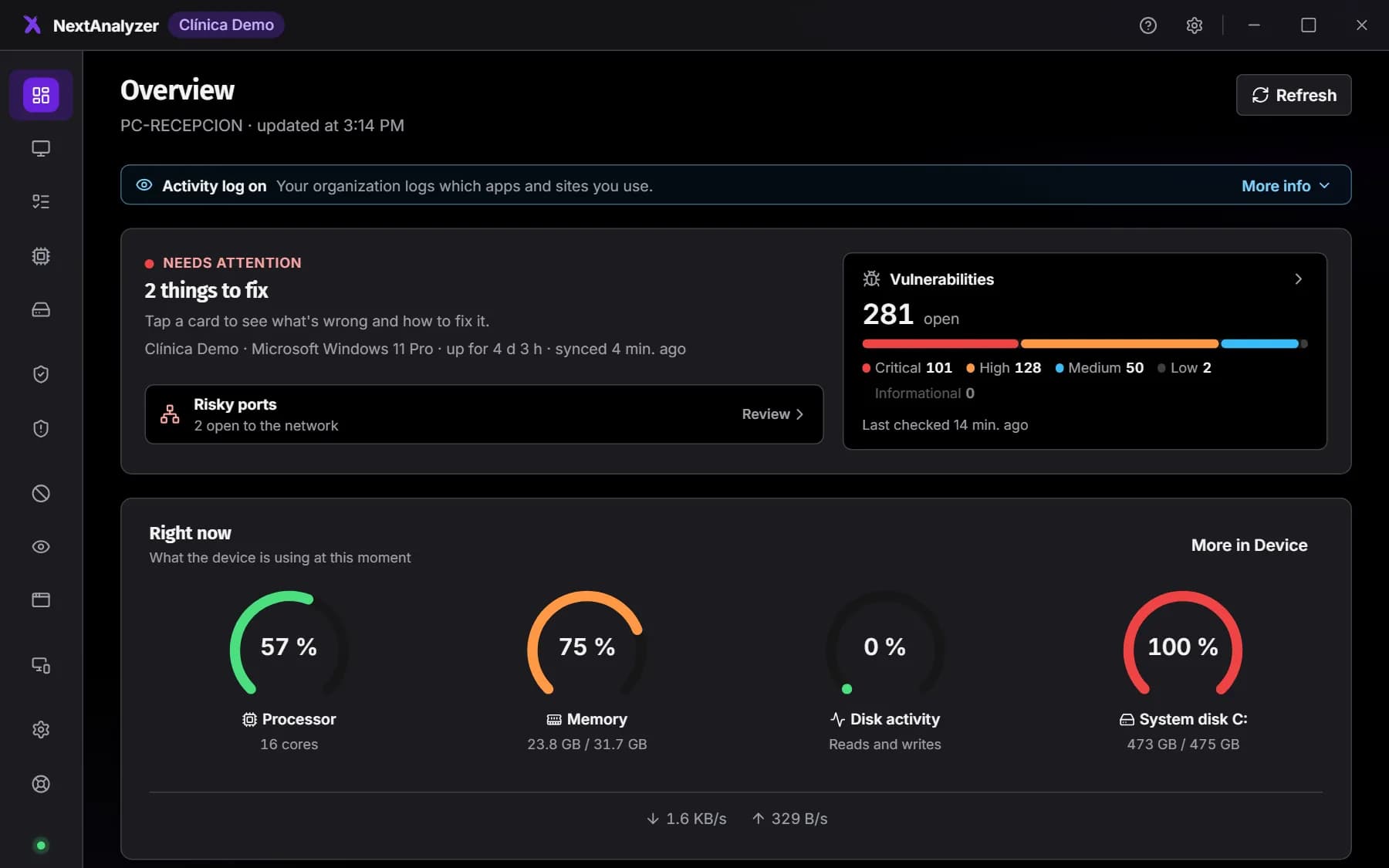
Each device gets the agent. It has two parts. A system service, which starts with the device, collects data and applies protections. And a tray app, which shows whoever uses the device its status.
Expected result: Every protected device shows up in the dashboard and has its NextAnalyzer app in the tray.
Tip: If someone closes the app, the service keeps running. It works on Windows, macOS and Linux.
Wazuh: vulnerabilities and configuration
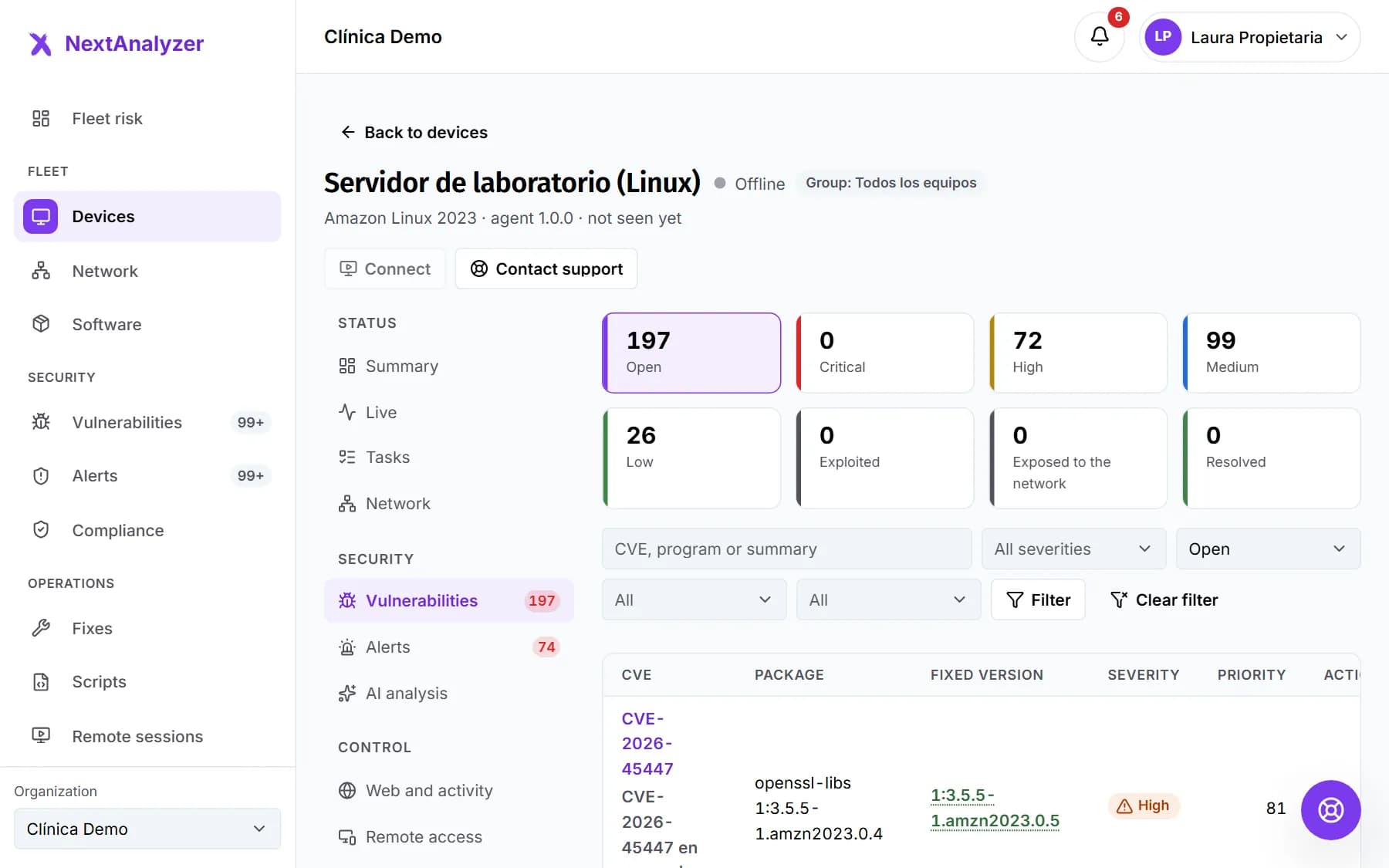
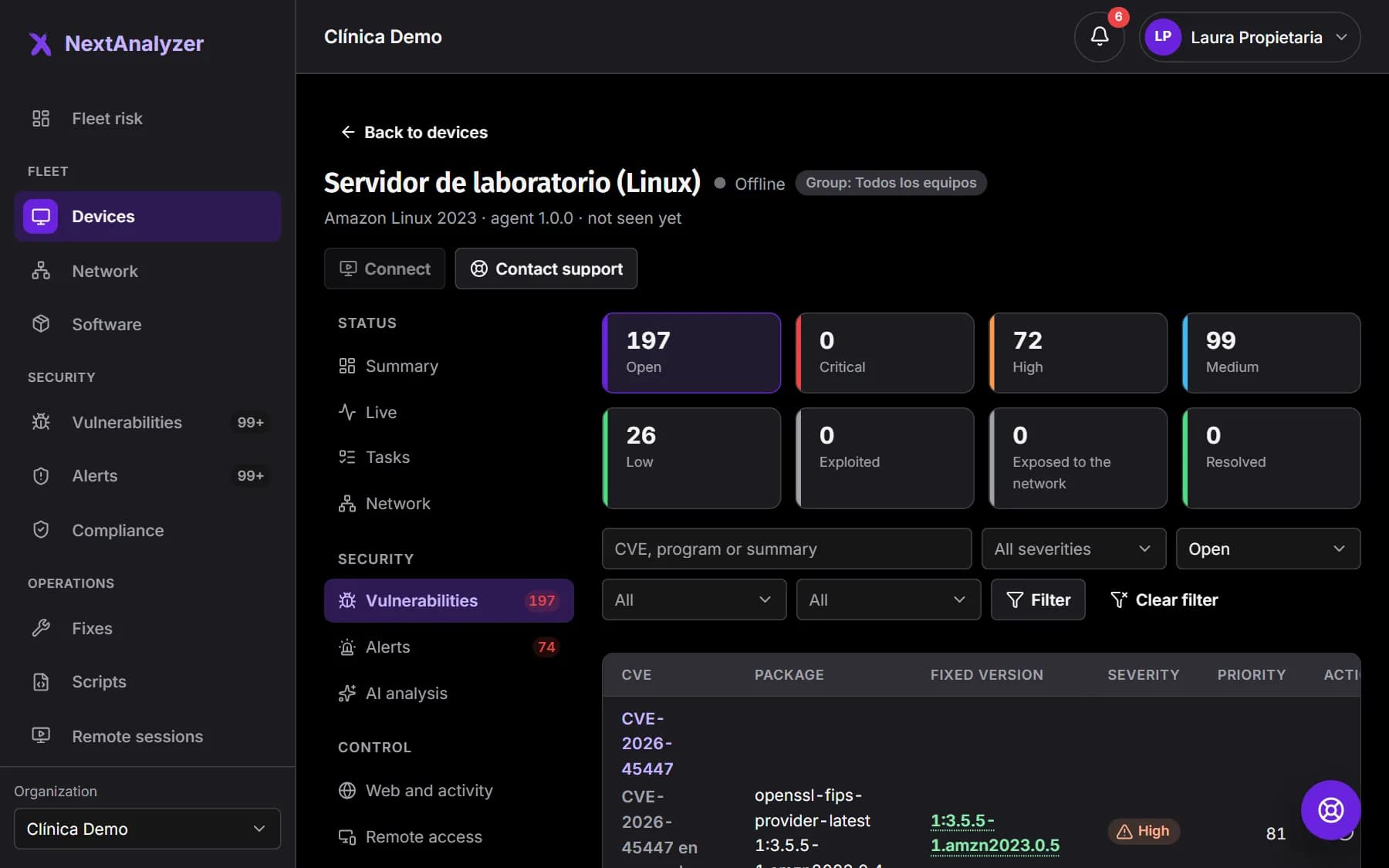
Wazuh, an open-source detection engine, is installed alongside the agent. It looks for vulnerabilities (CVEs) in the system and programs, and checks the configuration against the CIS benchmarks. Its findings go to the platform.
Expected result: In each device's “Vulnerabilities” tab you see its flaws by severity.
Tip: If Wazuh isn't working on a device, the dashboard marks it “No detection”. It never shows a misleading zero.
The platform and the web dashboard
Data travels encrypted to the platform, hosted in data centers in the European Union. That's where the risk score is calculated and alerts are raised. Your IT team checks everything in the web dashboard, from the browser.
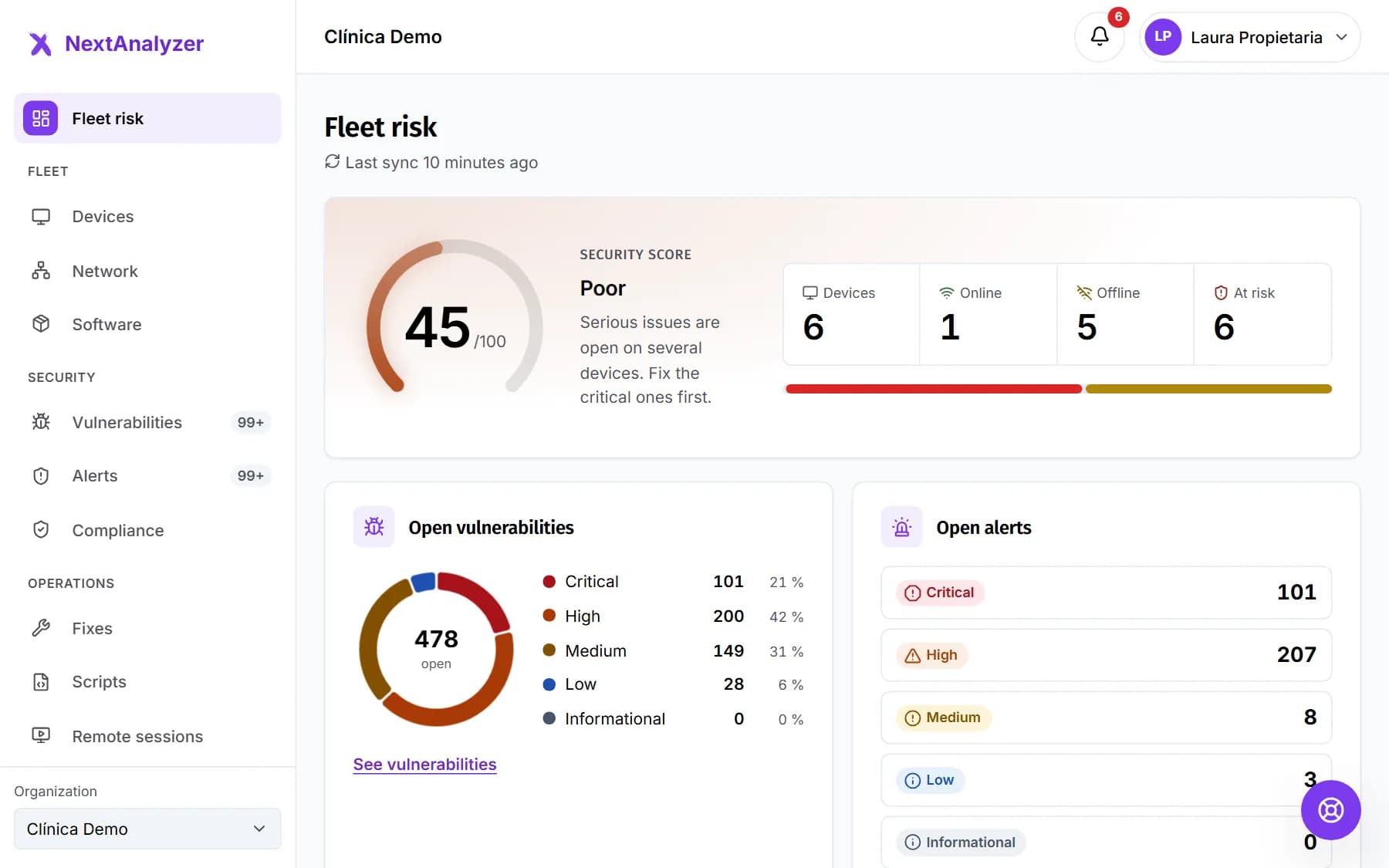
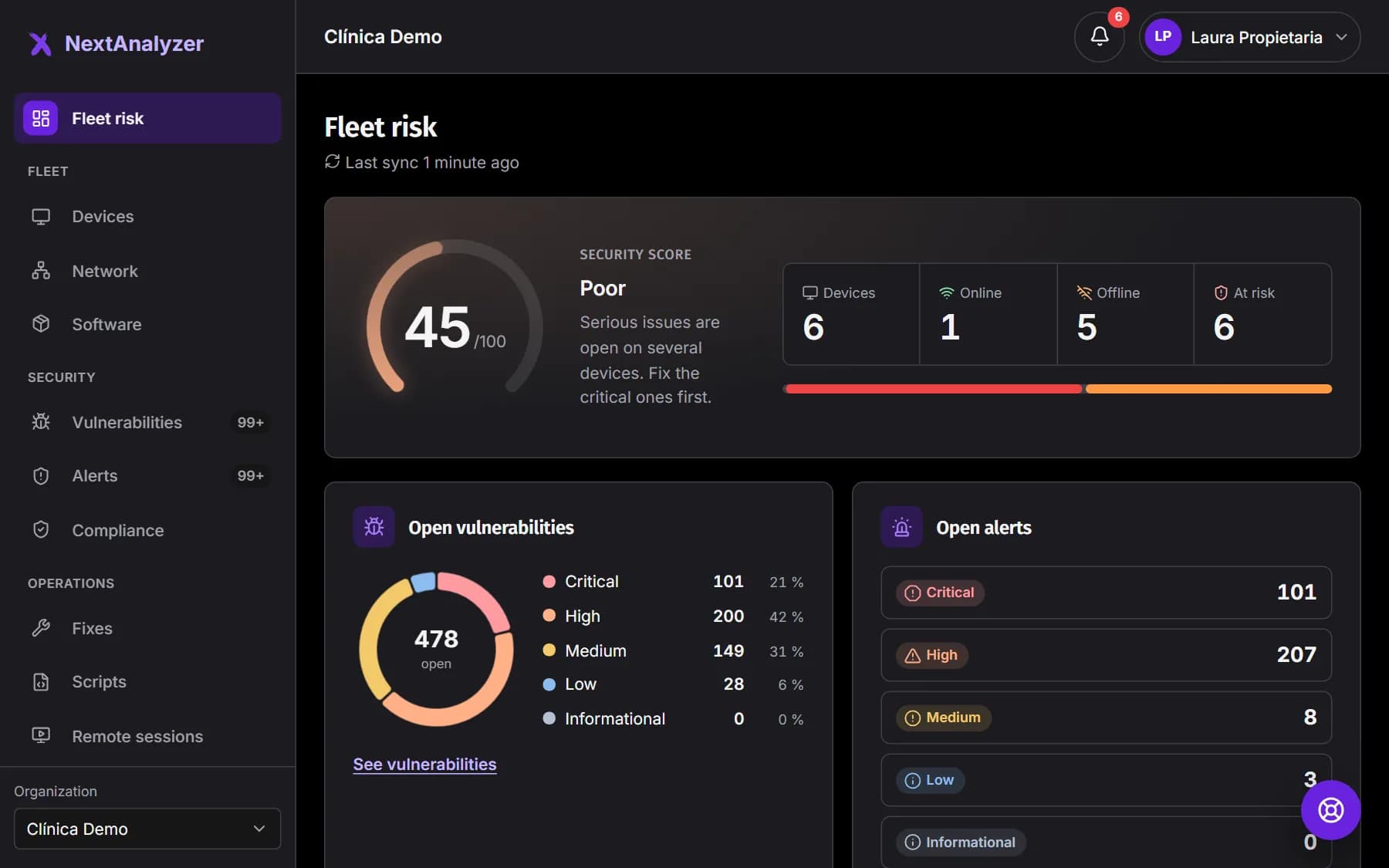
Expected result: When you sign in you see “Fleet risk” with the status of all your devices.
The live channel, only while you watch
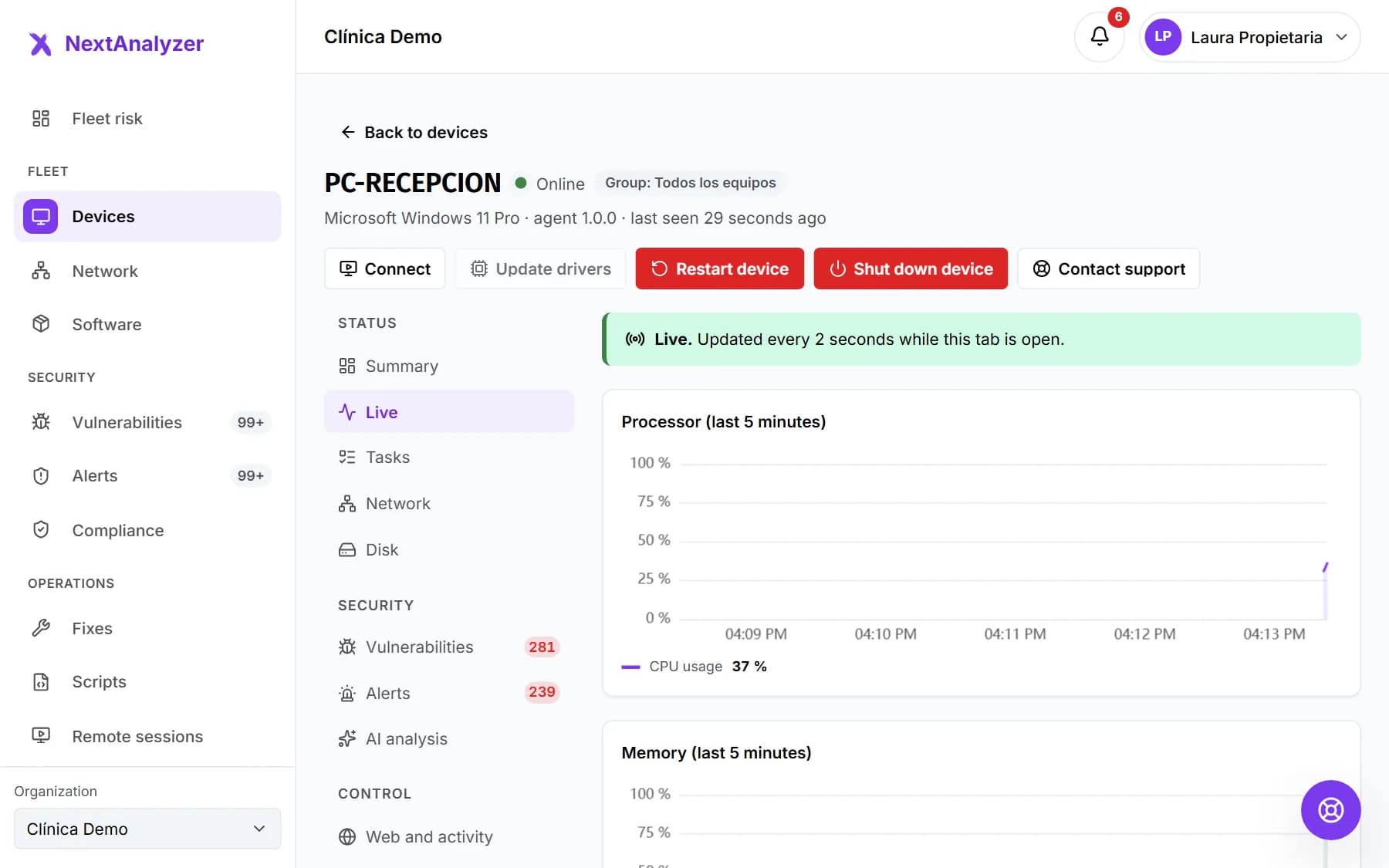
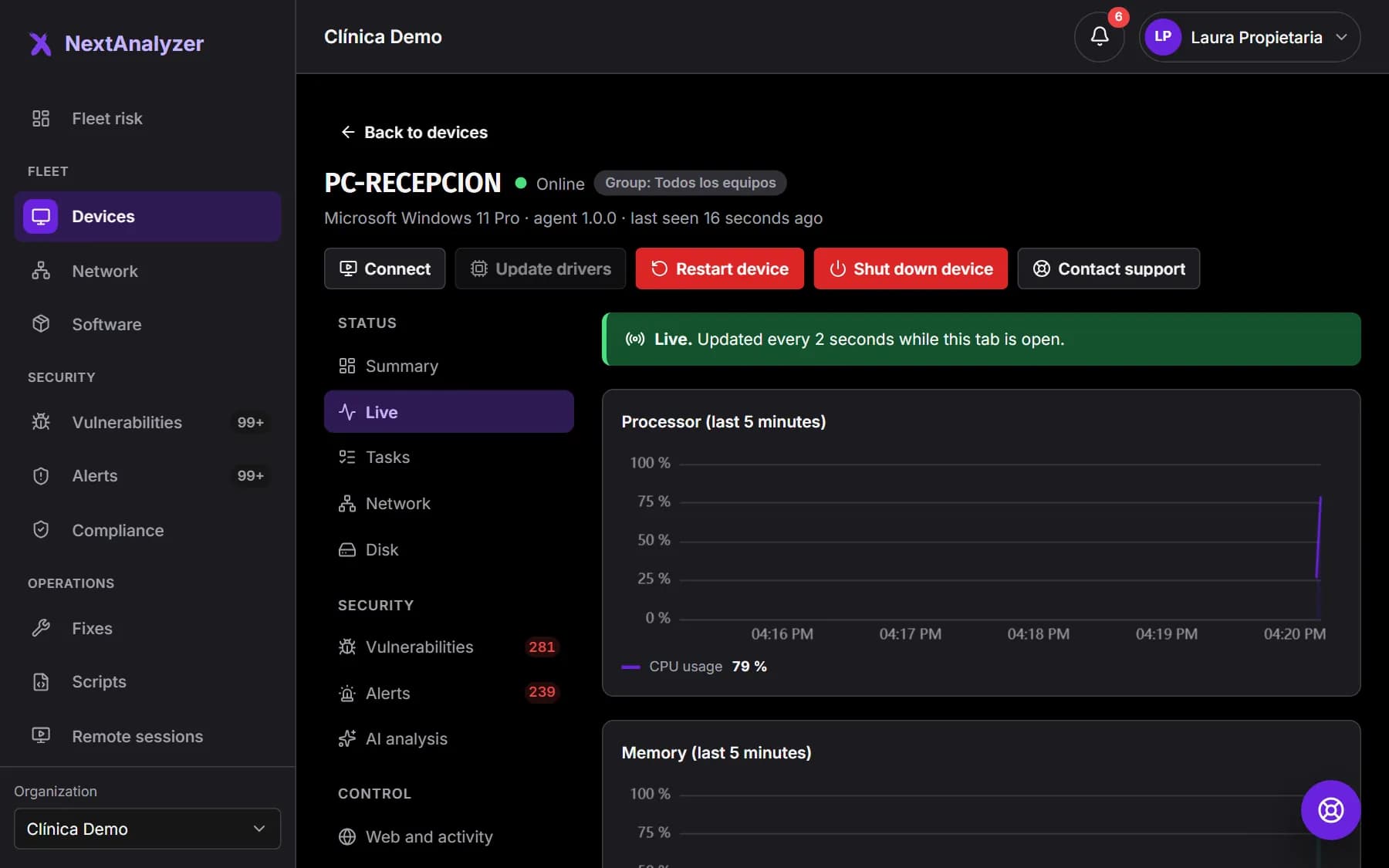
The agent sends a heartbeat every minute and a performance summary every 5 minutes. Second-by-second data is only sent while someone has that device's “Live” tab open. It stops 30 seconds after it's closed.
Expected result: You can see right away why a device is slow without loading the network the rest of the time.
What data it sends
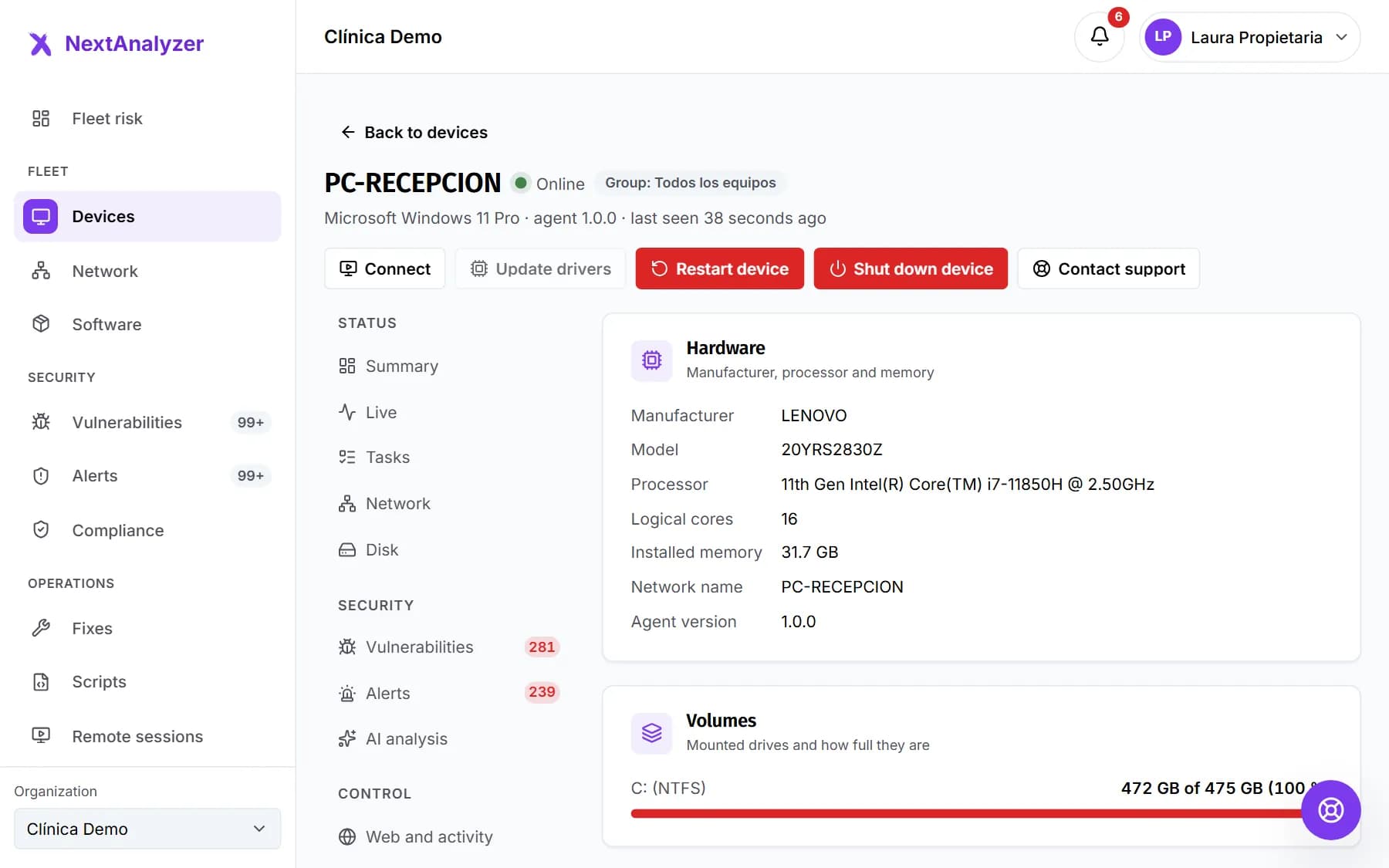
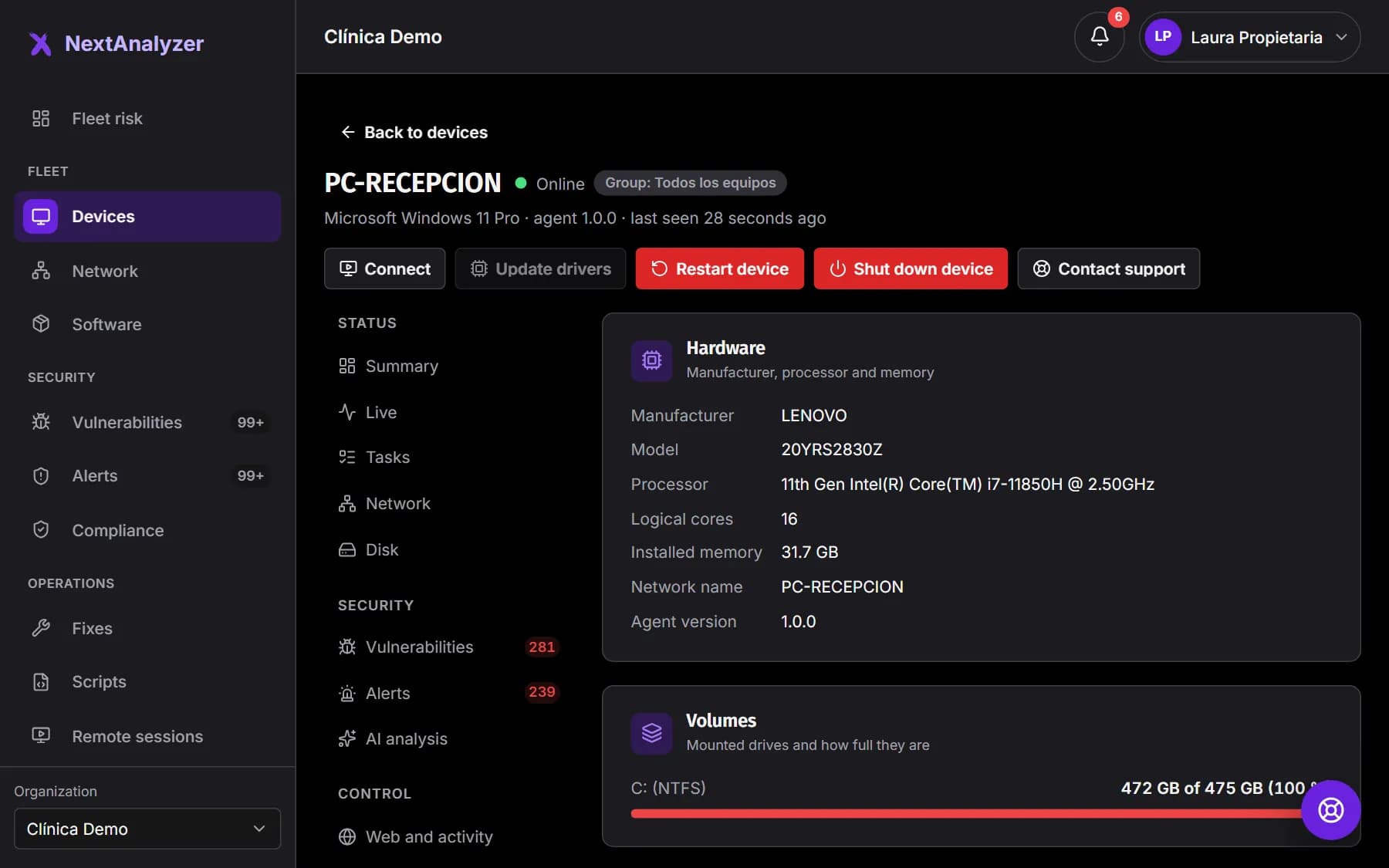
Inventory: hardware, system, installed programs and pending updates. Status: processor, memory, disks and their health. Security: vulnerabilities, firewall, antivirus, encryption and open ports. From web blocking, only how many sites are blocked per category and day.
Expected result: You have each device's full profile without asking whoever uses it.
Tip: AI analysis receives minimized data: a device alias, no usernames, public IPs, MAC addresses, URLs or emails.
What it never collects
It never reads documents, emails or the content of what you do. It never stores full URLs, keystrokes or screenshots. Activity history (apps used and site names) is off by default and, if turned on, the app always says so.
Expected result: You can explain to staff, with facts, what is and isn't visible.
What it does on its own
It sends inventory and status, looks for vulnerabilities and applies your organization's policies, such as web blocking. If someone undoes a protection, it puts it back. It also updates itself and, if its group has it scheduled, cleans up the disk.
Expected result: Devices stay monitored and up to date without anyone having to touch them.
Tip: The device never restarts on its own.
What needs approval or consent
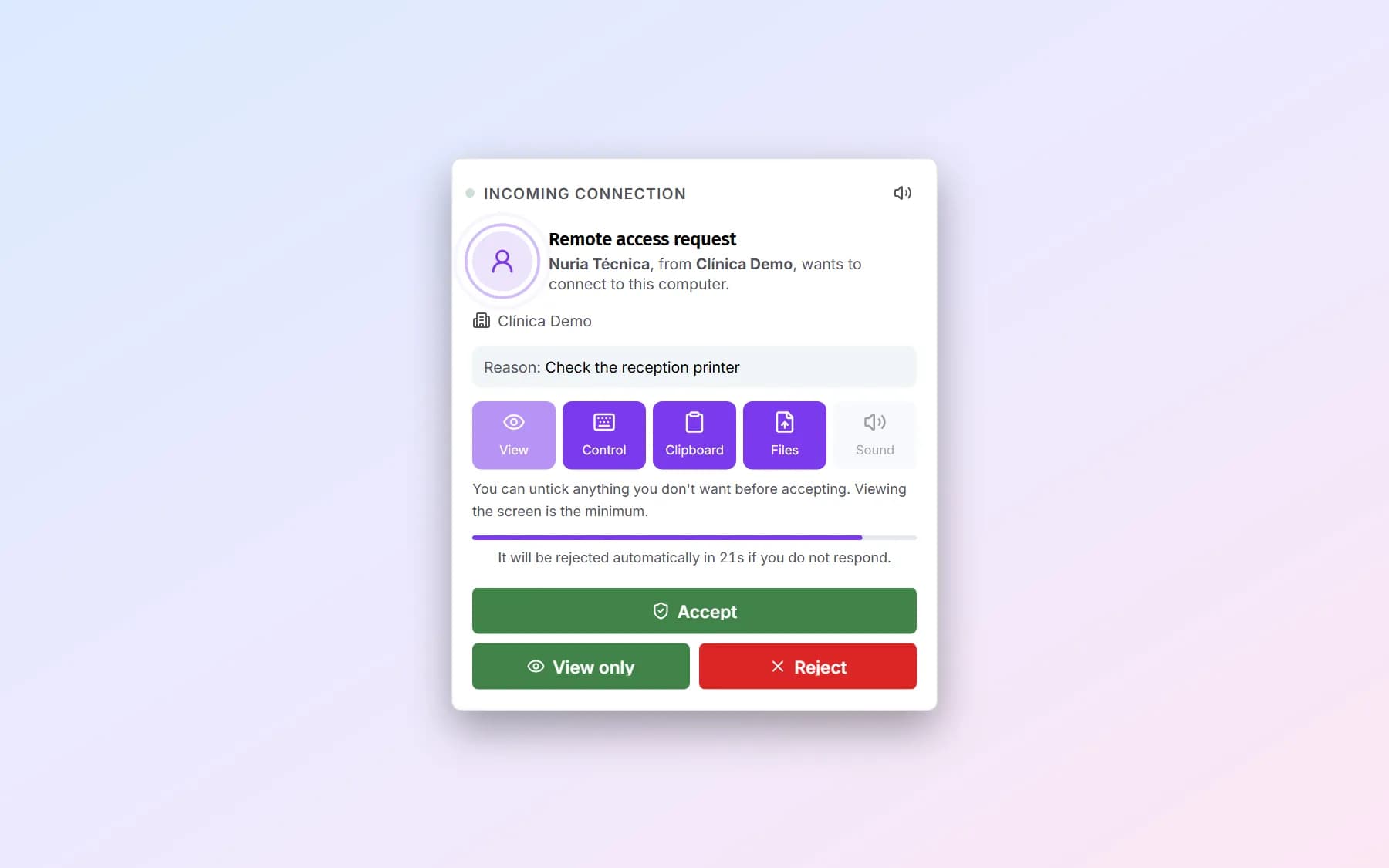
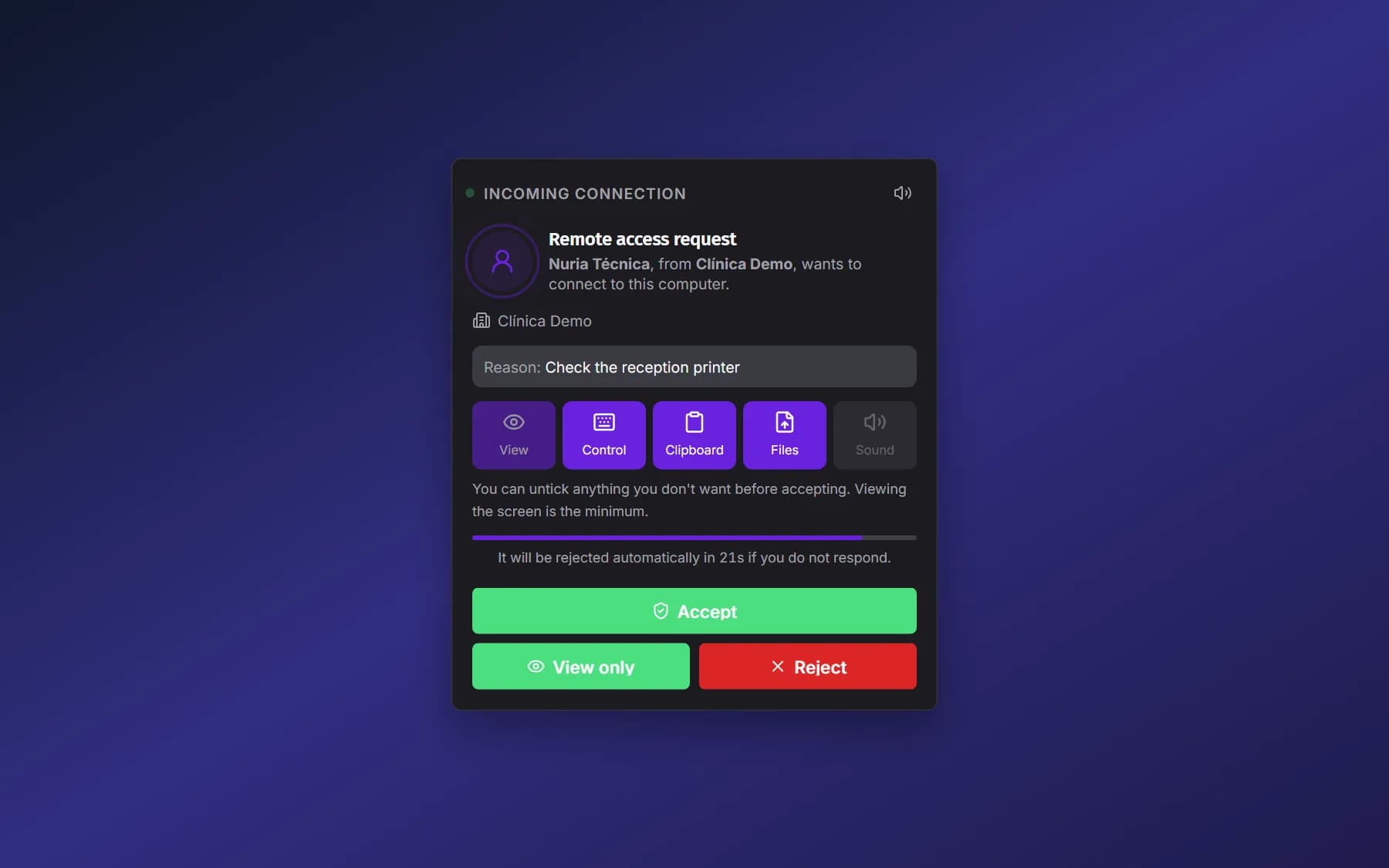
Scripts and fixes need an administrator's approval before they run. Every remote access session asks the person using the device for permission, unless an administrator turns on unattended access. The app's one-click fixes ask for confirmation.
Expected result: Nothing changes on a device unless someone with permission decided it.
Tip: During a remote session, the person using the device always sees a bar and can end it.
How policies and alerts arrive
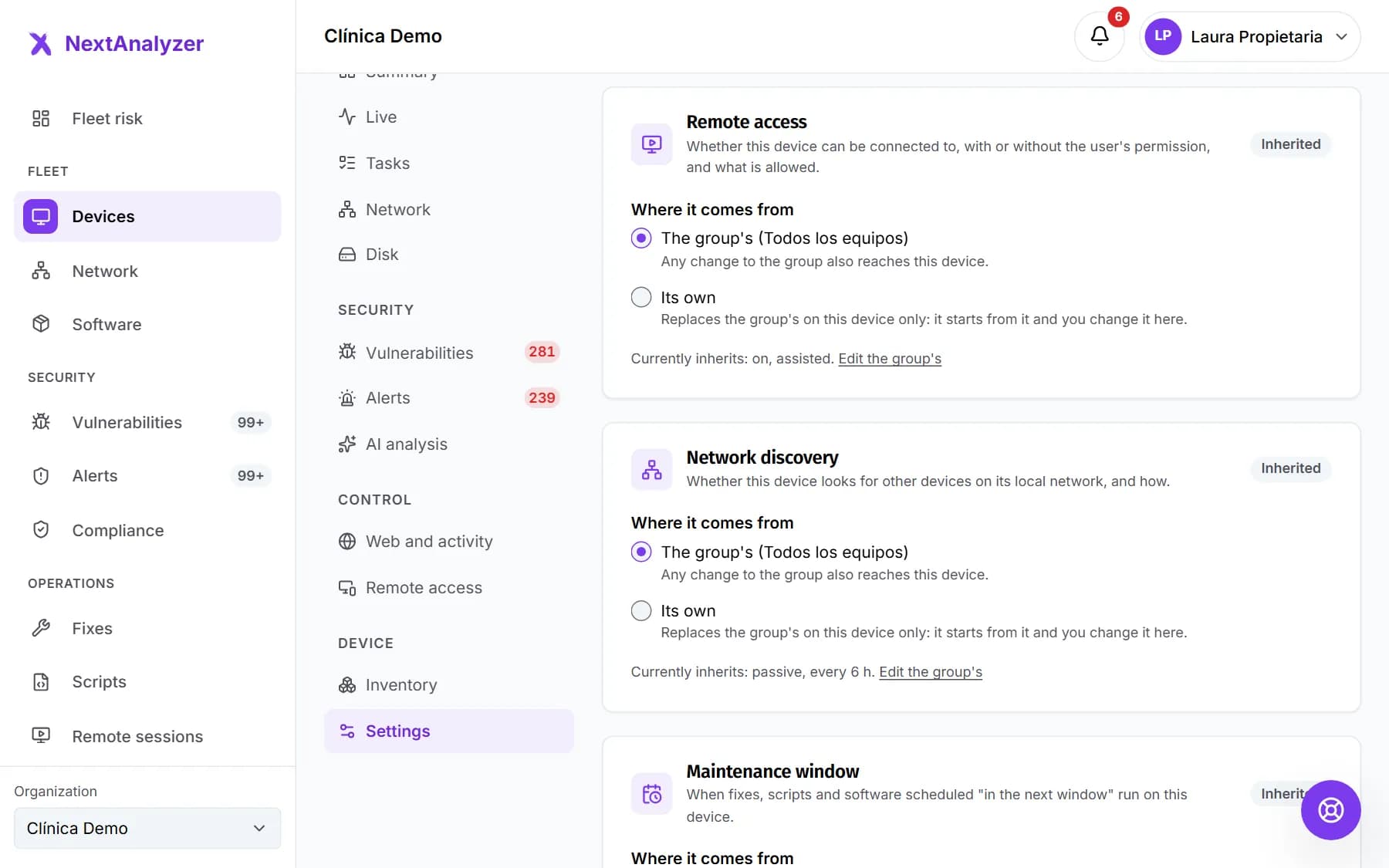
Policies are set per group, or per device, in the dashboard. The agent picks them up on its next heartbeat, within a minute if it's online. Alerts reach the dashboard and, if you set it up, email, Teams, Slack or a webhook.
Expected result: A change in the dashboard reaches every device in the group within a minute.
Tip: The person using the device sees the policies in the app but can't change them.
What it is not
It isn't an antivirus: it checks that yours is on and alerts you if it's turned off. It doesn't install its own firewall: it uses the system's and only adds rules so nobody bypasses the web filter. Nor is it an EDR: it doesn't analyze behavior or isolate devices during an attack.
Expected result: You know which tools you still need alongside NextAnalyzer.
If something goes wrong
Can I remove my antivirus once NextAnalyzer is installed?
No. NextAnalyzer doesn't detect or remove malware. Keep your antivirus (for example, Microsoft Defender): NextAnalyzer checks that it's on and raises the “Antivirus disabled” alert if it's turned off.
Can IT see what I do on my computer?
They can't see your documents, emails, screen or keystrokes. Only if your organization turns on activity history are apps and site names recorded, and the app shows a permanent notice. Remote sessions ask for your permission unless unattended access is on, and you always see a bar while they last.
What happens if the device loses Internet access?
The agent keeps applying protections and stores what it couldn't send. It sends it when the connection returns. In the dashboard, the device shows as “Offline” after 5 minutes without a heartbeat.
Do we need to open ports on the company firewall?
No inbound ports need opening. Devices need outbound Internet access over HTTPS (443) and TCP 3443 (the devices' encrypted channel) and 1514 (Wazuh). For remote access, also 3478 and UDP 49160 to 49999.
Will it slow devices down?
The agent sends one heartbeat per minute and a summary every 5 minutes; live data only while someone is watching. If you notice high usage, open a ticket in Support with “A device or the agent” › “Slow or using too many resources”.
Still not working? Open a support ticket