
Drivers and updates
Many hardware and security issues are fixed by updating a driver or a program. NextAnalyzer only uses official sources: Windows Update, Apple Software Update, fwupd and the system package managers.
Open the Drivers page in the app
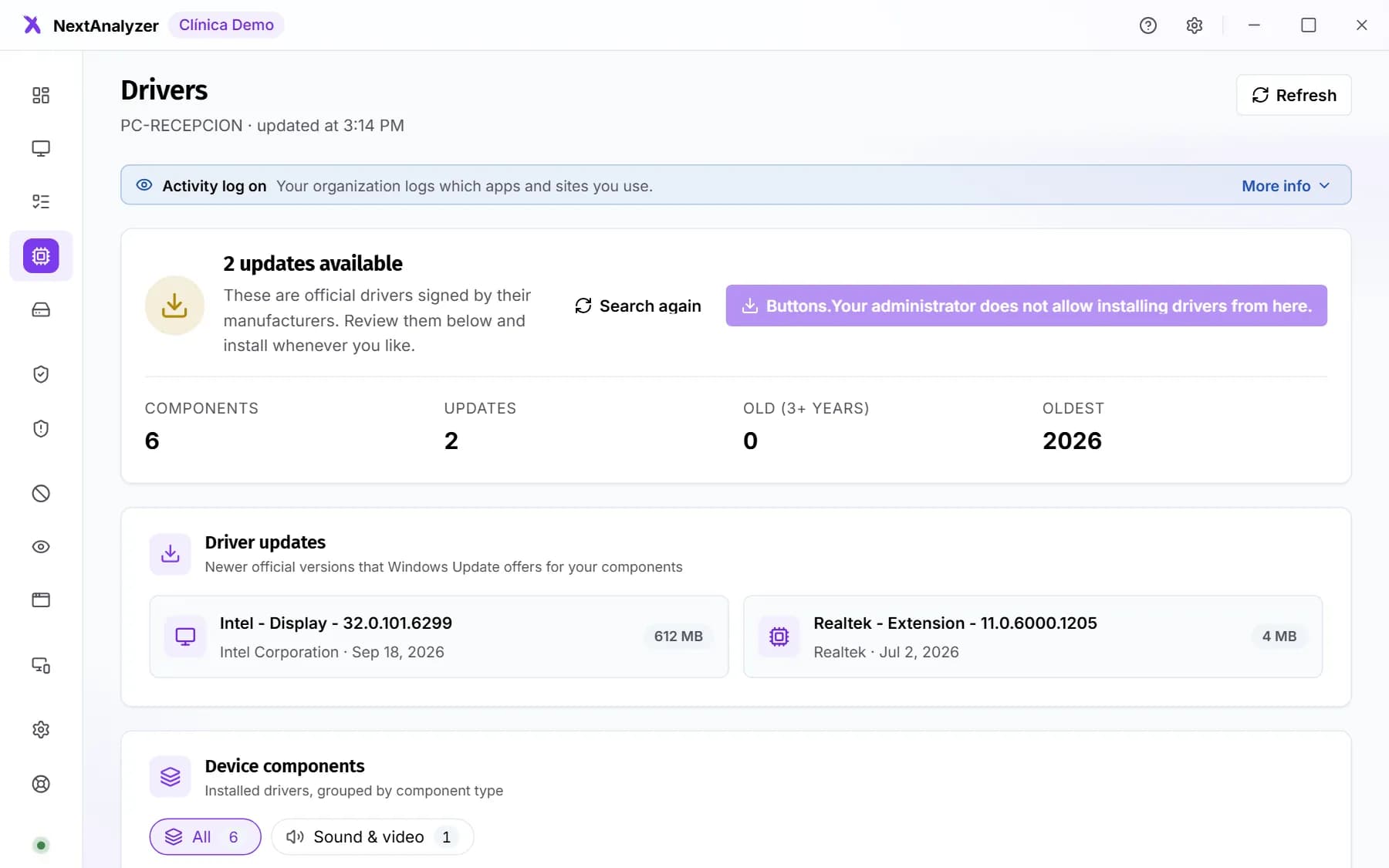
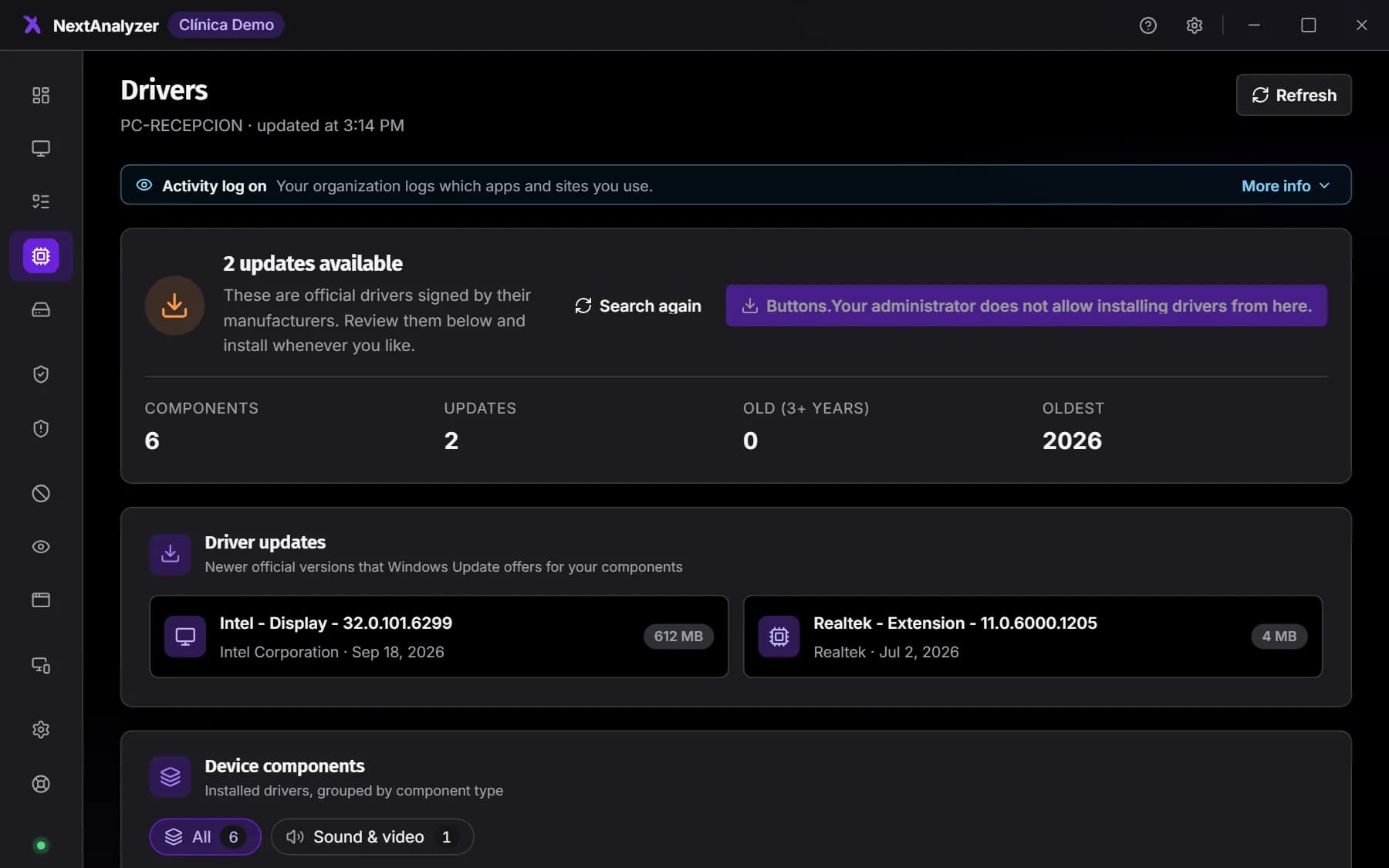
In the desktop app, open “Drivers”. You see the device’s components grouped by type, with vendor, version and date.
Expected result: The top shows “Drivers up to date” or how many updates are available.
Tip: The “Old (3+ years)” figure flags drivers worth reviewing even if there is no newer version.
Search for updates again
Press “Search again” if you just installed something or want the latest data. Querying Windows Update can take a minute.
Expected result: Components with a newer version are marked “Newer available”.
Install the updates
Press the “Install” button with the number of updates and confirm with “Install”. The system asks for administrator rights. The screen or network may flicker for a moment.
Expected result: You see how many drivers were installed and, if needed, “Restart the device to finish”.
Tip: Save your work before restarting. The device does not restart on its own.
Update drivers remotely
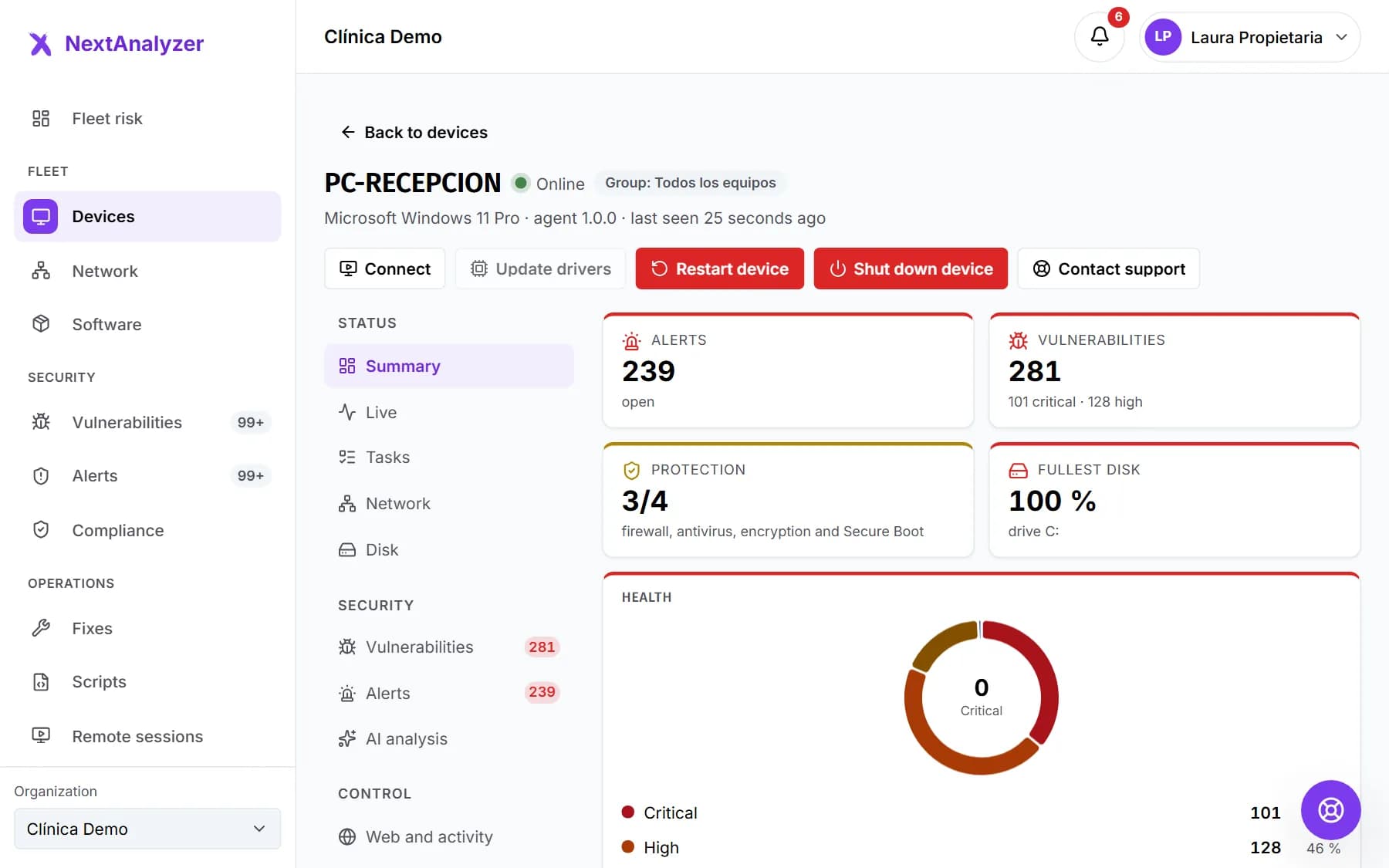
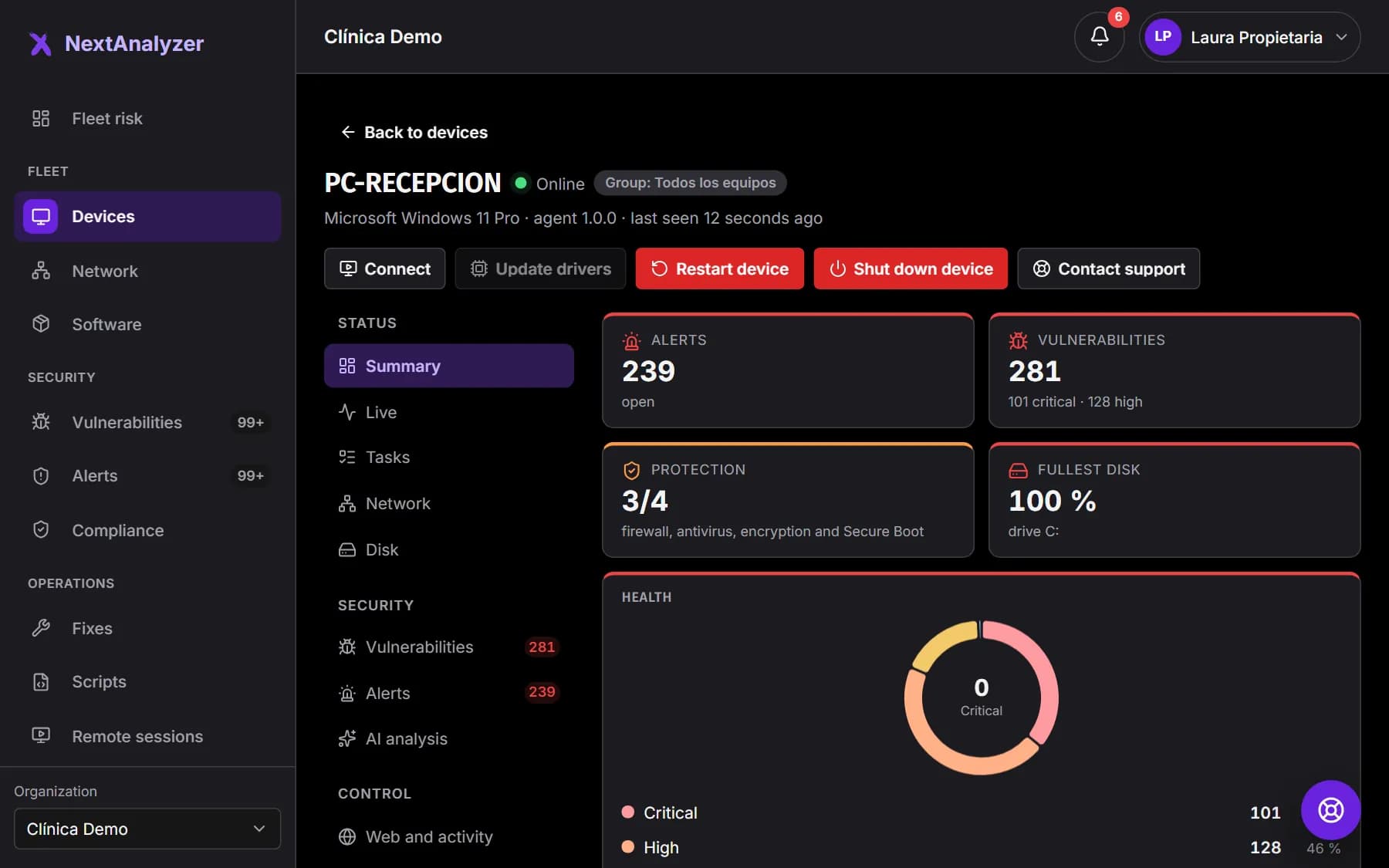
In the panel, open a Windows device and press “Update drivers” in the header. Confirm with “Update”. Only signed drivers from Windows Update are installed.
Expected result: You see “Order sent. The device will receive it within a minute.”
Tip: The button is only enabled when the device is online and has pending drivers. The agent checks every few hours.
Update a program from the app
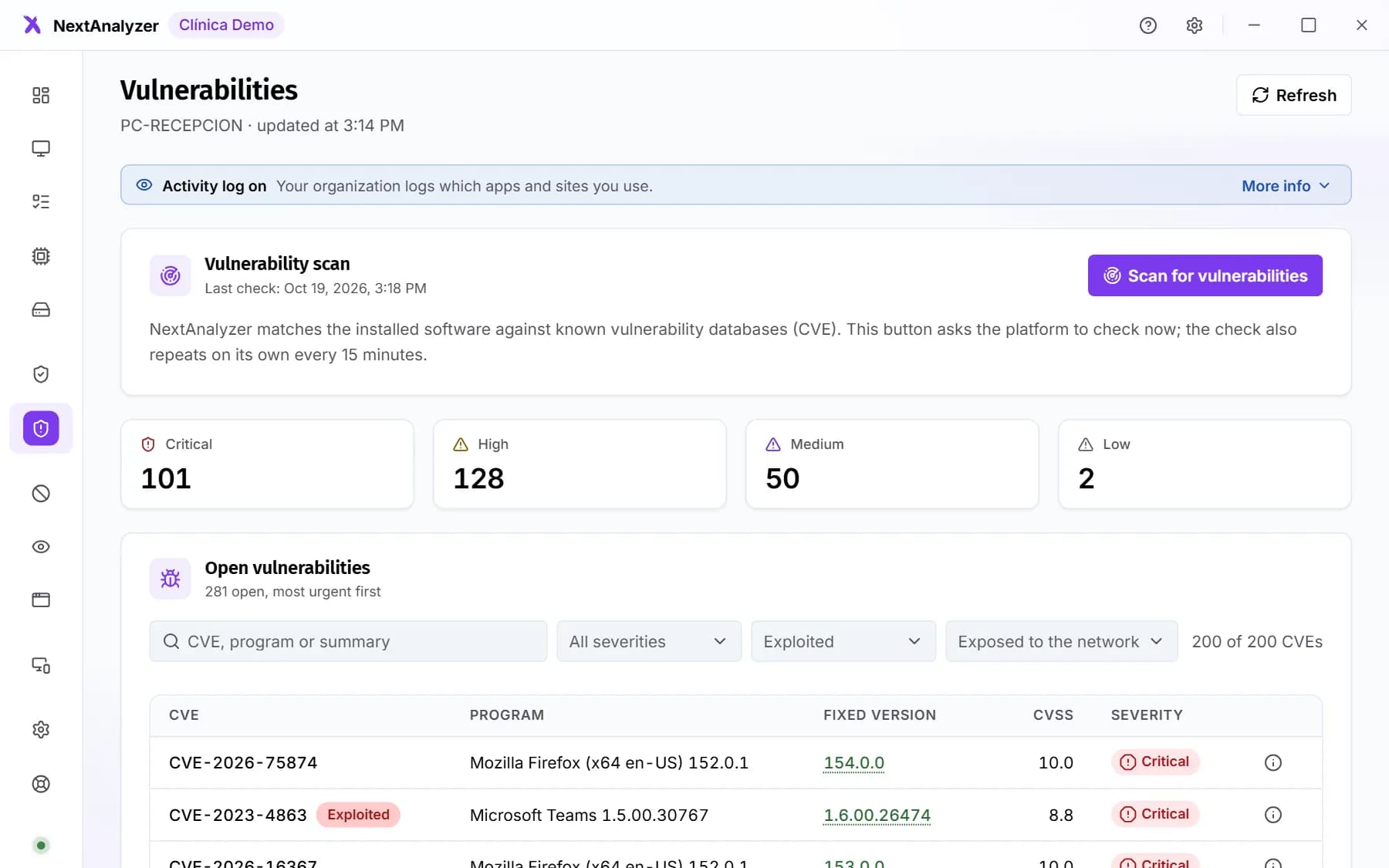
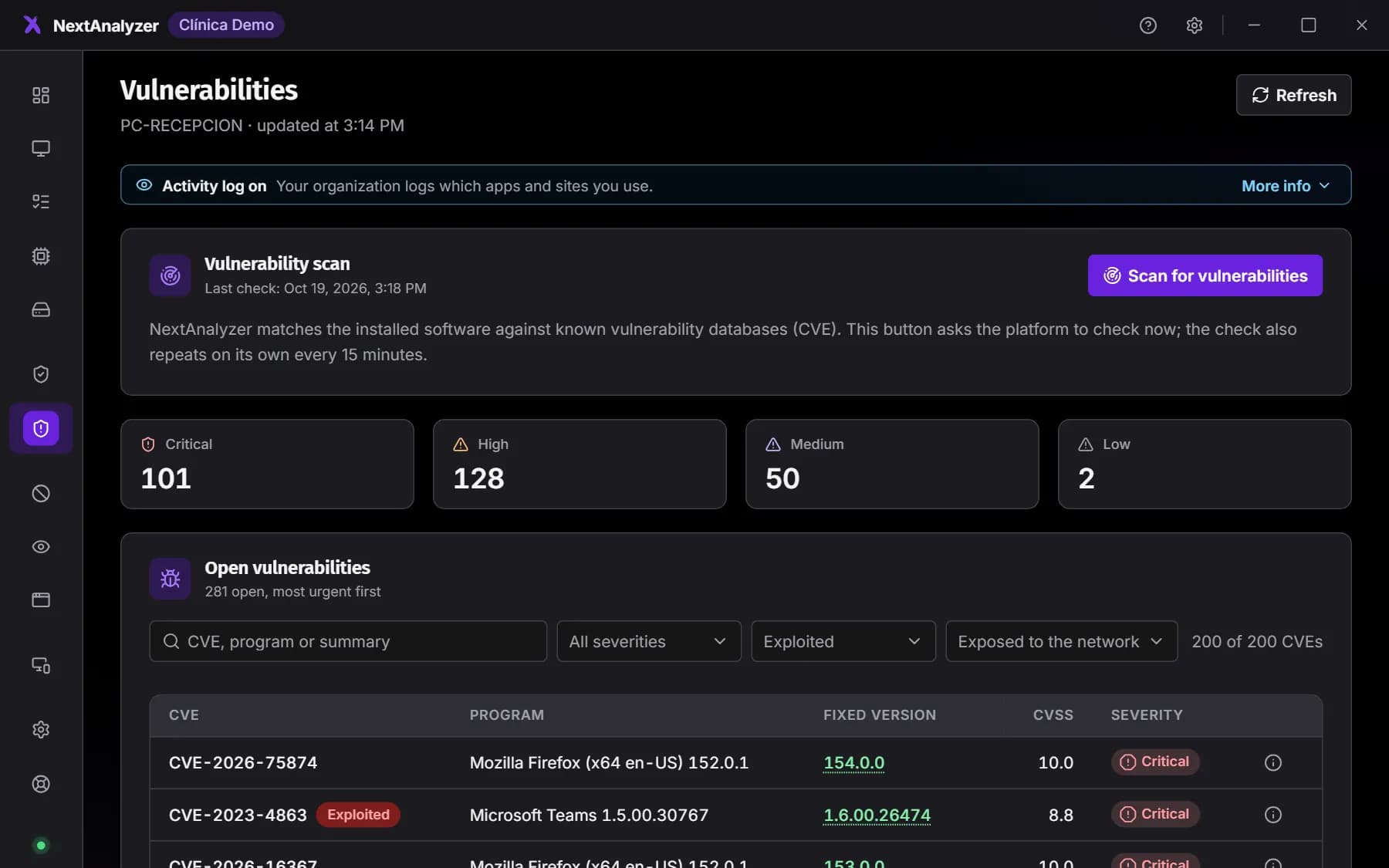
In the app, open “Vulnerabilities”, open the program’s entry and press “Update now”. It shows what it will do and asks for confirmation first.
Expected result: You see “Program updated. We are checking vulnerabilities again.”
Update vulnerable programs remotely
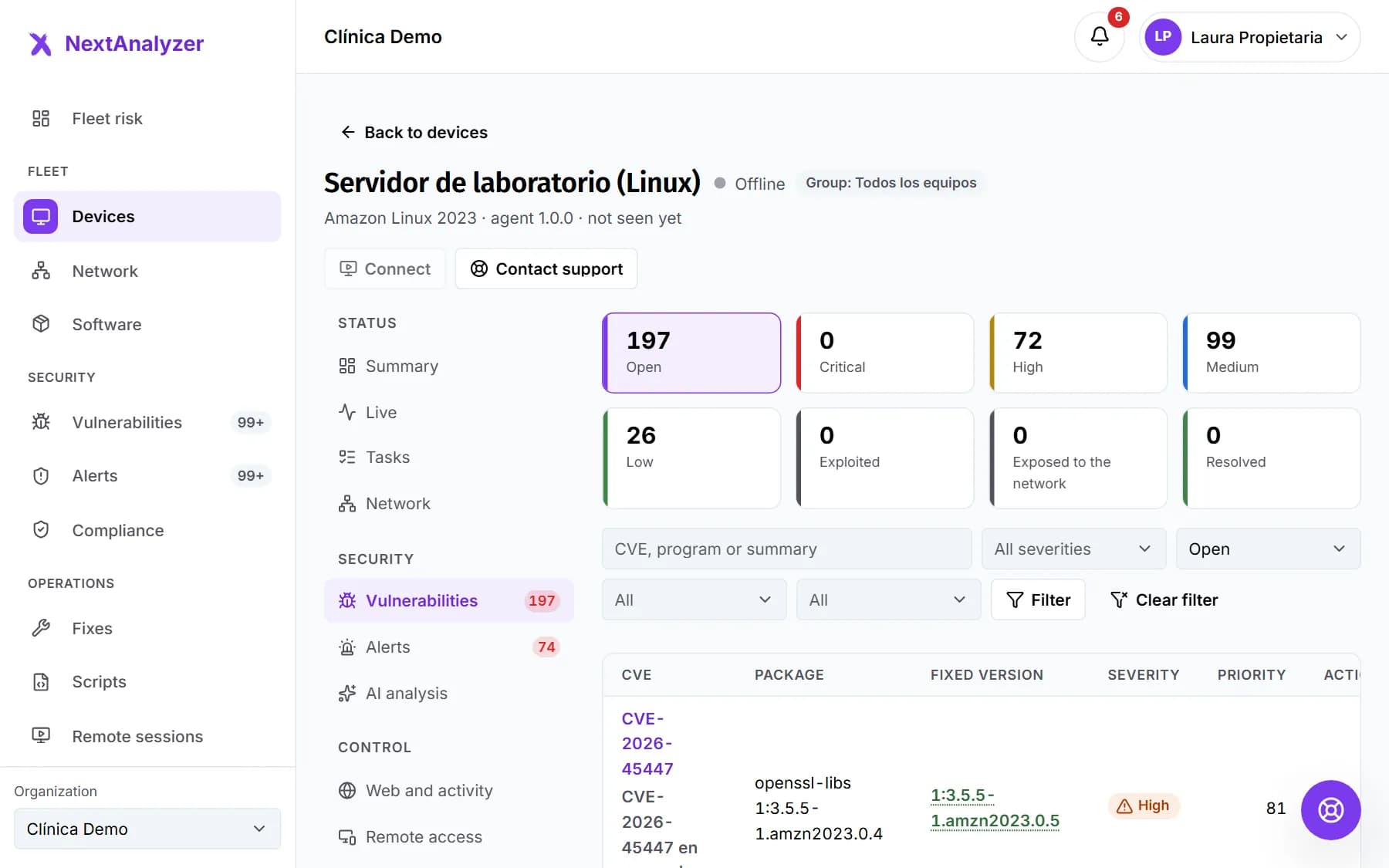
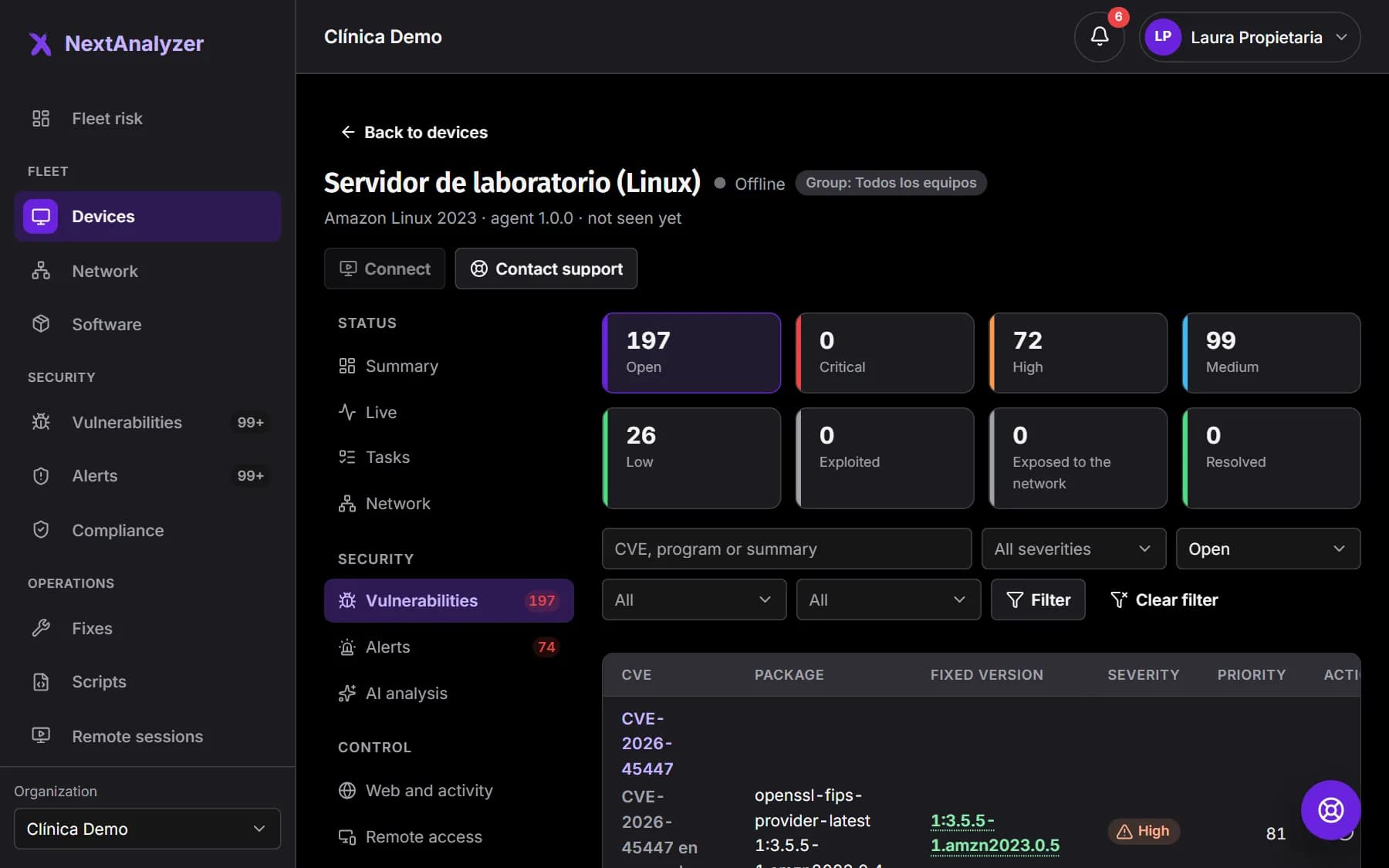
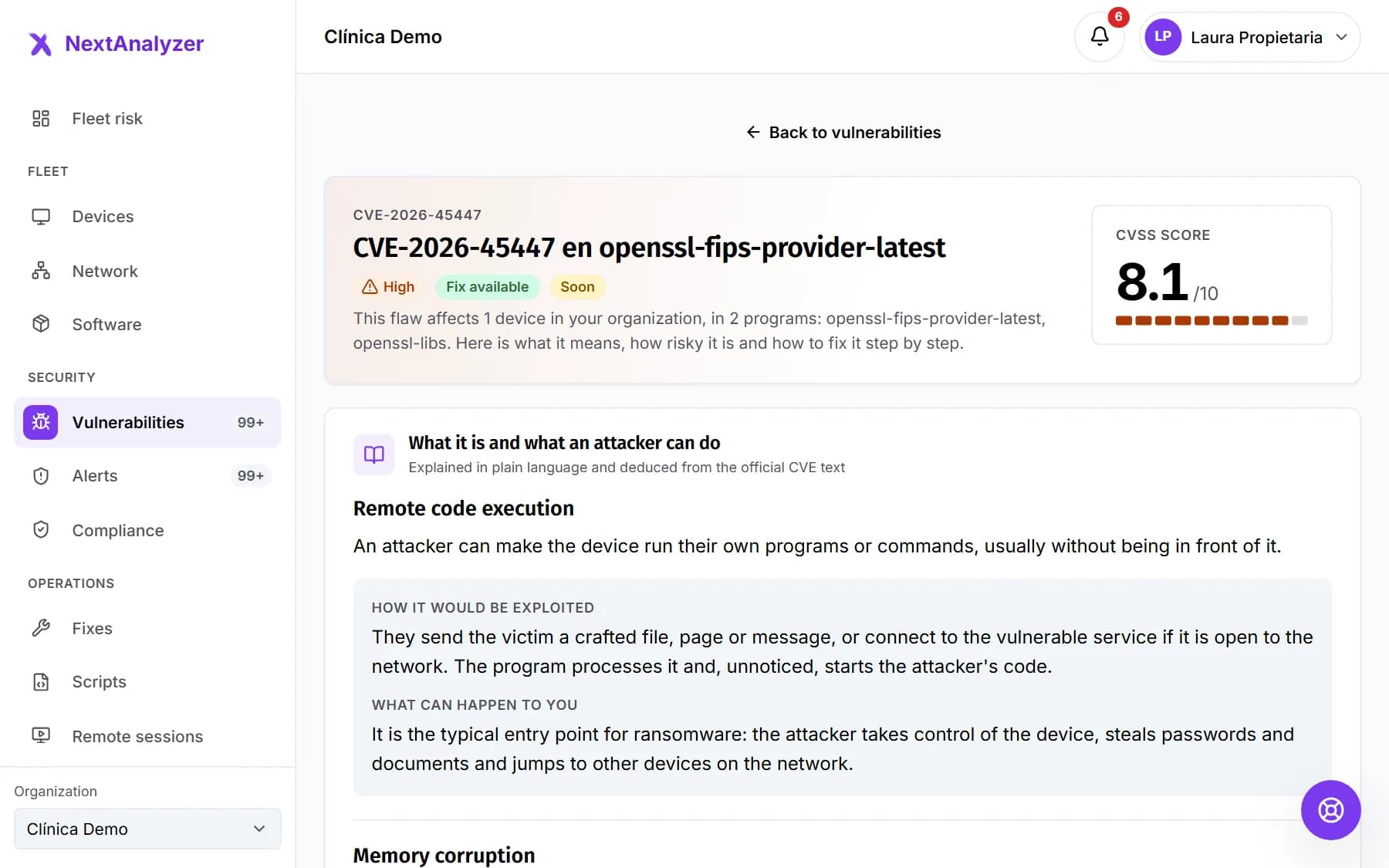
In the panel, open the device’s “Vulnerabilities” tab and press “Apply fix”. Choose the devices and when: as soon as it is approved or in the maintenance window. For Windows devices you can also choose “Install Windows Update patches”.
Expected result: You see “Fix created: awaiting approval”, or “Fix created and approved” if you approve it yourself.
Tip: The user sees a countdown notice before it starts. The device is never forced to restart.
Update a program on a single Windows device
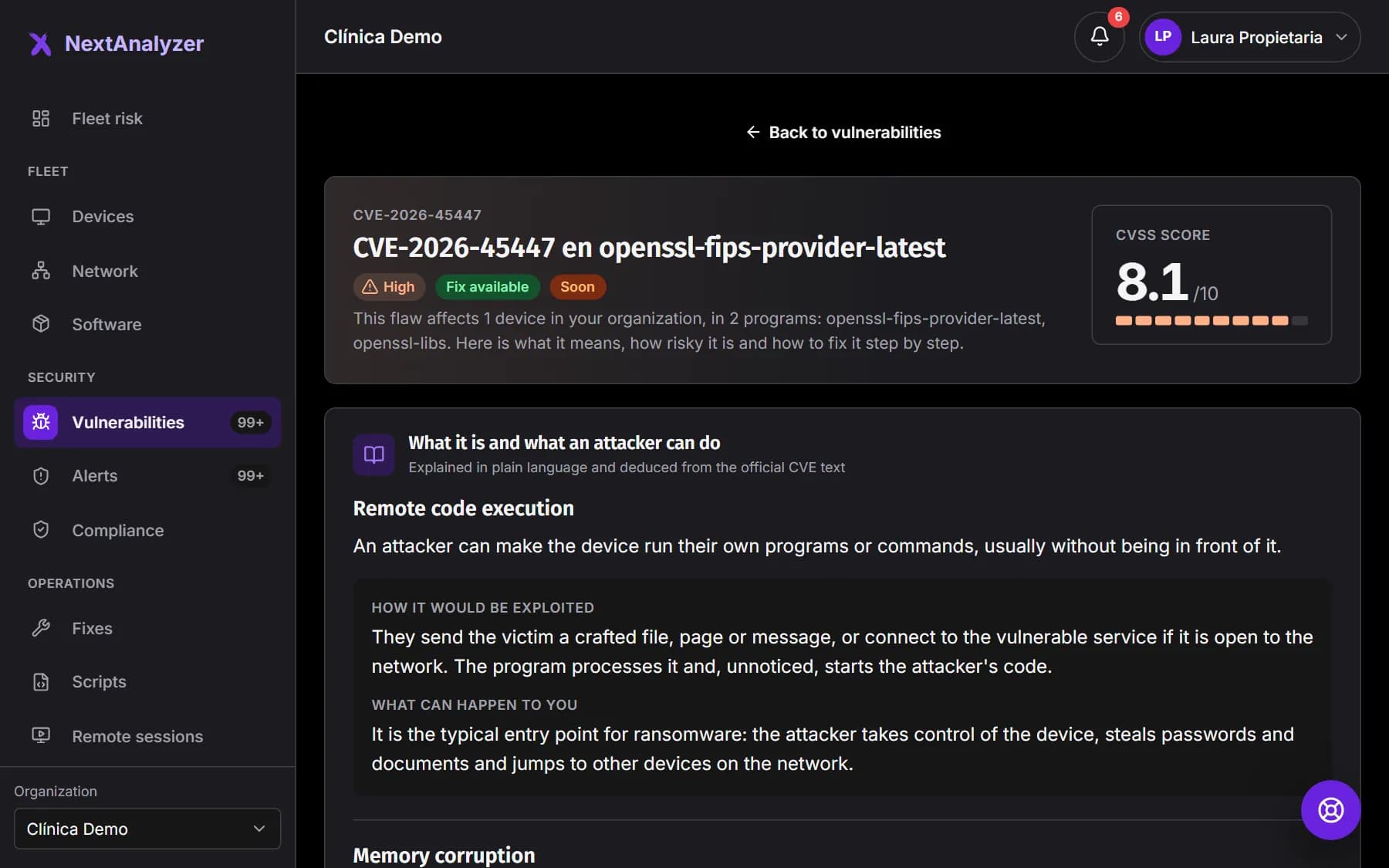
On a CVE page, the affected devices table has “Update the program” for Windows devices. Administrators and the owner can use it. It updates to the latest version with winget.
Expected result: You see “Order sent. The device will receive it within a minute.”
Tip: This one-off command does not report its result to the panel. To see the result per device, use “Apply fix”.
Check the result
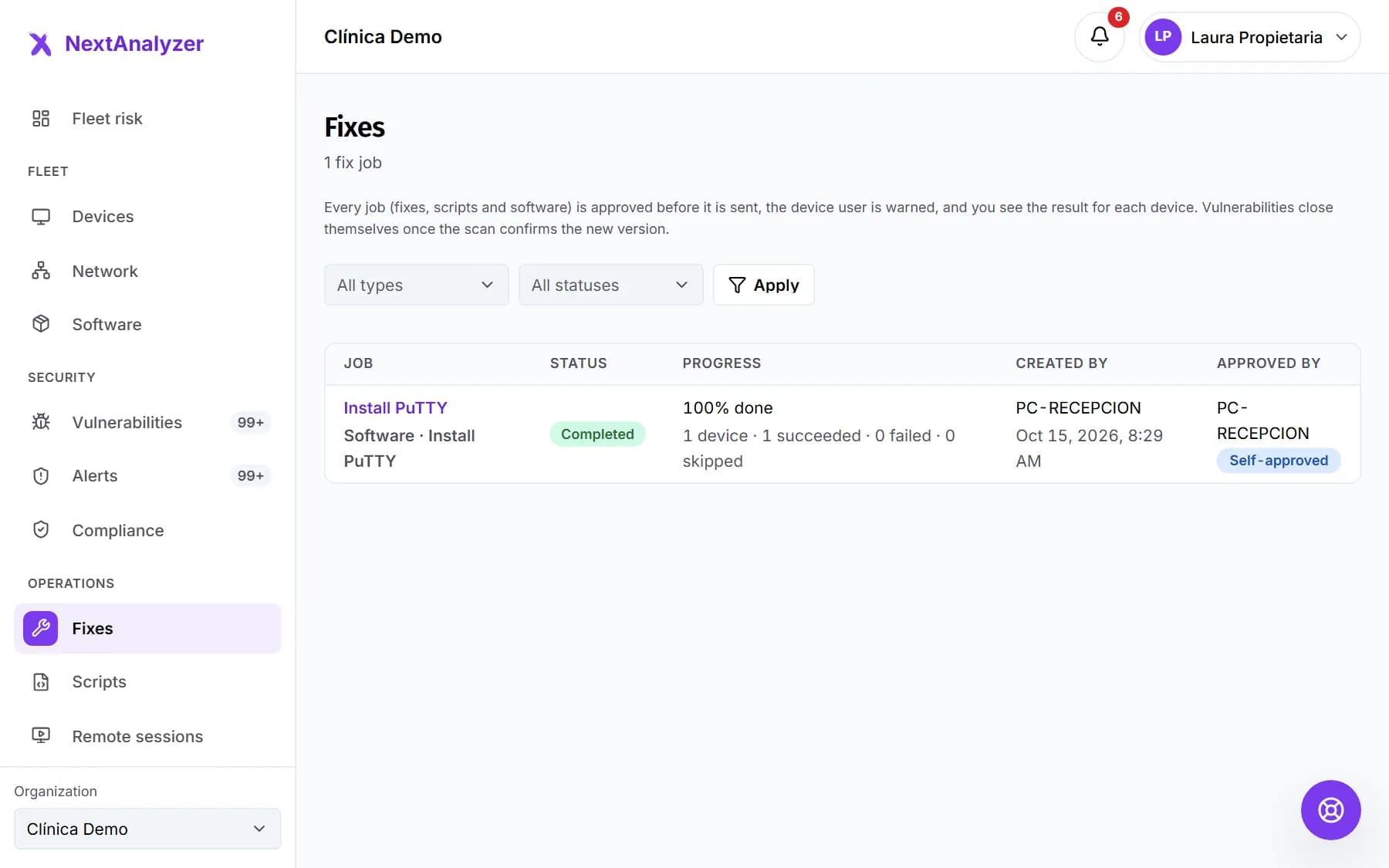
Open “Fixes” in the Operations menu. Each job shows its result per device, with trimmed output if something fails.
Expected result: The device shows as succeeded and the vulnerability closes on its own once the scan confirms the new version.
If something goes wrong
It says winget cannot update the program
The program is not in winget’s catalog or there is no newer version. This happens with runtimes, unsupported versions and programs installed by other means. Install the current version from the vendor’s official site and uninstall the old one. On a Mac the same happens if it was not installed with Homebrew.
The update fails because the program is open
The app warns that “Some open programs are using the one being updated”. Ask the user to close them and press the button again. Remotely, schedule the fix in the maintenance window.
It says “Not done: permissions were not accepted”
The system asked for administrator rights and they were declined or nobody answered. Press “Install” again with an administrator account, or do it remotely from the panel: nothing has to be accepted on the device.
The “Update drivers” button is greyed out
Hover over it to see why: the device is offline, the drivers are up to date or it is not yet known whether there are updates. The agent checks every few hours. It does not appear on macOS and Linux devices.
On Linux or Mac it says “Not available on this computer”
The update system could not be queried. Linux needs fwupd (fwupdmgr) installed; macOS uses softwareupdate. Install fwupd with your distribution’s package manager and press “Search again”.
Still not working? Open a support ticket