
Disk maintenance and optimization
A full disk slows the device down and can block updates. NextAnalyzer only deletes files that the system or the browser recreate: never documents, downloads or programs.
Open the disk from the dashboard
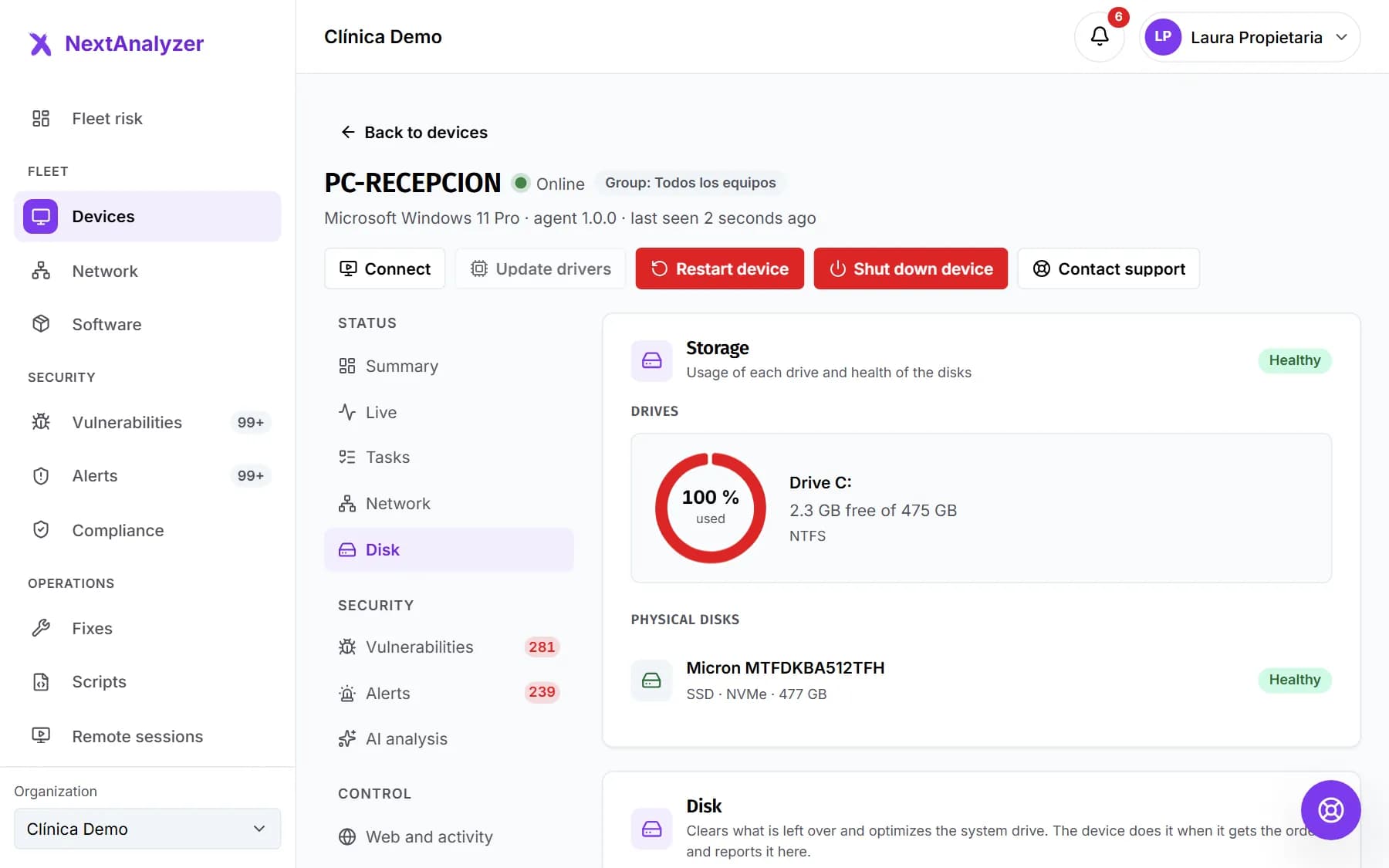
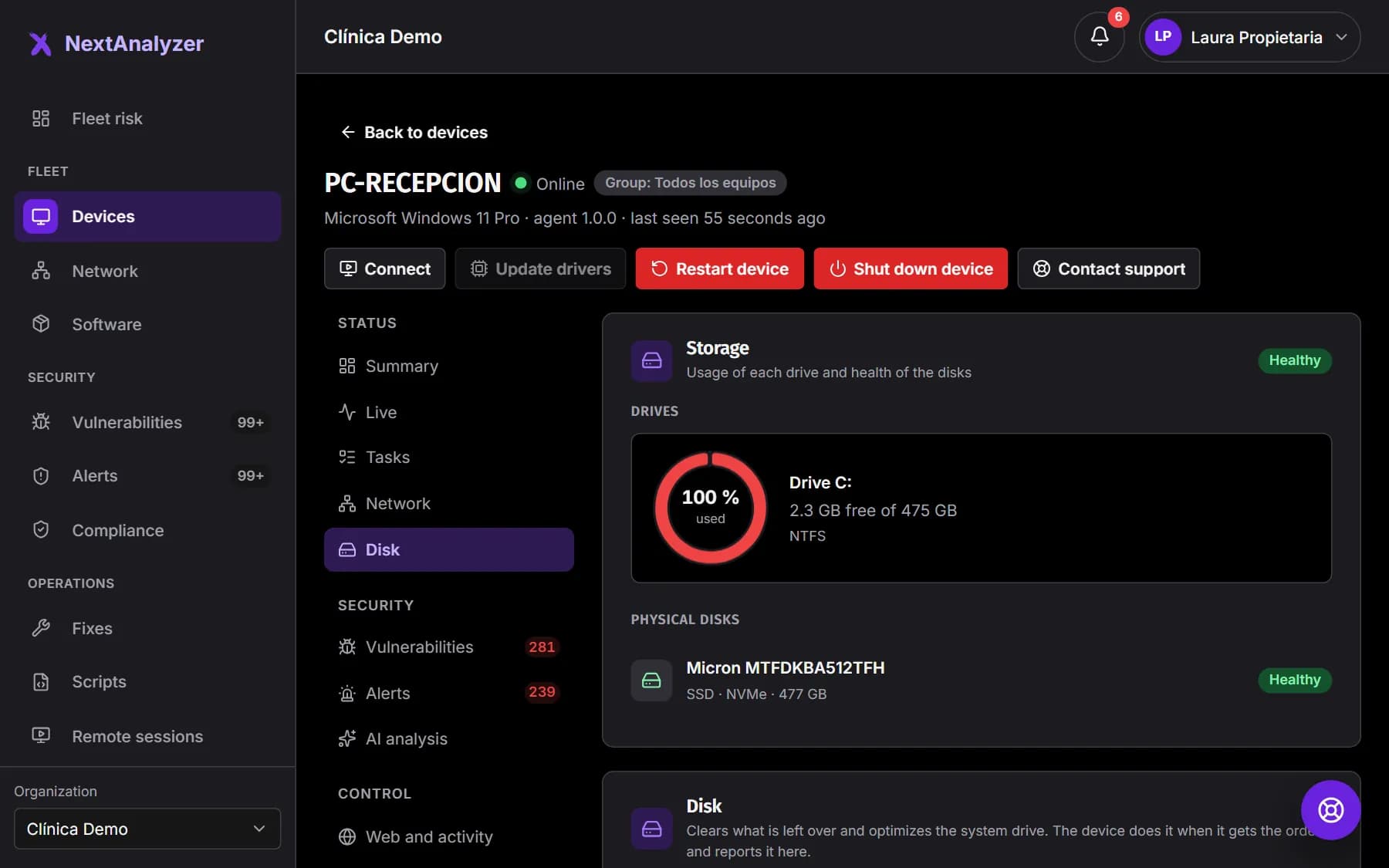
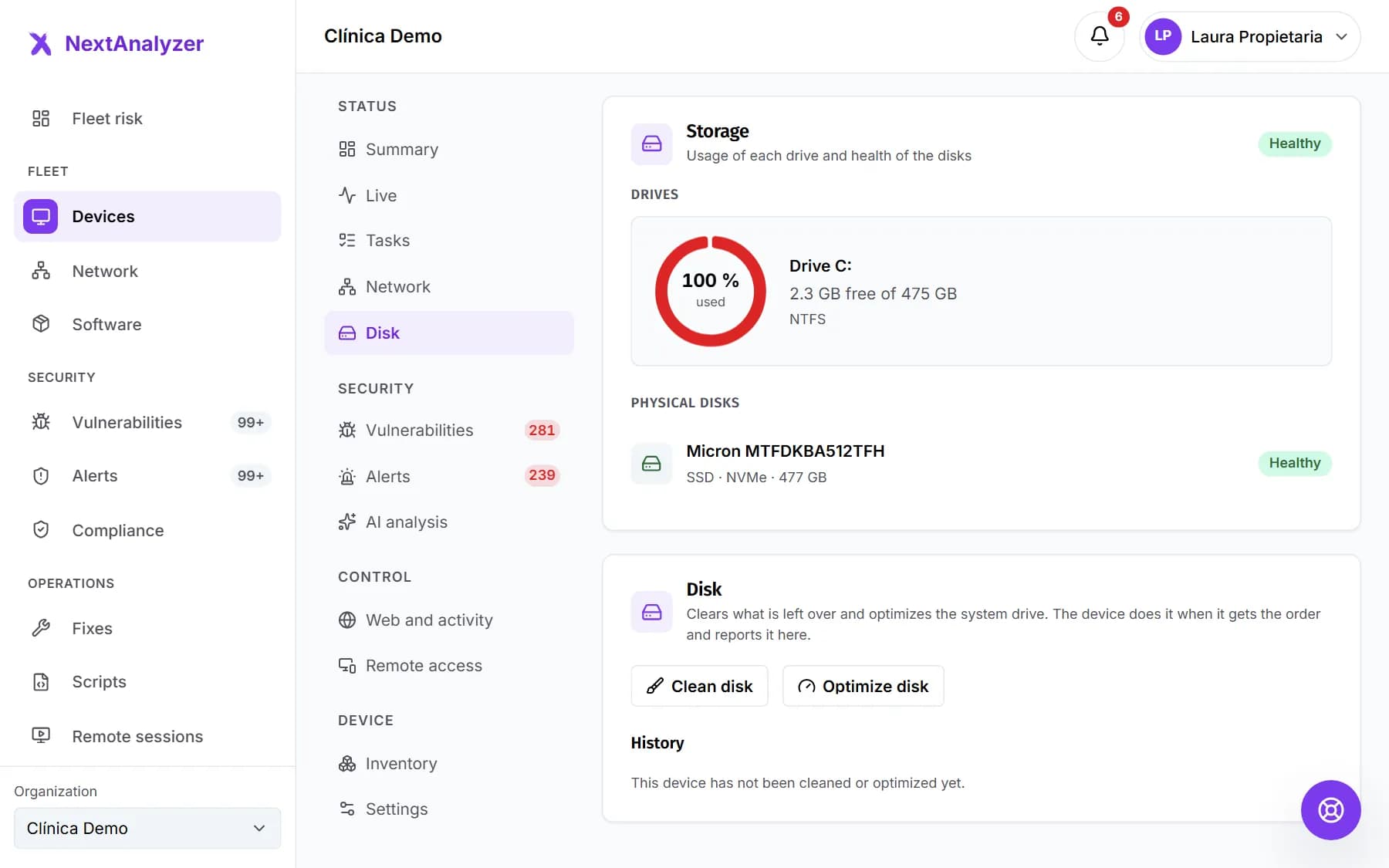
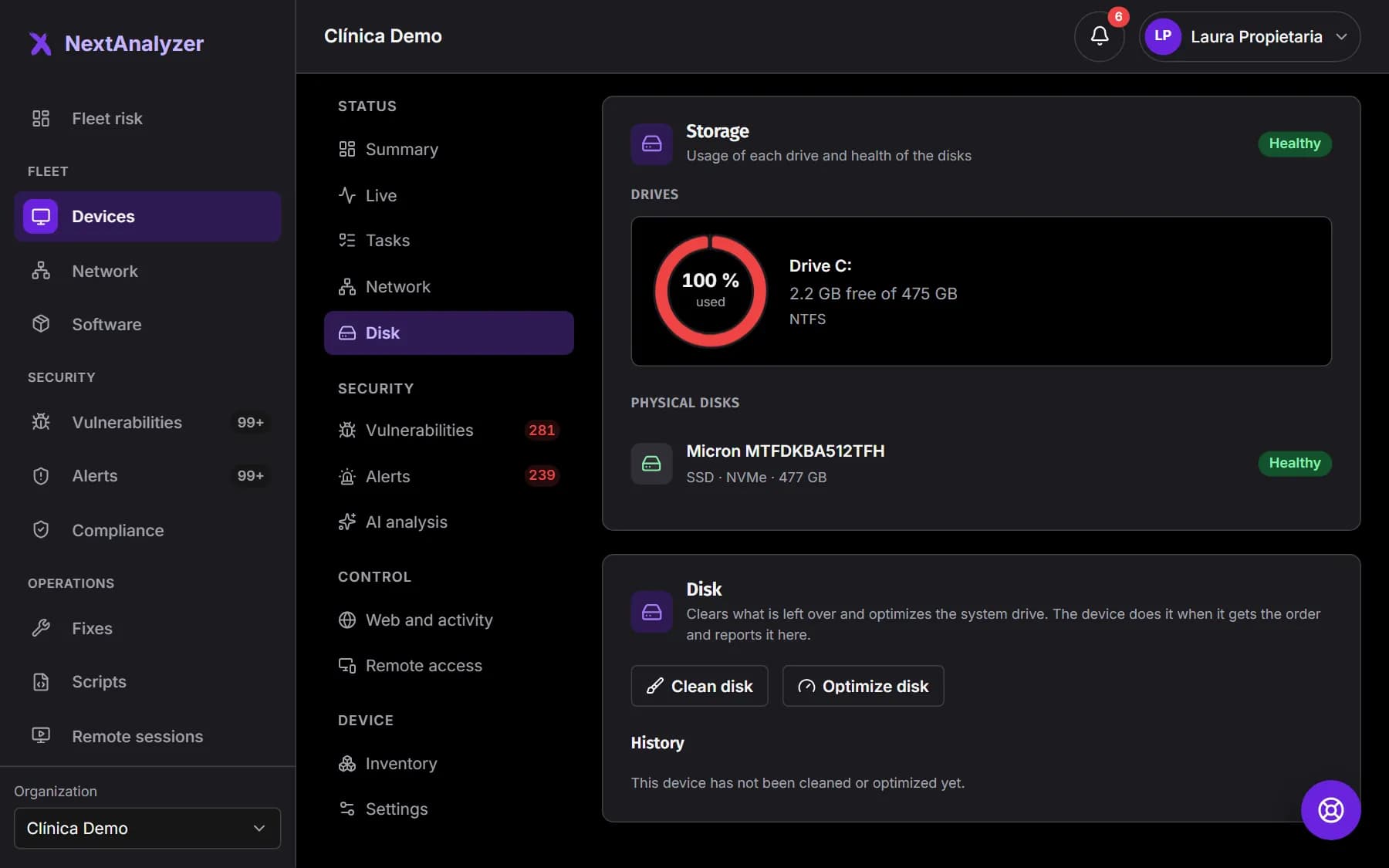
On a Windows device page, Status › “Disk”. You have the buttons to clean and optimize, and the “History” of what has been done.
Expected result: You see the history of cleanups and optimizations, or “This device has not been cleaned or optimized yet.”
Clean remotely
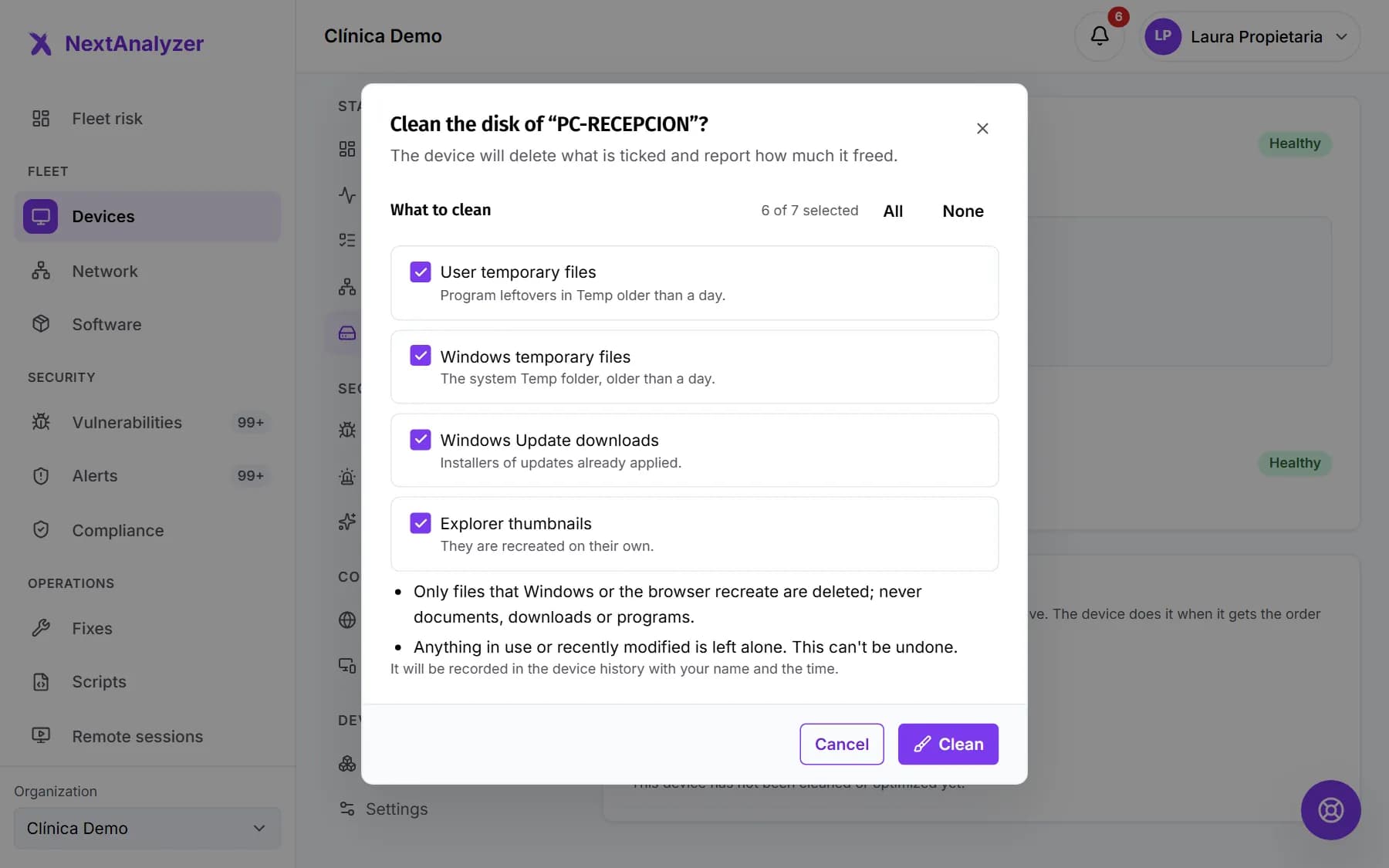
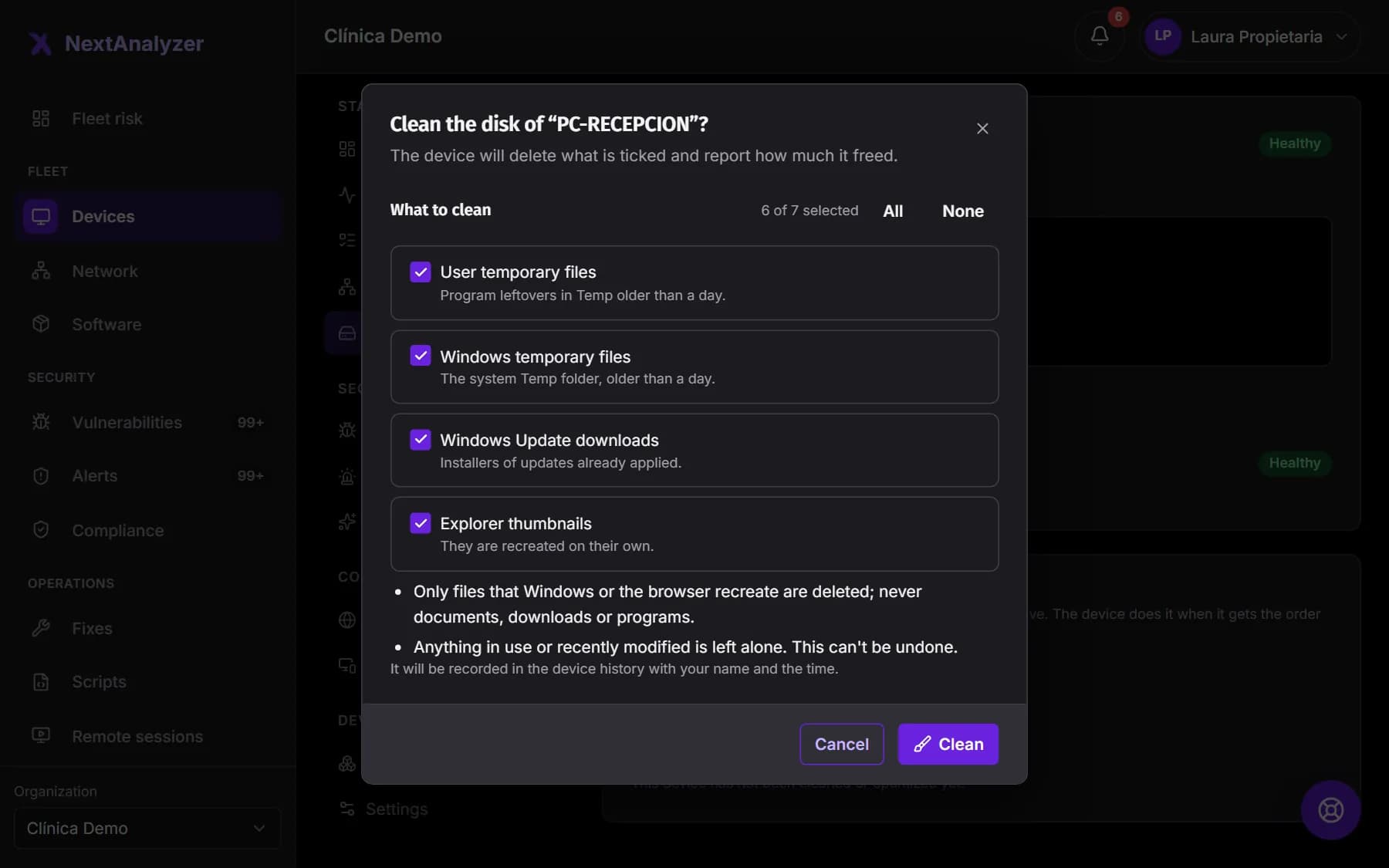
Click “Clean disk”. In “What to clean”, tick the categories: temporary files, Windows Update downloads, thumbnails, error reports, browser cache and Recycle Bin. Click “Clean”.
Expected result: A “Cleanup” entry shows as “Pending” and then “Done” with what was freed, for example “Freed 2.4 GB”.
Tip: The Recycle Bin is unticked: what's emptied can't be recovered. Temporary files less than a day old and files in use are left alone.
Optimize the disk
Click “Optimize disk” and confirm with “Optimize”. On an SSD, TRIM is sent; on a hard drive, it's defragmented. The person using the device can keep working.
Expected result: The history shows “TRIM sent to drive C:” or “Drive C: defragmented”.
Tip: It's safe and you can repeat it whenever you like.
Schedule automatic cleanup
In Organization › “Members and groups” › “Groups”, open the group and its “Automatic disk cleanup”. Choose the “Schedule” (“Every week” or “Every month”) and, if you want, “Clean when space runs low”.
Expected result: “Saved.” appears and the group shows the scheduled cleanup.
Tip: With low space it cleans when less than 10, 15 or 20% is free, at most once a day per device. It shows in the audit log as “Automatic cleanup”.
Clean from the app
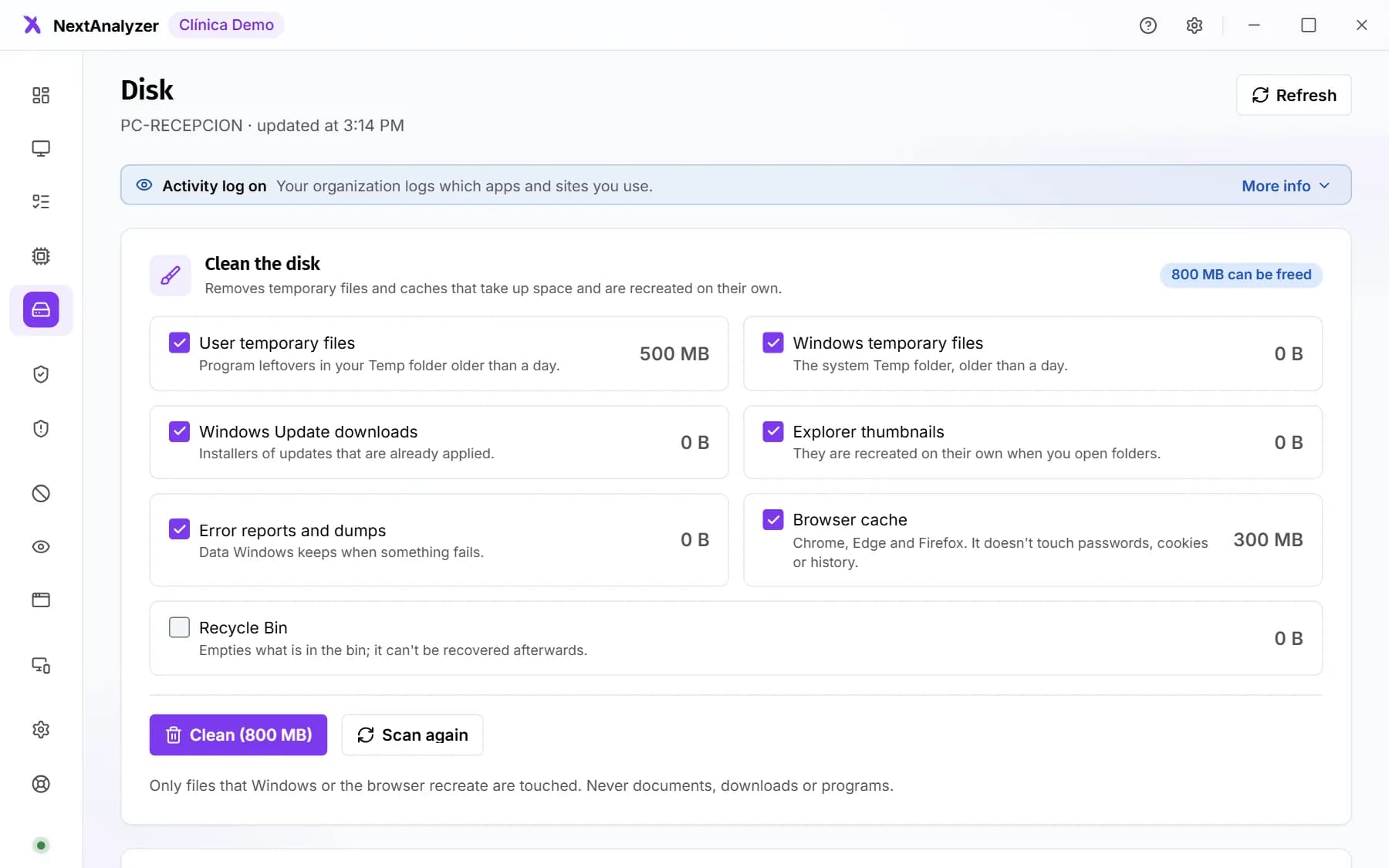
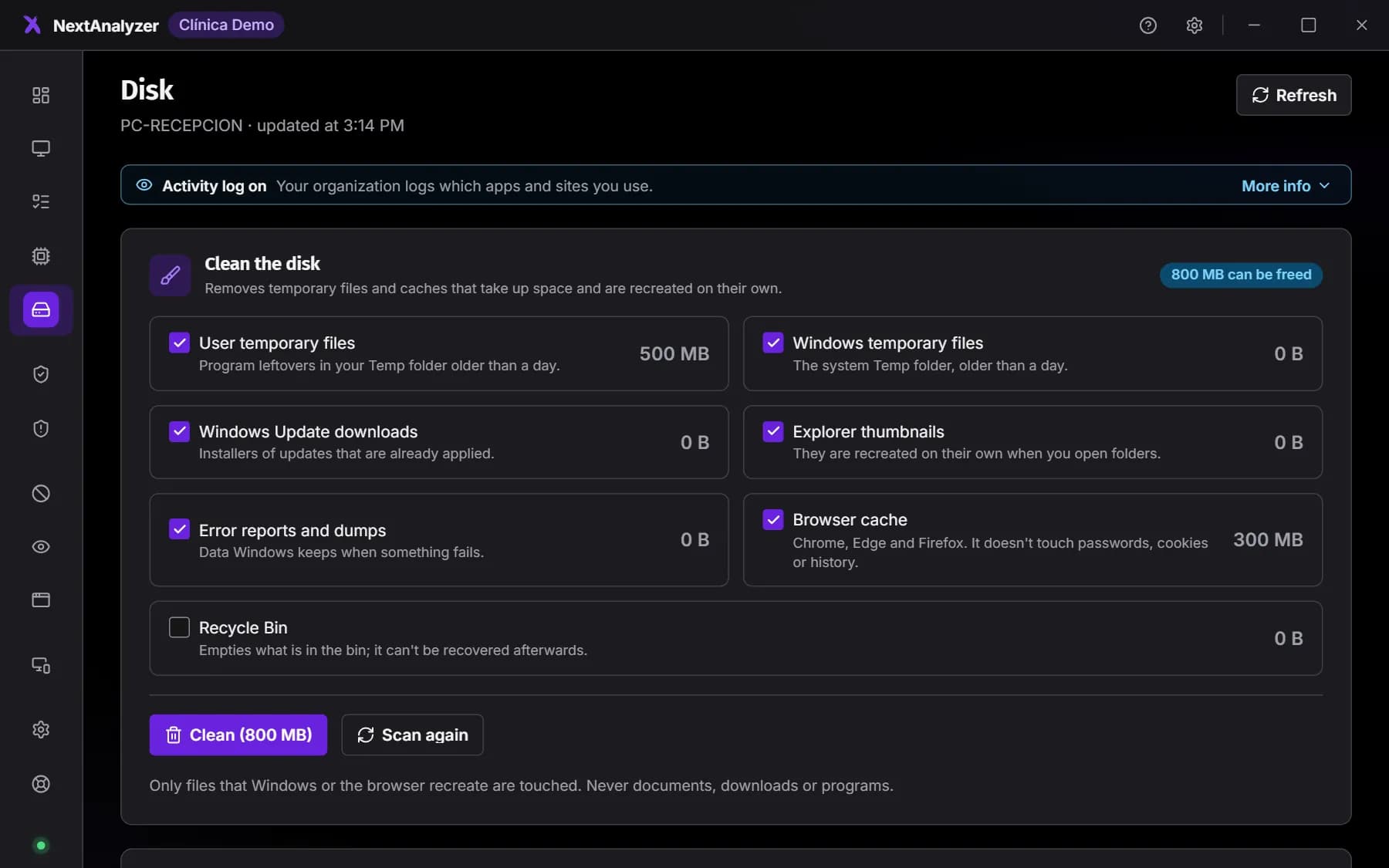
On the device, open the NextAnalyzer app and go to “Disk”. Check how much can be freed per category, click “Clean” and confirm with “Clean now”.
Expected result: “Done: … freed.” appears with the space recovered.
Tip: “Scan again” recalculates what can be freed.
Optimize from the app
On the same page, “Optimize the disk” explains what will be done for the disk type. Click “Optimize now” and accept the administrator prompt.
Expected result: “Done: TRIM sent…” or “Done: drive … defragmented…” appears with how long it took.
Find large files
In “Large files”, click “Find large files”. Files over 100 MB in the user folder are listed. “Show” opens their folder.
Expected result: You see the list of large files to decide what to do with them.
Tip: NextAnalyzer only lists them: it never deletes or moves them.
Improve performance
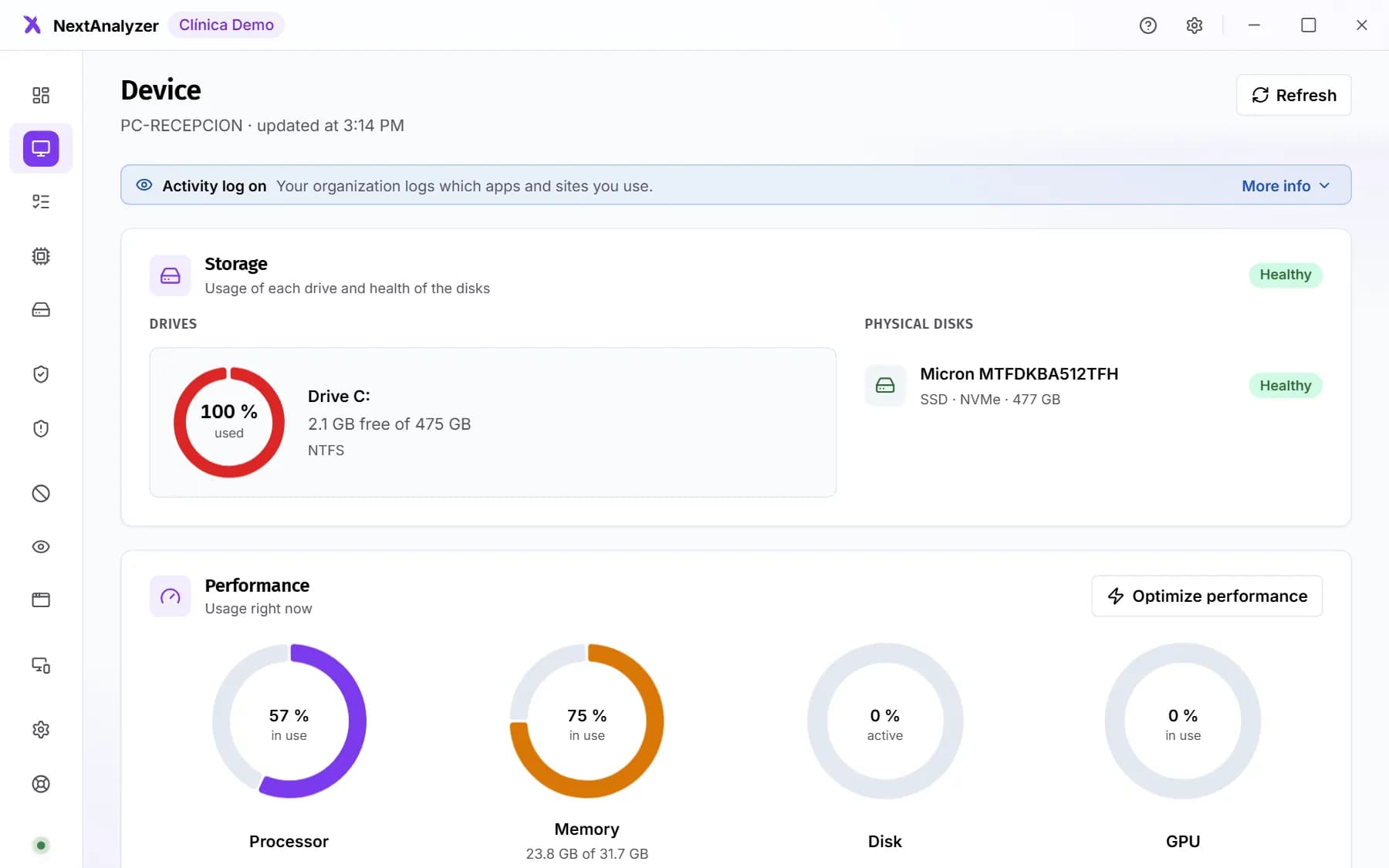
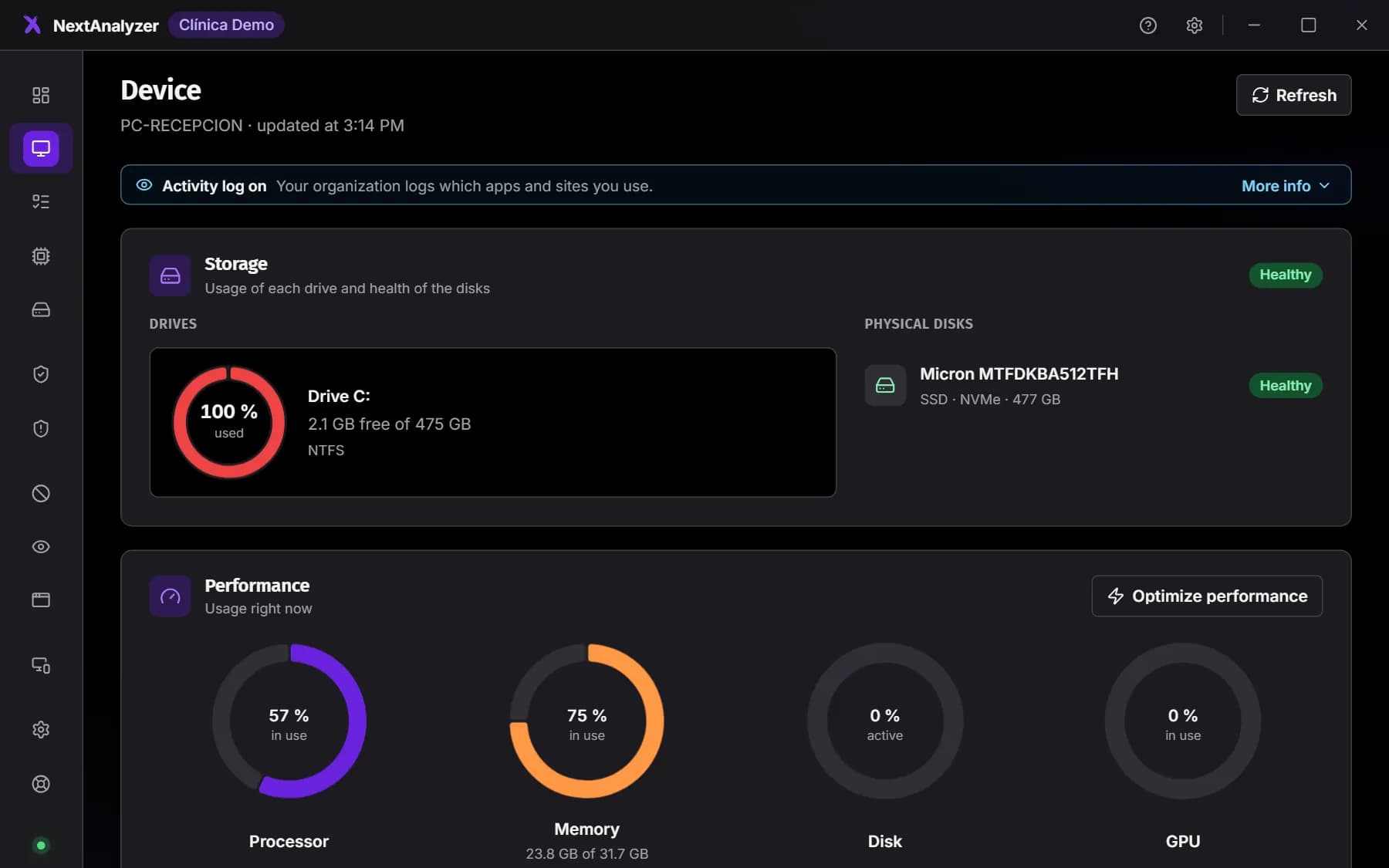
On the app's “Device” page, click “Optimize performance”. Tick the tweaks you want (high-performance power plan, clear the network name cache, light cleanup and TRIM) and click “Apply selected”.
Expected result: “Done.” appears with the space freed and the new score from 0 to 100.
Tip: The power plan is undone with “Undo power plan”. Startup programs aren't turned off: they're listed so you can decide.
If something goes wrong
The Disk tab doesn't appear in the dashboard
It only exists on Windows devices and only technicians, administrators and the owner see it. On macOS and Linux, the person using the device can clean from the app's Disk page.
The clean and optimize buttons are disabled
The device is offline: “The device is offline: the buttons are enabled when it reconnects”. Turn it on or wait for it to come back online.
The cleanup freed very little
Only temporary files older than a day and files that are recreated are deleted. Files in use are left alone (“One file was in use and was left alone.”). If you need more space, look for large files in the app or include the Recycle Bin.
The app says “You cancelled the permission prompt”
Optimizing the disk and some performance tweaks need administrator permission. If the prompt is declined, nothing changes. Try again and accept, or run the optimization from the dashboard.
Optimize says “Not needed”
Virtual or network storage is left alone, because it doesn't need it. That's normal on virtual machines.
Still not working? Open a support ticket