
NextAnalyzer AI: priorities, CVEs and devices
The AI reads your fleet data and explains it in plain language: what to fix first, what a CVE means and how a device is doing. It helps you decide, it does not give orders: it never touches your devices and everything it produces is labeled so you can review it.
Ask what to fix this week
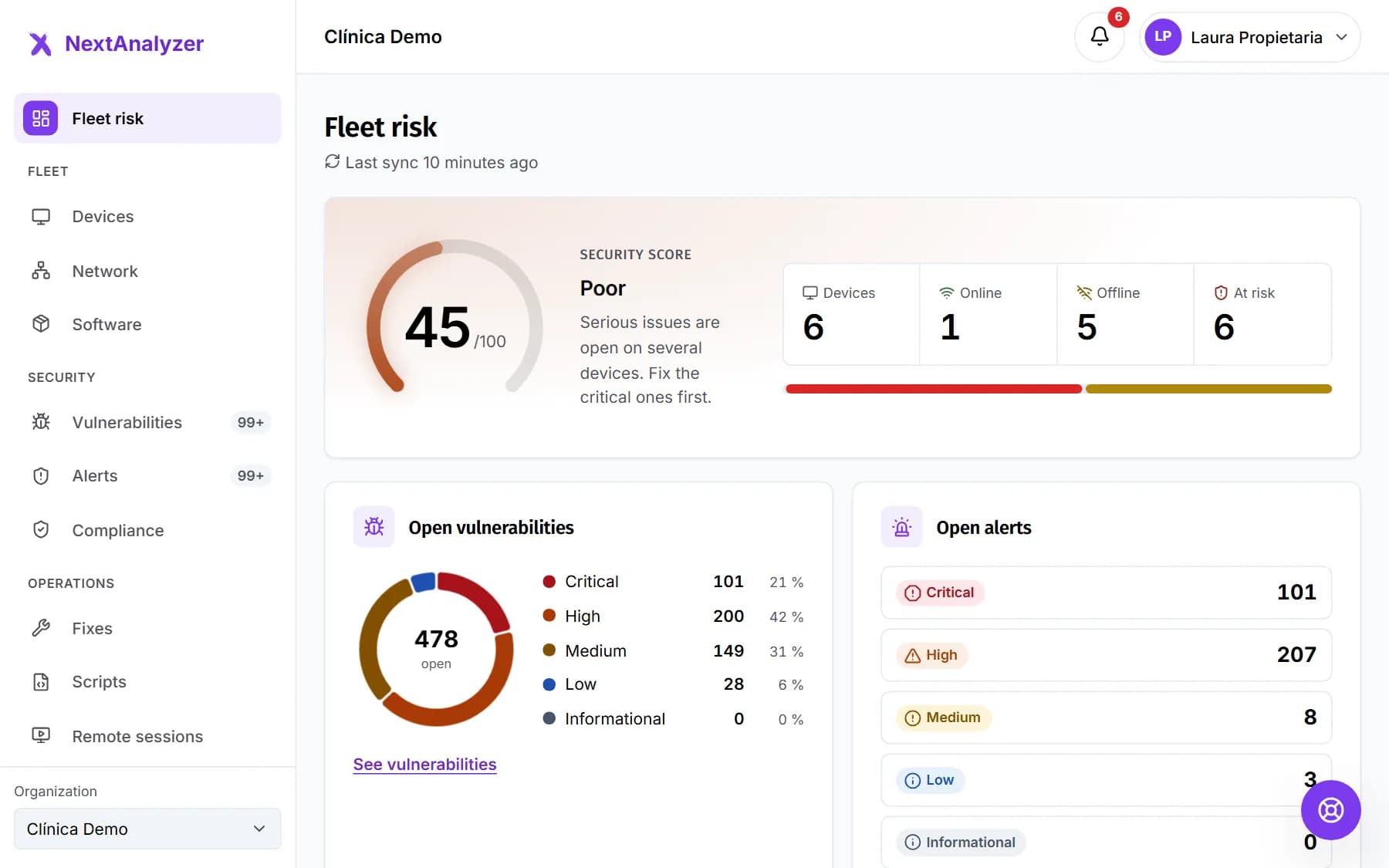
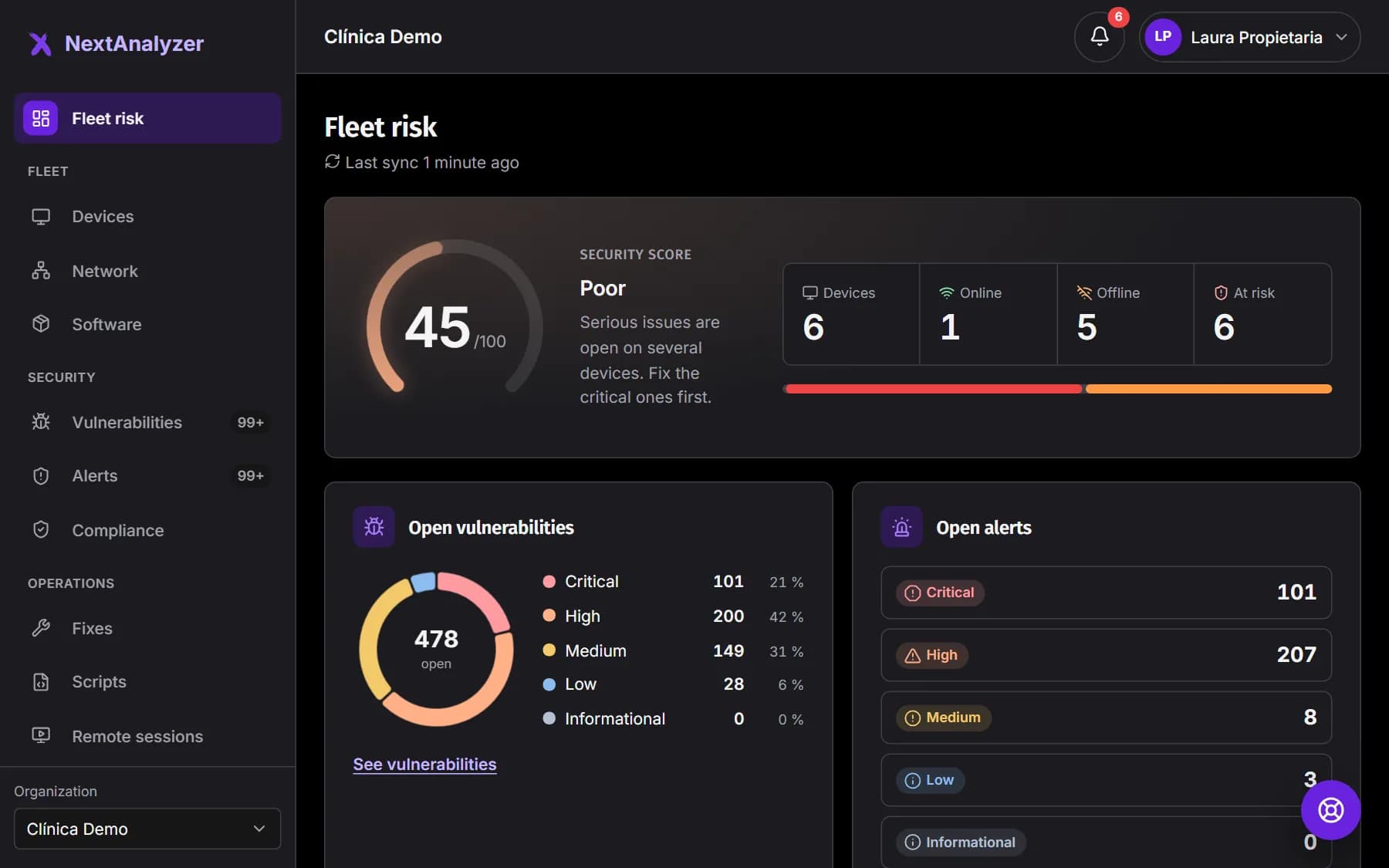
On “Fleet risk” (the home page) or in “Vulnerabilities”, find the “What to fix this week” card. Press “Generate with AI” and confirm with “Create”.
Expected result: While it says “Analysing…”, wait less than a minute. Then you see up to five actions with their impact, effort and affected devices.
Tip: Each action has a direct link: “View and fix”, “Open the device”, “Run a script” or “Manage software”.
Explain a CVE for management and for the technician
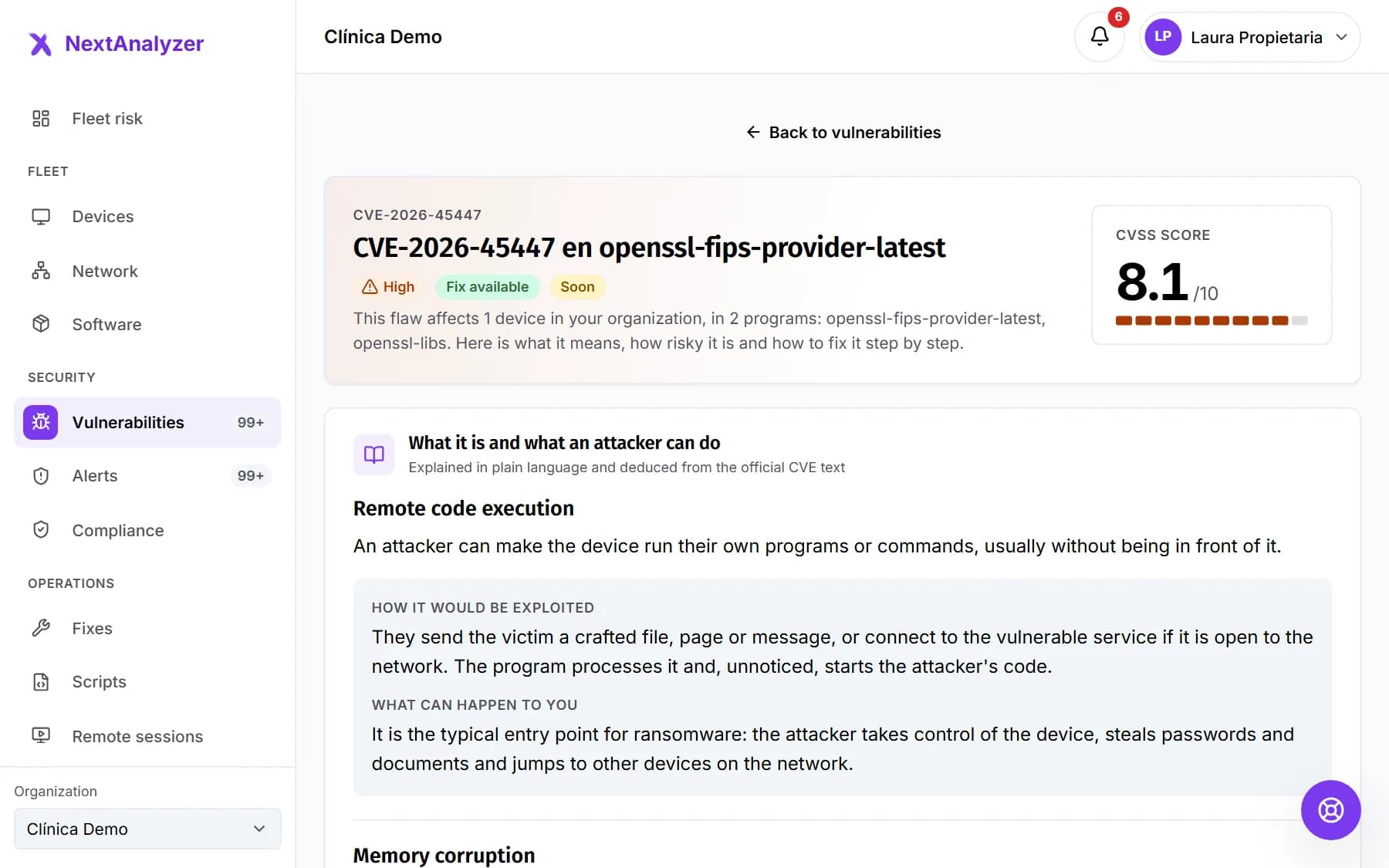
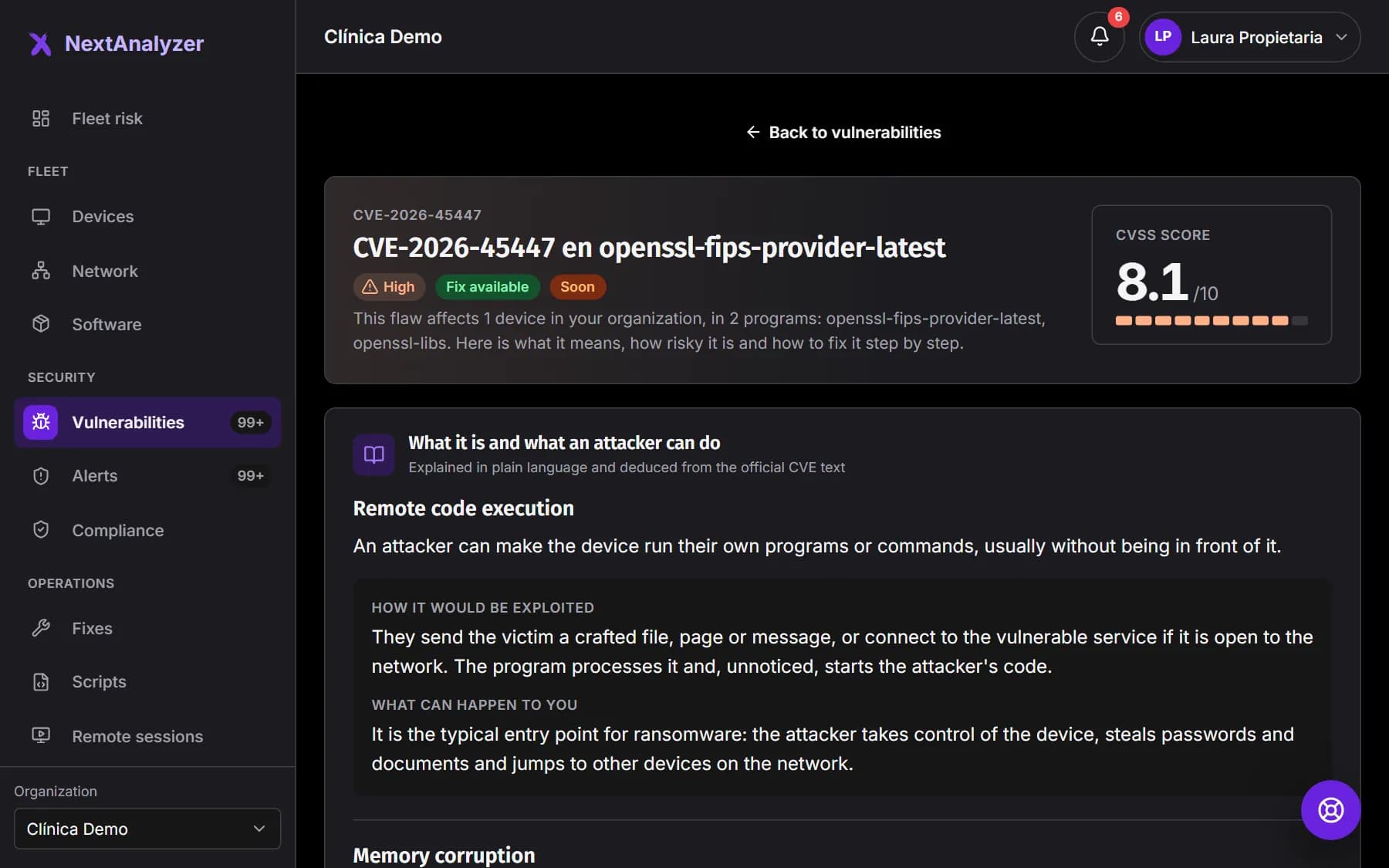
On a CVE page, the “Plain-language explanation” card has “Generate with AI”. It has two versions: “For management”, without jargon, and “For the technician”, with “Steps to fix it”.
Expected result: You see the “Real risk in your fleet” and “Why this risk level”: it goes up if exploited or exposed and down if few devices are affected.
Analyze a device
On the device page, open the “AI analysis” tab in the Security block. Press “Generate with AI” and confirm. From the device summary you can also use “See this device’s AI analysis”.
Expected result: The analysis appears with its date and the AI label.
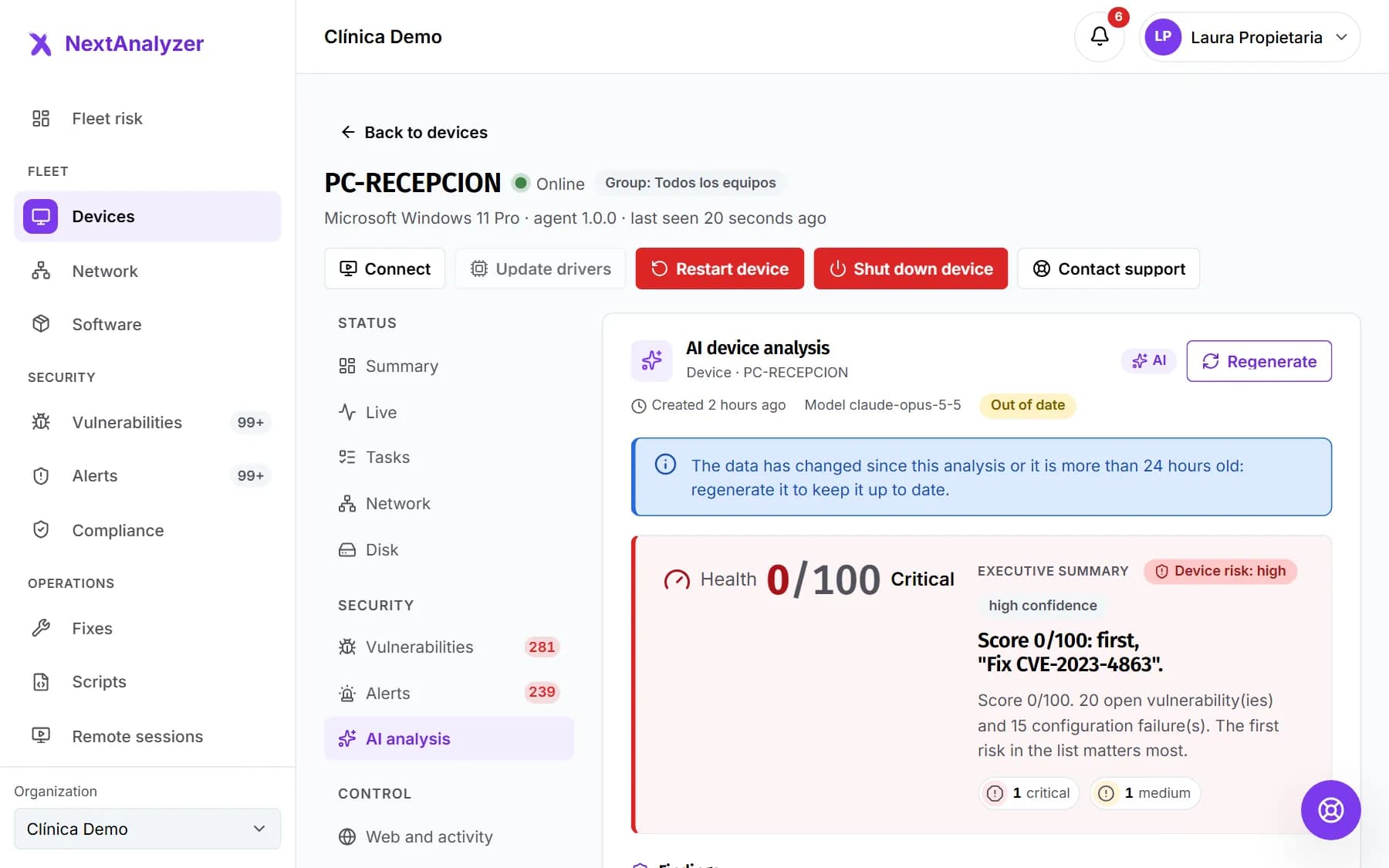
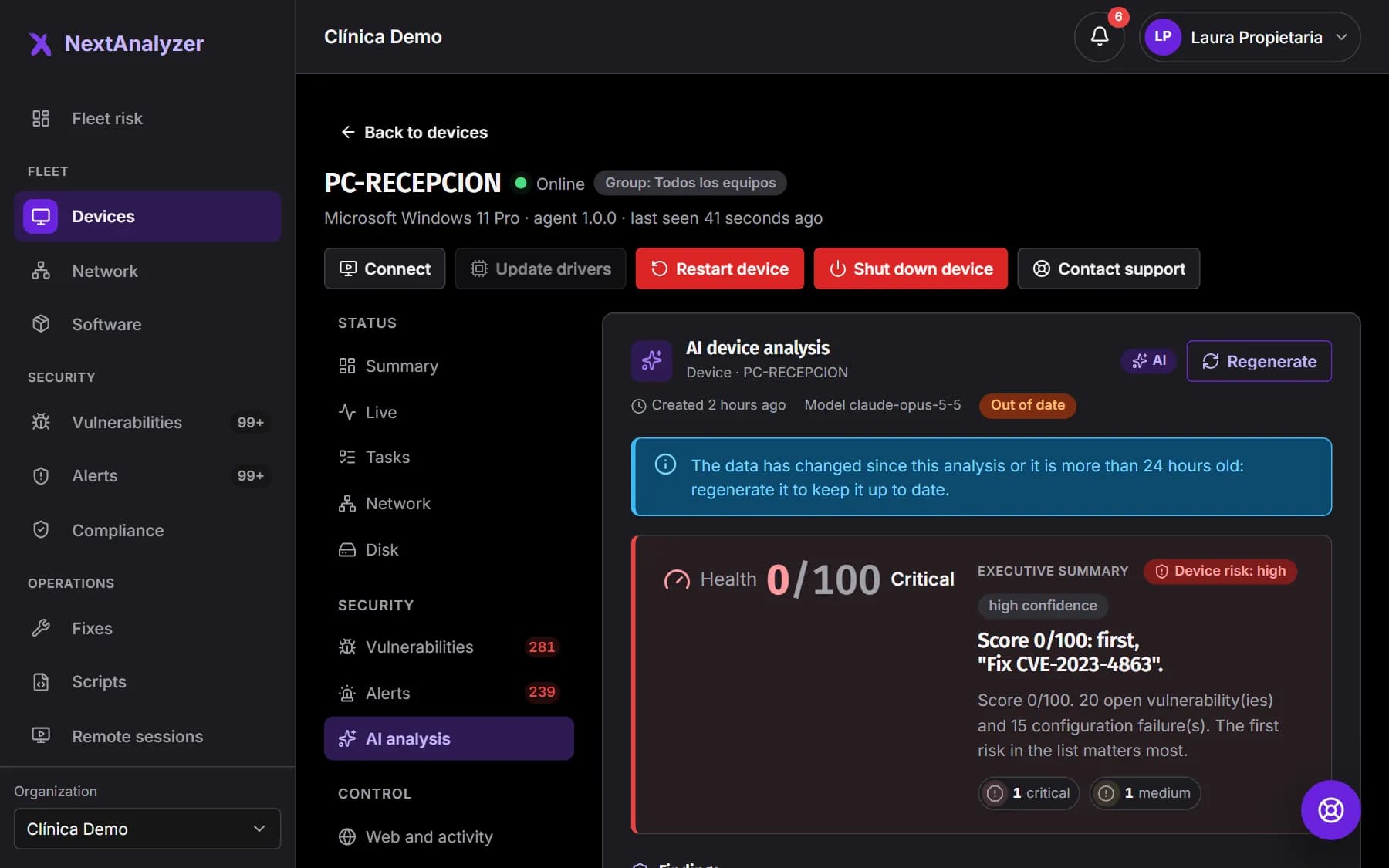
Read the device analysis
Start with the “Executive summary” and the device risk. Then read “Findings”, “Recommendations” in priority order and “Observations”. At the end, “Analysed data and references” shows what it was based on.
Expected result: You know the device’s risks and where to start.
Tip: The health score is calculated by the platform with the same formula as the panel. The AI only explains it; it does not make it up.
Add the executive summary to the report
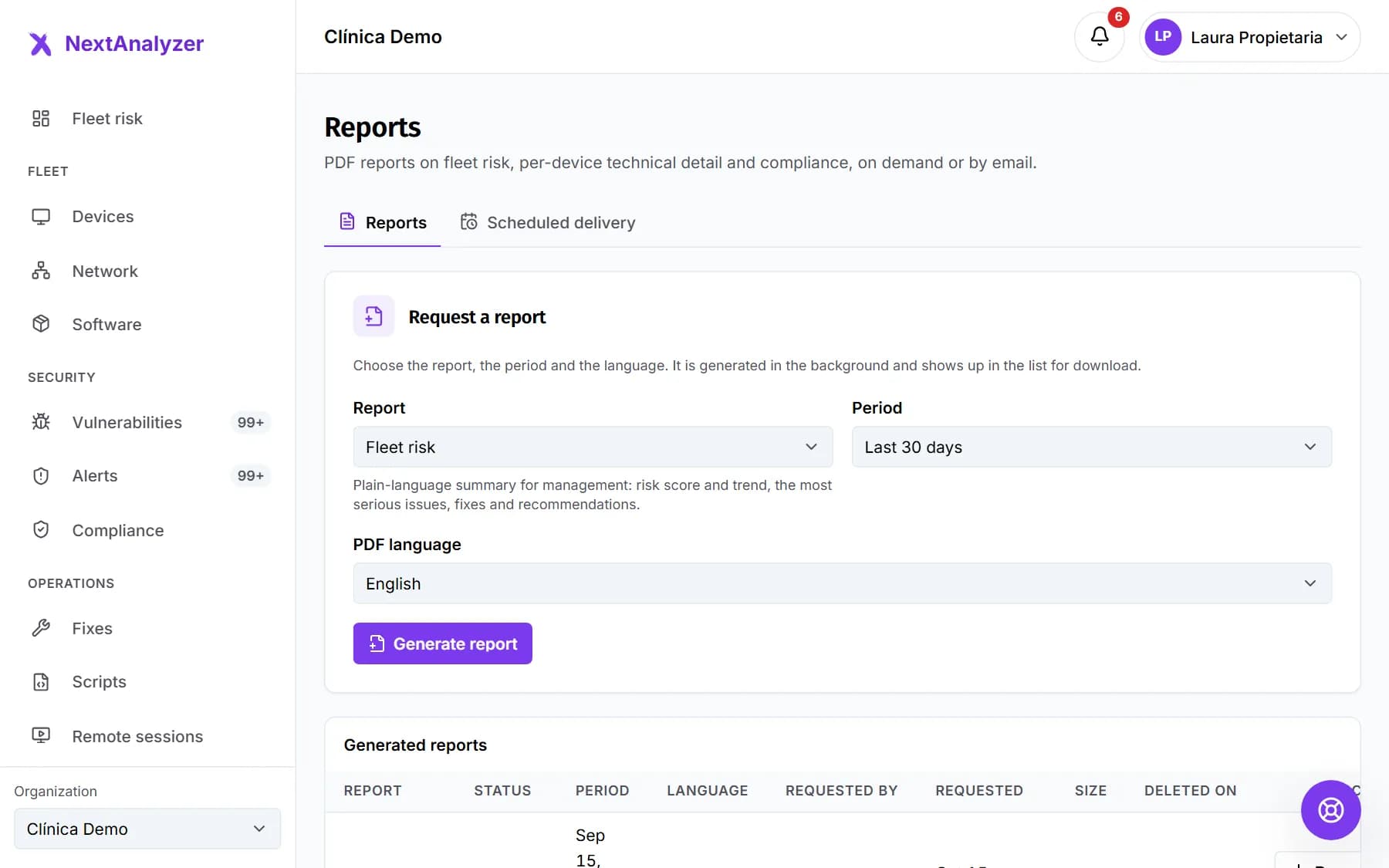
When you generate the “Fleet risk” report in “Reports”, the AI writes the executive summary paragraph for management. It uses one analysis; if the figures do not change, it is reused for free.
Expected result: The PDF includes the paragraph with a note that AI wrote it.
Tip: If no allowance is left or the AI does not respond, the report is still produced with rule-based text.
Keep an eye on your monthly allowance
Each card shows “N of M analyses left this month” and when it renews. The confirmation dialog reminds you that it uses one. If the analysis fails, nothing is used.
Expected result: You know how many analyses you have left before asking for another.
Tip: With no allowance left, the card says “No analyses left this month” and the renewal date. The report then uses rule-based text.
Regenerate when it is out of date
If the data has changed or the analysis is more than 24 hours old, it shows “Out of date”. Press “Regenerate” and confirm: it uses one analysis. Asking again with the same data before it expires is free.
Expected result: The new analysis appears with the current date.
What data goes to the AI, and review what it produces
Only minimized data goes: an alias instead of the device name, no user names, no public IPs, MACs, URLs or emails. Activity history, system accounts and the program list are never sent.
Expected result: Everything generated carries “Produced with AI from minimised data: review it before acting.”
Tip: Check each suggestion before applying it. The AI can be wrong.
Get a weekly summary by email
On Business and Enterprise, each person can turn on a weekly email summary with the week’s priorities in My account, “My alerts” tab. It is optional and personal.
Expected result: Every week you get an email with the most important things to fix.
Tip: This option is just arriving in the panel. If you do not see it yet, it will appear in an upcoming version.
Ask for an AI-drafted fix
If a CVE has no fix in the catalog, its page offers to draft one with AI. It suggests steps for the operating system of the affected devices.
Expected result: The steps are labeled as AI-generated.
Tip: Review them and test them on one device before applying them to the rest. This option is just arriving in the panel.
If something goes wrong
It will not let me generate more analyses
You have used this month’s allowance: 10 on Standard, 100 on Business and 500 on Enterprise. The card shows the renewal date. If you need more, upgrade your plan in Billing.
The analysis says “Out of date”
The data has changed since the analysis or it is more than 24 hours old. It is still useful as a reference. Press “Regenerate” if you want it current; it uses one analysis.
I do not see the “Generate with AI” button
If it says “Only technicians and administrators can request analyses”, your role is read-only: ask a technician to generate it and you will see it too.
It says “The analysis could not be completed” or “AI analysis is not available”
The AI did not respond or its answer was not valid. No allowance was used. Try again in a few minutes. If it keeps failing, open a ticket in Support.
The analysis shows my devices’ real names. Were they sent to the AI?
No. The AI receives an alias such as device-xxxxxx. The platform swaps it for the real name only when showing it to you in the panel.
Still not working? Open a support ticket