
Create PDF reports and schedule them by email
Reports sum up in a PDF what you see in the dashboard, with a cover, contents, executive summary and charts. They are for management, your technical team or an auditor. Request them whenever you like or schedule their delivery.
Request a report
In the menu, Organization › “Reports”, “Reports” tab. In “Request a report”, choose the type. “Fleet risk” is for management, in plain language. “Technical detail” has one sheet per device. “Compliance” maps your data to NIS2, ENS and ISO 27001.
Expected result: The form shows an explanation of each report type.
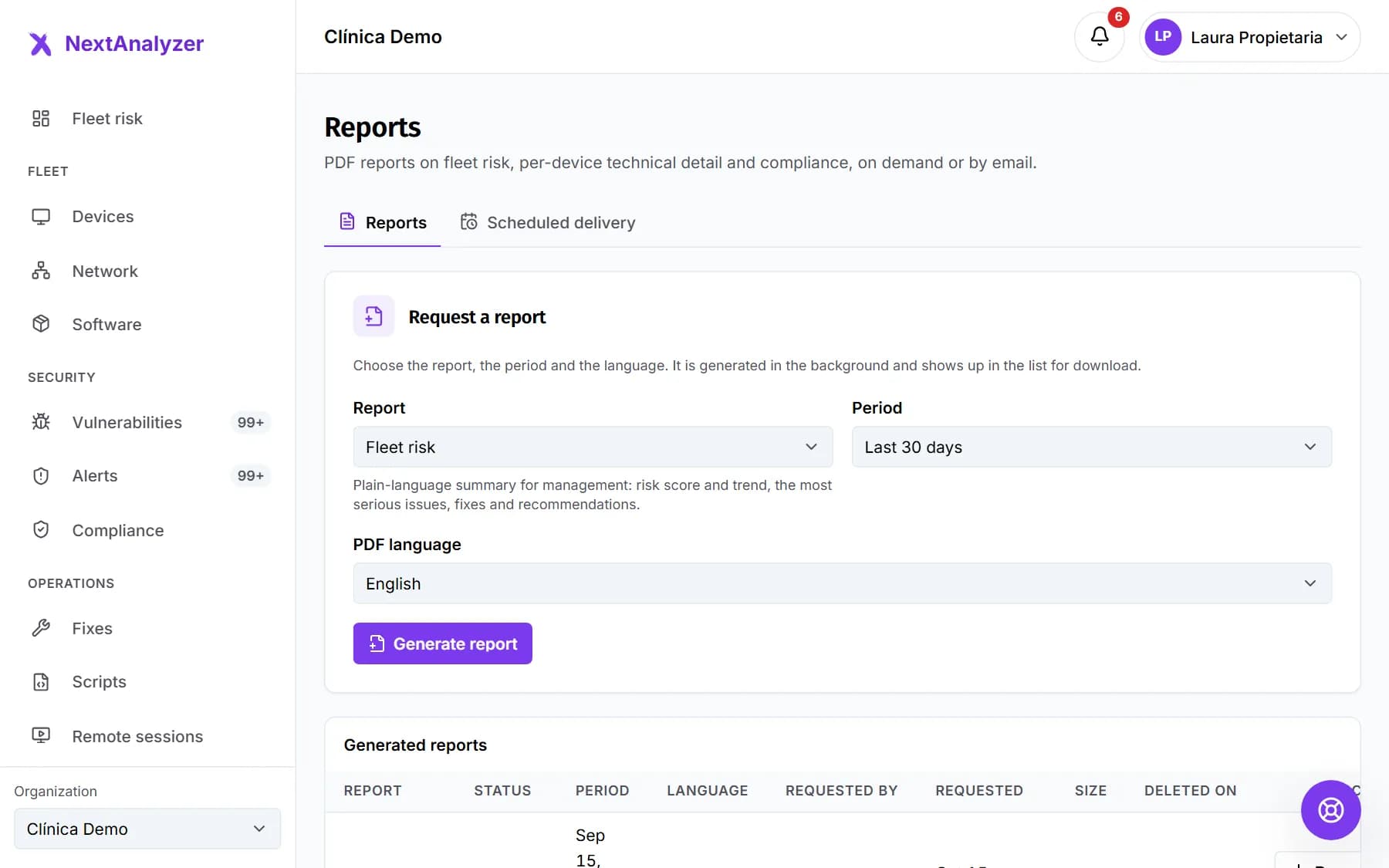
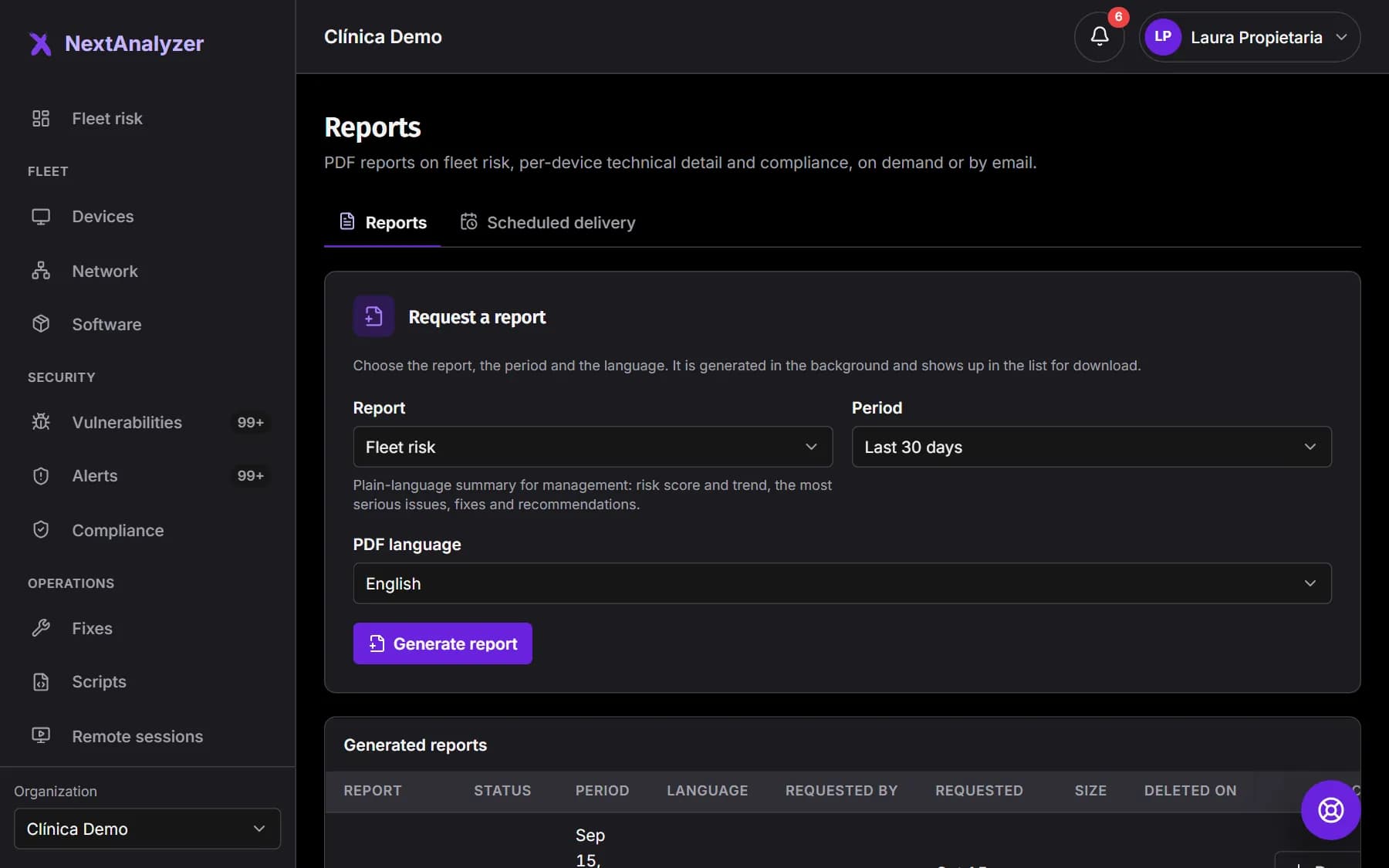
Choose period, language and devices
Under the period, choose the last 7, 30 or 90 days, the “Previous month” or custom dates (up to one year). Choose the “PDF language”. Turn on “Only some devices” if you don't want all of them. Click “Generate report”.
Expected result: A message says the report was requested and will be ready in a few seconds.
Download it
In “Generated reports”, the report changes from “Generating” to “Ready” in the background. The list updates on its own. Click “Download”.
Expected result: You have the PDF. It is deleted after 90 days; the list shows the date.
Schedule a delivery
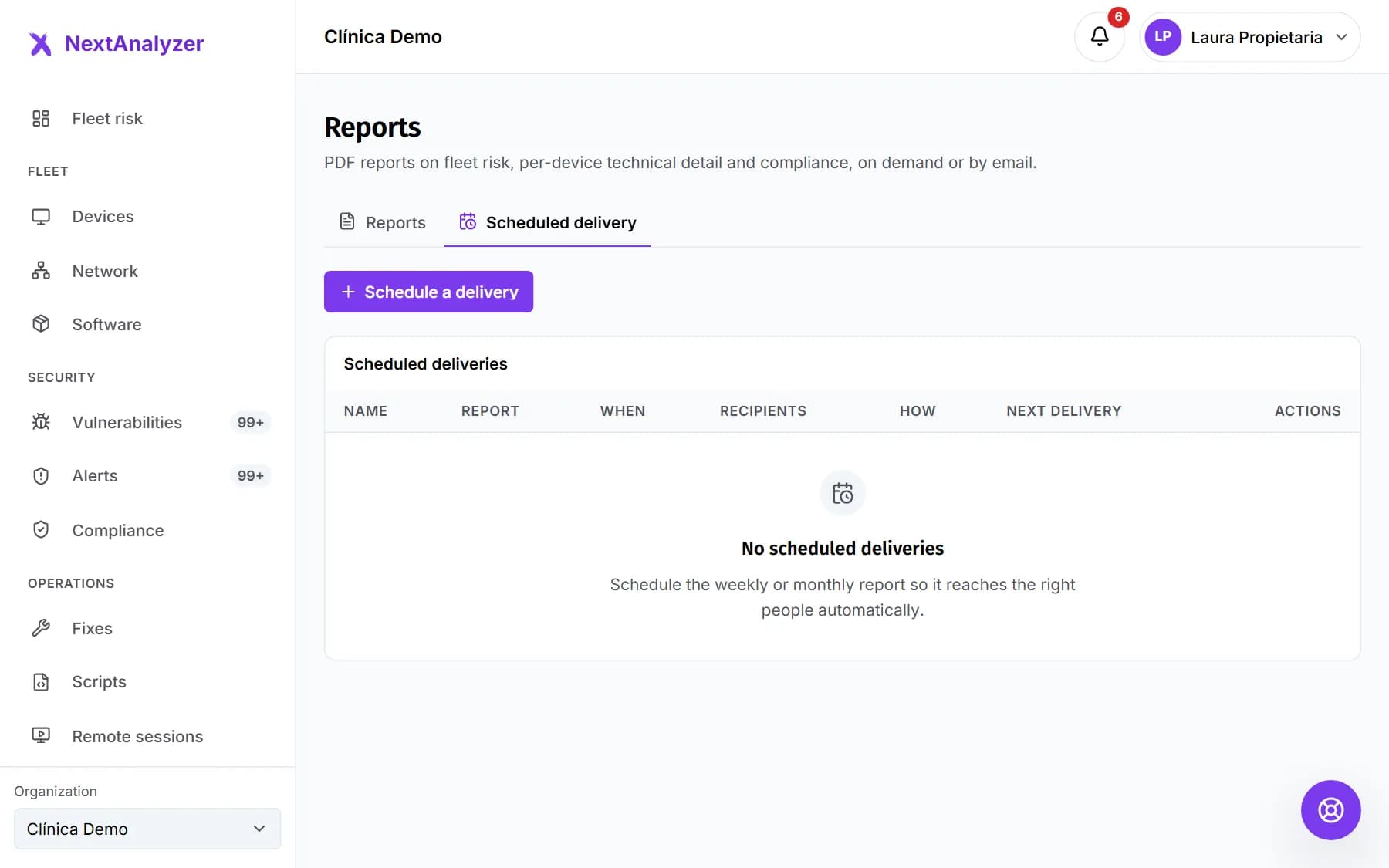
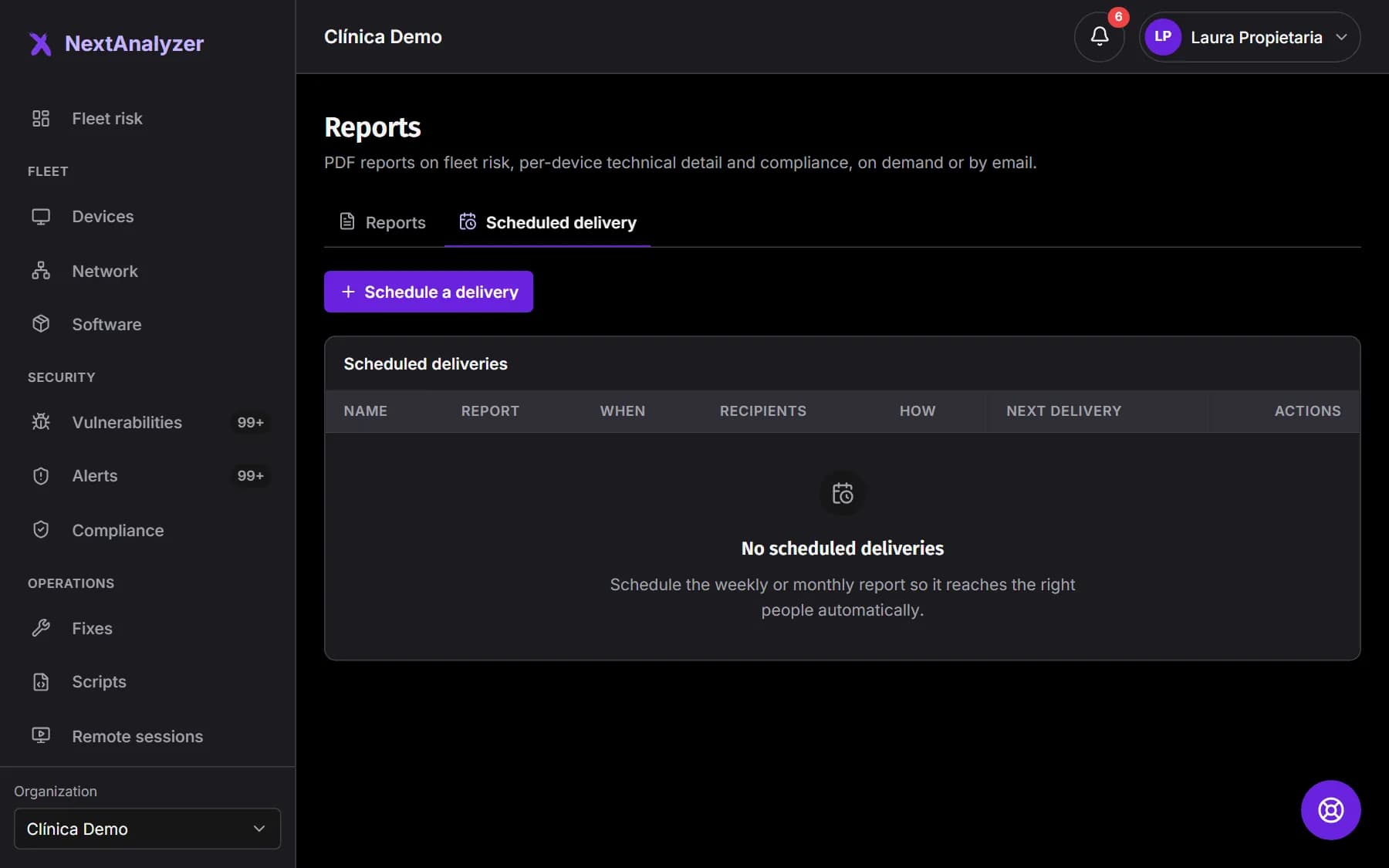
In the “Scheduled delivery” tab, click “Schedule a delivery”. Give it a name and choose the report. Choose weekly (with the day) or monthly (day 1 to 28), the time and the “Time zone”.
Expected result: The dialog shows when each delivery will go out.
Tip: Search the zone by city, region or offset: “Madrid”, “Europe” or “UTC+01:00”. Daylight saving time is applied.
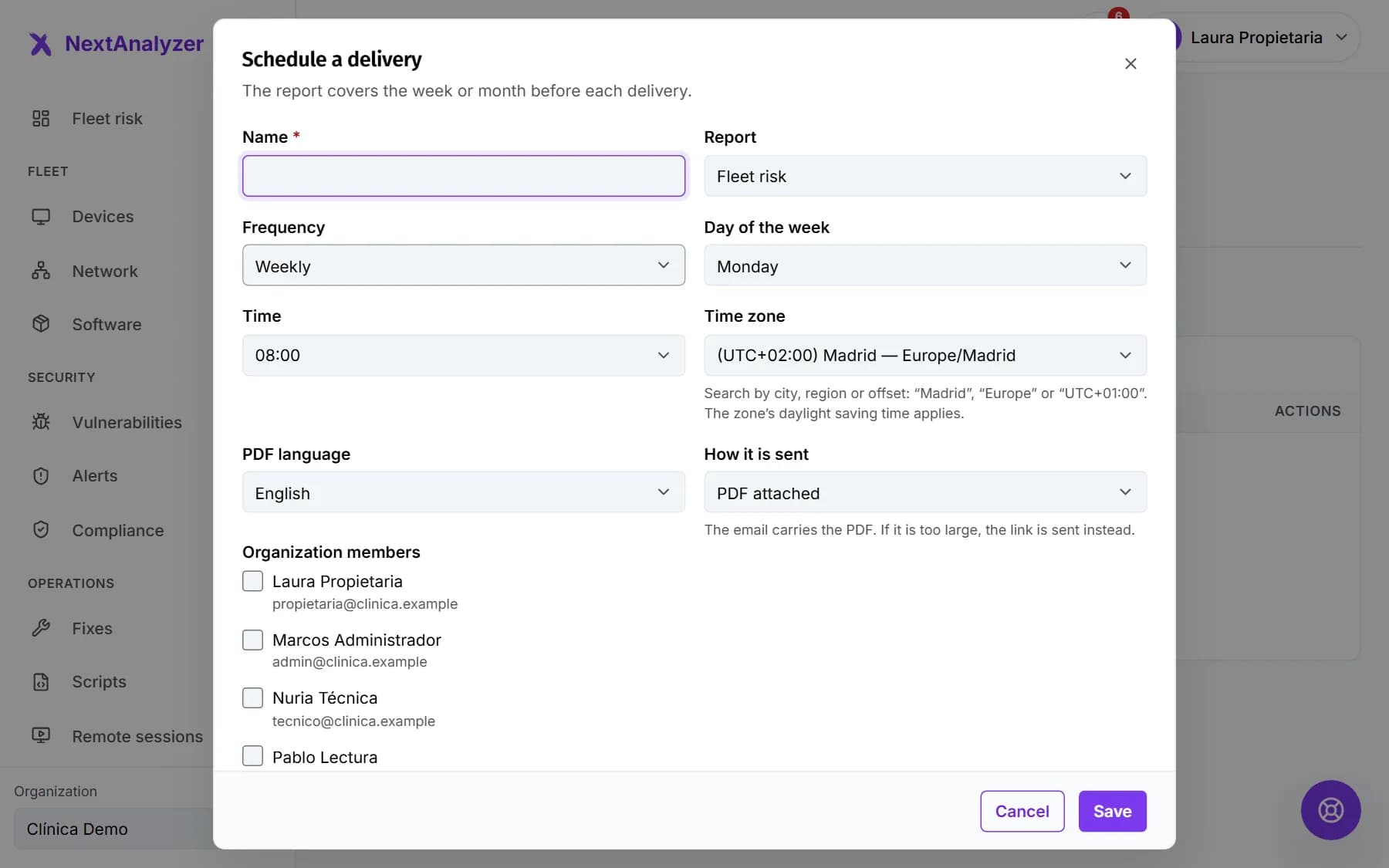
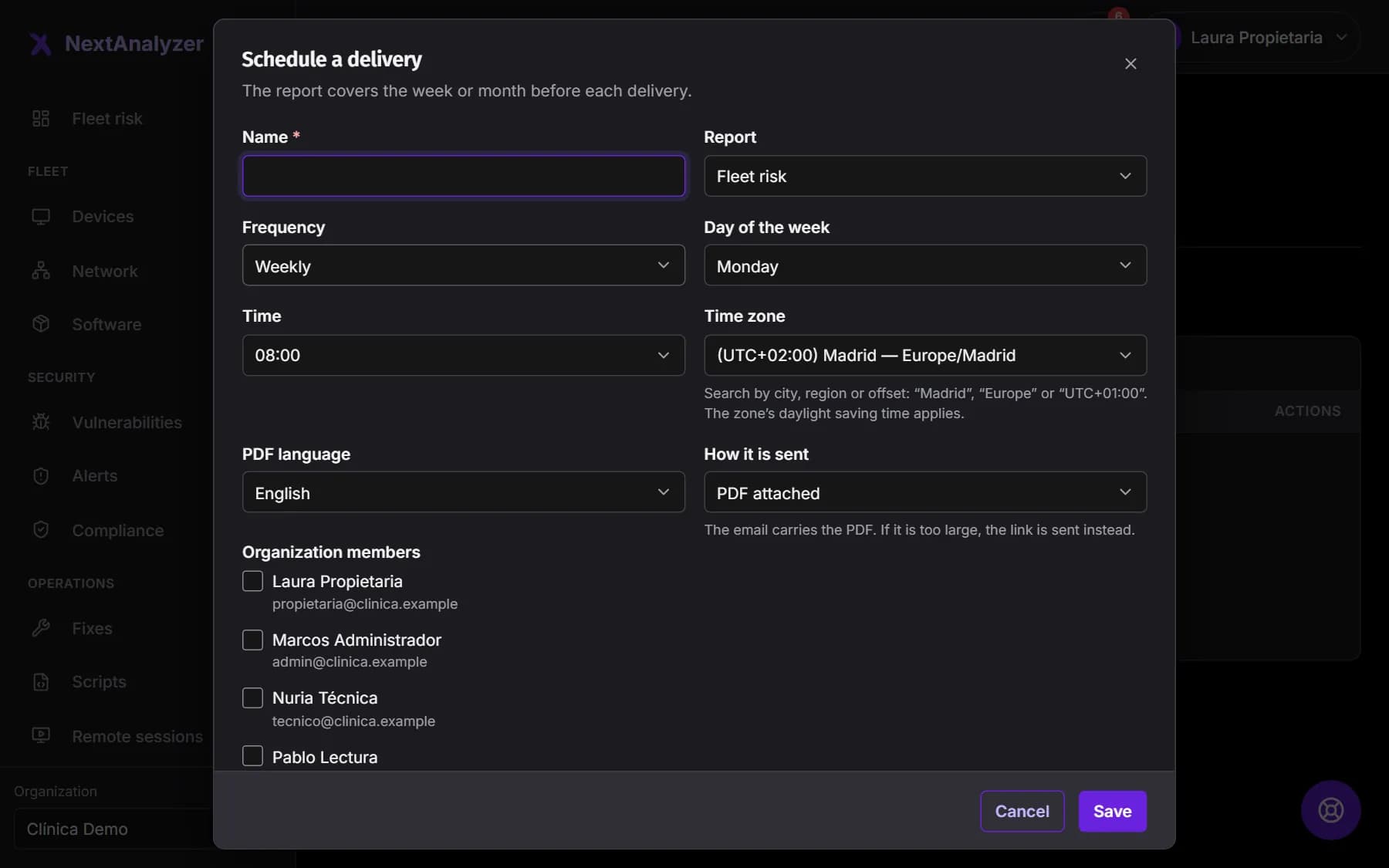
Choose how it is sent
Choose “PDF attached” or “Download link”. The link expires after 72 hours. If the PDF is too large, the link is sent instead.
Expected result: Each delivery covers the previous week or month.
Choose the recipients
Tick “Organization members” and type outside addresses in “Other email addresses”, pressing Enter after each one. Click “Save”.
Expected result: The delivery is saved. Outside addresses first get a message to confirm.
Tip: Up to 20 recipients per delivery. Anyone can unsubscribe from the email itself.
Manage deliveries
The list shows when each delivery goes out, to whom, how, and the next delivery. You can pause it, “Edit the delivery” or “Delete the delivery”.
Expected result: A paused delivery shows as “Paused” and isn't sent until you turn it back on.
If something goes wrong
The report stays on “Generating” or shows “Failed”
It is generated in the background and takes a bit longer with many devices. Wait a few minutes: the list updates on its own. If it shows “Failed”, delete it and request it again.
An outside recipient doesn't get the report
Outside addresses show as “Awaiting confirmation” until they confirm. Ask them to look for the confirmation email, including spam. If they unsubscribed, it shows that too.
The email link says it is invalid or expired
The download link lasts 72 hours. Ask an administrator to download it from Reports, or change the delivery to “PDF attached”.
I can't choose the “Compliance” report
It shows as not included in your plan. It is in the Business and Enterprise plans. “Fleet risk” and “Technical detail” are in all plans.
It won't let me schedule more deliveries or add more addresses
You can have up to 10 scheduled deliveries and 20 recipients per delivery. Delete the ones you don't use or group recipients.
Still not working? Open a support ticket